Deliver work

Analyze stock movements

In ZigaflowMomentum plan

The short answer

To analyze stock movements in Zigaflow, click the logs button and then click "Stock Log". Use the filter on the left to select the period you want to investigate. You can then export the results to a spreadsheet with the button on the right for further analysis.

Steps

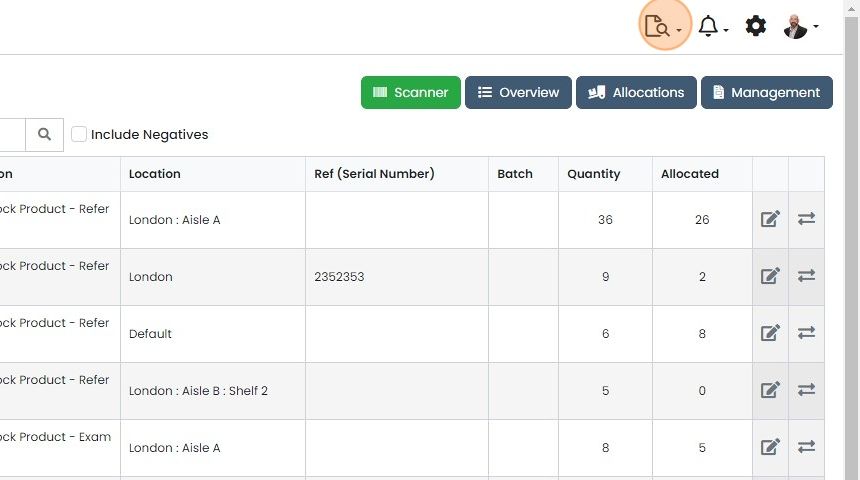
  1. Click on the logs button

    Stock list with Location and Quantity columns, with the logs icon highlighted in the top toolbar beside the notifications bell
  2. Click "Stock Log"

    Settings menu with the Logs & Exports submenu open over the stock list, highlighting the Stock Log option
  3. Use the filter on the left to select the period to investigate

    Export to spreadsheet with the button on the right.

    Learn more: stock management in Zigaflow

    Stock Log window with the Last 30 Days date filter and the export button next to Search Filter highlighted

Frequently asked questions

Next step

Exports of stock/inventoryMomentum planYou can export stock and inventory data from Zigaflow in two places. Click the Logs icon in the top right for the Stock Log and Stock Valuations. Or go to Stock, then Overview, and click Export to choose a report such as Changes Summary, Log, or Quantities by Location.

Was this helpful?

See Zigaflow on your own workflow

Book a demo and we will walk through quoting, jobs and purchasing the way your team runs them.

Or see how Zigaflow would fit your business, free