Deliver work

Reserving stock/inventory

In ZigaflowMomentum plan

The short answer

To reserve stock in Zigaflow when none is free, open the item on a job/sales order or works order, click Allocate, enter the quantity, and click Reserve. This lets you reserve items from purchase orders. When the stock arrives, you must move it from Reserved to Allocated yourself.

Steps

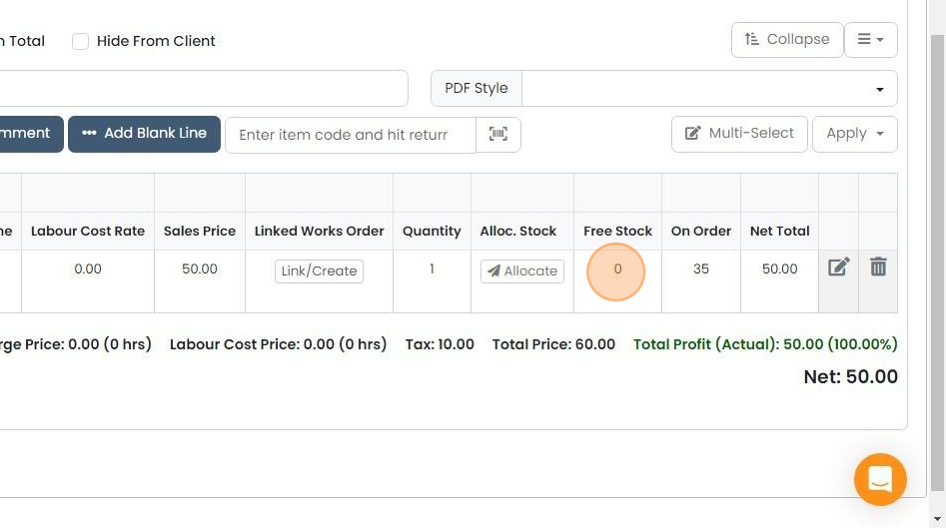
  1. There is no free stock

    Line item table with the Free Stock column value of 0 highlighted, showing no free stock available to allocate
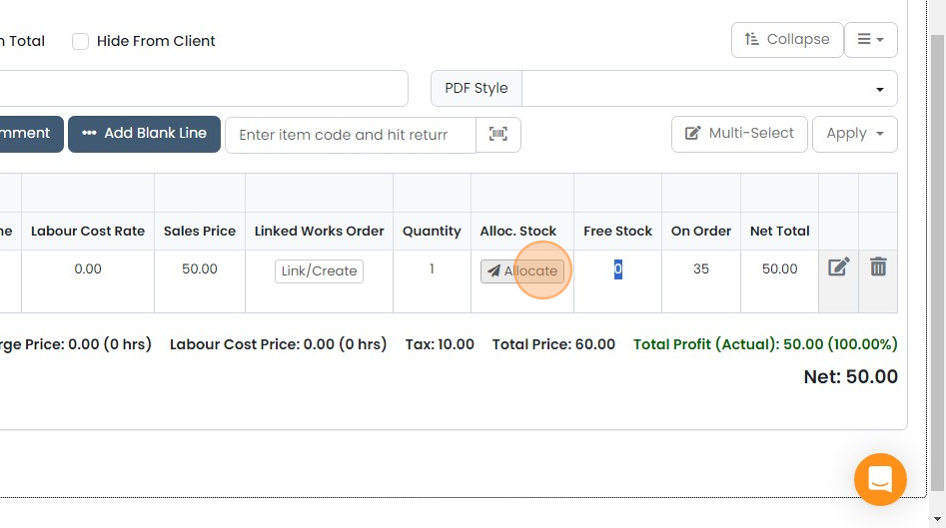
  2. Click on "Allocate"

    Line items table with the Allocate button highlighted in the Alloc. Stock column, beside Free Stock 0 and On Order 35
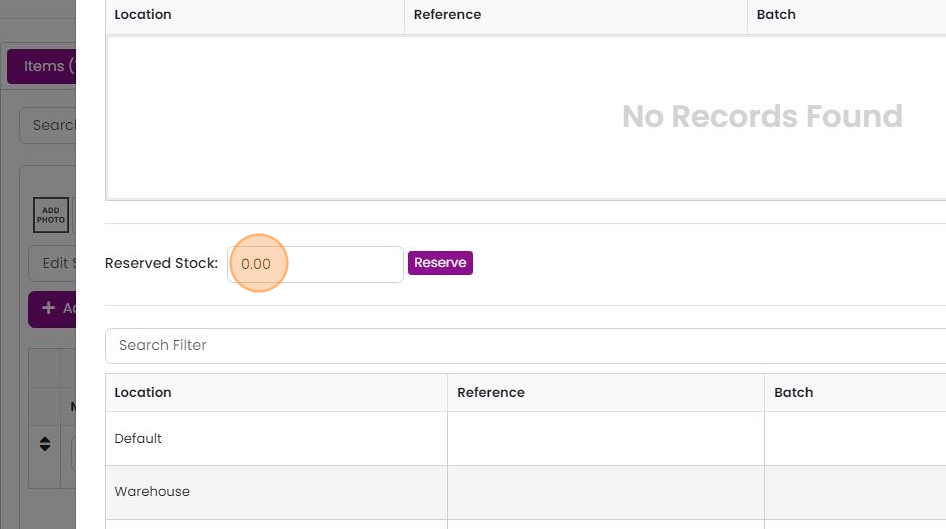
  3. Enter the quantity to reserve

    Reserve stock panel with the Reserved Stock field (0.00) highlighted next to the Reserve button, above a stock location list
  4. Enter the quantity and click "Reserve"
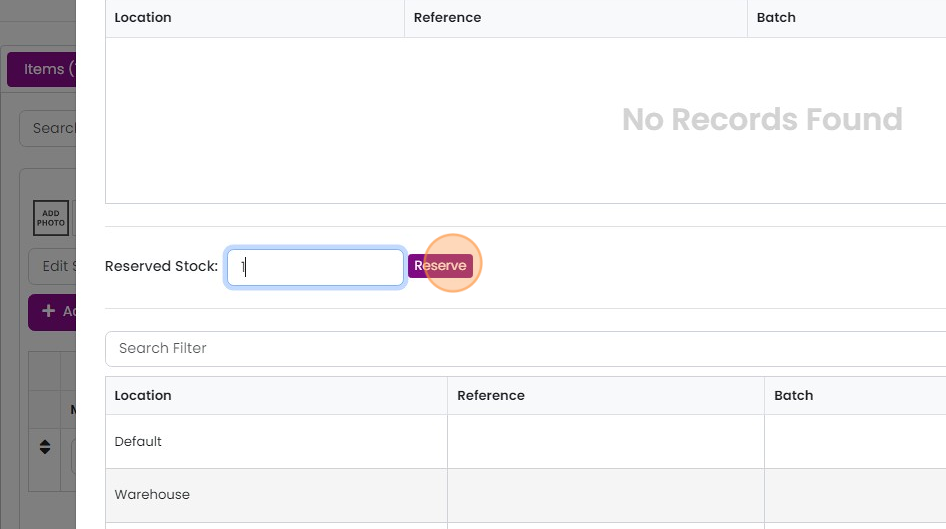
    Reserve stock panel with 1 entered in the Reserved Stock field and the Reserve button highlighted, above a location list
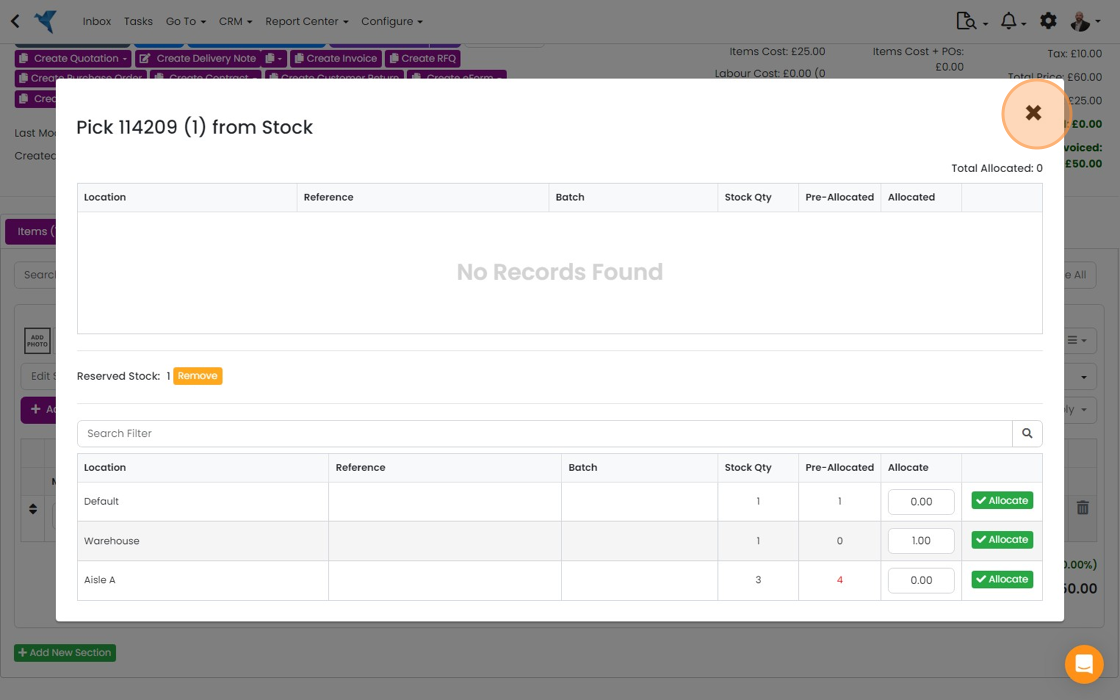
  5. Click "×"

    Pick from Stock dialog showing allocated and available stock locations, with the × close button highlighted top right
  6. The number reserved is shown here

    The number reserved is shown here. It is possible to part allocate and part reserve (i.e. the quantity is 10, there are 3 in stock, so you would allocate 3 and reserve 7)

    View reservations
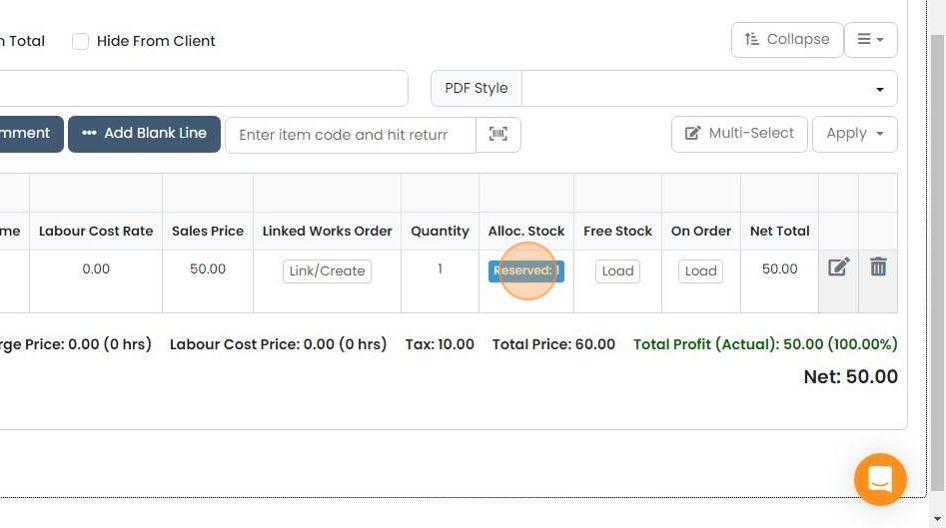
    Line items table with the Reserved: 1 badge highlighted in the Alloc. Stock column, beside Free Stock and On Order
  7. View reservations at Go To -> Stock -> Stock Overview
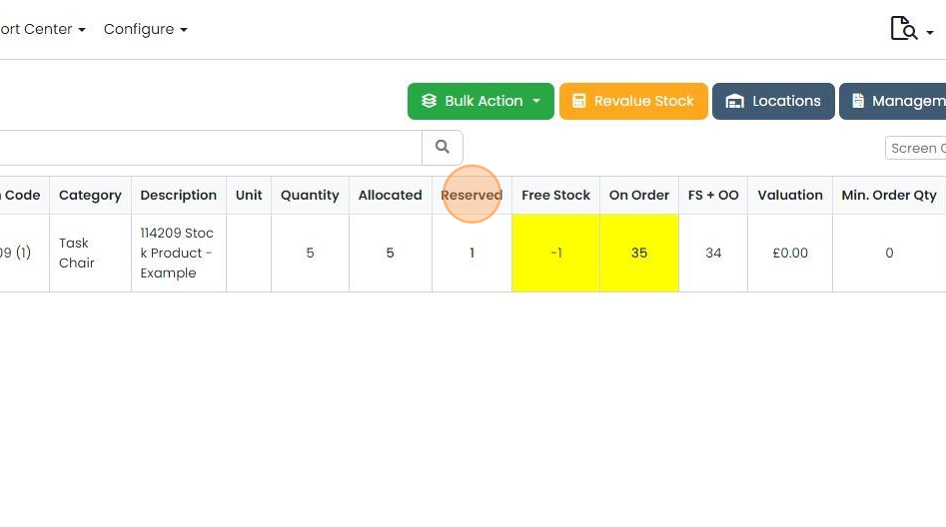
    Stock Overview table with the Reserved column header highlighted, showing 1 unit reserved for a Task Chair product
  8. Click on the reserved quantity to see the Jobs/Sales Orders or Works Orders pop-up
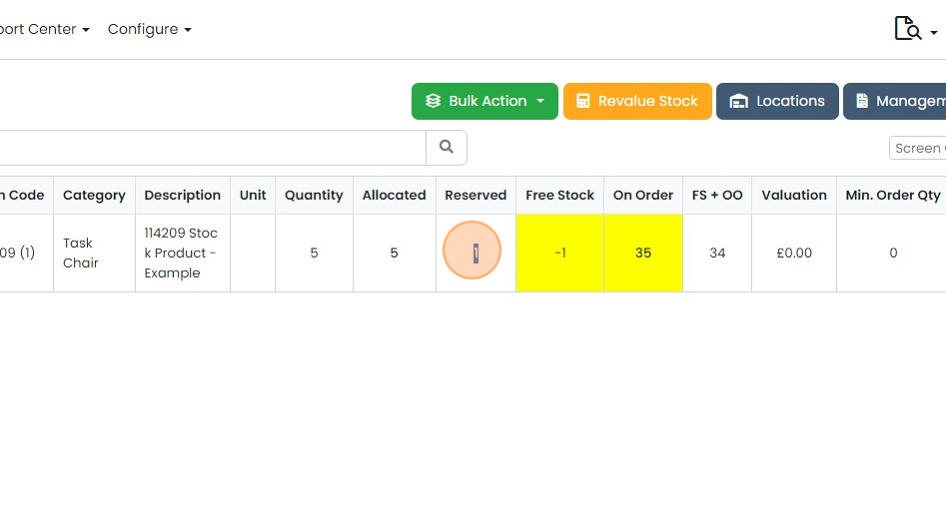
    Stock list row with the Reserved quantity of 1 highlighted, next to Free Stock -1 and On Order 35 shaded yellow
  9. Click on the Job/Sales Order or Works Order

    Move reserved stock to allocated
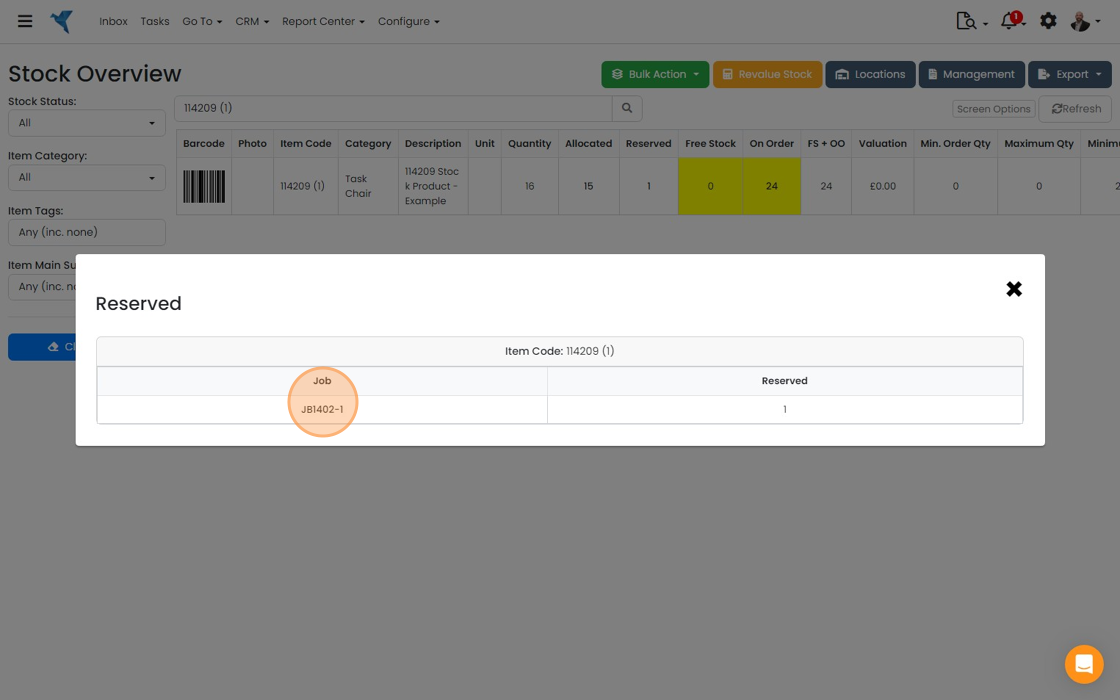
    Reserved pop-up on Stock Overview listing jobs holding stock for an item, with the job number in the Job column highlighted
  10. On that item, click on the "Reserved" button
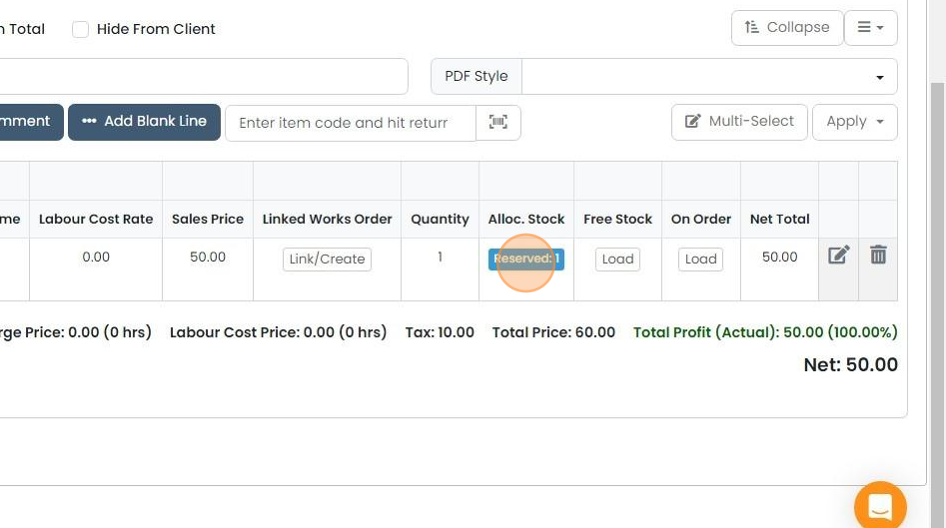
    Line items table with the Reserved: 1 button highlighted in the Alloc. Stock column next to Free Stock and On Order
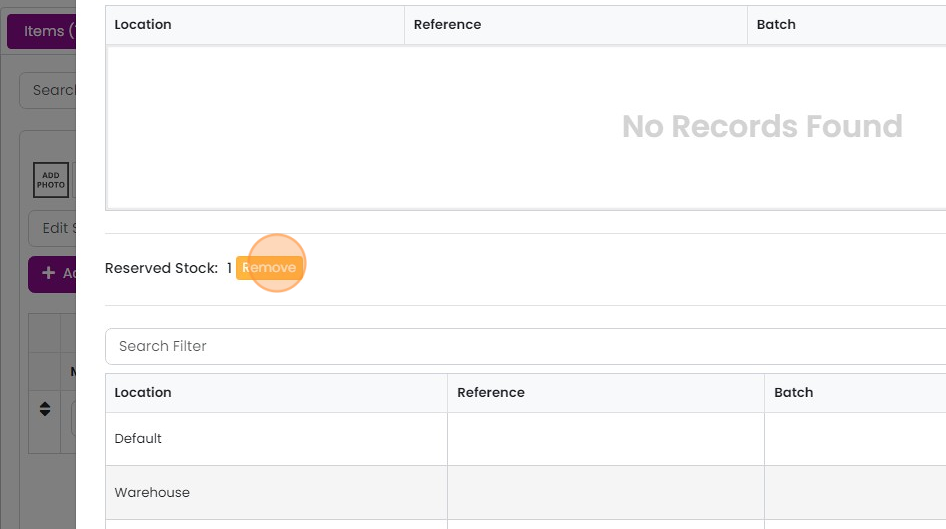
  11. Click "Remove"

    Stock allocation panel showing Reserved Stock: 1 with the Remove button highlighted, above a Location table listing Warehouse
  12. Allocate the previously reserved quantity
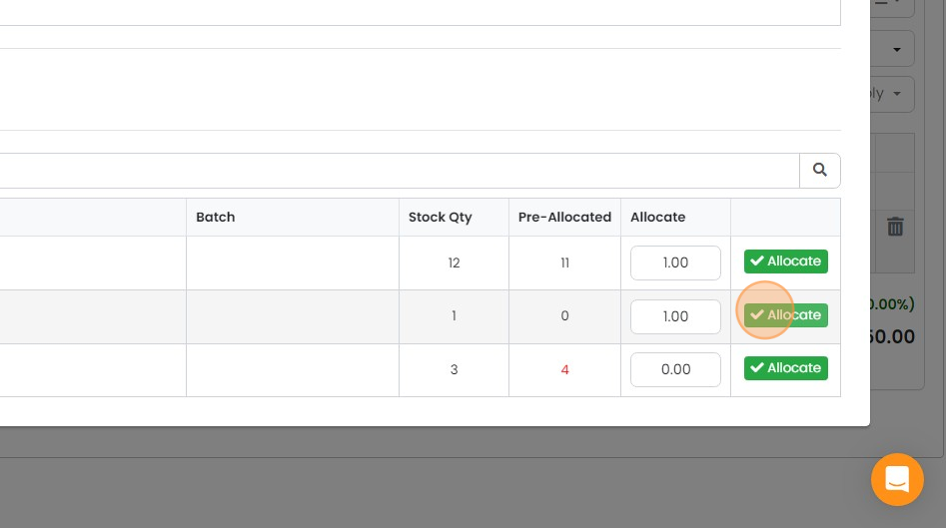
    Stock allocation table with Batch, Stock Qty, Pre-Allocated and Allocate columns, highlighting the second row's Allocate button
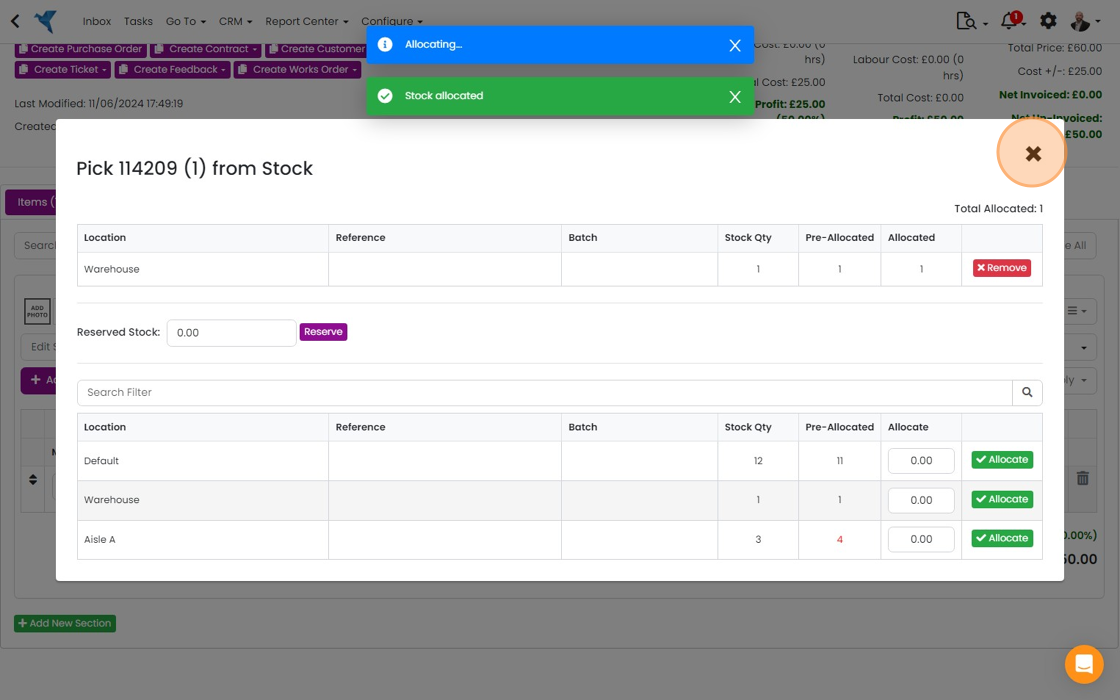
  13. Click "×"

    Pick from Stock window with the close (×) button highlighted top right after the Stock allocated confirmation appears
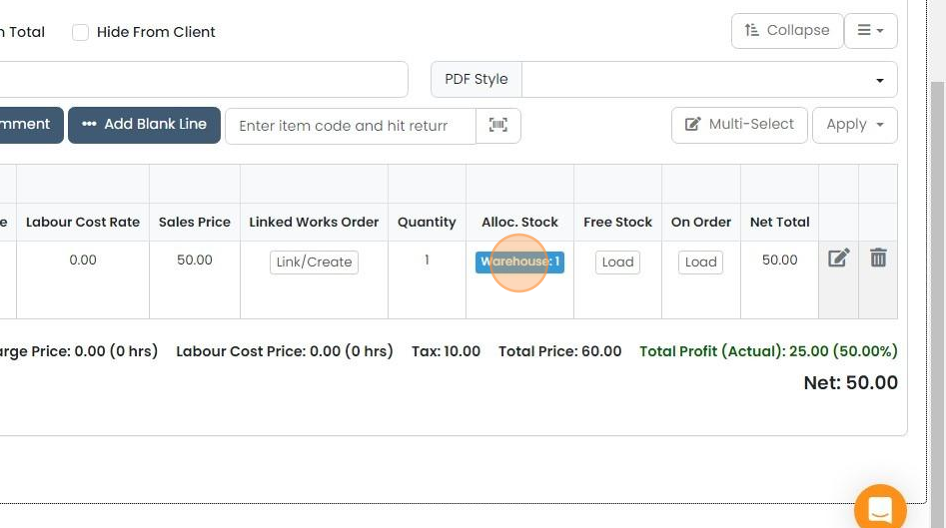
  14. The allocation button shows the location the items are allocated from

    Line items table with the Warehouse: 1 button highlighted in the Alloc. Stock column, showing where stock is allocated from

Use this to reserve items on a Job/Sales Order or Works Order when no stock can be allocated. This effectively allows items to be reserved from purchase orders. Once stock comes in, you need to move from Reserved to Allocated-this is not done automatically.

​

Reserve items with no free stock

Frequently asked questions

Next step

Allocate stock to individual items on a job / sales orderEssentials, Go and Momentum plansIn a job or sales order, click "Load" in the "Free Stock" column, click "Allocate", choose which of your available stock or inventory you want, then click "Allocate" again. Close the panel with "X". If the column is hidden, turn on "Allocated Stock" in "Screen Options".

Was this helpful?

See Zigaflow on your own workflow

Book a demo and we will walk through quoting, jobs and purchasing the way your team runs them.

Or see how Zigaflow would fit your business, free