Deliver work

Creating an automated message to chase a customer's sign-off

In ZigaflowMomentum plan

The short answer

In Zigaflow, go to Prebuilds, then eForms, edit a pre-build and open Automated Messages. Create a new blank message, set the days, the "Sent" trigger status and send time, and tick Recurs. Add the email and optional SMS text with {ReviewLink}. Sending stops once the eForm is approved or rejected.

Steps

  1. Click here

    Zigaflow dashboard with the settings gear icon highlighted in the top-right toolbar, beside the notifications bell
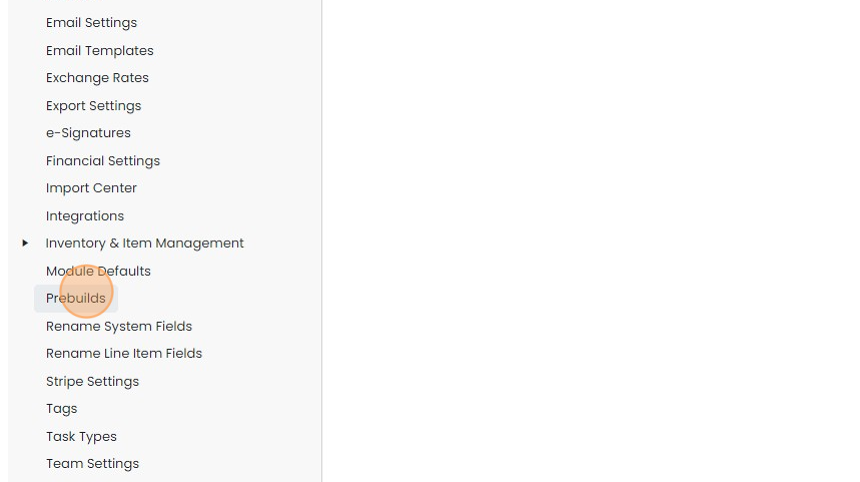
  2. Click "Prebuilds"

    Settings menu list with Prebuilds highlighted by an orange click marker, between Module Defaults and Rename System Fields
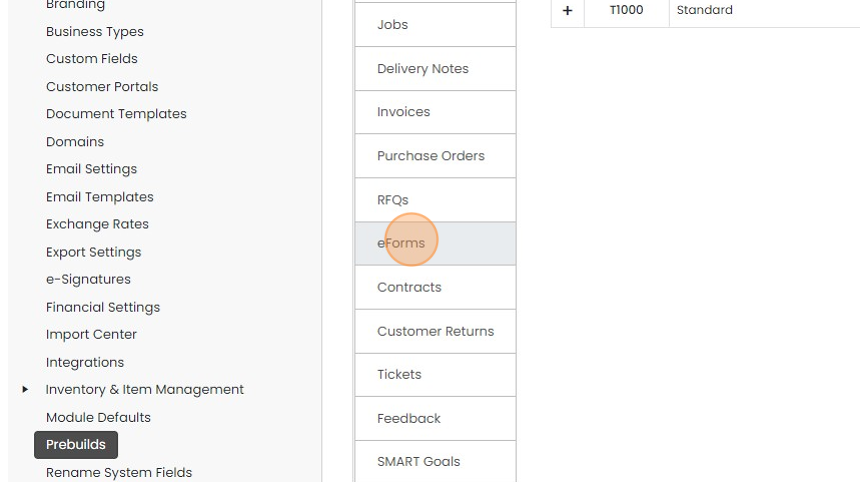
  3. Click "eForms"

    Prebuilds settings page with the eForms tab highlighted in the list of record types, between RFQs and Contracts
  4. Edit a pre-build

    Table of pre-built automated messages with the edit (pencil) icon highlighted on the last row, beside copy and delete icons
  5. Click "Automated Messages"

    Set up the message trigger
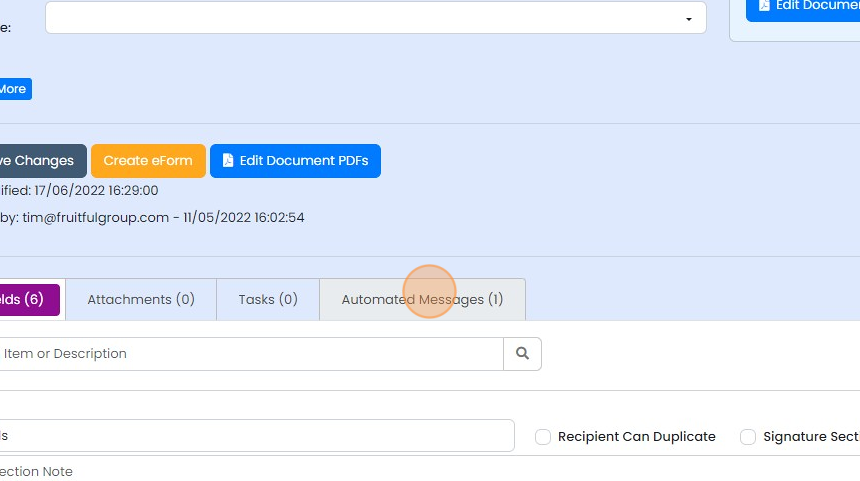
    Document editor with the Automated Messages (1) tab highlighted, next to the Attachments (0) and Tasks (0) tabs
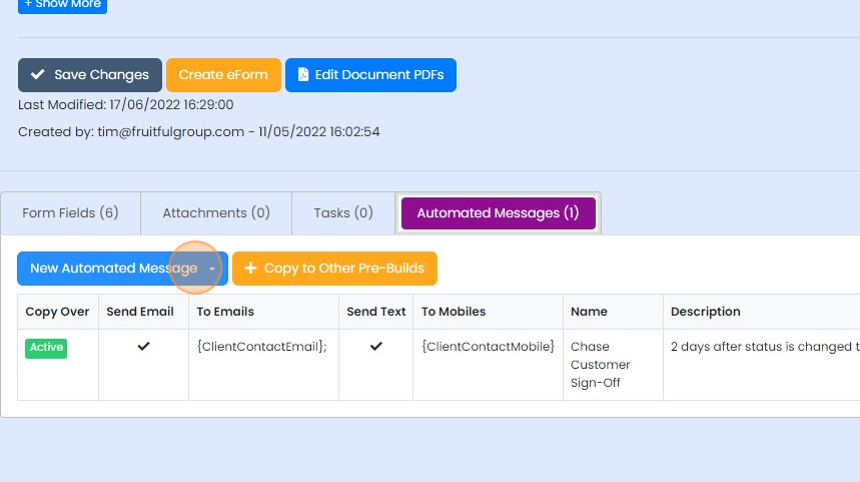
  6. Click "New Automated Message"

    Automated Messages tab with the New Automated Message button highlighted above the list of existing automated messages
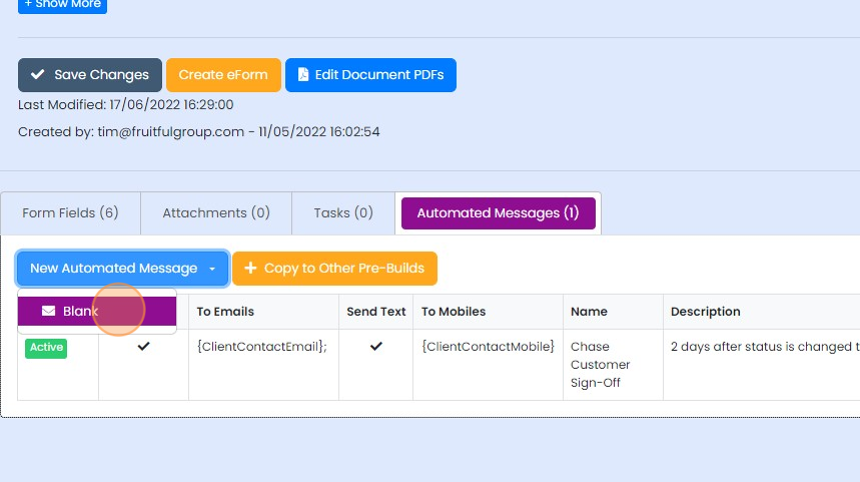
  7. Click "Blank"

    Automated Messages tab with the New Automated Message dropdown open and the Blank option highlighted
  8. Give the message name. This is for internal use only
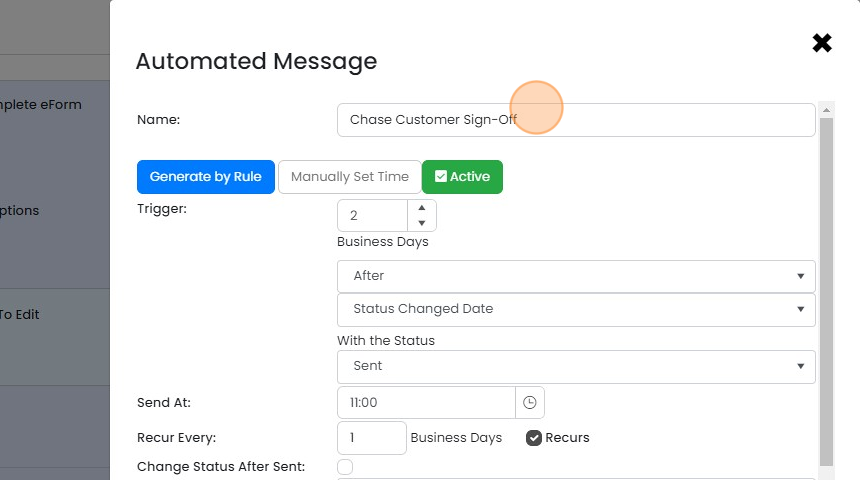
    Automated Message window with the Name field highlighted, filled in with
  9. Set the number of days before it is triggered

    Automated Message panel with the Trigger field highlighted, set to 2 Business Days after Status Changed Date with status Sent
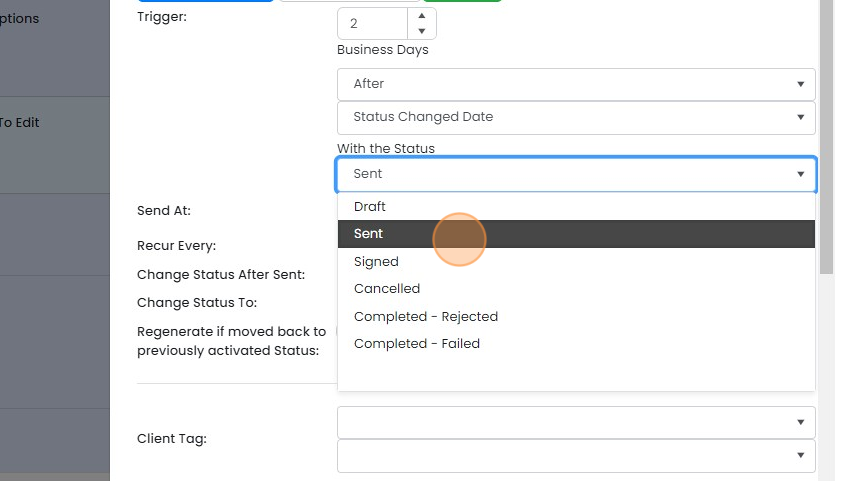
  10. Set the trigger status to "Sent"

    Automated message trigger settings with the With the Status dropdown open and Sent selected, set 2 business days after
  11. Set the time to send

    Automated message rule settings with the Send At time field highlighted, set to 11:00, below the trigger and status options
  12. The chaser email can be sent continuously until the status is changed. Set the number of days
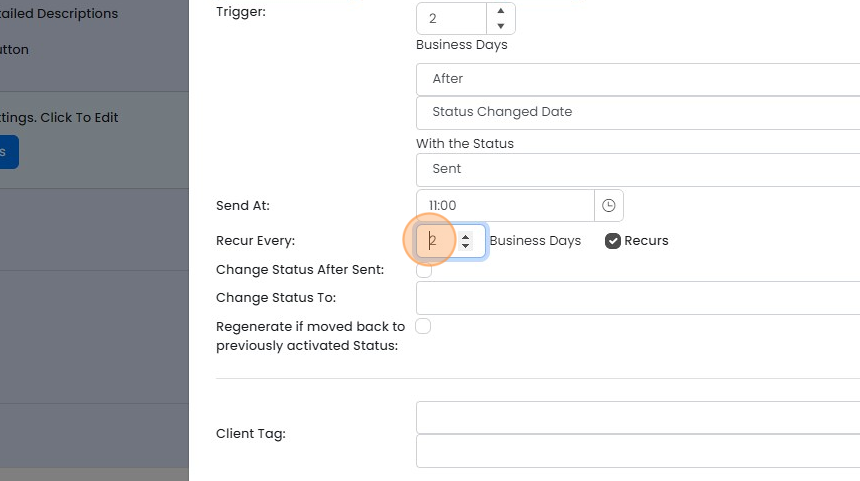
    Automated message settings with the Recur Every field highlighted, set to 2 Business Days, and the Recurs box checked
  13. Make sure the "Recurs" field is ticked for the continuous emails to be set up

    Write the chaser email

    Automated message settings with the Recurs checkbox ticked and highlighted next to Recur Every 1 Business Days
  14. Add {ClientContactEmail} as the recipient
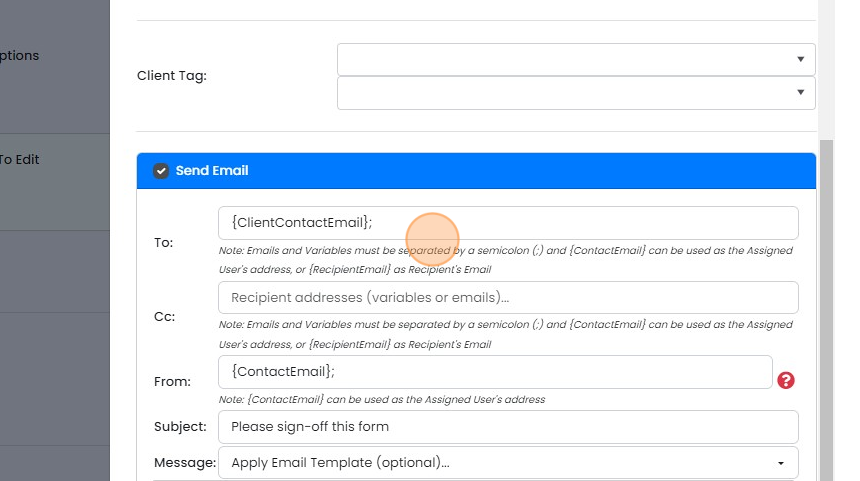
    Send Email panel with the To field highlighted, containing the {ClientContactEmail} variable as the recipient
  15. Set the "From" to {ContactEmail} or a fixed email such as admin@mycompany.com
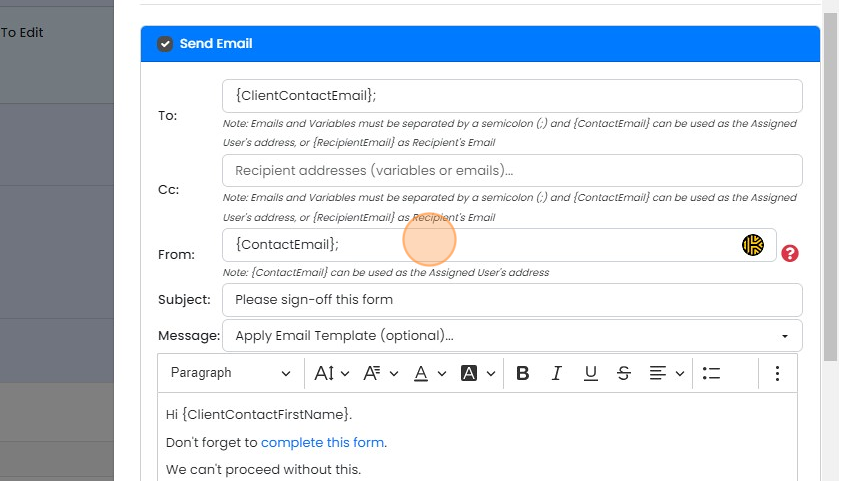
    Send Email panel with the From field highlighted and set to the {ContactEmail} variable, above Subject and Message
  16. Add a subject

    Email setup form with the Subject field highlighted, filled in as
  17. Add text to the email body. Use {ClientContactFirstName} to personalize it
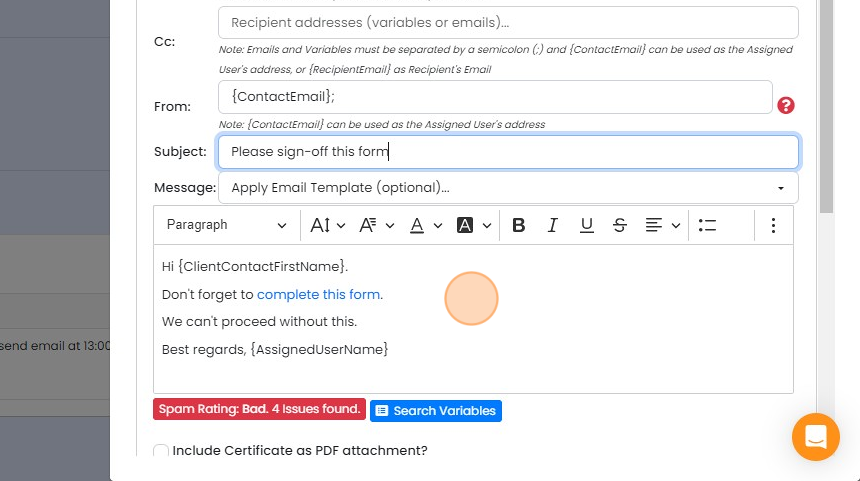
    Email message editor with body text greeting {ClientContactFirstName} and a link asking the customer to complete the form
  18. Add the hyperlink to the form into the text, either on its own or under text

    Message text editor toolbar with the Link (Ctrl+K) button highlighted, used to add a form hyperlink to the email text
  19. Add {ReviewLink} under the text or on its own

    Add an SMS message
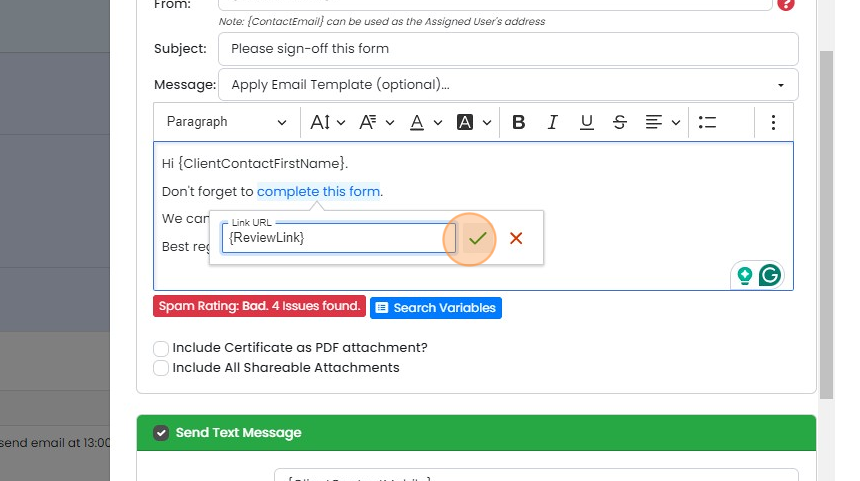
    Email message editor with Link URL box set to {ReviewLink} on
  20. To send an SMS message as well, tick this box
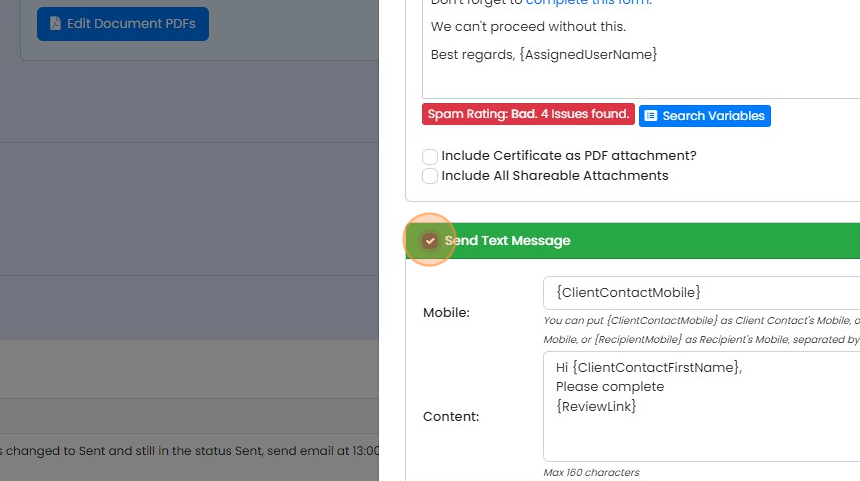
    Send Text Message checkbox highlighted in the automated message panel, with Mobile and Content fields for the SMS below
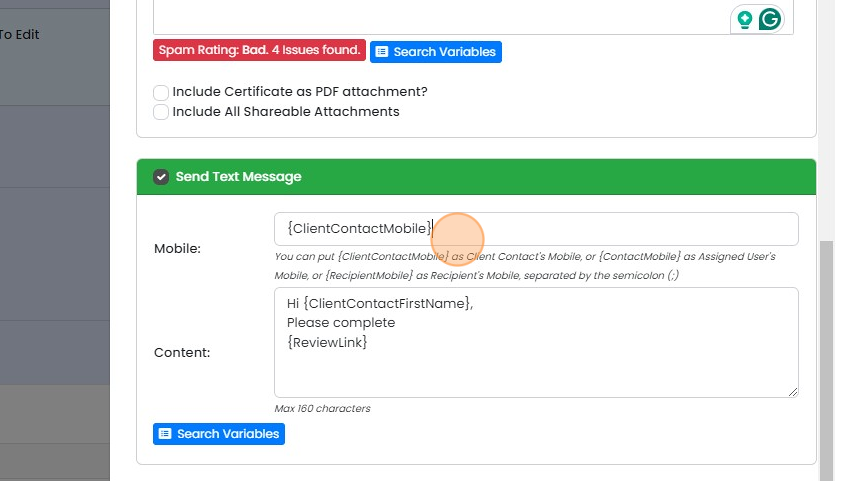
  21. Add {ClientContactMobile}

    Send Text Message panel with {ClientContactMobile} entered in the Mobile field, above Content with {ReviewLink}
  22. Populate the text making sure you include the {ReviewLink}

    Populate the text making sure you include the {ReviewLink}. When it is populated it will take up some of the 160 characters available
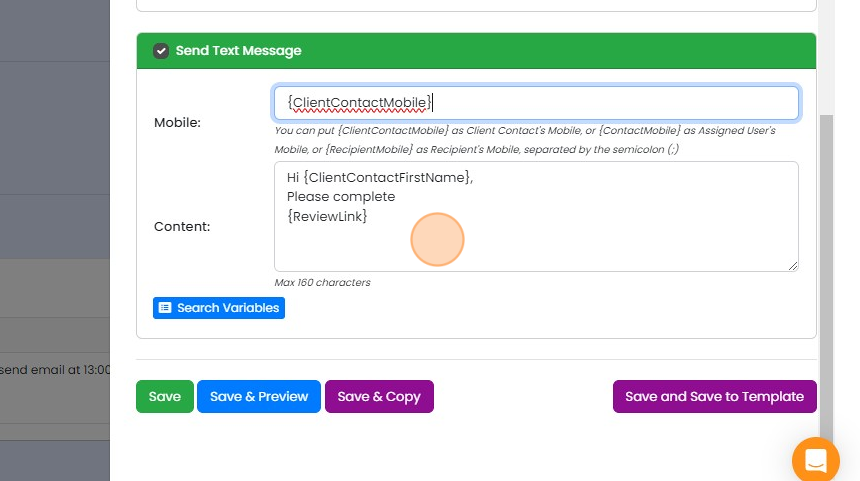
    Send Text Message panel with the Content field containing a message that includes the {ReviewLink} variable, max 160 characters
  23. To find any other variables you can use, click "Search Variables"

    Email message editor in an automated workflow step with the Search Variables button highlighted below the message body
  24. You can search through these and click on the variable to copy it

    Preview and copy the message
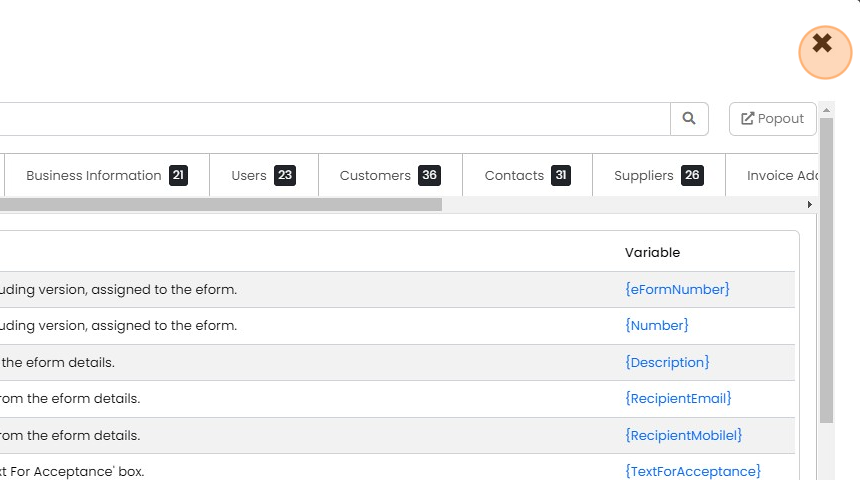
    Variables list with tabs for Business Information, Users and Customers, showing eForm variables and the close X highlighted
  25. Check the message appears as expected using the "Save & Preview" button
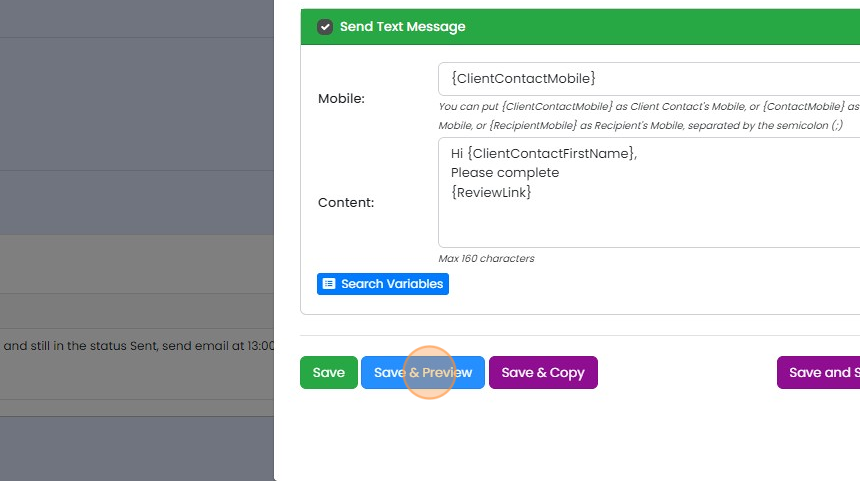
    Send Text Message action with mobile and review link content fields, and the Save & Preview button highlighted
  26. Switch between the "Email Preview" and "SMS Preview"

    Preview Scheduled Email dialog with Email Preview tab active and the SMS Preview tab highlighted to switch views
  27. If any variables are incorrect, they are shown with the {} brackets. Click the "x" to close the screen

    Preview Scheduled Email window on the SMS Preview tab, with the close
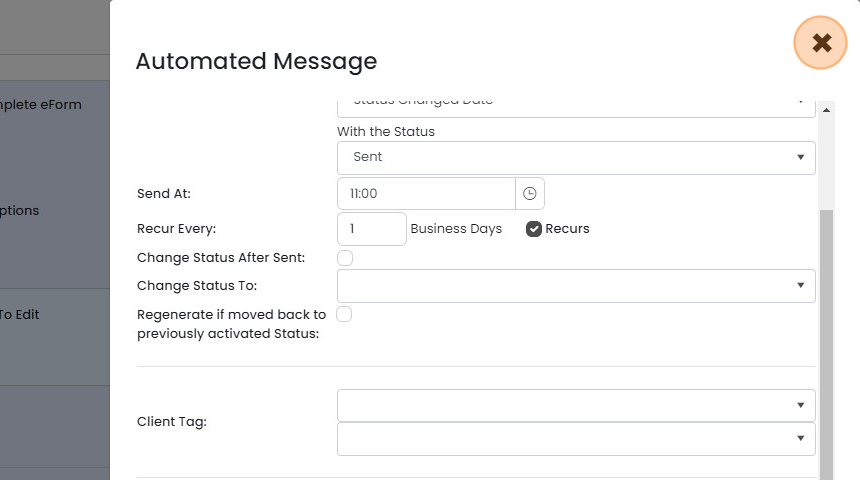
  28. Click "×"

    Automated Message window with recurring send settings filled in and the close (×) button highlighted at top right
  29. Click "Copy to Other Pre-Builds" if you need this added to other pre-builds

    Learn more: eForms in Zigaflow
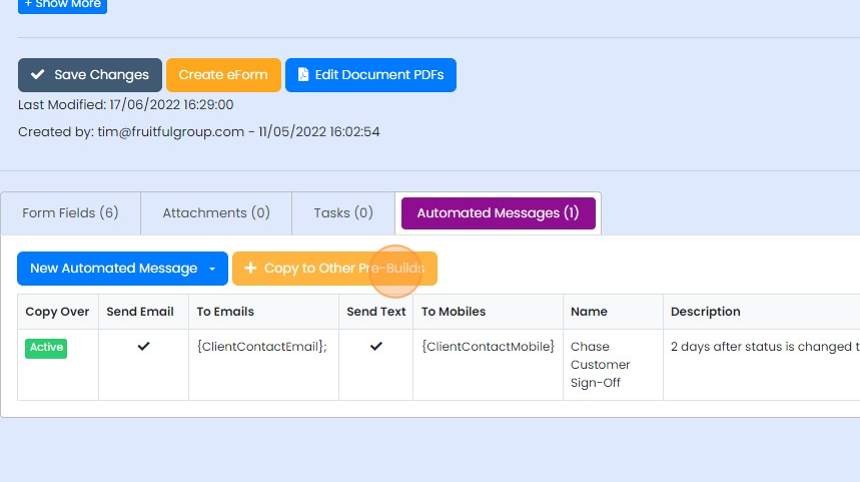
    Automated Messages tab with the Copy to Other Pre-Builds button highlighted next to New Automated Message

This tool allows you to send email chasers to customers to remind them to approve/sign-off eForms.

Once an eForm is approved or rejected, the emails will no longer be sent.

Open an eForm pre-build

Frequently asked questions

Next step

Creating an eForm pre-buildMomentum planTo create an eForm pre-build in Zigaflow, go to eForms, click New, and open an existing eForm. Delete what is not relevant, add fields and a signature section, then click Preview eForm Page and Review Link to test it. If it looks right, click Create Pre-Build.

Was this helpful?

See Zigaflow on your own workflow

Book a demo and we will walk through quoting, jobs and purchasing the way your team runs them.

Or see how Zigaflow would fit your business, free