Create part/split invoices from jobs/sales orders
The short answer
Open the job or sales order, click Create, then Invoice, and select Part Invoicing. Enter the percentage for this invoice, choose whether to keep line items, and click Create. Repeat for later invoices, and use Invoice Remaining to bill the rest. Untick 'Apply same % to all Line Items' to set different percentages per line.
Steps
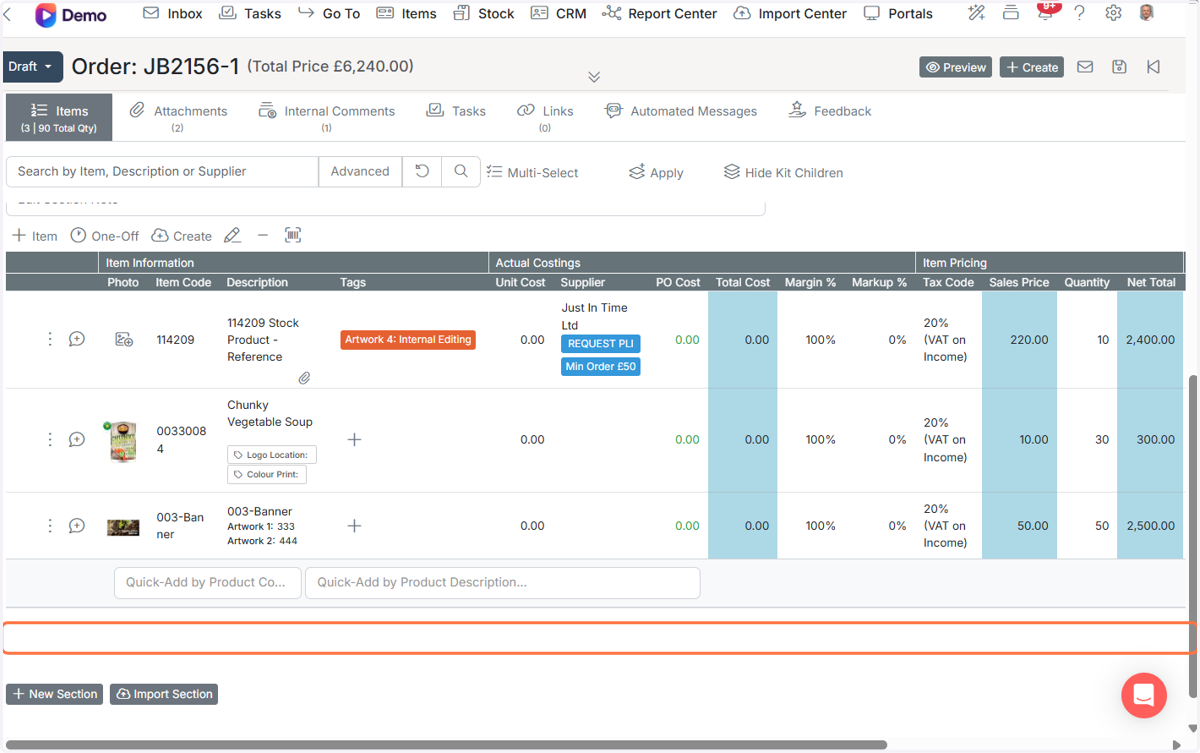
Open the Job/Order
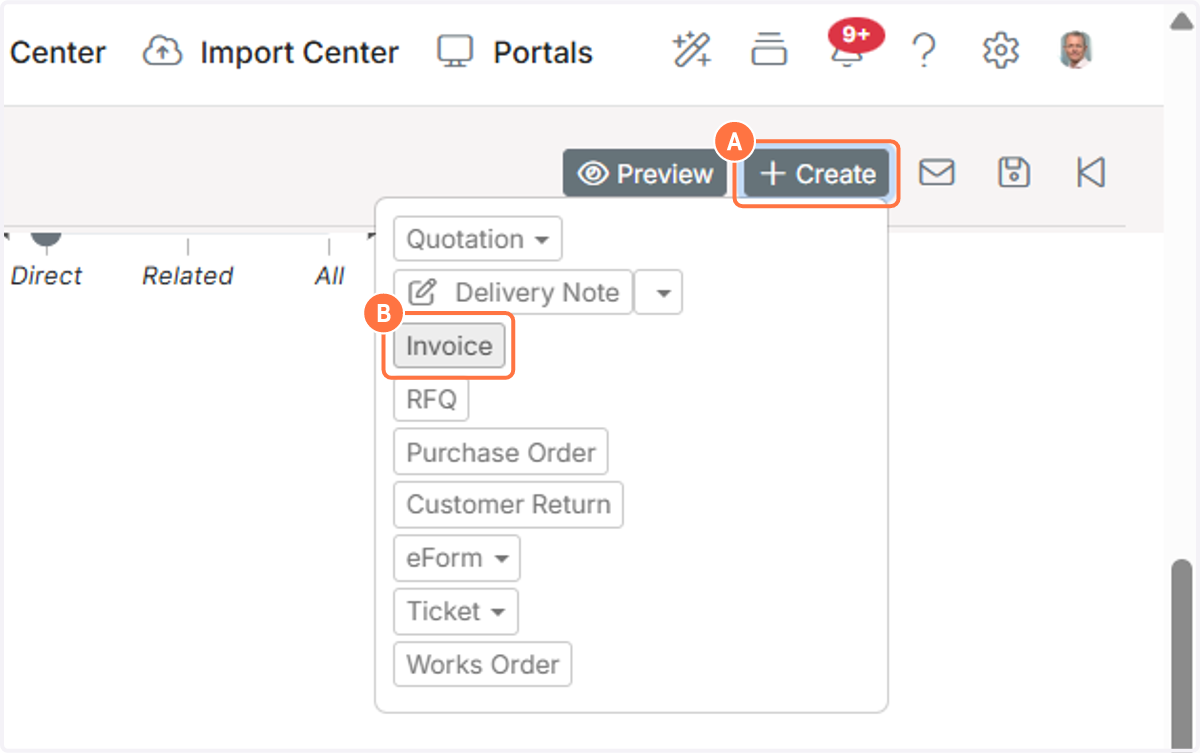
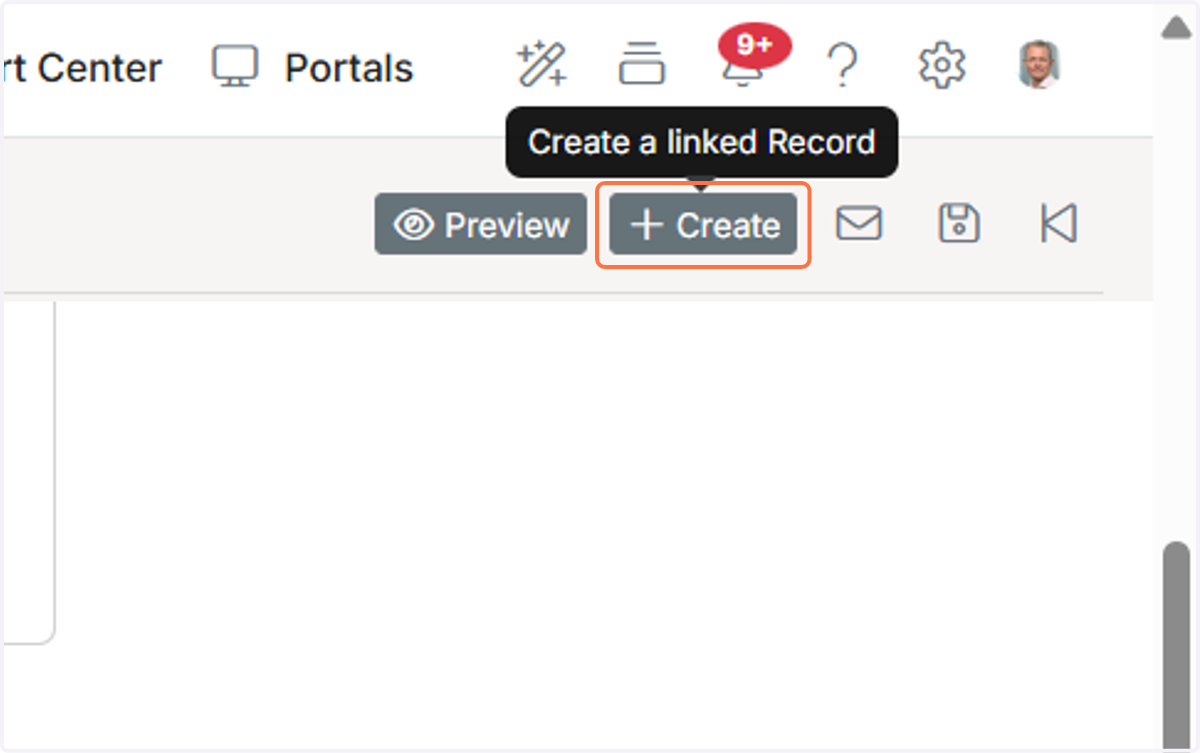
A. Click on Create
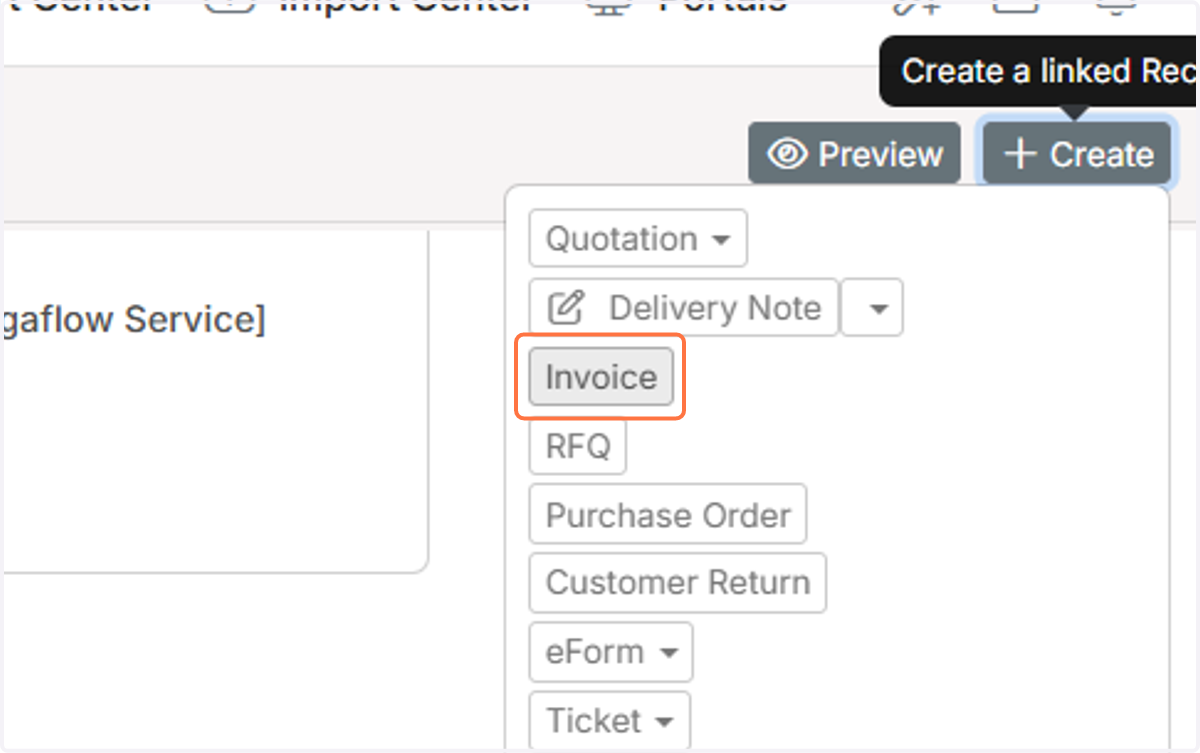
B. Click on Invoice
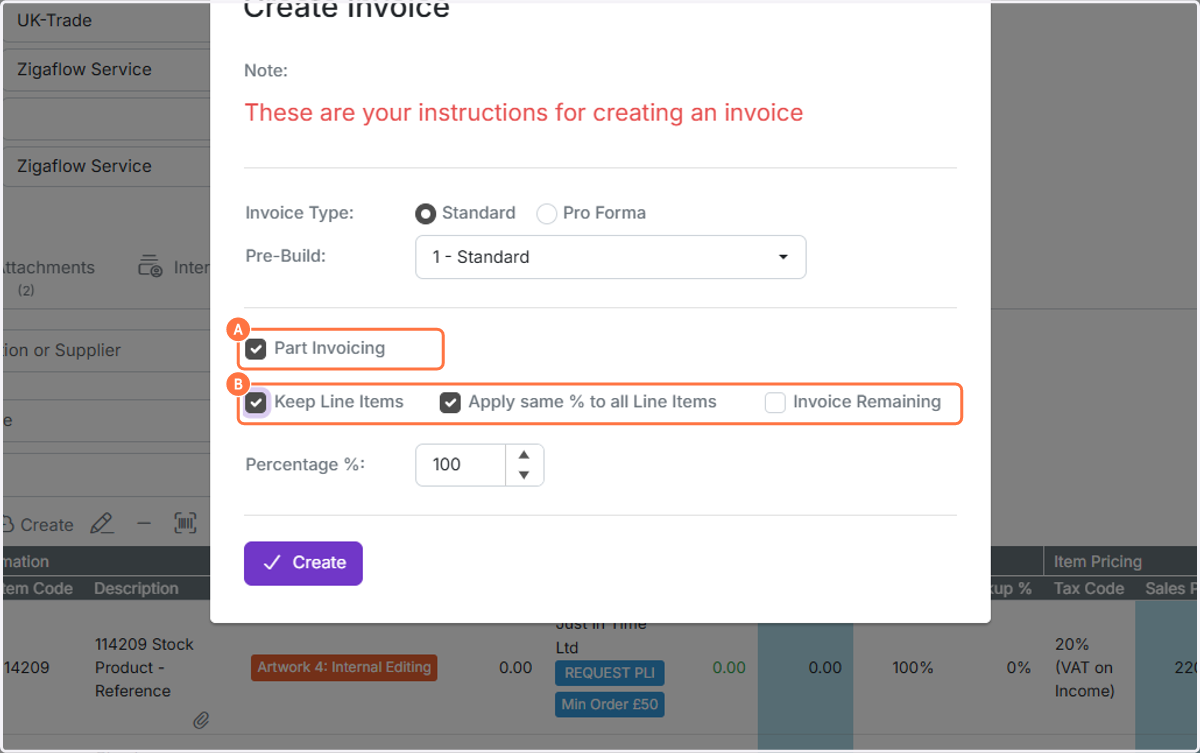
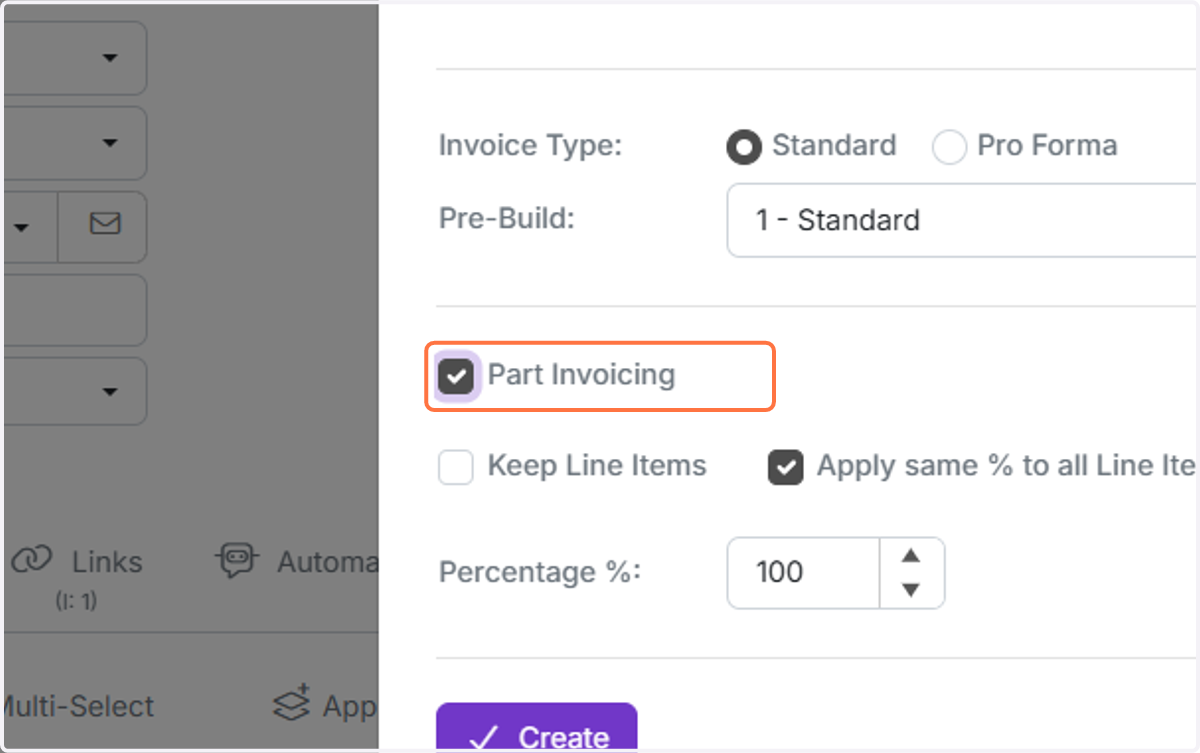
A. Select 'Part Invoicing'
B. 'Keep Line Items' shows the items on the invoice; otherwise, only one line is shown on the invoice.
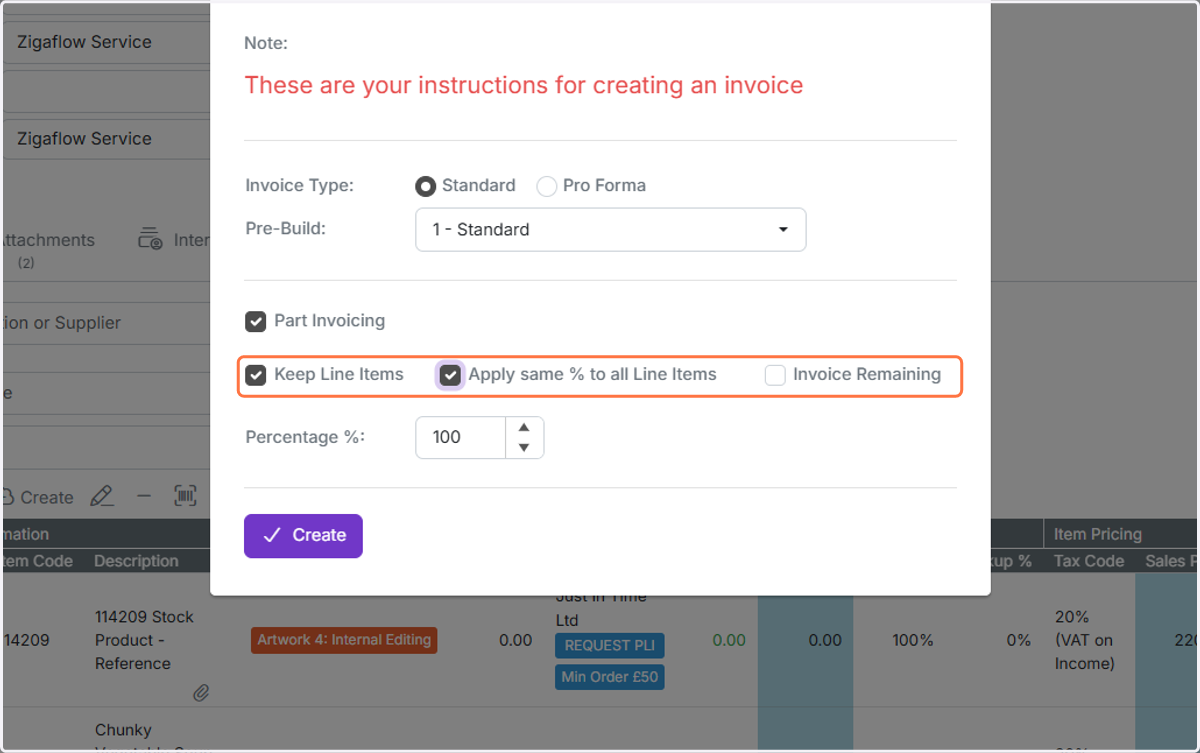
If all the line items will be invoiced at the same percentage, i.e
If all the line items will be invoiced at the same percentage, i.e. 40%, keep the 'Apply same % to all Line Items' ticked
Enter the part/split percentage for this invoice
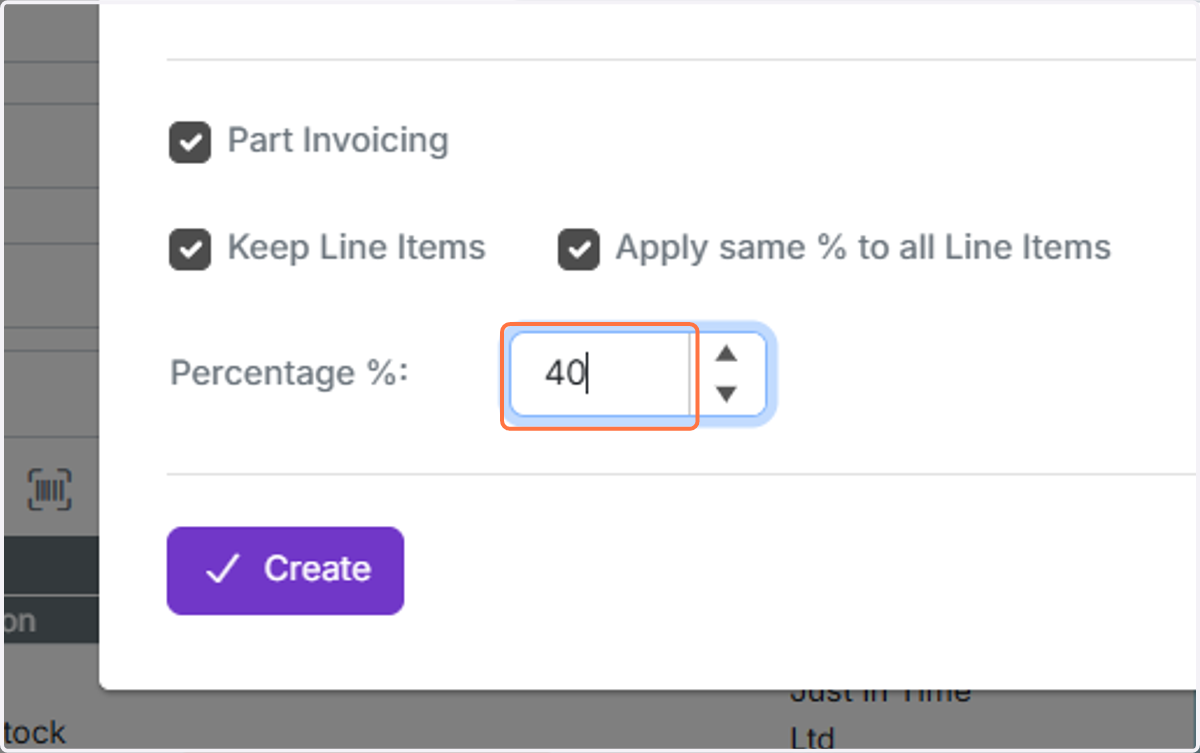
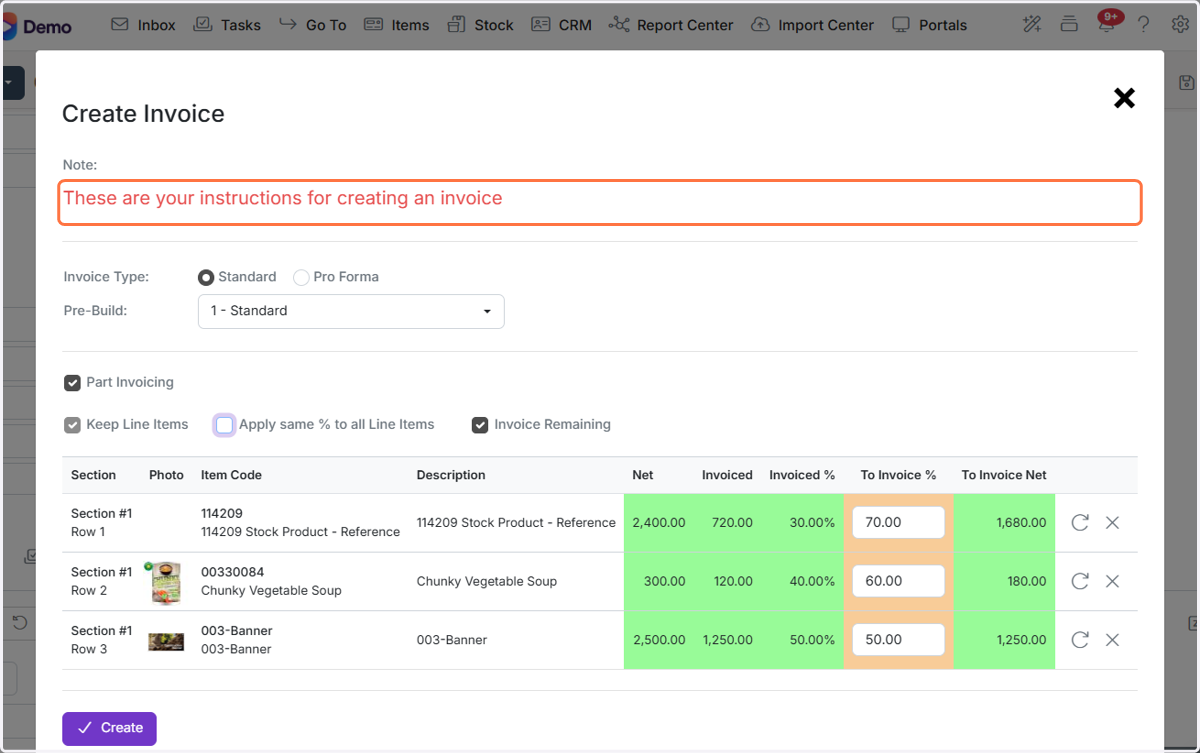
To set different percentages for line items, untick 'Apply same % to all Line Items'
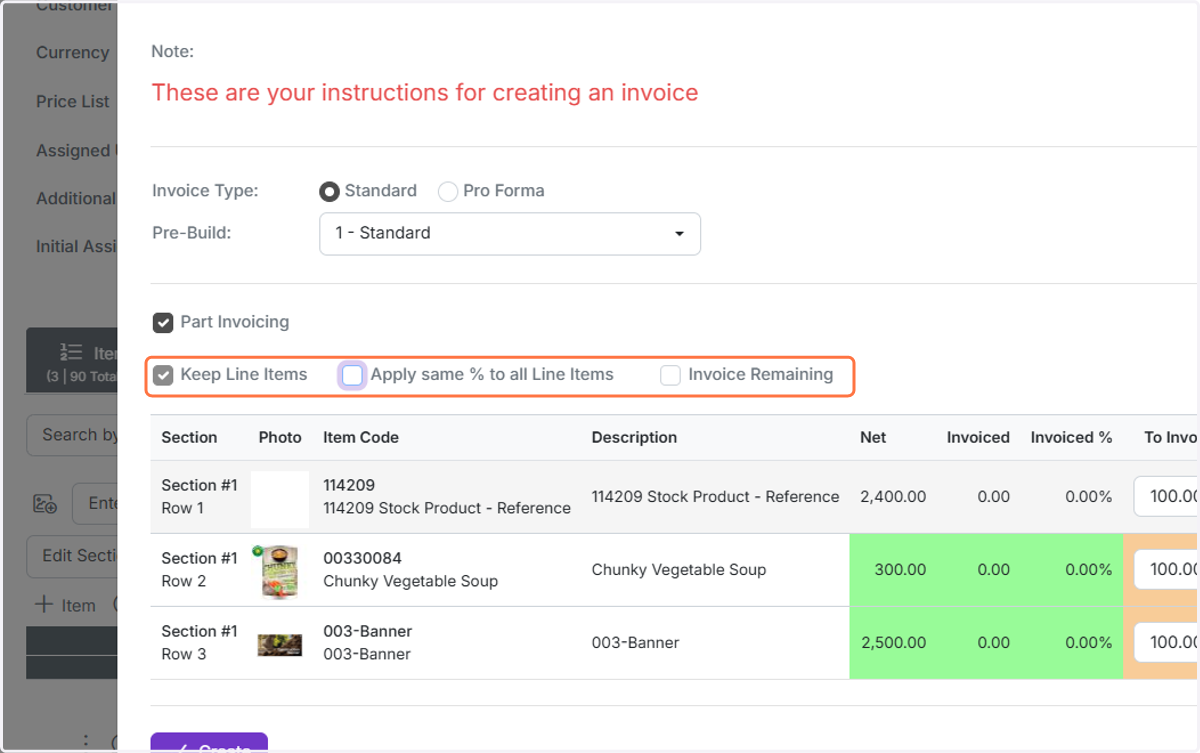
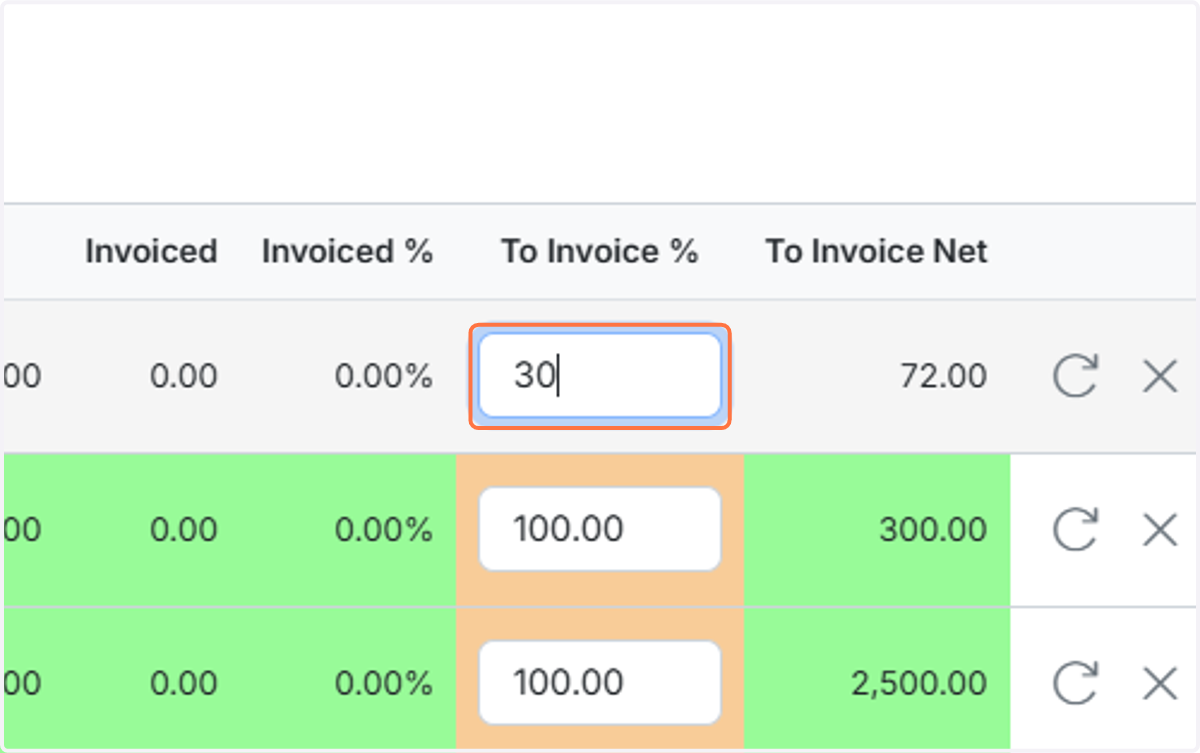
Put in the specific percentages
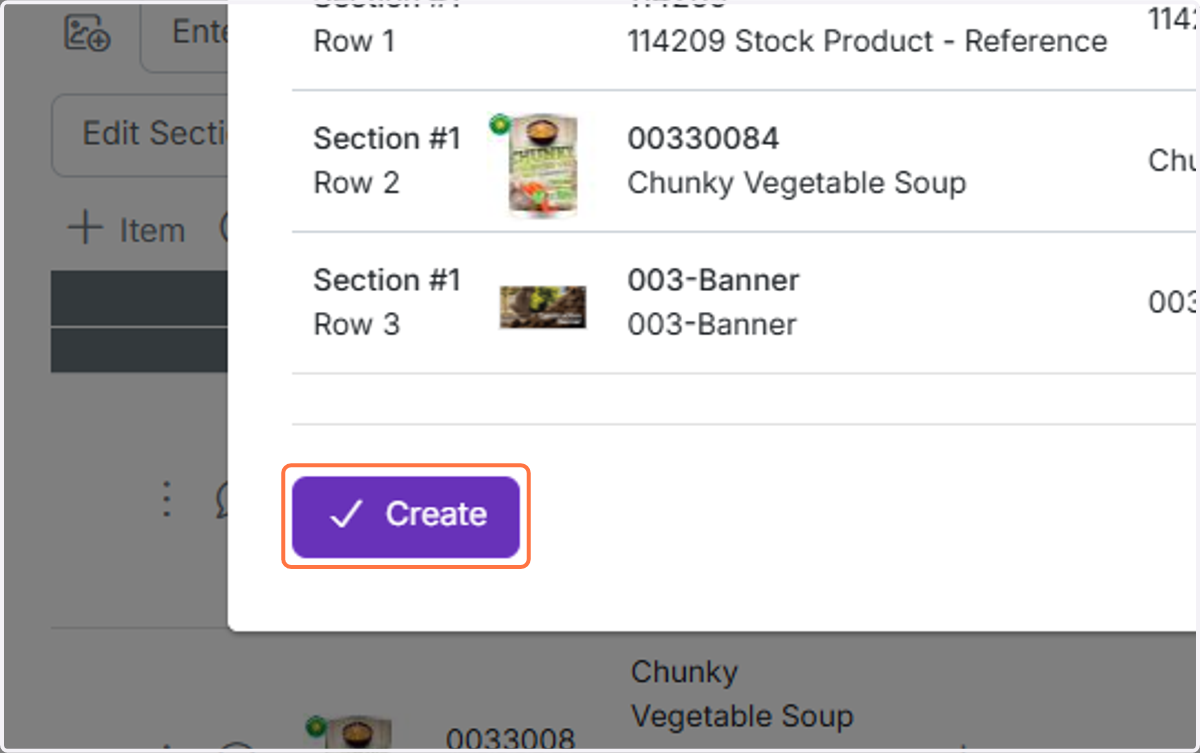
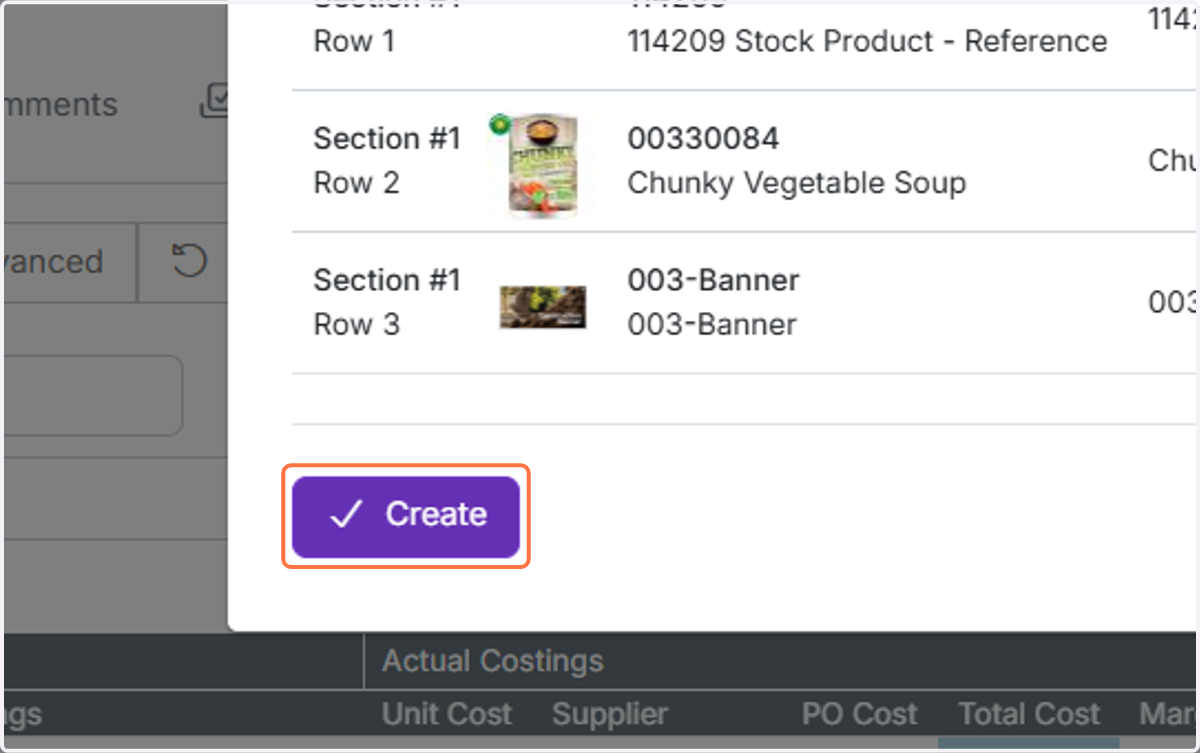
Click on Create
Click "OK" on "Are you sure you want to create an Invoice from this?"
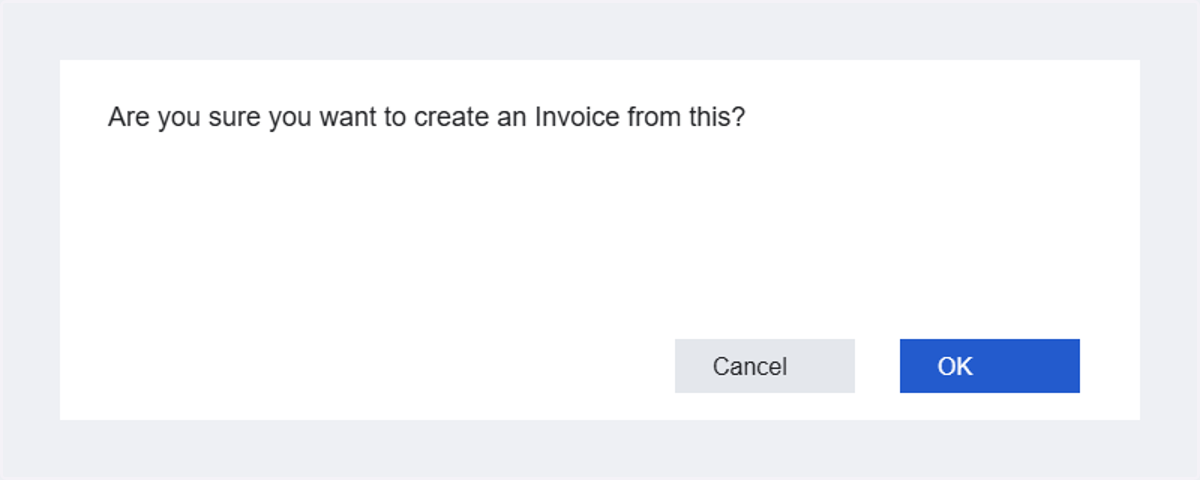
This creates the invoice. To create the next invoice, go to the job/order
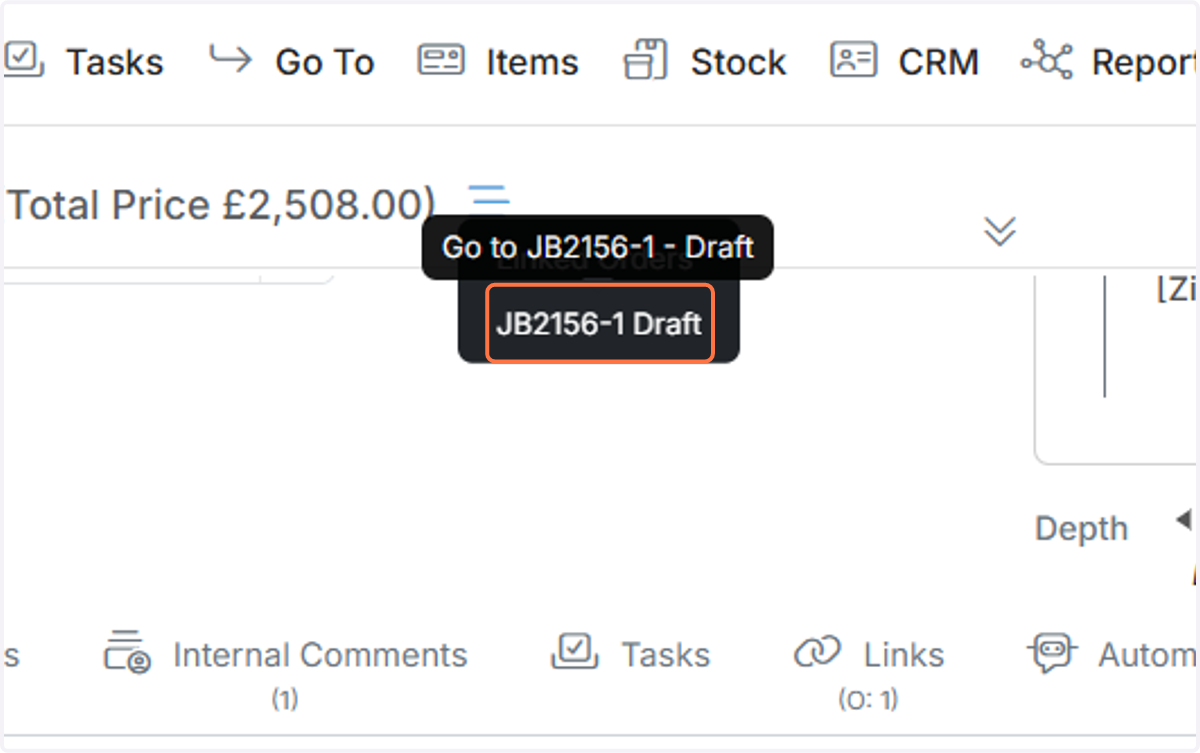
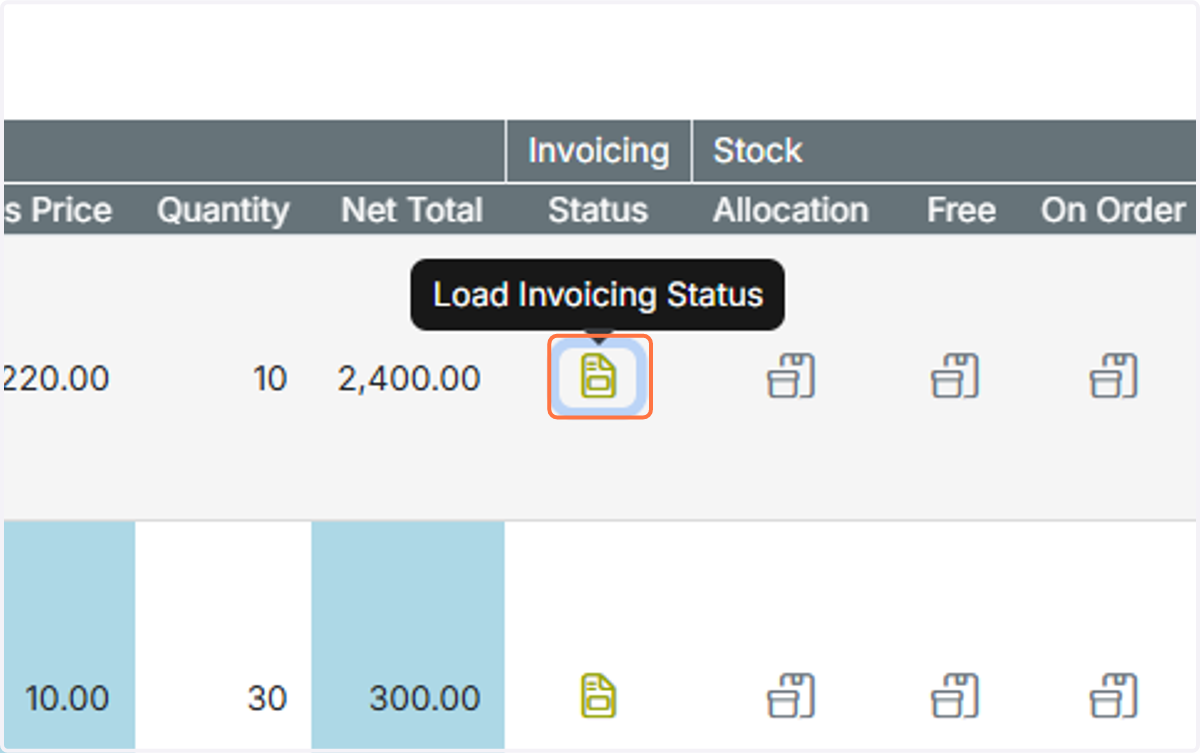
To see which lines have been invoiced, click on this button
To see which lines have been invoiced, click on this button. If it is not visible, change or edit the column set
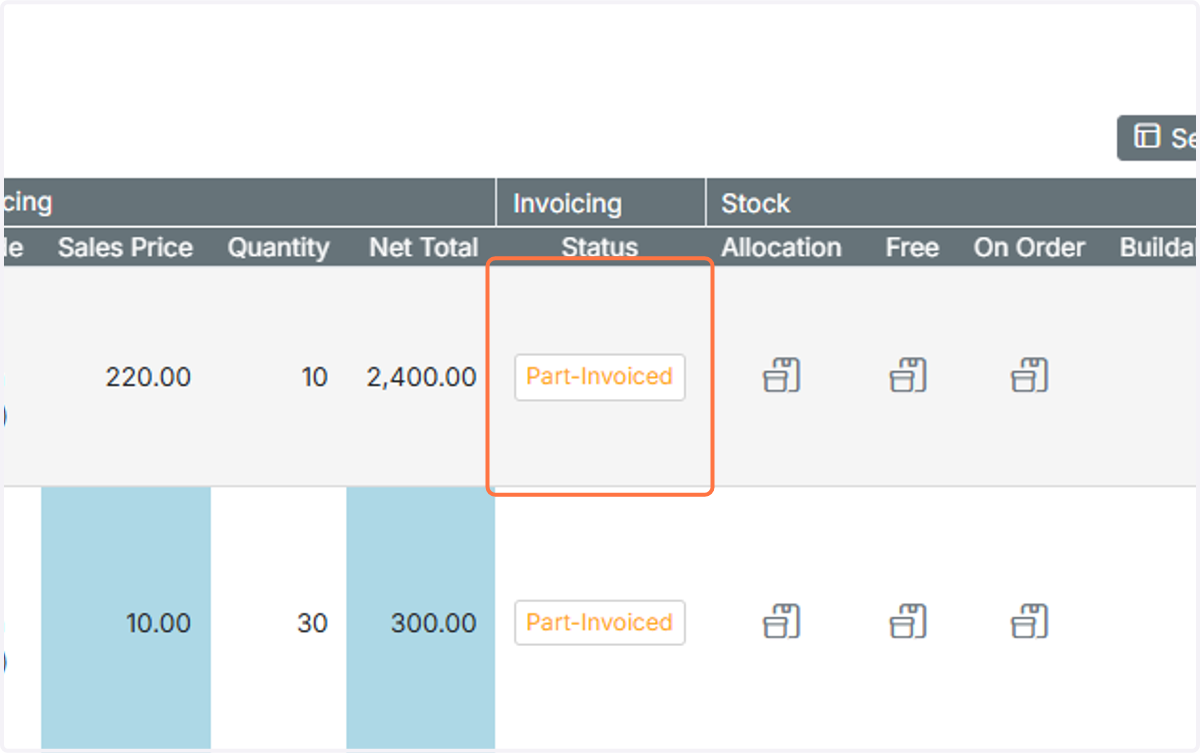
Items are shown as part or fully invoiced
Create the next invoice by clicking on the 'Create' button
Click on Invoice
Select 'Part Invoicing'
To quickly create the final invoice, click on the 'Invoice Remaining' tick box
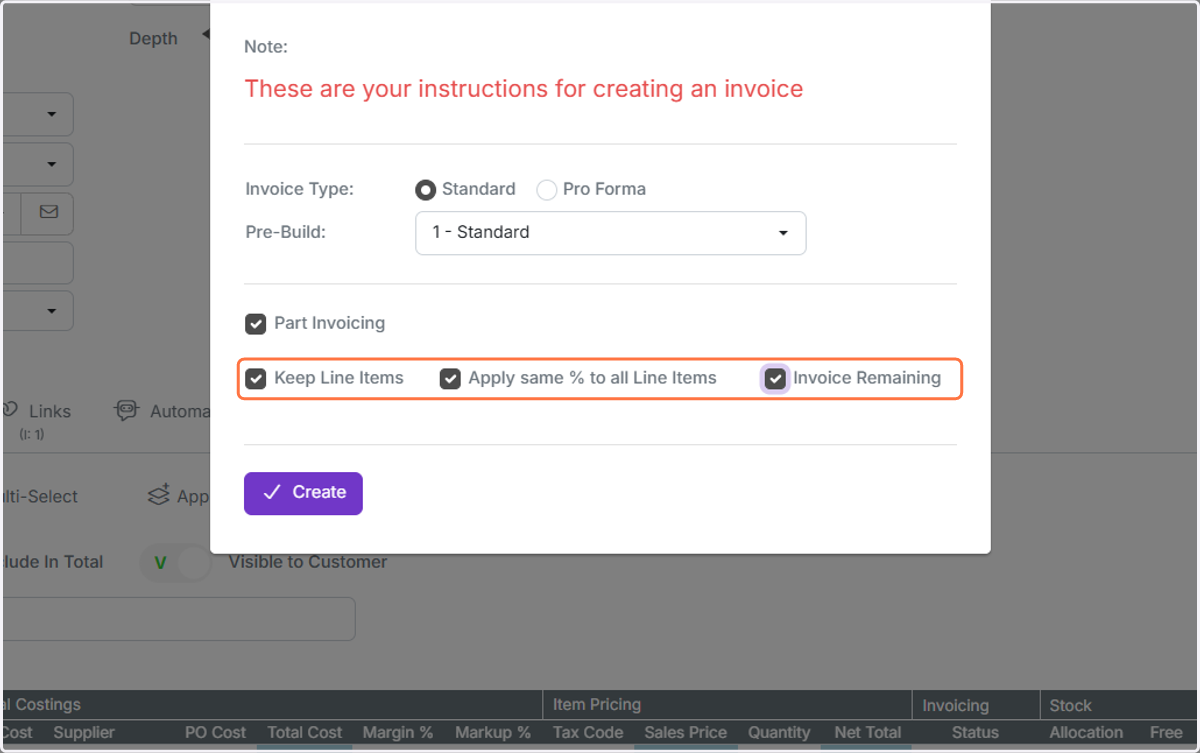
Click on Create
Note that you can create multiple invoices off one job, with different percentages per line by unticking...
Note that you can create multiple invoices off one job, with different percentages per line by unticking the 'Apply same...'. The system stores previous invoiced percentages
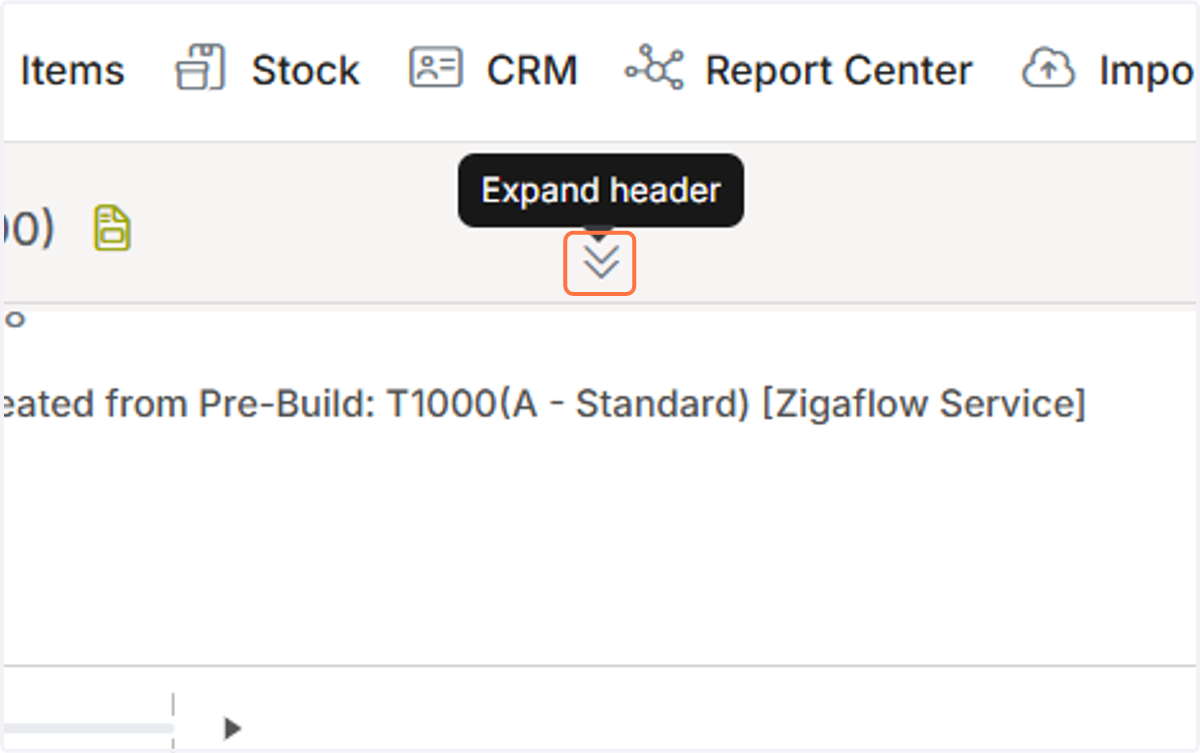
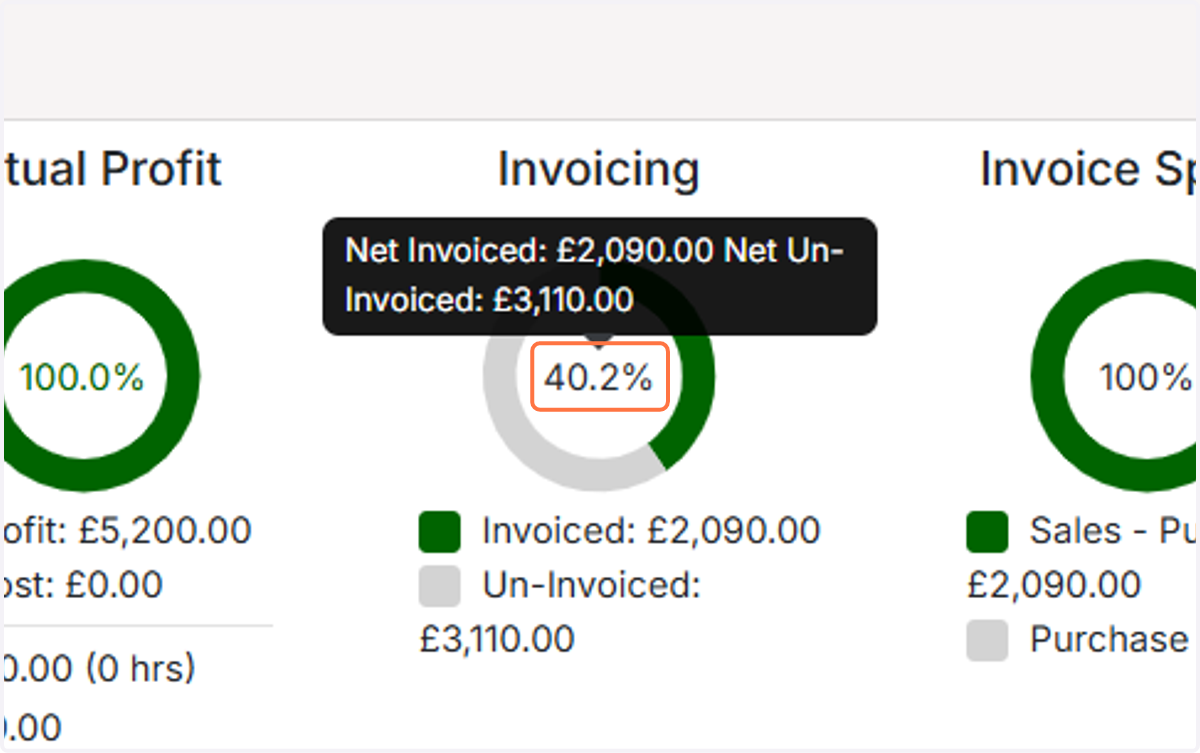
Click on Expand header in the job/order to see the invoiced gauge
This shows your percentage already invoiced
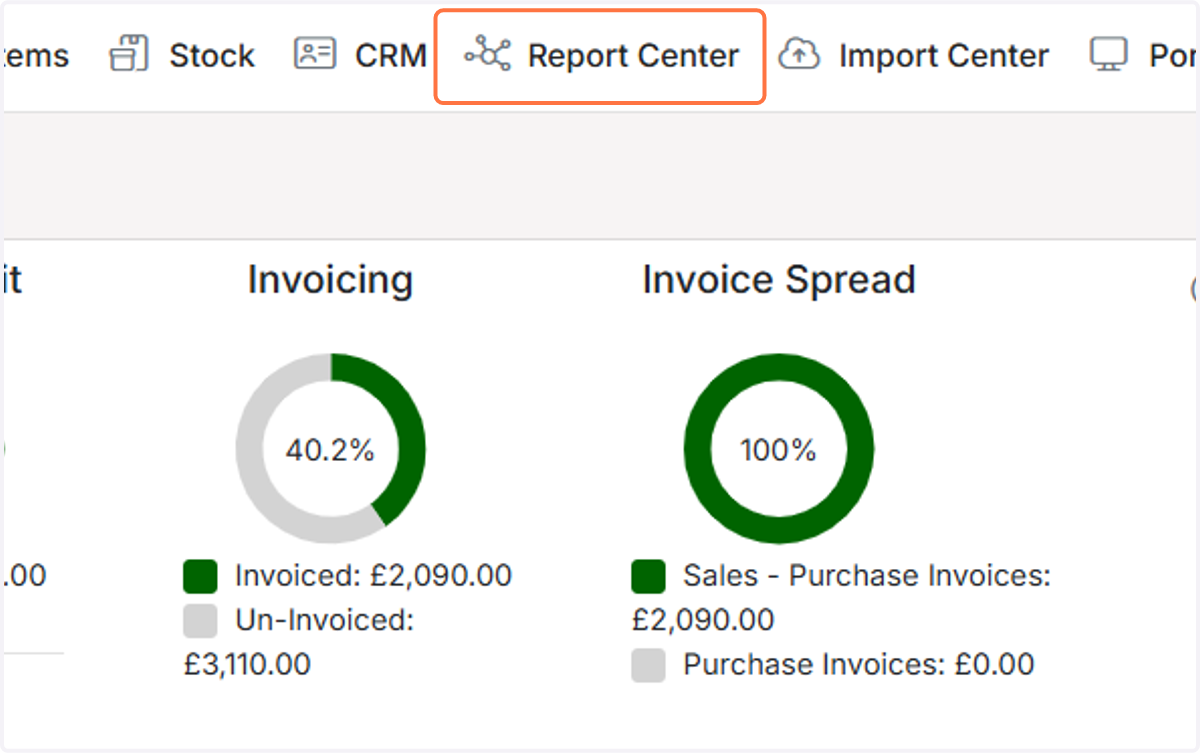
To make sure everything that should be invoiced is, click on Report Center
To make sure everything that should be invoiced is, click on Report Center. This is ideal for the end of each month
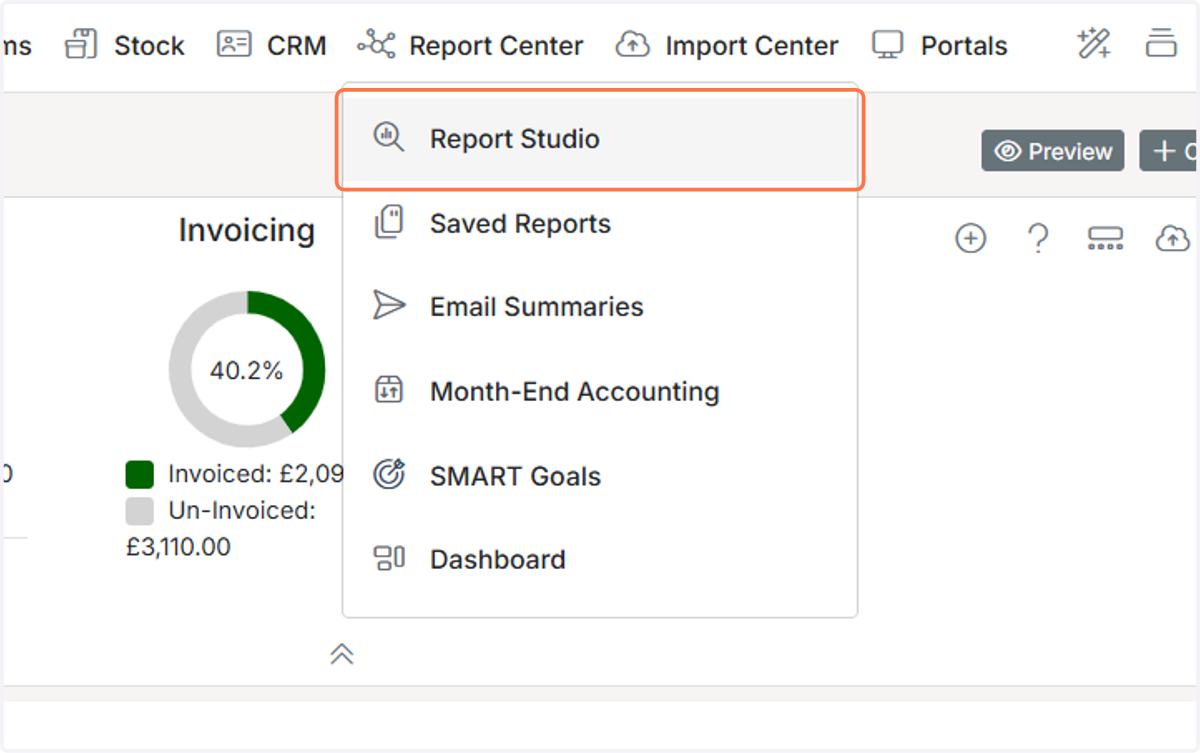
Click on Report Studio
Click on Orders
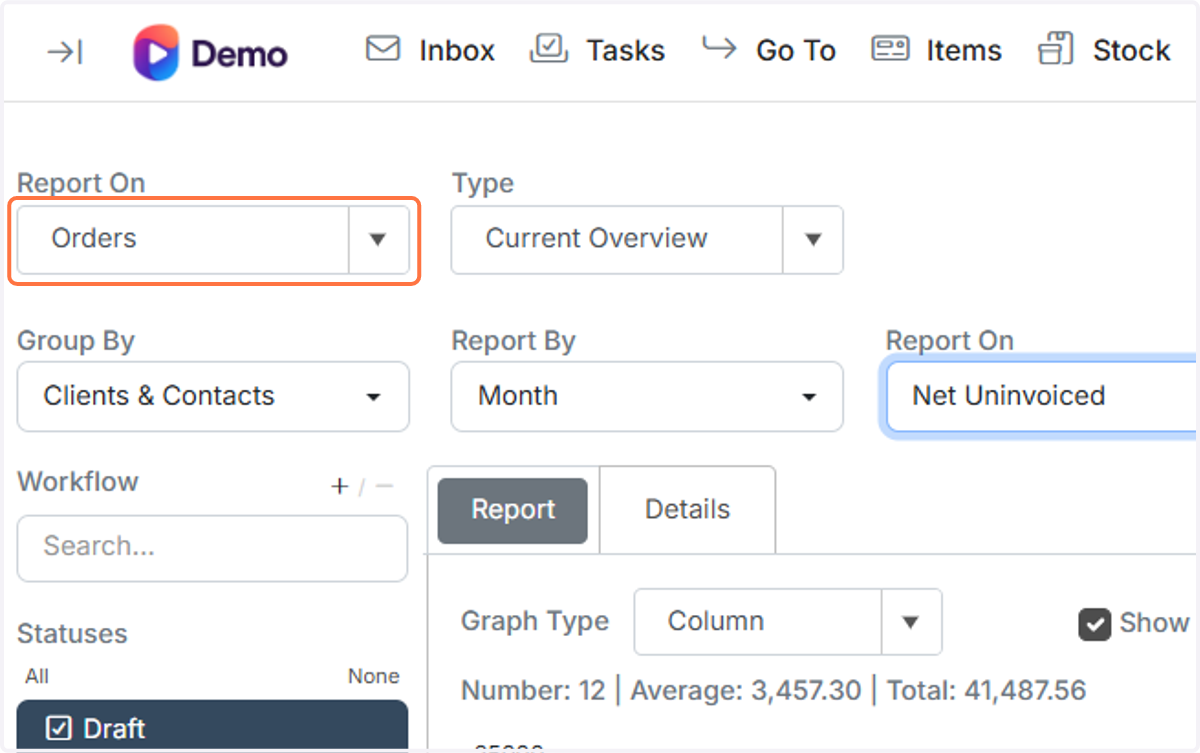
A. Select Jobs or Orders


Invoicing Specific Items
To invoice specific items at 100%, use the Multi-select button to select those items, then click Create -> Invoice.
Invoicing by Percentages
B. Click on Net Uninvoiced

Frequently asked questions
Was this helpful?