Deliver work

Automatically creating a works order for tagged line items

In ZigaflowGo and Momentum plans

The short answer

Create an item tag, add it to the internally manufactured items, then set up an automation from the Cog, under Automations, for Order or Job. Trigger it on a status such as Ready for Production and add the Create Works Order action, filtered by your tag, so only tagged items are added.

Steps

  1. Create an item tag to identify the items to be added to a new works order

  2. Add the tag to the items either in the items' list or on the job/order

    Create the automation

  3. Set up the automation by clicking on the Cog
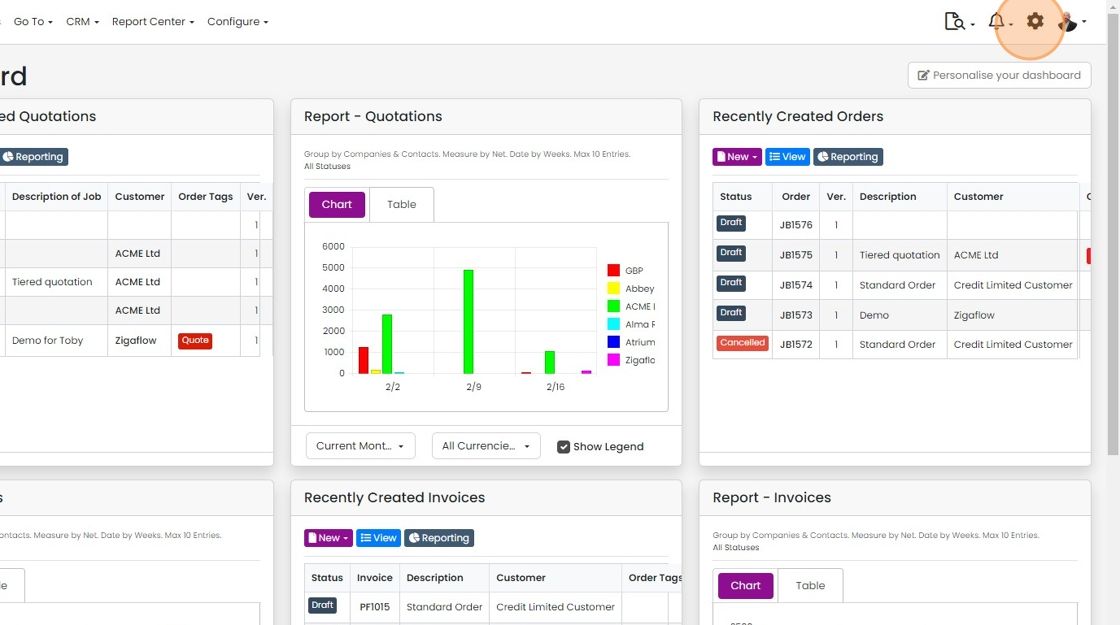
    Zigaflow dashboard with the settings cog icon highlighted in the top-right toolbar, next to the notifications bell
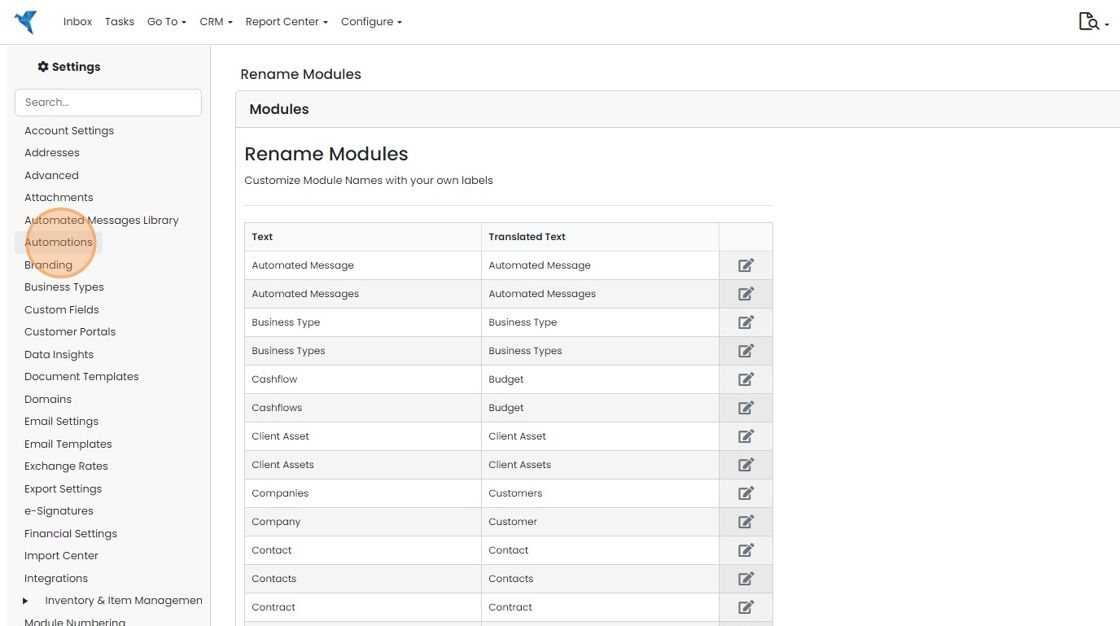
  4. Click "Automations"

    Settings sidebar with Automations highlighted, shown over the Rename Modules page listing module names and translations
  5. Click "Order" or "Job" or whatever you have renamed it to
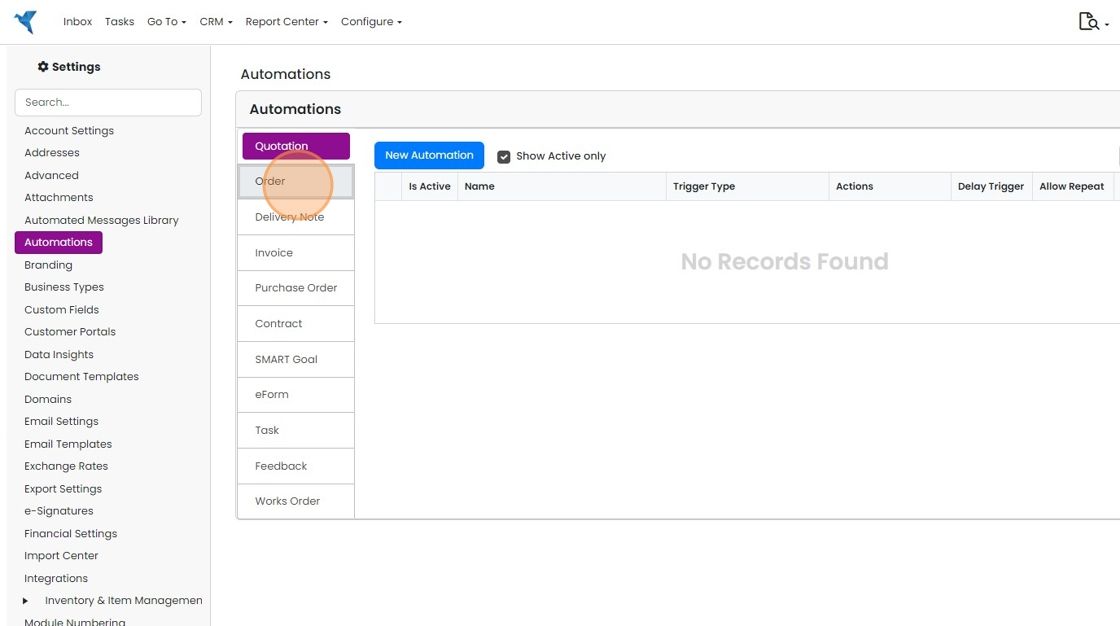
    Automations settings page with the Order tab highlighted in the left list of document types below Quotation
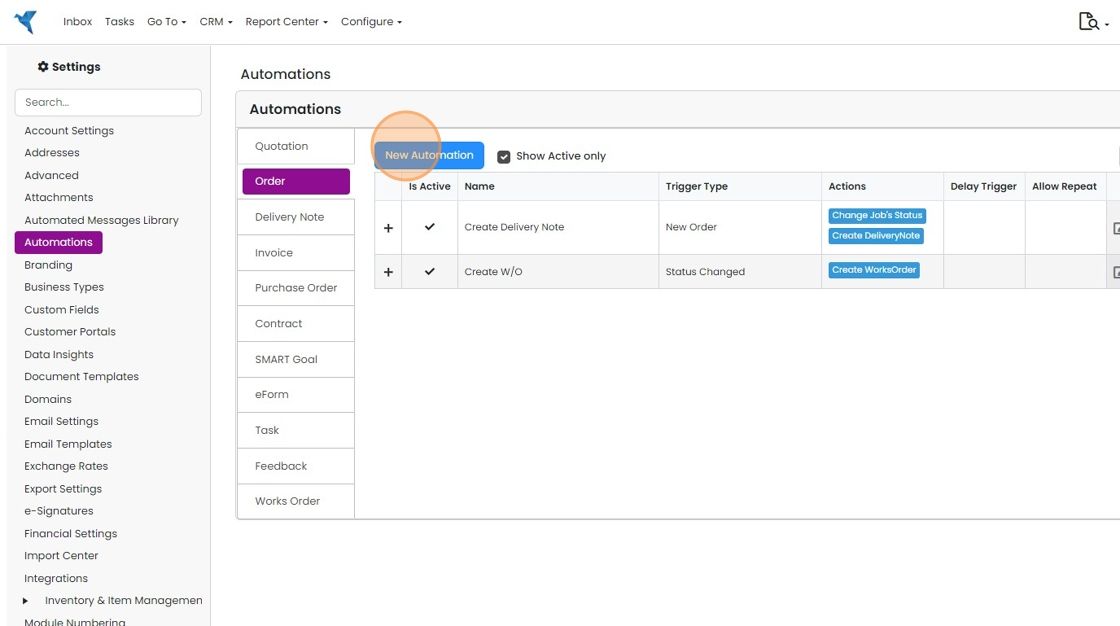
  6. Click "New Automation"

    Automations settings with the Order tab selected and the New Automation button highlighted above the automations list
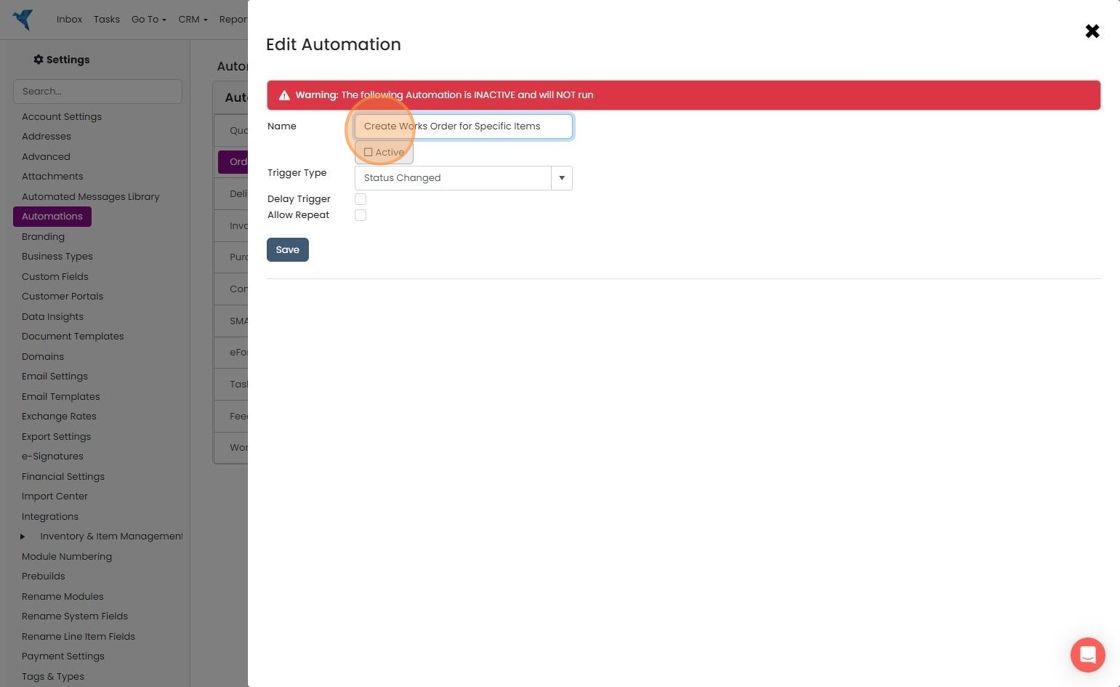
  7. Give it a name

    Edit Automation panel with the Name field highlighted, showing an inactive warning, Active checkbox and Trigger Type
  8. Optionally, make it active and click "Save"

    Set the trigger status
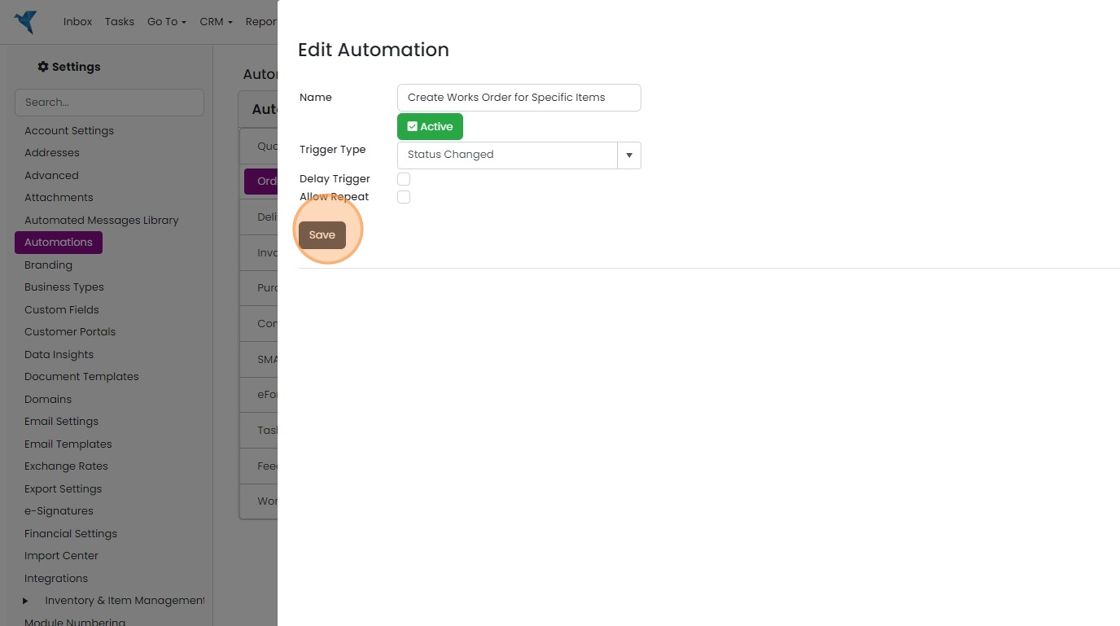
    Edit Automation panel with Active toggle on and Trigger Type set to Status Changed, highlighting the Save button
  9. Edit the trigger status

    Automation panel with the edit icon highlighted on the More Conditions row where Status Is Equal To Draft
  10. In this example, it will trigger on "Ready for Production"

    Add the works order action
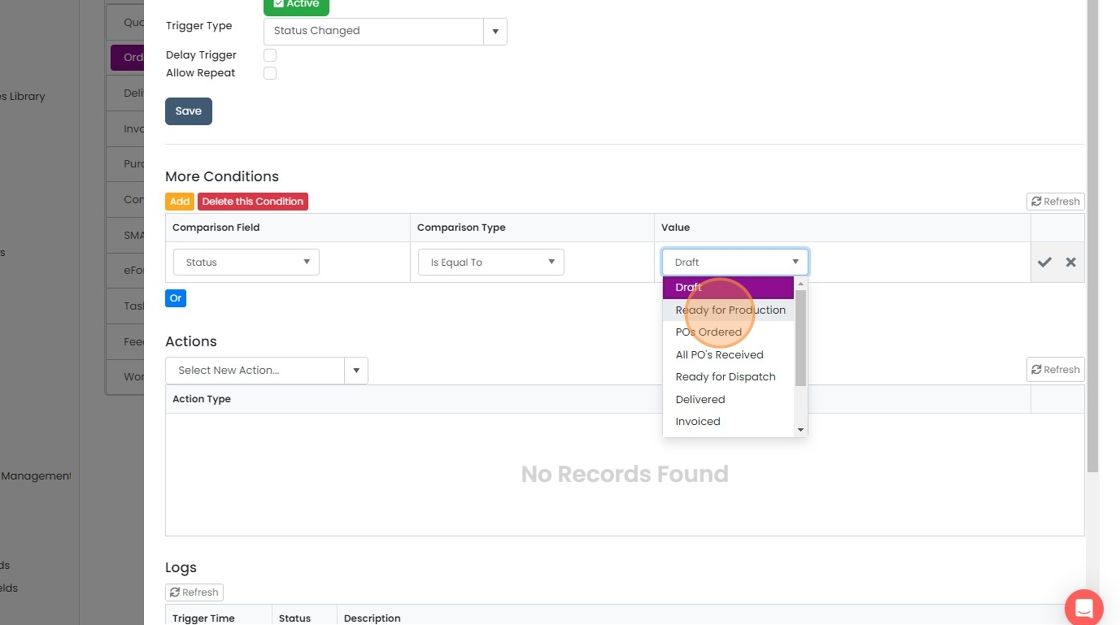
    Workflow trigger More Conditions with the Value dropdown open and
  11. Click here

    Automation More Conditions row (Status Is Equal To Ready for Production) with the checkmark button highlighted to save it
  12. Click "Select New Action..."

    Automation editor Actions section with the Select New Action dropdown highlighted, below a Status Ready for Production condition
  13. Click "Create Works Order"

    Automations Actions dropdown open under Select New Action, with Create Works Order highlighted in the list
  14. Set the initial status for the works order
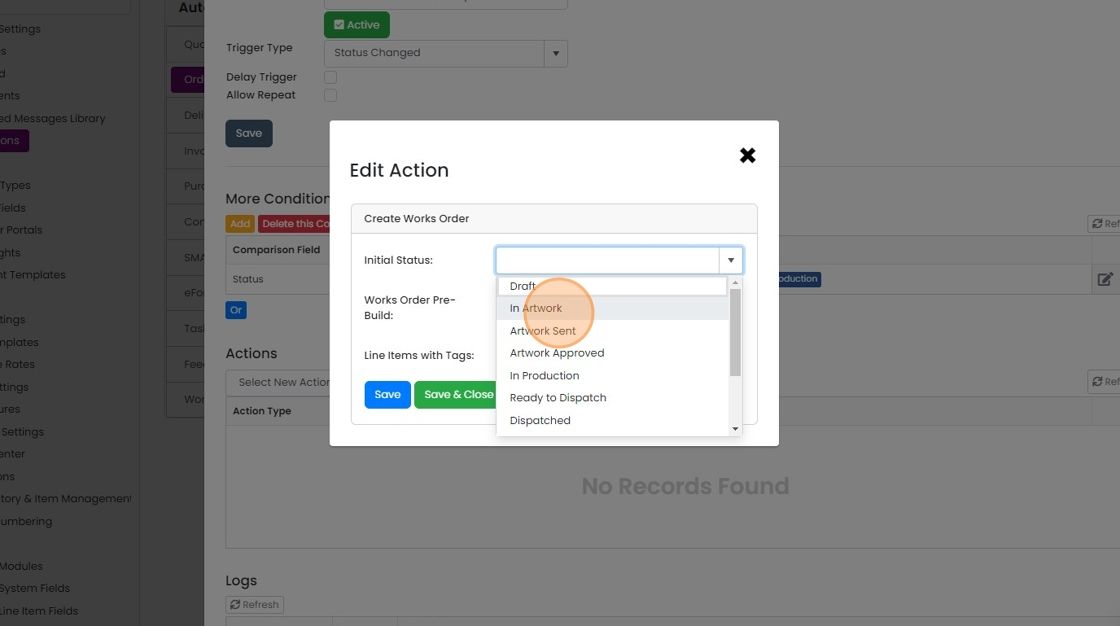
    Edit Action dialog for Create Works Order with the Initial Status dropdown open and In Artwork highlighted
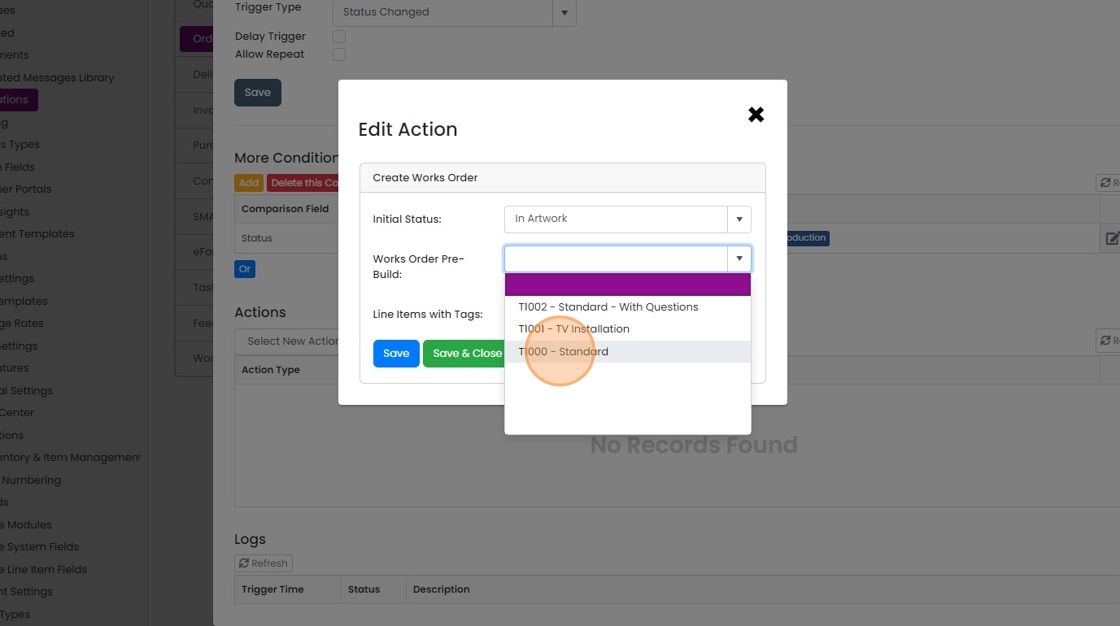
  15. Set the pre-build to use

    Edit Action dialog with the Works Order Pre-Build dropdown open and the T1000 - Standard option highlighted
  16. Click the "All Line Items (Ignore Tags)" field

    Edit Action dialog for Create Works Order with the Line Items with Tags field highlighted, showing All Line Items (Ignore Tags)
  17. Select the tag(s) to filter by. Only items with these tag(s) will be added to the new works order
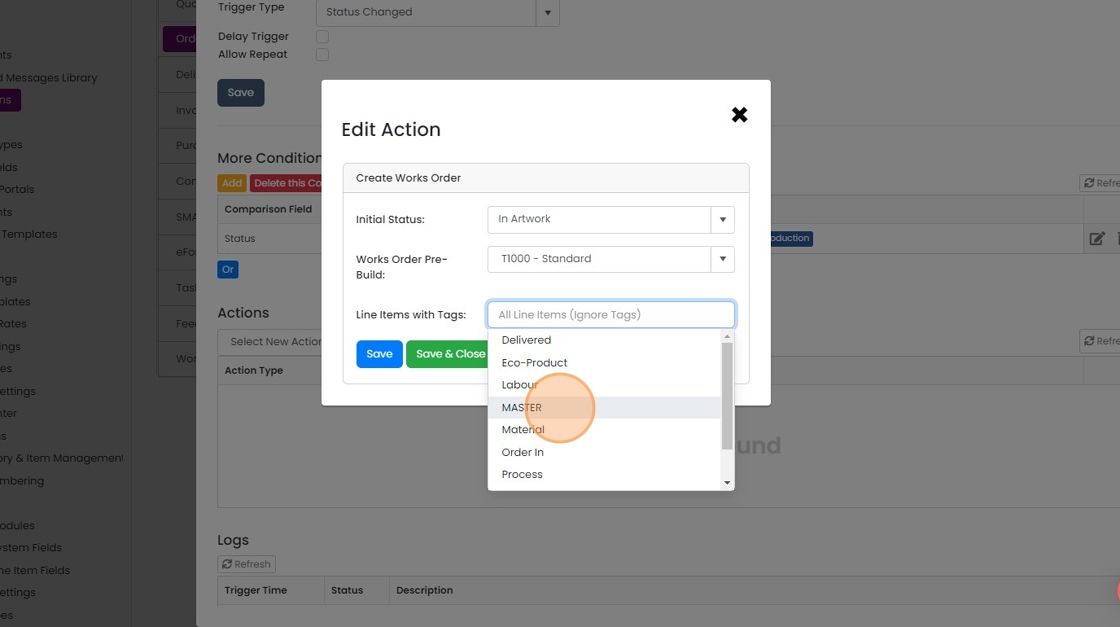
    Edit Action dialog for Create Works Order with the Line Items with Tags dropdown open and the MASTER tag highlighted
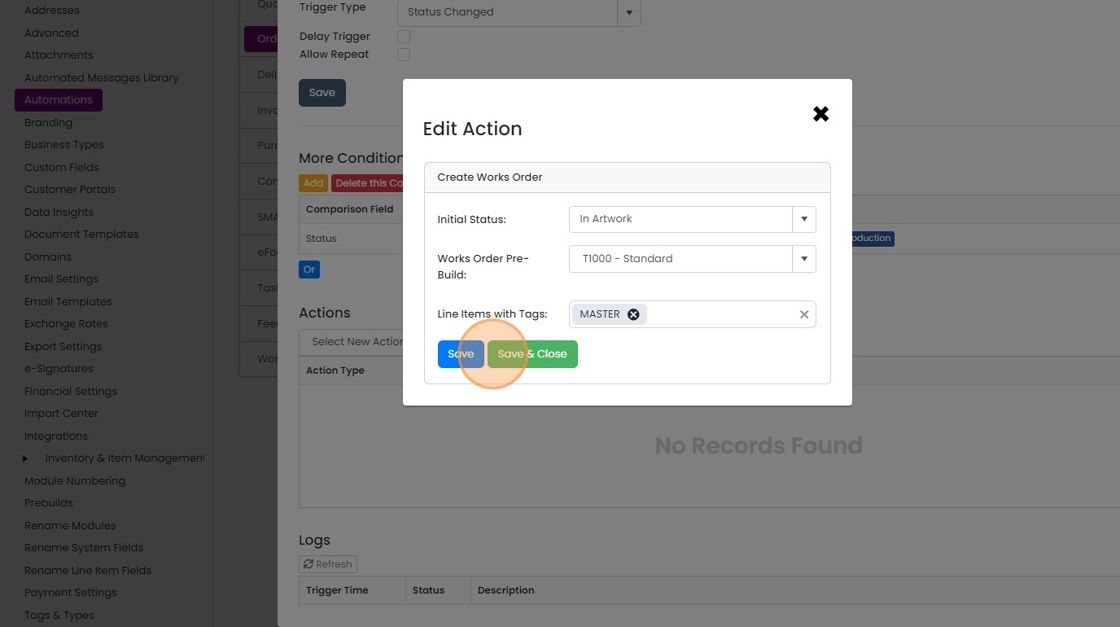
  18. Click Save & Close

    Edit Action dialog for Create Works Order with MASTER tag selected, highlighting the Save & Close button

Tag the items

Frequently asked questions

Next step

Works ordersGo and Momentum plansWorks orders (W/Os) are a separate module in Zigaflow for managing internal processes such as manufacturing or installation apart from Jobs/Sales Orders. From a source order or works order, you can create one W/O for all items, selected items, or a single item. Works orders can also be nested for kits and assemblies.

Was this helpful?

See Zigaflow on your own workflow

Book a demo and we will walk through quoting, jobs and purchasing the way your team runs them.

Or see how Zigaflow would fit your business, free