Deliver work

Booking in stock items stored with serial numbers

In ZigaflowMomentum plan

The short answer

To book in stock items tracked by serial number, open the purchase order in Zigaflow and click Receive. Pick a stock location, set the items to be received, then click Receive/Book in Stock. On a mobile or tablet you can scan serial number barcodes. Afterward, check the Stock Log for each serial number.

Steps

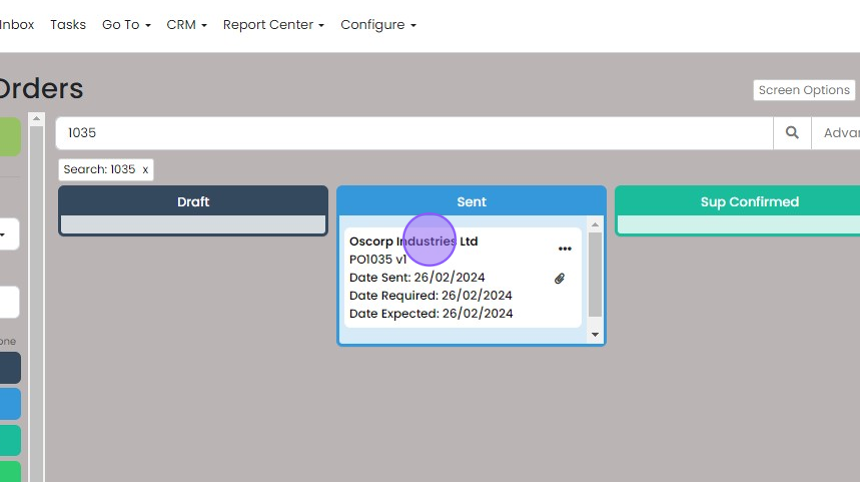
  1. Click on the relevant Purchase Order

    Orders board filtered by search 1035, with the PO1035 v1 purchase order card highlighted in the Sent column
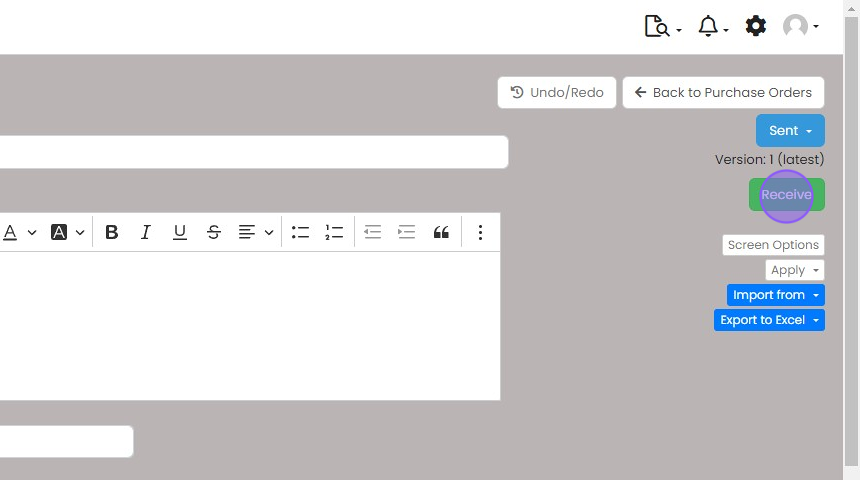
  2. Click "Receive"

    Purchase order screen with Sent status and version 1 (latest), with the green Receive button highlighted on the right
  3. Select a stock location for all items, in this case "Warehouse 1"
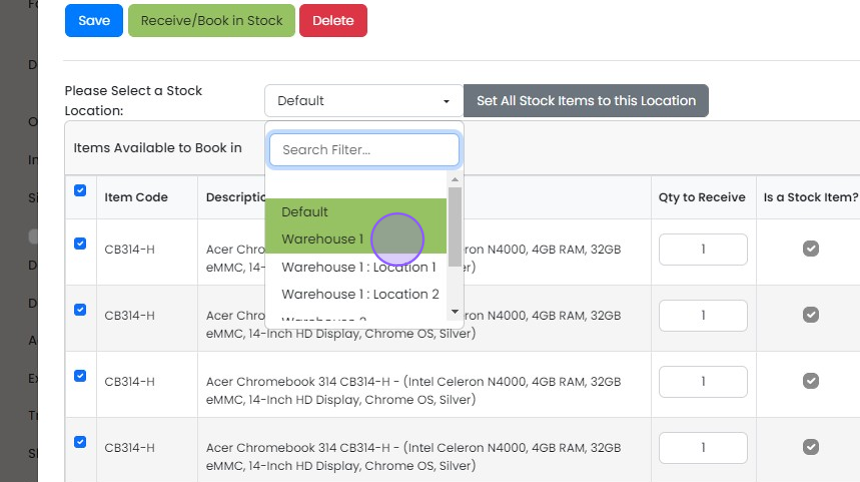
    Stock Location dropdown on the book-in stock screen open with Warehouse 1 highlighted, beside Set All Stock Items to this Location
  4. Click "Set All Stock Items to this Location"

    Book-in stock screen with Warehouse 1 selected and the Set All Stock Items to this Location button highlighted
  5. Click this to scan serial number barcodes (When logged into Zigaflow on a mobile or tablet)
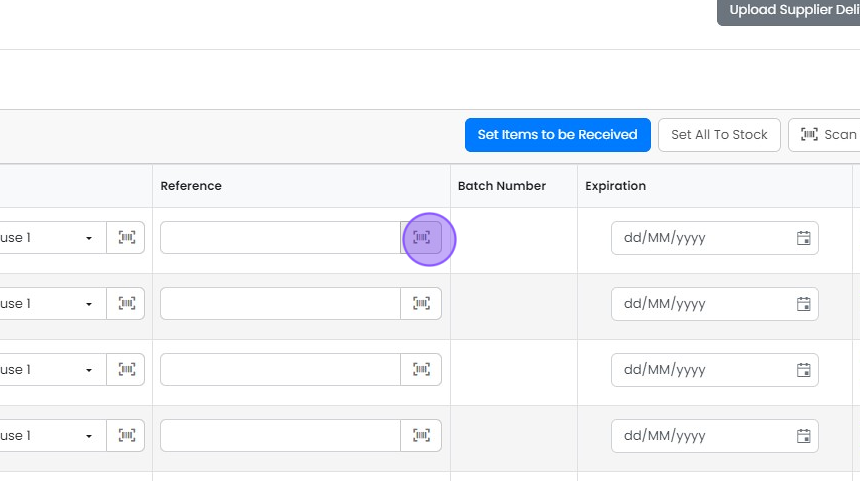
    Receive items table with the barcode scan button highlighted beside the first row's Reference field, for scanning serial numbers
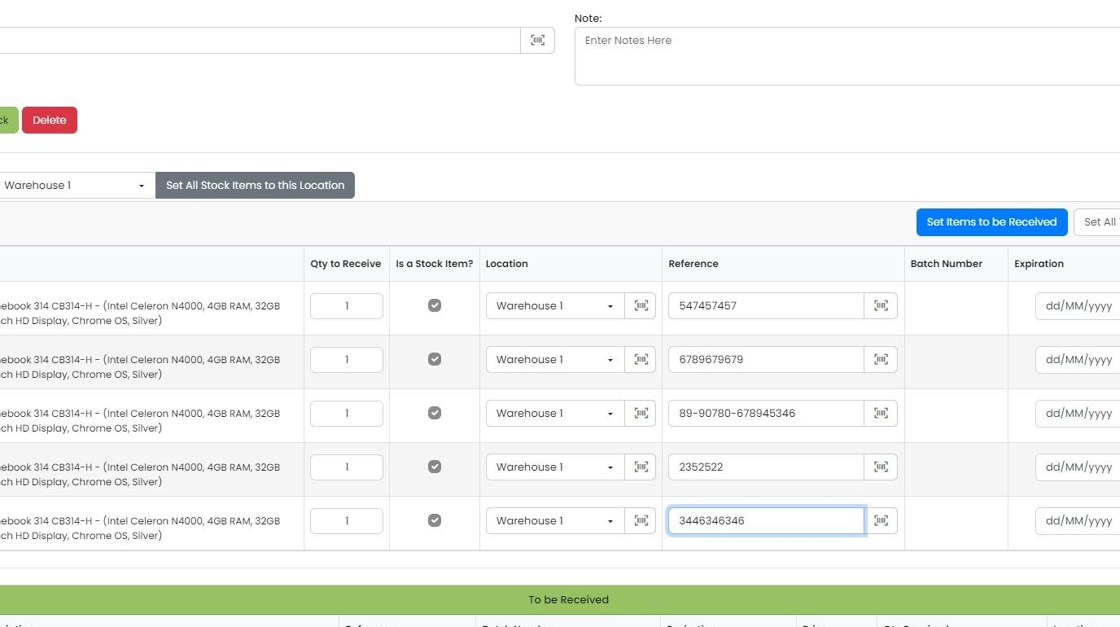
  6. Click here

    Receive stock grid with serial numbers entered in Reference fields for five Chromebook rows, last Reference field highlighted
  7. Click "Set Items to be Received"

    Goods receiving screen with the
  8. Click "Receive/Book in Stock"

    Check stock status and serial numbers
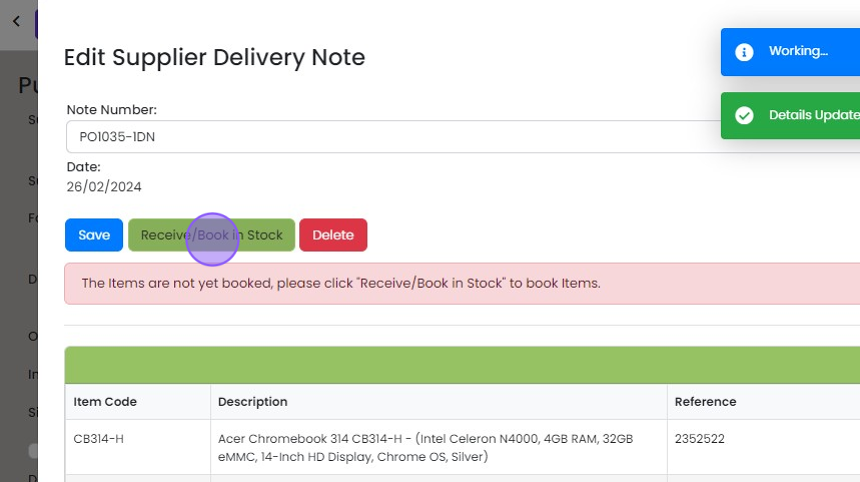
    Edit Supplier Delivery Note panel with the green Receive/Book in Stock button highlighted beside Save and Delete
  9. This stock will be showing as "Free Stock" if the Purchase Order was raised on it's own, or "Allocated" if...

    This stock will be showing as "Free Stock" if the Purchase Order was raised on it's own, or "Allocated" if the Purchase Order was created from a Job in the stock overview
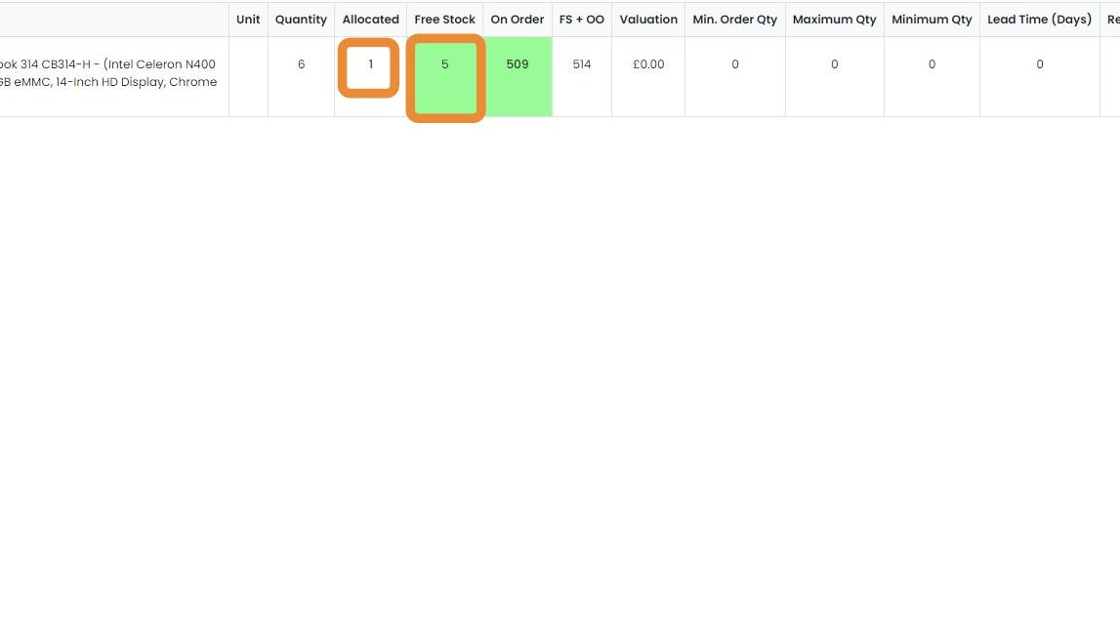
    Stock overview row with the Allocated value of 1 and Free Stock value of 5 highlighted, beside On Order showing 509
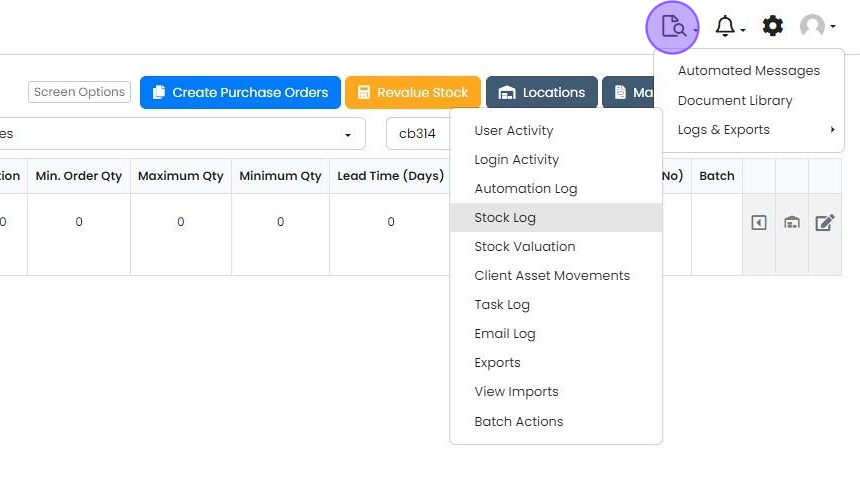
  10. Click "Stock Log"

    Document icon menu open with Logs & Exports submenu expanded and Stock Log highlighted on the stock items screen
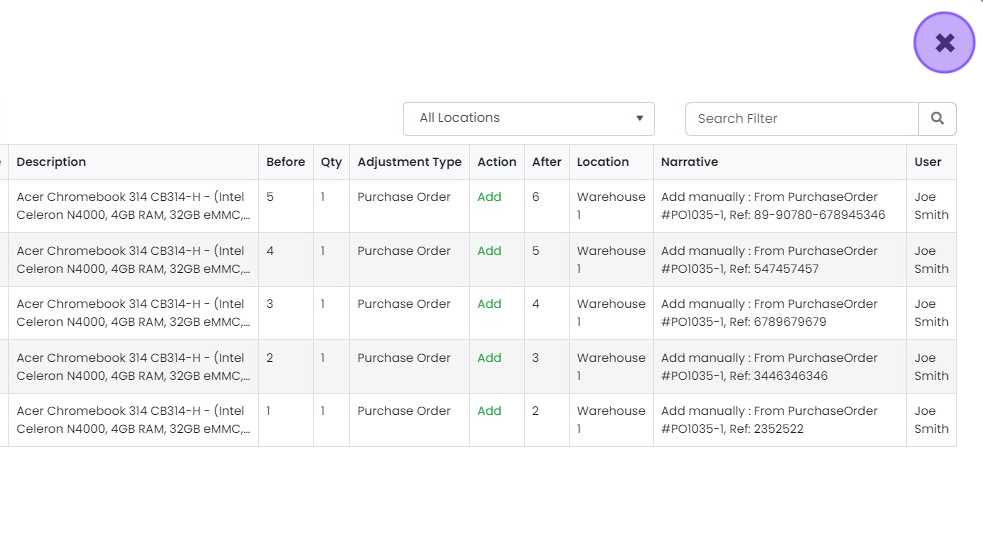
  11. In the Stock Log, you will see an entry for each unique serial number

    Stock Log table showing one Purchase Order Add entry per serial number, with Before, Qty, After and Narrative columns

Receive items on the purchase order

Frequently asked questions

Next step

Managing inventory items by serial numberMomentum planTo manage inventory by serial number in Zigaflow, tick "Store with Unique Reference" on the item edit screen. You can then enter or scan serial numbers when booking stock in, view and edit them in Go To -> Stock -> Locations, and select them when allocating to jobs and picking on delivery notes.

Was this helpful?

See Zigaflow on your own workflow

Book a demo and we will walk through quoting, jobs and purchasing the way your team runs them.

Or see how Zigaflow would fit your business, free