Deliver work

Client assets - booking in and returning

In Zigaflow

The short answer

Client assets are booked out to a customer when you mark a delivery note as Delivered, which moves the item from stock into the client asset register. To book one back in, create a customer return from Go To, Customer Returns, and set its status to Received. This returns the asset to stock.

Steps

  1. Open the delivery note the item(s) are being dispatched on, and make sure the item is picked from inventory

    Open the delivery note the item(s) are being dispatched on, and make sure the item is picked from inventory. It is not, click on "Pick"

    Delivery note Items tab with the Pick button highlighted in the Picked From column for the 300L Integrated Block line
  2. Click "Pick"

    Pick 300L Integrated Block from Stock window with the Pick button highlighted for the Aisle B row, quantity 1 entered
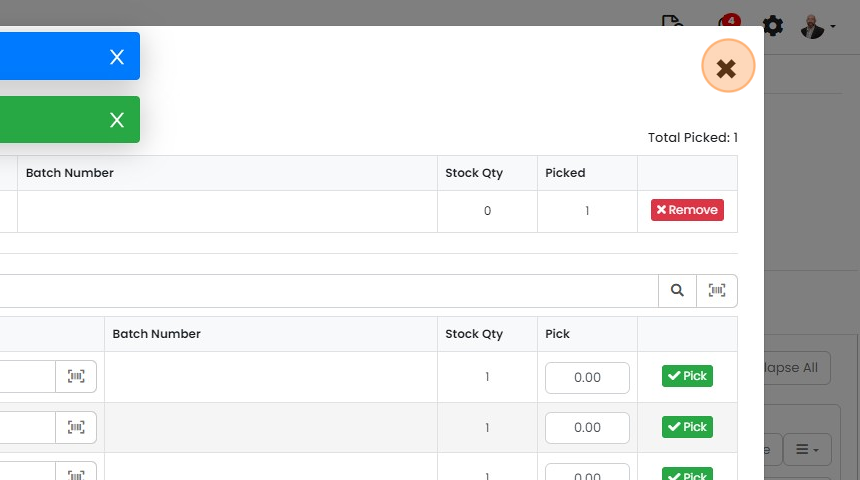
  3. Click "×"

    Stock picking dialog showing Total Picked: 1 and Pick buttons, with the close × button highlighted at the top right
  4. When the delivery has been made, click on the status button to move it "Delivered" - this books the item...

    When the delivery has been made, click on the status button to move it "Delivered" - this books the item out of stock and into the client asset register

    View the client asset register
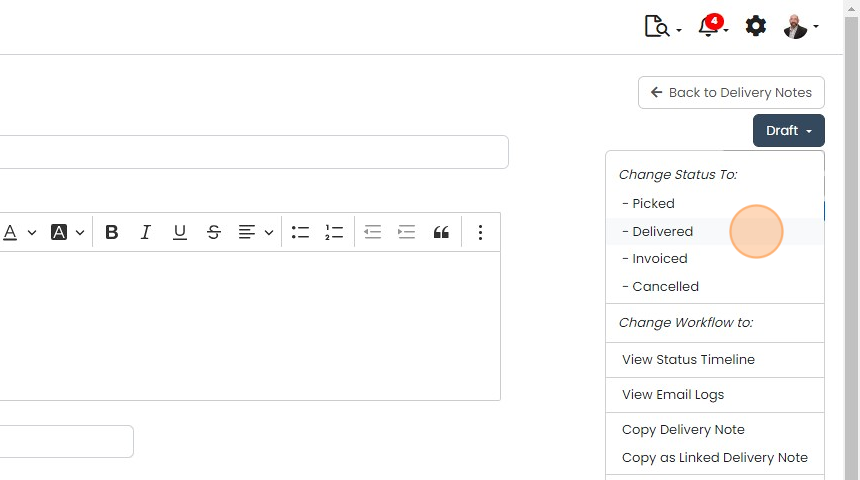
    Delivery note Draft status menu open with the Delivered option highlighted under Change Status To
  5. To view it in the register, click "Go To"
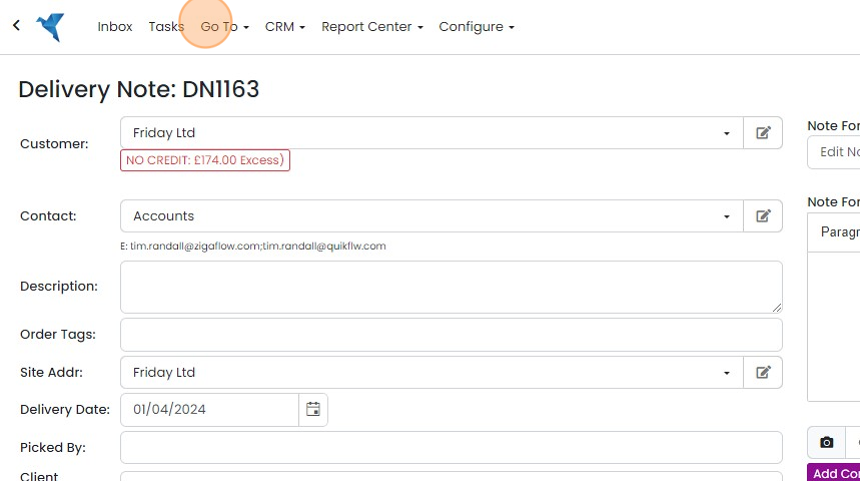
    Delivery Note screen with the Go To menu highlighted in the top navigation bar, used to open the client asset register
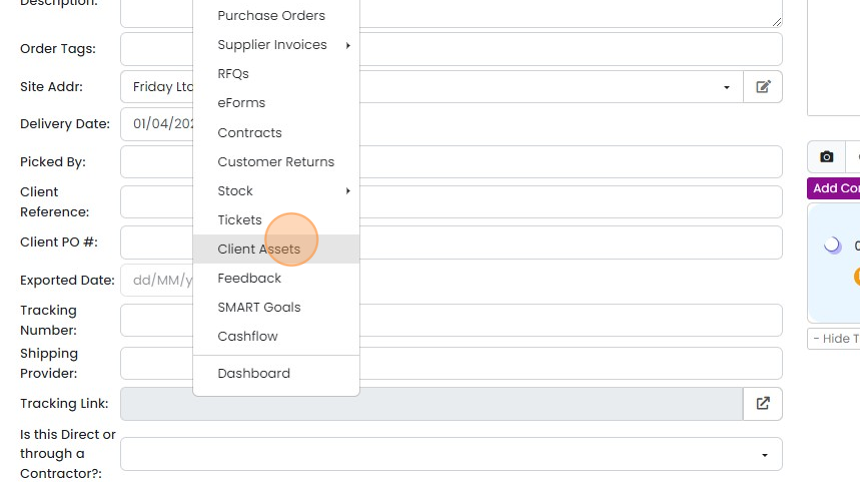
  6. Click "Client Assets"

    Dropdown navigation menu open over an order form, with Client Assets highlighted between Tickets and Feedback
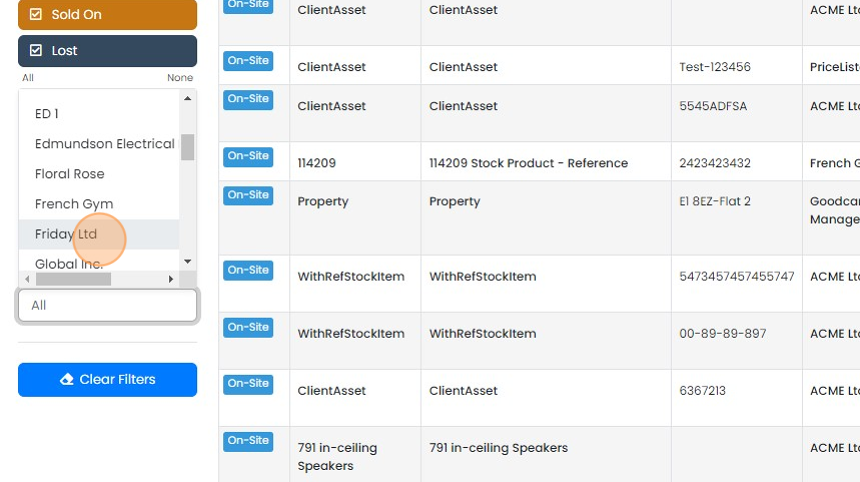
  7. Select the customer

    Client Assets filter panel with a customer selected from the scrollable list, beside a table of On-Site assets
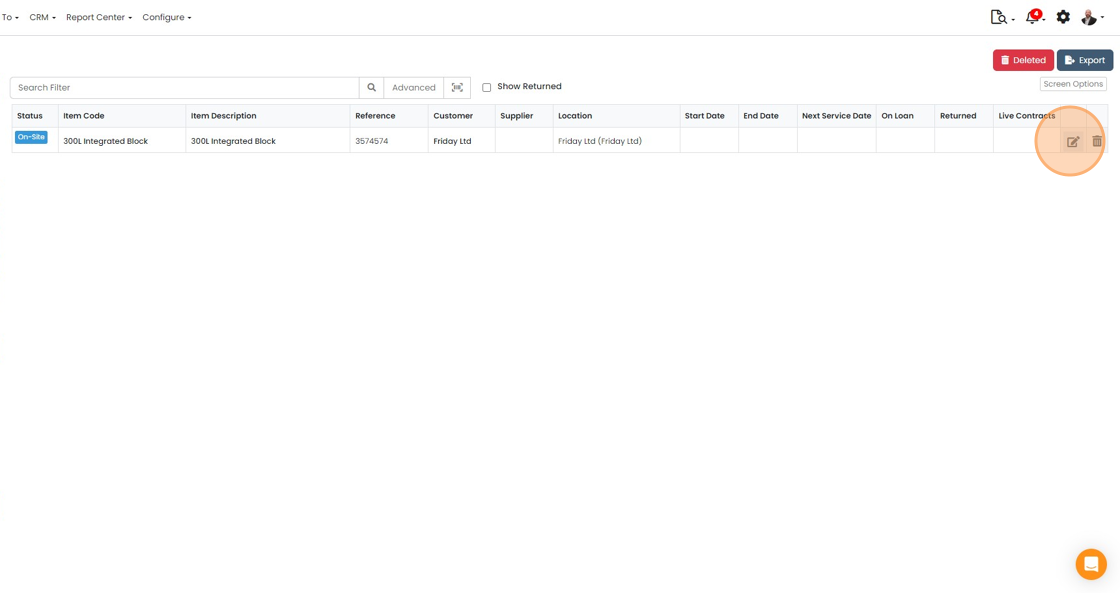
  8. Click to edit the asset

    Client assets list with one On-Site asset row, edit pencil icon highlighted at the end of the row beside the delete icon
  9. Click the "Links" tab to see connected documents (such as the delivery note), and/ or a service contract
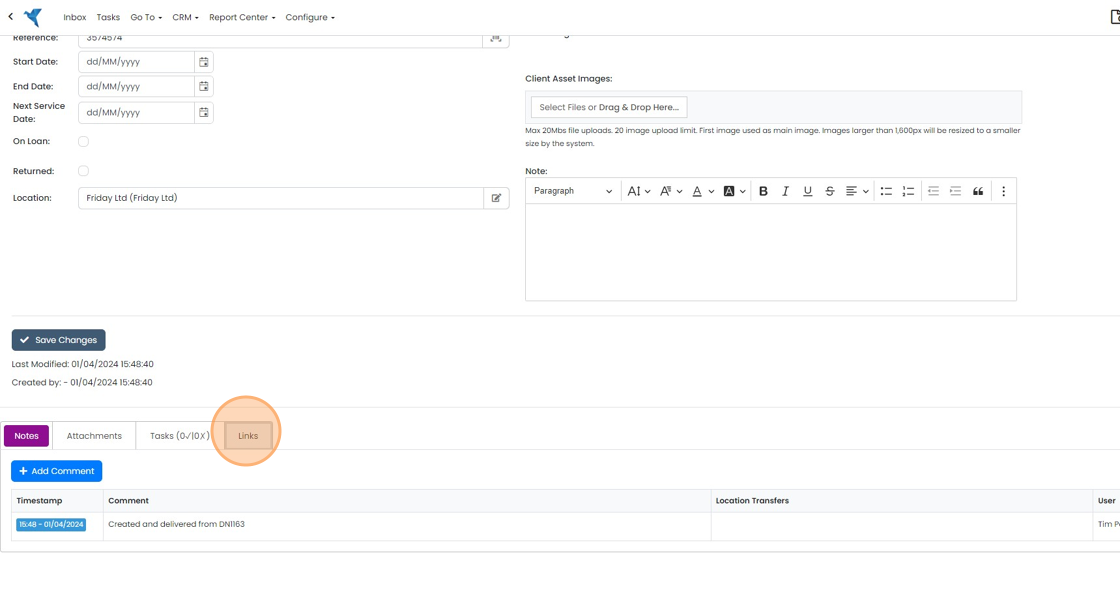
    Client asset record with the Links tab highlighted beside Notes, Attachments and Tasks below the Save Changes button
  10. Optionally, set a next service date

    Return an asset to inventory

    Client asset record for 300L Integrated Block with the Next Service Date field and its calendar button highlighted
  11. To book an asset out of the client asset list and back into inventory, click on "Go To"
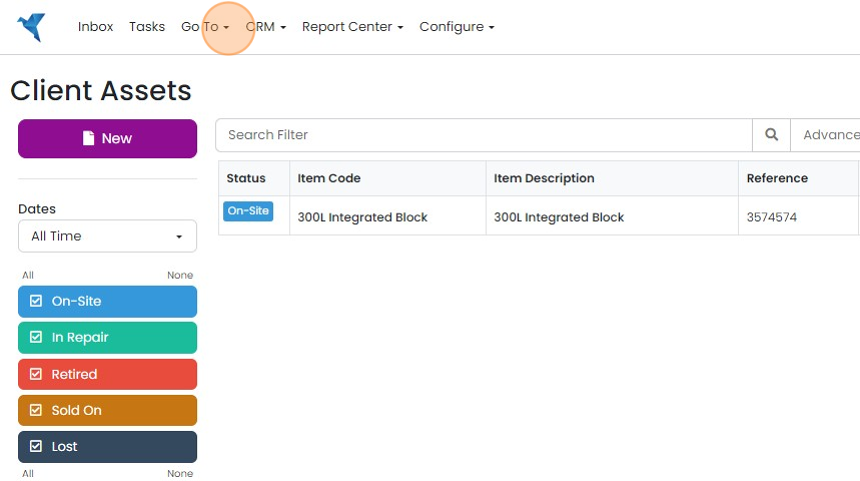
    Client Assets list with the Go To menu highlighted in the top navigation bar, next to Tasks and CRM
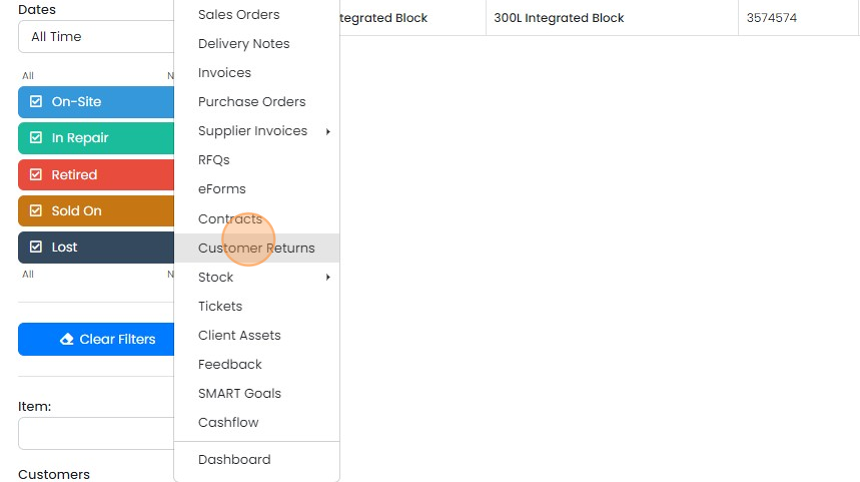
  12. Click "Customer Returns"

    Navigation menu open over the Client Assets list, with the Customer Returns option highlighted between Contracts and Stock
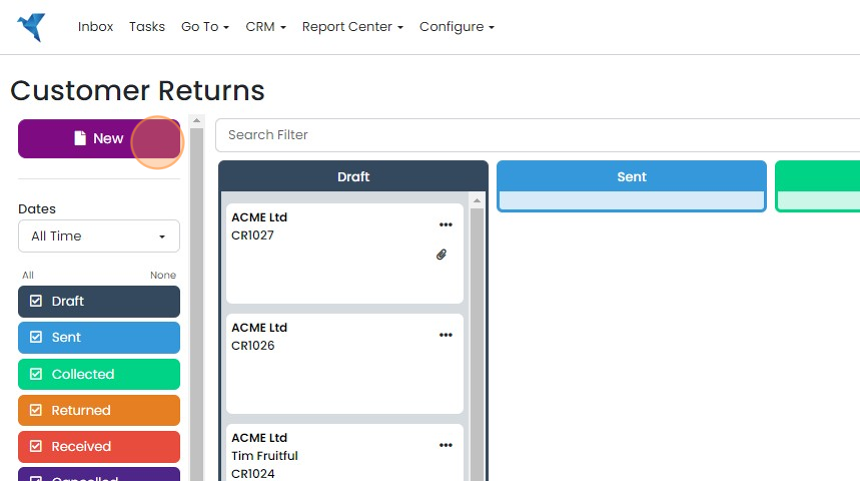
  13. Click "New"

    Customer Returns board with Draft and Sent columns, the purple New button highlighted at the top of the left panel
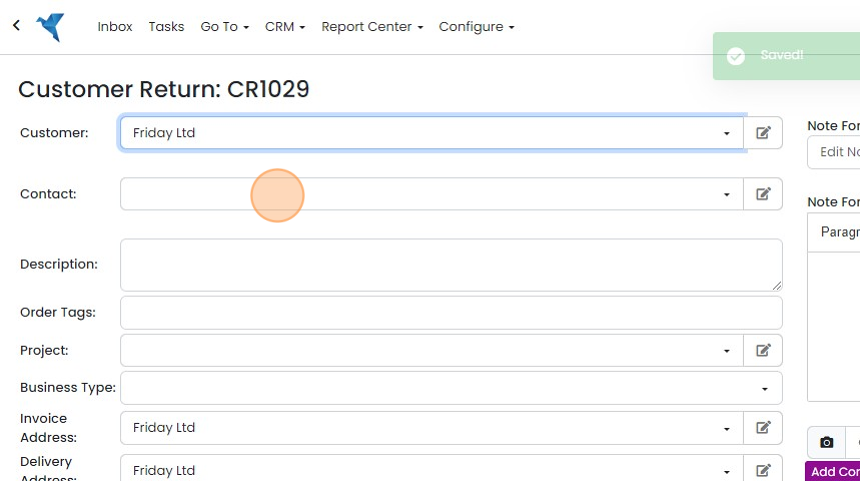
  14. Select the customer

    Customer Return form with a customer selected in the Customer field and the Contact dropdown highlighted, Saved message shown
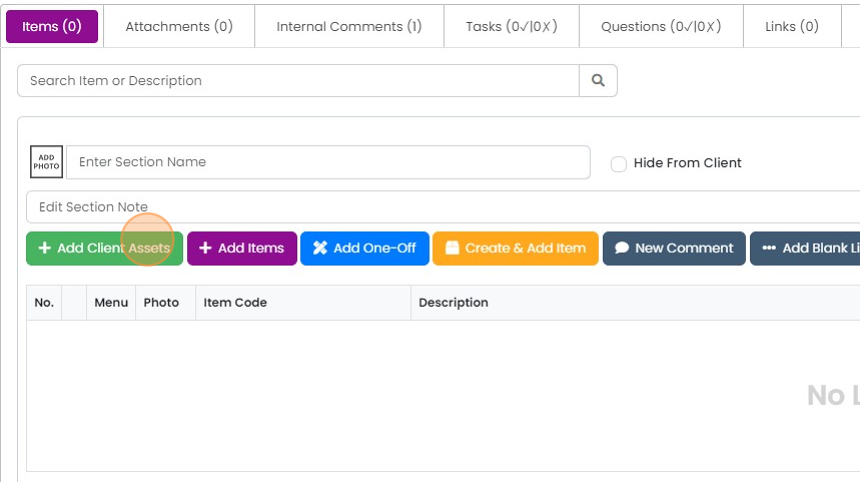
  15. Click "Add Client Assets"

    Items tab with an empty section and the green Add Client Assets button highlighted among the item action buttons
  16. Select the asset to return and click "Add"
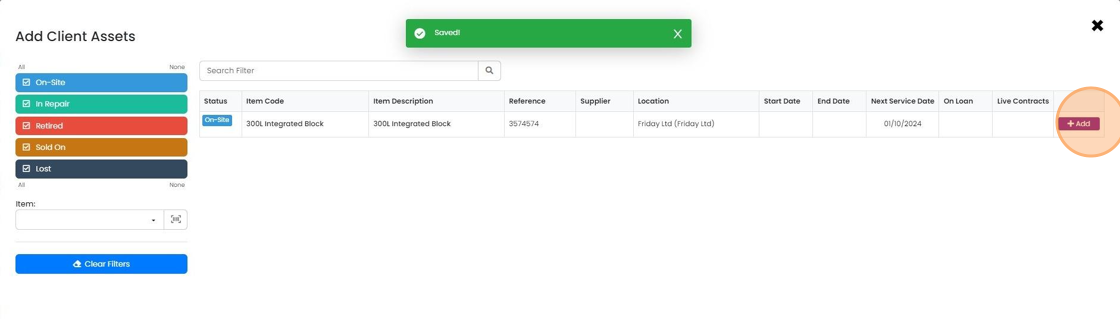
    Add Client Assets window with a
  17. Click "×"

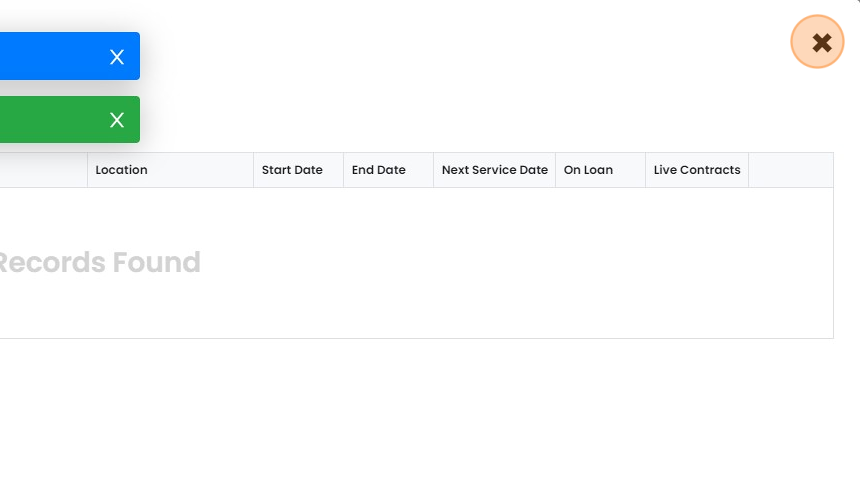
    Empty client assets table showing No Records Found, with the close
  18. Set the inventory location the item is to be returned to

    Set the inventory location the item is to be returned to. You might create an area called "Customer Return" or "Quarantine" for this is the inventory settings
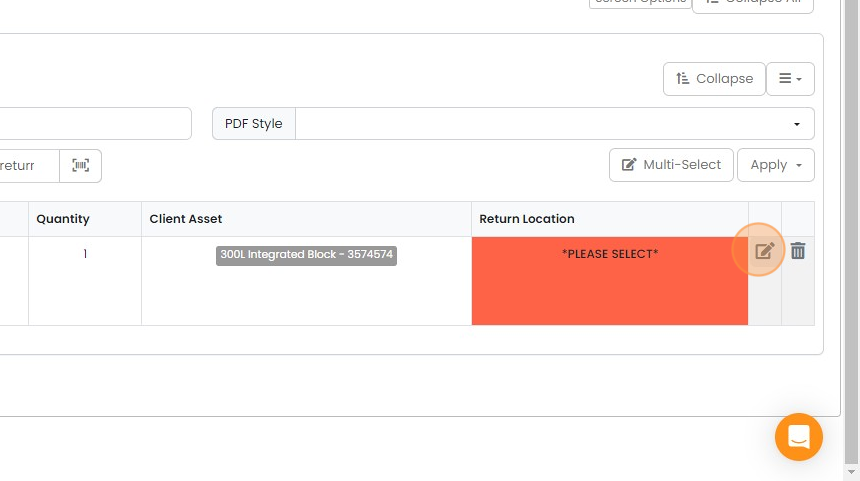
    Returns line item with Return Location showing *PLEASE SELECT* in red and the edit pencil icon highlighted beside it
  19. Click here

    Return line item with the Return Location dropdown highlighted in red, next to Quantity and Client Asset columns
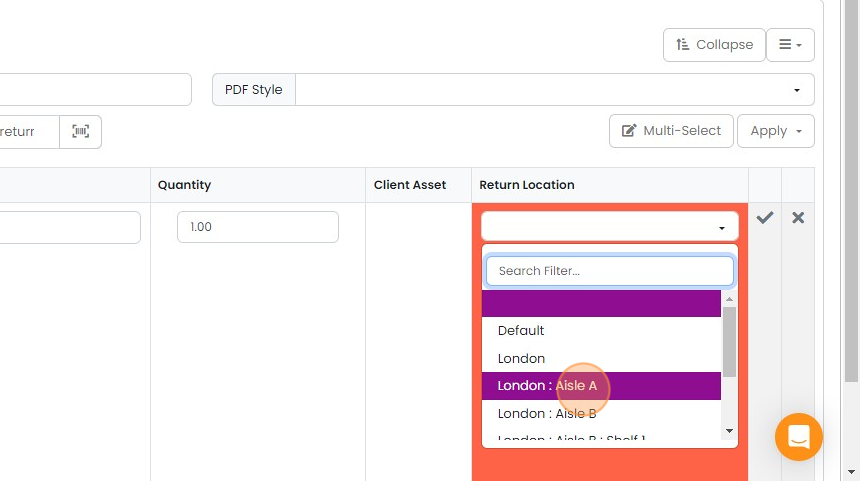
  20. Select the location

    Return Location dropdown open on a return line, with London : Aisle A highlighted and selected from the location list
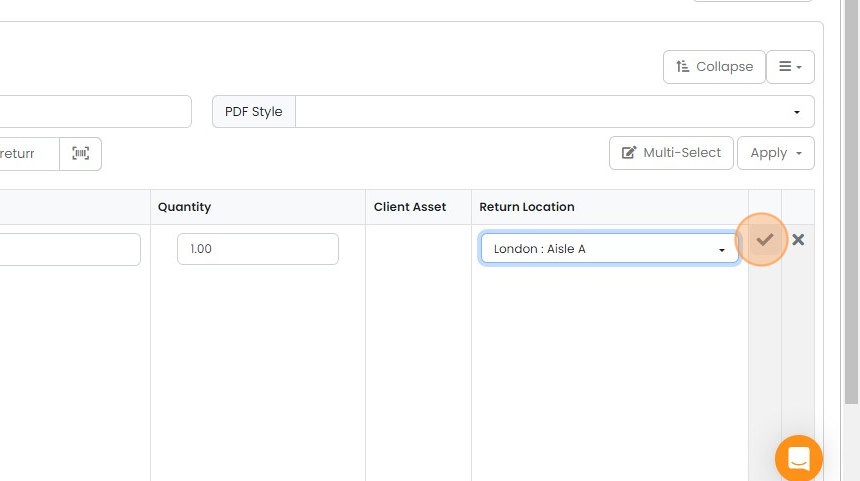
  21. Tick to confirm

    Return line with Return Location set to London : Aisle A, and the tick button highlighted to confirm the line
  22. Change the status of the customer return to " Received"

    Change the status of the customer return to " Received". This removes the asset from the customer's list and returns it into stock.

    View asset and stock movements
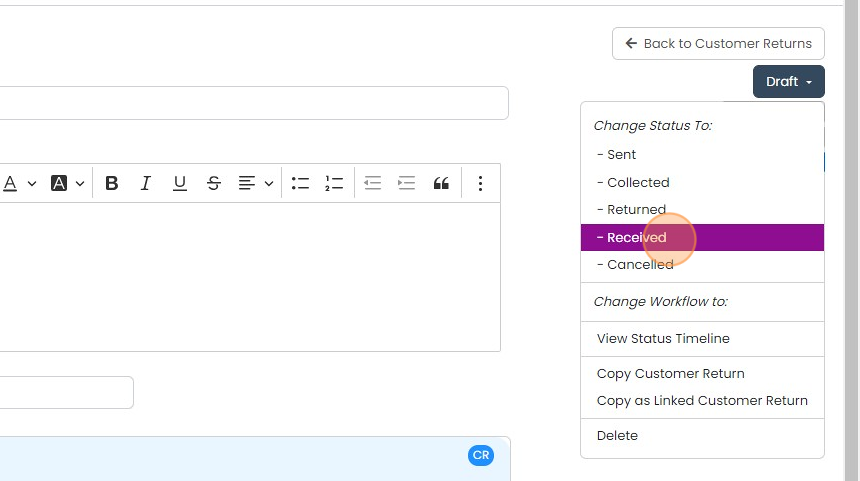
    Customer return Draft status dropdown open with
  23. To view the client asset movements, click here
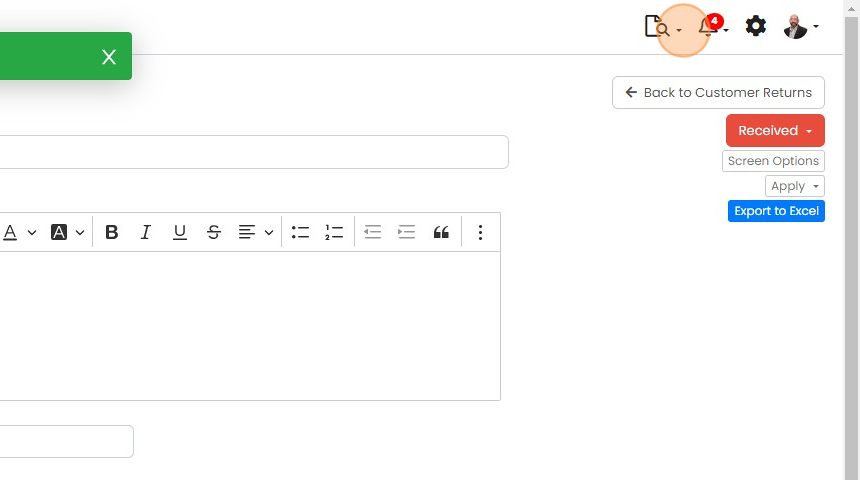
    Customer return record with the document search icon dropdown highlighted in the top toolbar, near the notifications bell
  24. Click "Client Asset Movements"

    Logs & Exports submenu in the settings menu with the Client Asset Movements option highlighted by a click marker
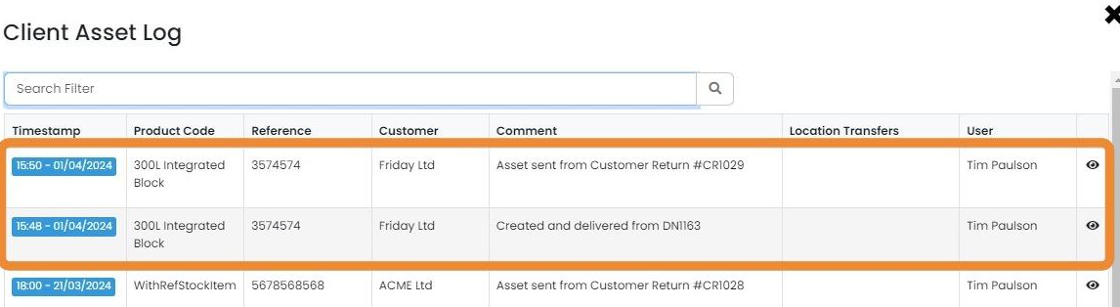
  25. The movements are listed here

    Client Asset Log table with the two most recent asset movements highlighted, showing customer return and delivery entries
  26. To view the inventory movements, click here
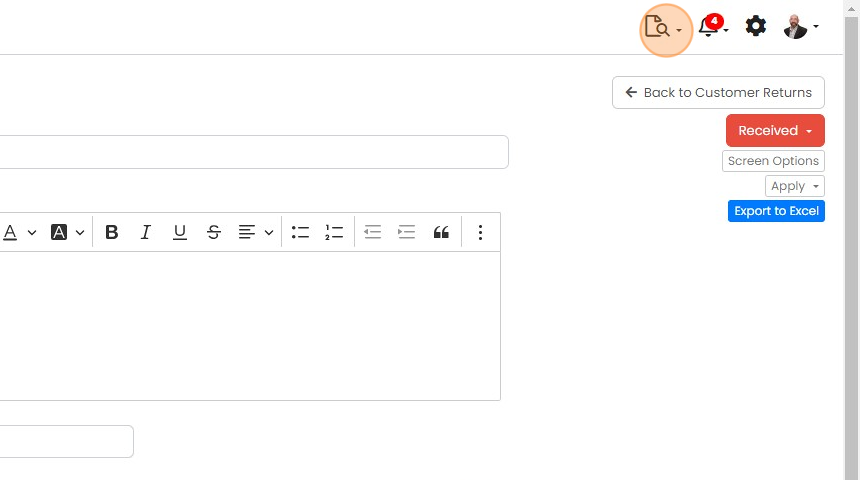
    Customer Return screen with the document search icon dropdown highlighted in the top toolbar to view inventory movements
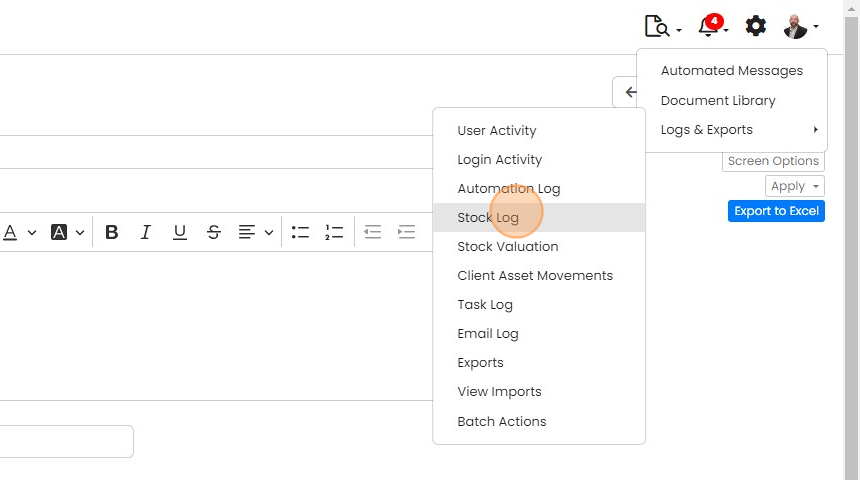
  27. Click "Stock Log"

    Logs & Exports submenu open from the settings menu, with the Stock Log option highlighted under Automation Log
  28. This screen gives the dates and narratives for any inventory movement

    Stock Log showing a Customer Return entry, with the Narrative field highlighted reading Add manually: From Customer Return

Client Assets can only be items with a reference (such as a serial number) and are automatically booked into a customer's location when dispatched from stock. They can be booked back in using a customer return.

Book an asset out to a customer

Frequently asked questions

Was this helpful?

See Zigaflow on your own workflow

Book a demo and we will walk through quoting, jobs and purchasing the way your team runs them.

Or see how Zigaflow would fit your business, free