Deliver work

Moving stock with barcodes

In ZigaflowMomentum plan

The short answer

To move stock with barcodes in Zigaflow, print the location barcodes and the instruction barcodes (Cog, Inventory & Item Management, Stock, Locations), then open the Scanner page from Locations. Use your scanner to read the printed instructions and move stock without a keyboard.

Steps

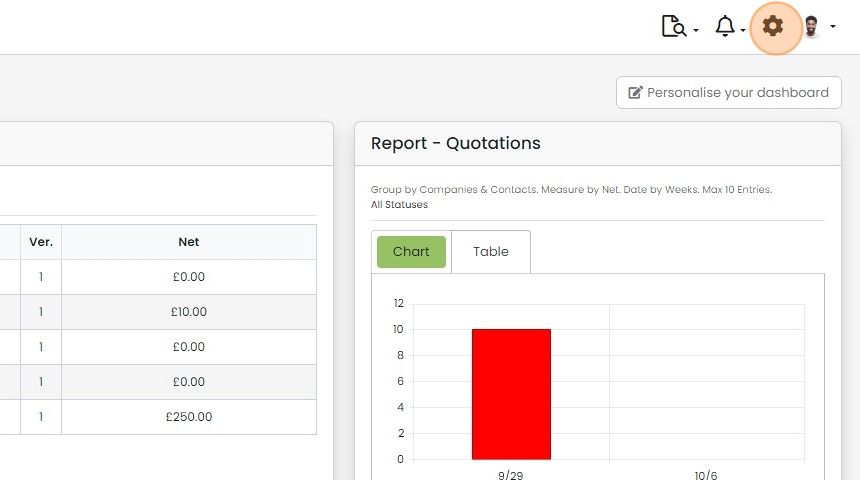
  1. Click on the Cog

    Zigaflow dashboard with the settings cog icon highlighted in the top-right toolbar, next to the notifications bell
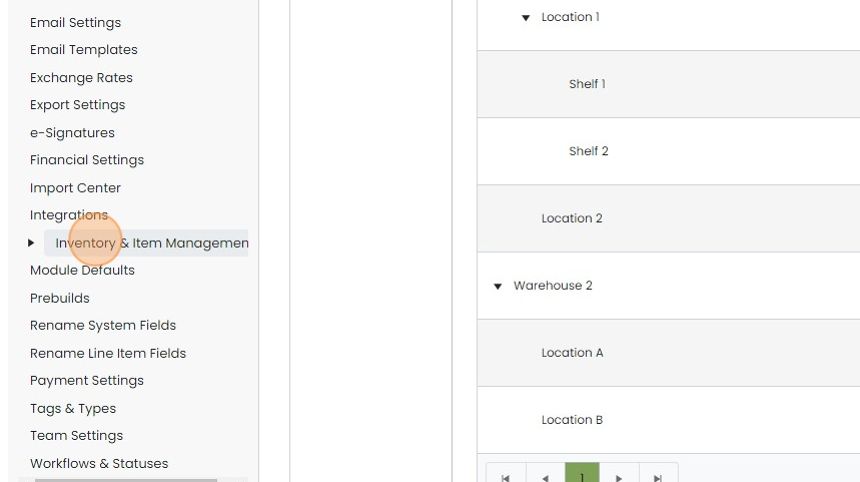
  2. Click "Inventory & Item Management"

    Settings menu with
  3. Click "Stock"

    Settings menu with Inventory & Item Management expanded and the Stock option highlighted, beside a stock locations list
  4. Click "Locations"

    Stock Settings with the Locations tab highlighted, showing the Stock Locations list of warehouses, locations and shelves with barcodes
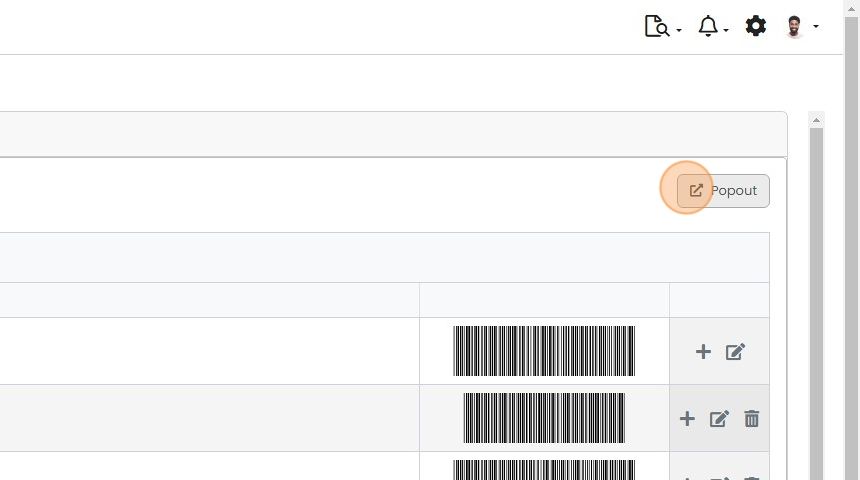
  5. Click "Popout"

    Barcode list panel with rows of barcodes and add, edit, delete icons, highlighting the Popout button at top right
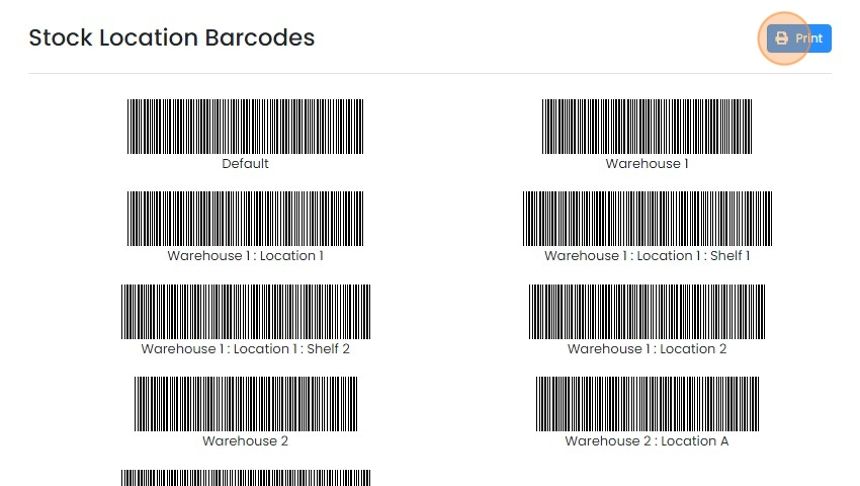
  6. Print out the codes from this screen

    Stock Location Barcodes screen listing barcodes for each warehouse location, with the Print button highlighted at top right
  7. Close this screen

  8. Now print off the instruction bar codes - click "Barcodes"
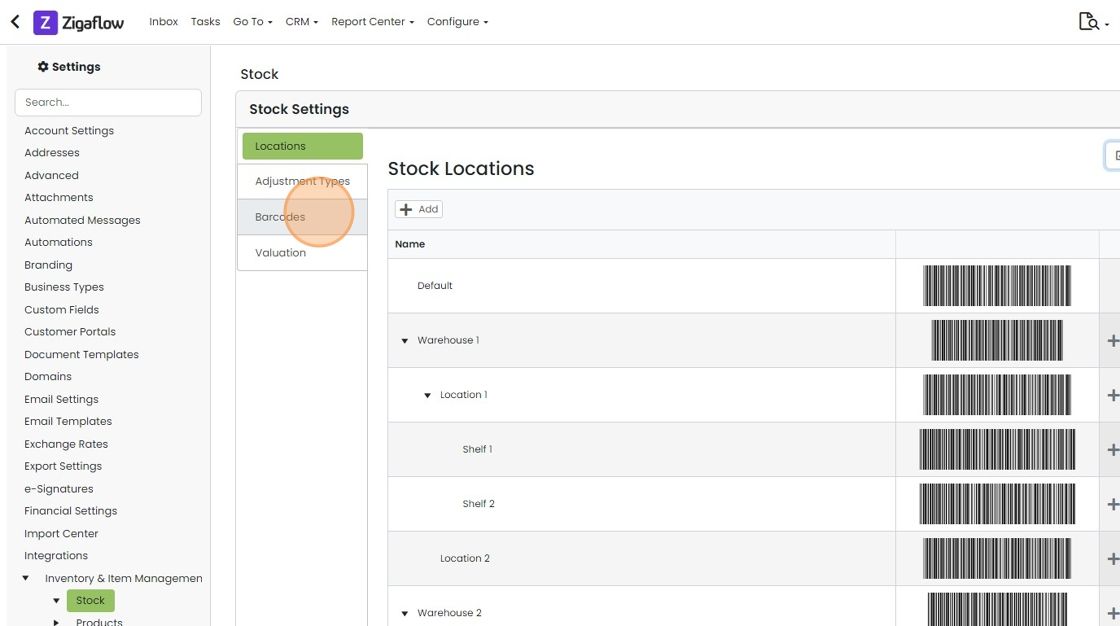
    Stock Settings page showing the Stock Locations list with barcodes, with the Barcodes tab highlighted in the left menu
  9. Click on "Popout"

    Barcode Settings page with the Popout button highlighted beside the Action & Input Barcodes section
  10. Print out the codes from this screen

    Open the scanner screen

    Action & Input Barcodes page with Restart, Submit and Close scanner barcodes, Print button highlighted top right
  11. Switch to tab Stock Settings | Zigaflow"

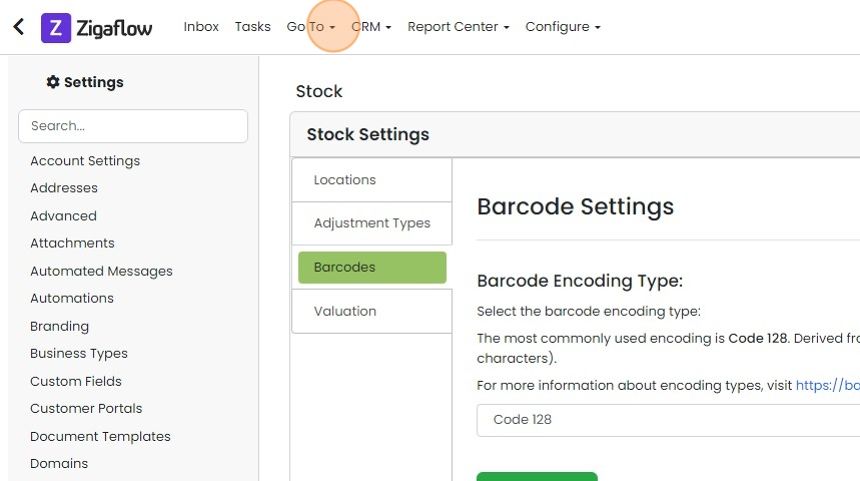
  12. Click "Go To"

    Stock Settings Barcodes tab with Code 128 encoding selected, and the Go To menu highlighted in the top navigation bar
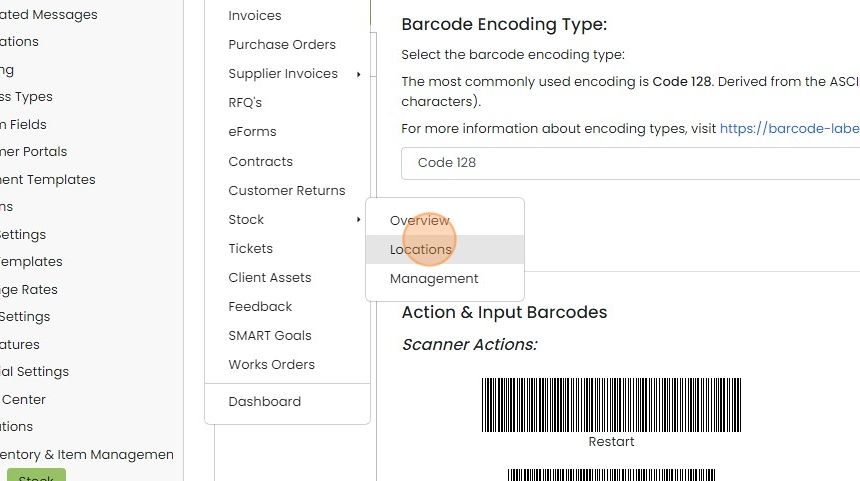
  13. Click "Locations"

    Stock submenu open from the main navigation menu, with the Locations option highlighted between Overview and Management
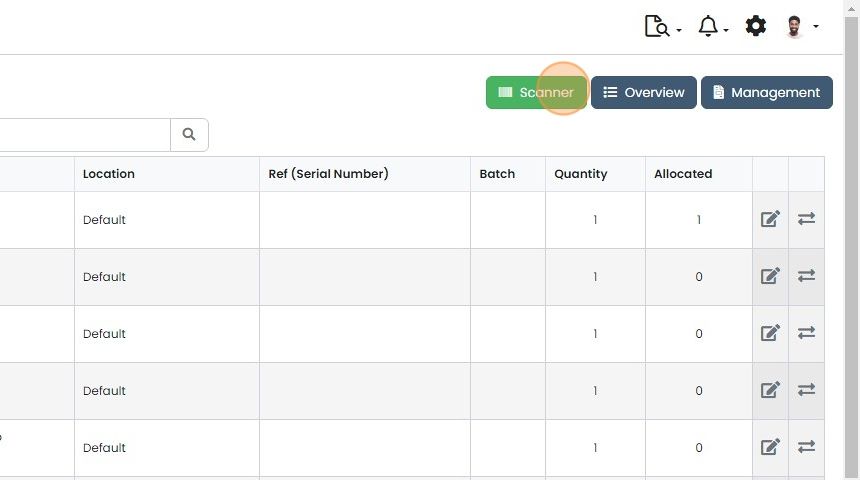
  14. Click "Scanner"

    Stock list with Location, Quantity and Allocated columns, with the green Scanner button highlighted beside Overview
  15. Once this page has been opened, you can use the scanner, reading the scanner instructions you have printed...

    Once this page has been opened, you can use the scanner, reading the scanner instructions you have printed off.

    Learn more: stock management in Zigaflow
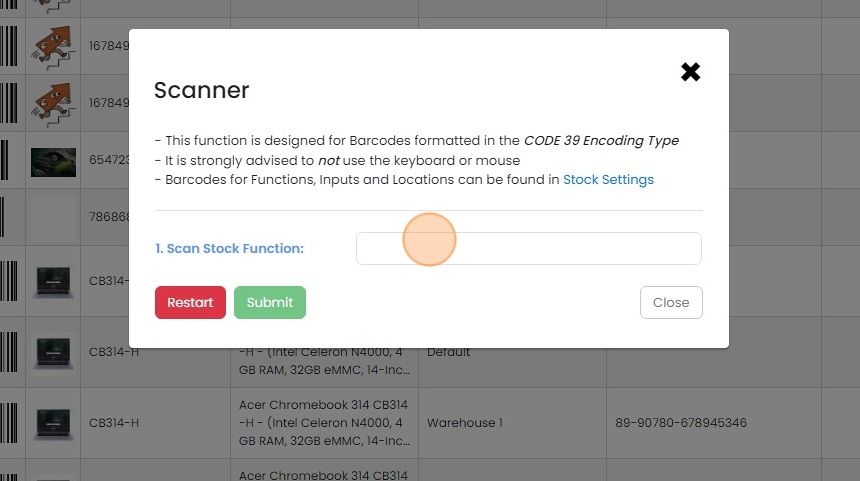
    Scanner pop-up with CODE 39 barcode instructions, highlighting the 1. Scan Stock Function field above Restart and Submit

Accessing Barcode Information in Zigaflow

Zigaflow allows you to use your scanner to:

-Move stock around

-Search for items

-Record serial numbers

If you plan to use a barcode scanner, we recommend getting on that explicitly states it can read screens.

Search items and serial numbers

Searching and recording serial numbers can be done wherever this icon is found:

Barcode scanner icon with orange vertical bars inside a gray frame, used to search and record serial numbers

Click on the icon and then scan the item number or serial number.

To print off the stock item barcodes, we recommend adding the selected items to a Job or Works Order and using a PDF document that includes the variable {ItemCodeBarcode}. If there are many, you may wish to export the items from the items screen to a spreadsheet and import that into the Job/Works Order.

You can also move stock around easily just using a scanner and not having to use a keyboard. This articles explains how.
​

Frequently asked questions

Next step

Rapid stock check/count with a scannerMomentum planTo count stock quickly with a scanner, open the Stock/Inventory Locations screen, click the batch update button, and go to the location you are counting. Scan each item and Zigaflow raises the tally for that item on the check screen, then shows any differences from the expected quantity.

Was this helpful?

See Zigaflow on your own workflow

Book a demo and we will walk through quoting, jobs and purchasing the way your team runs them.

Or see how Zigaflow would fit your business, free