Creating an automated message to chase payment
The short answer
Open your invoice pre-build, go to Automated Messages, and create a new blank automated message. Set it to Active, trigger it from the Payment Date with a number of business days, choose the status (usually Sent), tick Recurs, then write the chaser email. It sends from your email address with your branding.
Steps
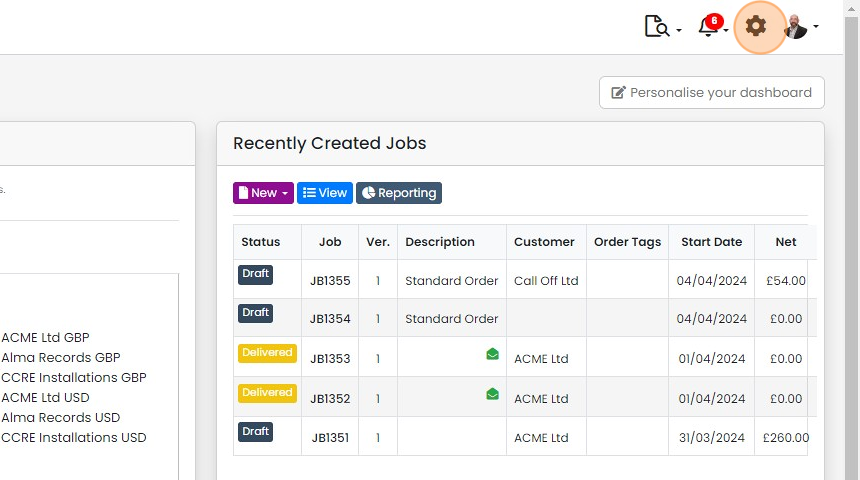
Click here
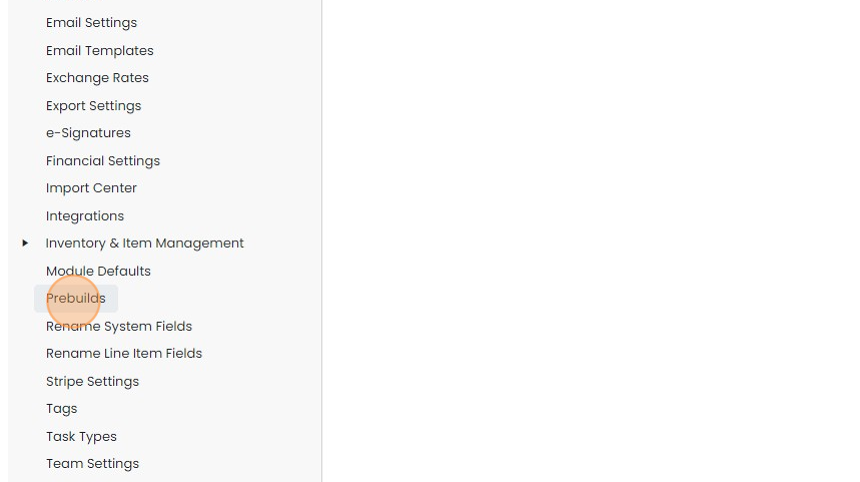
Click "Prebuilds"
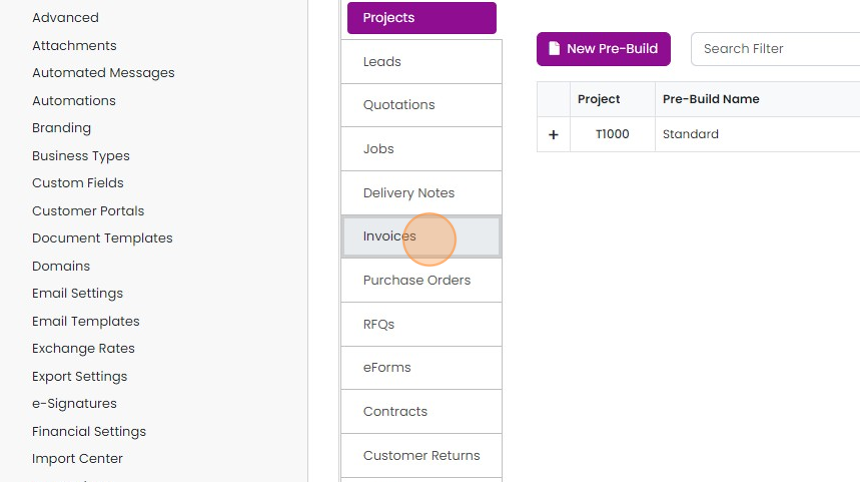
Click "Invoices"
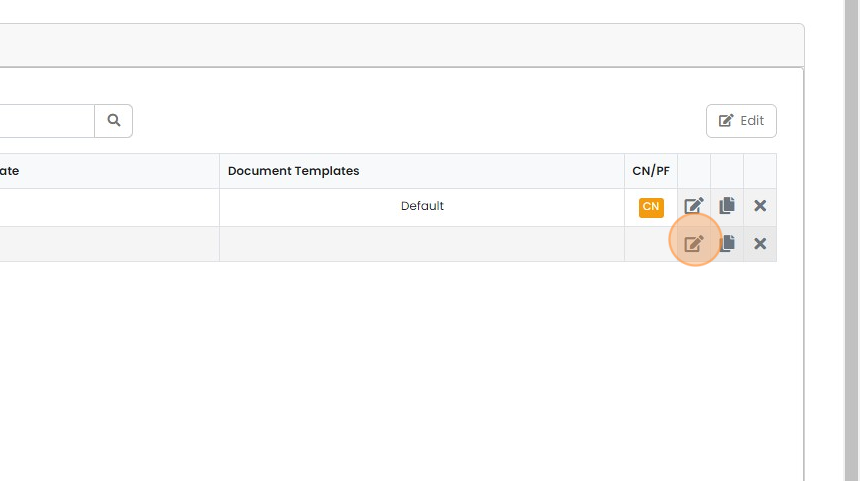
Edit a pre-build
Click "Automated Messages"
Set when the message sends
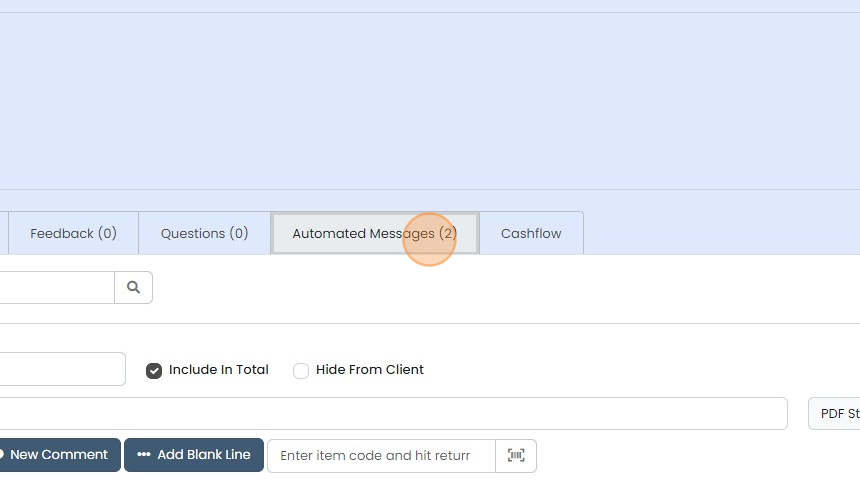
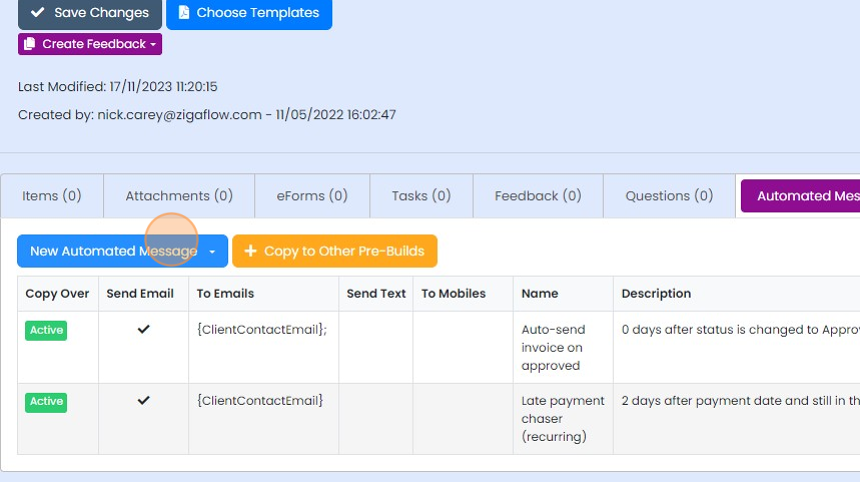
Click "New Automated Message"
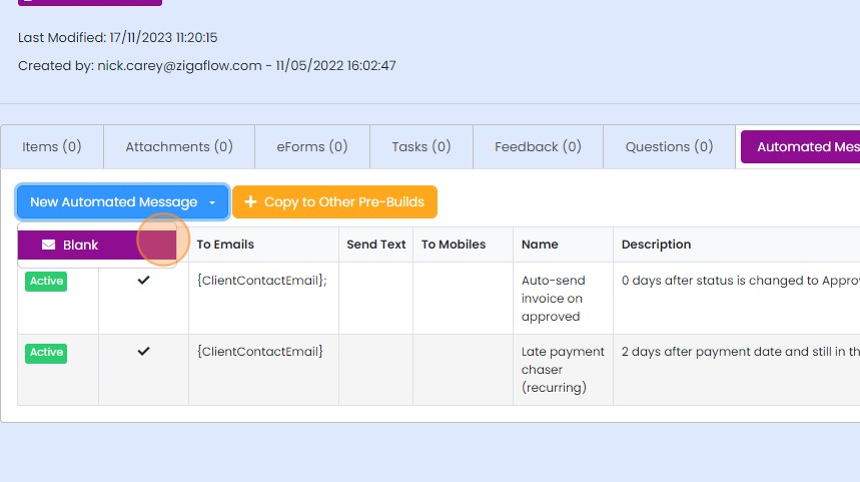
Click "Blank"
Give it a title (for internal purposes only)
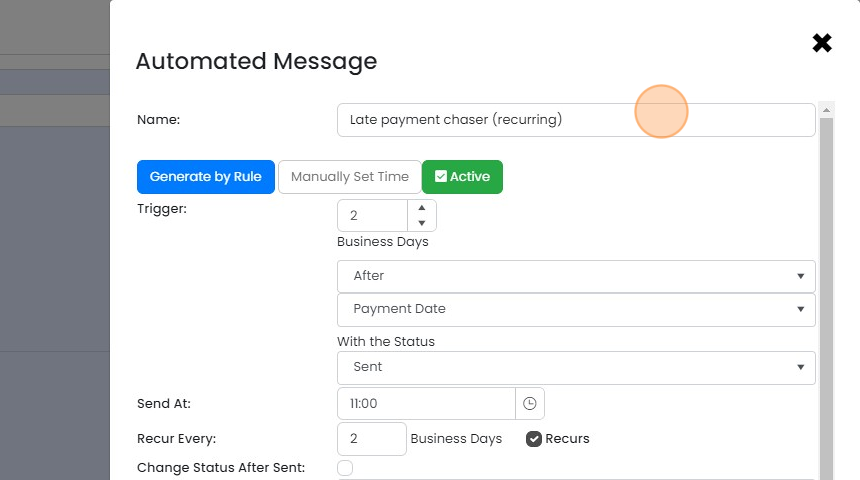
Make sure that it is "Active"
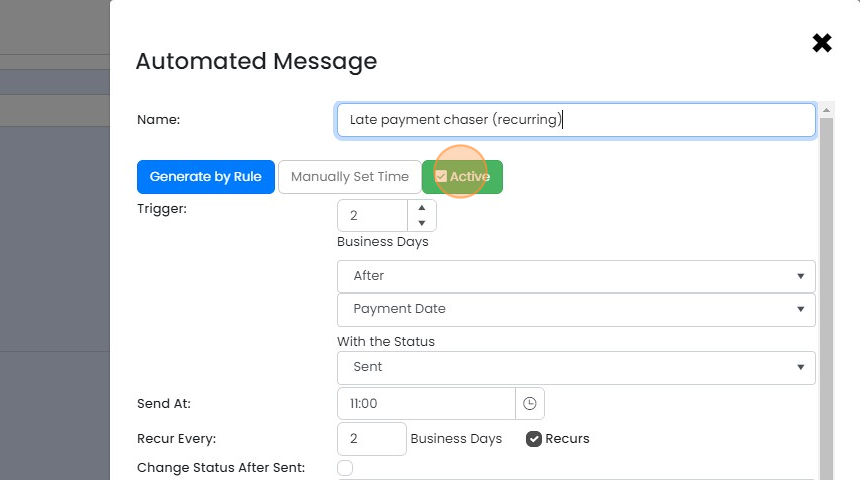
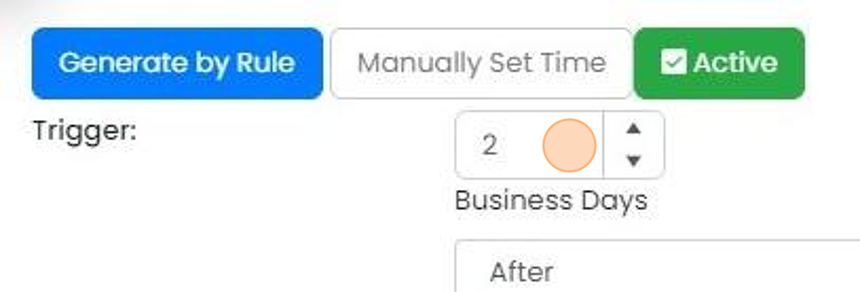
Set the number of business days after the payment date to send the email
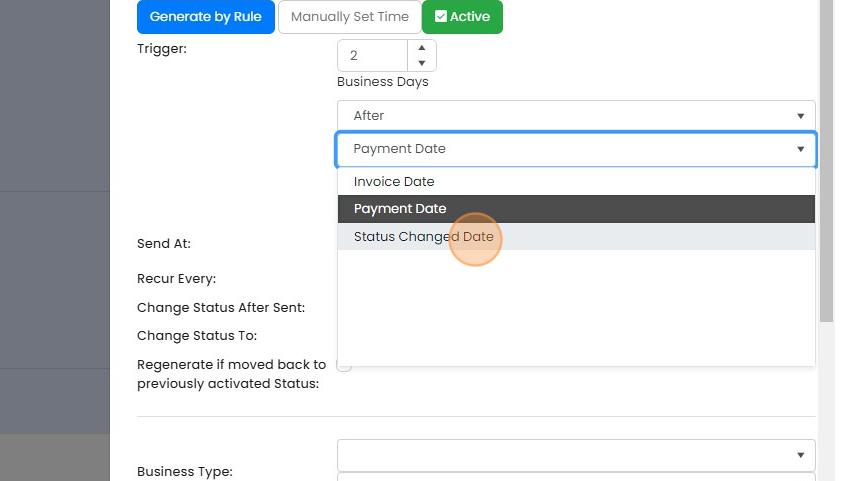
Set the trigger to "Payment Date", not "Status Changed Date"
Set the trigger to "Payment Date", not "Status Changed Date". The payment date is on the invoice and calculated either from your standard invoice terms or on specific customer ones
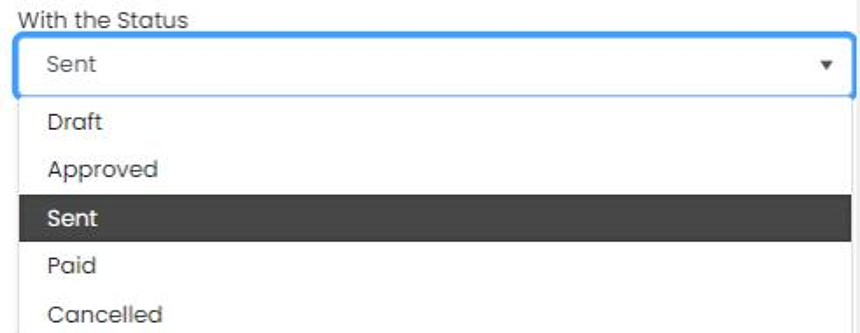
Set the status to trigger the emails - this will usually be "Sent"
The messages can be sent out repeatedly until the invoice status is changed (i.e
The messages can be sent out repeatedly until the invoice status is changed (i.e. to "Paid". Set the number of business days between each email
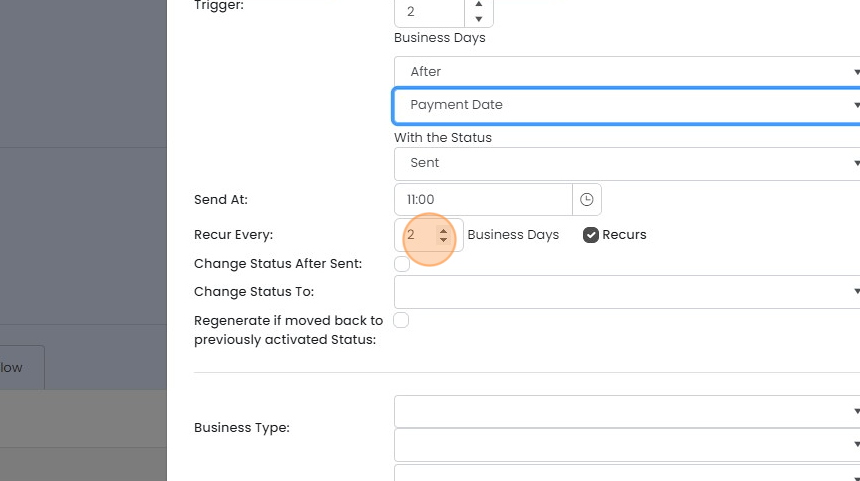
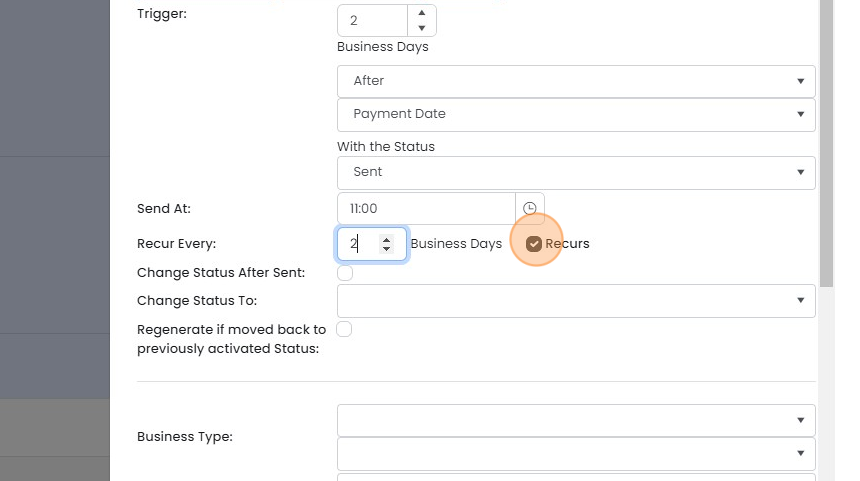
Make sure "Recurs" is ticked
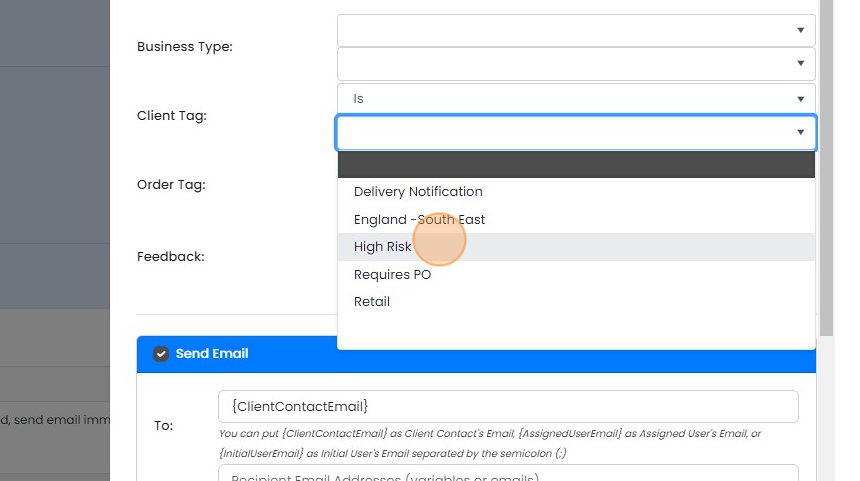
Set tags or the business type to decide whether to send the message
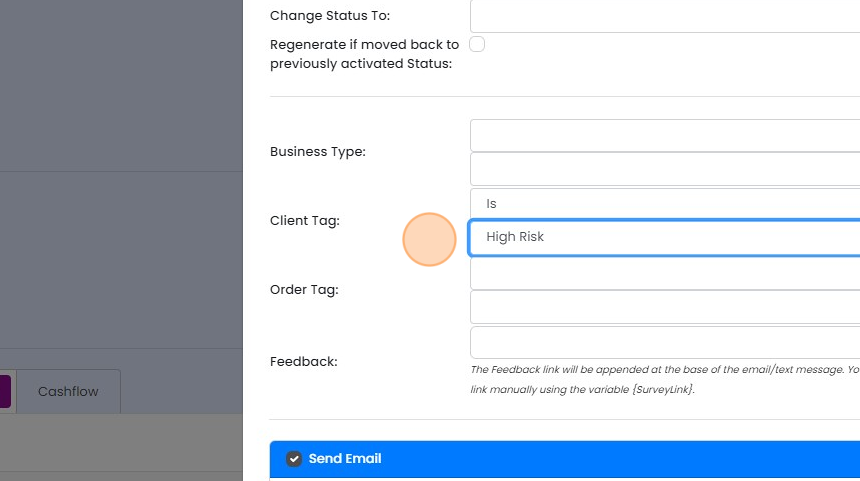
Set tags or the business type to decide whether to send the message. This is useful if you want to exclude some customers or set up reminders before the payment date for others
Resulting in
Write the chaser email
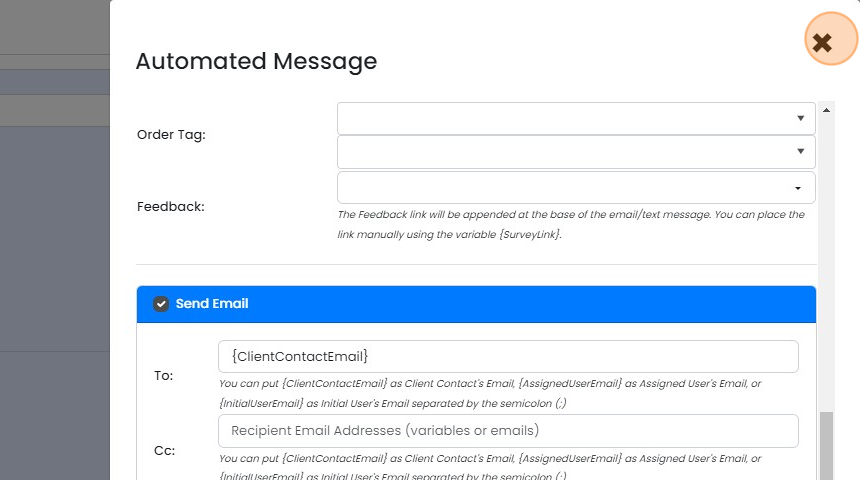
Enter the {ClientContactEmail} in the "To" field
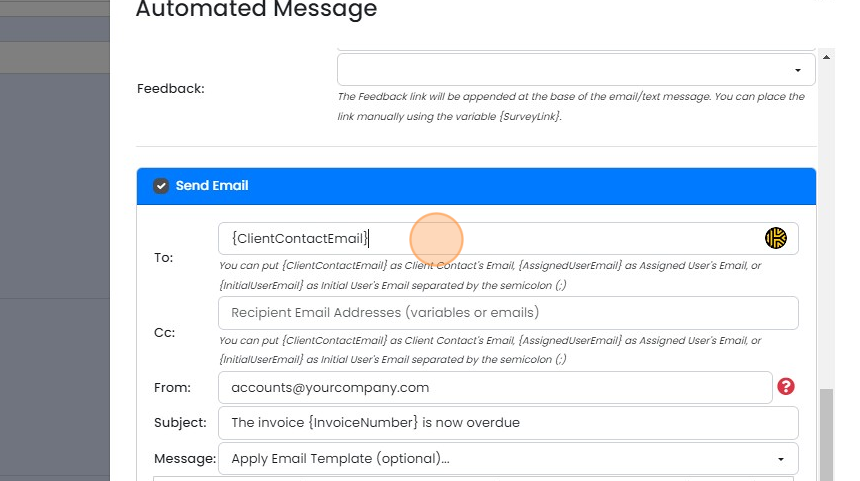
Enter the email address you want to send this from
Enter the email address you want to send this from. Make sure that it is connected to our email system and that anyone who is moving this invoice to "Sent" has write access to it.
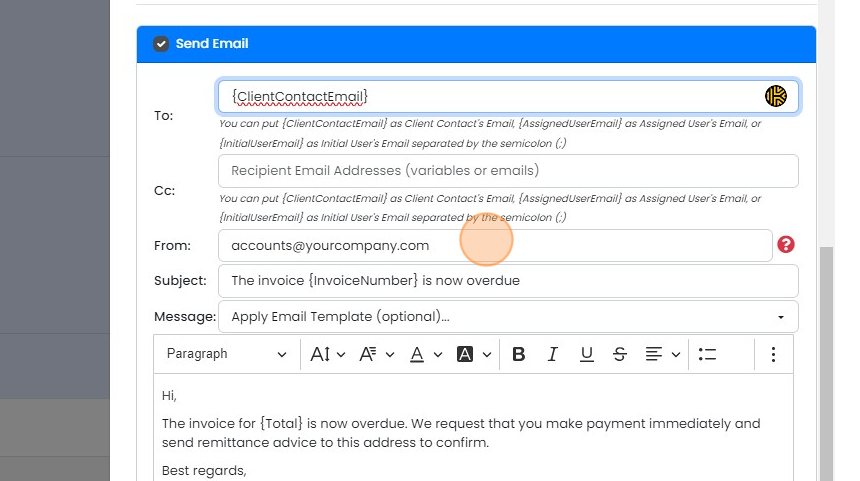
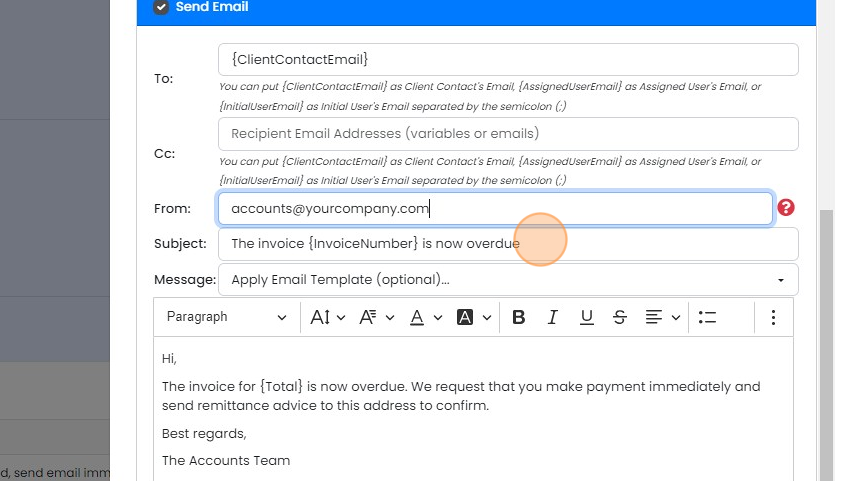
Enter a title, adding variables to make it more readable
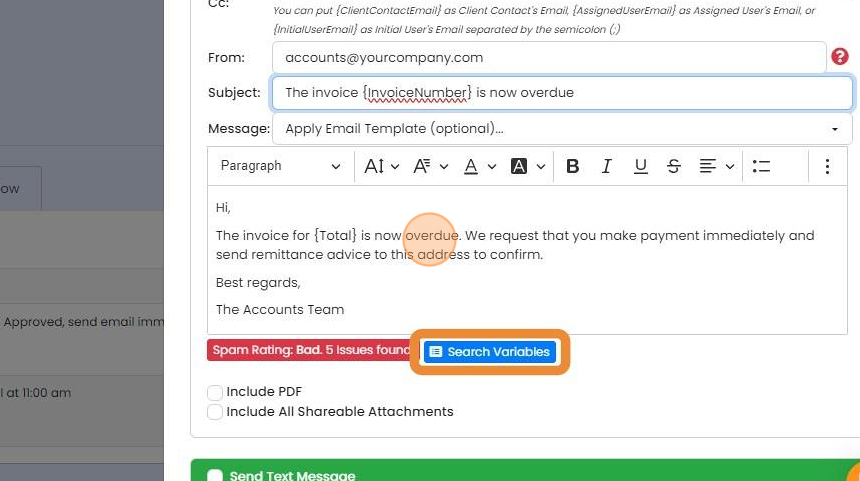
Enter your text, including variables. Use the "Search Variables" to find them
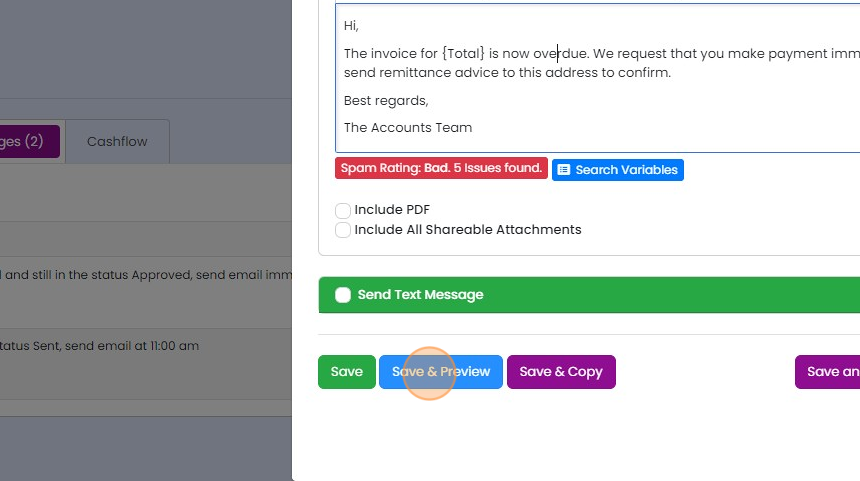
Preview and copy the message
Check that the email appears as expected
Note that this will show defaults, such as the template number and a zero total, as it is not populating...
Note that this will show defaults, such as the template number and a zero total, as it is not populating from an existing invoice. Click the "x" to close
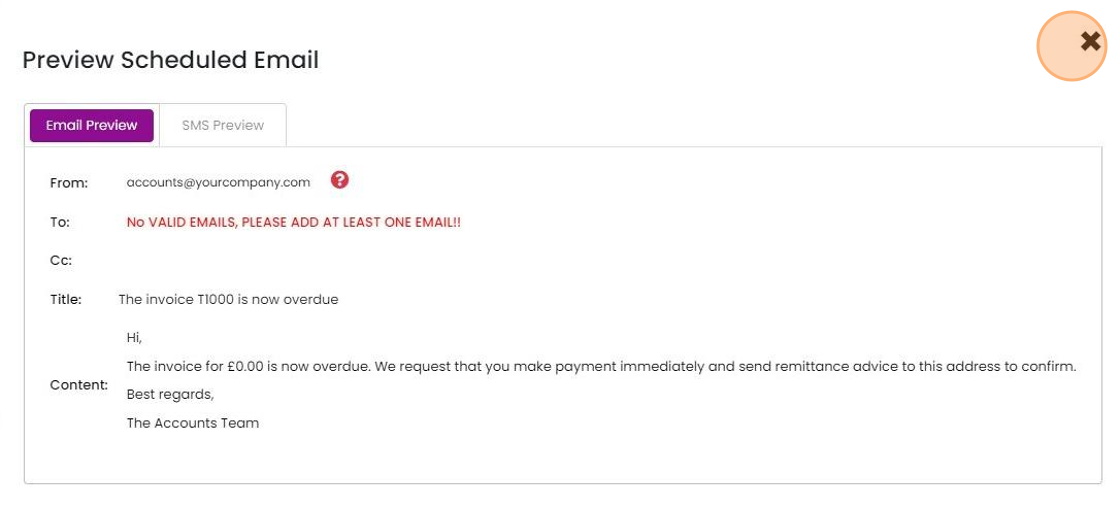
Click "×"
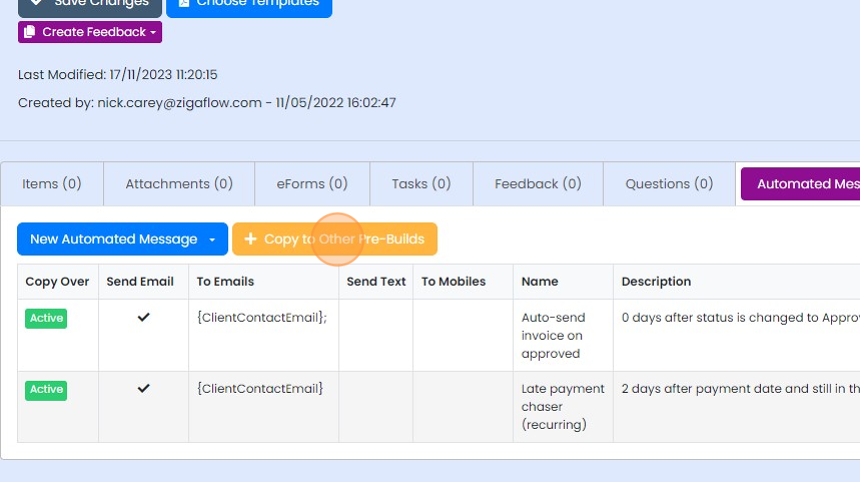
Click "Copy to Other Pre-Builds" to push this to any other invoice pre-builds you have
Learn more: automations in Zigaflow


This tool allows you to send different email chasers to different customers (by using tags), from your email address and using your branding.
Once an invoice is moved to another status, for example, "Paid", the emails will no longer be sent.
Open your invoice pre-build
Frequently asked questions
Was this helpful?