Get paid
Automatic late/overdue invoice notifications and actions
The short answer
Turn on Overdue Invoices Control in Zigaflow under the Cog, then Financial Settings. Set any grace days and the invoice status that triggers it, then add rules. Each rule can message people or groups when an invoice is overdue and can automatically put the customer on stop.
Steps
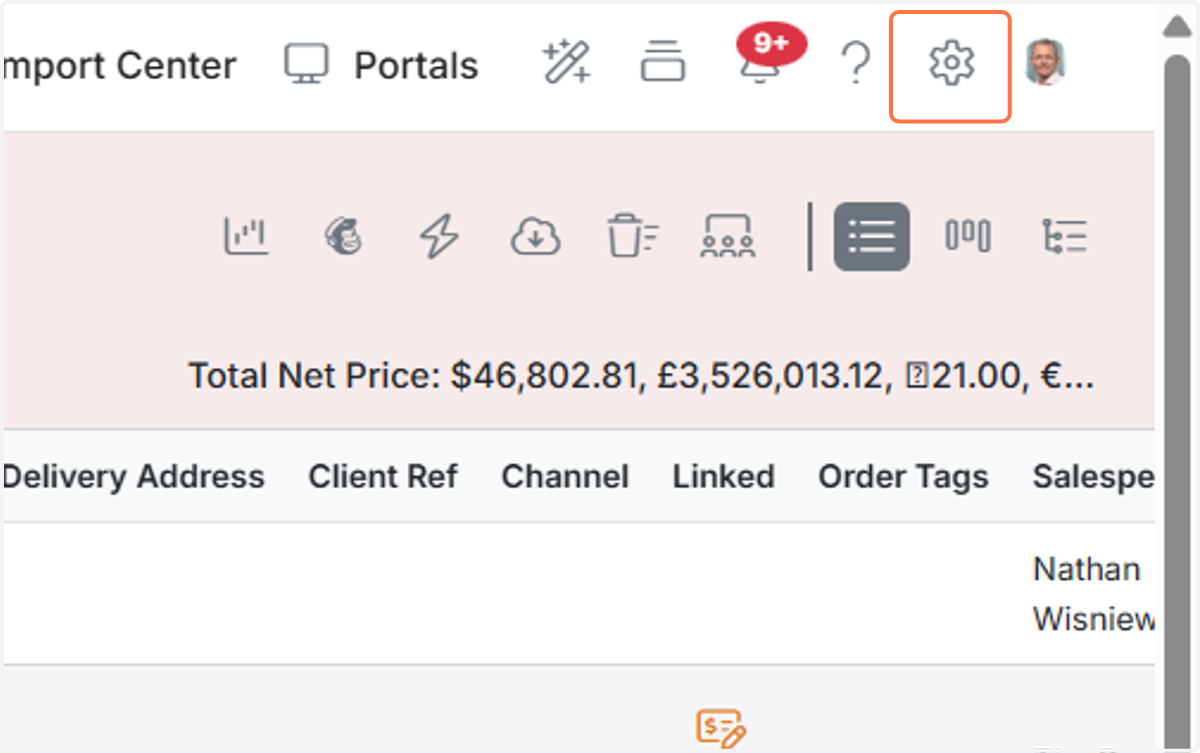
Click on the Cog
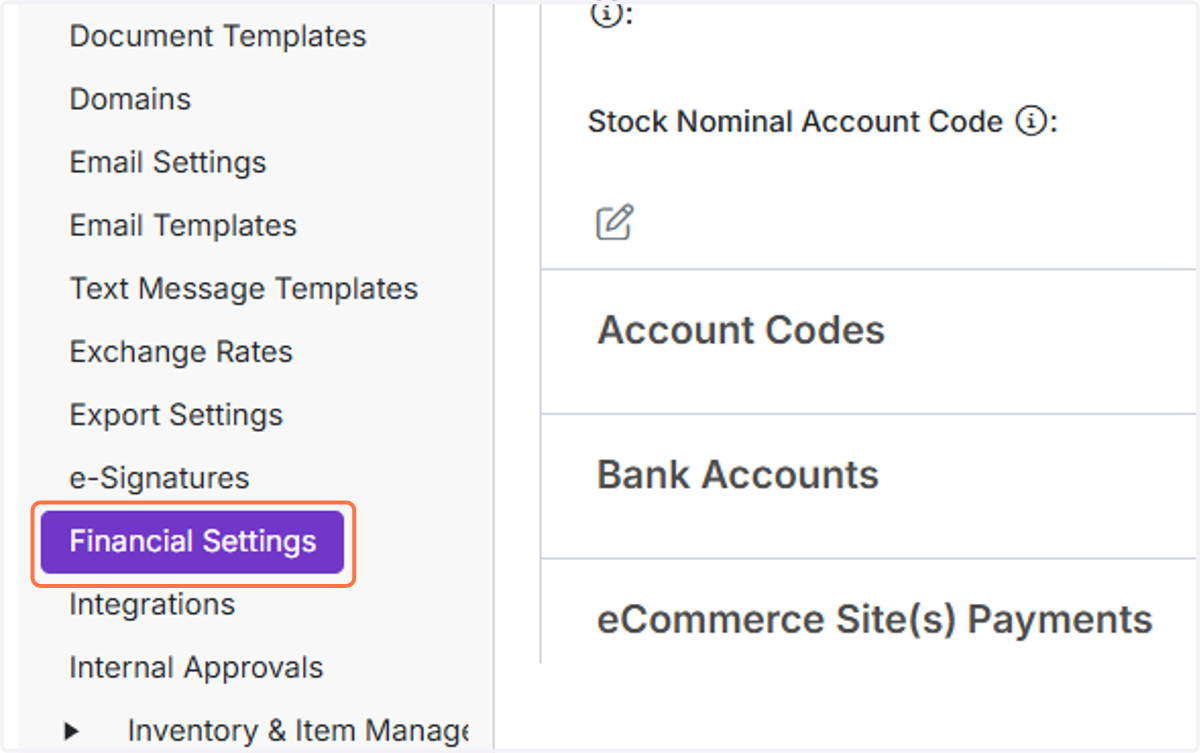
Click on 'Financial Settings'
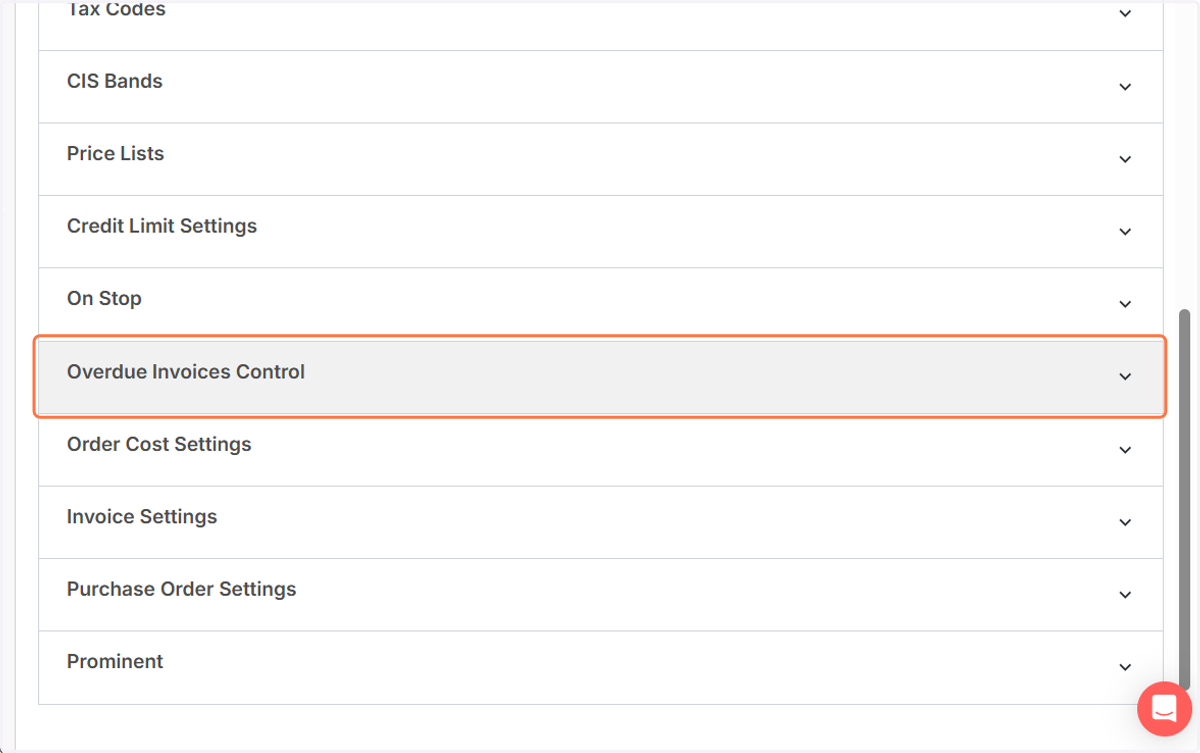
Select 'Overdue Invoices Control'
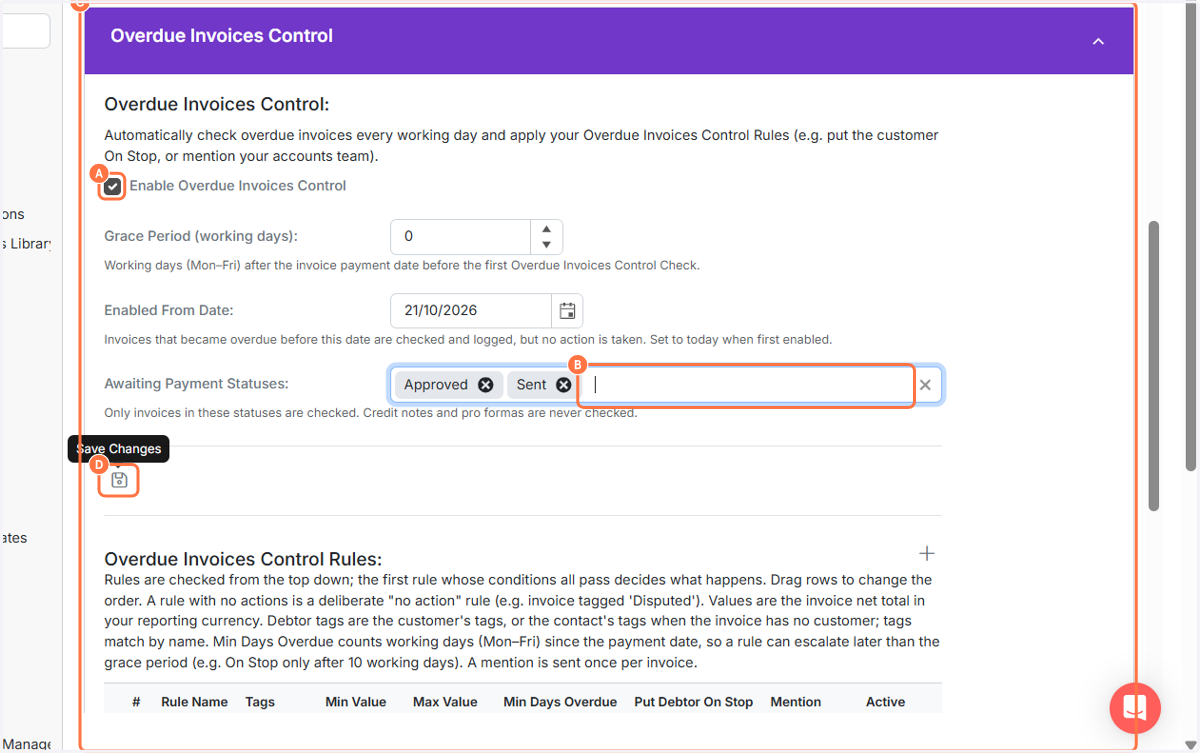
A. Select Enable Overdue Invoices Control
B. Set any grace days, if any
C. Select the status an invoice needs to be in to trigger this
D. Click on Save Changes
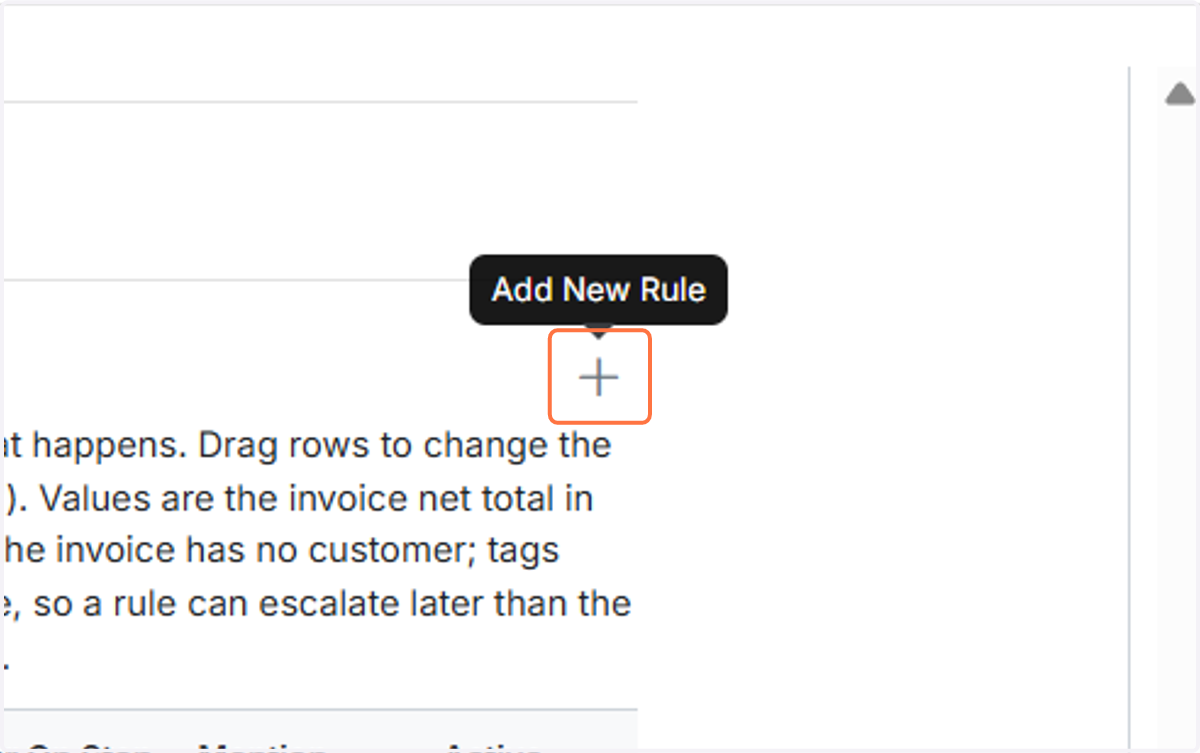
Click on Add New Rule
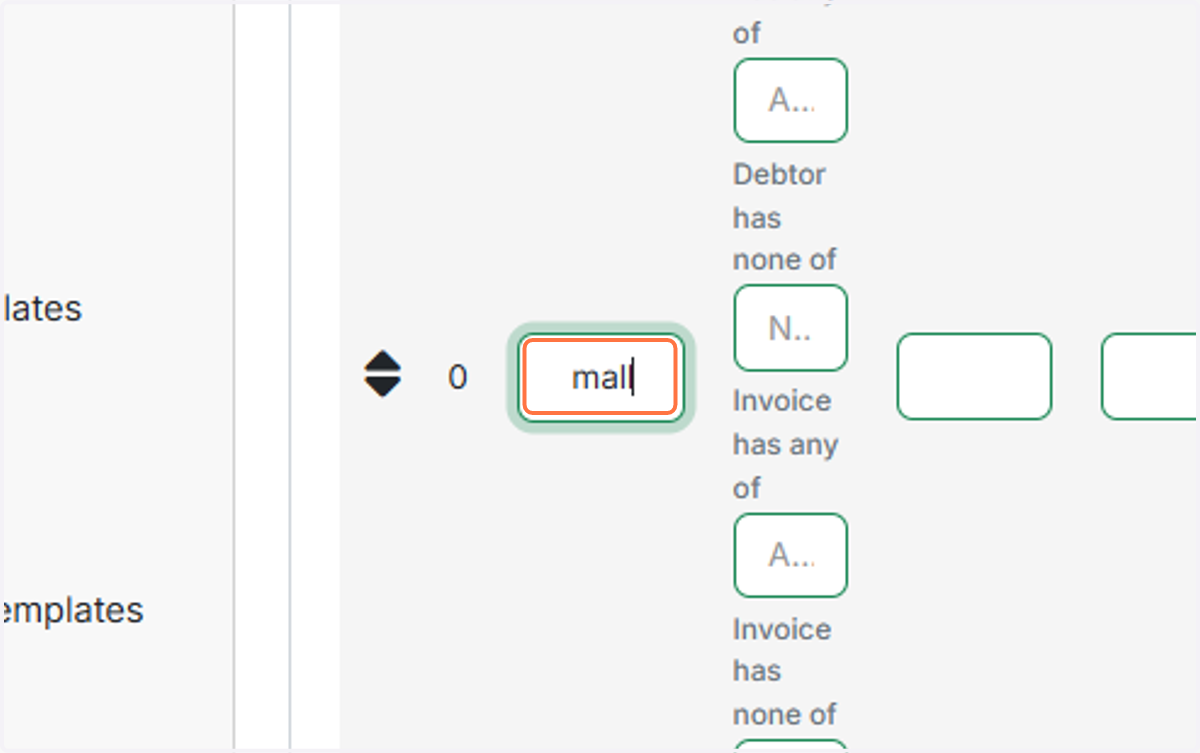
Give the rule a name
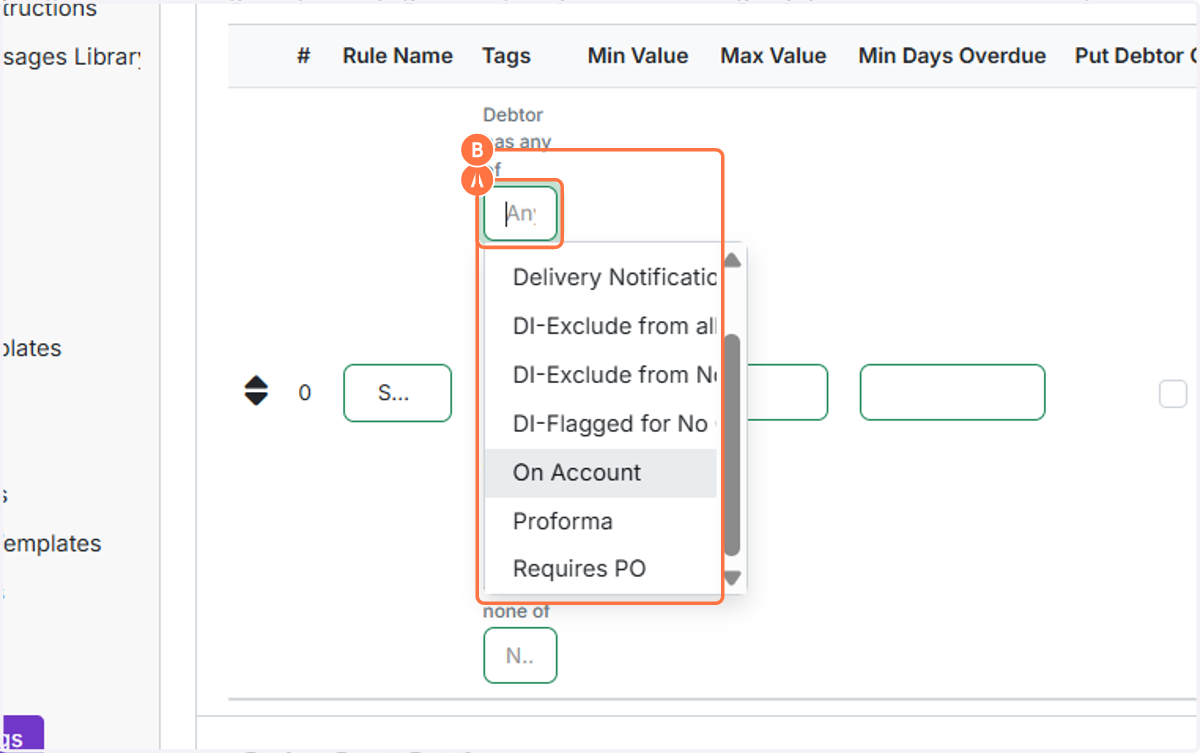
A. Set tags to include or exclude or include for a customer
B. Set any tags to include or exclude for the invoice
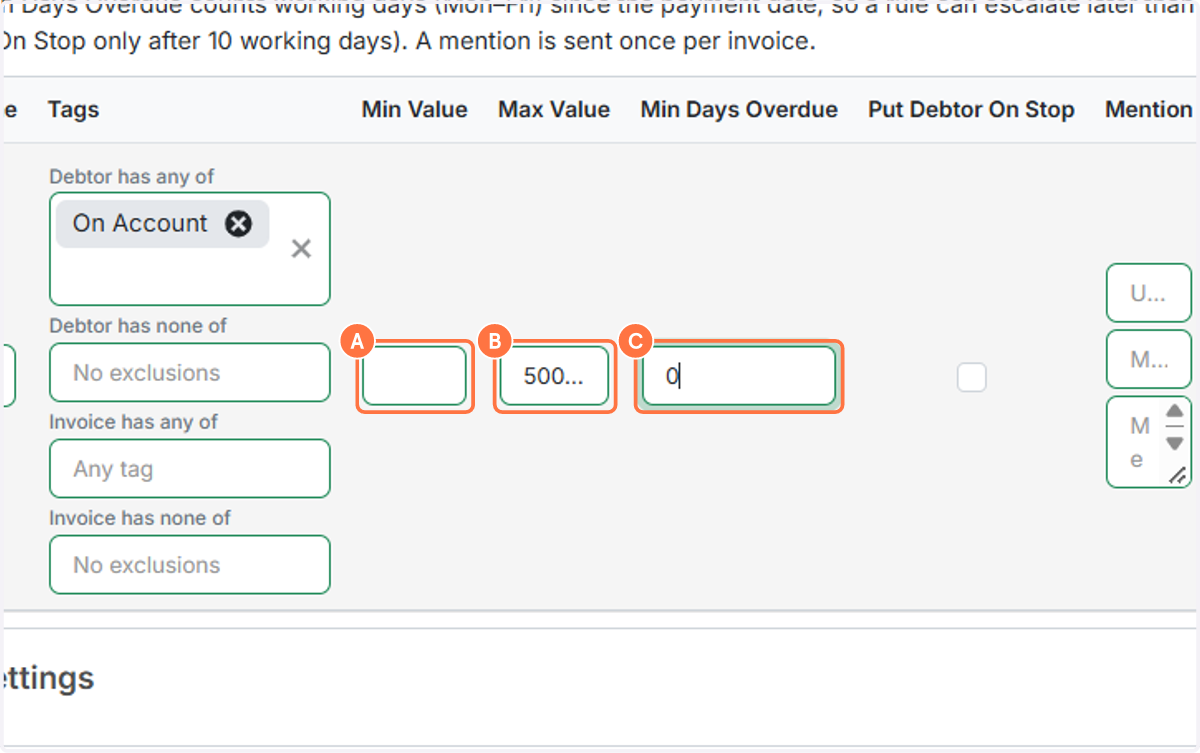
A. Set a minimum and maximum (if desired)
B. Set the specific days overdue for this rule (if desired)
C. Set whether the customer will automatically be put on stop
A. Set the persons and/or groups to message if this rule is triggered


Set up mentions to the accounts or sales teams and optionally put the customer on stop automatically.
B. Put in the text to send in the mention

C. Tick to save the rule
Frequently asked questions
Was this helpful?