Get paid
Export an invoice to Xero
The short answer
To export an invoice to Xero, open the invoice in Zigaflow, make sure its status is not Draft or Cancelled, click the "Export to..." button, and pick the correct company account if more than one is connected. An invoice that was already exported will not be exported again.
Steps
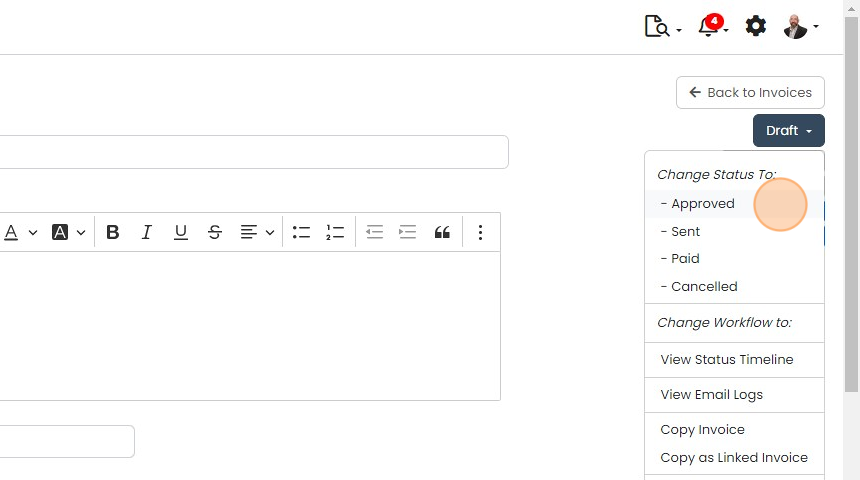
An invoice's status must be anything other than "Draft" or "Cancelled"
An invoice's status must be anything other than "Draft" or "Cancelled". If it has already been exported to Xero, it will not be exported again.
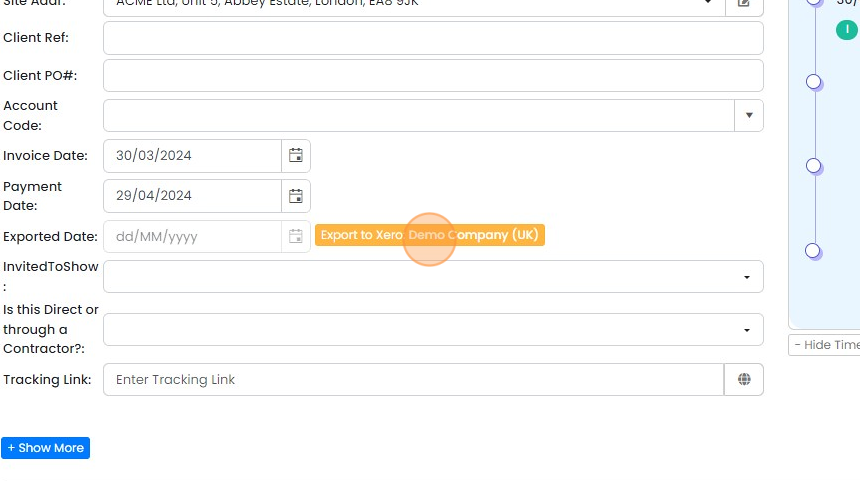
Click on the "Export to..." button and select the correct company account if you have more than one...
Click on the "Export to..." button and select the correct company account if you have more than one connected to Zigaflow.
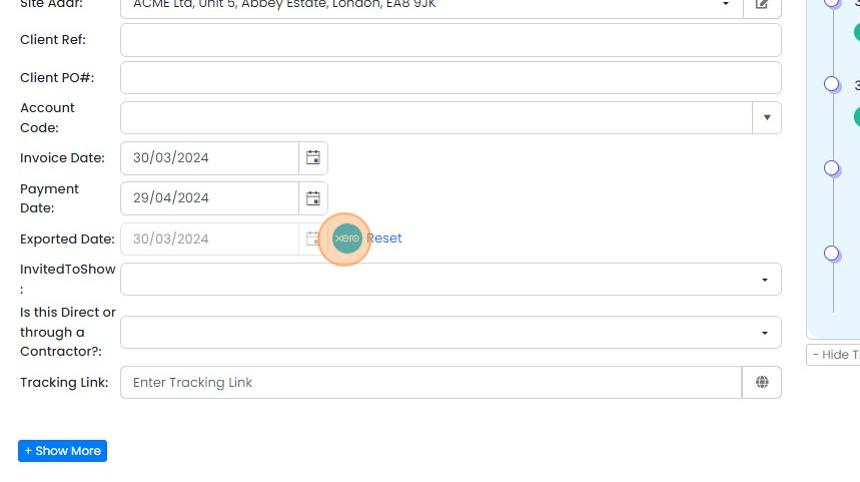
To go to the invoice in Xero, click on the Xero icon
When viewing an invoice in Xero you can jump directly to it in Zigaflow
Learn more: the Xero integration


Frequently asked questions
Was this helpful?