Make it yours

Line item mentions and comments

In Zigaflow

The short answer

To comment on or mention someone about a specific line item, hover over the line item's description and click the Comment icon, then click Add Comment. Type your message and use the @ sign to mention users, who are sent a mention. Click Save when you finish.

Steps

  1. Hover over the line item's description to see the 'Comment' icon and click on it
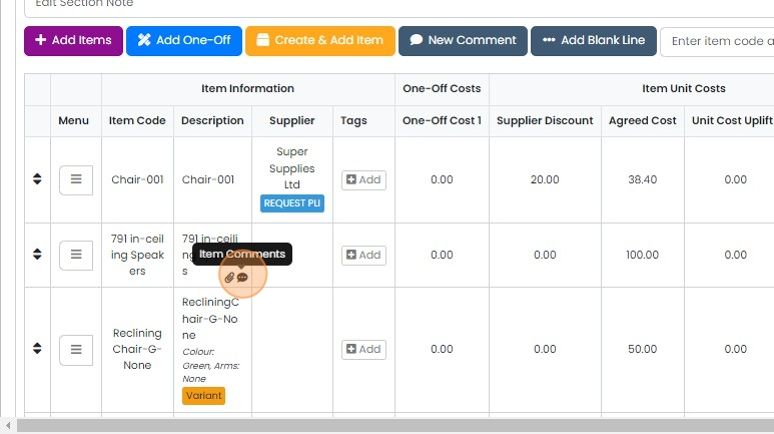
    Line items table with the Item Comments icon highlighted in the 791 in-ceiling Speakers description cell on hover
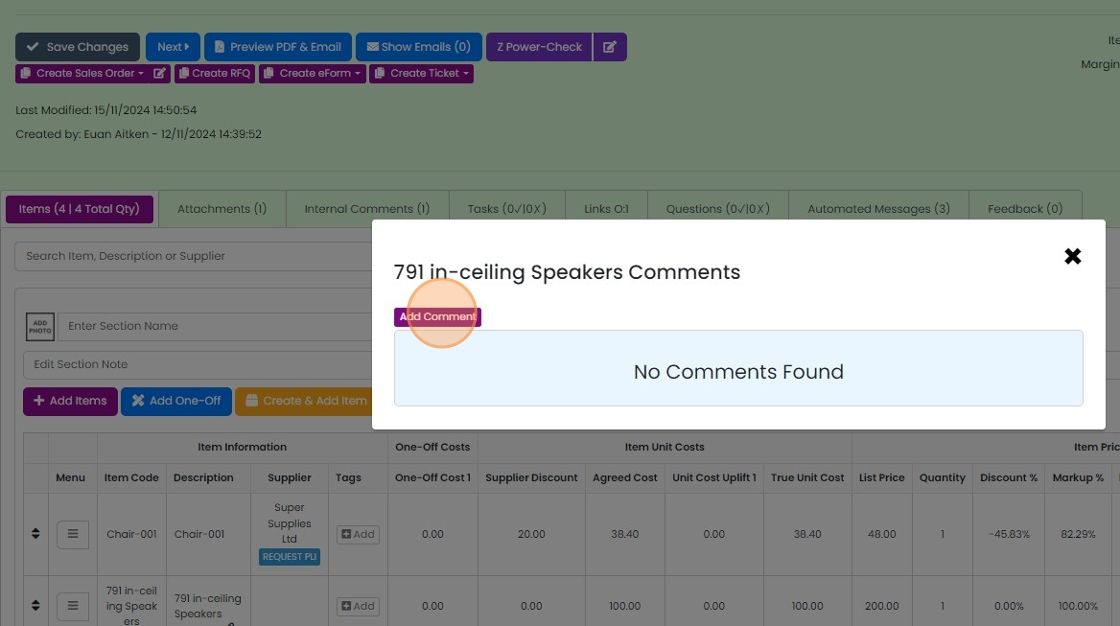
  2. Click "Add Comment"

    Item comments popup for 791 in-ceiling Speakers showing No Comments Found, with the Add Comment button highlighted
  3. You can add comments that are not sent to anyone else. Click "Save" when you have completed the comment
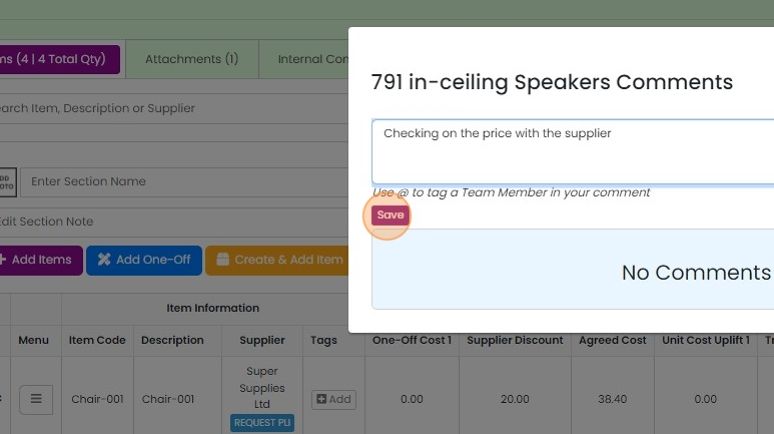
    Comments panel for 791 in-ceiling Speakers with a comment typed in the text box and the Save button highlighted
  4. Enter your message and use the "@" sign to list users that you want to mention. This will send them a mention
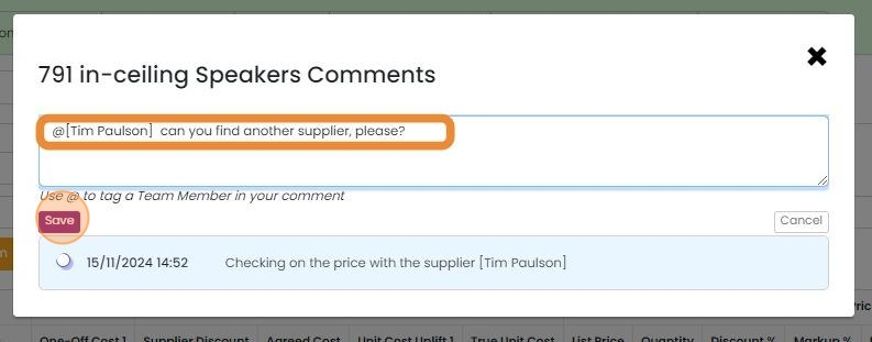
    Line item Comments dialog with a team member tagged using @ in the comment box, and the Save button highlighted
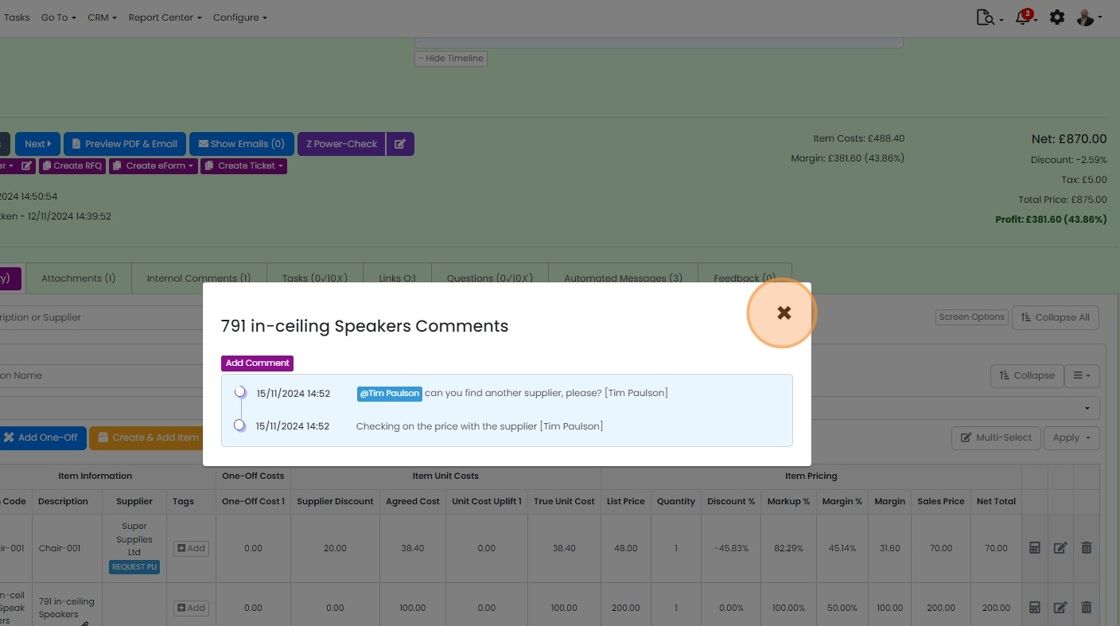
  5. Click "×" to close the screen

    791 in-ceiling Speakers Comments popup listing line item comments, with the × close button highlighted at top right
  6. The "Comment' icon on that item is permanently displayed to show that there is a comment or mention on it

    Respond to a mention
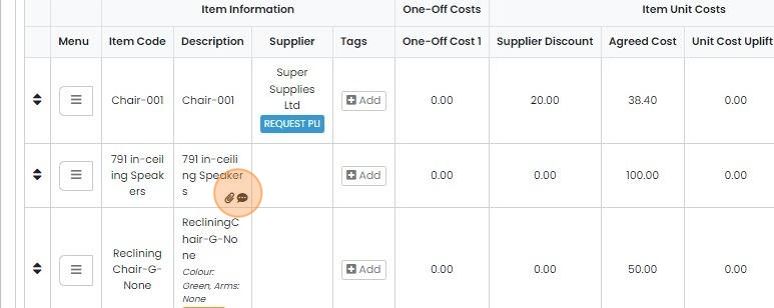
    Line items grid with the comment icon highlighted beside the 791 in-ceiling Speakers description, showing it has a comment
  7. The recipient of the mention will see the pop-up. When they click on it, the quote/job etc. will be opened
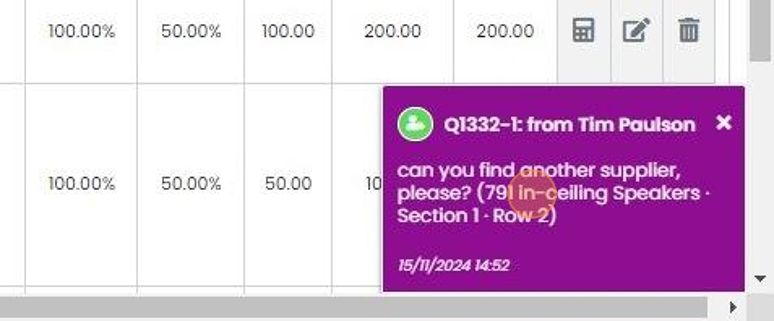
    Purple mention notification pop-up over quote line items, showing a comment about finding another supplier, with click highlighted
  8. The mentioned item will be highlighted to them
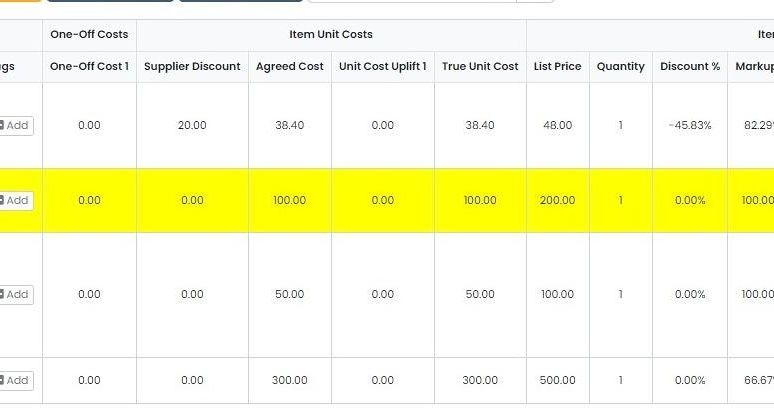
    Line items grid with the mentioned item's row highlighted in yellow, showing its costs, list price and quantity
  9. They click on the "Comment" icon to open the comments panel
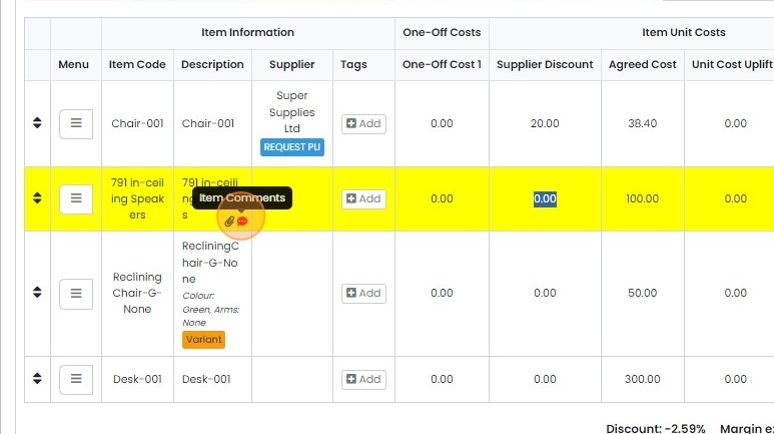
    Line items grid with the Item Comments icon highlighted on the selected 791 in-ceiling Speakers row
  10. They can add any response as a comment or mention
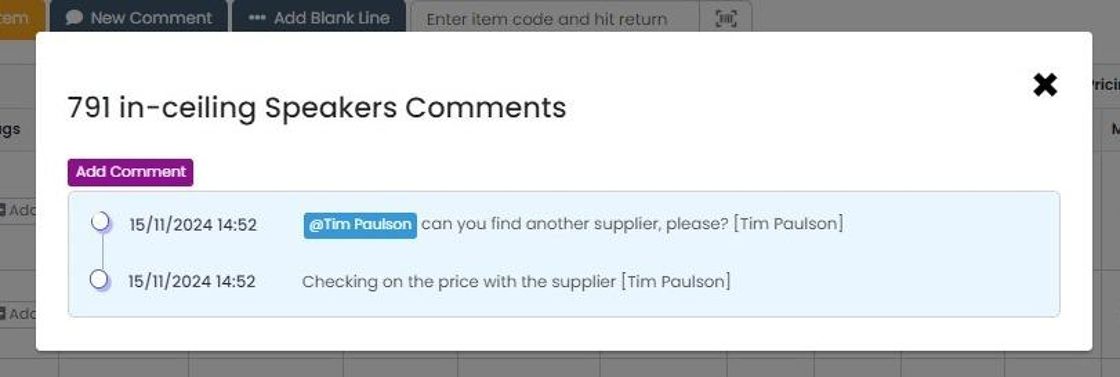
    Line item Comments window showing a comment thread with an @mention and the Add Comment button for posting a reply

Zigaflow will take the mentioned user directly to the item.

Add a comment or mention

View comments in the timeline

11, Line item comments and mentions are included in the overall timeline as well:

Timeline entry showing a line item comment with an @mention, plus the line item, section and row it was made on

Learn more: mentions in Zigaflow

Frequently asked questions

Next step

Mentions and commentsComments and mentions let your team leave notes against a customer or on modules such as quotations, jobs/sales orders and invoices. A comment is a line of text in the timeline. A mention uses the @ sign to send your message to another named Zigaflow user, who sees a pop-up, a bell alert and an email.

Was this helpful?

See Zigaflow on your own workflow

Book a demo and we will walk through quoting, jobs and purchasing the way your team runs them.

Or see how Zigaflow would fit your business, free