Make it yours

Post Stripe payments to Xero

In Zigaflow

The short answer

To post Stripe payments to Xero in Zigaflow, import your Xero bank account in Financial Settings, set it as the default bank account, then switch on the Stripe payment export in the Xero settings under Integrations. Invoices are then marked as paid in Xero automatically.

Steps

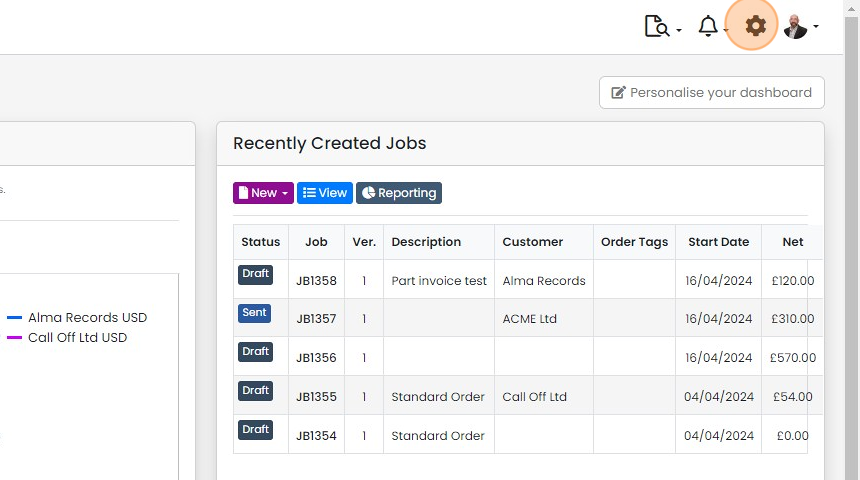
  1. Click here

    Zigaflow dashboard with the settings gear icon highlighted in the top-right toolbar, beside the notifications bell
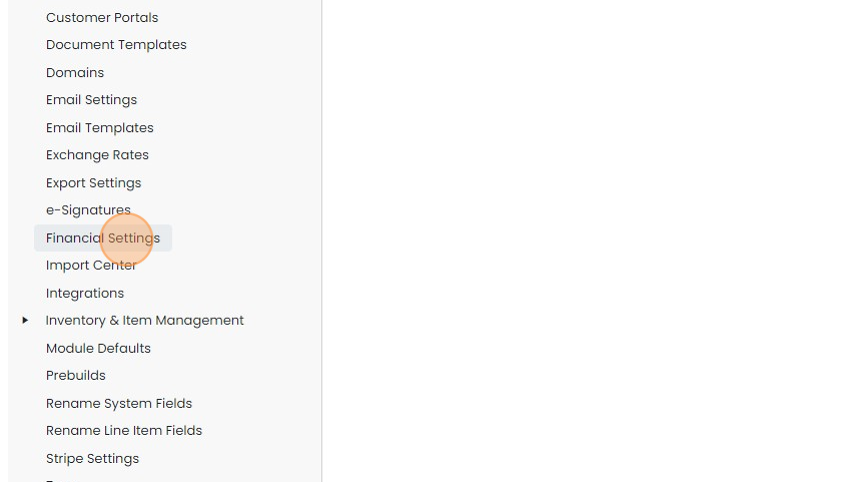
  2. Click "Financial Settings"

    Settings menu list with Financial Settings highlighted between e-Signatures and Import Center
  3. Click "Import from Xero" and import the bank account/ledger to post Stripe payments to
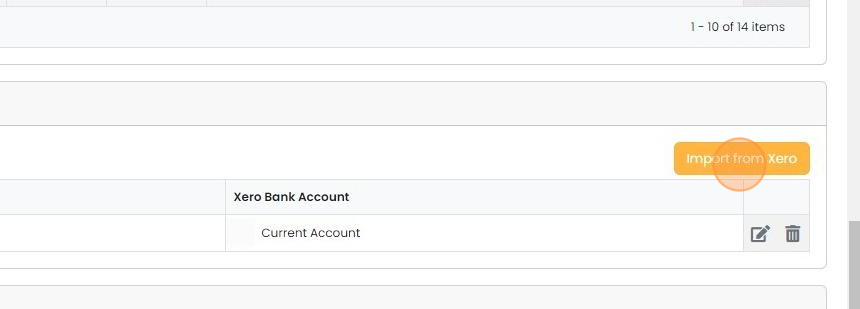
    Xero Bank Account settings table listing Current Account, with the orange Import from Xero button highlighted
  4. Scroll down to "Defaults" and Click "Edit"
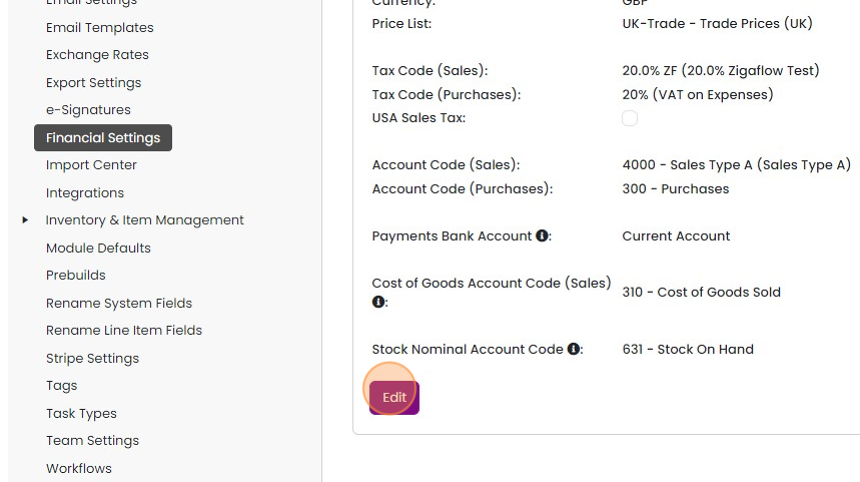
    Financial Settings page showing default tax and account codes, with the Edit button highlighted below the list
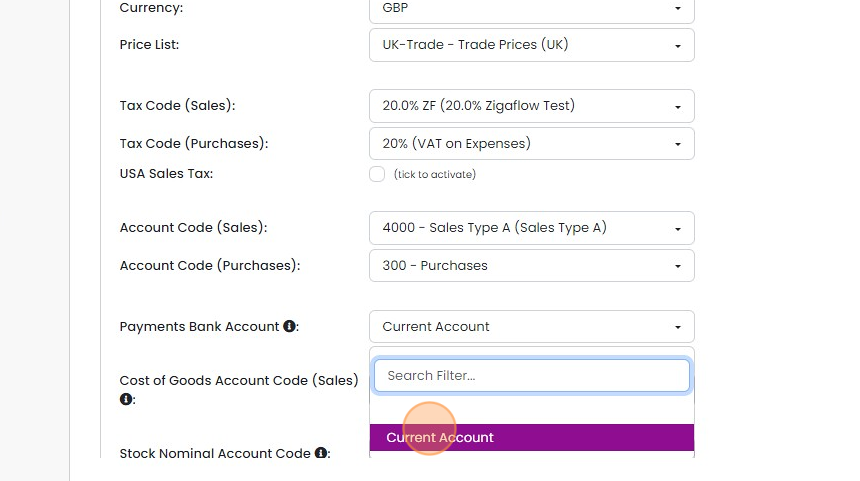
  5. Set the bank account

    Payments Bank Account dropdown open in account settings, with Current Account highlighted below the Search Filter box
  6. Click "Save Changes"

    Turn on Stripe payment export
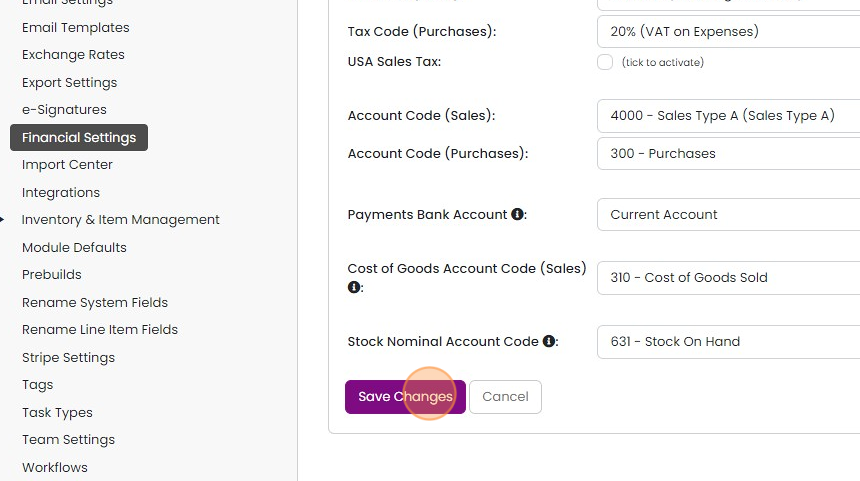
    Financial Settings page with account code fields, highlighting the Save Changes button below Stock Nominal Account Code
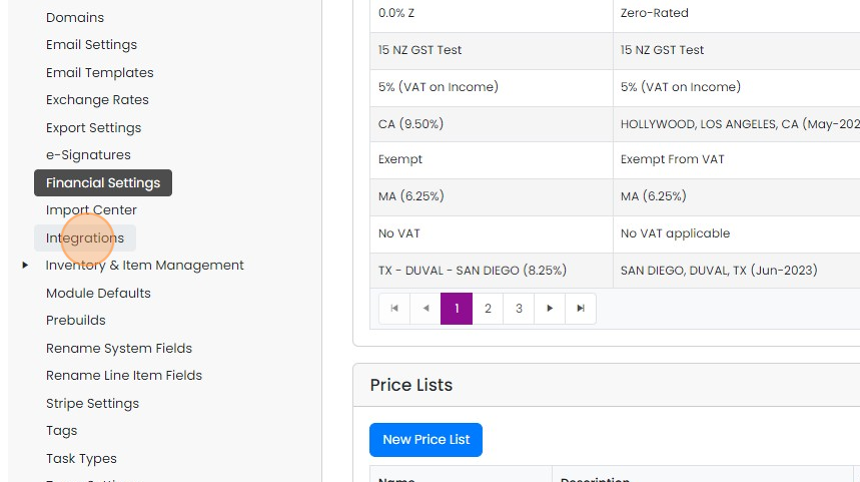
  7. Click "Integrations"

    Settings menu with Integrations highlighted below the active Financial Settings, beside the tax rates and Price Lists panels
  8. Edit the Xero settings by clicking here
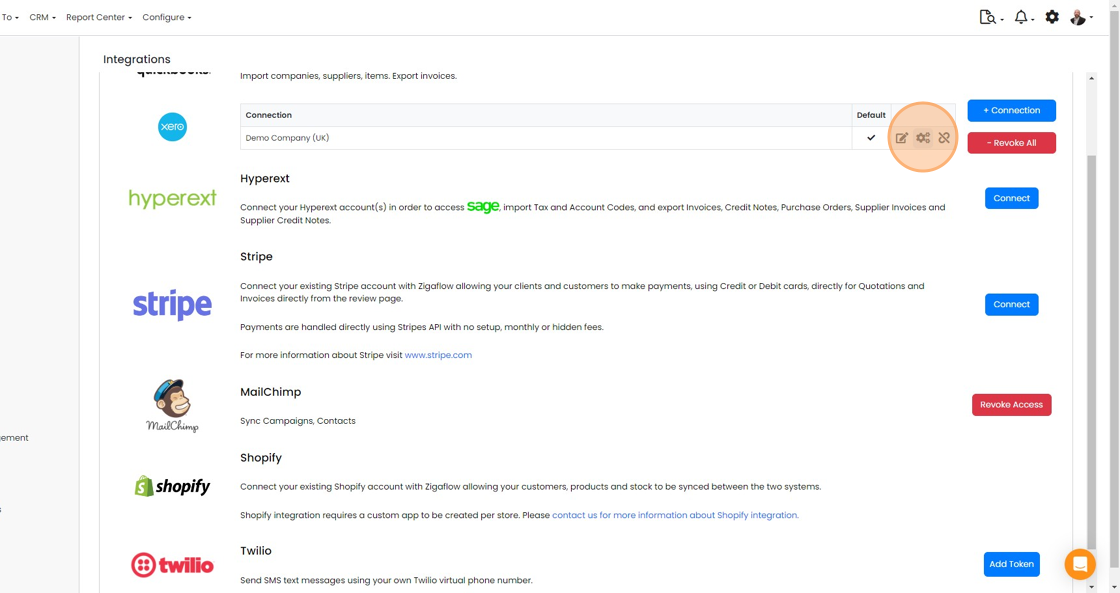
    Integrations page with the Xero connection's action icons highlighted, including the settings icon for editing Xero settings
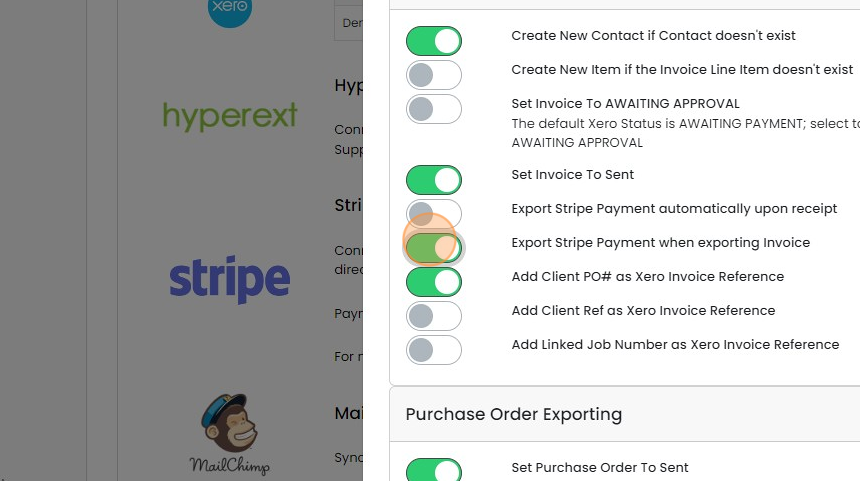
  9. Switch on 'Export Stripe Payment..."

    Xero integration settings with the
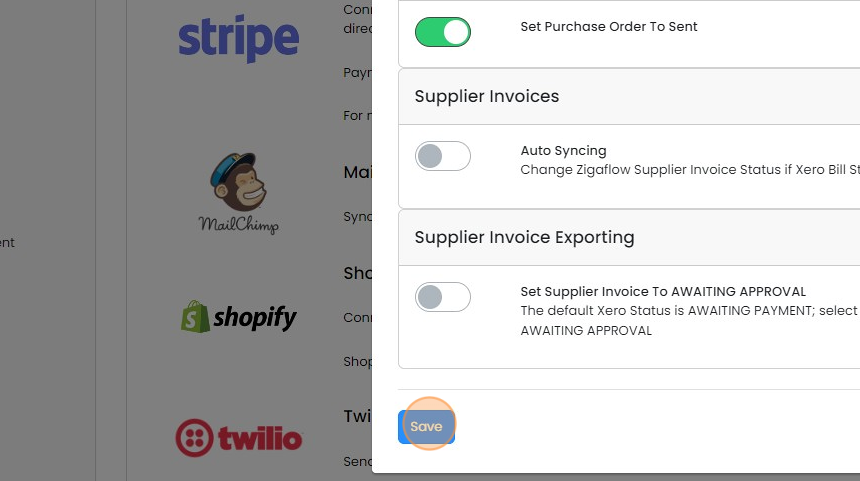
  10. Click "Save"

    Xero integration settings panel with Supplier Invoices sync toggles, highlighting the Save button at the bottom
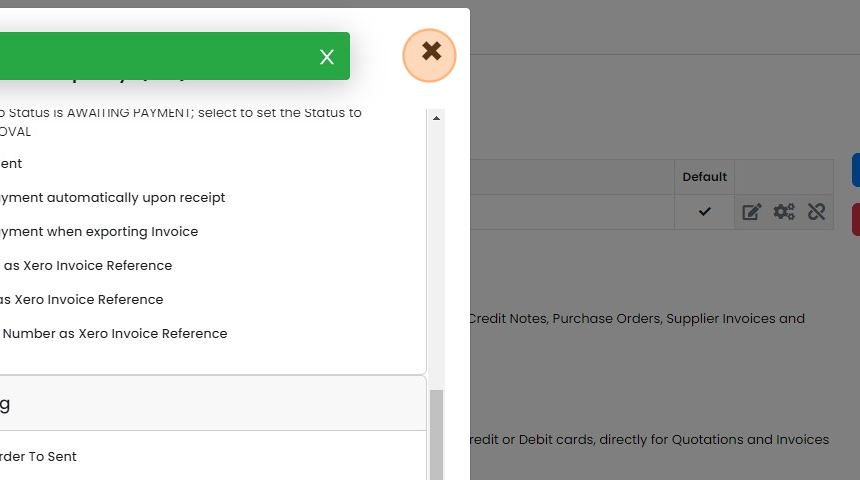
  11. Click "×"

    Xero integration settings panel with Xero Invoice Reference options, highlighting the × close button in the top-right corner

This method posts the whole value of the invoice to your Xero's bank account ledger. This causes the invoice to be marked as "Paid". Importantly, it also puts in the whole amount of the invoice (i.e. excluding Stripe fees) making reconciliation quicker.

If you use this method, discard any Stripe invoice payment values that are fed into Xero from the bank feed, as this process has effectively duplicated them.

Stripe fees are not posted and should be manually entered daily, weekly, or monthly totals.
​

Set the default bank account

Frequently asked questions

Next step

Connect to StripeTo connect Zigaflow to Stripe and take customer payments by credit and debit card, go to Integrations and click Connect. Then either set up a Stripe account or log in to an existing one. When the connection is made, you are returned to the Integrations page.

Was this helpful?

See Zigaflow on your own workflow

Book a demo and we will walk through quoting, jobs and purchasing the way your team runs them.

Or see how Zigaflow would fit your business, free