Make it yours

Set Stripe requests on pre-builds

In Zigaflow

The short answer

To set Stripe requests on pre-builds in Zigaflow, click the Cog, click Prebuilds, then choose Quotations or Invoices. Edit the pre-build, enable Stripe payments, set the percentage requested and a payment description such as Deposit, then click Save Details. This gives you control of when customers are asked to pay by card.

Steps

  1. Click the Cog

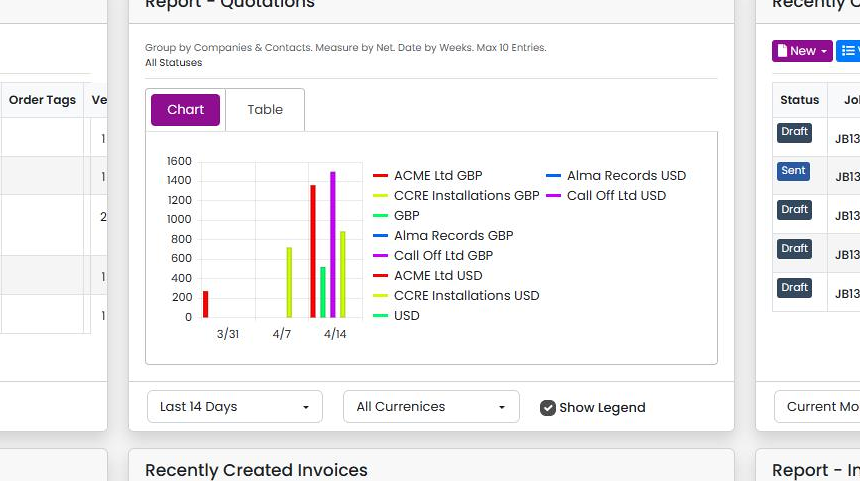
    Dashboard with the Report - Quotations widget showing a weekly bar chart of quote values, with the Chart tab selected
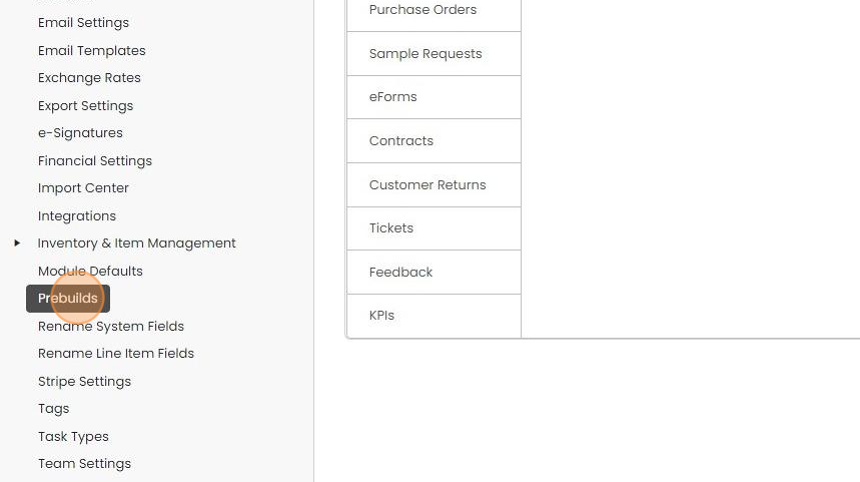
  2. Click "Prebuilds"

    Settings menu in the left sidebar with Prebuilds highlighted between Module Defaults and Rename System Fields
  3. Click "Quotations" or "Invoices" depending on which module you working on
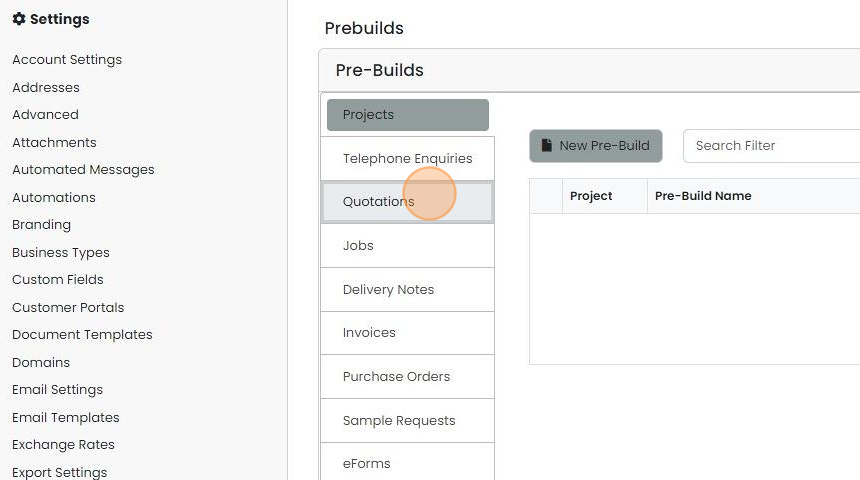
    Pre-Builds settings page with the Quotations tab highlighted in the module list below Projects and Telephone Enquiries
  4. Edit the pre-build

    Enable Stripe payments

    Pre-Builds Quotations tab with the edit icon circled on the first pre-build row, next to the copy and delete icons
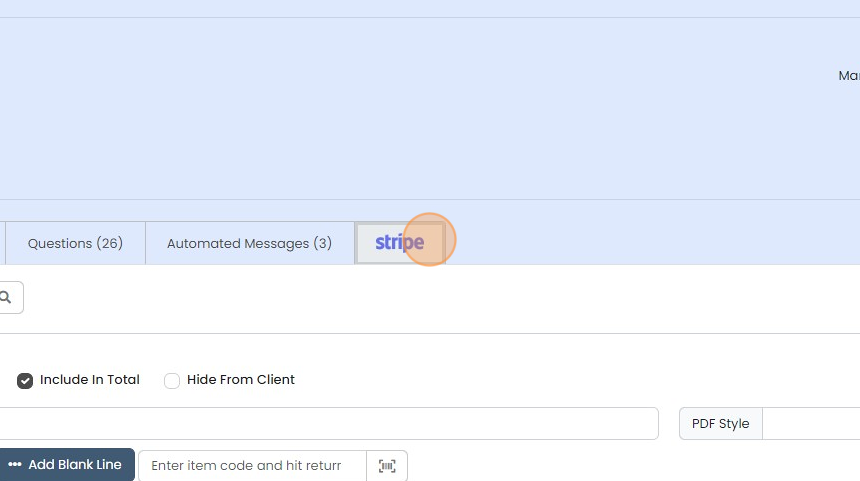
  5. Click here

    Stripe tab highlighted in the tab row after Questions (26) and Automated Messages (3) on the pre-build editing screen
  6. Click "Click here to enable Stripe payments for this quotation."
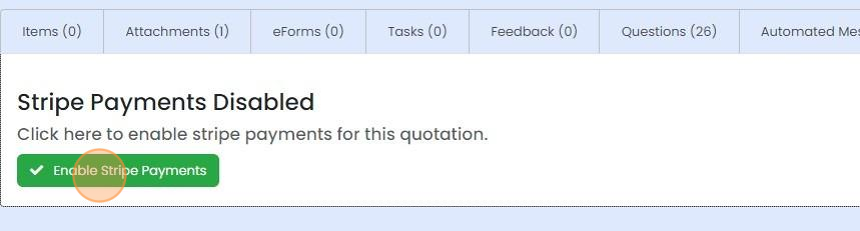
    Quotation Stripe Payments Disabled panel with the green Enable Stripe Payments button highlighted below the tab bar
  7. Set up the percentage requested and the payment description, for example "Deposit"

    Stripe tab on a pre-build showing Payment Description field and Request client payment percentage of quotation box
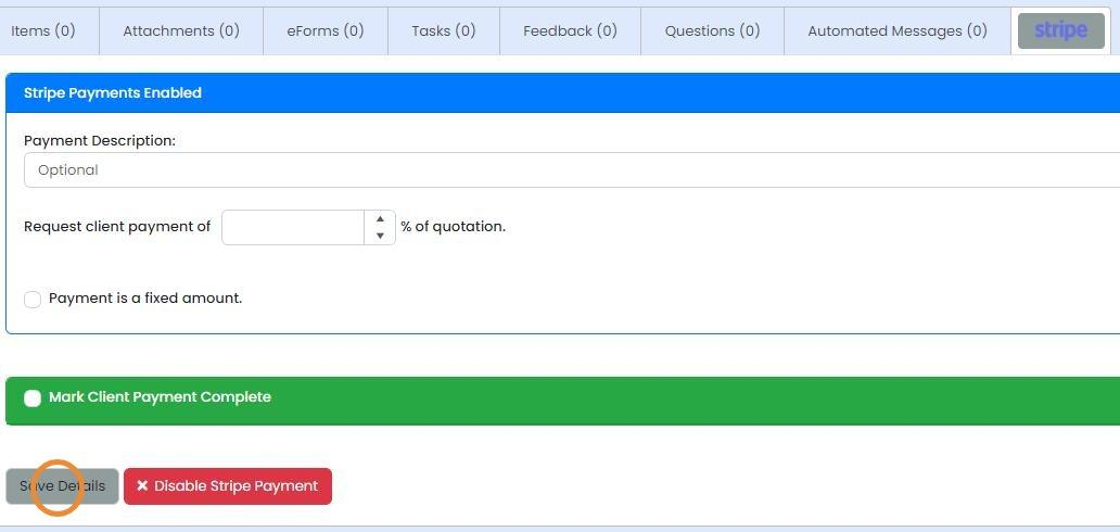
  8. Click "Save Details"

    Stripe tab with Stripe Payments Enabled panel and payment fields, Save Details button highlighted below

Setting these on pre-builds gives you complete control of when customers are asked to pay by card.

Open the pre-build

Frequently asked questions

Next step

Stripe - what your customers seeWhen a customer pays a quote online, they first accept the quote, then choose to pay the amount you requested. Stripe then shows two screens: one for address details and one for card details. On an invoice, they open your online link, view the invoice and click a button to pay with a card.

Was this helpful?

See Zigaflow on your own workflow

Book a demo and we will walk through quoting, jobs and purchasing the way your team runs them.

Or see how Zigaflow would fit your business, free