Deliver work

Manually adjust inventory quantities

In ZigaflowMomentum plan

The short answer

To manually adjust an item's inventory quantity in Zigaflow, click Go To, then Locations, find the item and click the adjust icon. Enter the quantity to adjust by and select a reason. Add a note if you want, since the narrative is optional, then click Save.

Steps

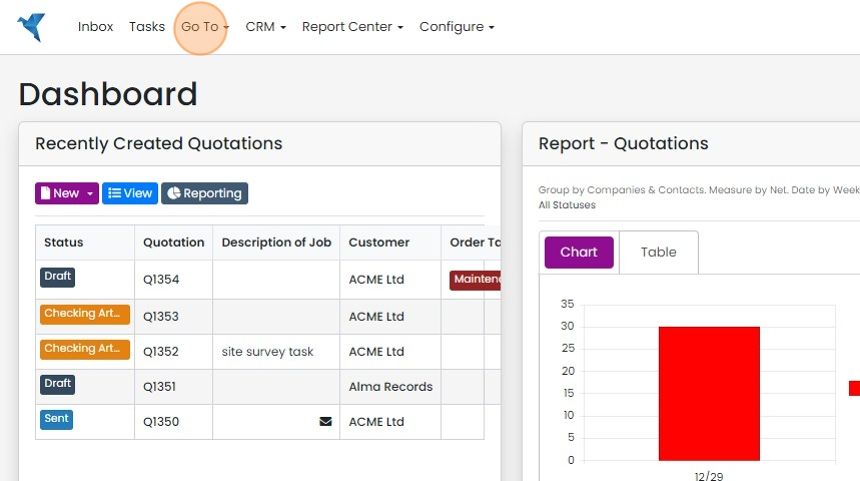
  1. Click "Go To"

    Zigaflow Dashboard with the Go To menu highlighted in the top navigation bar, next to Inbox, Tasks and CRM
  2. Click "Locations"

    Navigation menu with the Stock submenu expanded, highlighting the Locations option between Overview and Allocations
  3. Find the item to adjust, and click the adjust icon
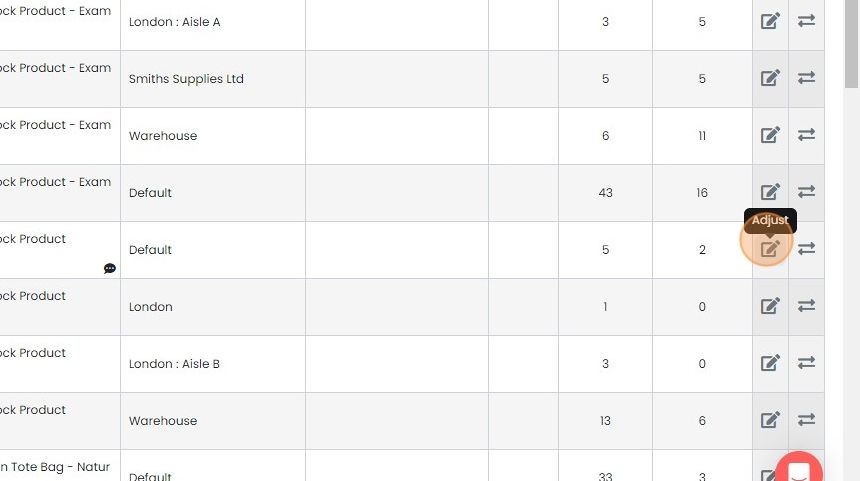
    Stock list with locations and quantities, Adjust pencil icon highlighted on a Default location row with its tooltip shown
  4. Enter the qantity to adjust by, and select the reason

    More reasons can be added in the Cog -> Inventory
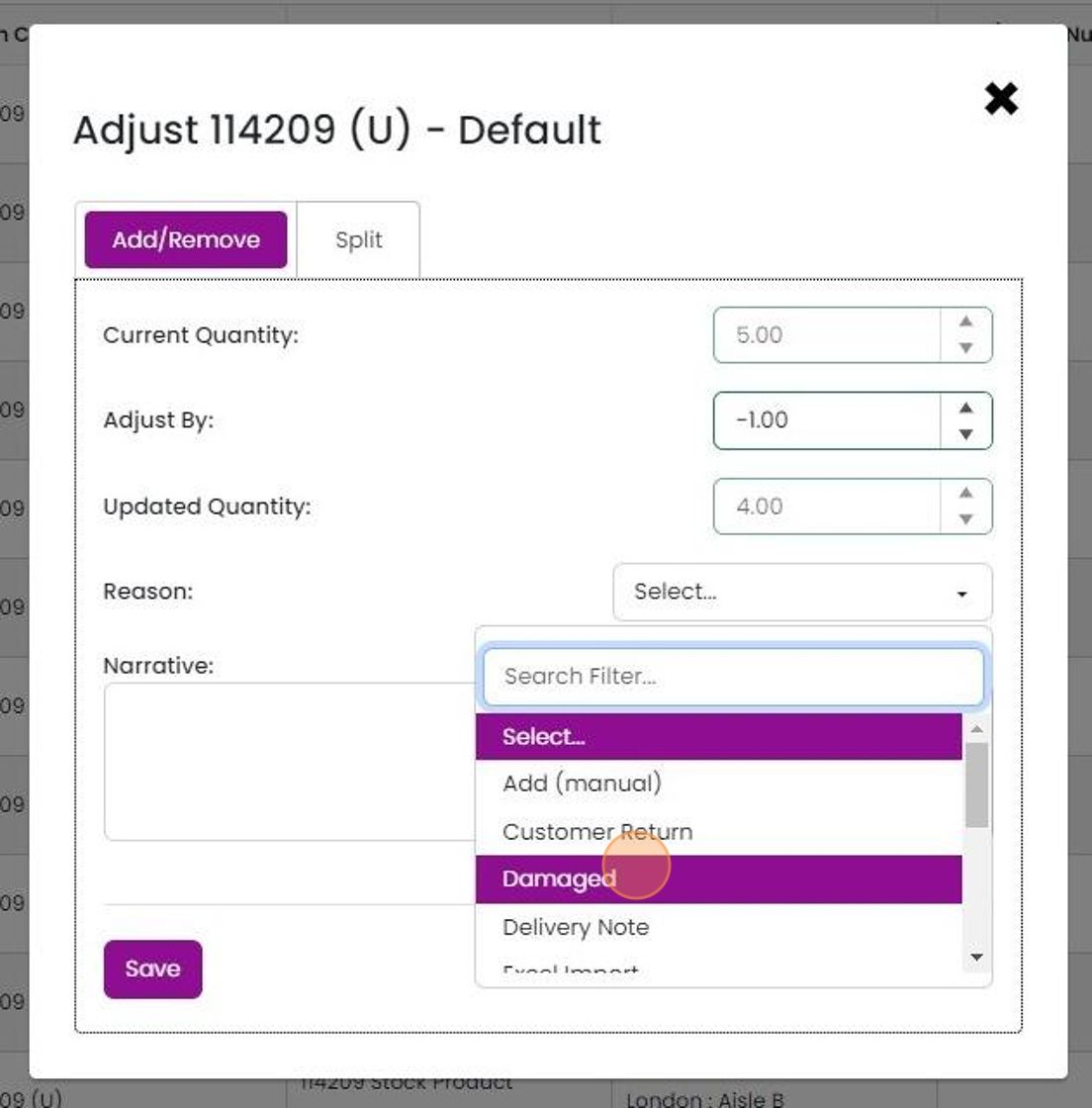
    Adjust stock dialog on the Add/Remove tab with the Reason dropdown open and Damaged highlighted, adjusting quantity by -1.00
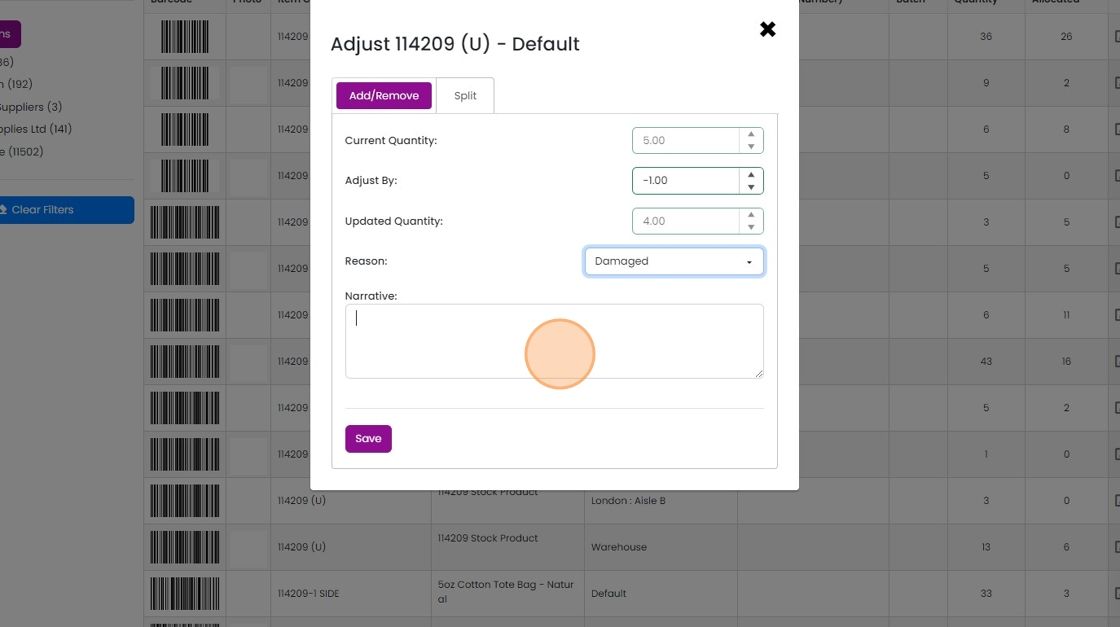
  5. The narrative is optional

    Adjust stock dialog on the Add/Remove tab with Reason set to Damaged and the optional Narrative text box highlighted
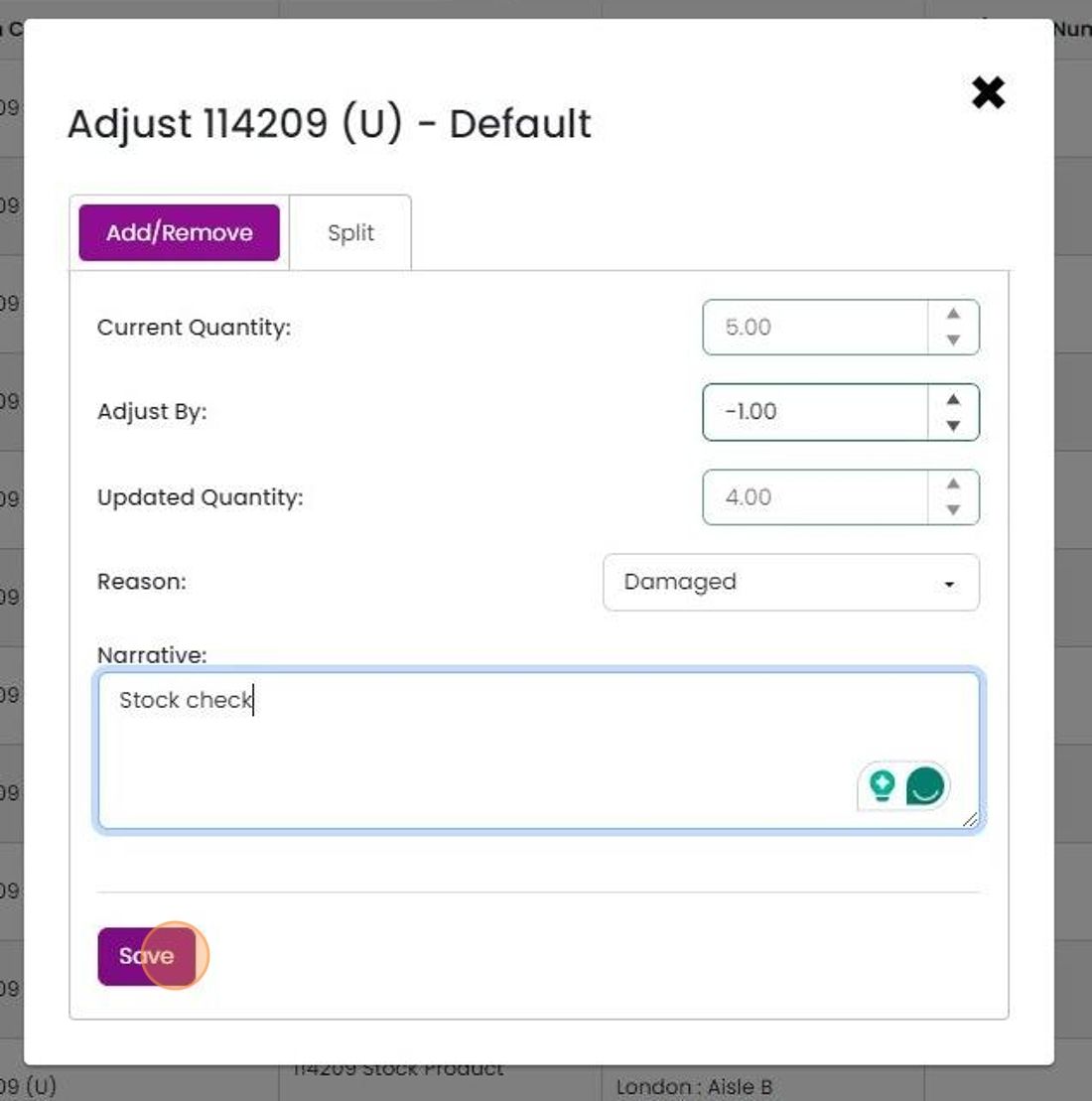
  6. Click "Save"

    Adjust stock dialog on Add/Remove tab with quantity reduced by 1 and reason Damaged, highlighting the Save button

Frequently asked questions

Next step

View items in stockMomentum planOpen the Stock overview screen in Zigaflow to see which items you currently have in stock. Click Go To, hover over Stock, and click Overview. Then click to open the filter and choose In Stock. The screen is filtered to show only the items you currently have in stock.

Was this helpful?

See Zigaflow on your own workflow

Book a demo and we will walk through quoting, jobs and purchasing the way your team runs them.

Or see how Zigaflow would fit your business, free