Deliver work

Part delivery example

In ZigaflowEssentials, Go and Momentum plans

The short answer

To part deliver a job or order in Zigaflow, click Create Delivery Note, set the quantity for each line, and set any line you are not delivering to 0. Preview the PDF, set the note to Delivered or Picked, then create a delivery note for the remaining items to complete the order.

Steps

  1. In this example there is an job/order with two items
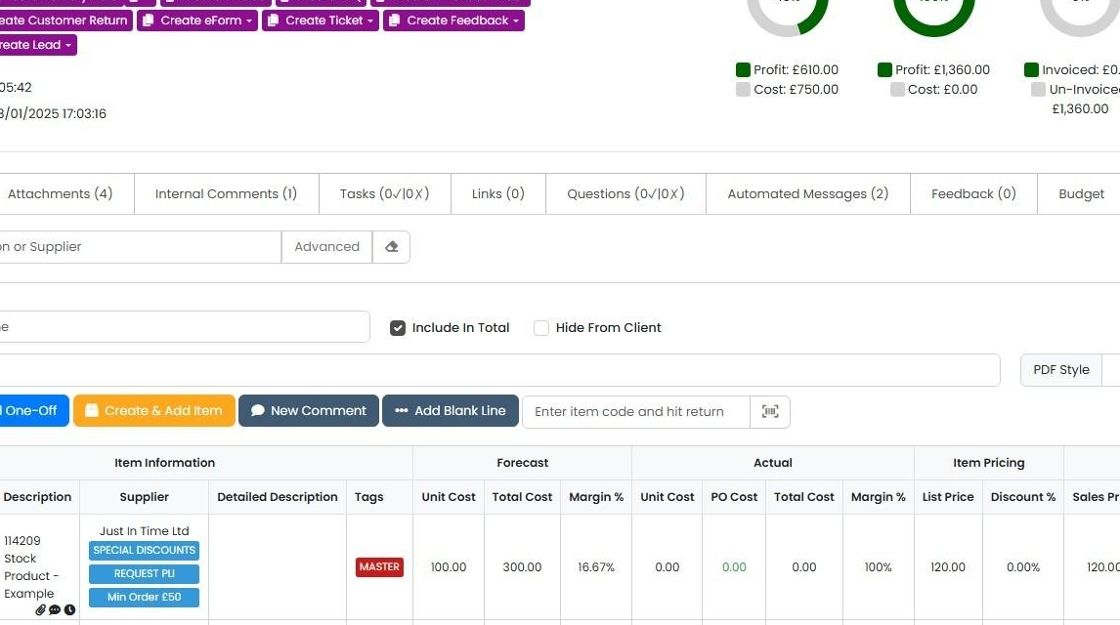
    Job item list with Forecast and Actual cost columns, showing a stock product line from a supplier tagged MASTER
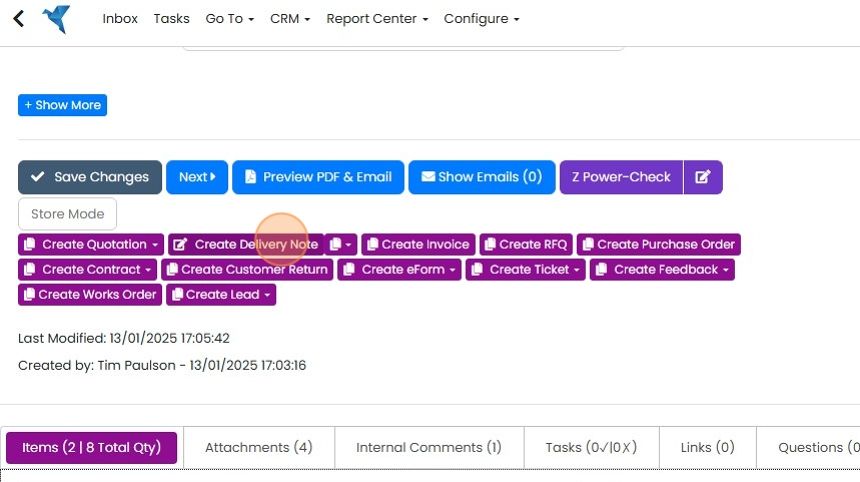
  2. Click 'Create Delivery Note'

    Record action buttons in Zigaflow with the Create Delivery Note button highlighted among the purple create options
  3. Set the quantities for each line

    Set the quantities for each line. If one line will not be delivered on this delivery note, keep its quantity above zero here and then edit it on the delivery note. If it is set to zero here, the line will not be put onto the delivery note.

    Create Delivery Note line table showing two stock lines with From Order quantities 3.00 and 5.00, none on draft notes
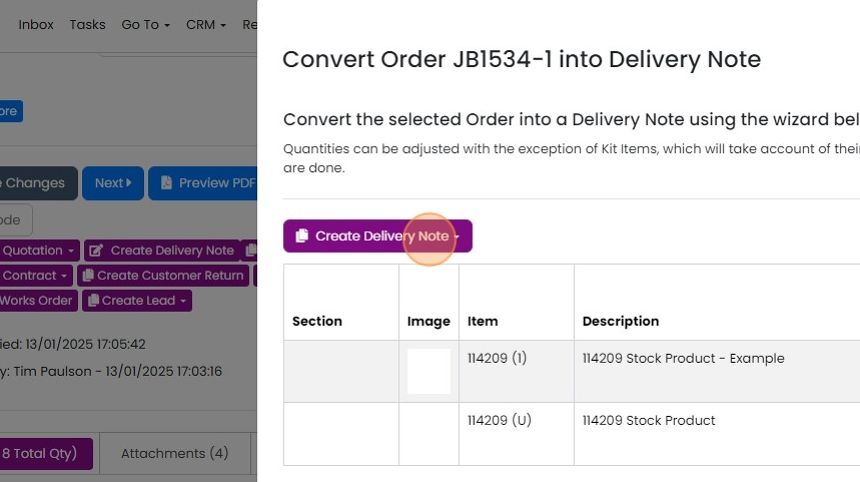
  4. Click here

    Convert Order into Delivery Note wizard with the Create Delivery Note dropdown button highlighted above the item table
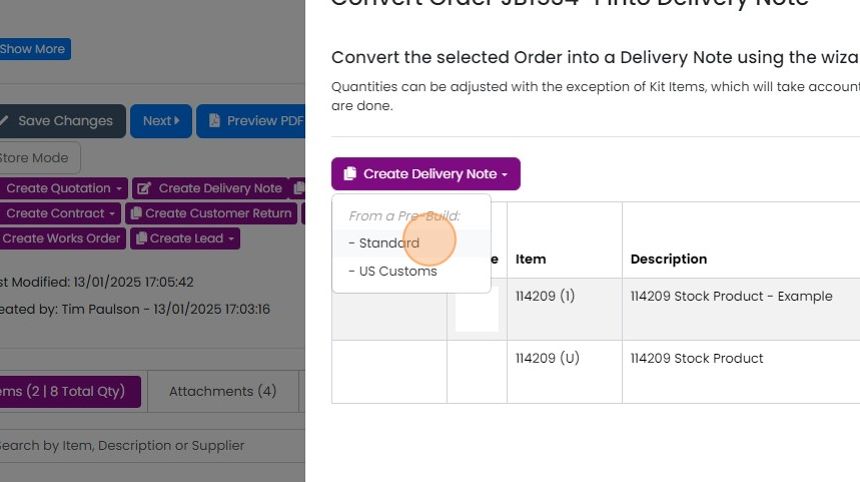
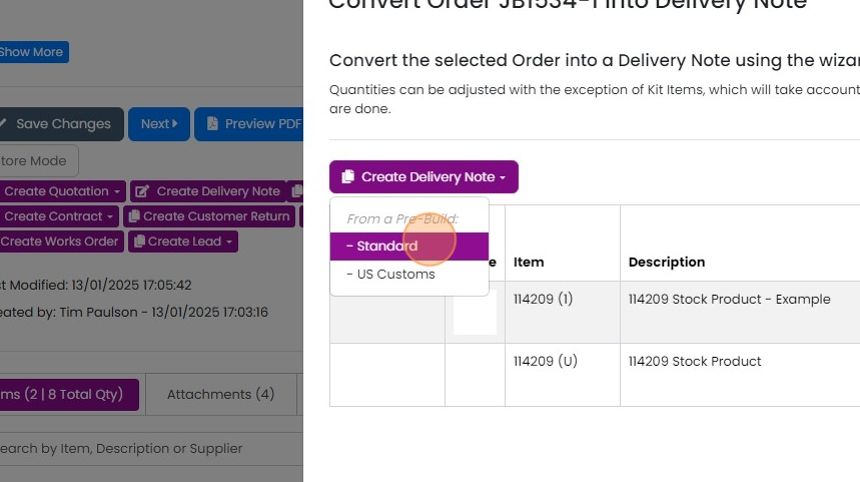
  5. Select the pre-build

    Convert Order into Delivery Note panel with the Create Delivery Note dropdown open and the Standard pre-build highlighted
  6. The second item will not be delivered on this note, so set the value to 0

    Delivery note line items with second row's Quantity field set to 0 and the save checkmark button highlighted
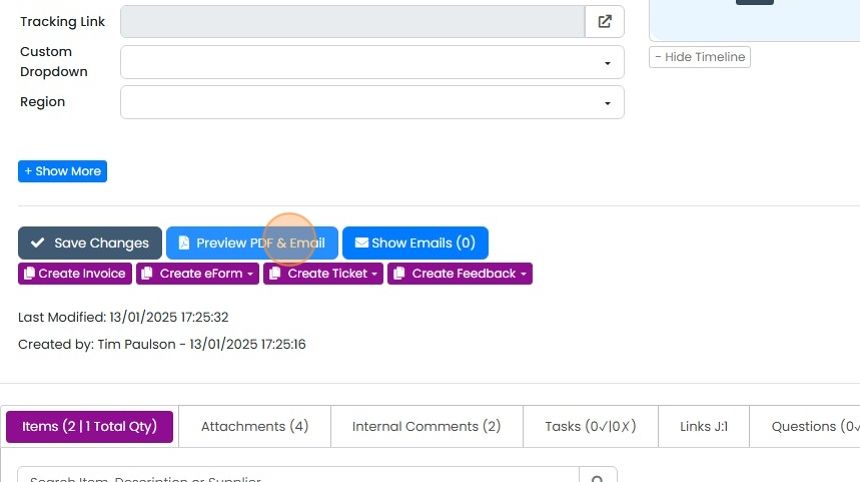
  7. Click "Preview PDF & Email"

    Record action buttons with the Preview PDF & Email button highlighted, next to Save Changes and Show Emails
  8. The PDF shows the split of of what is on and what is still due
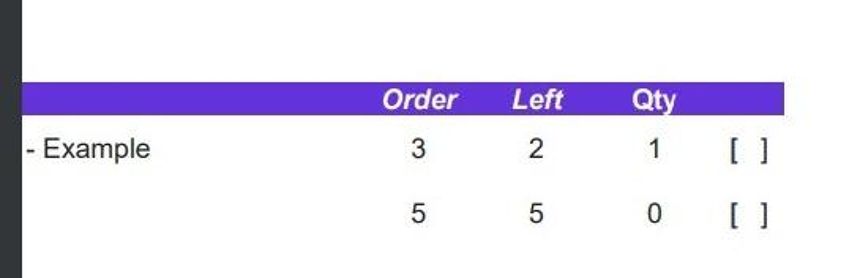
    Delivery note PDF with Order, Left and Qty columns showing 3 ordered, 2 left, 1 delivered and 5 ordered, 5 left, 0 delivered
  9. Set the note to "Delivered" or "Picked". If stock has been allocated, it will be booked at by doing this

    Check the remaining items
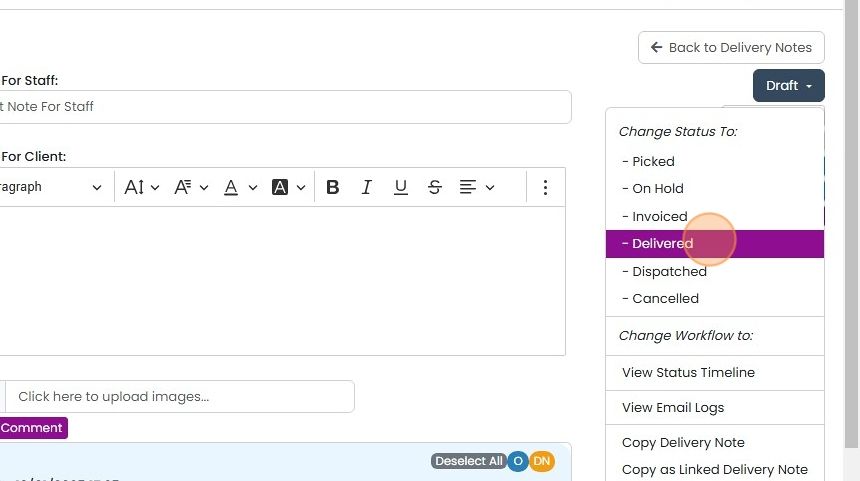
    Delivery note Draft status menu open, with Delivered highlighted under Change Status To, above the Picked option
  10. On the list screen, the total remaining on the job/order is shown

    On the list screen, the total remaining on the job/order is shown. If this column is not showing, click on the 'Screen Options' button and show 'Item Remaining' (Admin users only)
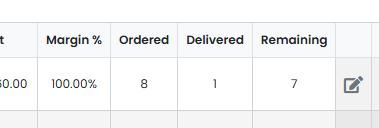
    Item list with Ordered, Delivered and Remaining columns showing 8 ordered, 1 delivered and 7 remaining
  11. On the job/order the remaining items are shown here

    Deliver the remaining items
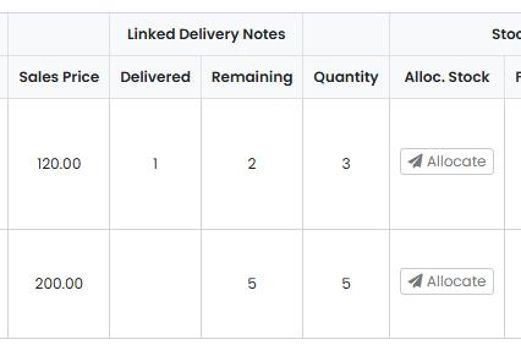
    Job line items table with Linked Delivery Notes columns showing Delivered 1 and Remaining 2 and 5, with Allocate buttons
  12. Create the delivery note to complete the order
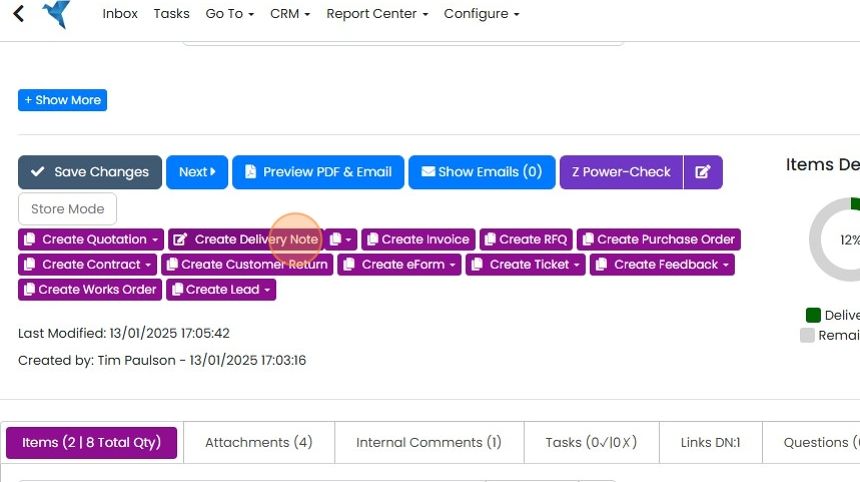
    Record action buttons with Create Delivery Note highlighted among purple create options, above the Items tab
  13. The figures on the interim screen are calculated by Zigaflow
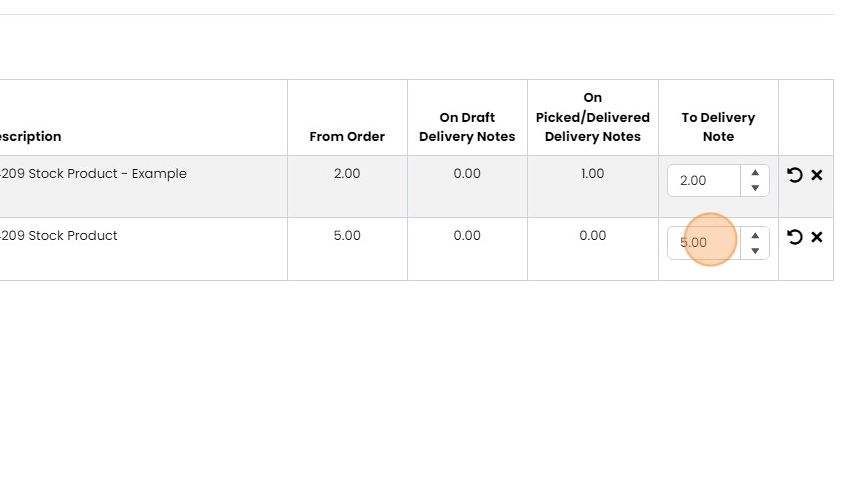
    Delivery note line items table with the To Delivery Note quantity field highlighted, showing 5.00 calculated from the order
  14. Create the delivery note

    Convert Order into Delivery Note panel with Create Delivery Note menu open and Standard pre-build option highlighted
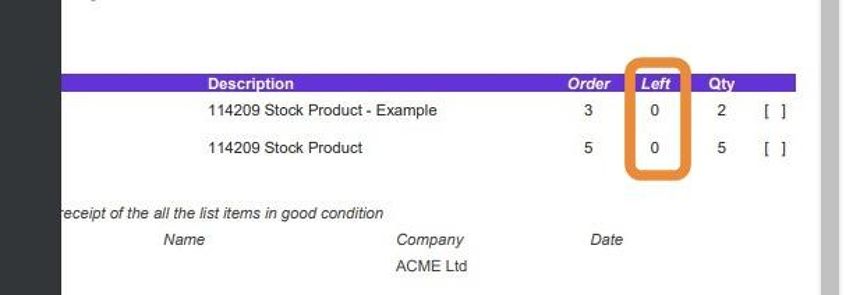
  15. The PDF shows that all the items have been delivered

    Delivery note PDF line items with the Left column highlighted, showing 0 remaining for both stock products

Zigaflow makes it easy to part deliver orders.
​

Create a part delivery note

Frequently asked questions

Next step

Showing remaining and previous quantities on delivery note PDFsEssentials, Go and Momentum plansAdd variables to your delivery note PDF template. {ItemQty} shows the quantity to deliver on that note, {ItemJobQty} shows the total quantity ordered, and {ItemJobQtyRemainingAll} shows the quantity not yet delivered. To list items not being delivered, include them when creating the note, then set their quantity to zero.

Was this helpful?

See Zigaflow on your own workflow

Book a demo and we will walk through quoting, jobs and purchasing the way your team runs them.

Or see how Zigaflow would fit your business, free