Deliver work

Setting the actual cost to the forecast

In ZigaflowEssentials, Go and Momentum plans

The short answer

To set the actual cost to the forecast in Zigaflow, click the Cog, click Financial Settings, tick the option to populate actual values with the forecast, then click Save Changes. Ticking it fills the actuals automatically. Unticking it leaves the actuals at zero.

Steps

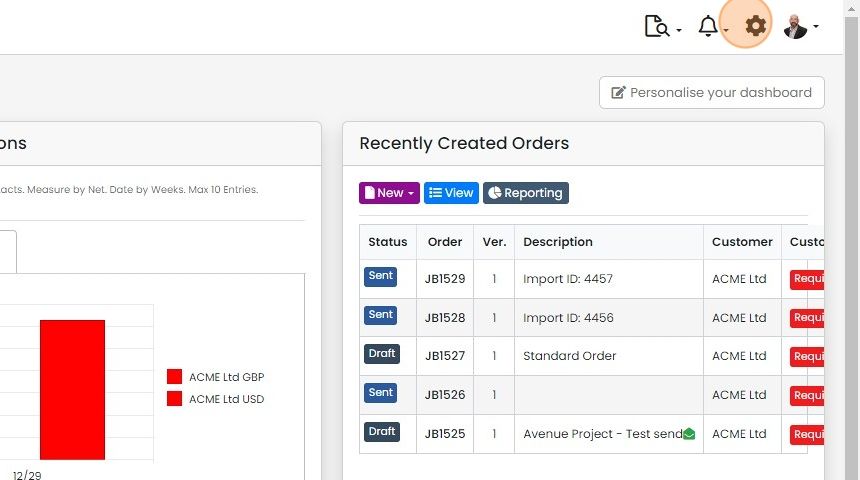
  1. Click on the Cog

    Zigaflow dashboard with the settings cog icon highlighted in the top-right toolbar, beside the notifications bell
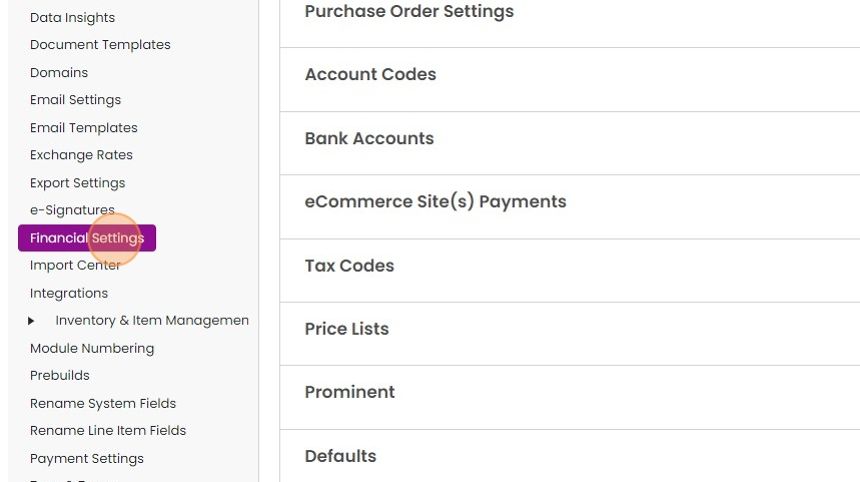
  2. Click "Financial Settings"

    Settings menu with Financial Settings highlighted, showing sections like Purchase Order Settings, Account Codes and Tax Codes
  3. Ticking this will automatically populate the actual values with the forecast

    Ticking this will automatically populate the actual values with the forecast. Unticking will leave the actuals at zero.

    Financial Settings, Order Cost Settings with the Copy Line Item Forecast values to Actual values checkbox highlighted
  4. Click "Save Changes"

    Learn more: jobs in Zigaflow
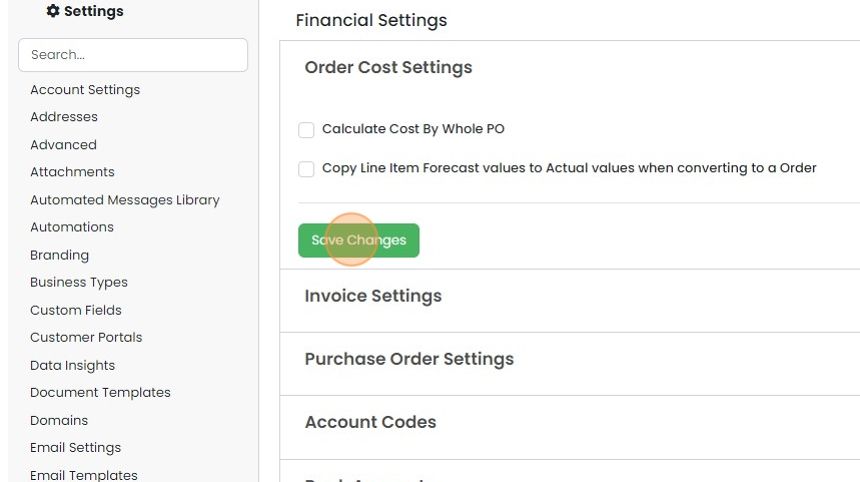
    Financial Settings page, Order Cost Settings section, with the Save Changes button highlighted below the cost checkboxes

If you plan to manually update the actual costs rather than using purchase orders created from the job/sales order, Zigaflow can automatically populate the actual figures.

Set up

Frequently asked questions

Next step

Tracking costs and profit on jobs/sales ordersEssentials, Go and Momentum plansCompare forecast and actual costs on a job or sales order to see a running profit. Forecast costs are copied from the quotation or entered when an item is added. Actual costs come from linked POs, manual entry, stock allocation, or the forecast. Report on them in Report Center, Report Studio.

Was this helpful?

See Zigaflow on your own workflow

Book a demo and we will walk through quoting, jobs and purchasing the way your team runs them.

Or see how Zigaflow would fit your business, free