Setting the document templates for eForms
The short answer
Open the eForm pre-build under Prebuilds, then eForms, click Edit Document PDFs, and choose templates. An eForm can use up to three document templates: one shown to the recipient before they complete the form, and two generated on completion. You can also include a source document merged at the top of the final document.
Steps
Click here
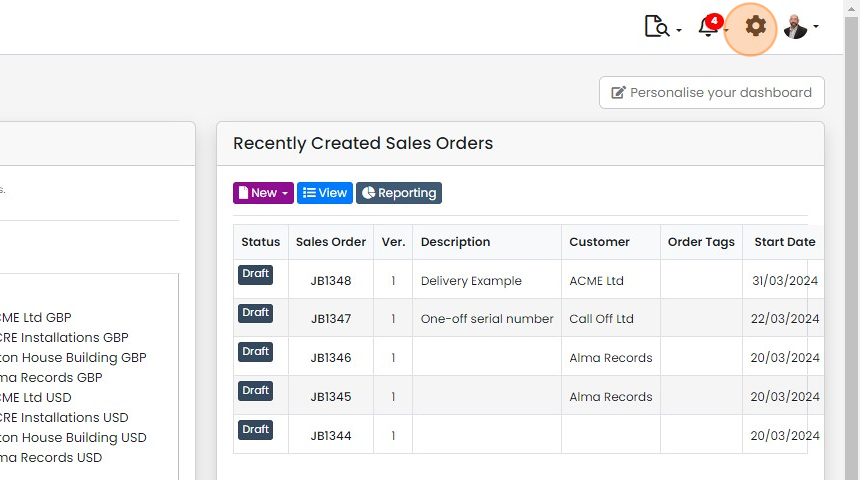
Click "Prebuilds"
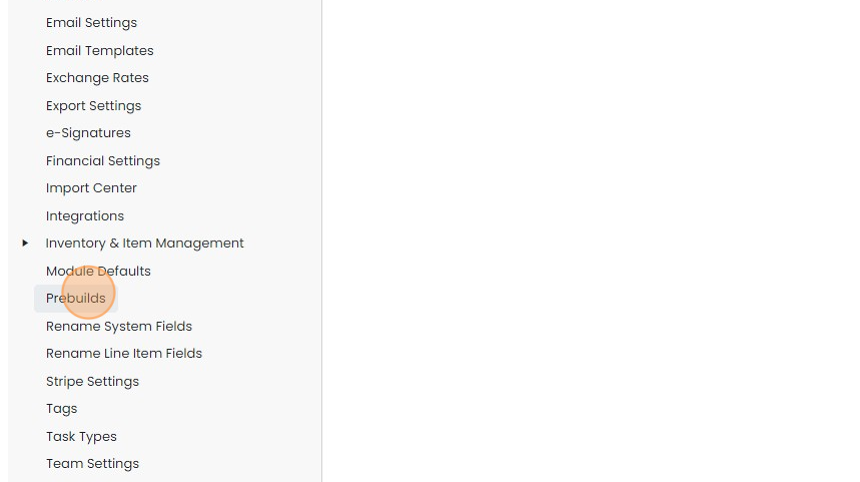
Click "eForms"
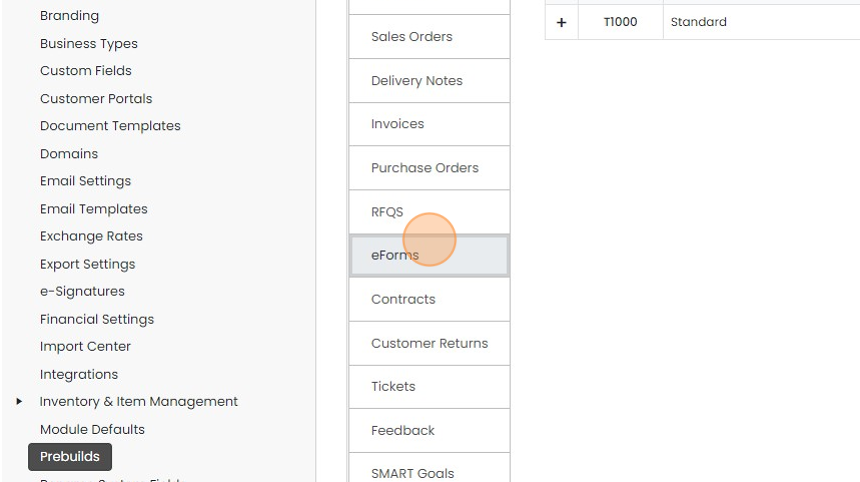
Edit the required pre-build
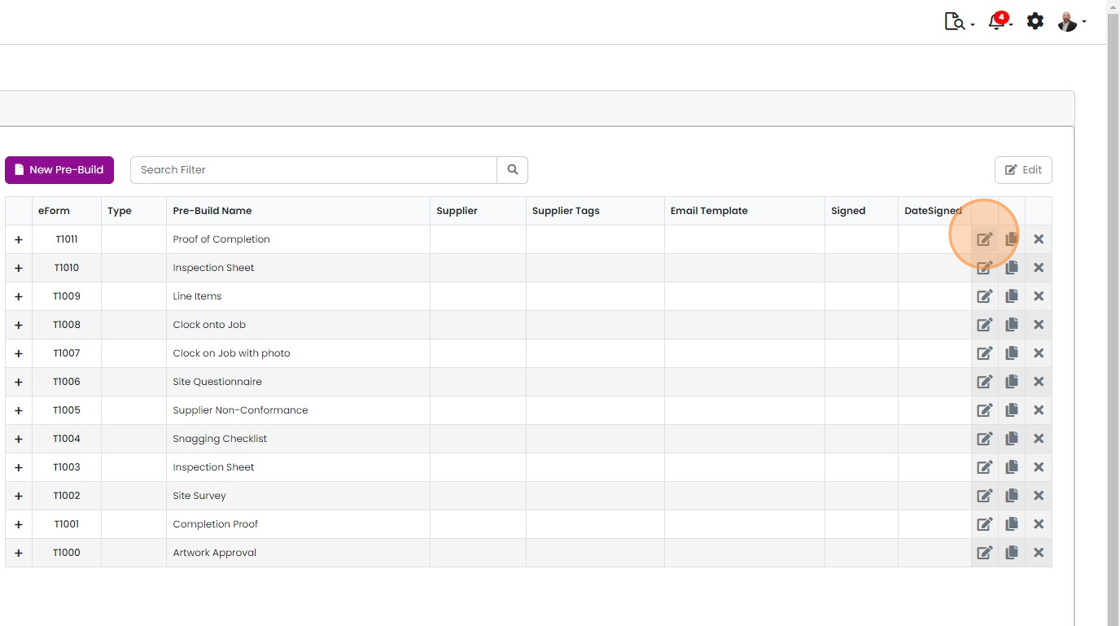
Click "Edit Document PDFs"
Set the pre-completion document

Click this checkbox
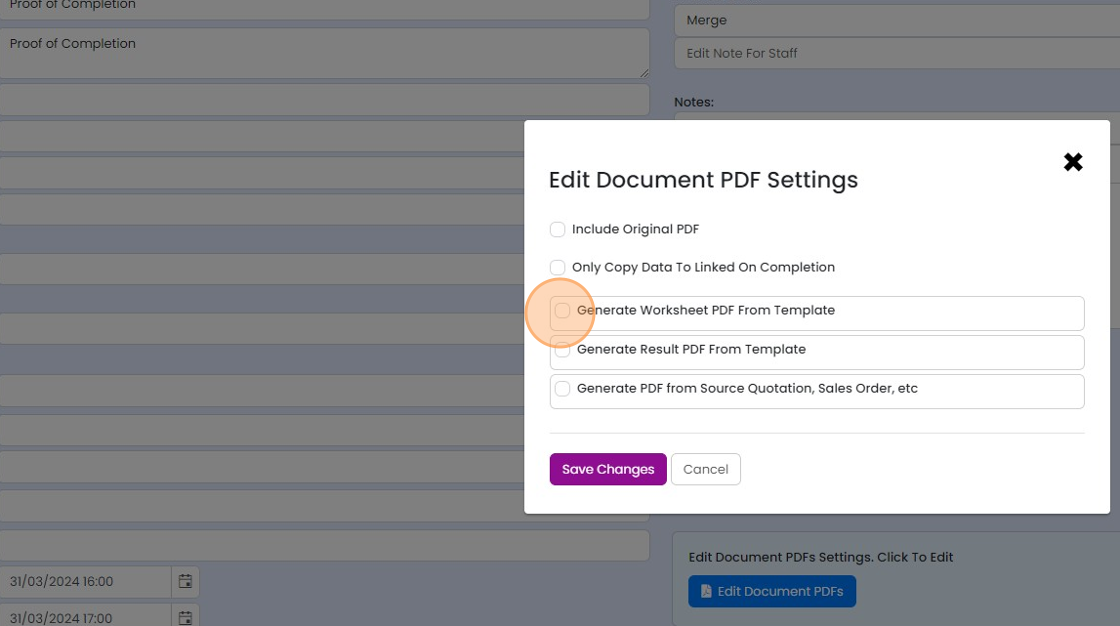
Click "Select Template..."
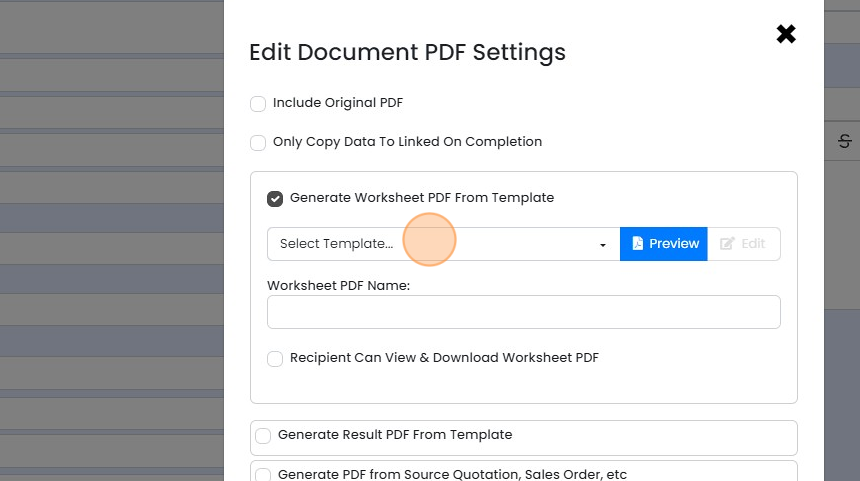
Select the document template to show the recipient before they complete the form
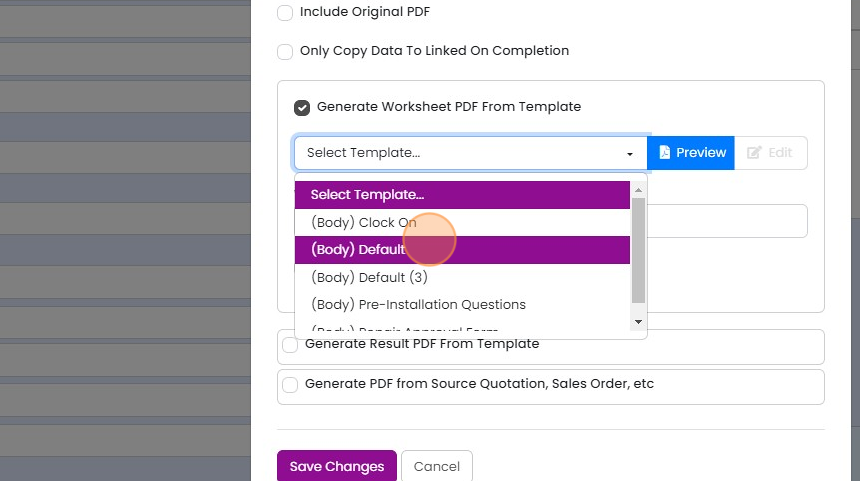
Ensure this is ticked so they can see it before completion
Set the completed document
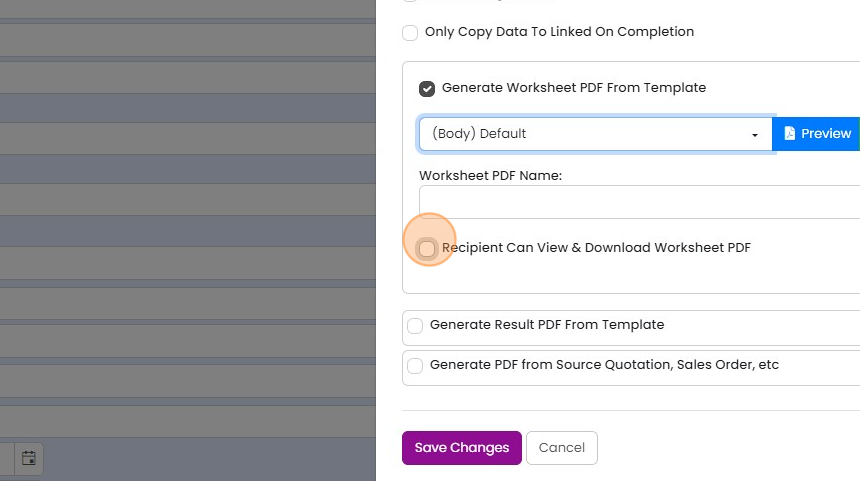
Set up the document that is generated on completion (this is often the same as the pre-completion one
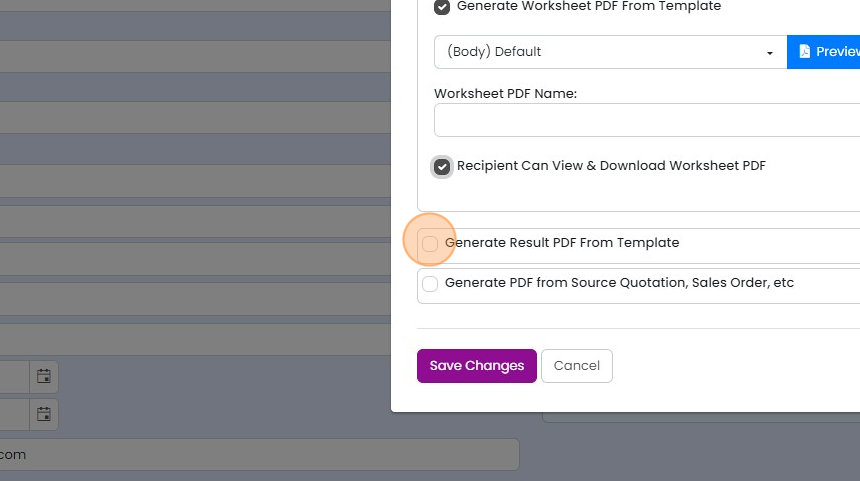
Select the document template

Make sure this is ticked if you want them to be able to download the completed document
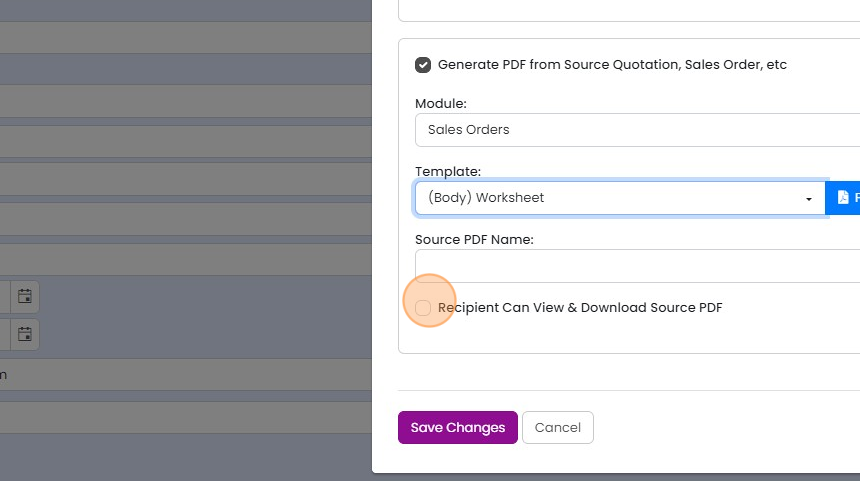
Include a source document

You can include a document generated from the source, e.g
You can include a document generated from the source, e.g. a Quotation or Job/Sales Order. This is used where you need to show all the items on that on the eForm (such as a list of parts). This is merged into the final document at the top
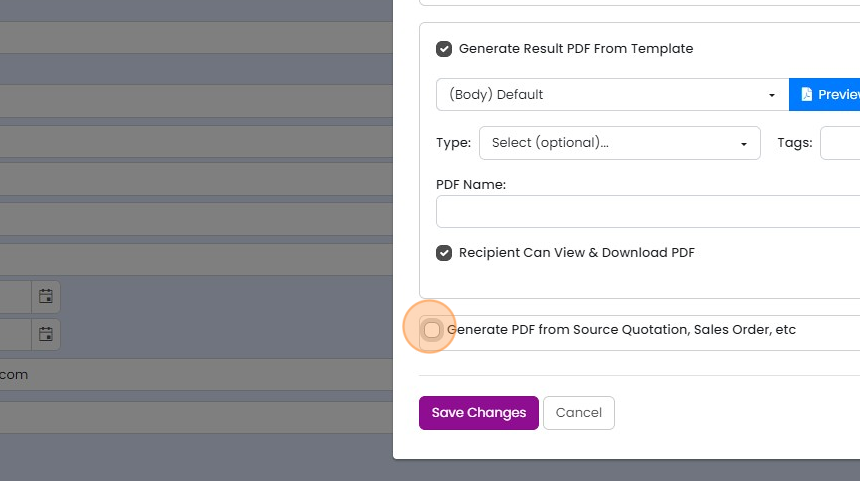
Select the source module
Select the source module. If you might generate this eForm from Quotations and separately from Jobs/Sales Orders (for example), set up an eForm each source
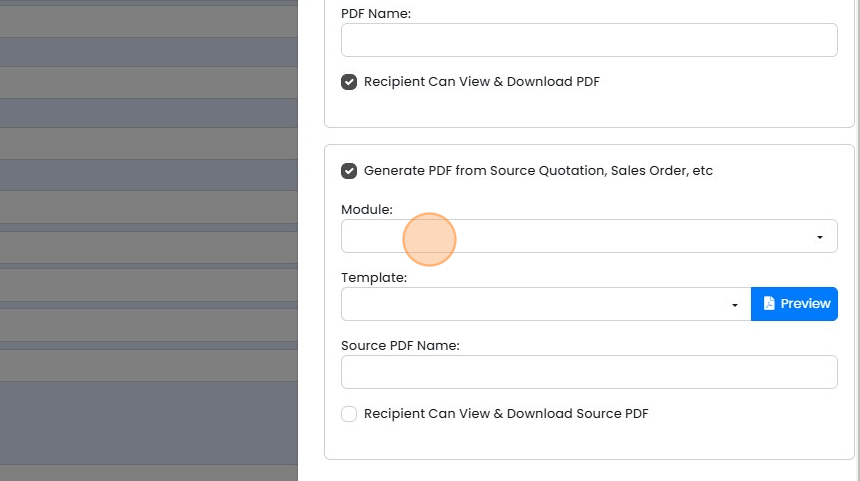
For example, "Sales Orders"
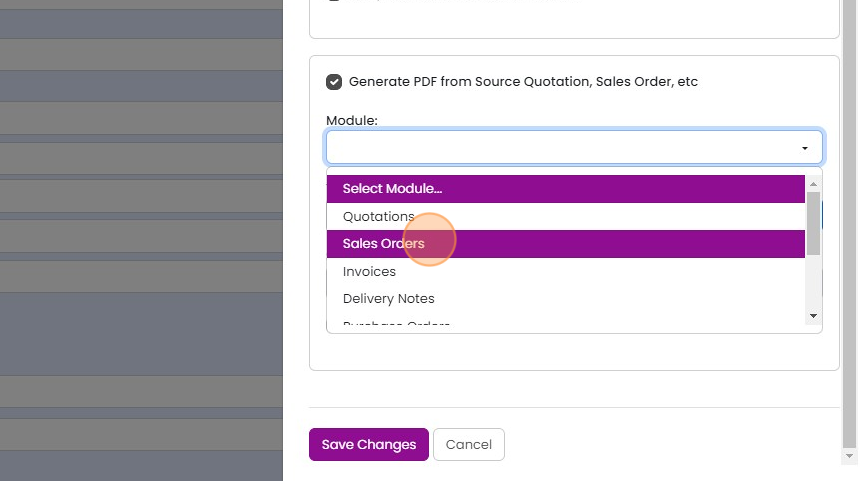
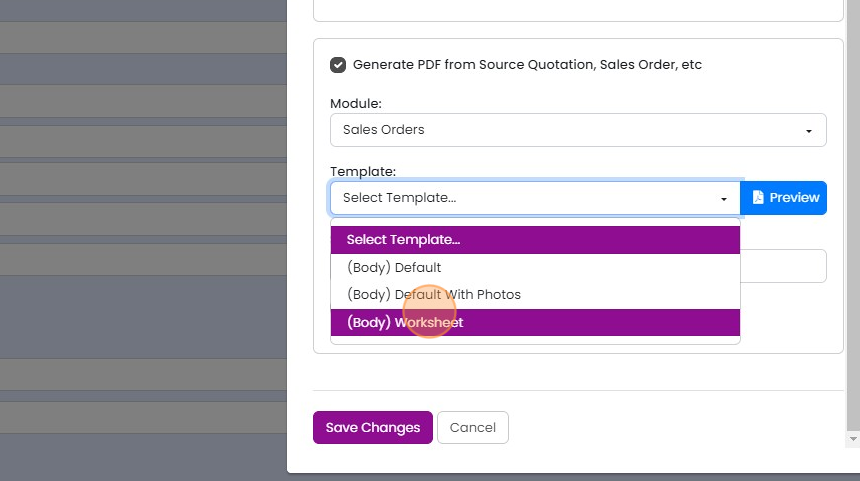
Click "Select Template..."
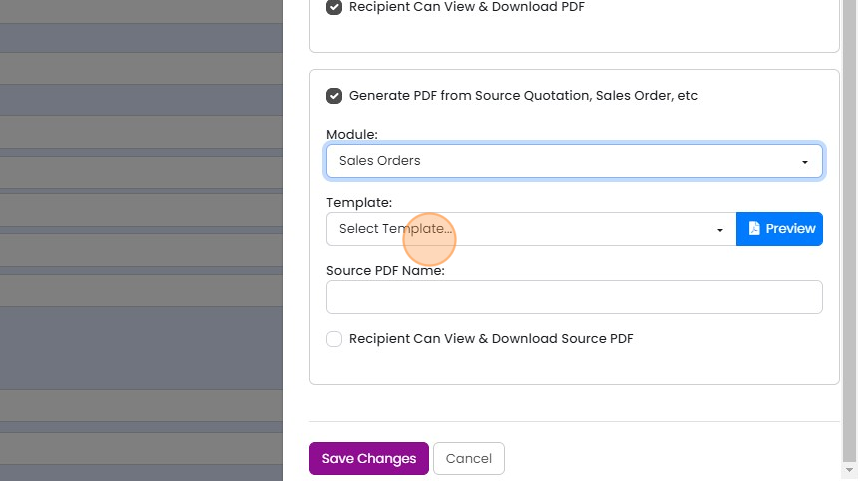
Select the PDF template
Optionally, add this to final document
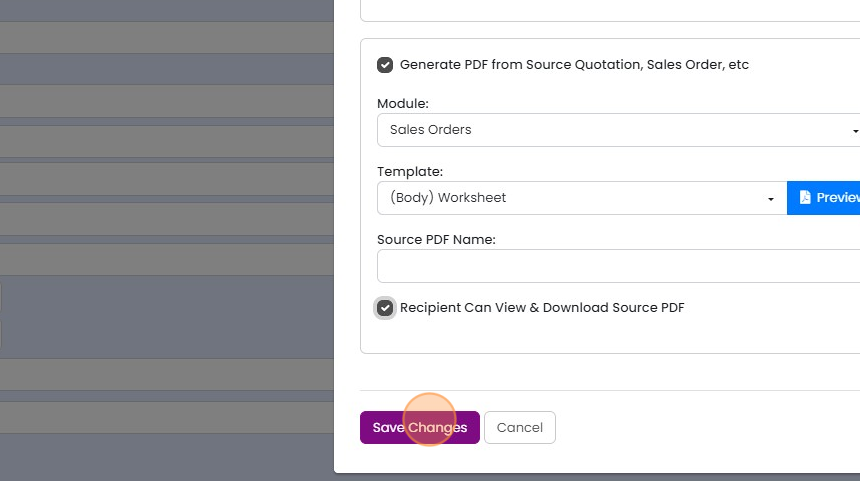
Click "Save Changes"
Learn more: eForms in Zigaflow


An eForm can use up to three different document templates, one of which is shown before the user completes the document, and the last two which are generated on completion. This article describes how to set these. How to build a document template is covered in another article.
Open the eForm pre-build
Frequently asked questions
Was this helpful?