Deliver work
Allocate stock to individual items on a job / sales order
The short answer
In a job or sales order, click "Load" in the "Free Stock" column, click "Allocate", choose which of your available stock or inventory you want, then click "Allocate" again. Close the panel with "X". If the column is hidden, turn on "Allocated Stock" in "Screen Options".
Steps
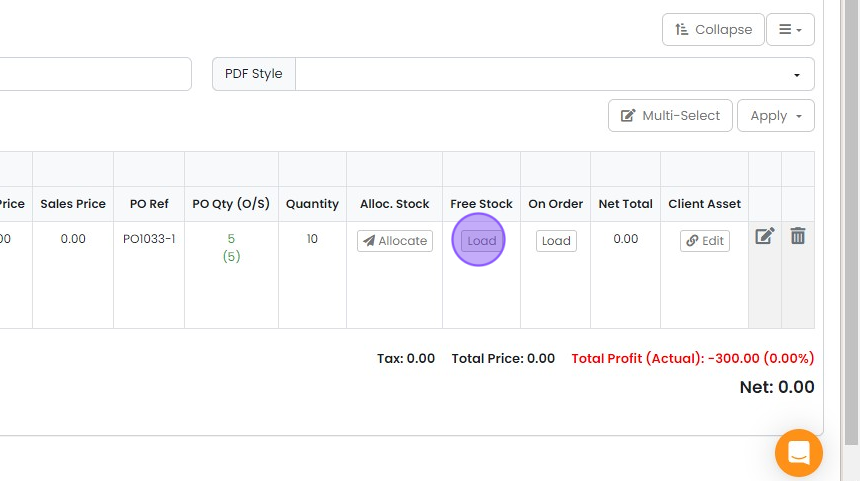
When in a Job / Sales Order click "Load" In the "Free Stock" column
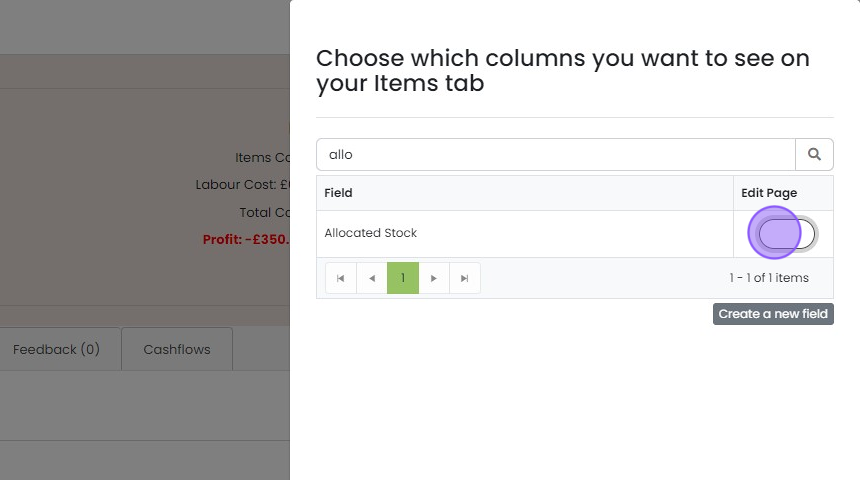
If that column is not visible, click on "Screen Options"

Search for "Allocated Stock" then click the toggle switch so it is green
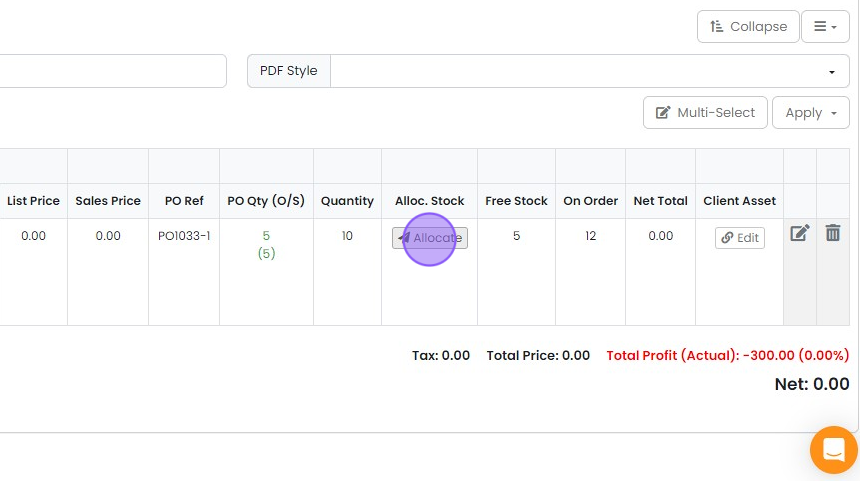
Click the "Allocate" button
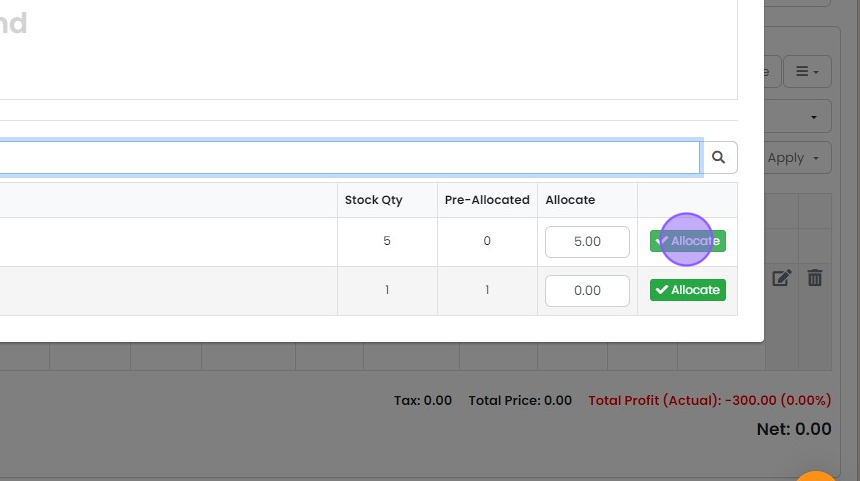
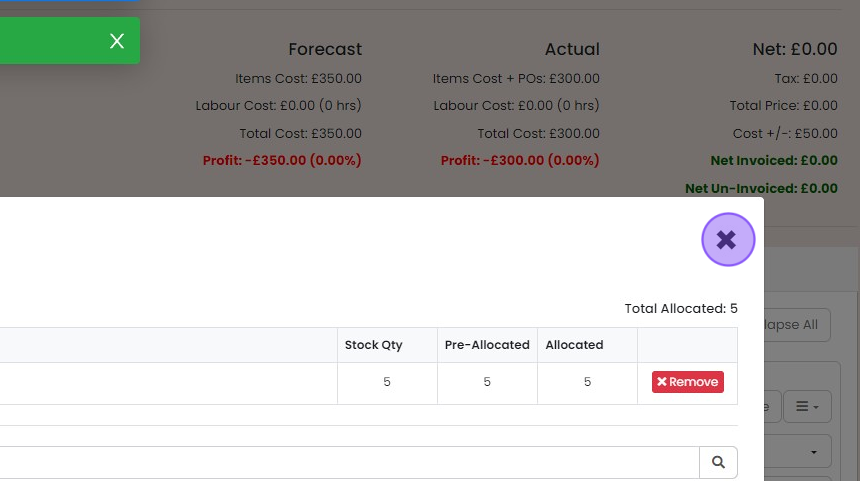
Choose which of your available stock / inventory you want then click "Allocate"
Close this panel by clicking "X"
Learn more: stock management in Zigaflow


NOTE: If you have created a Purchase Order for these items from the Job / Sales Order the relevant stock will be automatically allocated. You only need to use this method when using stock on hand
Frequently asked questions
Next step
Momentum planWas this helpful?