Get set up

Apply automated messages to existing quotations, jobs/orders, etc.

In Zigaflow

The short answer

In Zigaflow, click Go To, pick the module, then use Bulk Action and choose Automated Messages. Select the quotations, jobs/orders or invoices, click Update Automated Messages, choose the pre-build that holds the messages, and click to add. You can also add messages from the Template Library.

Steps

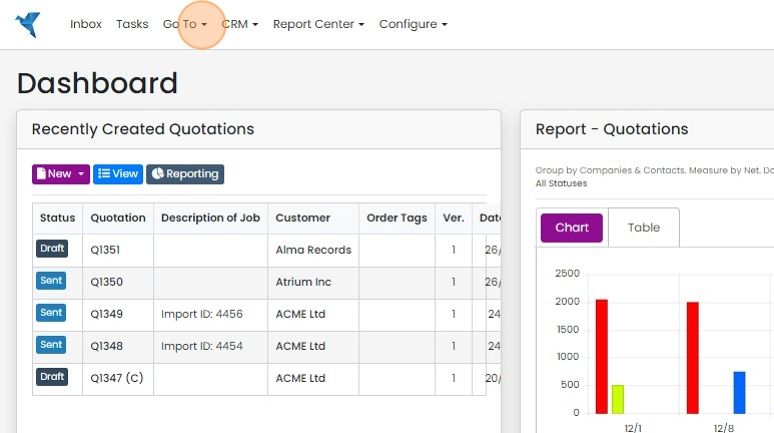
  1. Click "Go To"

    Zigaflow Dashboard with the Go To menu in the top navigation bar highlighted, above the Recently Created Quotations panel
  2. Select the module to add the Automated Message(s) to
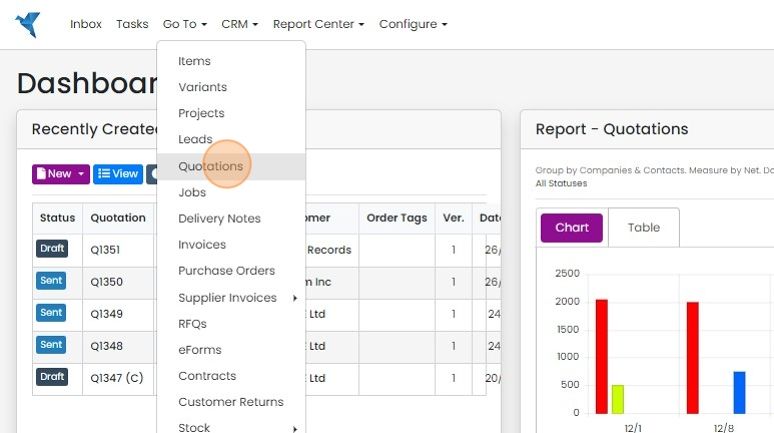
    Go To menu open on the Dashboard with Quotations highlighted in the module list, above Jobs, Invoices and Purchase Orders
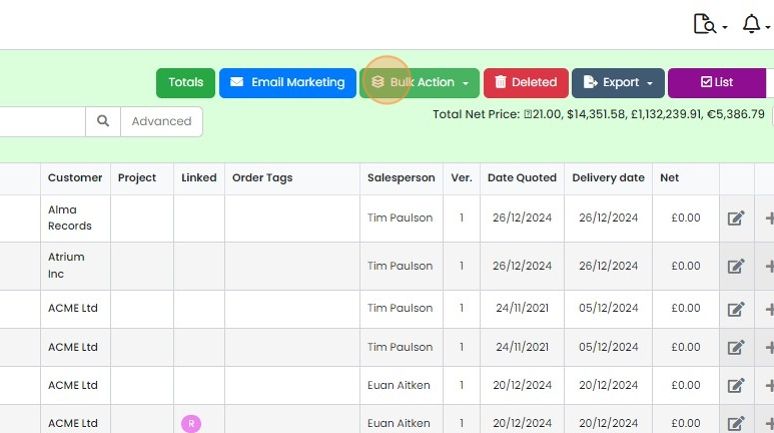
  3. Click here "Bulk Action"

    Quotes list toolbar with the Bulk Action dropdown button highlighted, between Email Marketing and Deleted buttons
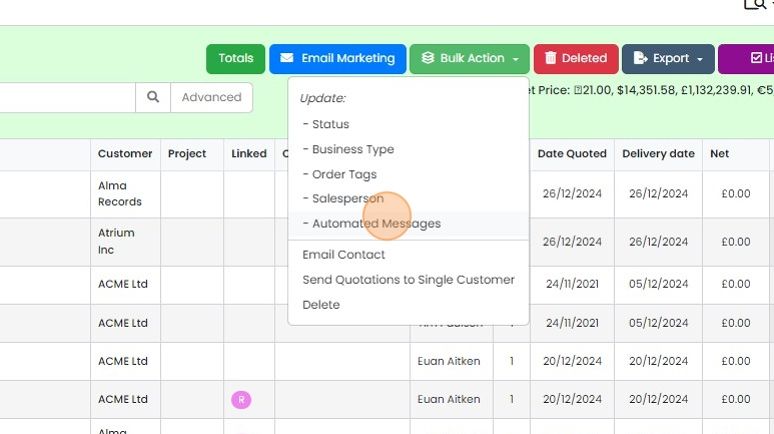
  4. Click "- Automated Messages"

    Bulk Action dropdown on the quotations list open, with
  5. Select the Quotations. Jobs/Orders, Invoices, etc., to apply the automated messages to

    Add messages from a pre-build
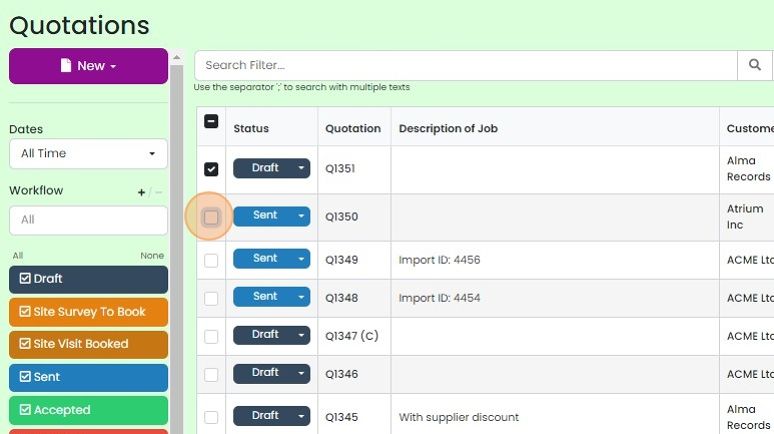
    Quotations list with Q1351 checked and the row checkbox for quotation Q1350 highlighted to select it
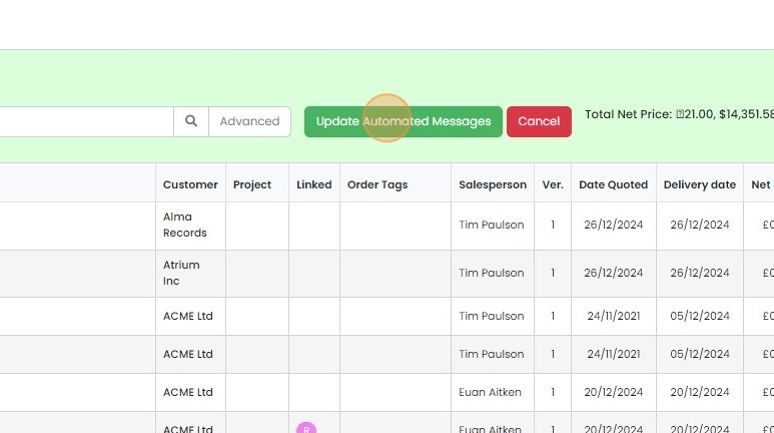
  6. Click "Update Automated Messages"

    Green Update Automated Messages button highlighted next to Cancel above a list of quotes in bulk update mode
  7. Select the pre-build with the Automated Messages on
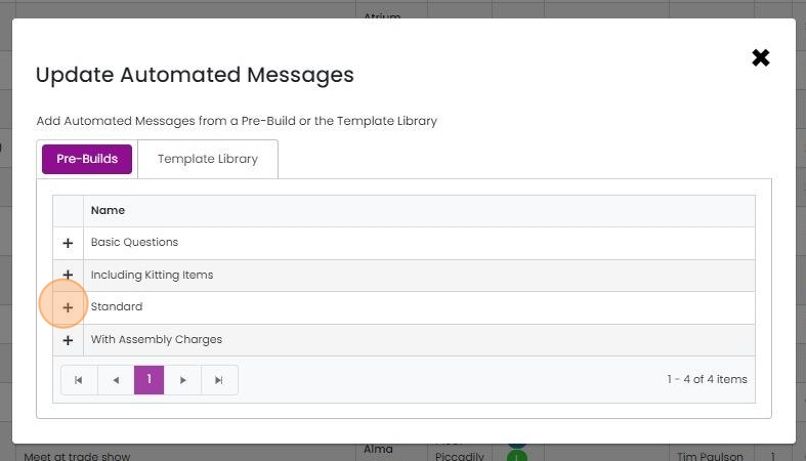
    Update Automated Messages dialog, Pre-Builds tab, with the plus button highlighted next to the Standard pre-build
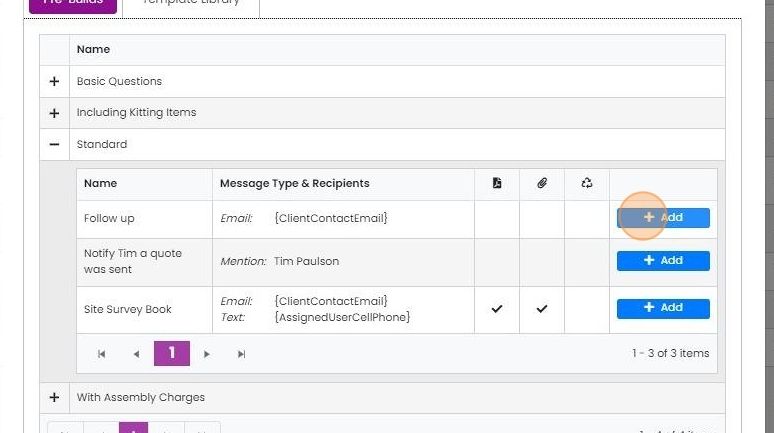
  8. Click to add

    Pre-builds tab with the Standard group expanded, highlighting the Add button on the Follow up email message row
  9. Or, click "Template Library" to add messages from the library

    Check the messages were added
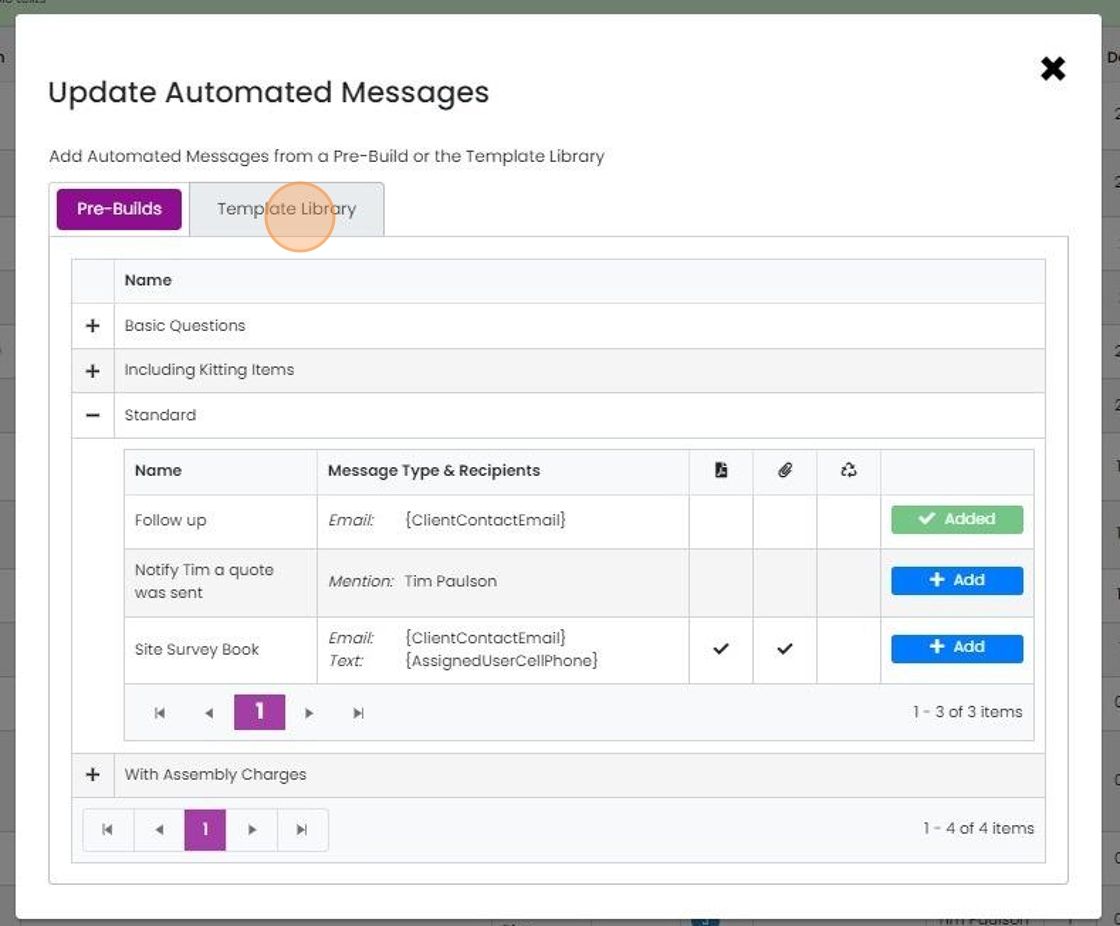
    Update Automated Messages window with the Template Library tab highlighted next to the selected Pre-Builds tab
  10. The Automated Messages will have been added to the selected Quotations, Jobs/Orders, Invoices, etc

    The Automated Messages will have been added to the selected Quotations, Jobs/Orders, Invoices, etc. If the target is in the status where the message will be sent, the date to send will immediately be set, otherwise it will be blank until the correct status is moved to.

    Check by opening it and clicking on the "Automation Messages" tab.

    Learn more: workflows and automations in Zigaflow
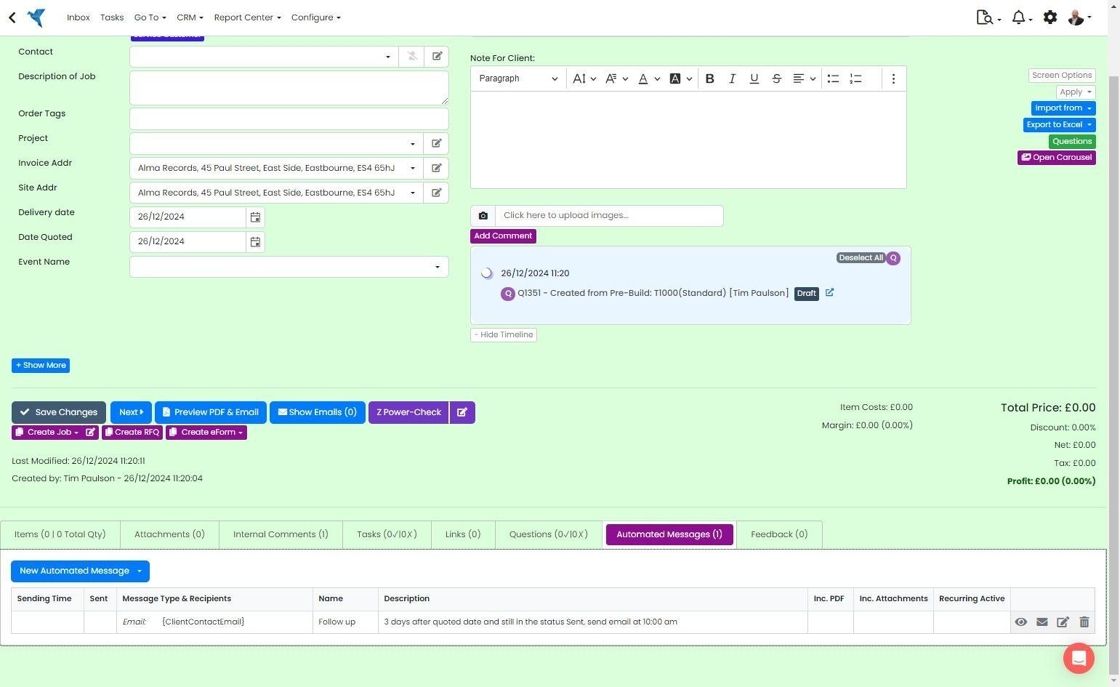
    Quote screen with the Automated Messages (1) tab selected, listing a

Select the records to update

Frequently asked questions

Next step

Setting up automated messagesIn Zigaflow, each module lets you send automated email or SMS messages to chase customers, suppliers, or colleagues. A message can send immediately when a record such as a Quotation, Job/Sales Order, or Invoice moves to a new status, after a set number of days, or on a set date.

Was this helpful?

See Zigaflow on your own workflow

Book a demo and we will walk through quoting, jobs and purchasing the way your team runs them.

Or see how Zigaflow would fit your business, free