Get set up

Prevent users from exporting data

In Zigaflow

The short answer

To stop users exporting data, create or edit a role in Team Settings so that Export is unticked on the modules you want to block, then assign that role to the users. Admin and User roles cannot be edited. Users must log out and back in to see the change.

Steps

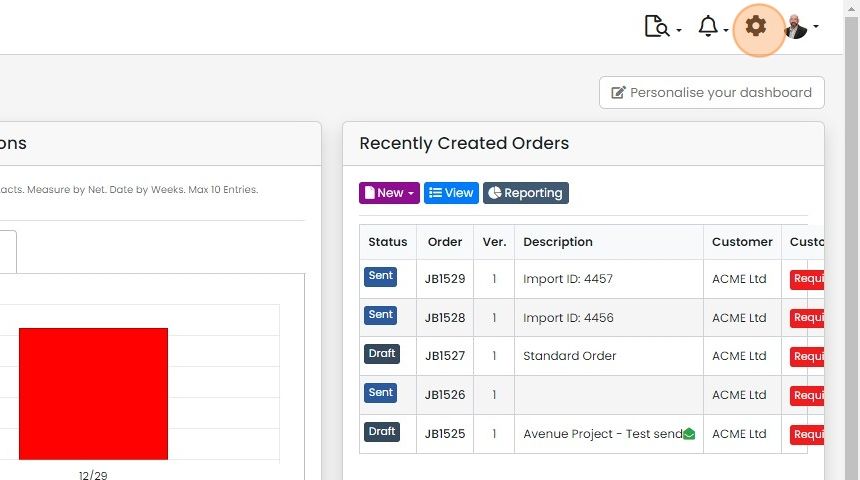
  1. Click on the Cog

    Zigaflow dashboard with the settings cog icon highlighted in the top-right toolbar, next to the notifications bell
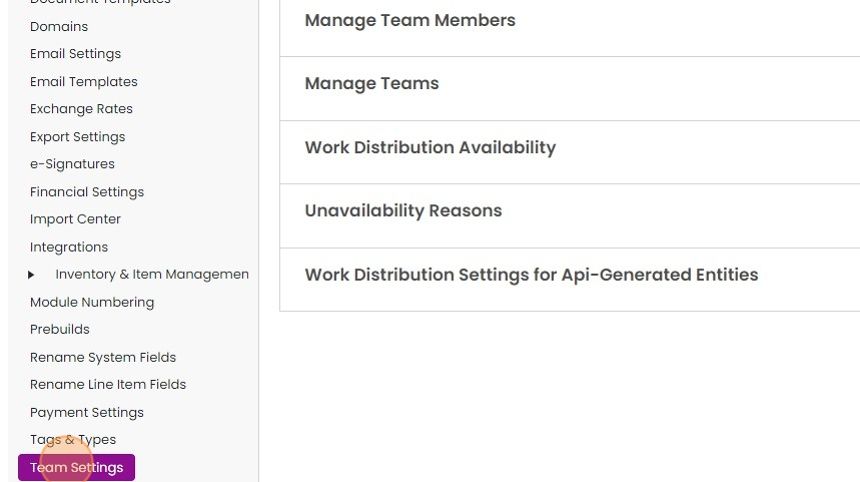
  2. Click "Team Settings"

    Settings menu with Team Settings highlighted, opening options including Manage Team Members and Manage Teams
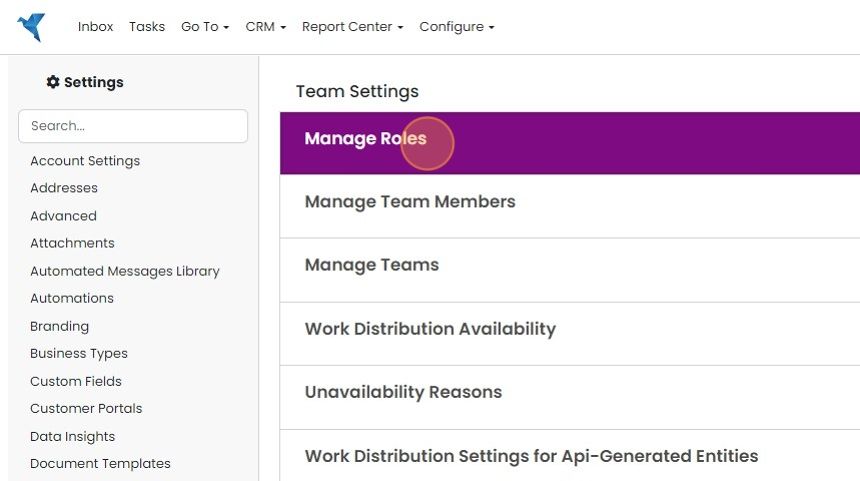
  3. Click "Manage Roles"

    Team Settings page in Zigaflow Settings with the Manage Roles option highlighted in purple and selected
  4. Edit a role or create a new one. Admin and User roles cannot be edited
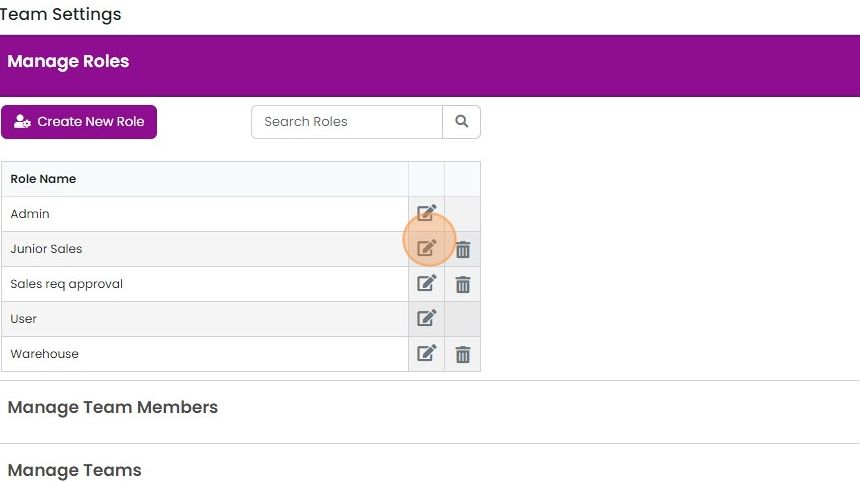
    Manage Roles panel in Team Settings with the edit icon highlighted on the Junior Sales role, next to Create New Role
  5. Unitck "Export.." on the modules you don't want them to be able to export from
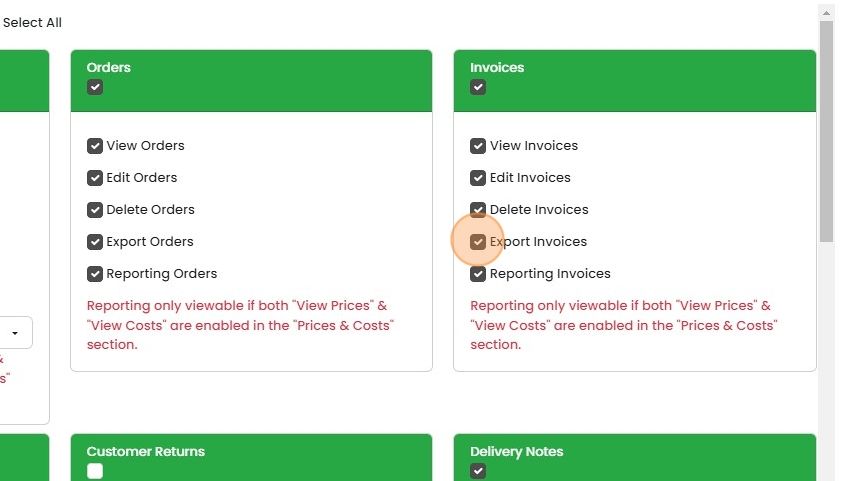
    Permissions screen with the Export Invoices checkbox highlighted in the Invoices panel, next to the Orders panel options
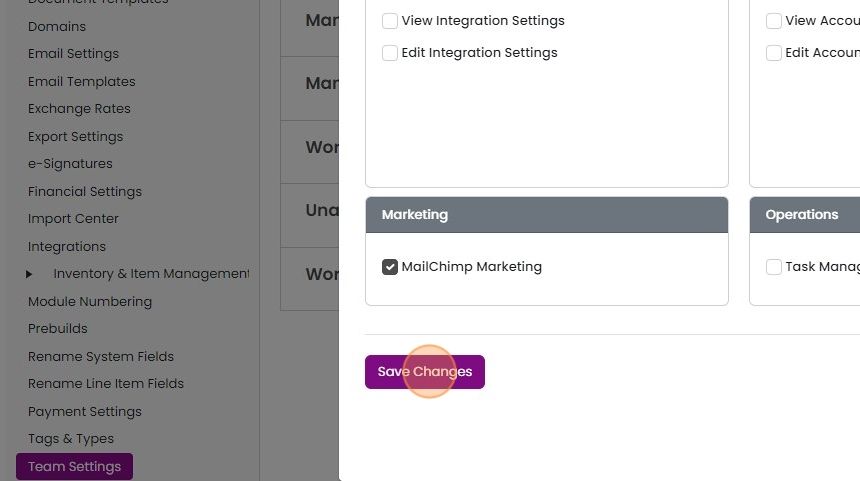
  6. Click "Save Changes"

    Team Settings permissions panel with MailChimp Marketing checked and the Save Changes button highlighted at the bottom
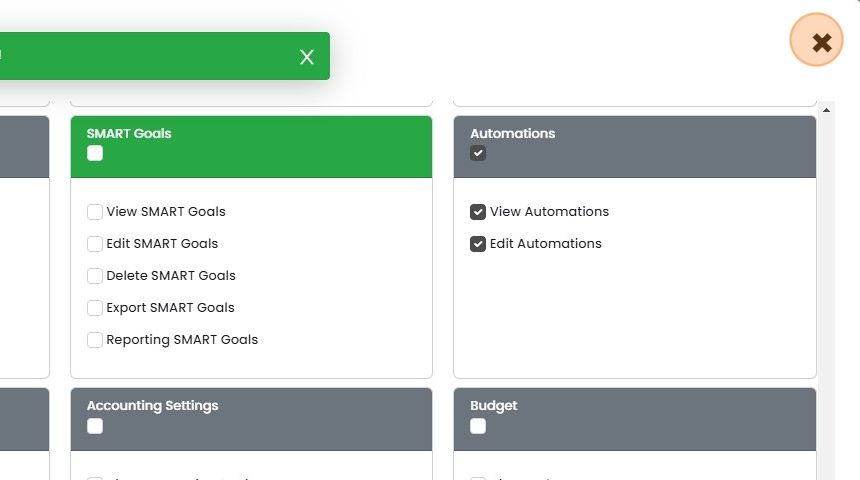
  7. Click "×"

    Assign the role to users

    Permissions panel with SMART Goals and Automations checkboxes, highlighting the close
  8. Assign the user(s) this role. Click "Manage Team Members"
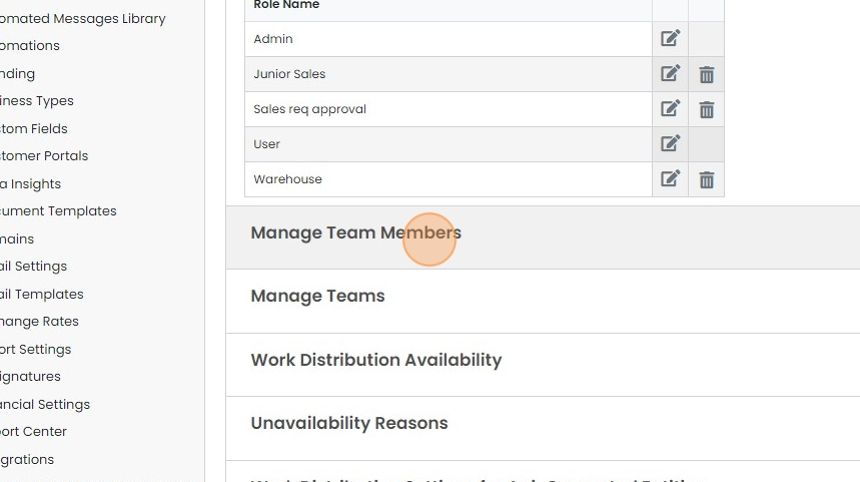
    Settings page below the Role Name table, with the Manage Team Members section highlighted for clicking
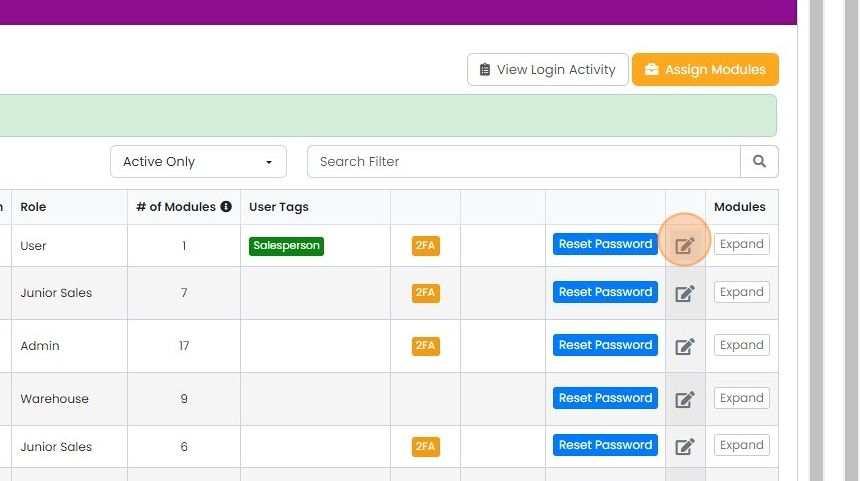
  9. Edit the user

    Users list with Role, # of Modules and User Tags columns, edit icon highlighted beside Reset Password for the first user
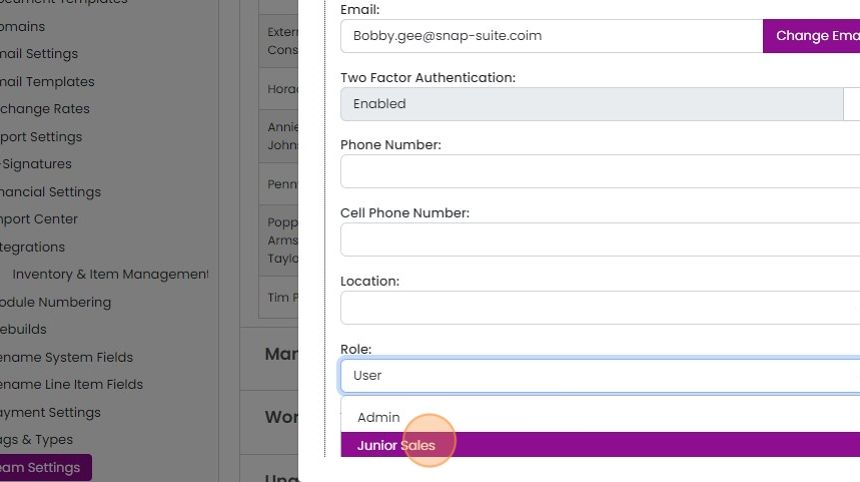
  10. Set their role

    User details form in Team Settings with the Role dropdown open, highlighting the Junior Sales option below Admin
  11. Click "Save Changes"

    Team Settings user edit panel with Role set to Junior Sales and the Save Changes button highlighted below the form
  12. The user will need to log out and back in to see the changes

Set up the role

Frequently asked questions

Next step

What are user roles?User roles let you control what different team members can do in your Zigaflow account. You can decide which areas of the system users can access, whether they see sensitive cost and pricing information, who can view reports, and who can export data. This gives each team member a more relevant, tailored experience.

Was this helpful?

See Zigaflow on your own workflow

Book a demo and we will walk through quoting, jobs and purchasing the way your team runs them.

Or see how Zigaflow would fit your business, free