Get set up

Creating and editing user roles

In Zigaflow

The short answer

Create or edit a user role in Team Settings. Click the cog, then Team Settings, then Create New Role, or the edit button next to an existing role. Name the role, choose its access for whole modules or specific functions, set its quotation approval level, hide prices and costs if needed, then save.

Steps

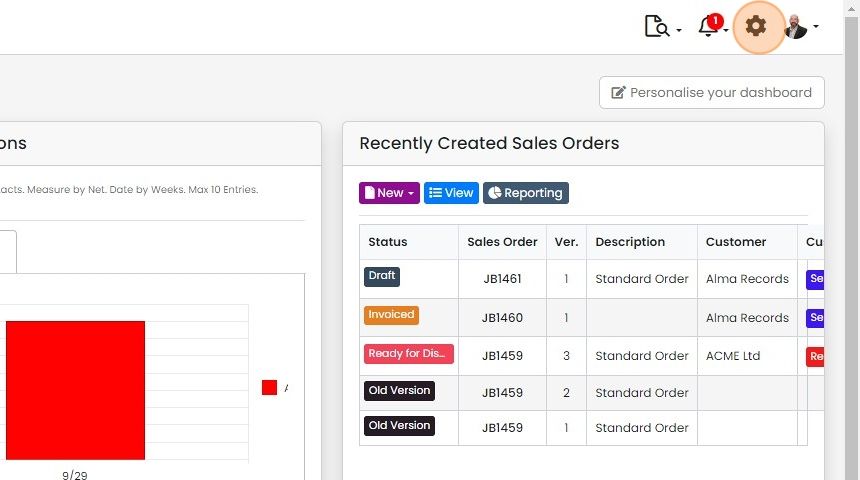
  1. Click on the Cog

    Dashboard with the settings cog icon highlighted in the top-right toolbar, next to the notifications bell and user profile
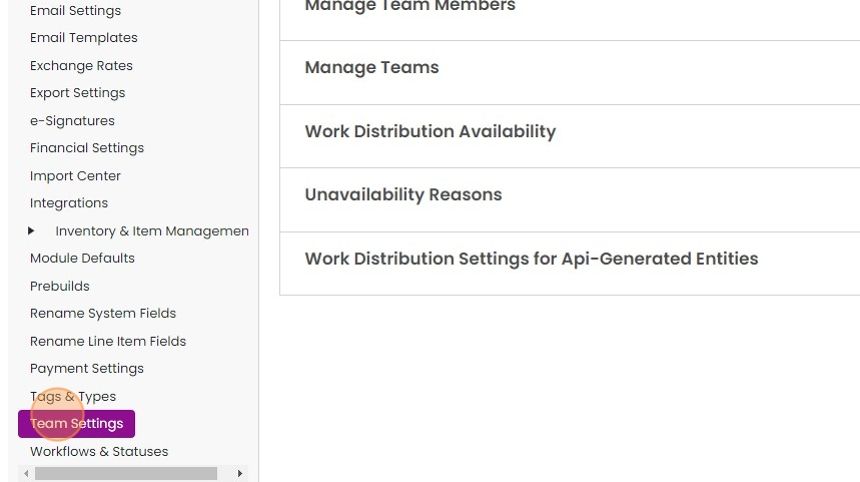
  2. Click "Team Settings"

    Settings menu with Team Settings highlighted, showing options like Manage Team Members, Manage Teams and Work Distribution
  3. Click "Create New Role" or click on the edit button next to a role to edit it
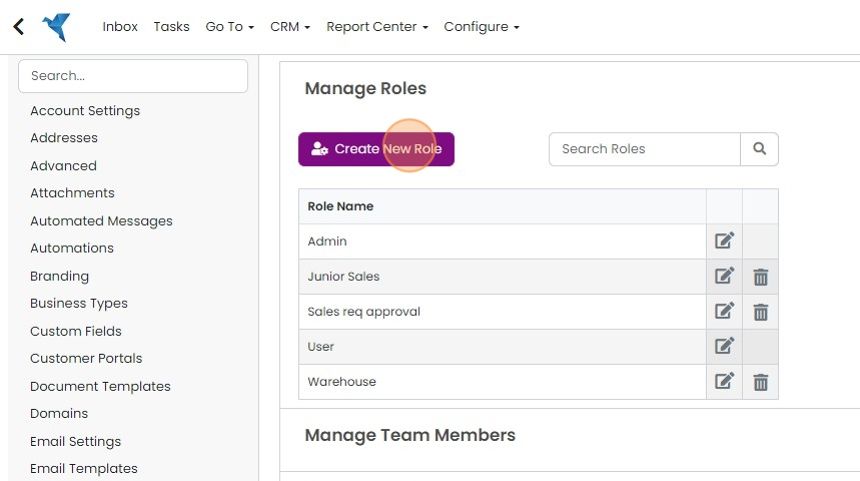
    Manage Roles screen with the Create New Role button highlighted above the role list, each role with edit and delete icons
  4. Enter the name for the new role or leave it it you are editing an existing one

    Set the role's access

    New User Role window with the Role Name field highlighted, above Select All and Quotations and Sales Orders permission checkboxes
  5. Select the contol that role has either for the whole module or specific functions
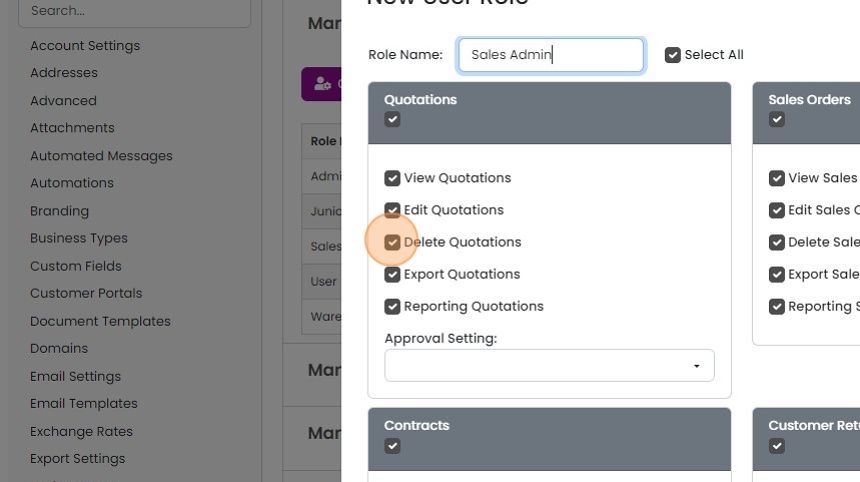
    New User Role panel with Quotations permission checkboxes ticked and the Delete Quotations checkbox highlighted
  6. Set the quotation approval level here - these need to be first set up in the quotation settings

    Role permissions panel with Quotations checkboxes, highlighting the empty Approval Setting dropdown below them
  7. Click this checkbox to deselect an entire module
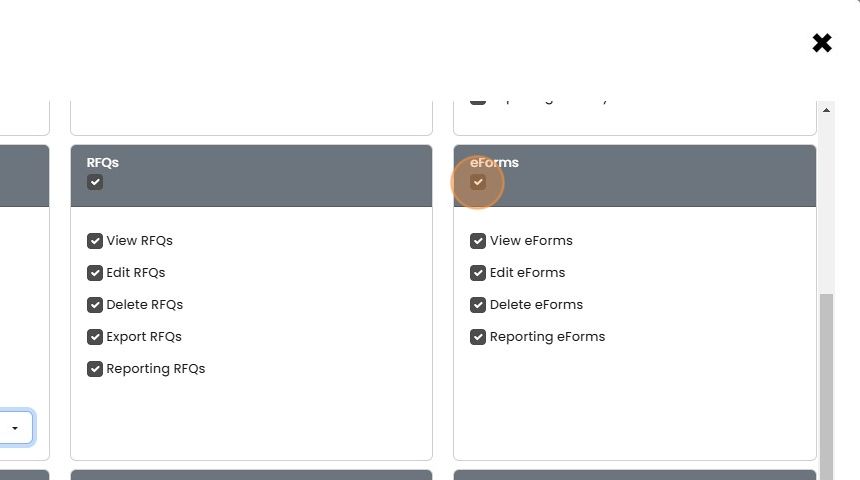
    Role permissions screen with the eForms module header checkbox highlighted to deselect all eForms permissions at once
  8. Hide prices and costs from users with this role here
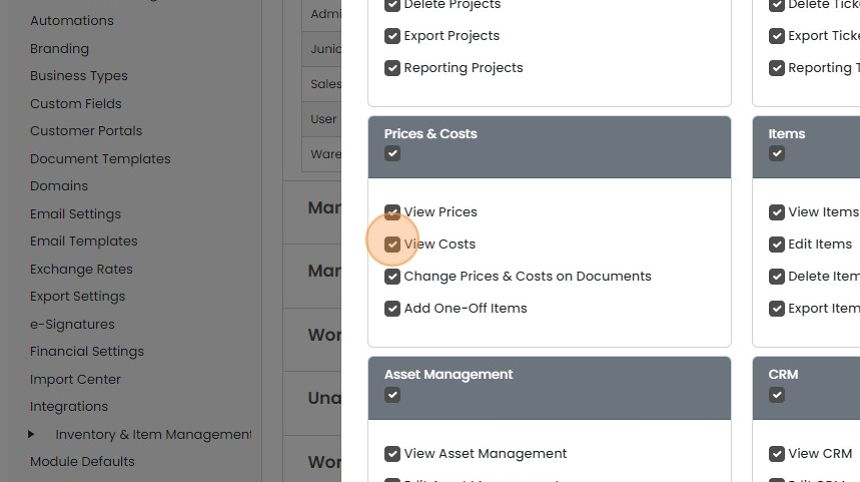
    User role permissions panel with the View Costs checkbox highlighted in the Prices & Costs section
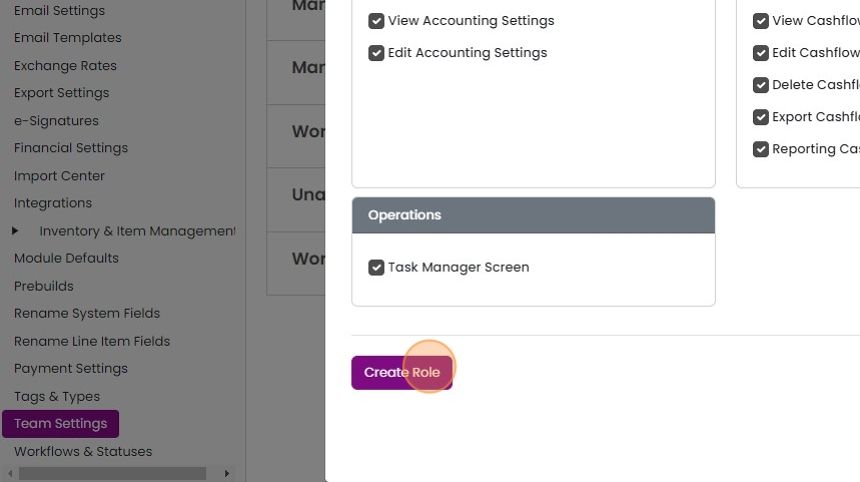
  9. When you are done click "Create Role" for a new role, and "Save" for an existing one

    Team Settings role permissions panel with Operations options checked and the Create Role button highlighted at the bottom

Open the role editor

Frequently asked questions

Next step

Giving users access to a moduleTo give a user access to a module in Zigaflow, click the Cog, then Team Settings, then Manage Team Members, then Assign Modules. Click the module, pick the user from the dropdown, and click Add User. The user must log out and back in to see the module.

Was this helpful?

See Zigaflow on your own workflow

Book a demo and we will walk through quoting, jobs and purchasing the way your team runs them.

Or see how Zigaflow would fit your business, free