Adding custom fields to companies/customers
The short answer
To add a custom field to companies or customers, click the Cog, then Custom Fields, then Companies or Customers. Click Create Custom Field, choose the field type and label, and click Create. The field then appears on the Company or Customer record, and you can add it to document templates for your PDFs.
Steps
Click on the Cog
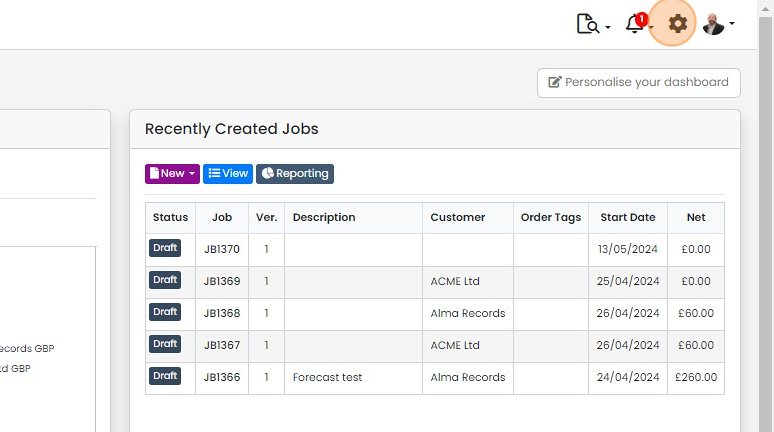
Click "Custom Fields"
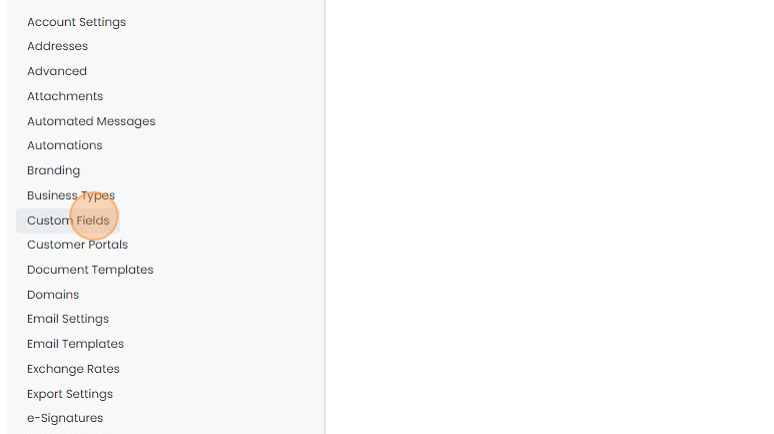
Click "Companies" / "Customers"
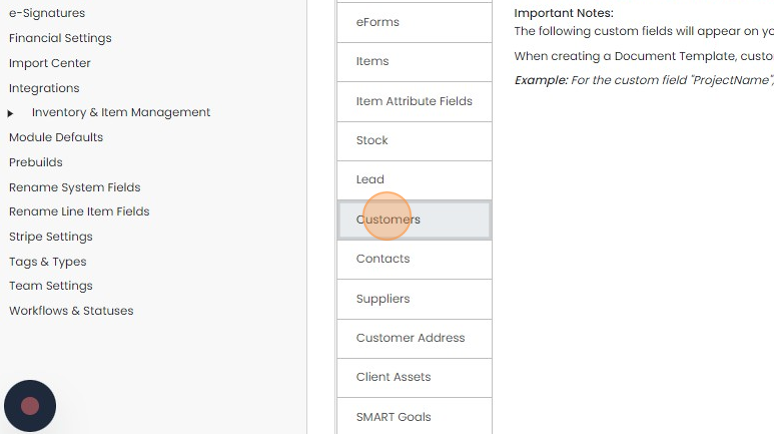
Click "Create Custom Field"
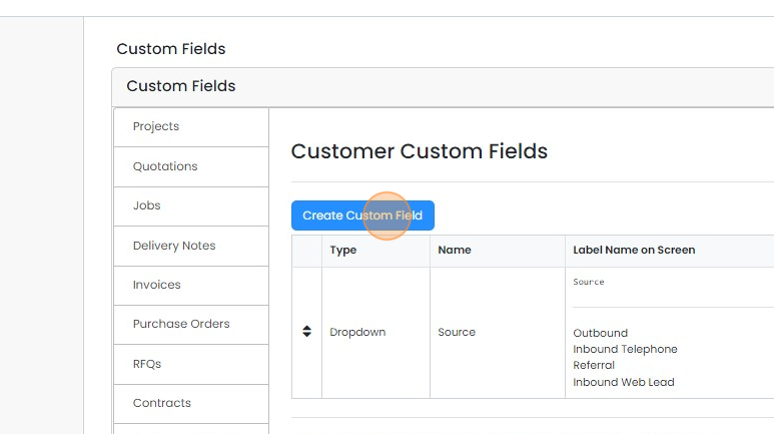
Select the type of field and the label
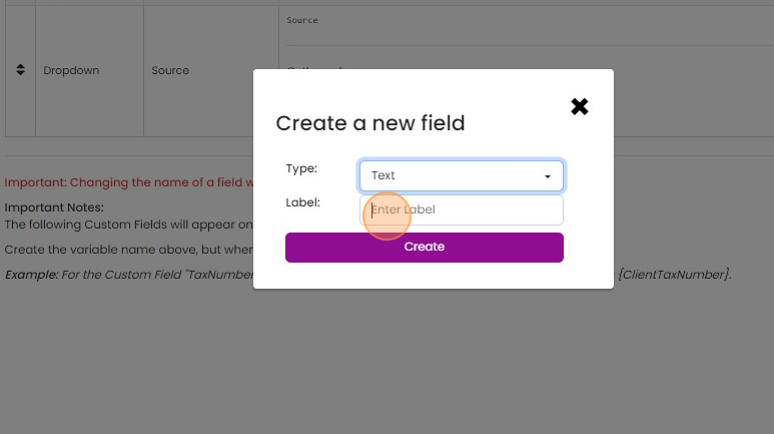
Click Create
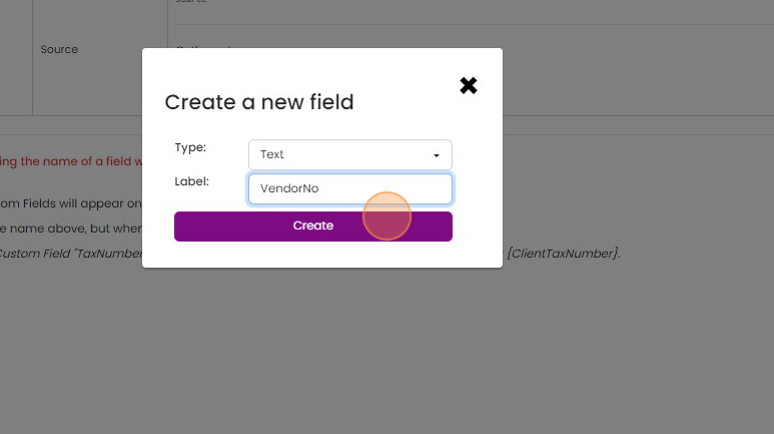
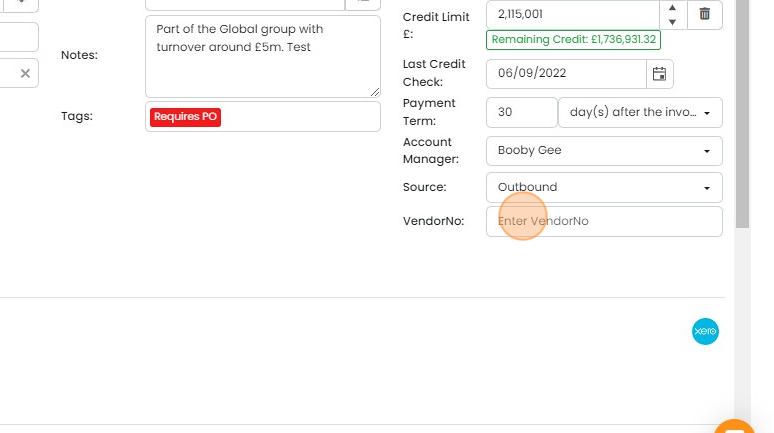
The new field is now available on the Company/Customer Record
Add the field to a document template
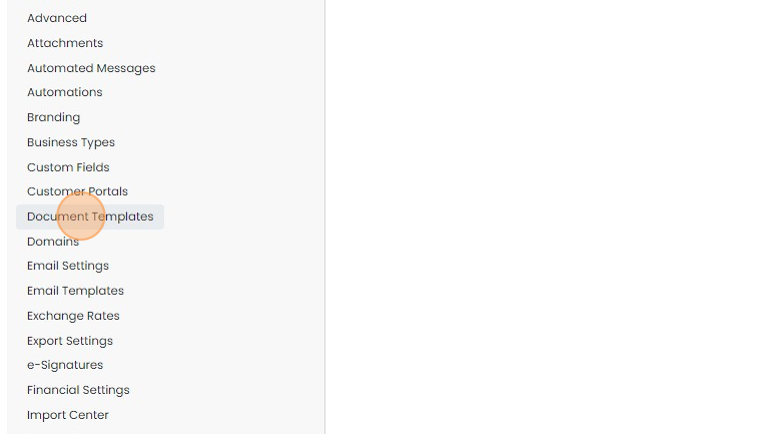
In the settings page, click "Document Templates"
Edit the template
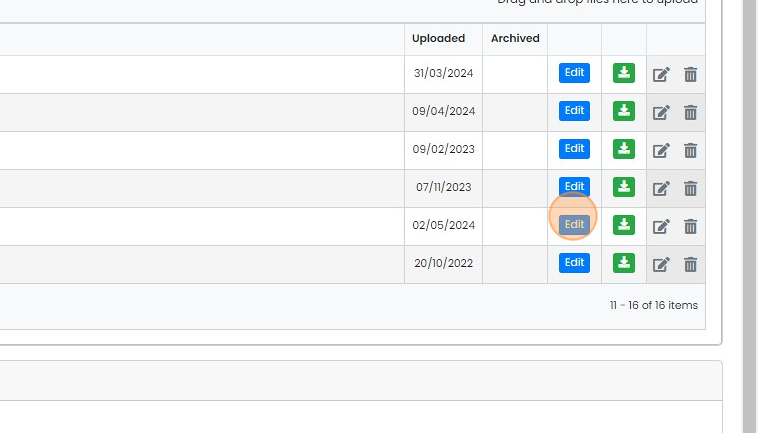
Enter the label of the field preceded by "{Client". In this example, {ClientVendorNo} is added
Note that if your label includes spaces these will need to be replaced with underscores. So "Vendor Number" becomes "{ClientVendor_Number"}.
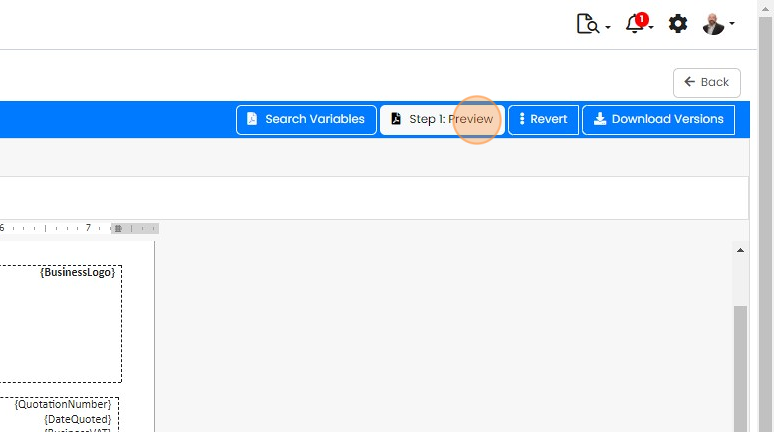
Click "Step 1: Preview" to check that the variable resolves as expected
Click "Step 1: Preview" to check that the variable resolves as expected. If the curly brackets {} are showing, the variable name has not been entered correctly.
Save the document.
Learn more: document templates in Zigaflow


Use custom fields to store additional information about your customers. These can also be added to the document templates for display in the PDFs.
Create the custom field
Frequently asked questions
Was this helpful?