Get paid

Bulk update contact tags from a spreadsheet

In Zigaflow

The short answer

To bulk update contact tags from a spreadsheet, export the contacts you want from CRM, then Contacts, fill in the tag columns in the file, and save it. Then go to the cog, Import Center, Contacts, Import Contacts Tags, and upload the file. This suits more than a few hundred contacts.

Steps

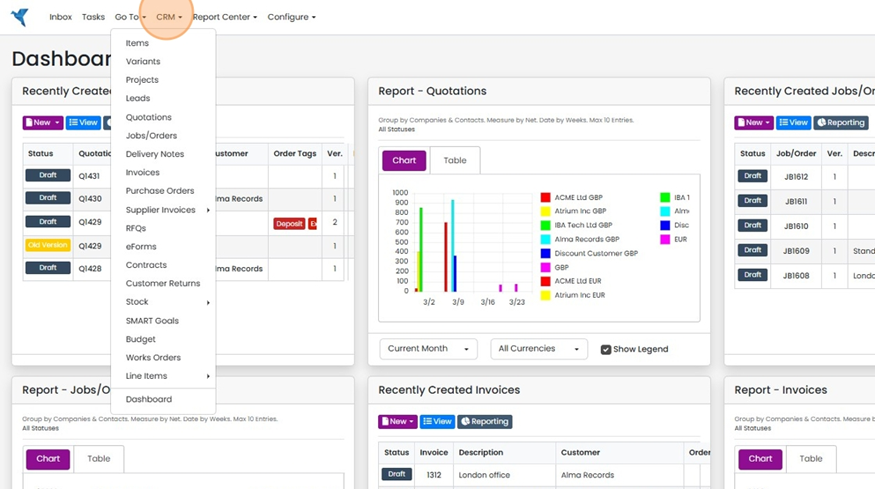
  1. Click "CRM"

    Zigaflow Dashboard with the CRM menu in the top navigation bar highlighted and its dropdown list of modules open
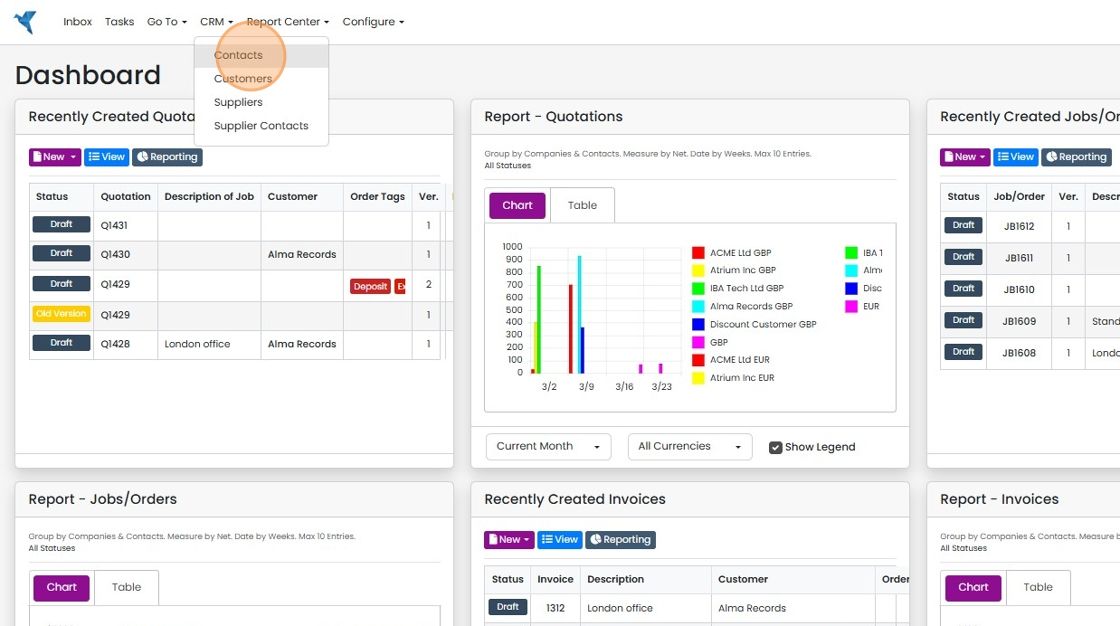
  2. Click "Contacts"

    CRM menu open on the Dashboard with Contacts highlighted above Customers, Suppliers and Supplier Contacts
  3. Use the filters to narrow your selection
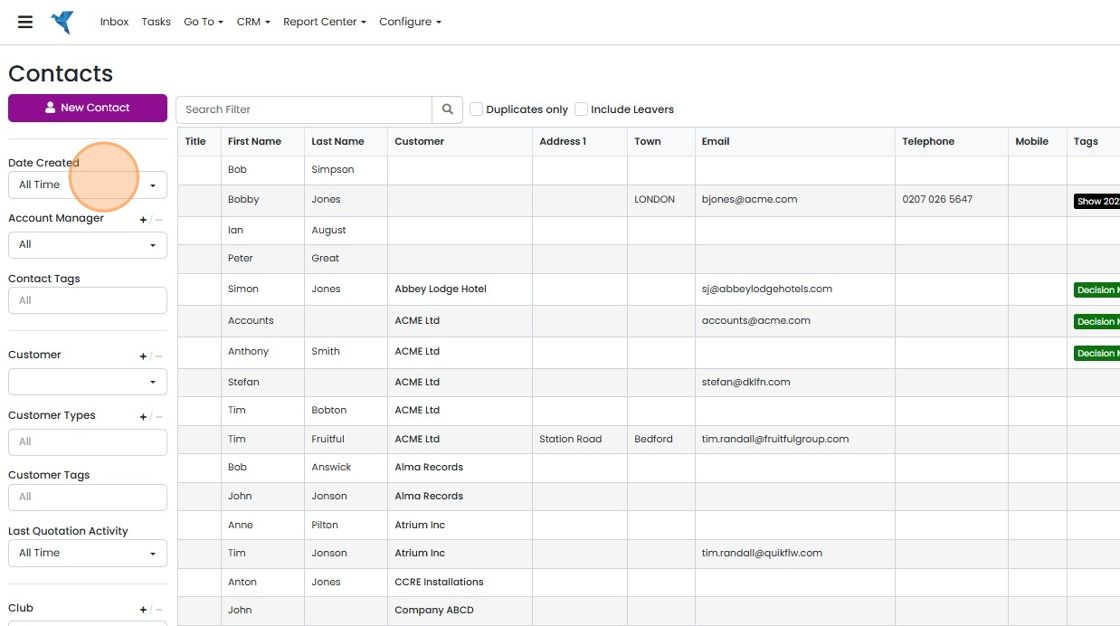
    Contacts list with filter panel on the left, highlighting the Date Created filter set to All Time
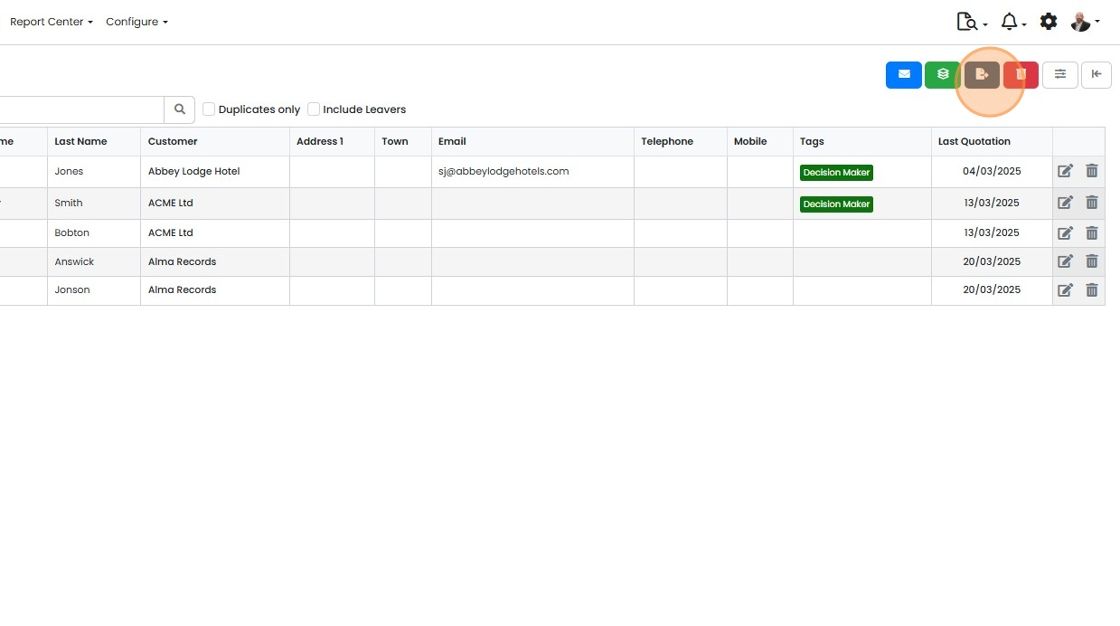
  4. Click the "Export" button

    Contacts list with columns including Tags and Last Quotation, with the brown Export button highlighted in the top-right toolbar
  5. Click "- Contacts"

    Contacts list with the Download to Excel dropdown open and the
  6. Click "Download"

    Populate the import file
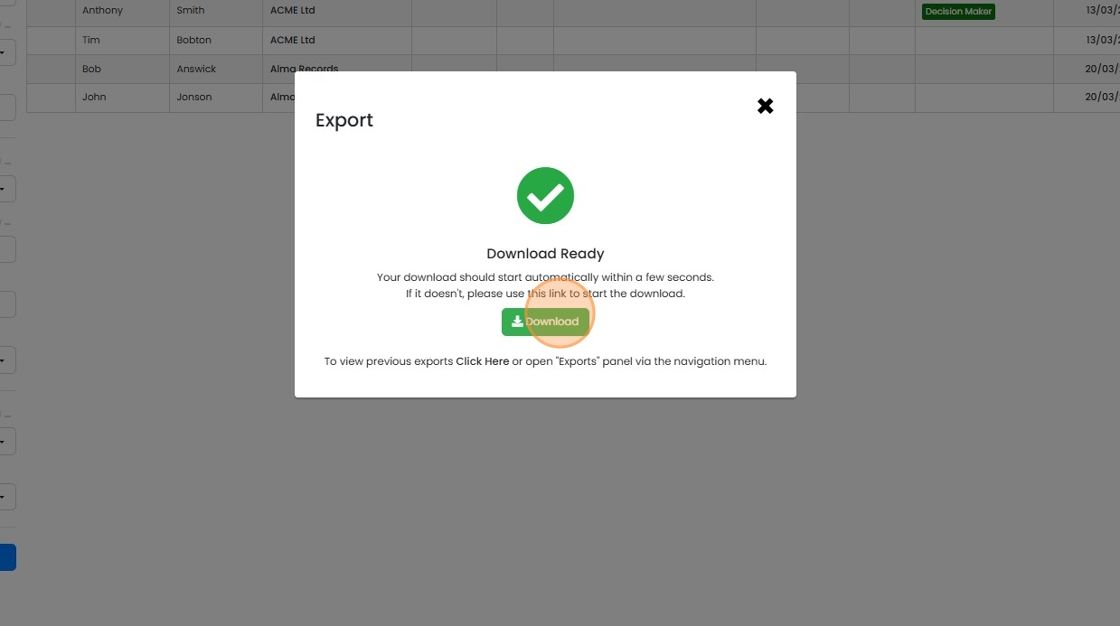
    Export dialog showing Download Ready with a green check mark and the green Download button highlighted below the message
  7. Populate the import document

    Populate the import document. It should have these columns. The file can be downloaded with all the contacts and their existing tags (see later in this article):

    Populate the tag columns. For example:

    Spreadsheet with Company, Contact First Name, Contact Last Name, Email, Tag1 and Tag2 columns, Tag1 filled with Decision Maker

    This will add the tag "Decision Maker" to this contact.

    Spreadsheet header row with columns Company, Contact First Name, Contact Last Name, Email and Tag1 through Tag10
  8. Save the file

    Import the file

    Let's import the file:

  9. Click on the Cog

    3. Click "Import Center"
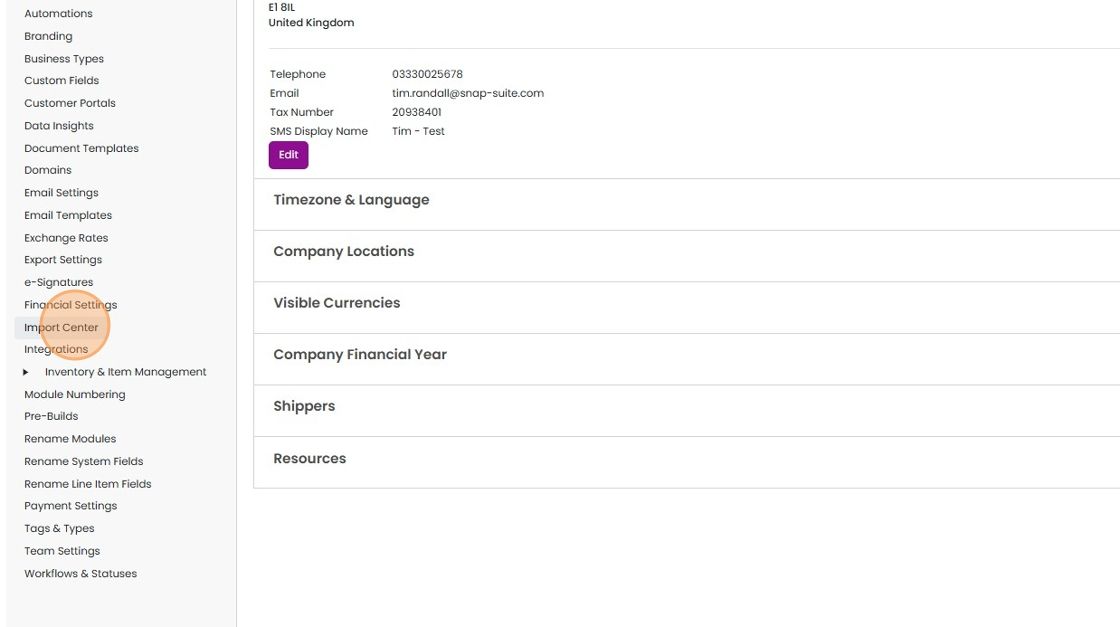
    Settings menu with Import Center highlighted in the left sidebar, beside the company details and settings sections

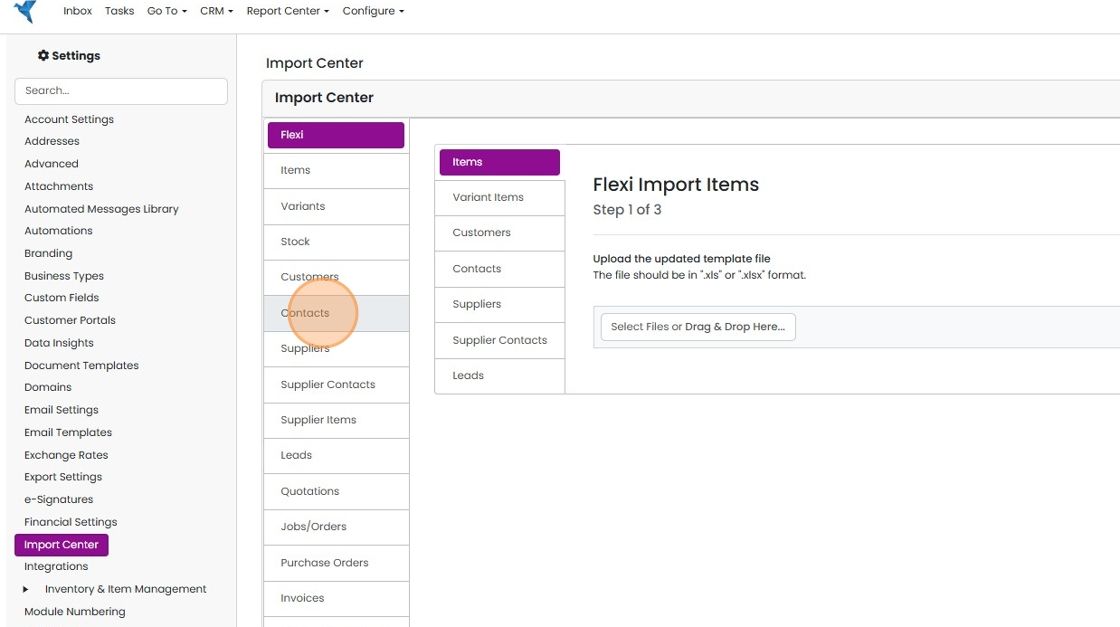
    4. Click "Contacts"

    Import Center in Settings with the Contacts tab highlighted in the left import type list, below Customers

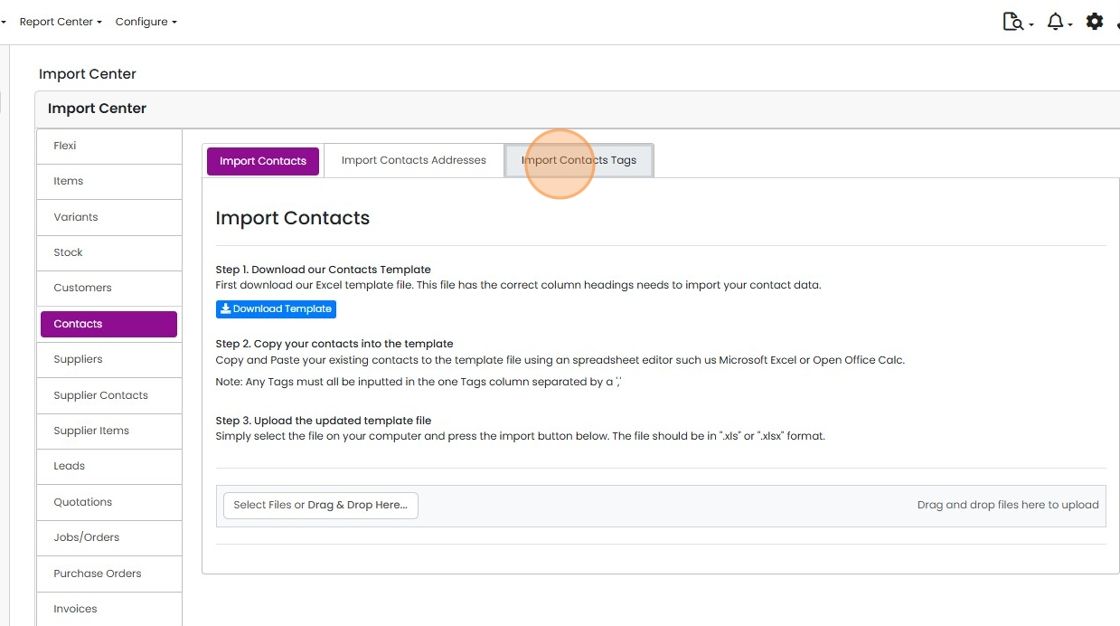
    5. Click "Import Contacts Tags"

    Import Center with Contacts selected in the left menu and the Import Contacts Tags tab highlighted at the top

    6. To download the existing contracts with their tags, click "Download Contact Tag List". This is recommended only if you have less than 1000 contacts
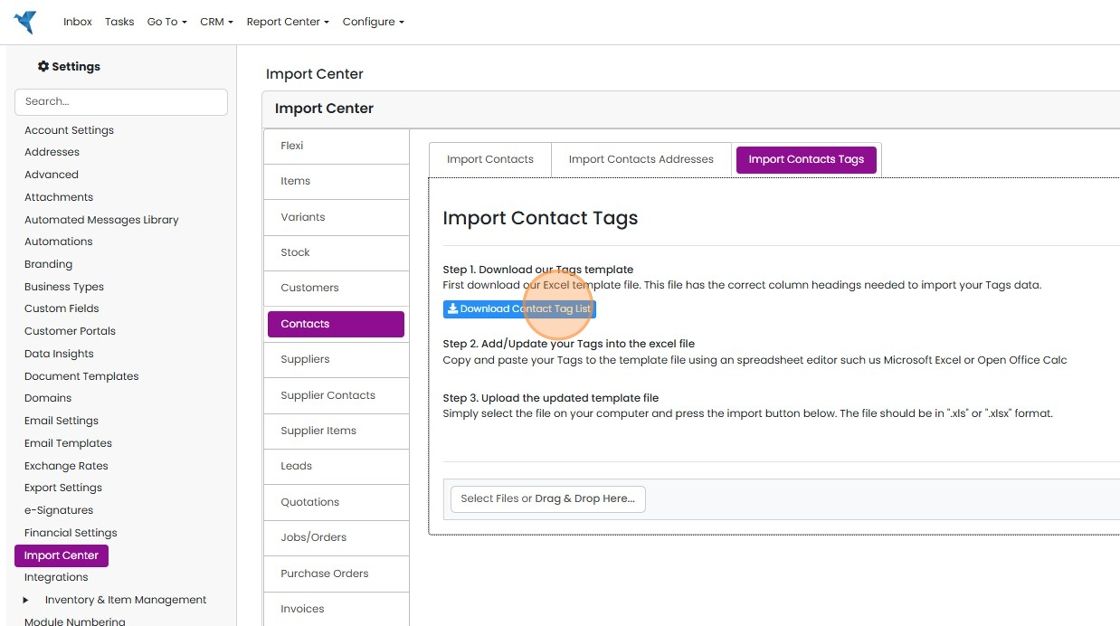
    Import Center Import Contacts Tags tab with the Download Contact Tag List button highlighted under Step 1

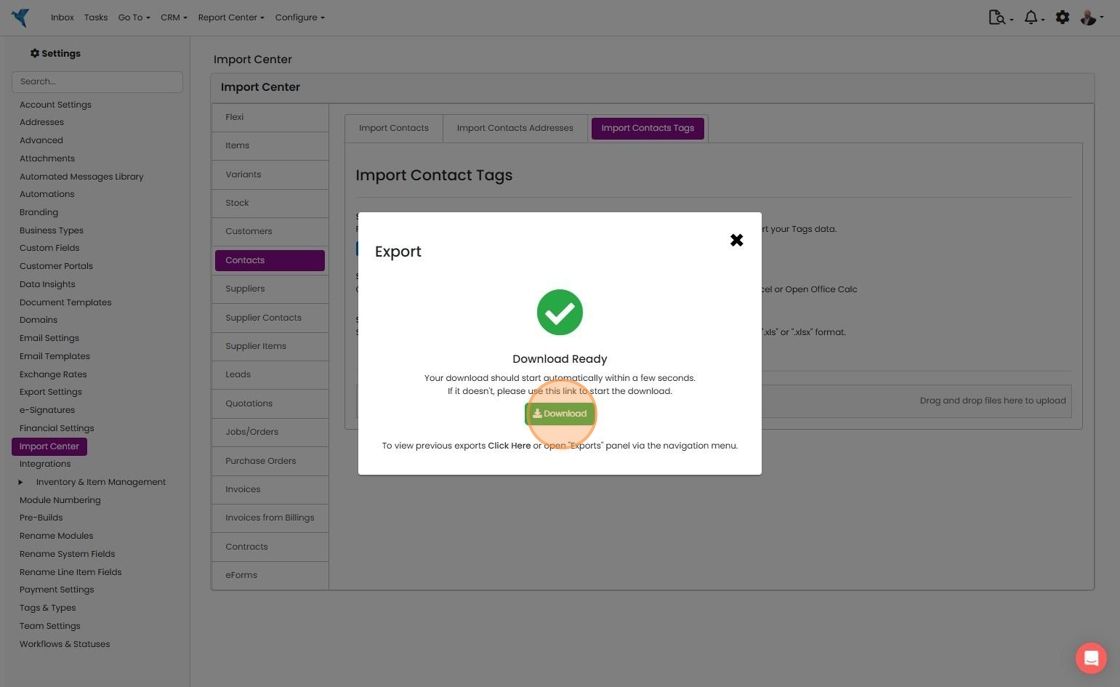
    7. Download the file

    Export dialog in Import Center showing Download Ready with the green Download button highlighted for the contact tags file

    8. When your import file is ready, click "Drag & Drop Here..."

    Import Contact Tags page in Import Center with the Select Files or Drag & Drop Here button highlighted for uploading the file

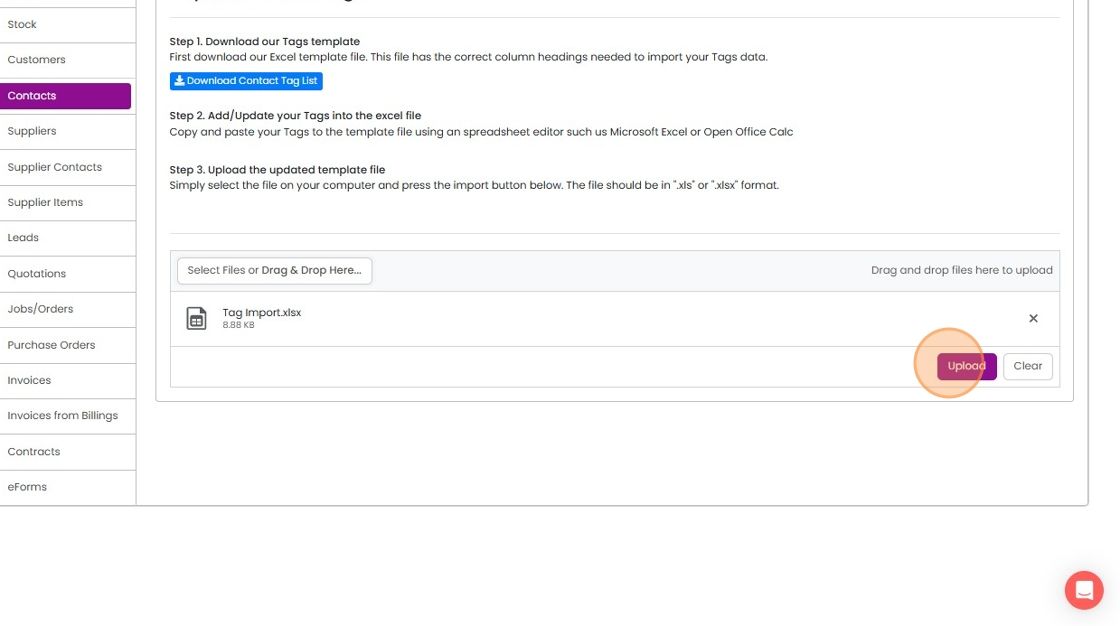
    9. Click "Upload"

    Contacts tag import page with Tag Import.xlsx selected and the Upload button highlighted next to Clear

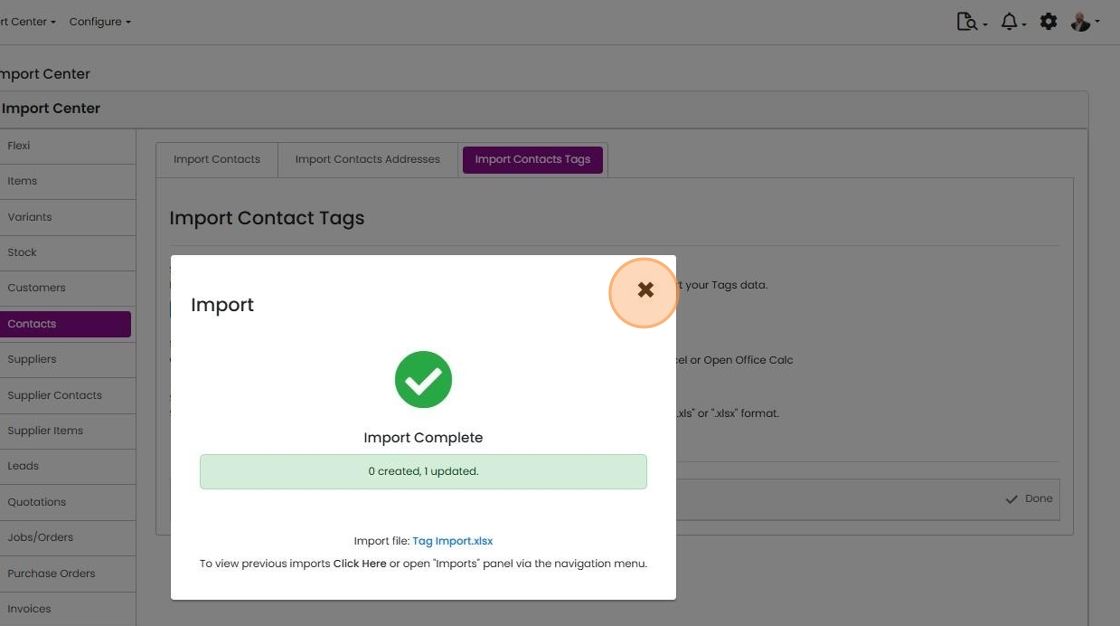
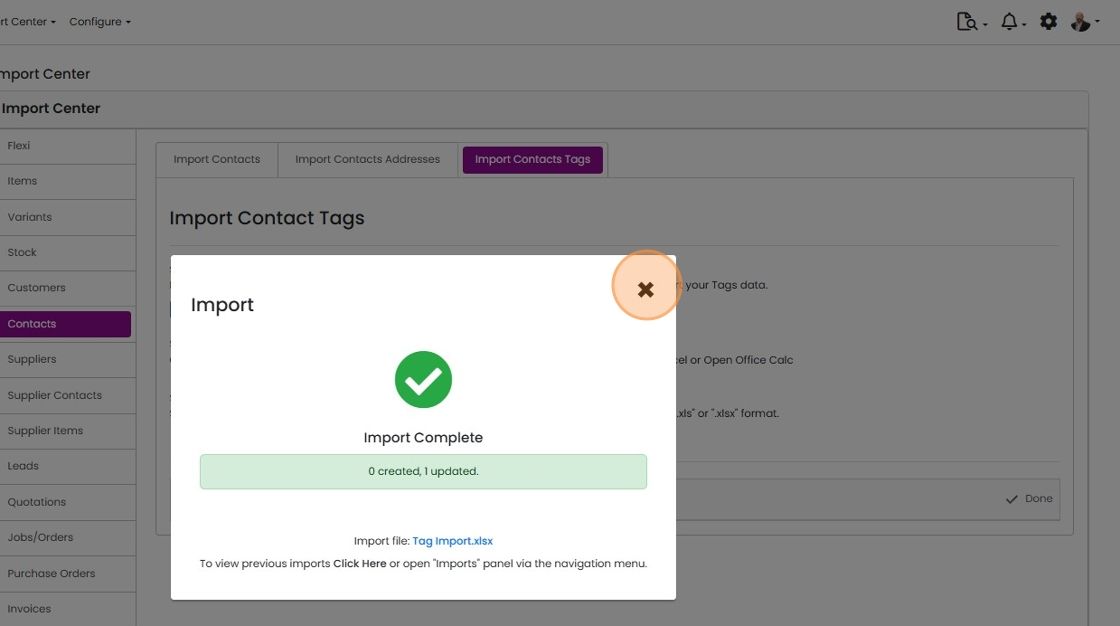
    10. The import is completed

    Import Complete dialog on Import Contact Tags showing 0 created, 1 updated, with the close X button highlighted

    11. Click "×"

    Import Complete dialog on Import Contact Tags showing
    Contacts list with the settings cog icon highlighted in the top-right toolbar, next to the notifications bell

Download the contacts to update

First download the contacts to update:

Frequently asked questions

Next step

Summary of CRM functionalityZigaflow combines order process management with CRM functionality. This covers importing customers, contacts and leads, emailing customers, scheduling chaser emails or SMS texts, managing leads and reminders, email tracking where your country allows it, and adding custom fields to customers and contacts.

Was this helpful?

See Zigaflow on your own workflow

Book a demo and we will walk through quoting, jobs and purchasing the way your team runs them.

Or see how Zigaflow would fit your business, free