Get set up
Change a user's login email
The short answer
An admin changes a user's login email in Zigaflow by clicking the Cog, then Team Settings, then Manage Team Members. Open the person's details, disable their two-factor authentication using your own password, then click Change Email, enter the new address, and confirm with your password again.
Steps
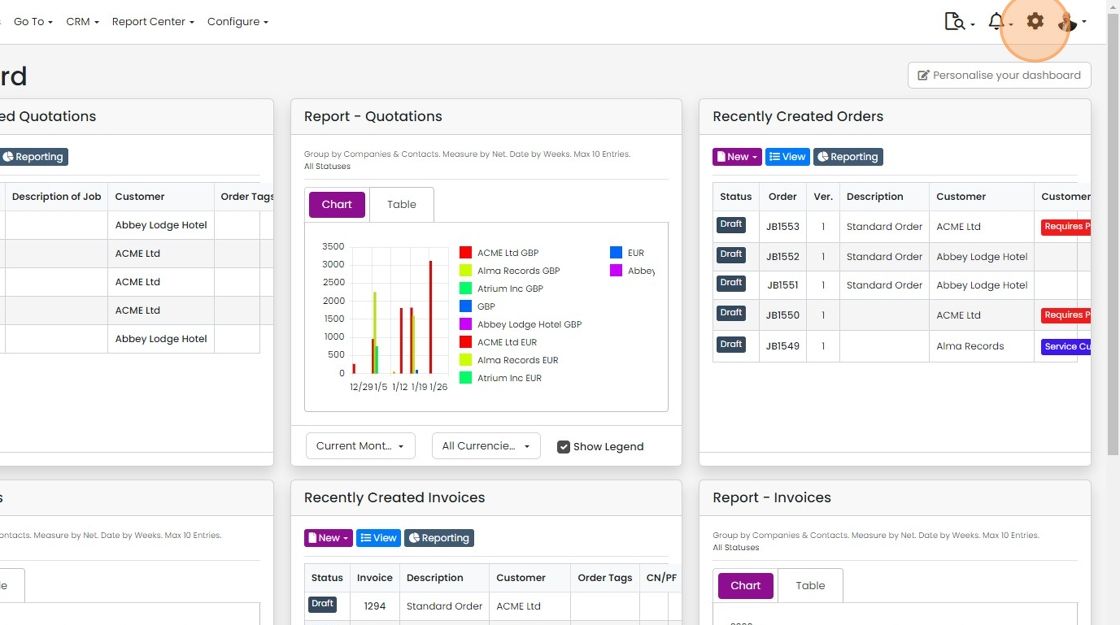
Click on the Cog
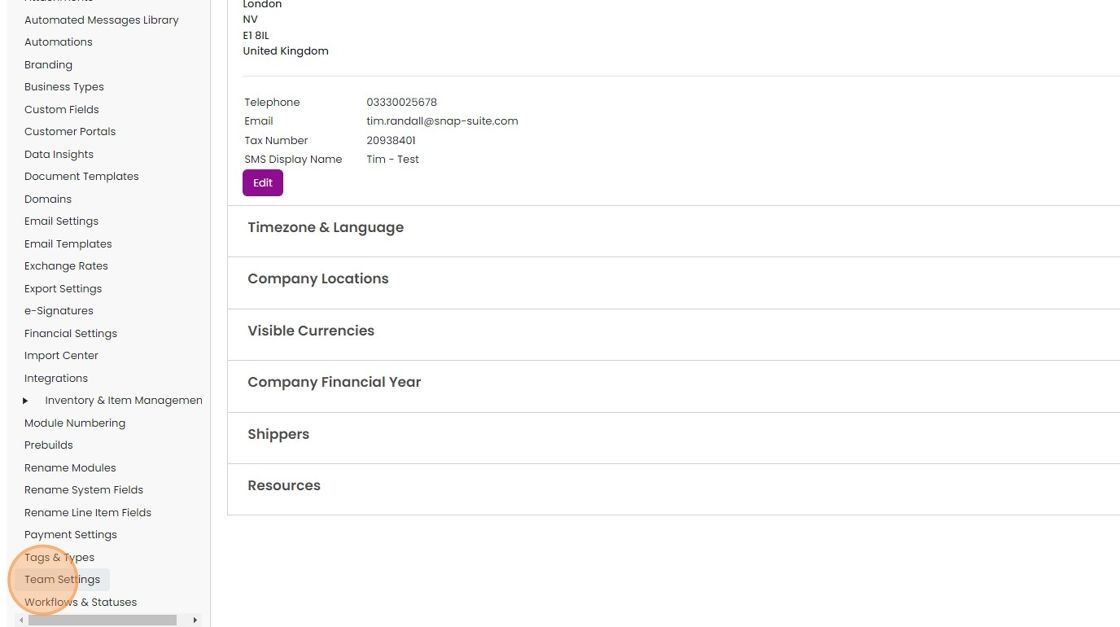
Click "Team Settings"
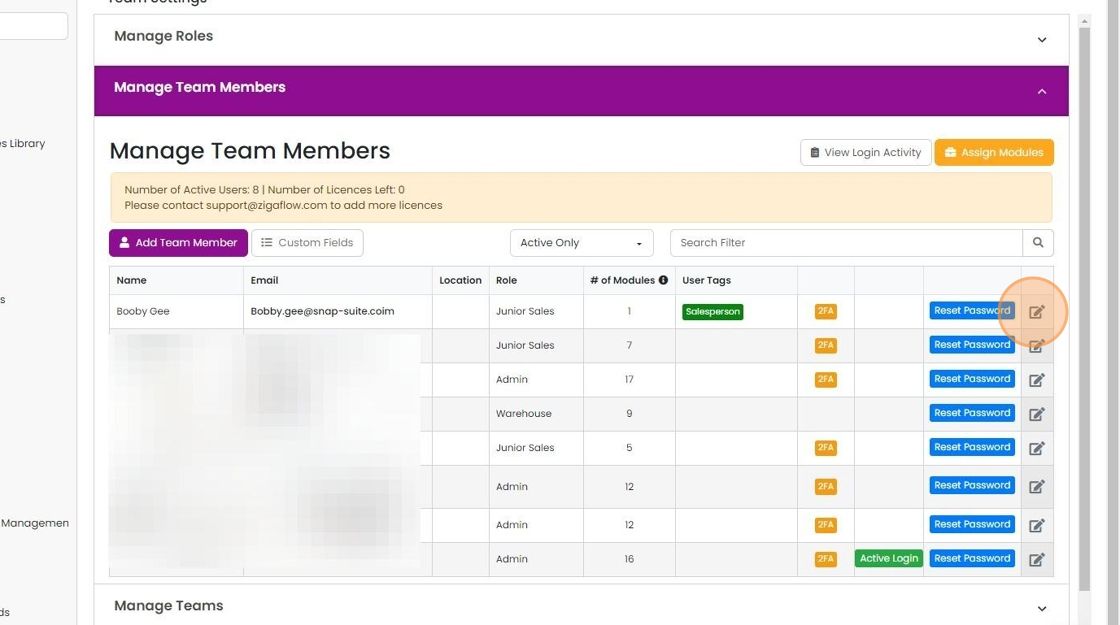
Click "Manage Team Members"

Edit the individual's details
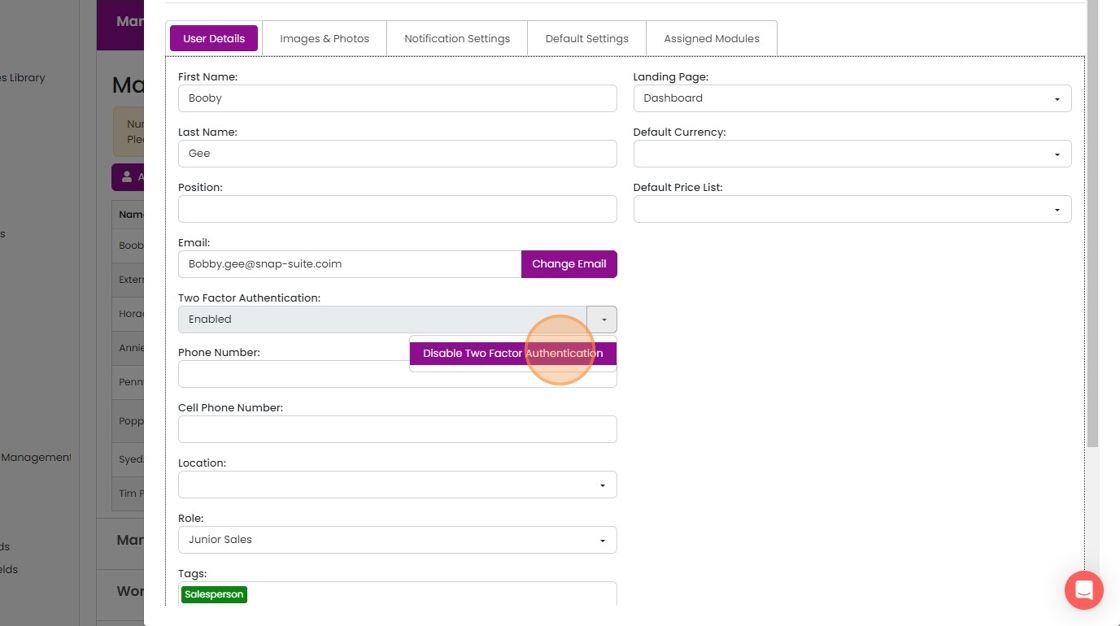
Disable two-factor authentication
Click here

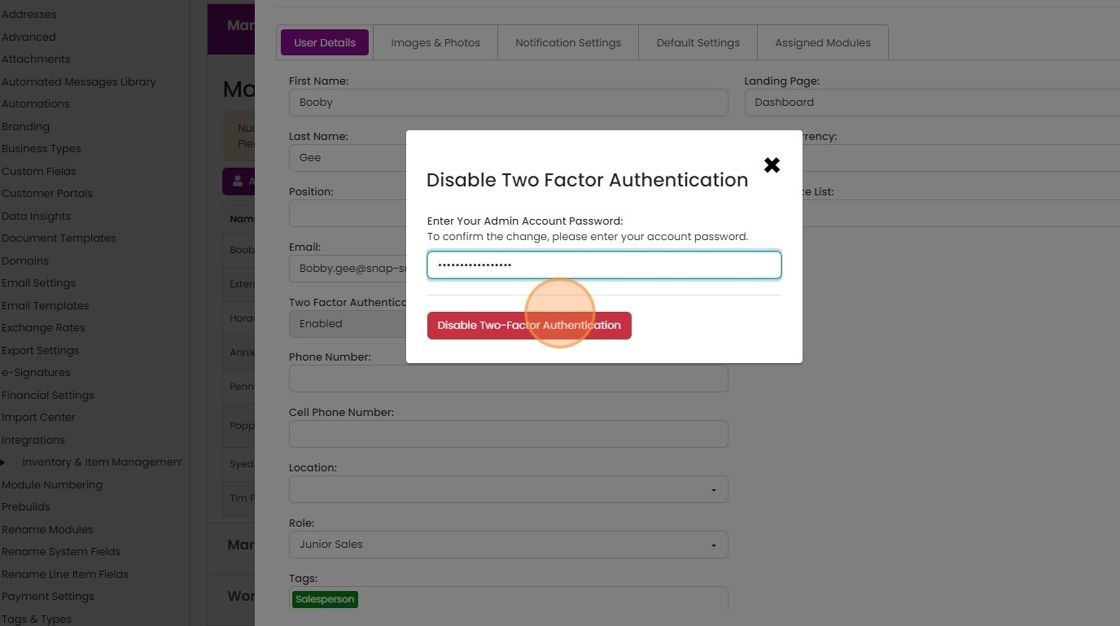
Click "Disable Two Factor Authentication"
Enter your password (not the user's)
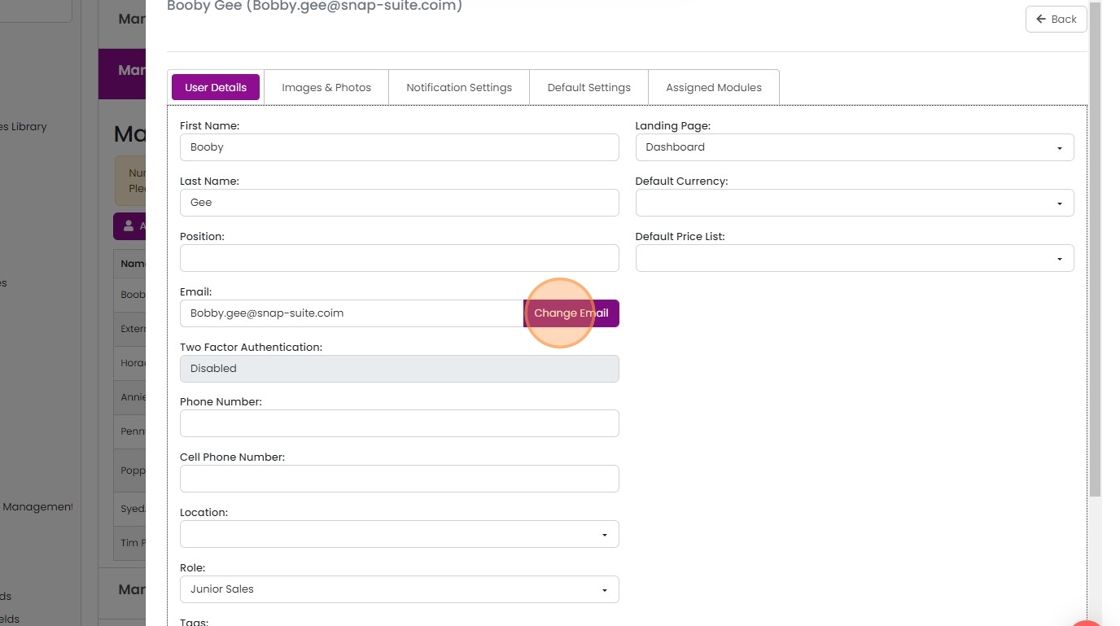
Update the email address
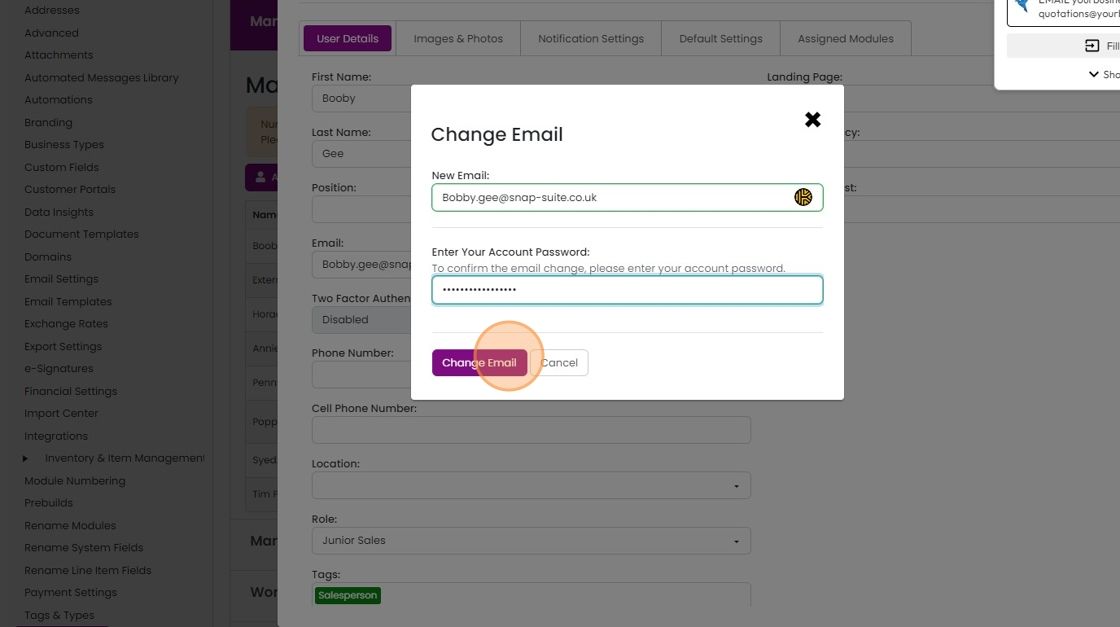
Click "Change Email"
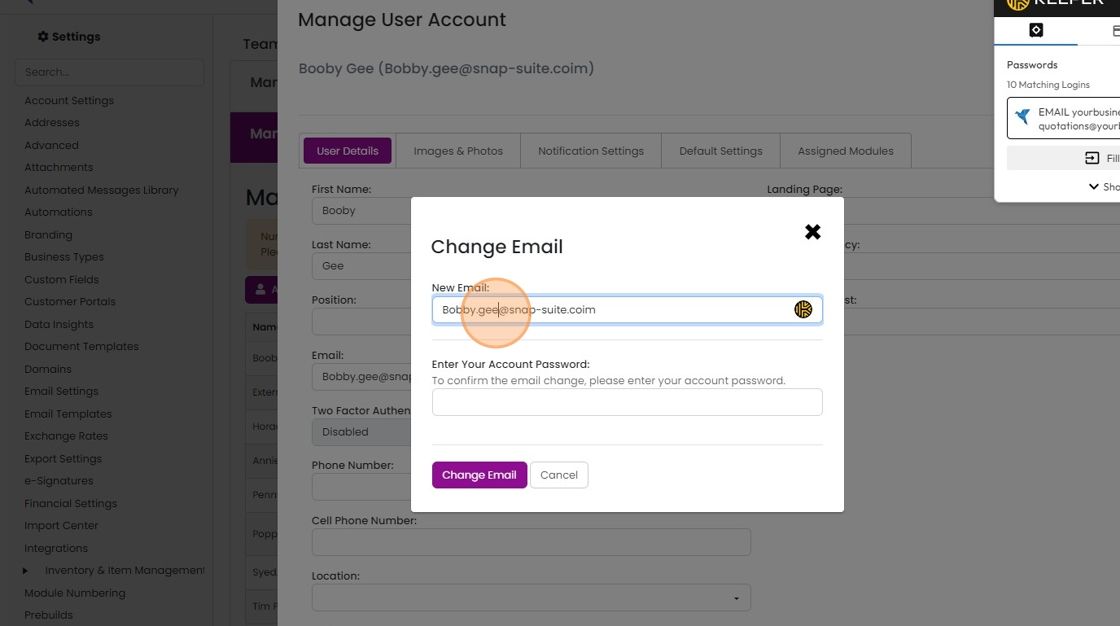
Change the email address
Enter your password again (not the user's)
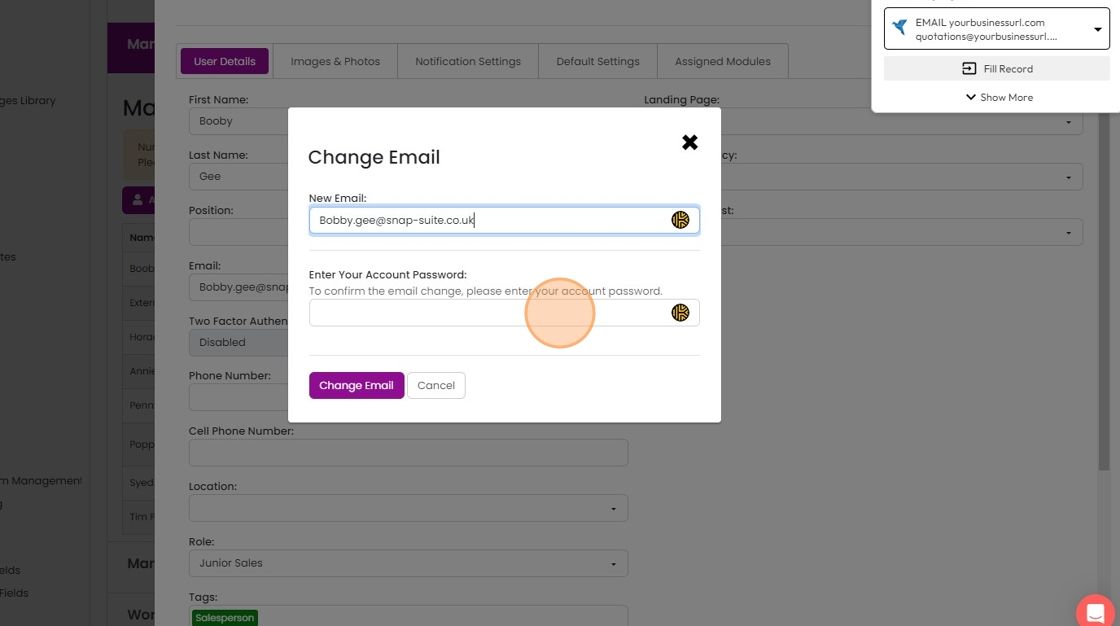
Click "Change Email"
The user can now log in with their new email address
The user can now log in with their new email address. Their password remains the same, and they will be asked to set up two-factor authentication when they log in.
Learn more: users and permissions in Zigaflow


Only Admin users can access this screen.
Open the team member's details
Frequently asked questions
Was this helpful?