Get paid

Create a credit note

In ZigaflowEssentials, Go and Momentum plans

The short answer

To create a credit note in Zigaflow, open the invoice you want to credit, click Multi-Select, choose the items to credit, click Create Credit Note, and select the pre-build. You can credit part or all of an invoice. To export it to Xero or QuickBooks, set its status to anything other than Draft or Cancelled.

Steps

  1. Open the invoice you need to credit in part or whole, click "Multi-Select"
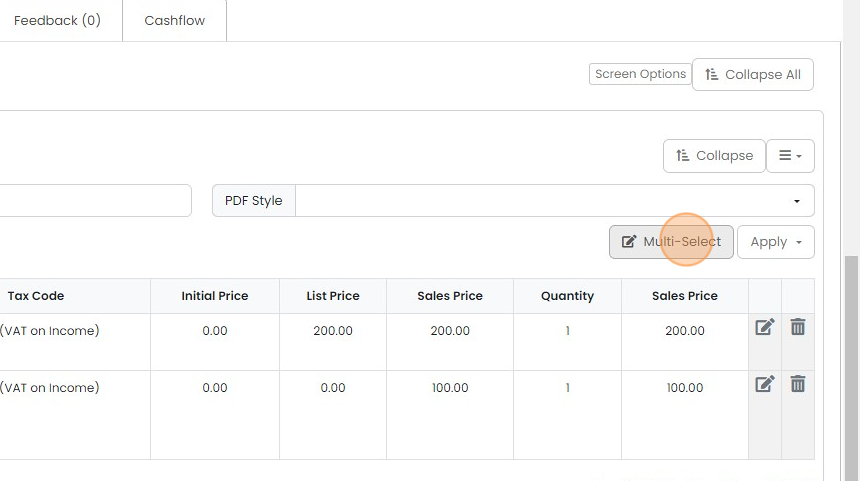
    Invoice line items table with Tax Code, List Price, Sales Price and Quantity columns, Multi-Select button highlighted
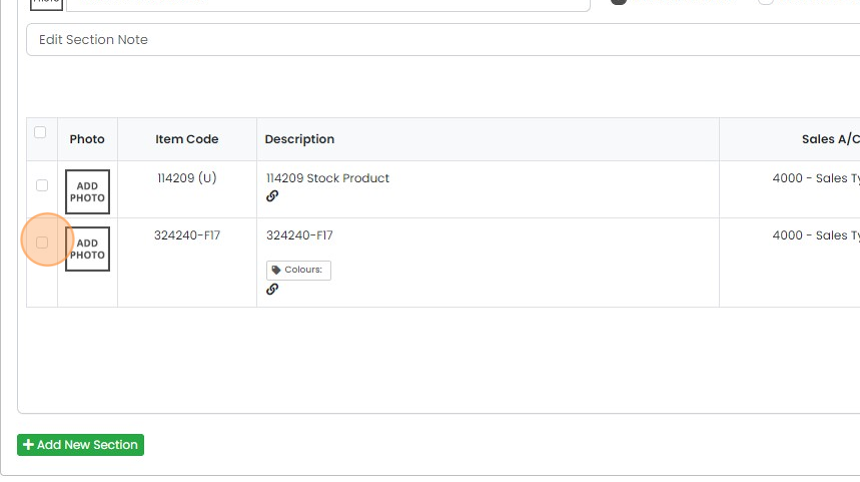
  2. Select the items to credit

    Line items table with the checkbox highlighted on the second row, item 324240-F17, to select it for crediting
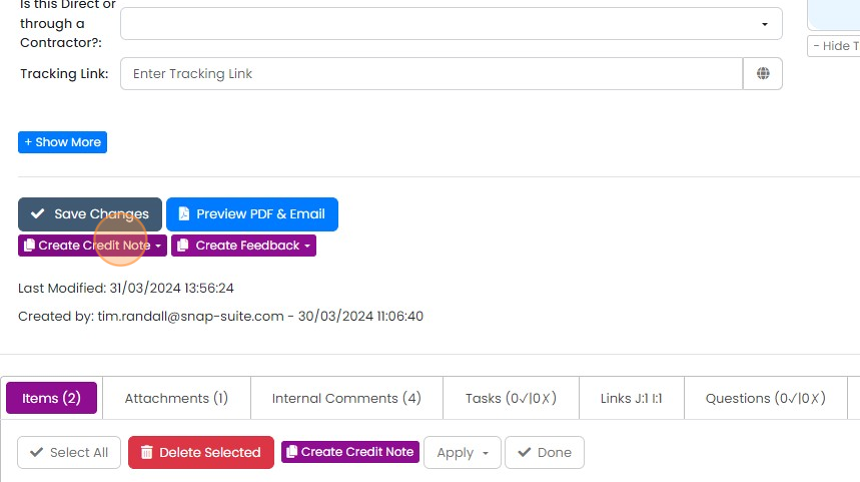
  3. Click "Create Credit Note"

    Invoice record actions with the purple Create Credit Note dropdown button highlighted below Save Changes
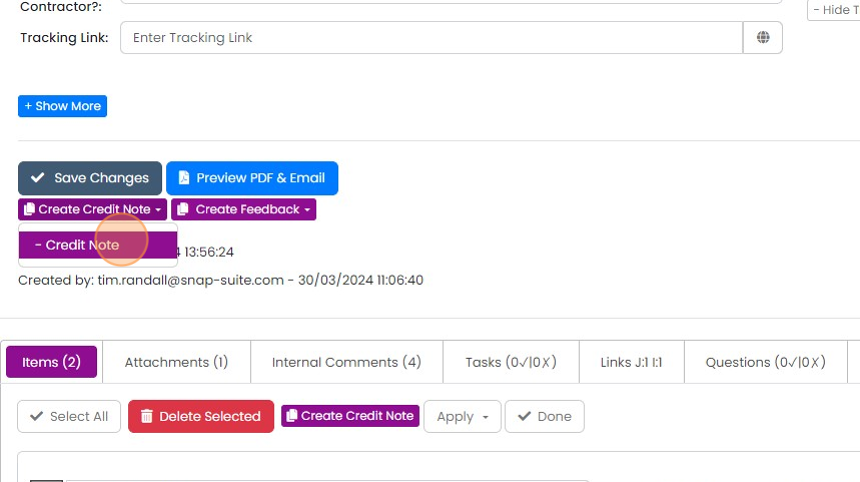
  4. Select the pre-build

    Create Credit Note dropdown open below Save Changes, with the
  5. Change the credit note's status to anything other Draft or Cancelled to export it to Xero or QuickBooks
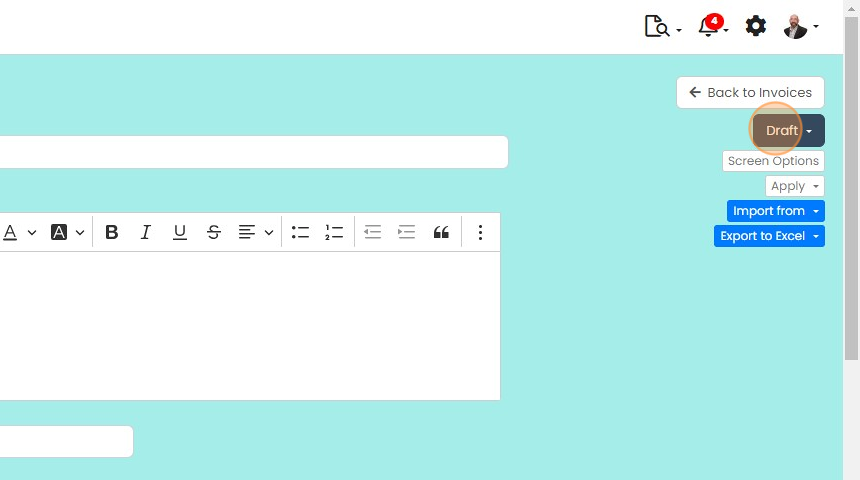
    Credit note editor with the Draft status dropdown highlighted below Back to Invoices, used to change the status
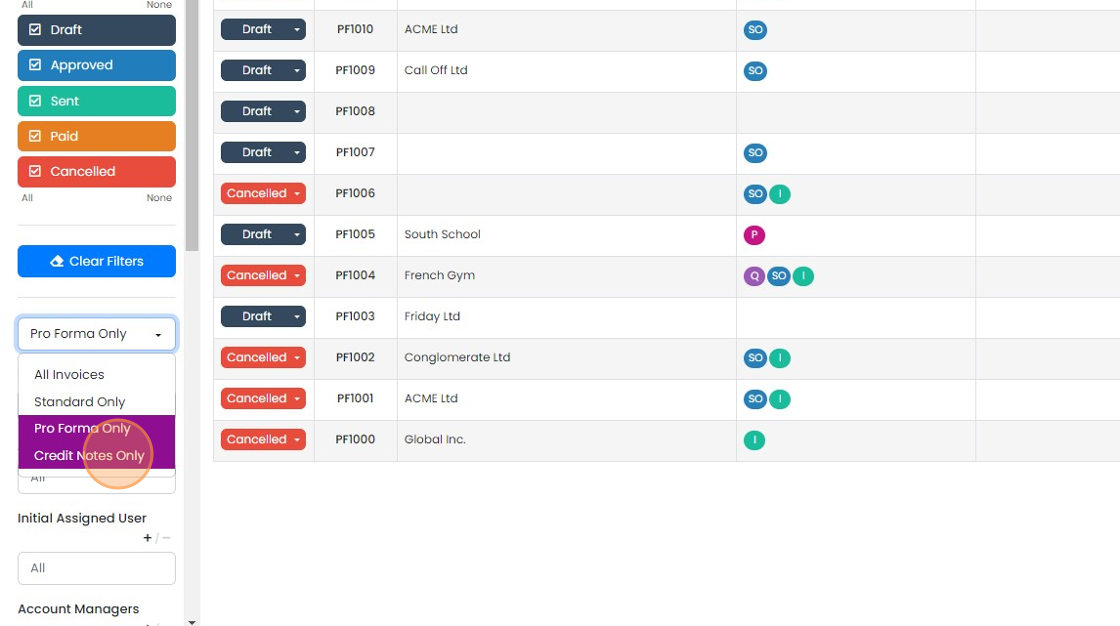
  6. To view all the credit notes, on the main invoices screen, click "Credit Notes Only"

    Invoices list filter dropdown open with

Frequently asked questions

Next step

Export an invoice to XeroEssentials, Go and Momentum plansTo export an invoice to Xero, open the invoice in Zigaflow, make sure its status is not Draft or Cancelled, click the "Export to..." button, and pick the correct company account if more than one is connected. An invoice that was already exported will not be exported again.

Was this helpful?

See Zigaflow on your own workflow

Book a demo and we will walk through quoting, jobs and purchasing the way your team runs them.

Or see how Zigaflow would fit your business, free