Get set up
Create an automation to export invoices to QuickBooks
The short answer
Create an invoice automation in Zigaflow under Automations, then Invoice, then New Automation. Name it, set the Delay Status to Status Changed, click the Is Active field, save, and choose the status that triggers it, such as Sent. Then add the Export To QuickBooks action by selecting New Action.
Steps
Click here
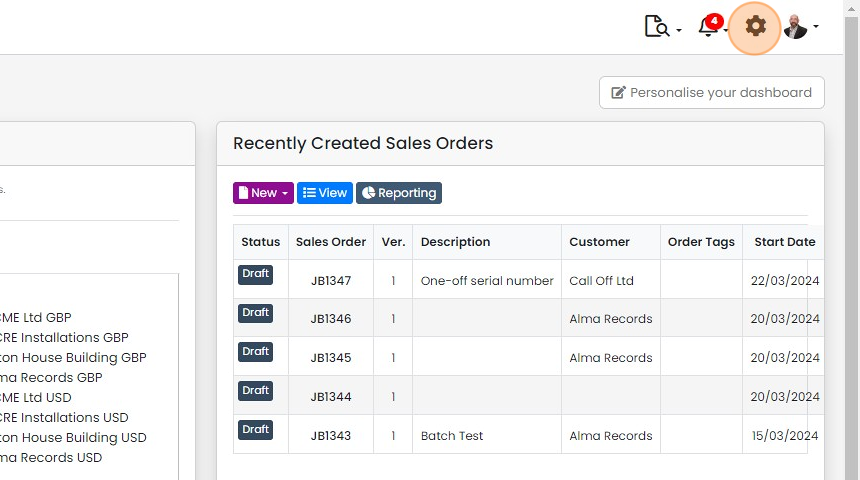
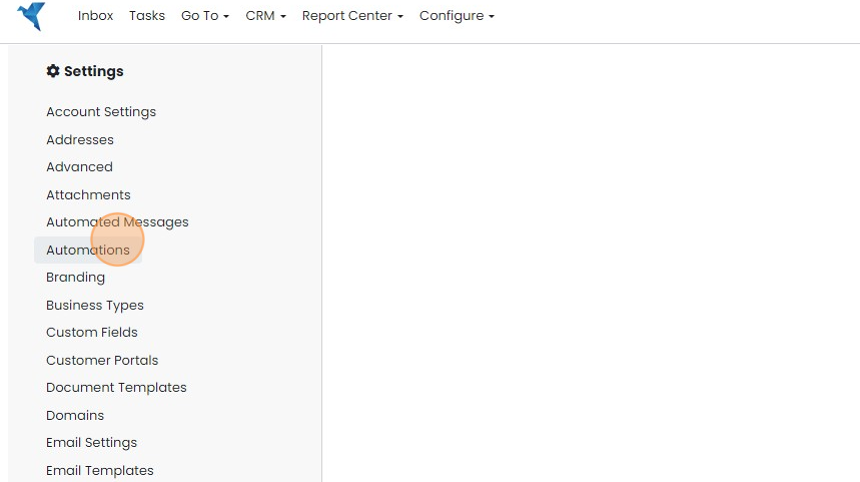
Click "Automations"
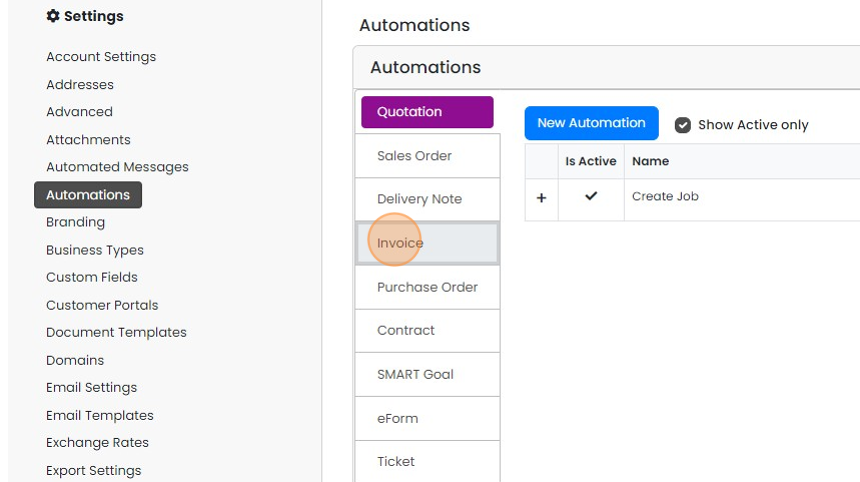
Click "Invoice"
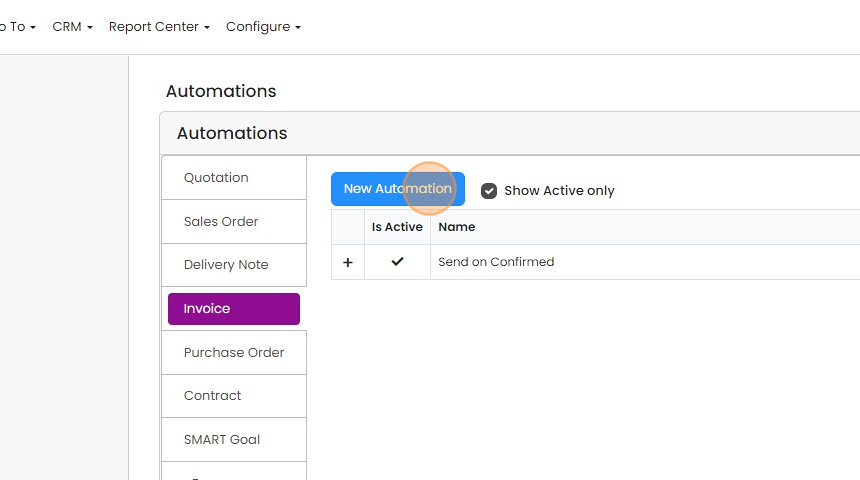
Click "New Automation"
Enter an appropriate name
Set the trigger status
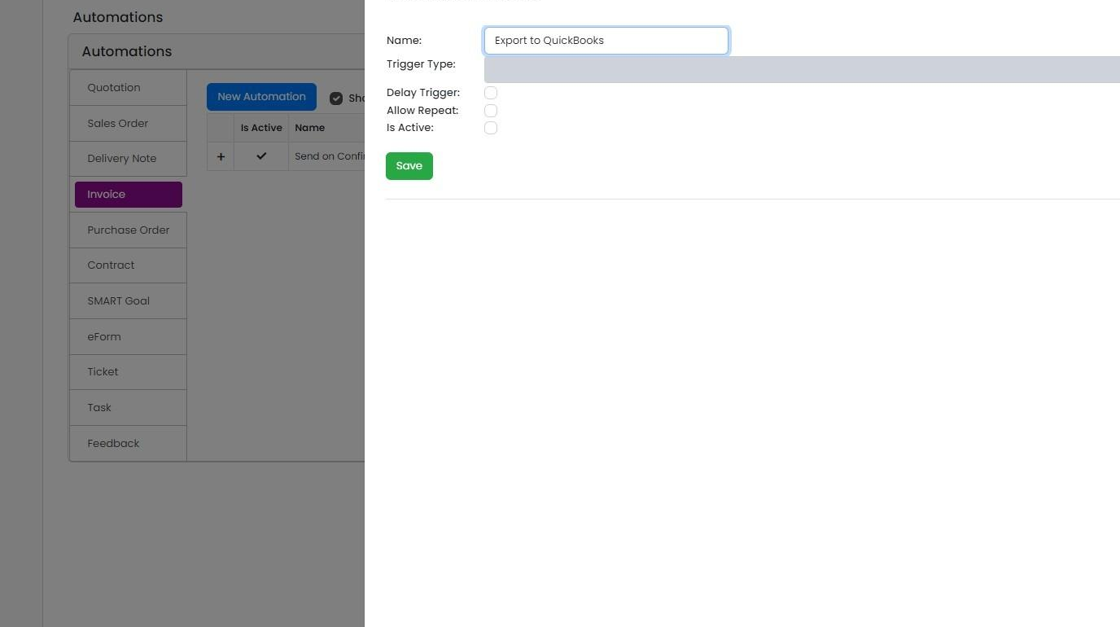
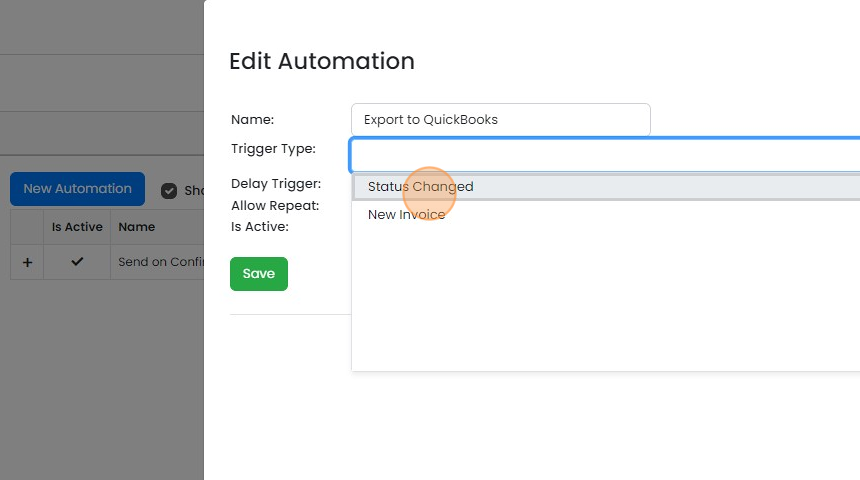
Set the "Delay Status" to "Status Changed"
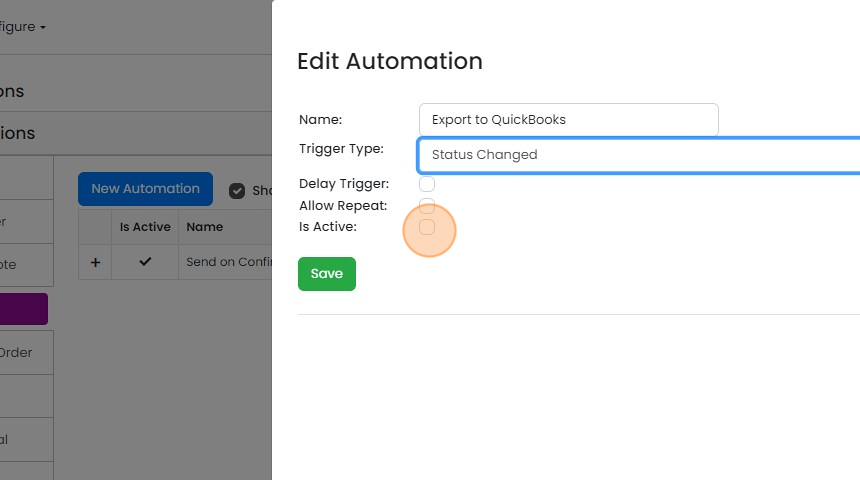
Click the "Is Active:" field
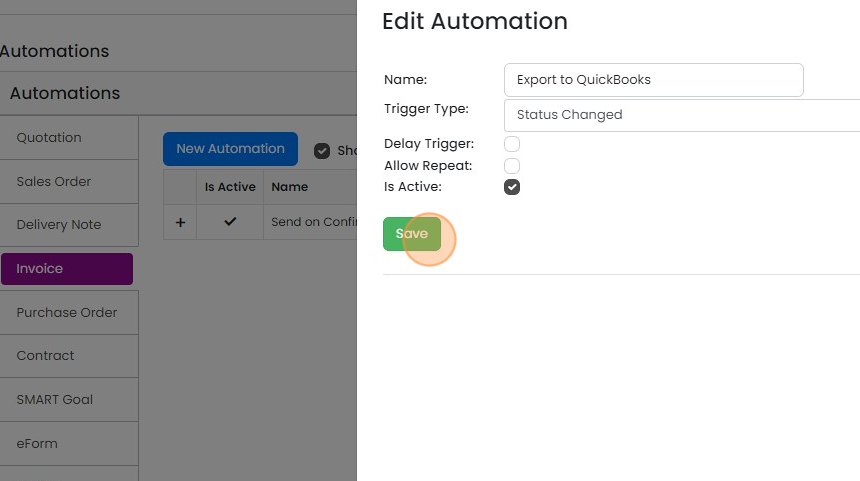
Click "Save"
Set the status to trigger the automation, for example "Sent"
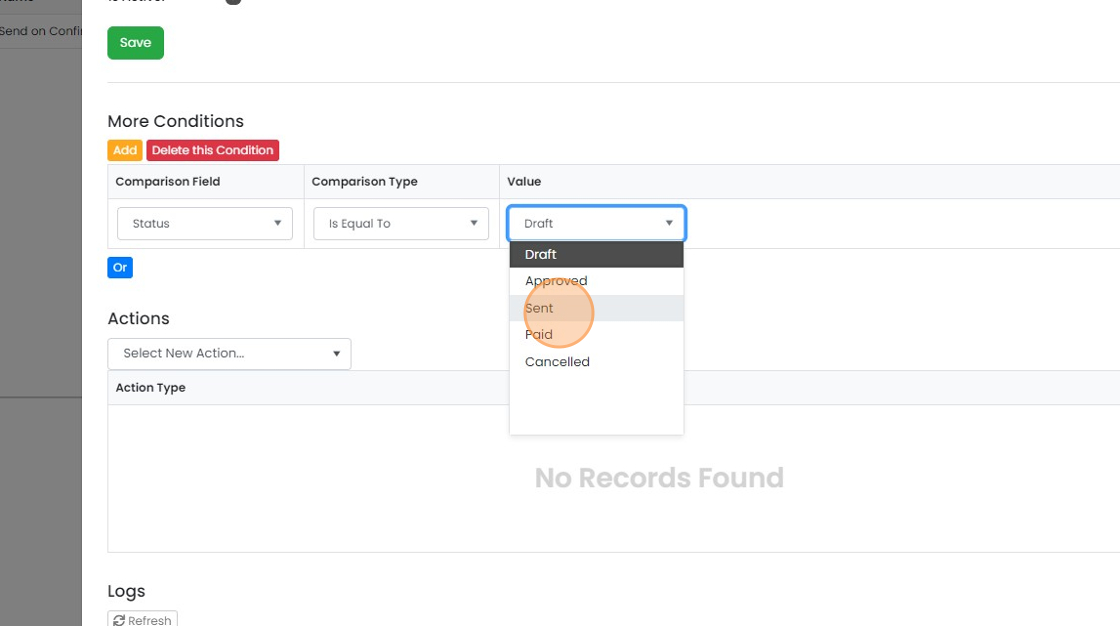
Click the tick to save
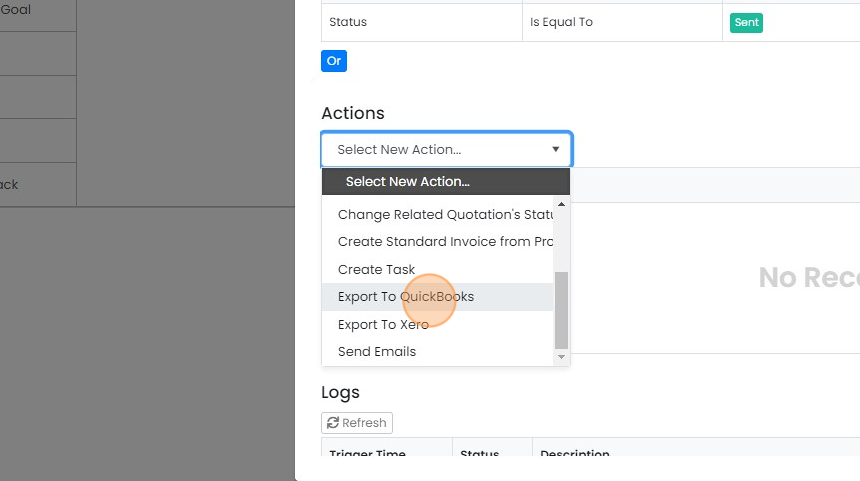
Add the QuickBooks export action

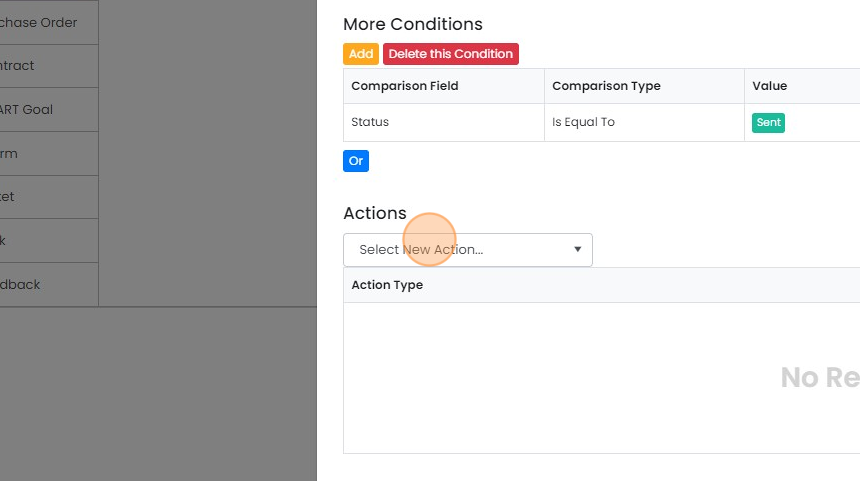
Click "Select New Action..."
Click "Export To QuickBooks"
Click here

Click "×" to close the panel
Learn more: the QuickBooks integration
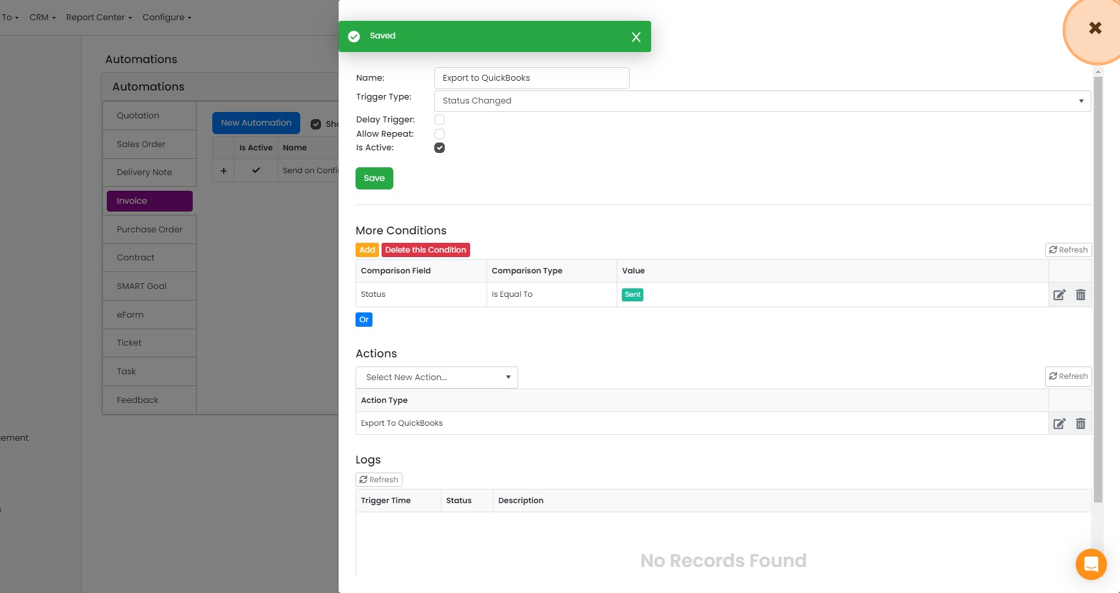


Create the invoice automation
Frequently asked questions
Was this helpful?