Create delivery notes for part and full deliveries (not involving inventory)
The short answer
To create a delivery note for a part or full delivery without using inventory, open the Job/Sales Order, optionally click Multi-Select to pick the items, then click Create Delivery Note. Change quantities for part deliveries, then create the note. Zigaflow calculates the remaining items for the next delivery note.
Steps
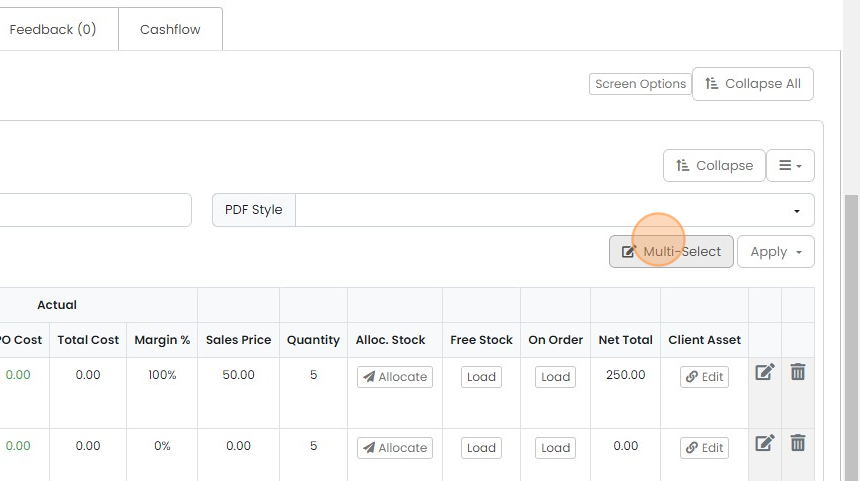
If you are only dispatching some of the items, click "Multi-Select" to pick out the ones required
If you are only dispatching some of the items, click "Multi-Select" to pick out the ones required. If not, skip to step "Create Delivery Note"
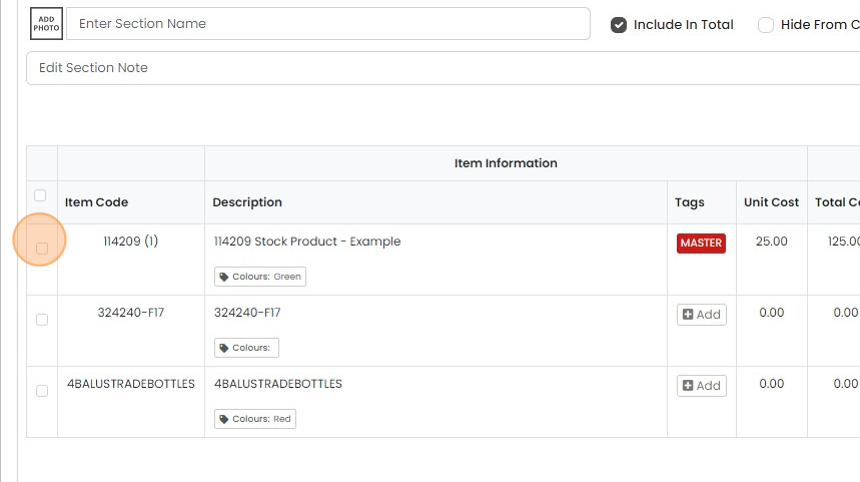
Click the items to deliver
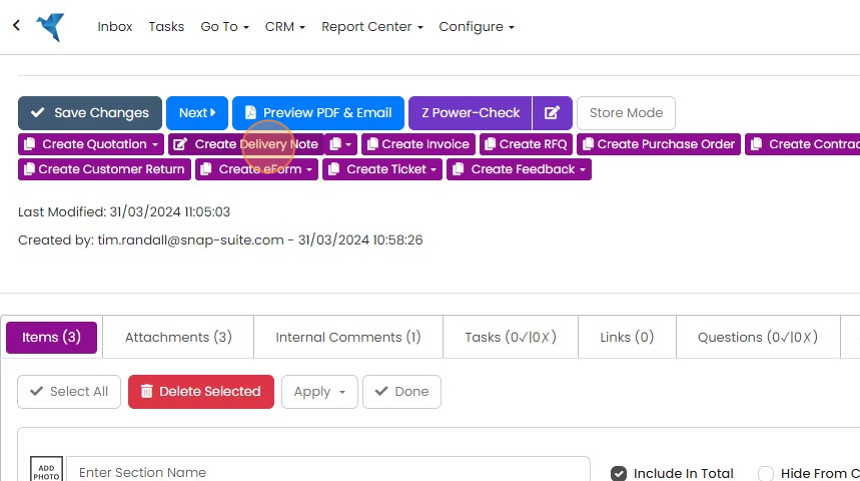
Click "Create Delivery Note"
Set quantities and create the note
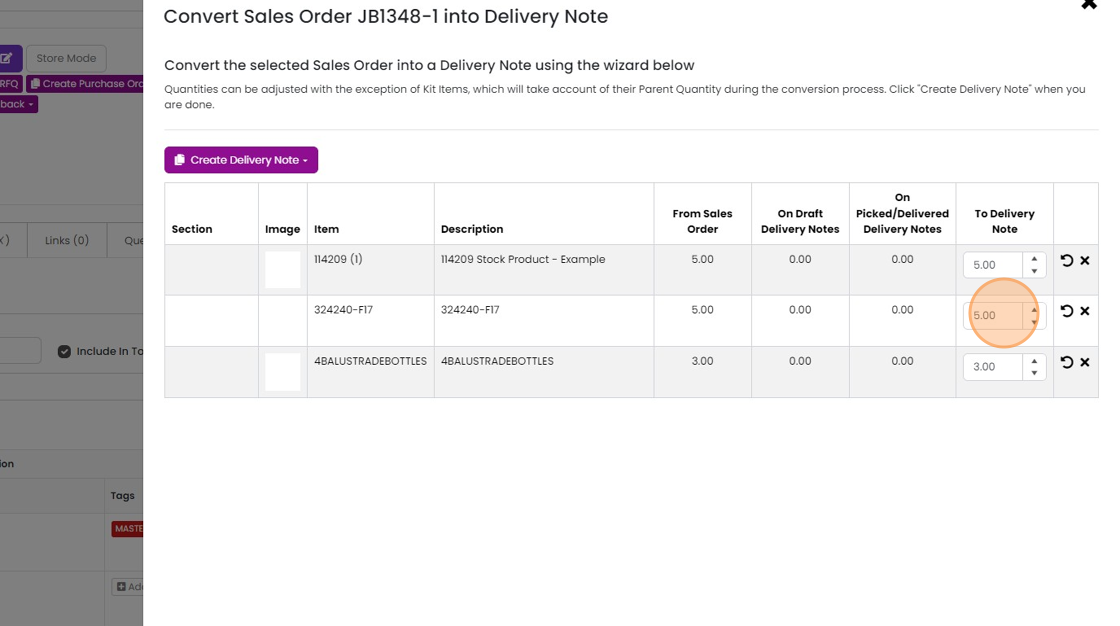
If you are part delivering an item, change the quantity here
If you want to include the item on the delivery note to show the customer what they have ordered but are...
If you want to include the item on the delivery note to show the customer what they have ordered but are not delivering it on this note, tick this box:

Click "Create Delivery Note"
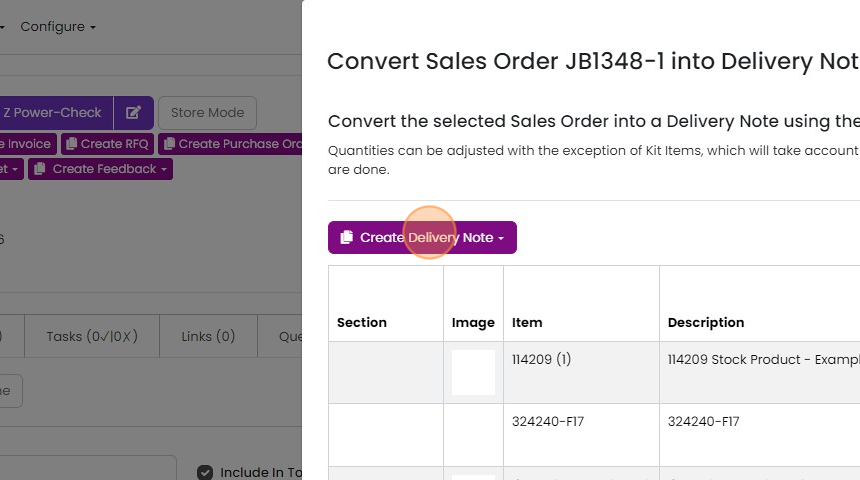
Select the required pre-build

On the delivery note, when the items are picked or dispatched, change the status to reflect this
Deliver the remaining items

To deliver the remaining items and quantities, return to the Job/Sales Order and either multi-select...
To deliver the remaining items and quantities, return to the Job/Sales Order and either multi-select specific items or click the "Create Delivery Note" button.

Zigaflow will calculate what is remaining - for example, here, the top item was fully delivered, so the...
Zigaflow will calculate what is remaining - for example, here, the top item was fully delivered, so the quantity is set to zero.
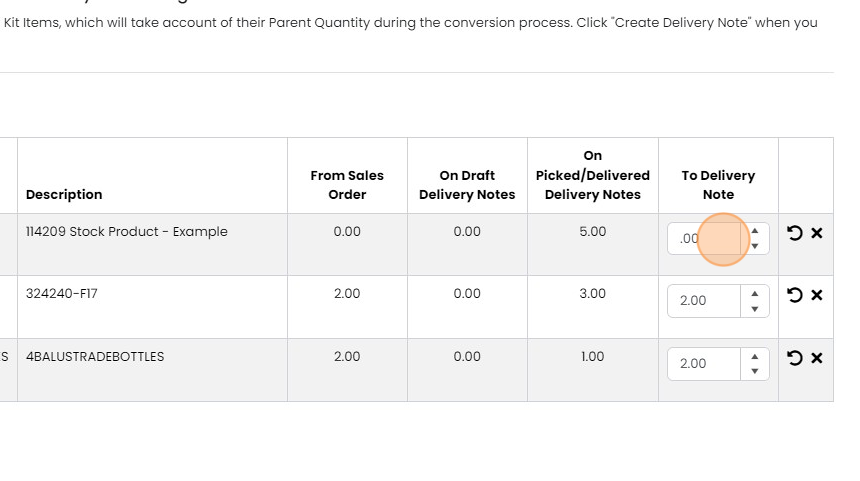
Click "Create Delivery Note" to create the delivery note for these items
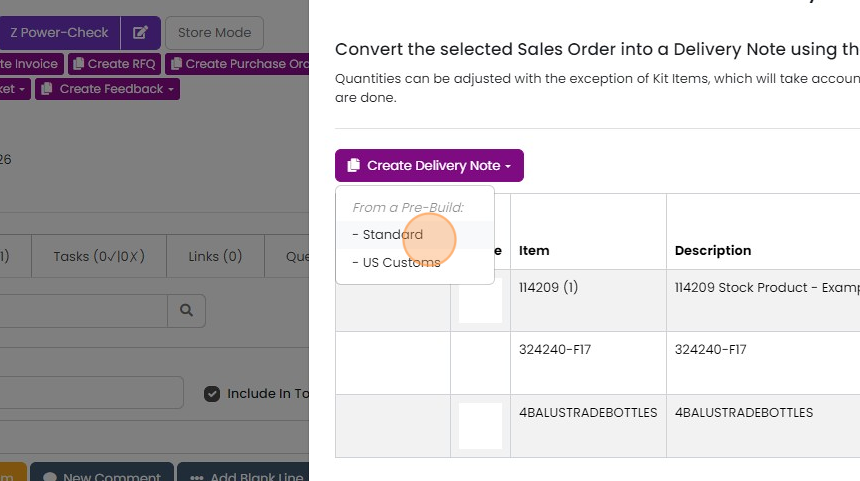
Again, if you want to show what was already delivered, select all the items on the order and tick this box...
Again, if you want to show what was already delivered, select all the items on the order and tick this box before clicking on 'Create Delivery Note'.
Learn more: delivery notes in Zigaflow


Choose the items to deliver
Frequently asked questions
Next step
Essentials, Go and Momentum plansWas this helpful?