Creating a customer return from a job/sales order
The short answer
Open the job or sales order, click Multi-Select, choose the items to return, and click Create Customer Return. Set the inventory location the items go back to, add any items not on the job, then click Add. When the return location is set, change the status to Received to book the items into stock.
Steps
Find the Job/Sales Order to base the return on
Click "Multi-Select"
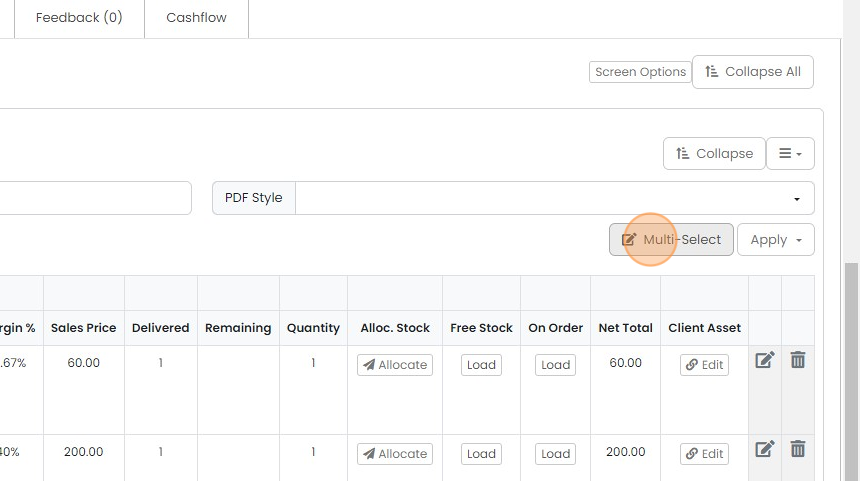
Select the items to return
If you select Reference (serial number) items, they will be removed from the client asset list. Non-reference items are not stored in the client asset list.
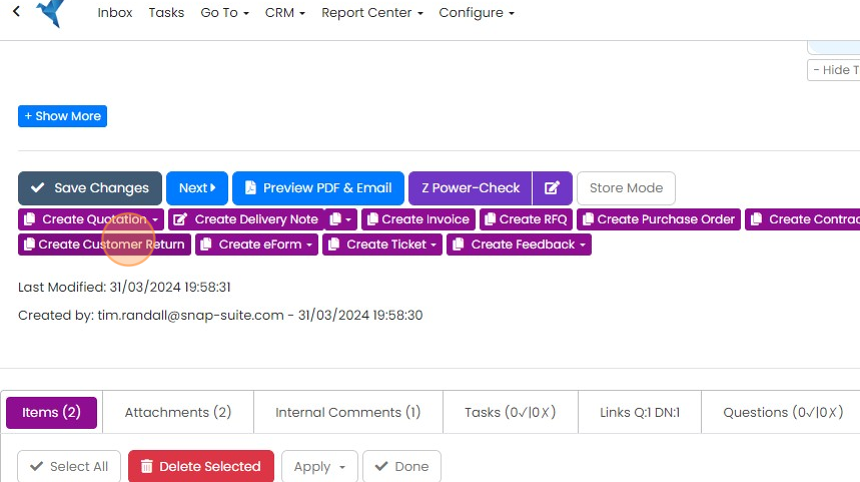
Create the customer return

Click "Create Customer Return"
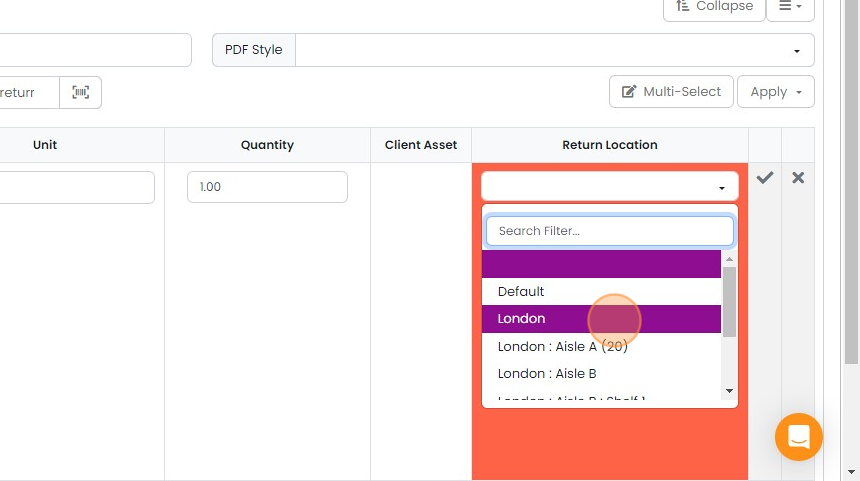
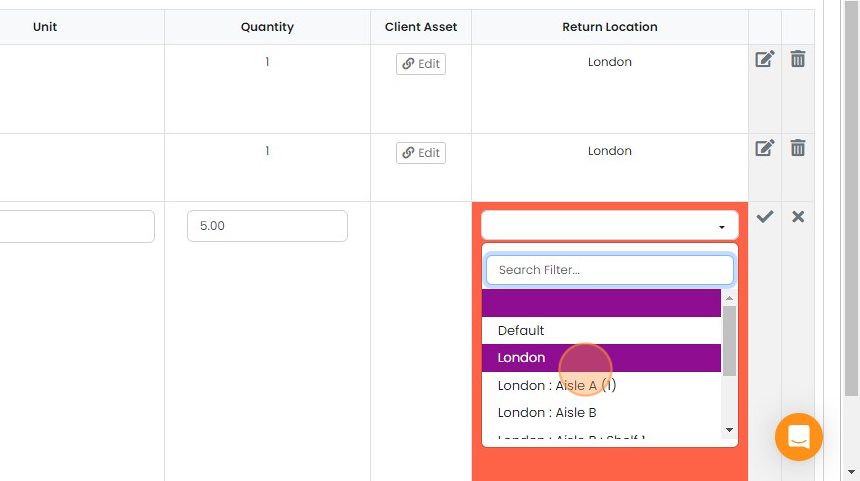
Set the inventory location return the item(s) to
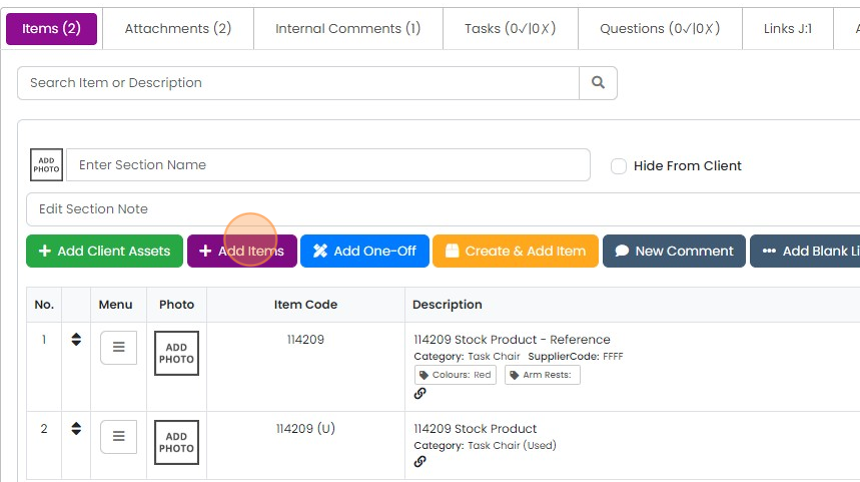
Add items not on the job
You can add items that were not on the Job/Sales Order by clicking "Add Items" for non-reference items,...
You can add items that were not on the Job/Sales Order by clicking "Add Items" for non-reference items, and "Add Client Assets" for ones with serial numbers
Click "Add"
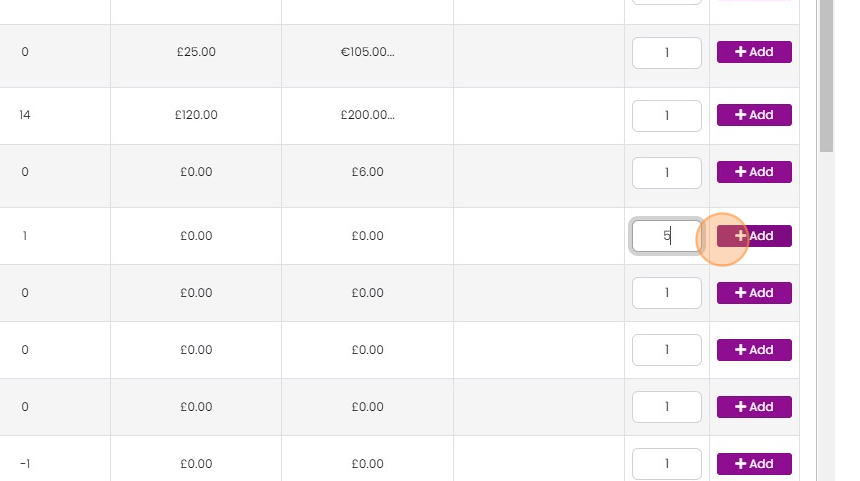
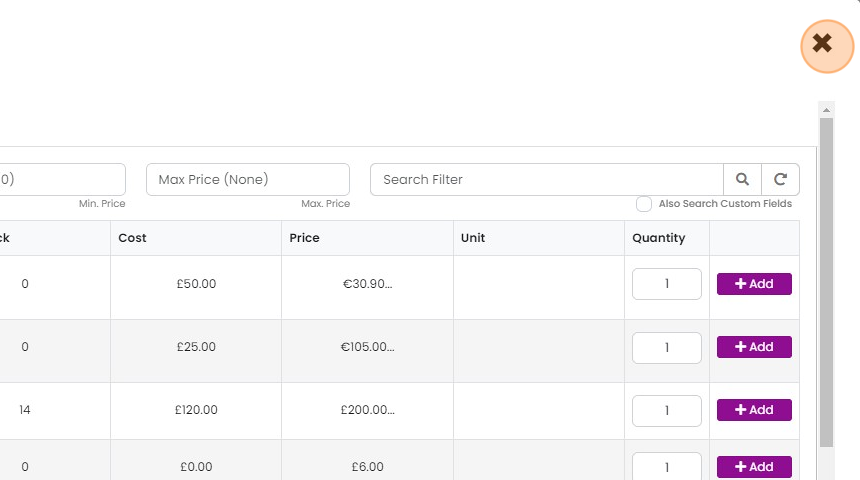
Click "×"
Book the items into stock
Set the return location
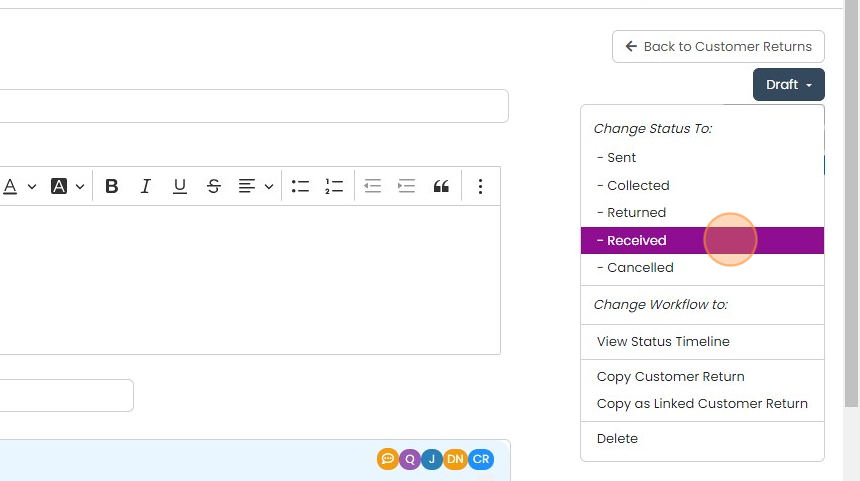
Change the status to "Received" to book the items in the inventory
Learn more: inventory in Zigaflow


If you have already invoiced the customer, create a credit note from that to refund them. If that hasn't happened, create the invoice from the Job/Sales Order, excluding the returned items.
Select the items to return
Frequently asked questions
Next step
Essentials, Go and Momentum plansWas this helpful?