Deliver work

Creating a project

In ZigaflowGo and Momentum plans

The short answer

In Zigaflow, click Go To, then Projects, then New. Pick a pre-build such as Standard, select or add a customer, and ideally add a description. You can also add a cost budget, the customer's budget, and start and end dates. You can also create a project from a quotation or job.

Steps

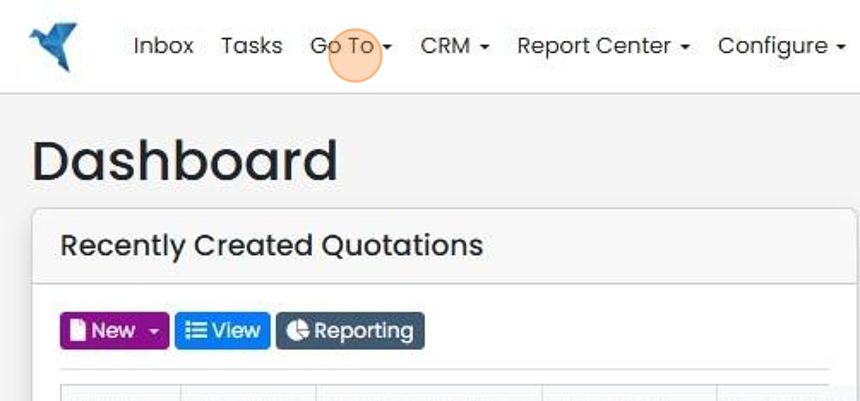
  1. Click "Go To"

    Zigaflow Dashboard with the Go To menu highlighted in the top navigation bar, next to Inbox, Tasks and CRM
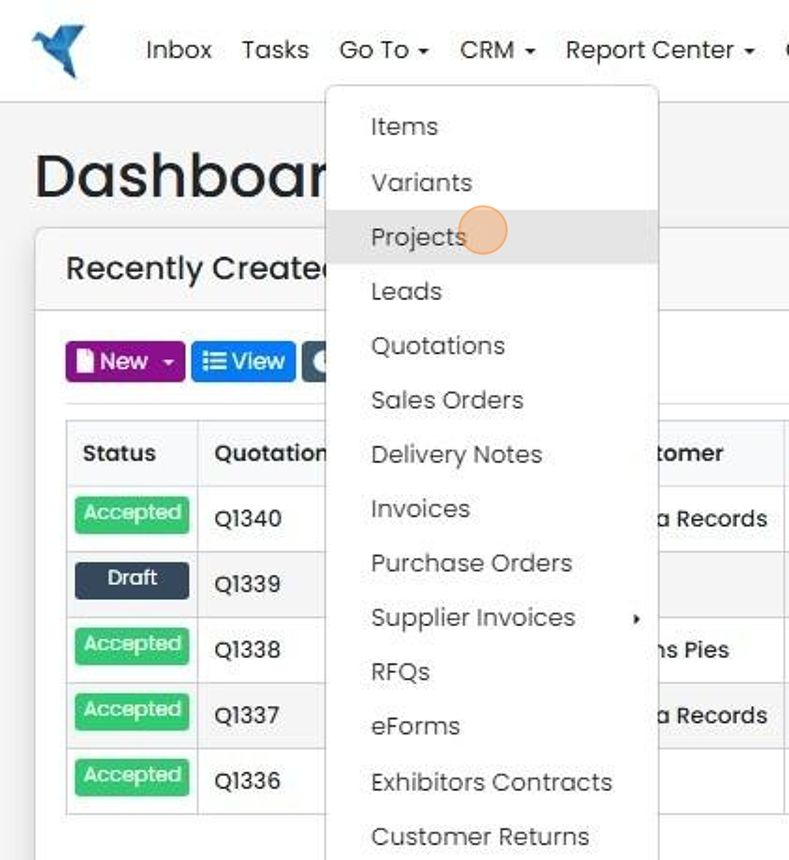
  2. Click "Projects"

    Go To menu open on the Dashboard with the Projects option highlighted, between Variants and Leads in the dropdown list
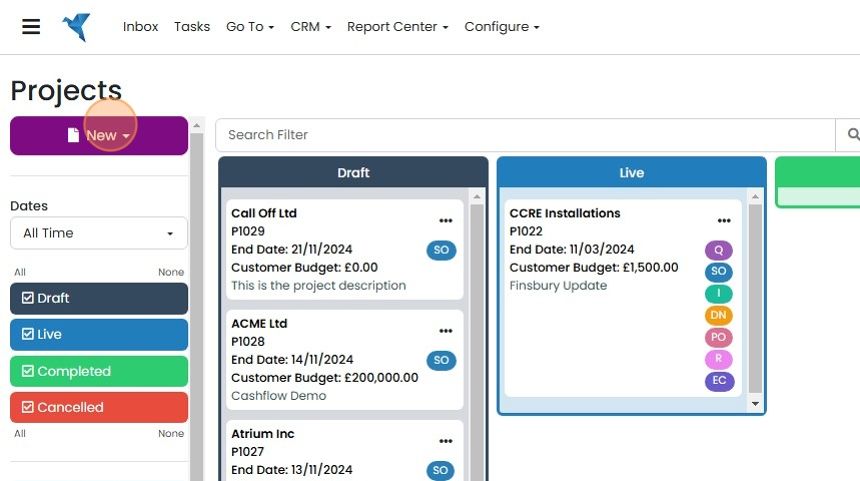
  3. Click "New"

    Projects board with Draft and Live columns, the purple New button at top left highlighted to start a new project
  4. Click on a pre-build (in this case "Standard")
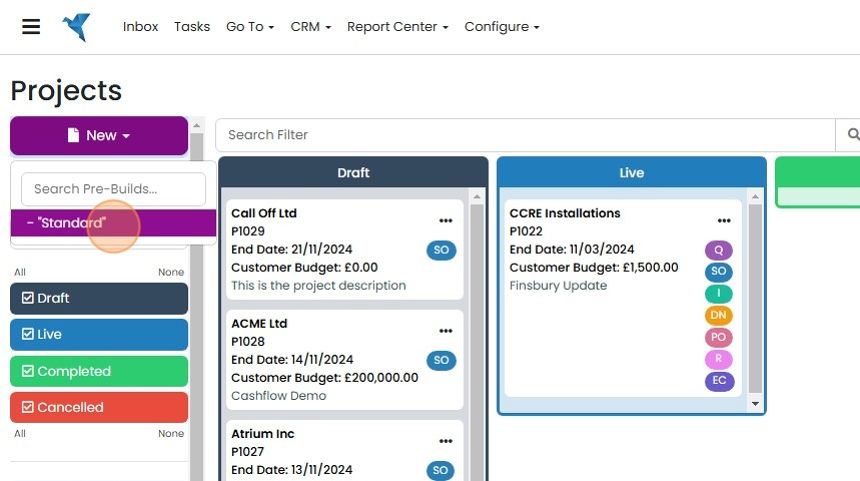
    Projects screen with the New dropdown open and the
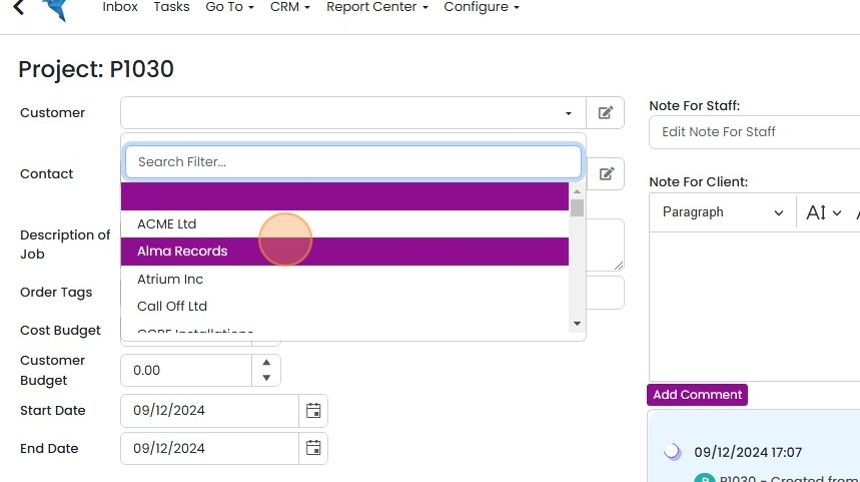
  5. Select or add a customer

    Project P1030 form with the Customer dropdown open, showing a Search Filter box and a highlighted customer in the list
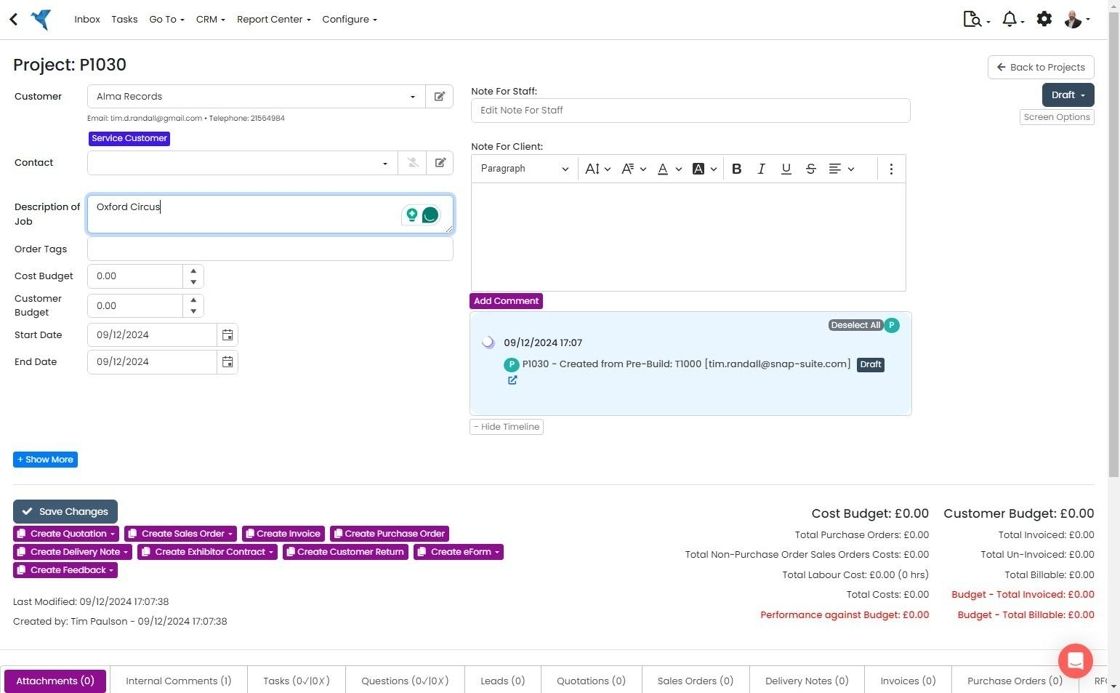
  6. Ideally add a description

    Project edit screen with the Description of Job field active and filled in, below the Customer and Contact fields
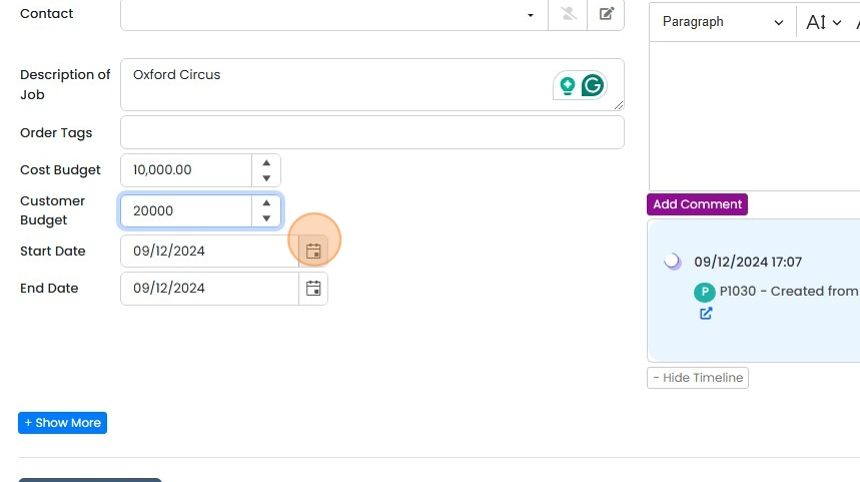
  7. Optionally add a cost budget, customer's budget, start and end dates

    Project form with Cost Budget, Customer Budget, Start Date and End Date fields, with the Start Date calendar icon highlighted
  8. On any quotation, job/order, etc., click on the "Project" dropdown

    On any quotation, job/order, etc., click on the "Project" dropdown. Use the "Screen Options" button to make this visible if it is not already
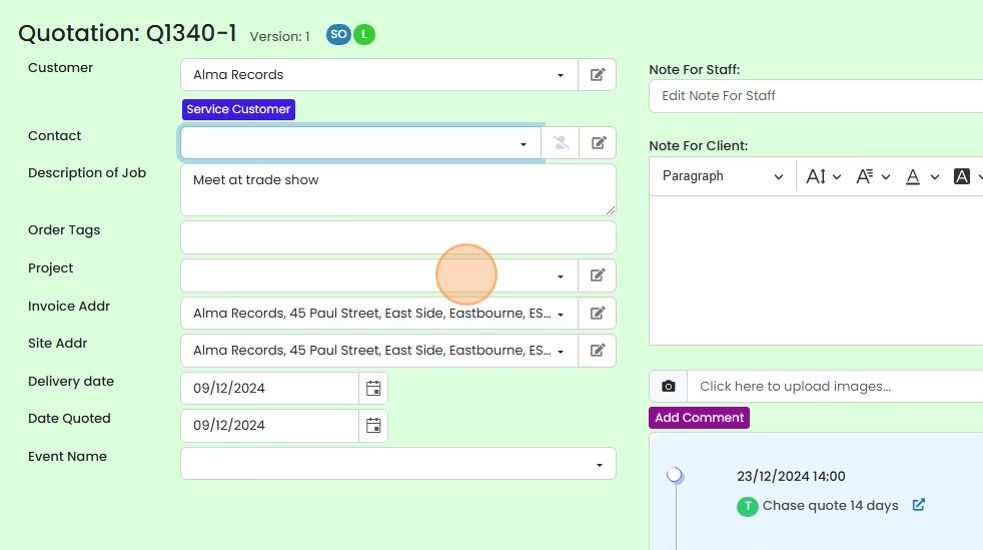
    Quotation screen with the Project dropdown field highlighted, below Order Tags and above the Invoice Addr field
  9. Find the project and select it

    Create a project from a quotation or job
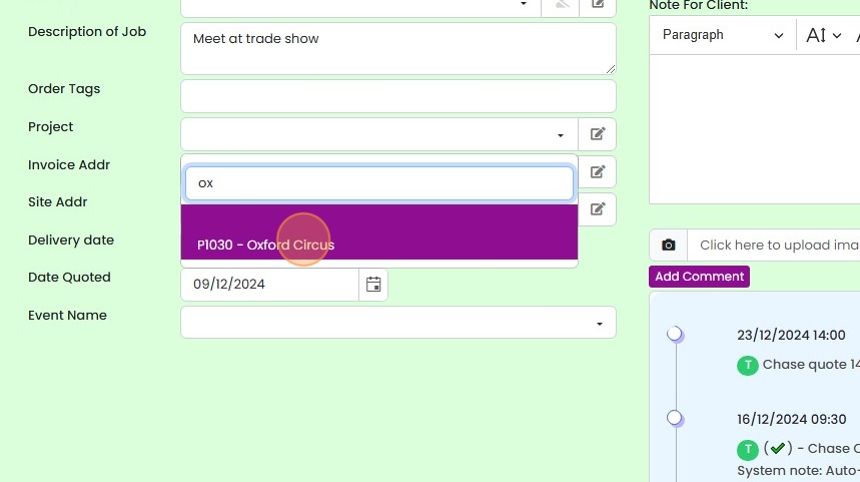
    Project dropdown on the quote form searched with
  10. Alternatively, you can create a project directly off one of these screens

    Alternatively, you can create a project directly off one of these screens. Click on the edit button on the project field
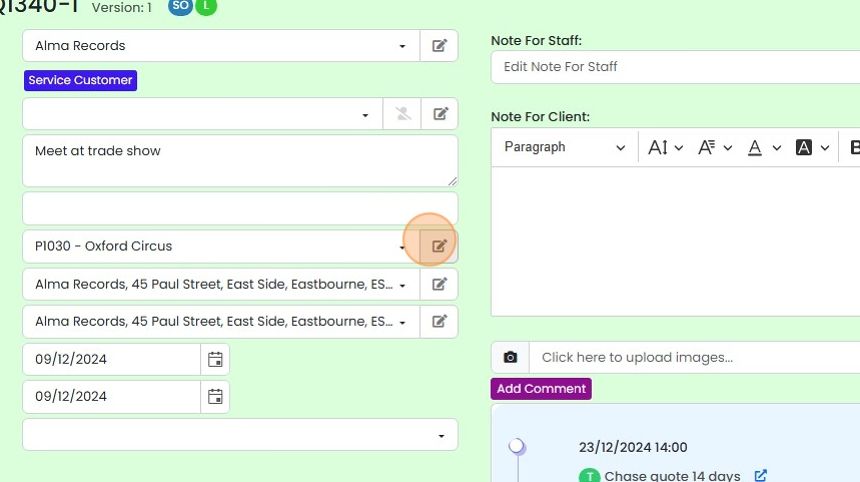
    Quote details form with the edit button highlighted next to the project field, used to create a new project from the quote
  11. Click on the project pre-build to base it on, for example the "Standard" one
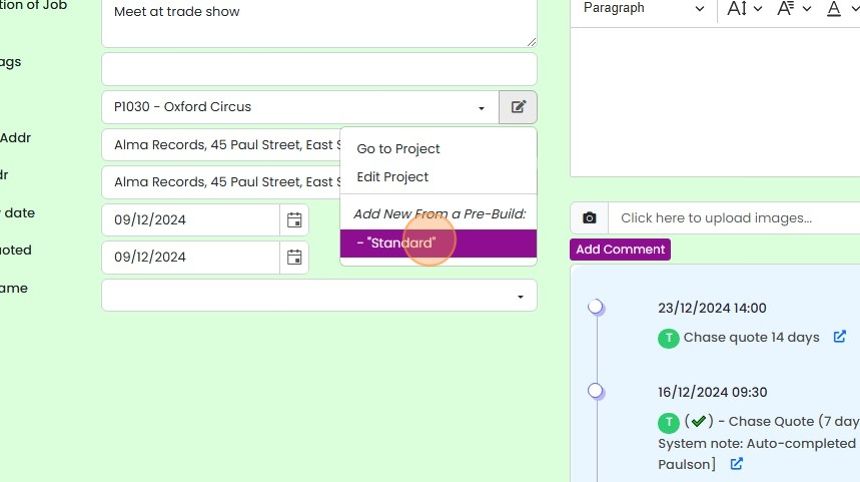
    Project field edit menu open on a quote, with
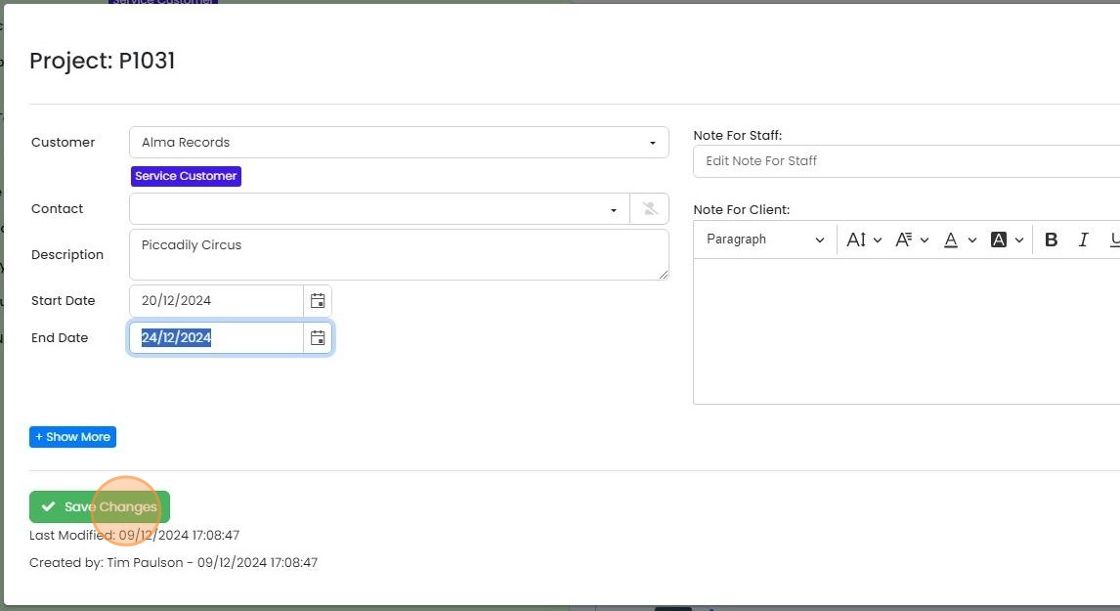
  12. Enter the project's details and click on "Save Changes"

    Project details form with Customer, Description, Start Date and End Date fields filled in and the Save Changes button highlighted

Projects can be created directly on the quotation, job/order, etc., or created in the projects module and then associated to a quotation/order., etc.

Once you have associated a project to a quotation and create jobs/orders, invoices, etc. from the original quotation, the project will carried across to all the other document.

The first method shown is from the projects screen.

Create a project from the projects screen

Frequently asked questions

Next step

Assign a quotation, job/sales order, etc., to a projectGo and Momentum plansTo assign a quotation or job/sales order to a project, use its Project field. If the field is not visible, click Screen Options and switch on Project. Then click to assign it, and find and select the project. If the project is open on another screen, refresh that screen (F5) so it has the latest data.

Was this helpful?

See Zigaflow on your own workflow

Book a demo and we will walk through quoting, jobs and purchasing the way your team runs them.

Or see how Zigaflow would fit your business, free