Deliver work
Creating a purchase order from a job/sales order
The short answer
On a job or sales order, select the items to order using Multi-Select, then click Create Purchase Order. Choose a supplier for each item, set whether to use the forecast item cost, and click Create Purchase Orders. Zigaflow generates one purchase order for each supplier, and each PO links back to the job or sales order.
Steps
Click "Multi-Select"
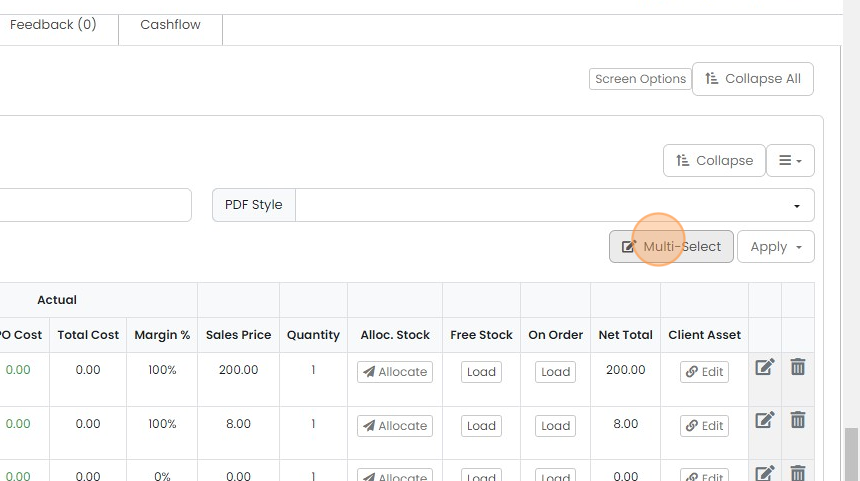
Select the items to place Purchase Order(s) for. You can create POs for more than one supplier at once
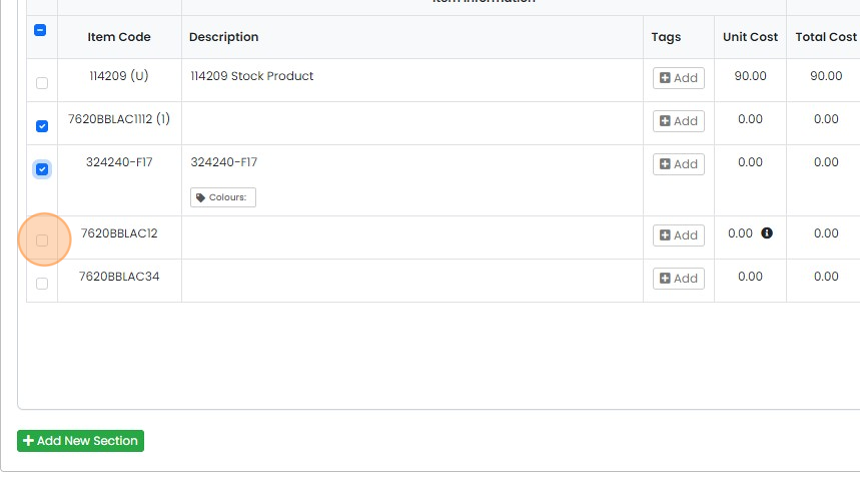
Click on "Create Purchase Order". If you are ordering all the items on the PO, skip the multi-select step
Assign suppliers to items

Select the supplier from this dropdown to apply to all the items
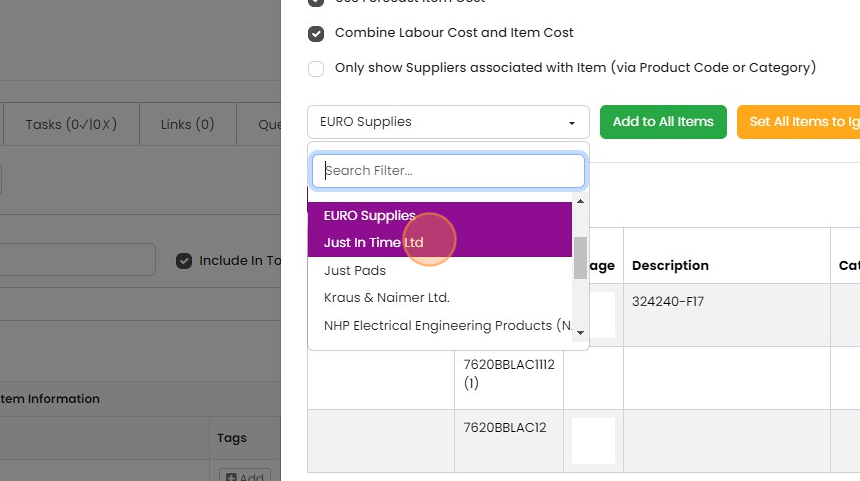
Click "Add to All Items"

You can select different suppliers for different items
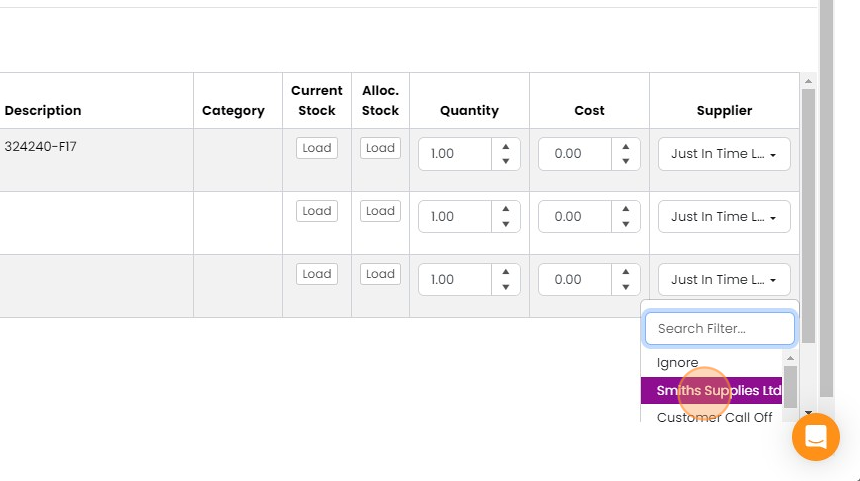
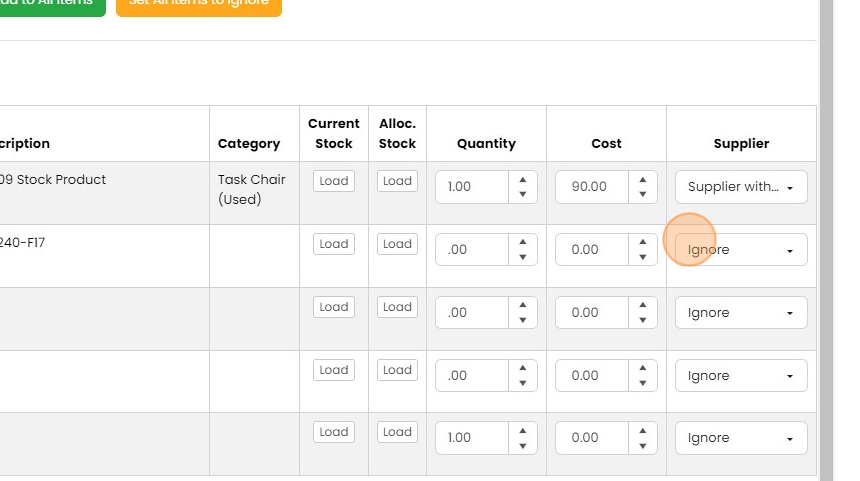
Or remove an item from the PO creation by setting the supplier to "Ignore"
Set costs and create the POs
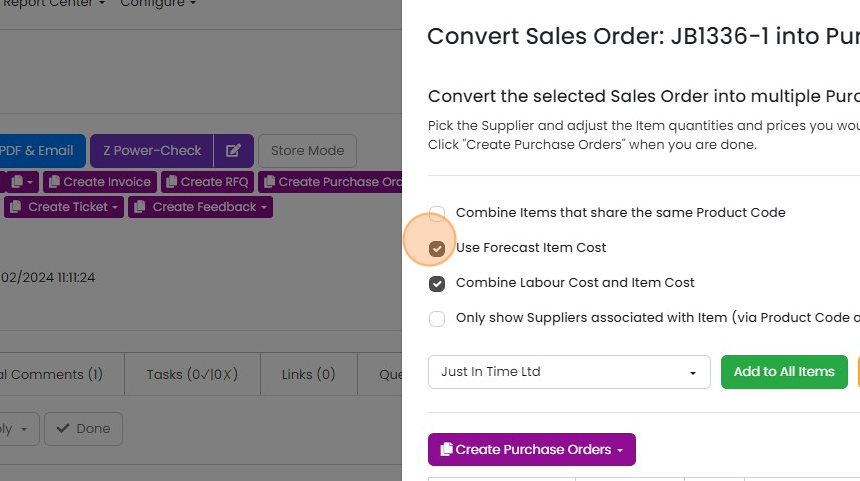
Using forecast item cost will take the cost price from the Job/Sales Order
Using forecast item cost will take the cost price from the Job/Sales Order. Untick it to use the cost price from the item in the items list.
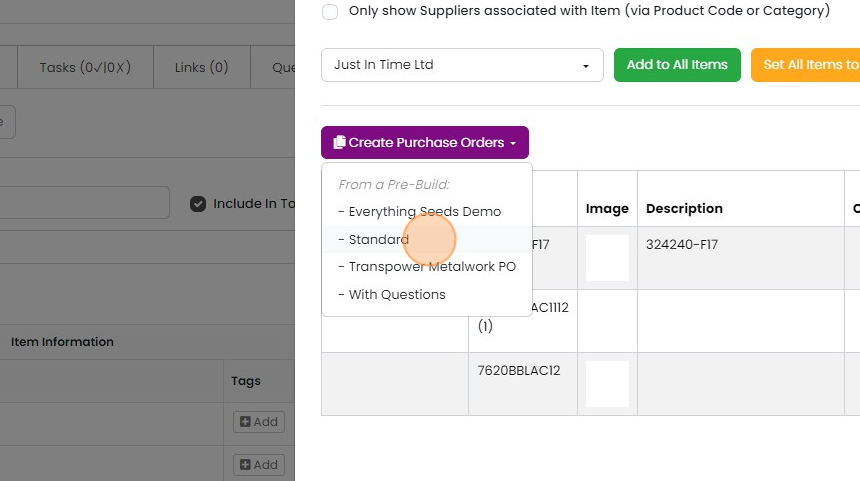
Click 'Create Purchase Orders'

Select the PO pre-build to use
This process will generate one PO for each supplier
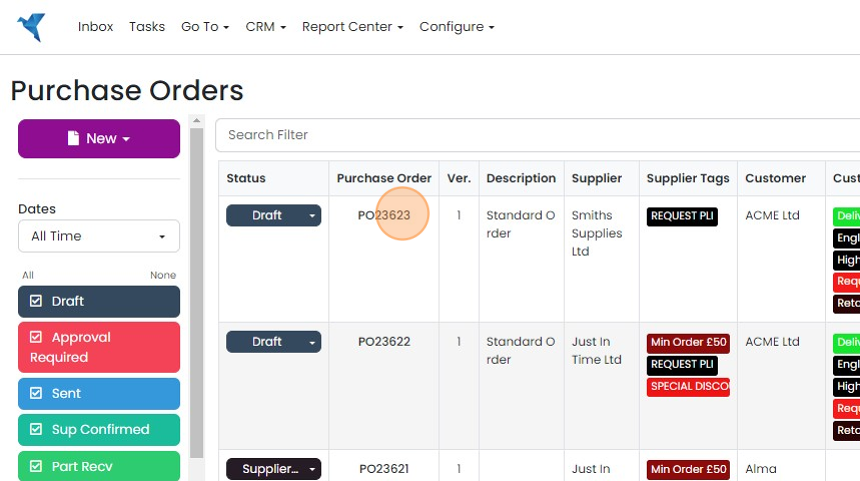
You can see the link from the PO to the Job/Sales Order at the top of the PO
Learn more: purchase orders in Zigaflow


Select the items to order
Frequently asked questions
Next step
Essentials, Go and Momentum plansWas this helpful?