Get set up
Hiding prices and costs
The short answer
To hide prices and costs from certain users, edit a user role in Team Settings (the Cog, then "Team Settings") so it limits what they can see and add, then save it. Assign that role to the user under "Manage Team Members". The user must log out and back in to see the change.
Steps
Click on the Cog
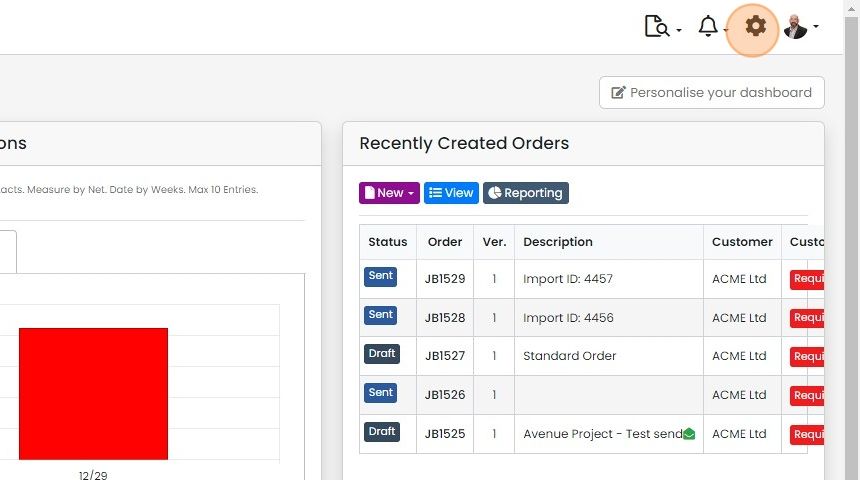
Click "Team Settings"

Edit a role or create a new one if only Admin and User are set up. These two cannot be edited
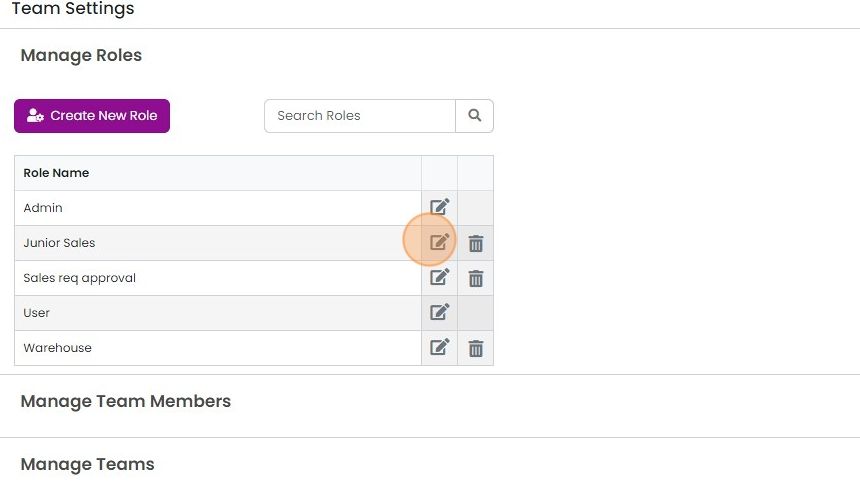
Adjust one or more of these settings

Click "Save Changes"
Click "Save Changes". If this button is not functioning, you have likely tried to edit the Admin or User roles, which are read-only
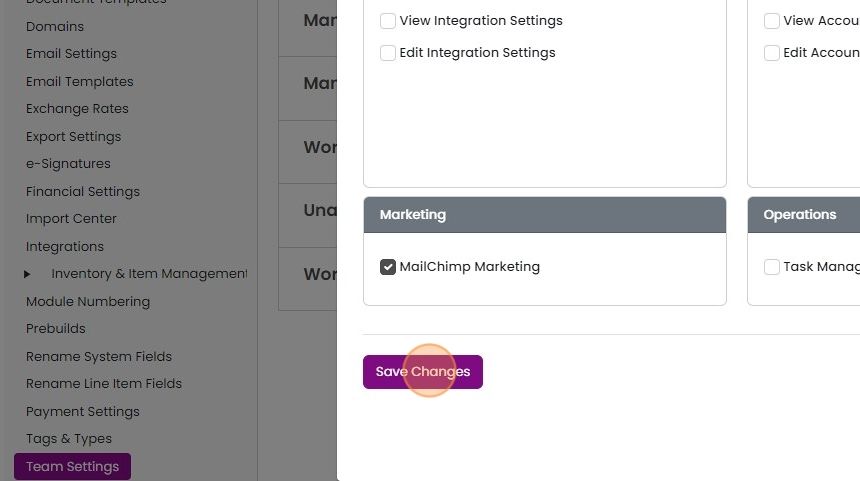
Click "×" to close the panel
Assign the role to a user

Assign this role to a user. Click "Manage Team Members"
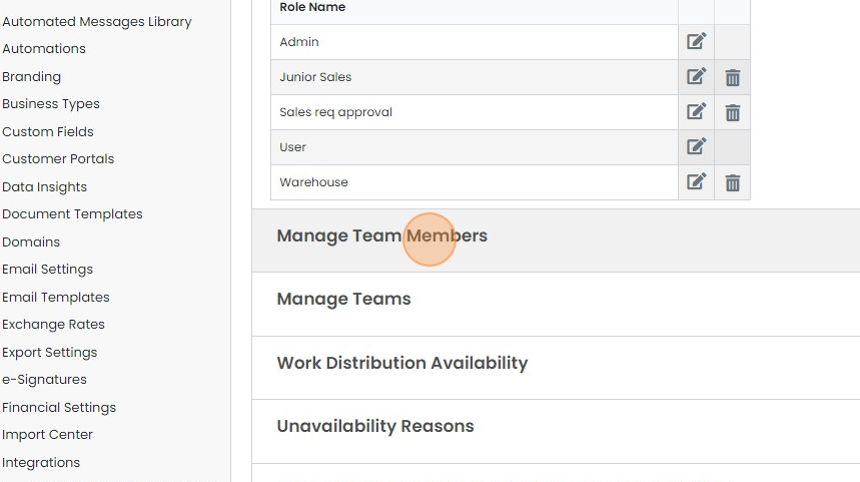
Edit a user
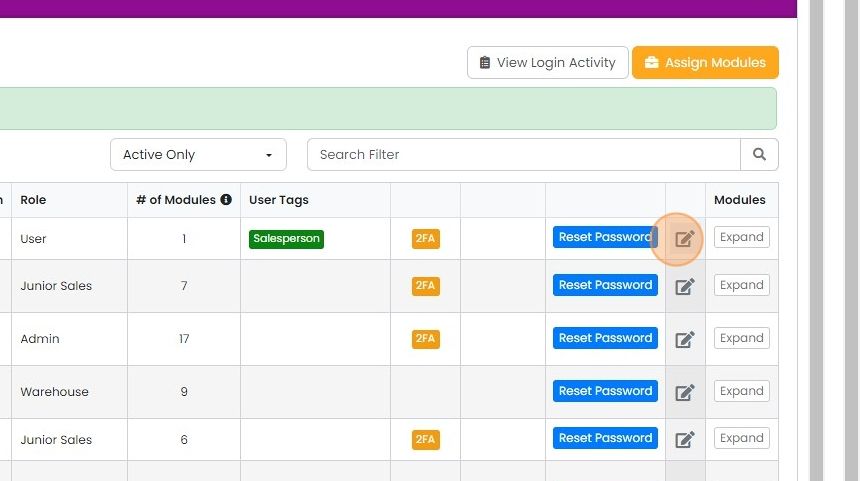
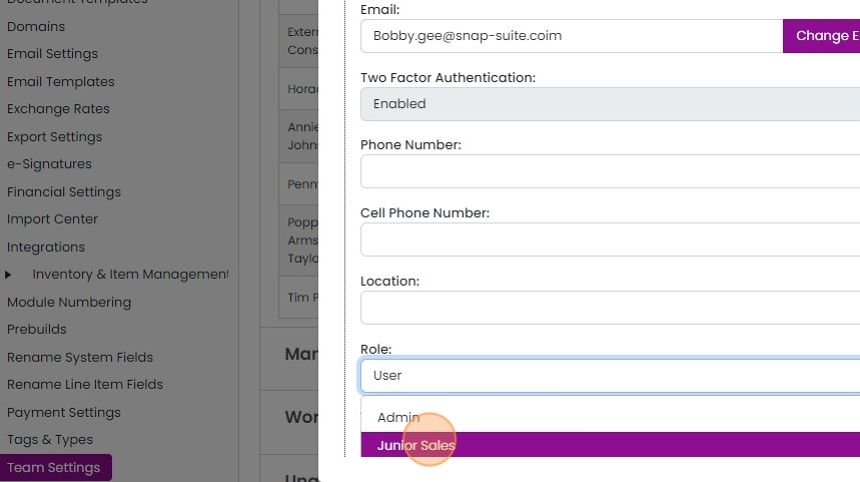
Set their role to the one with the edited permissions
Click "Save Changes"
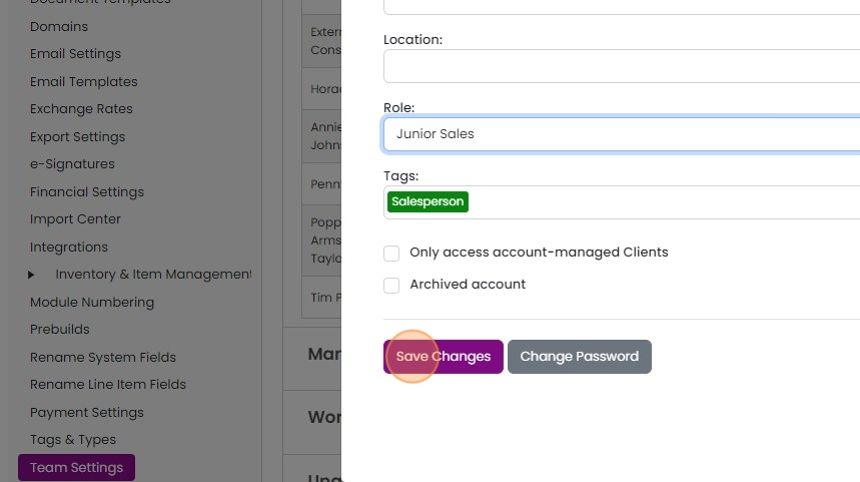
The user will need to log out and back in to see the changes
Learn more: user roles and permissions


User roles allow you to control whether certain users can view prices and or/costs and add one-off items. This explains how to edit a role and assign it to a user.
Edit the role's permissions
Frequently asked questions
Was this helpful?