Get set up
How to create roles
The short answer
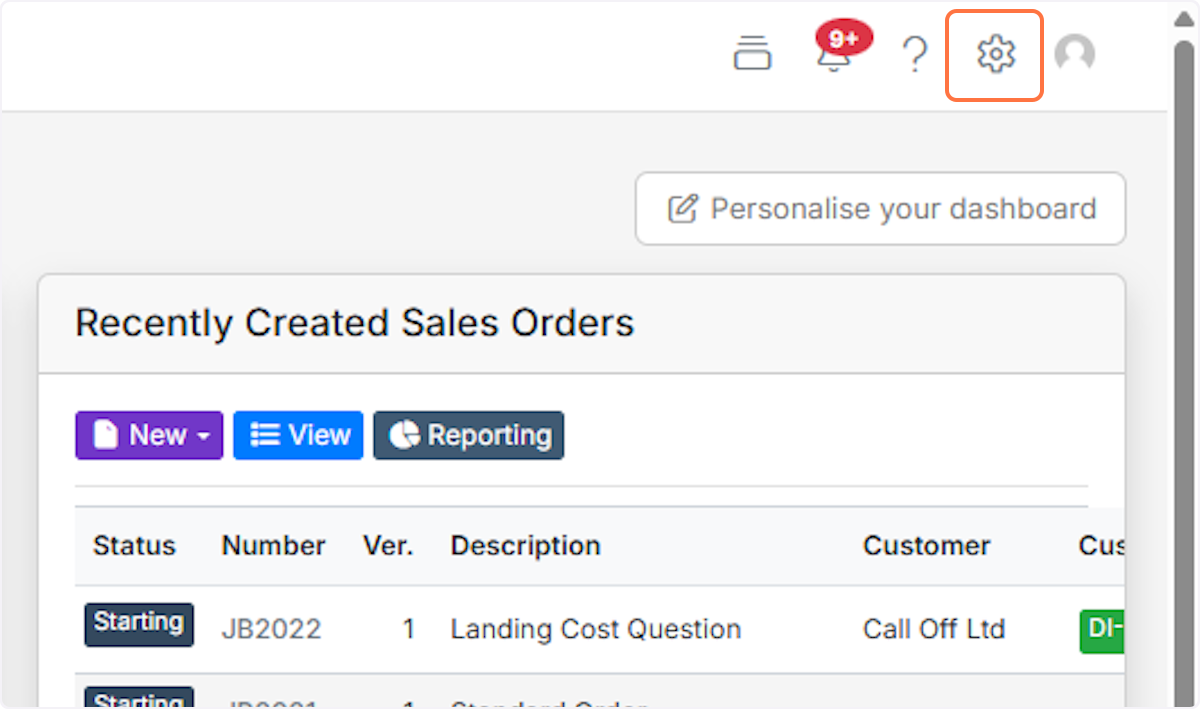
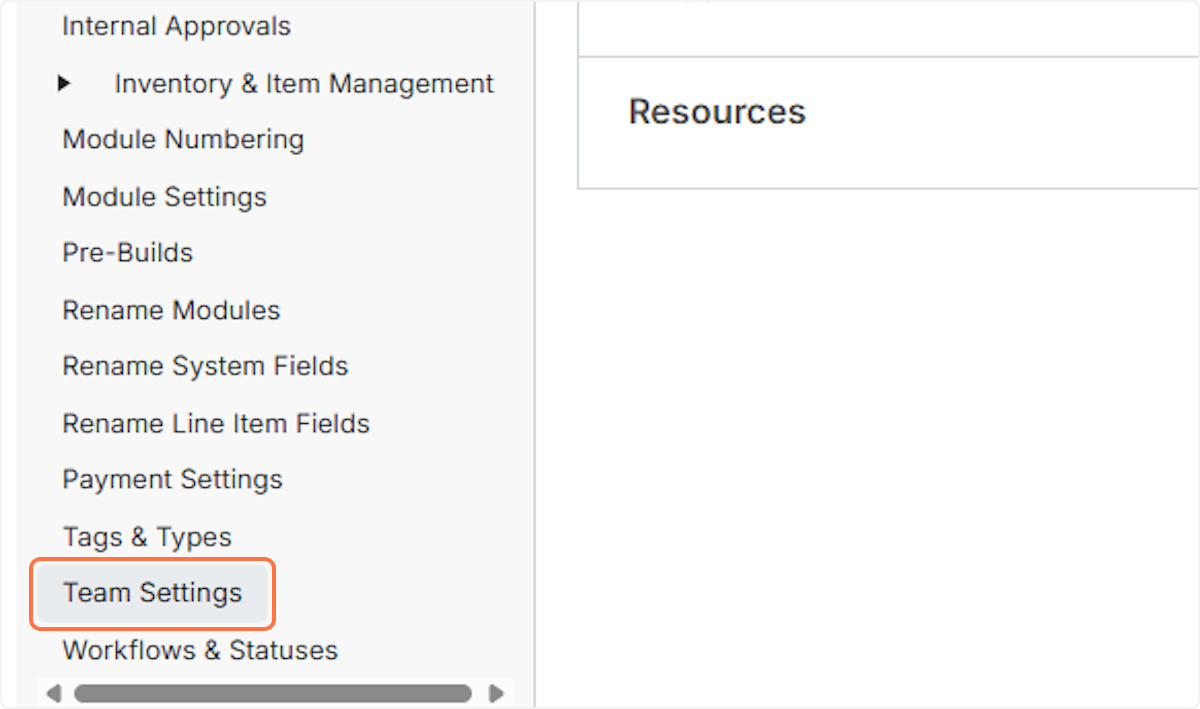
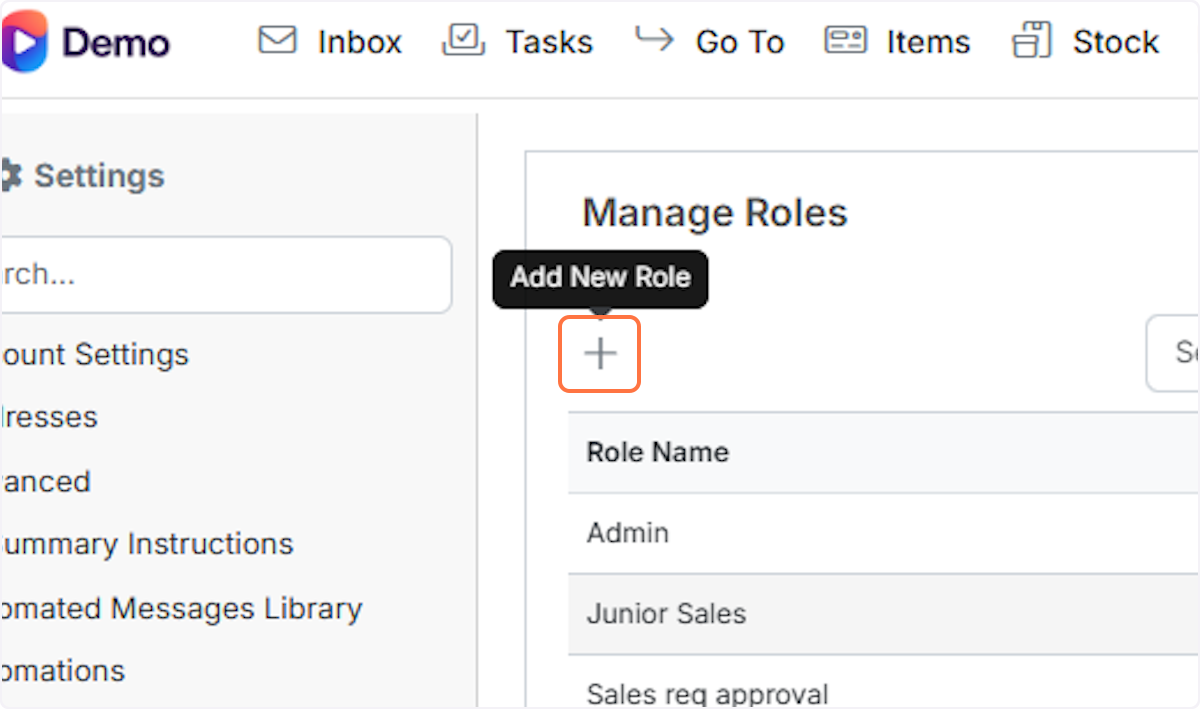
To create a role in Zigaflow, click the cog icon, select Team Settings, then click Add New Role. Type a name, untick any options you want to switch off for the team, make any access changes, and click Create Role. Then assign the role to a user through manage team members.
Steps
Click on the cog icon
Select Team Settings
Click on Add New Role
Type Name

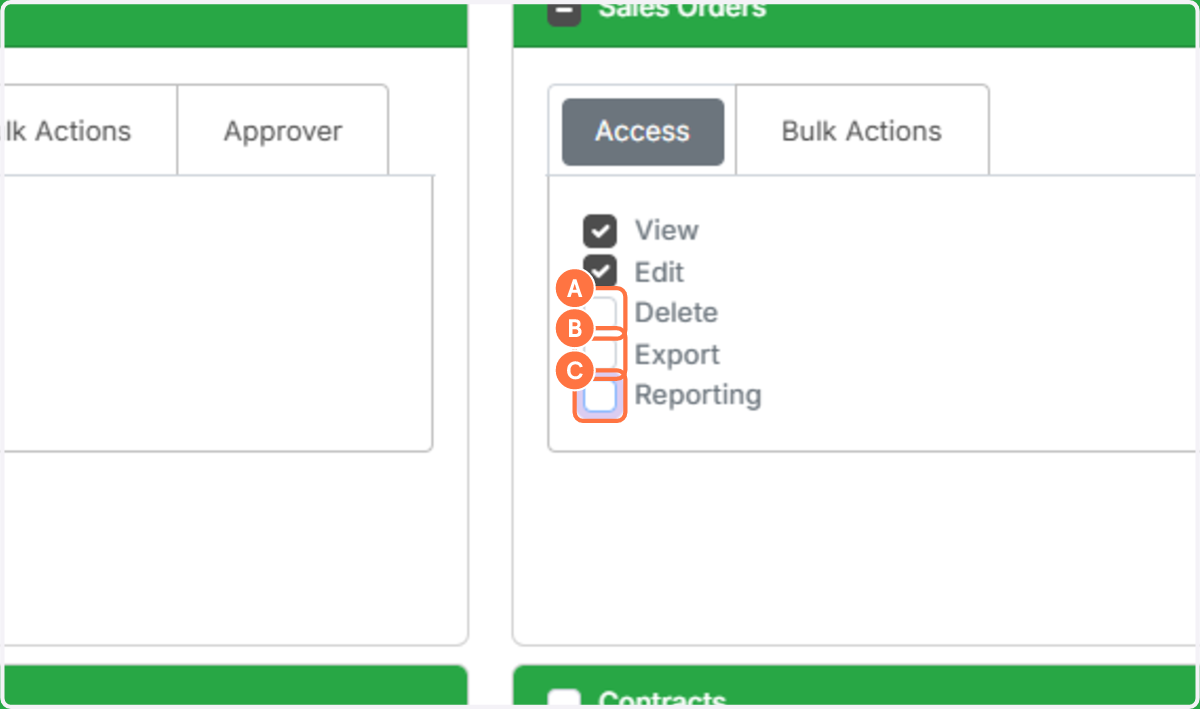
Untick any options you want to switch off for the team
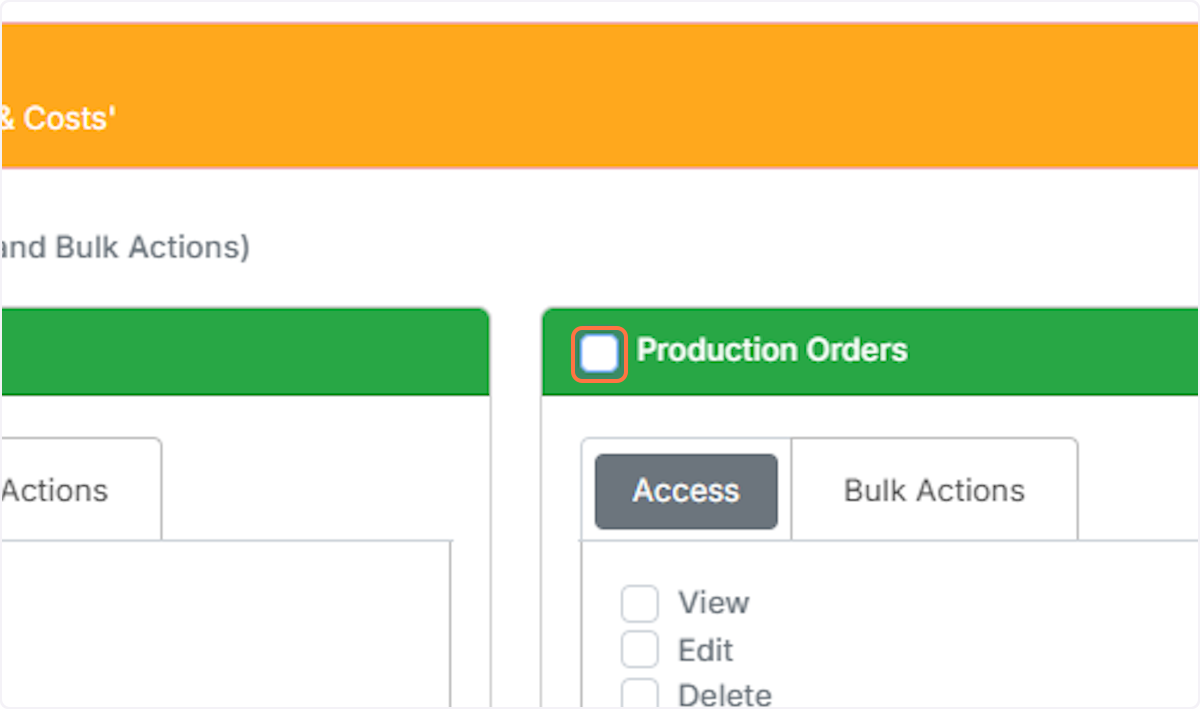
Followed by any access changes
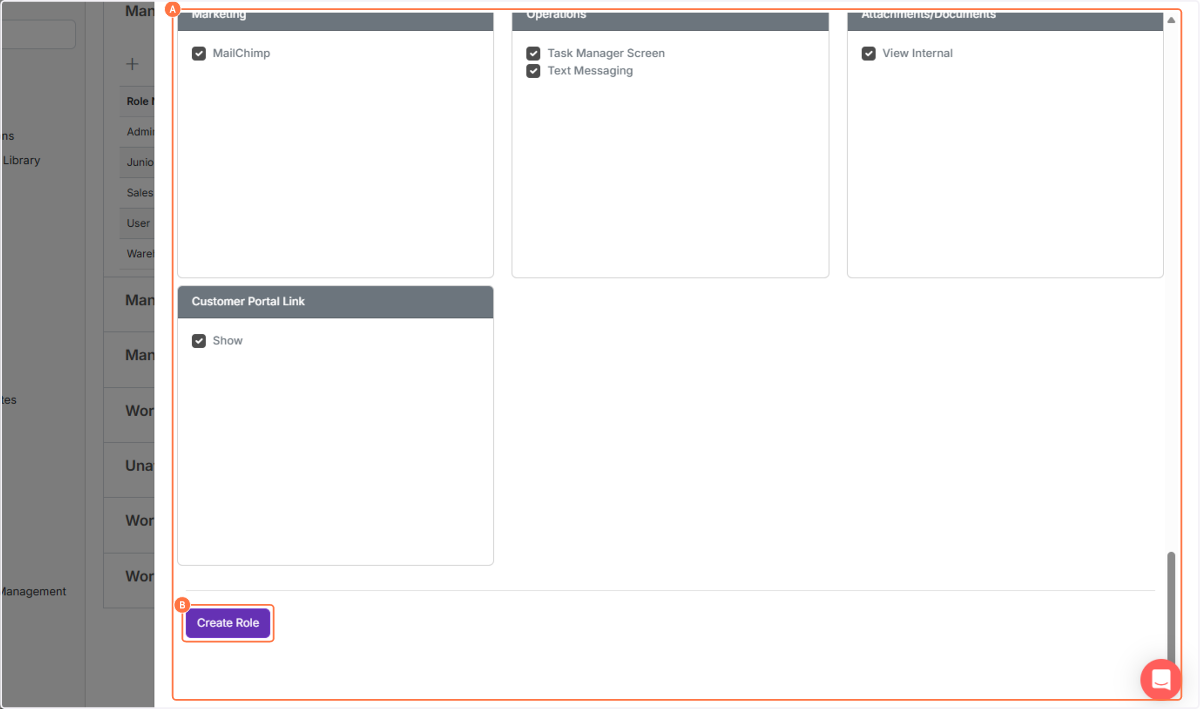
Finally, scroll down and click " Create Role " to set up your new role
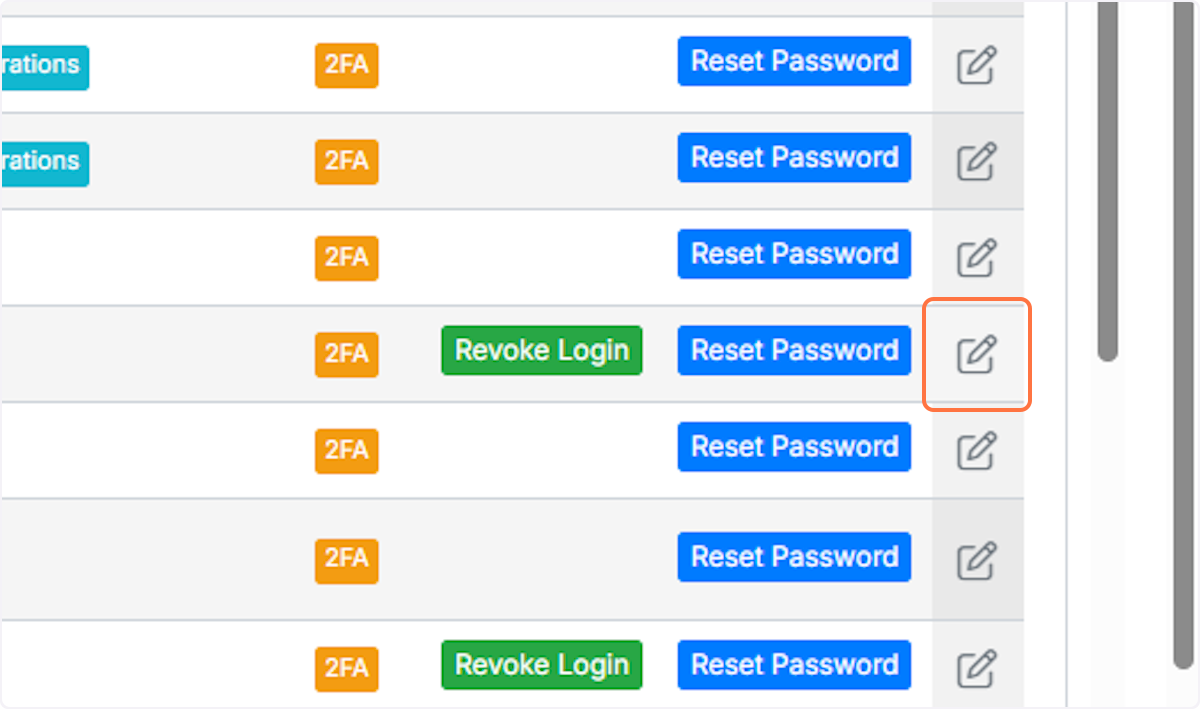
Click into manage team members and then the edit button on the user
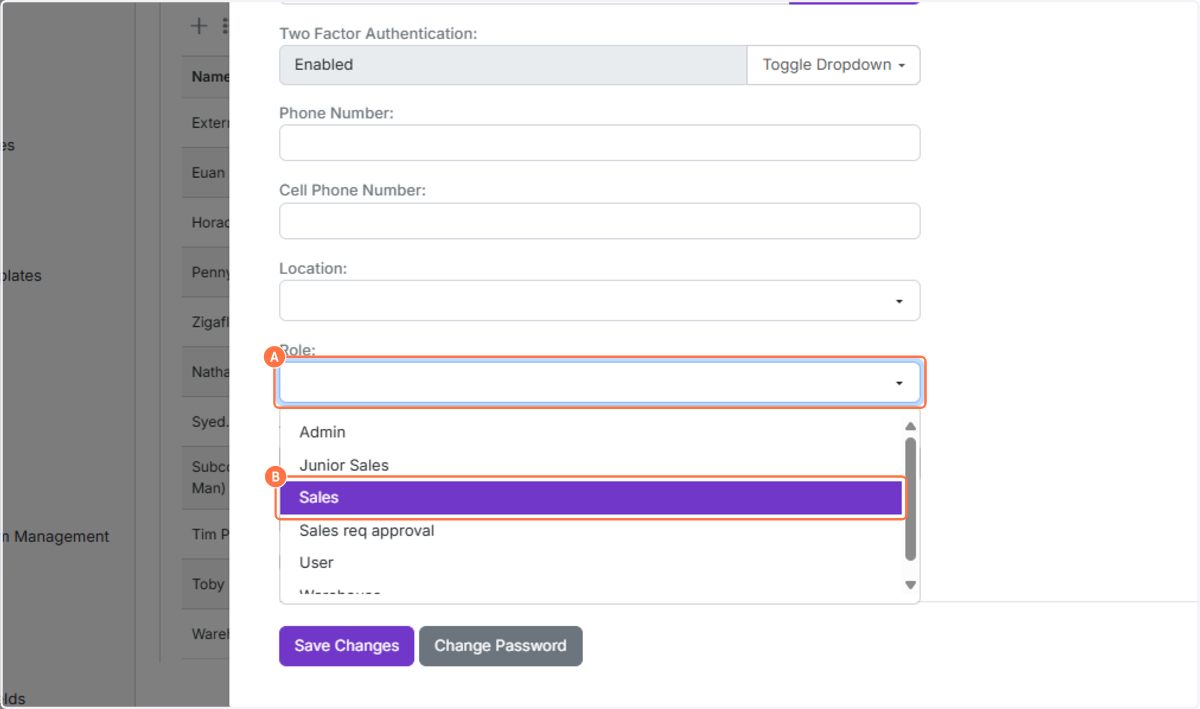
Click on the right option for that user
Learn more: user roles and permissions


Frequently asked questions
Was this helpful?