Import jobs/orders from a spreadsheet
The short answer
In Zigaflow, click the Cog, then Import Center, then Jobs (or whatever you renamed the module to). Download the template, fill it in with a complete row for every item, drag the file in and click Upload. A banner then shows whether the import succeeded or failed.
Steps
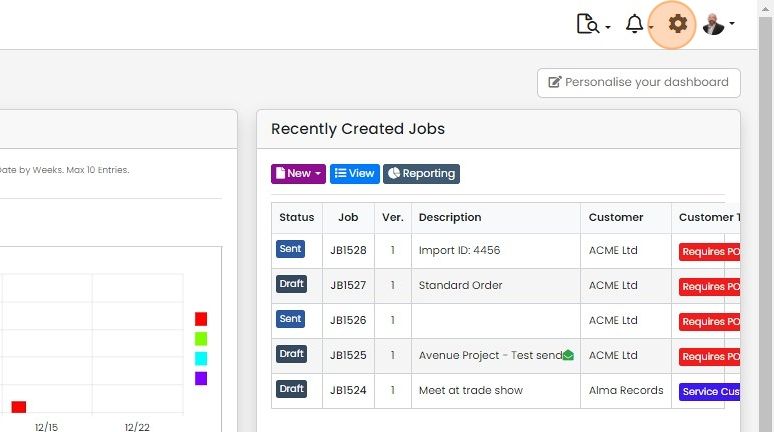
Click on the Cog
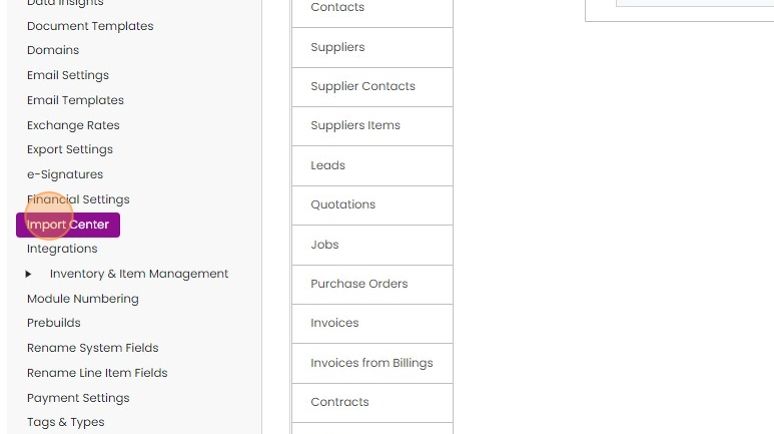
Click "Import Center"
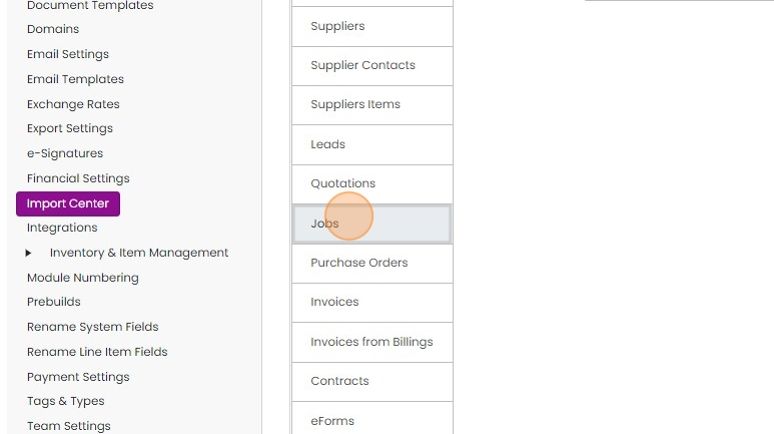
Click "Jobs" or whatever you have renamed the module to (Orders, Sales Orders, etc.)
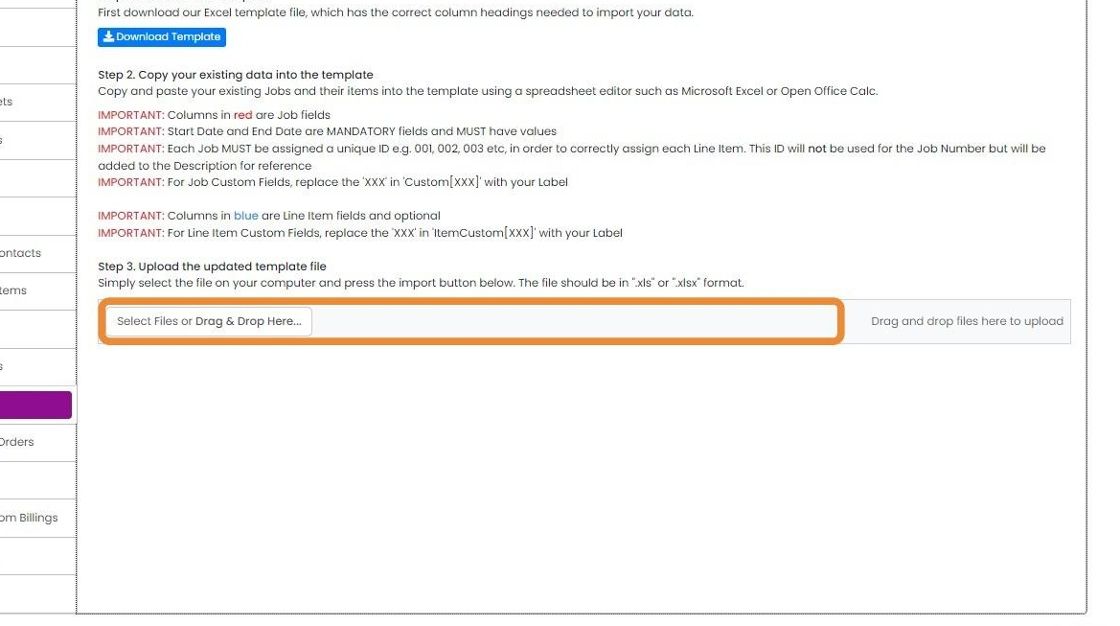
Download the template here
Fill in the template

More than one job/order can be imported at a time
The template consists of three areas: header, section name, and item details.

For each item in an order, there needs to be a complete row
For each item in an order, there needs to be a complete row. This means that the master job details, such as the customer name or note, need to be repeated on each line. Similarly, the section name (if given) needs to be repeated for all the items in the section.
Upload the import file

Drag and drop the import file here
Click "Upload"
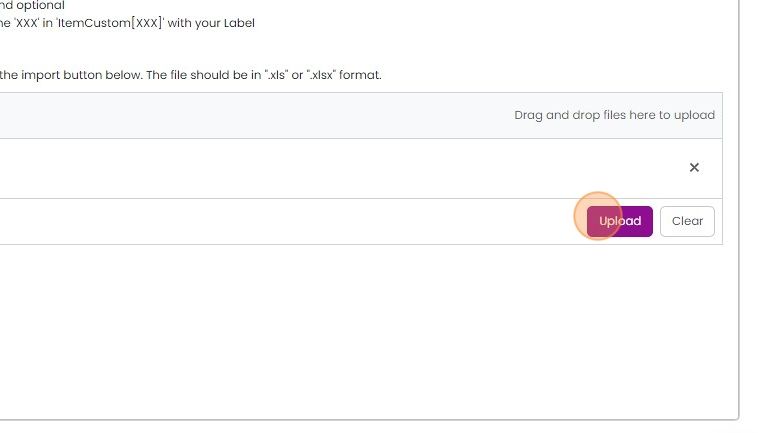
The banner shows the success or failure of the import

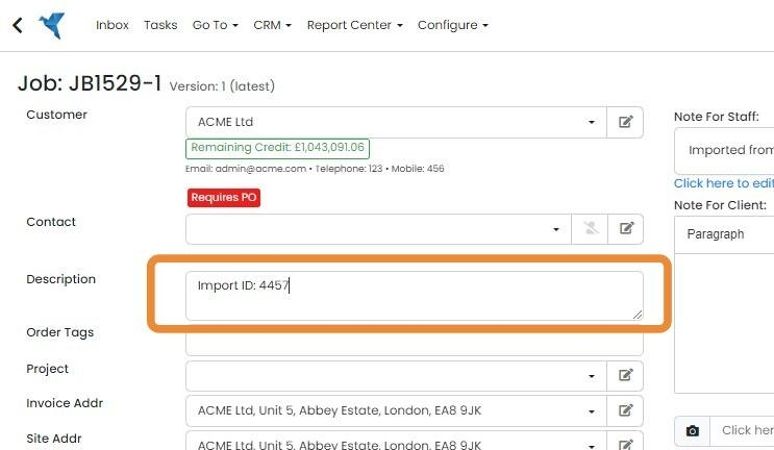
The original ID/Reference from the previous system is appended to the description
Learn more: jobs in Zigaflow


Before you import
Before importing, the customer/company and contact at the company (if set in the import) need to be in Zigaflow. Otherwise, the import will fail.
These columns are compulsory in the import file:
- ID - this is just the reference from the previous system, such as the job number
- Status (the Zigaflow status)
- Company
- Assigned User Email - the user the job will be assigned to in Zigaflow
- Initial Assigned User Email - the initial user the job will be assigned to in Zigaflow
- Start Date
- End Date
Download the import template
Frequently asked questions
Was this helpful?