Import tax codes, account codes (nominal) and bank codes from Xero/QuickBooks/FreeAgent
The short answer
Click the cog, open Financial Settings, then scroll to Account Codes, Tax Codes or the bank accounts section and click the Import button for Xero, QuickBooks or FreeAgent. Click Add next to each code or bank account you want to bring into Zigaflow, then click the × to close.
Steps
Click on the Cog
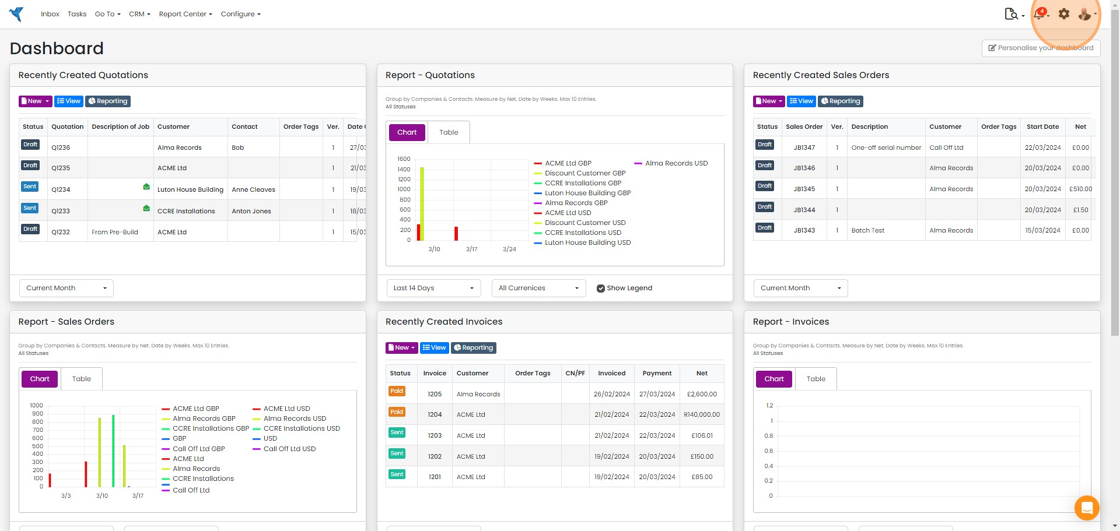
Click "Financial Settings"
Import account codes

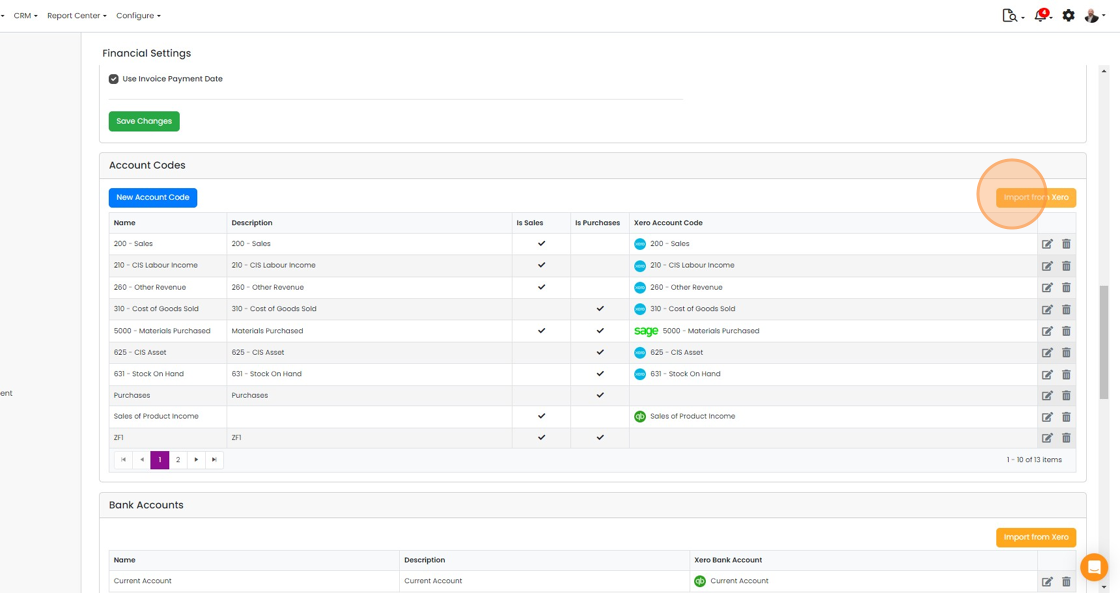
Scroll down to 'Account Codes' and click "Import from Xero/QuickBooks/FreeAgent"
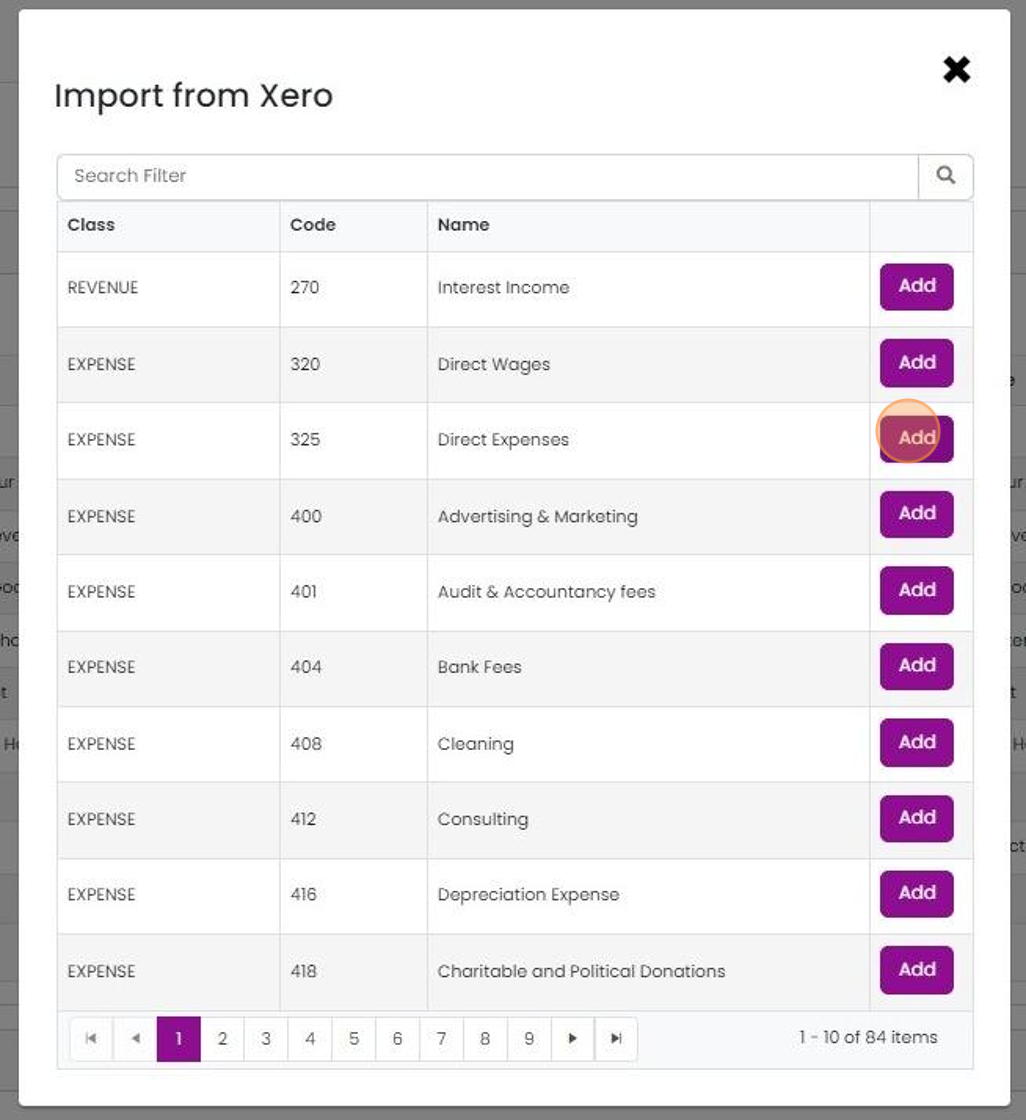
To import a code, click "Add"
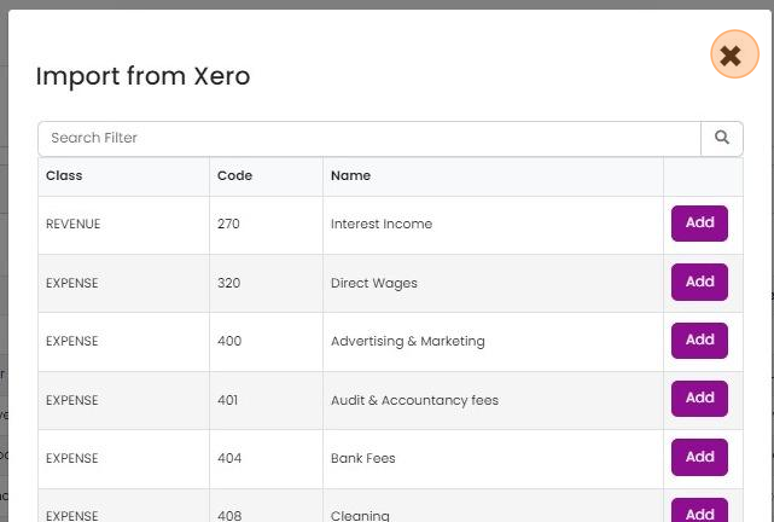
Click "×"
Import bank account codes
To import a bank account code, scroll down to Click "Import from Xero/QuickBooks"
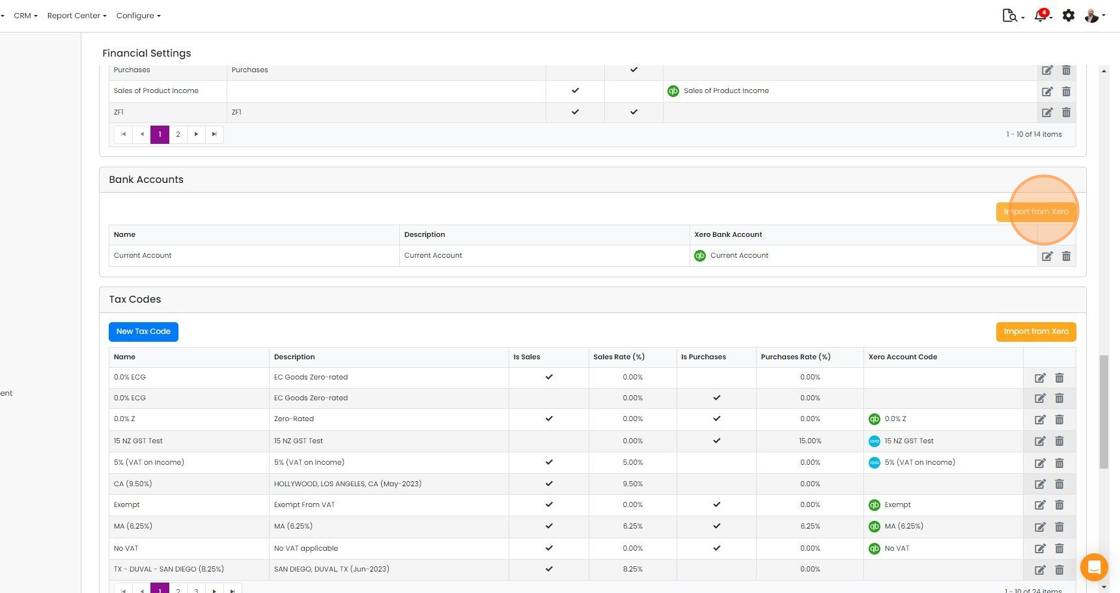
Click "Add" to import a bank account - this is used for marking payments against invoices for Stripe and...
Click "Add" to import a bank account - this is used for marking payments against invoices for Stripe and Shopify orders.
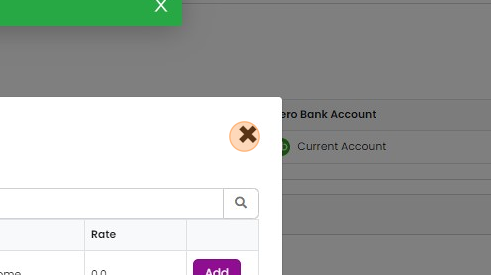
Click "×" to close
Import tax codes
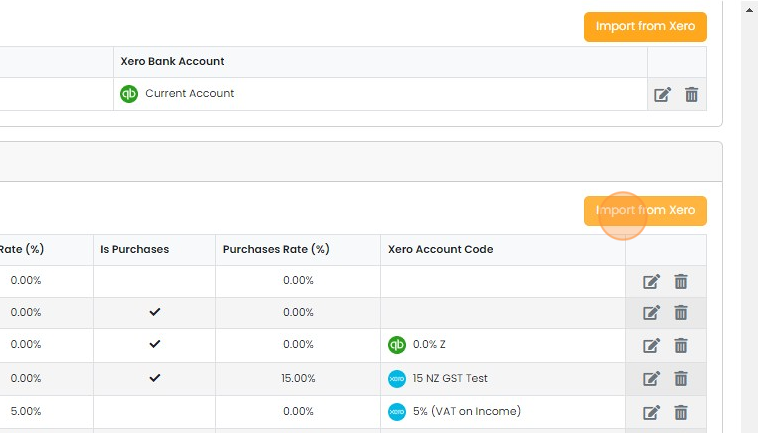
Scroll down to "Tax Codes" and click on "Import from Xero/QuickBooks/FreeAgent"
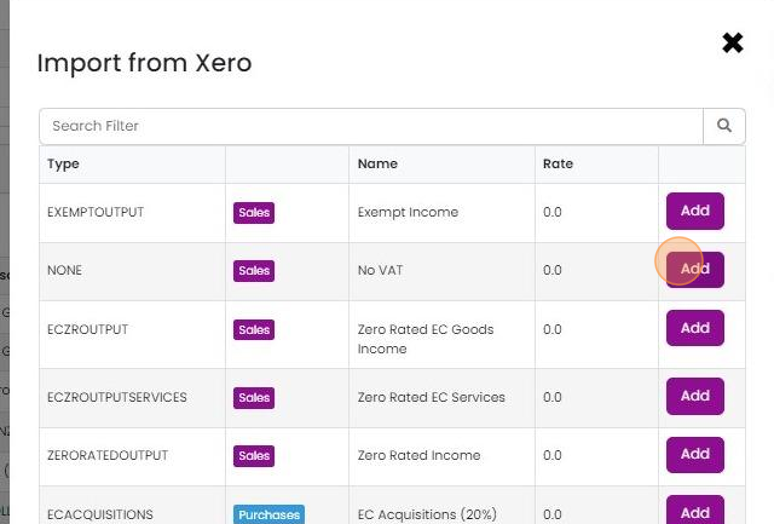
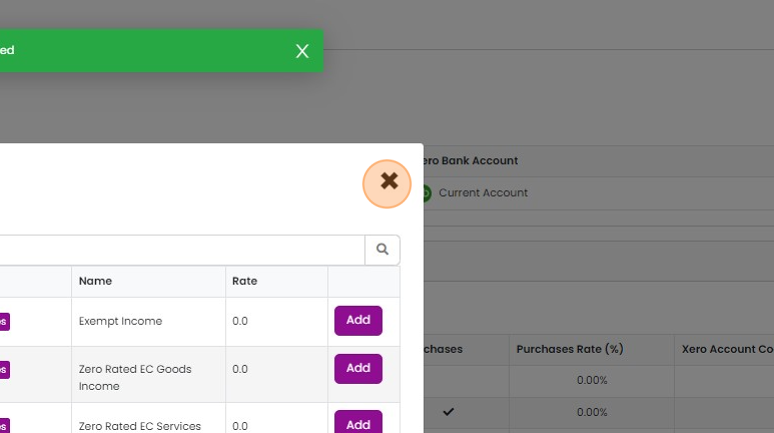
To import a code, click "Add"
Click "×" to close
Learn more: the Xero integration


Depending on which accounts system you are connected to, the labels will vary, but the process is the same.
You can import the following:
Tax Codes - Xero, QuickBooks, FreeAgent
Nominal Codes - Xero, QuickBooks, FreeAgent
Bank Accounts - Xero, QuickBooks
Once this is done, we recommend applying these to all existing items in Zigaflow and invoices. Once an item is updated in the list and then added to a quote, copied to the job, and then the invoice, it will have the correct codes.
Open financial settings
Frequently asked questions
Was this helpful?