Importing contacts
The short answer
To import contacts into Zigaflow, click the Cog, then Import Center, then Contacts, and drag and drop your import file. Match the columns you want to Zigaflow fields, click Next, and the import reports how many contacts were updated and how many were added. You can save the mapping to reuse it.
Steps
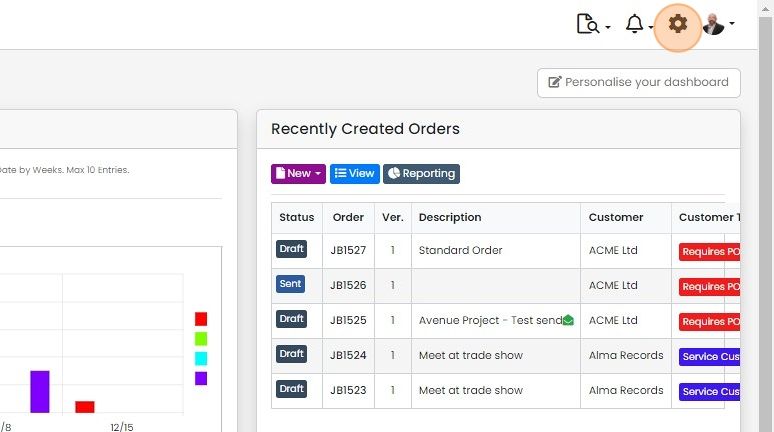
Click on the Cog
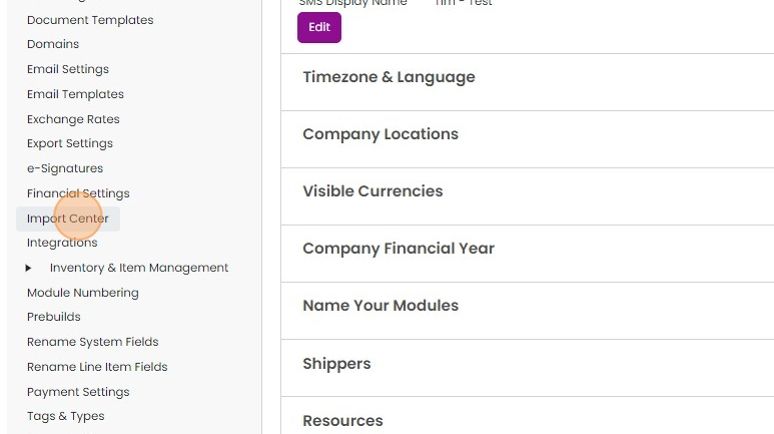
Click "Import Center"
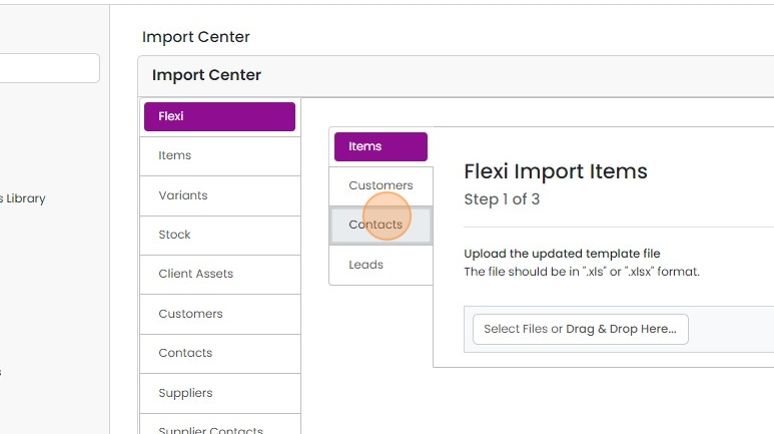
Click "Contacts"
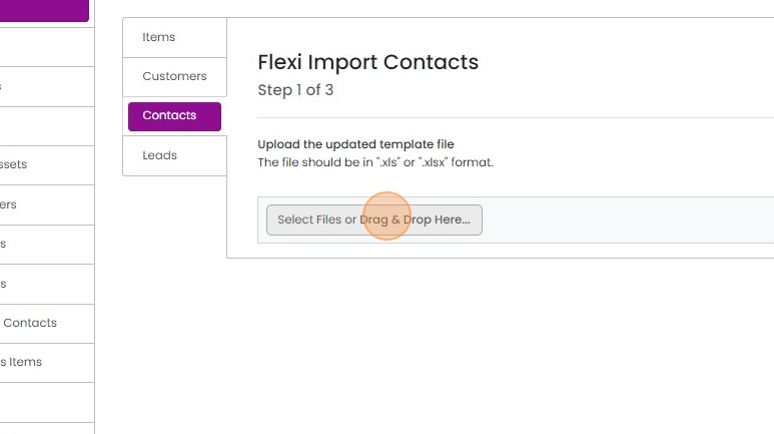
Drag and drop the import file here
Match fields and import
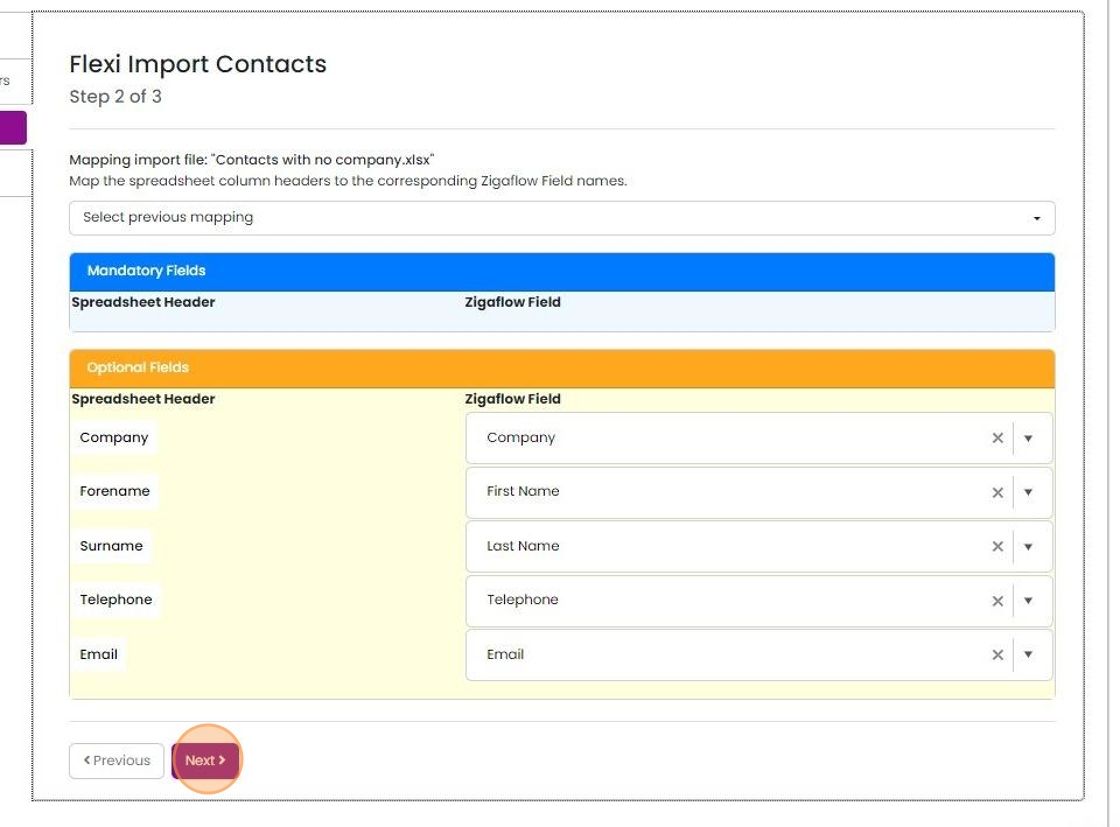
Match the files in the import file to the fields in Zigaflow

Only the fields you want to import must be matched
Only the fields you want to import must be matched. Unmatched columns are ignored. When this is done, click on "Next"
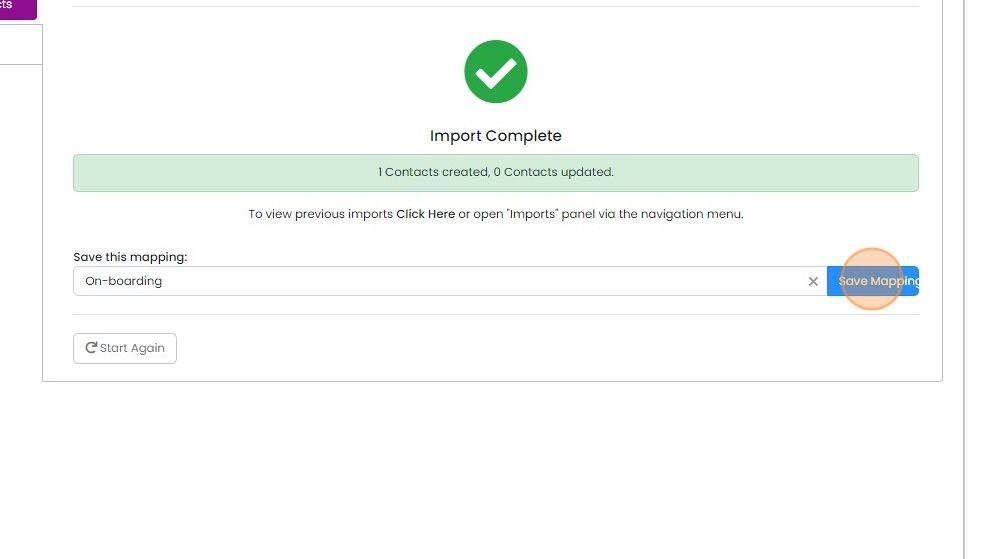
The import will inform you how many were updated and how many were added as new contacts
The import will inform you how many were updated and how many were added as new contacts. To use this mapping another time, enter a name and click "Save Mapping"


You can use this to import contacts at companies. You can also import contacts not associated with a company. In this case, import without a company column, or if there is a mix of company and non-company contacts, leave the company cell empty.
If a company does not exist in Zigaflow, it will be added by this import process.
Upload your import file
Repeating the import using the mapping file
1. Drag and drop a file as before. On this screen, click "Select previous mapping"

2. Select the required mapping

3. Click "Next" to complete the import

Frequently asked questions
Was this helpful?