Deliver work
Manually add assets to a client's asset list
The short answer
In Zigaflow, click Go To, then Client Assets, then New. To add an item you sell, click Select Item, choose the customer and location, enter the reference (serial number), and click Create. For an item not in your items list, click One-Off instead.
Steps
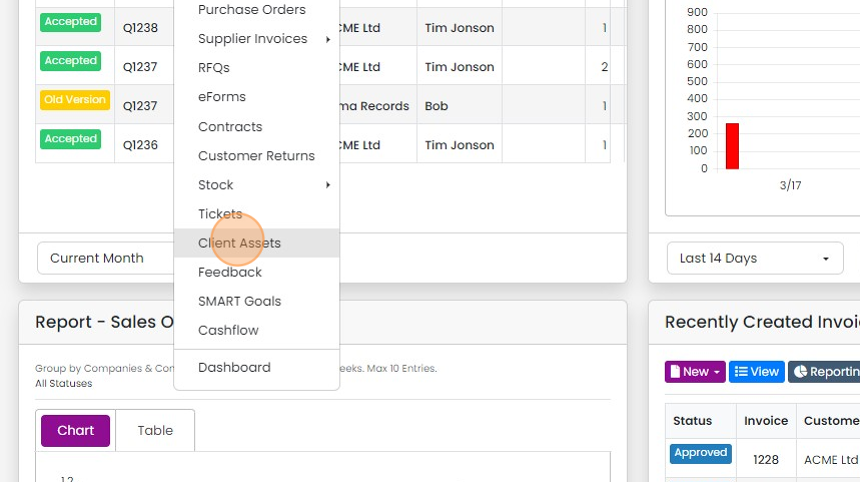
Click "Go To"

Click "Client Assets"
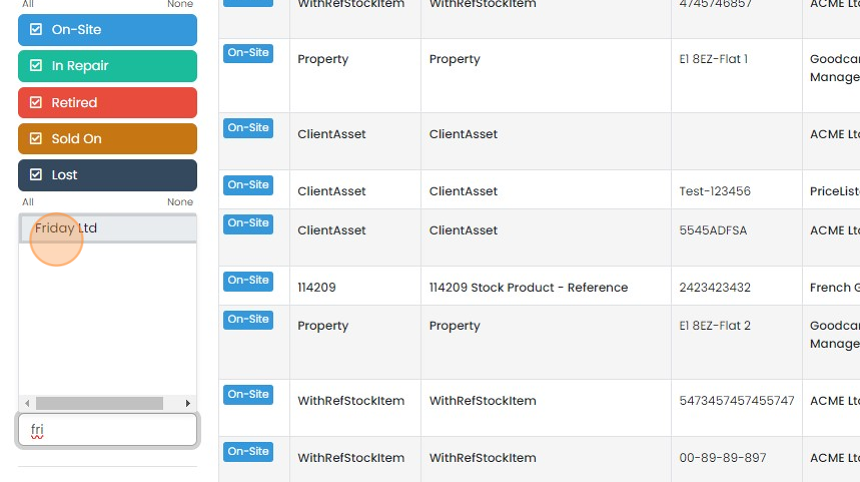
Optionally, filter for just one customer
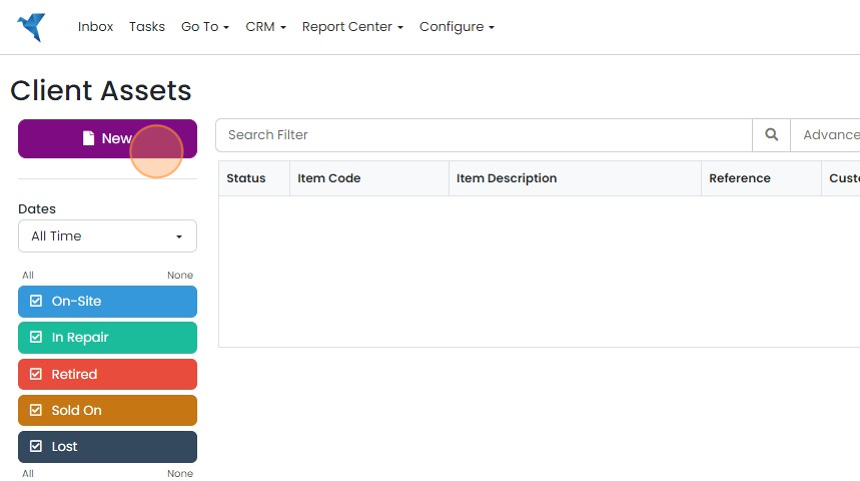
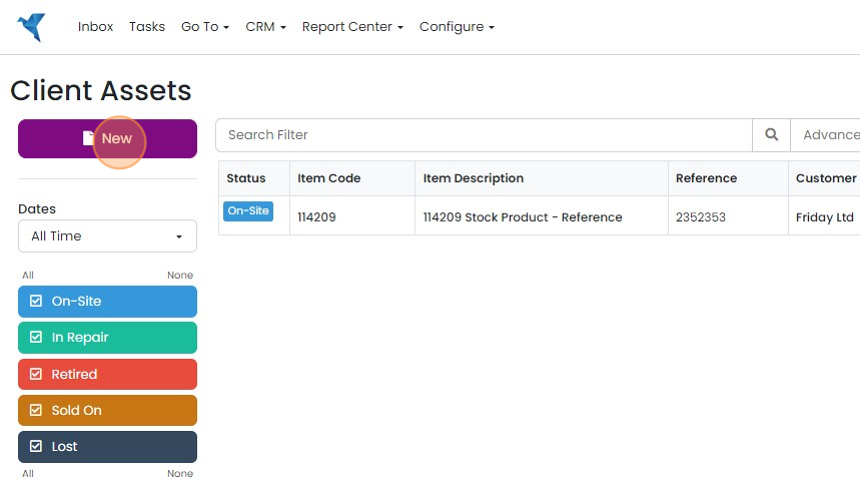
Click "New"
Add an item from your items list
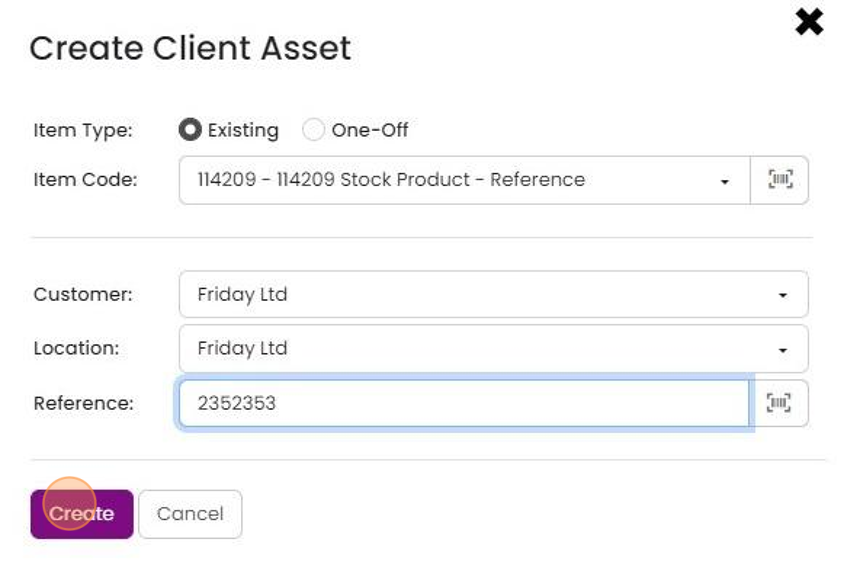
To add an item that is in your items list (i.e. you sell), click "Select Item..."
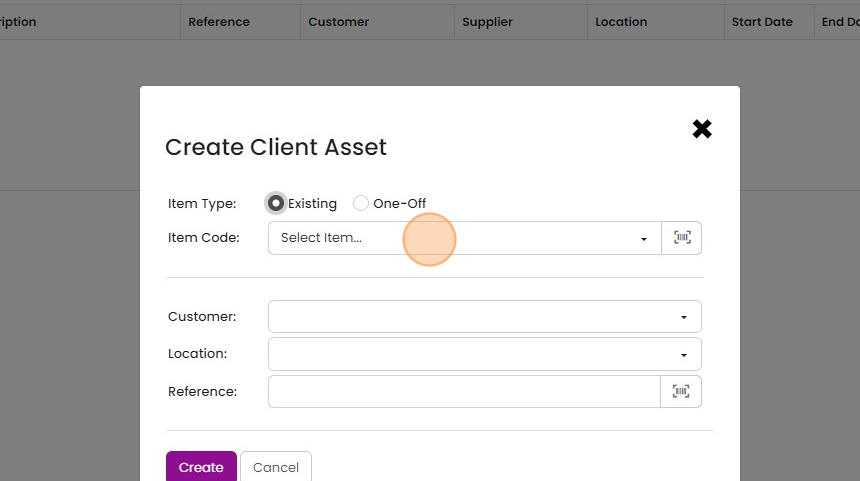
Once you have selected the item, select the customer, location and enter the reference (serial number),...
Once you have selected the item, select the customer, location and enter the reference (serial number), then click "Create"
Add a one-off item
If you need to register items that the client already had which is not in your items list, click "New"
Click "One-Off"

Type in the item code (which does not have to be in your items list)
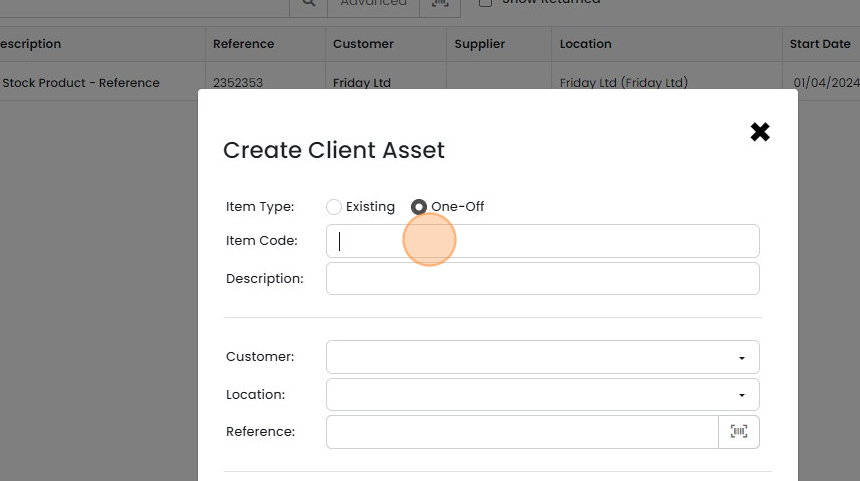
When you have entered all the details, click "Create"
Add details and attachments

You can enter additional details on the client asset
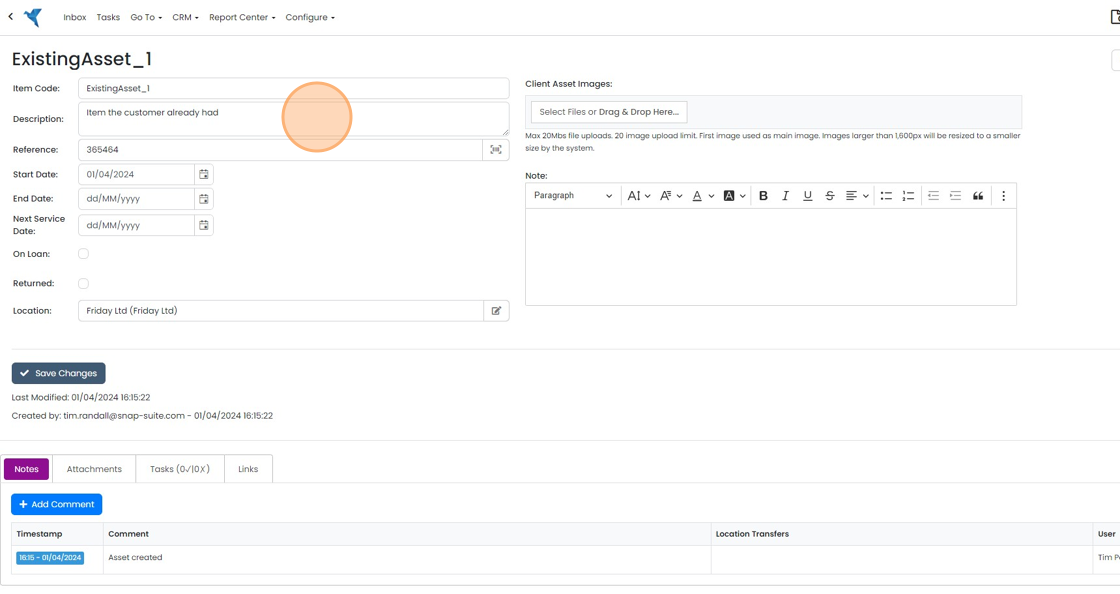
Optionally, add a photo of the item in place

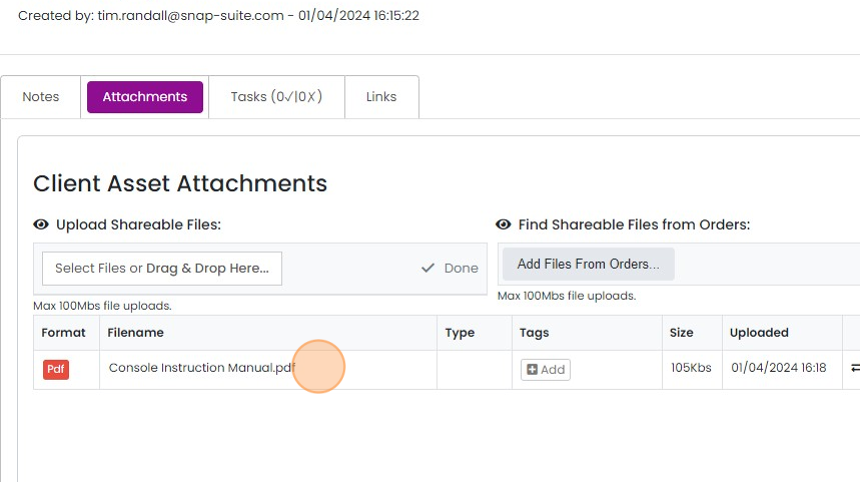
To add useful documents, such as instruction manuals, click "Attachments"

Click this file field
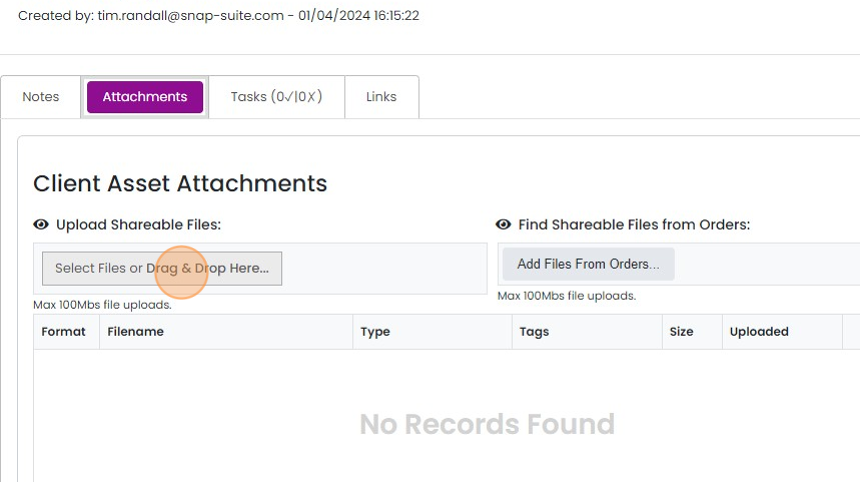
And upload the document


Note that you can also bulk import client assets from Excel using the Cog -> Import Center -> Client Assets. This article covers manually adding one at a time.
Open client assets
Frequently asked questions
Was this helpful?