Deliver work
Rapid stock check/count with a scanner
The short answer
To count stock quickly with a scanner, open the Stock/Inventory Locations screen, click the batch update button, and go to the location you are counting. Scan each item and Zigaflow raises the tally for that item on the check screen, then shows any differences from the expected quantity.
Steps
Open the Stock/Inventory Locations screen

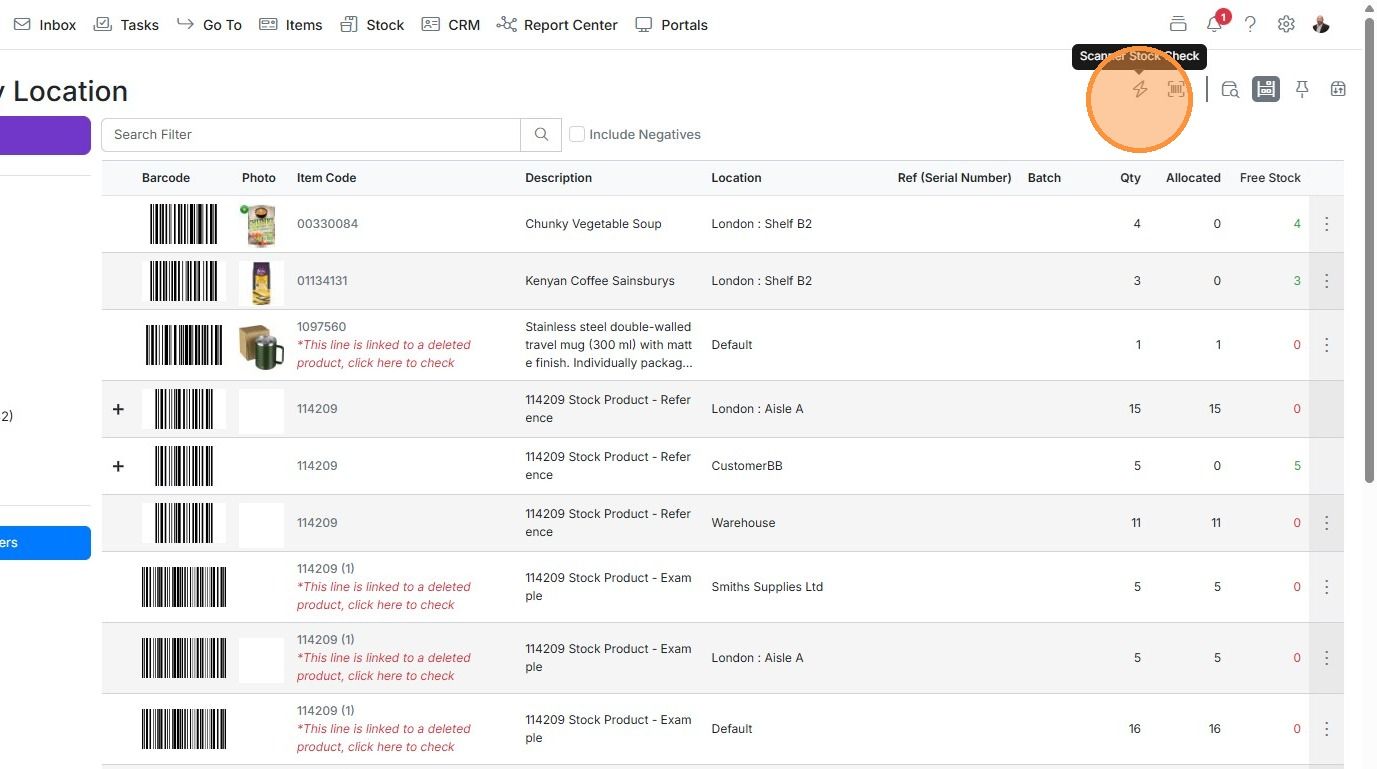
Click on the batch update button
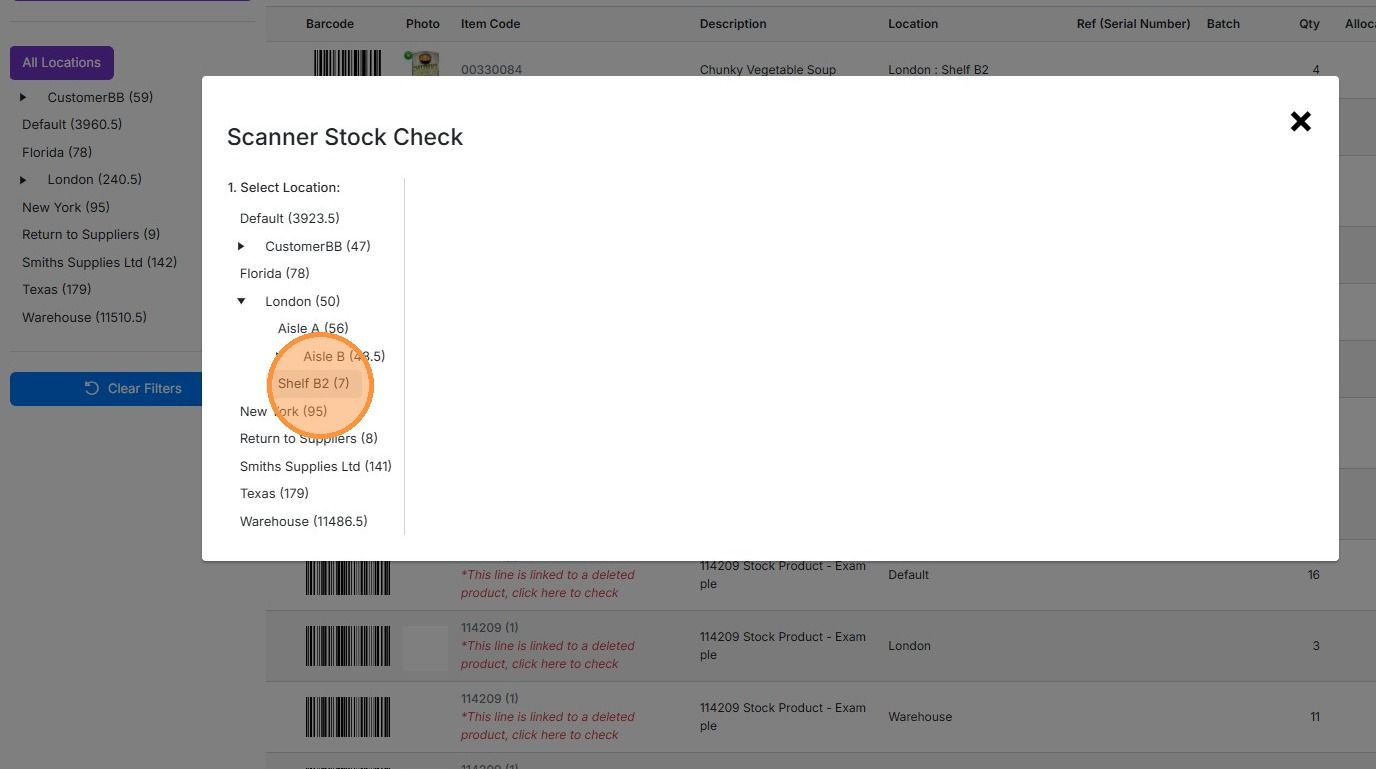
Navigate to the location for the stock count
Scan the items. Each time an item is scanned, the system will increase the tally for that item in the...
Scan the items. Each time an item is scanned, the system will increase the tally for that item in the check screen.
If the quantity of the item scanned differs from the expected one, click on the 'Match Scanned' button to...
If the quantity of the item scanned differs from the expected one, click on the 'Match Scanned' button to set that as the new stock quantity.
Learn more: inventory management in Zigaflow
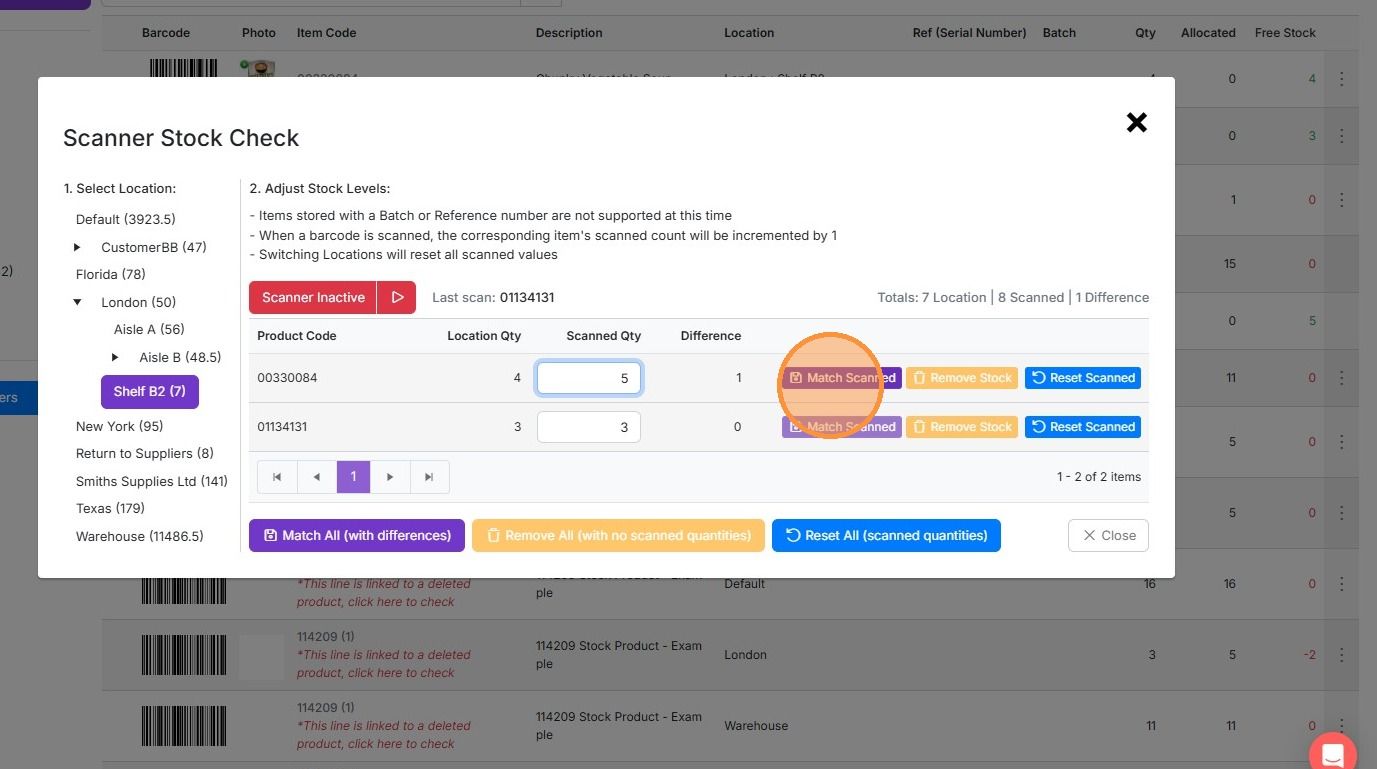


Select a location and scan all the items in there. Zigaflow will count them and show you any differences.
Frequently asked questions
Next step
Momentum planWas this helpful?