Make it yours

Overview of the task list

In Zigaflow

The short answer

Click Tasks in Zigaflow to open the task list, then filter it by Task Type, which is a good way to create productivity blocks of time. From a task you can open its linked client, contact and record. You can also manage tasks from a record's Tasks tab.

Steps

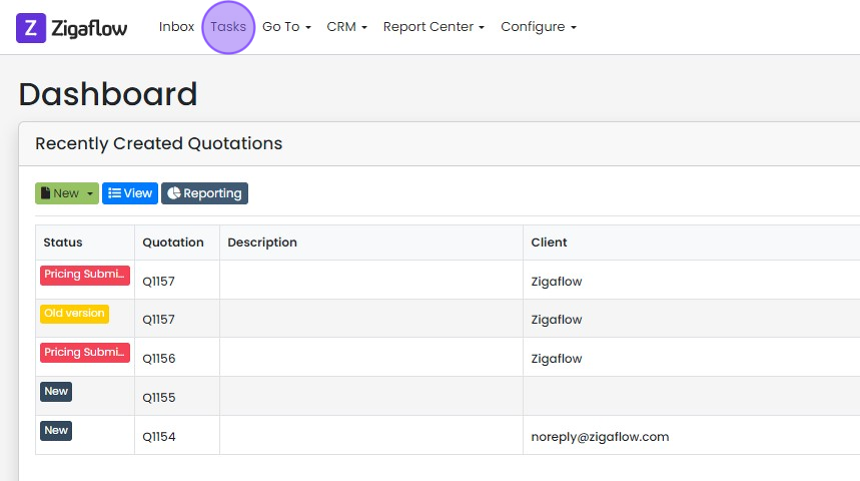
  1. Click "Tasks"

    Zigaflow Dashboard with the Tasks link highlighted in the top navigation bar, above the Recently Created Quotations list
  2. Filter list by "Task Type"

    N.B. This is a great way to create productivity blocks of time!

    Open a task
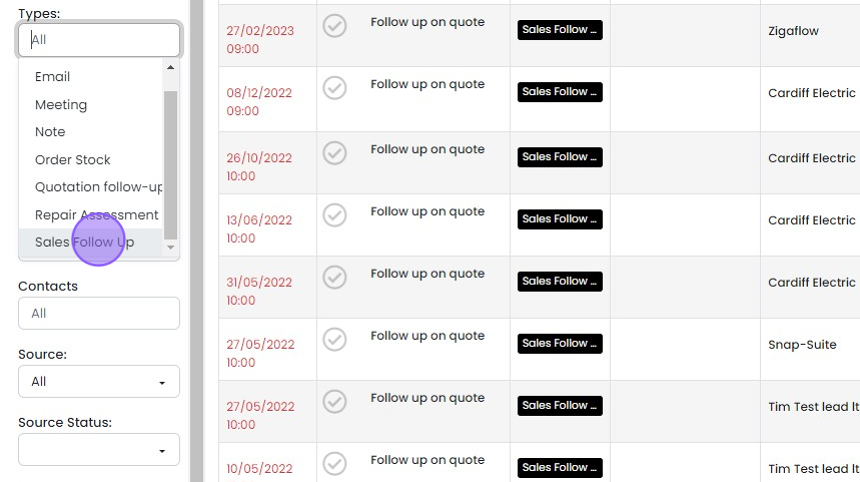
    Task list Types filter dropdown open with Sales Follow Up highlighted, showing overdue follow up on quote tasks
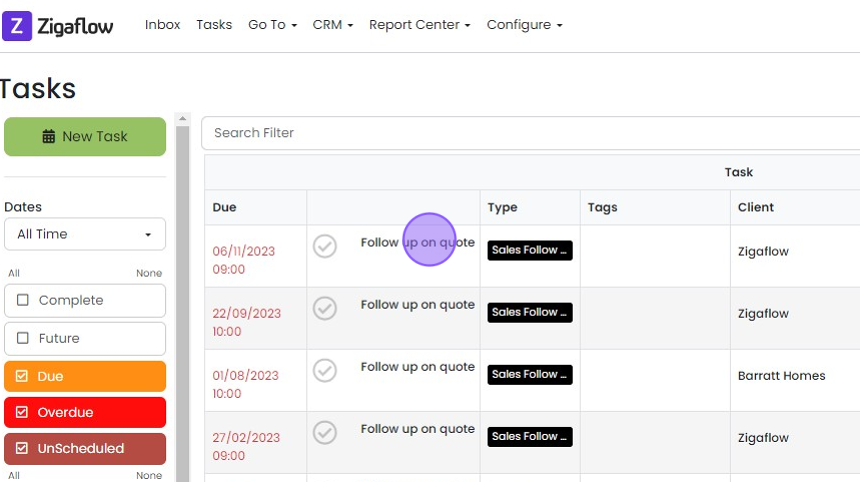
  3. Click here to open the task

    Tasks list with the first
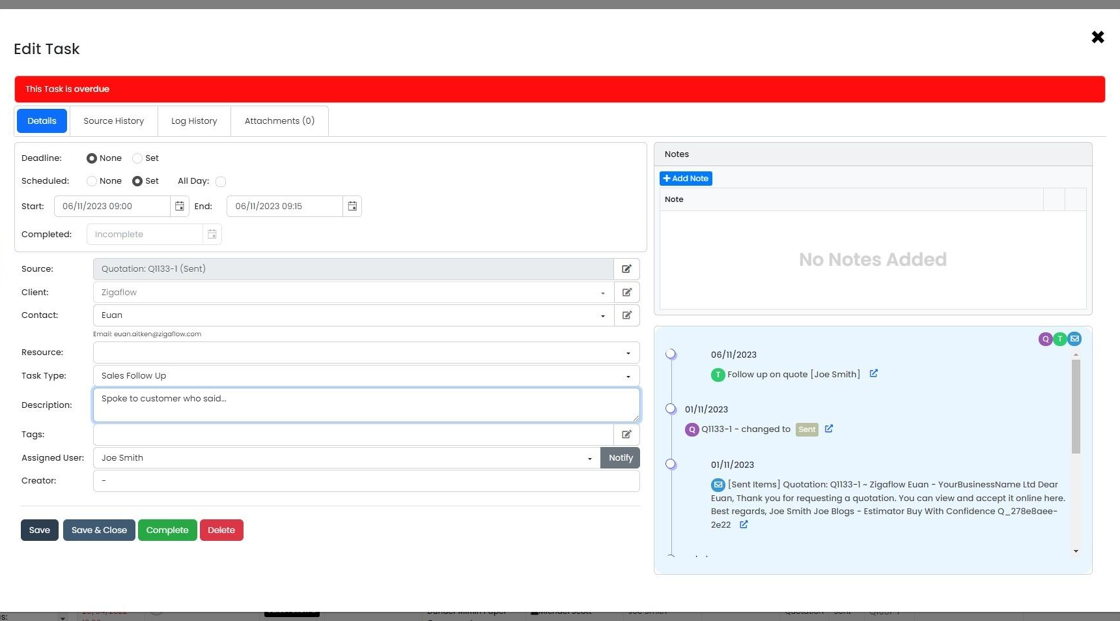
  4. Task Panel

    View linked records

    Edit Task panel showing an overdue banner, Details tab fields, Notes section and activity timeline with Save and Complete buttons
  5. Click here to access the client record
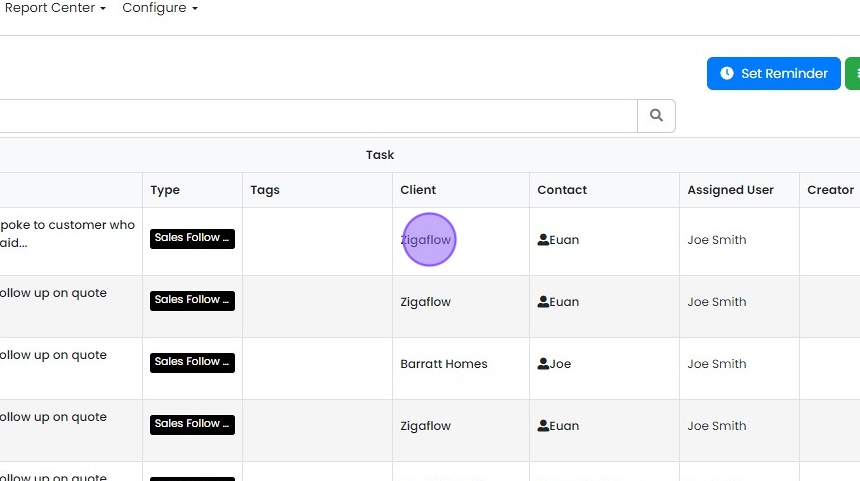
    Task list table with a purple circle highlighting the client name in the Client column of the first row to open the client record
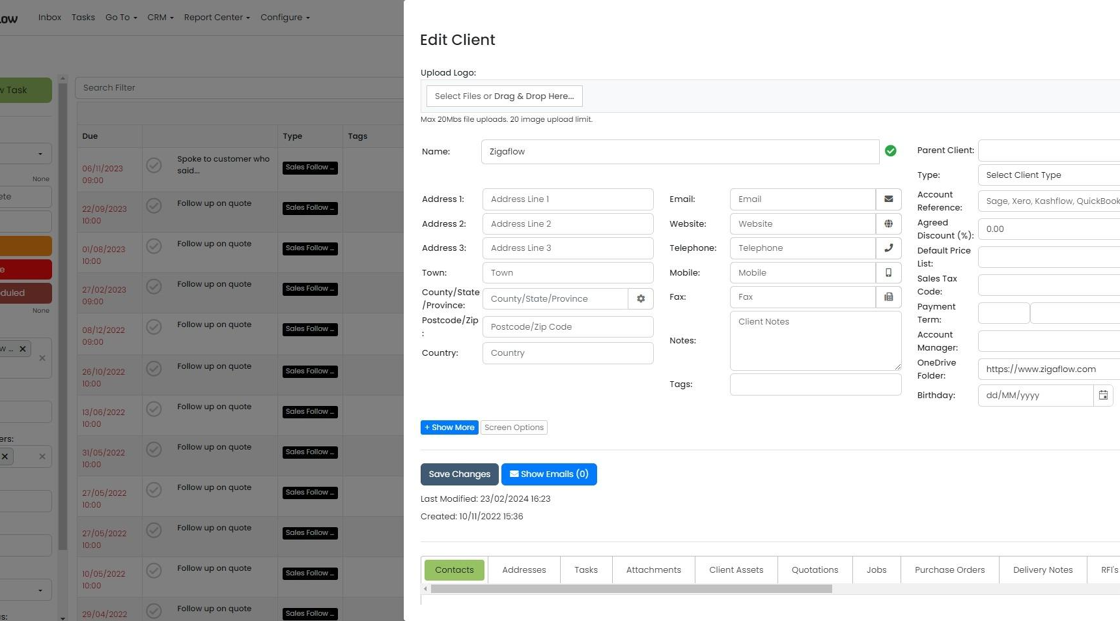
  6. Client Record

    Edit Client panel open over the task list, showing client details fields, Save Changes button and Contacts tab
  7. Click here to access the contact record
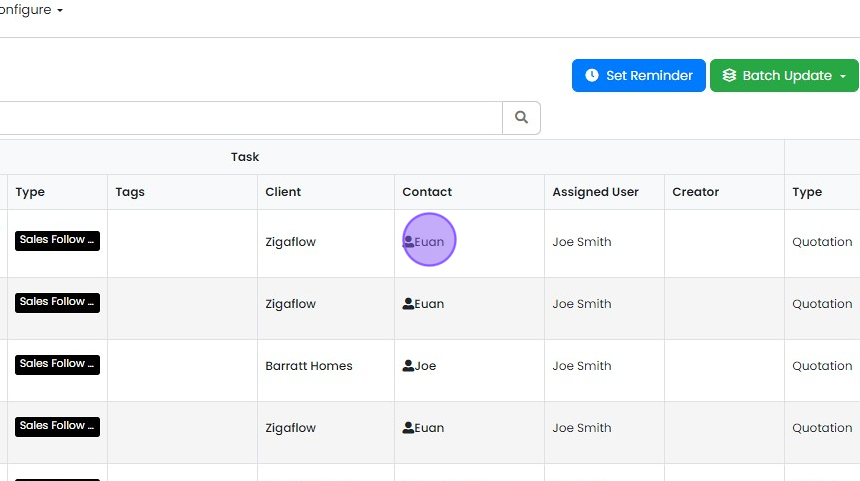
    Task list table with a contact name in the Contact column of the first row highlighted to open the contact record
  8. Contact Record

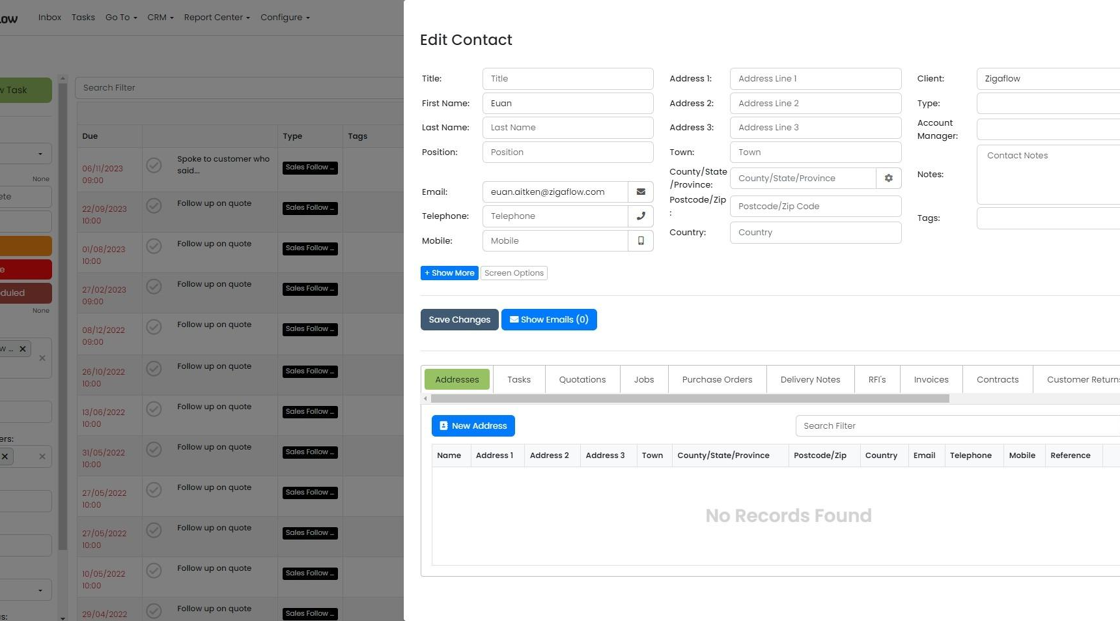
    Edit Contact panel open over the task list, showing contact fields, Save Changes button and tabs with Addresses selected
  9. Click here to open the record the task is linked to
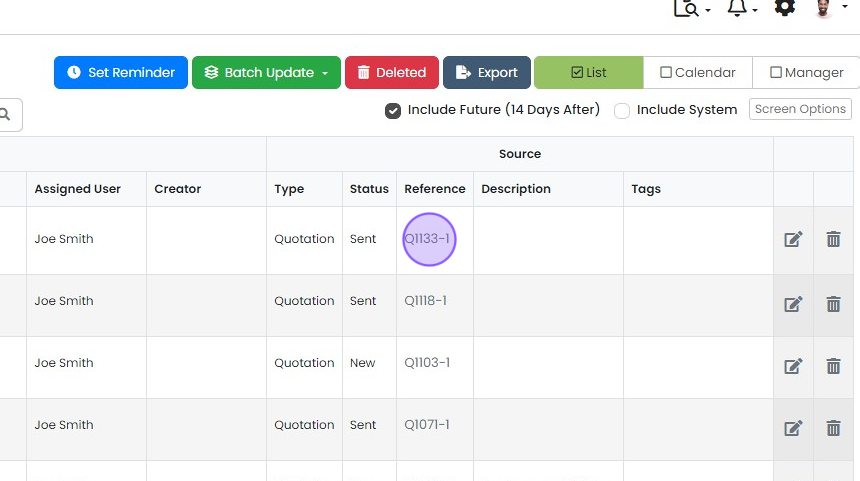
    Task list with the Q1133-1 link highlighted in the Source Reference column, which opens the linked quotation record
  10. The Related Quotation

    Manage tasks from a record
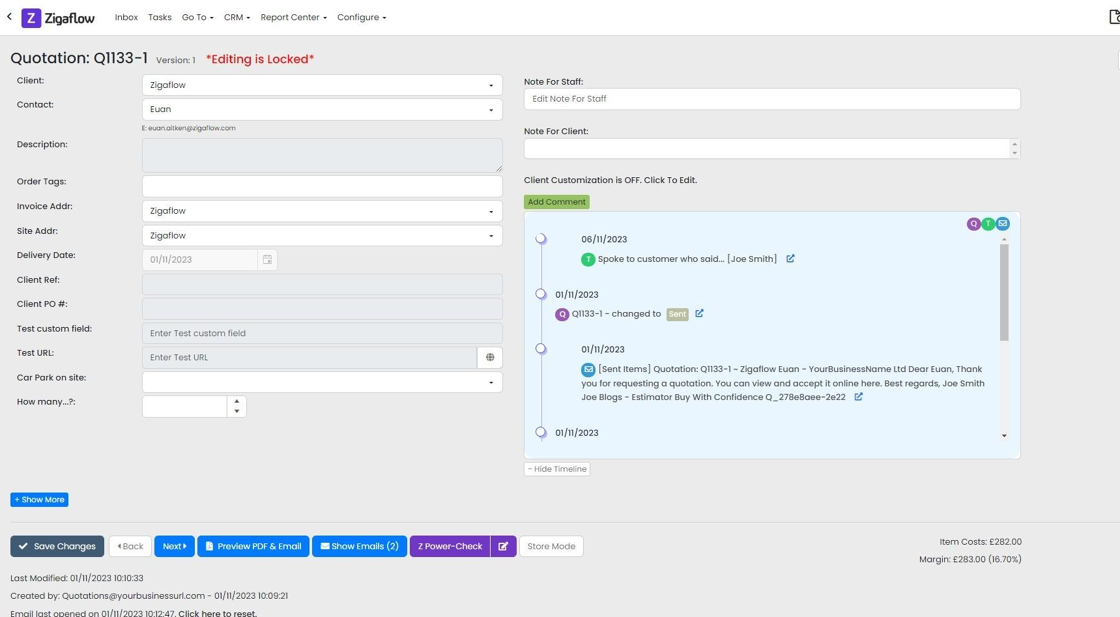
    Quotation Q1133-1 screen marked Editing is Locked, showing client details and a timeline of notes, status changes and emails
  11. Click "Tasks Tab"

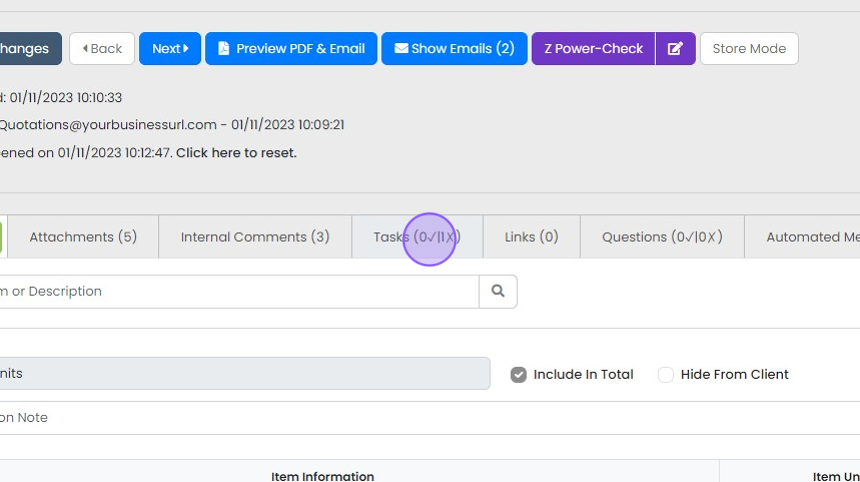
    Quote record tab bar with the Tasks (0✓|1✗) tab highlighted, next to Internal Comments and Links tabs
  12. And you can also view, edit and complete the task

    Track tasks in pipeline views
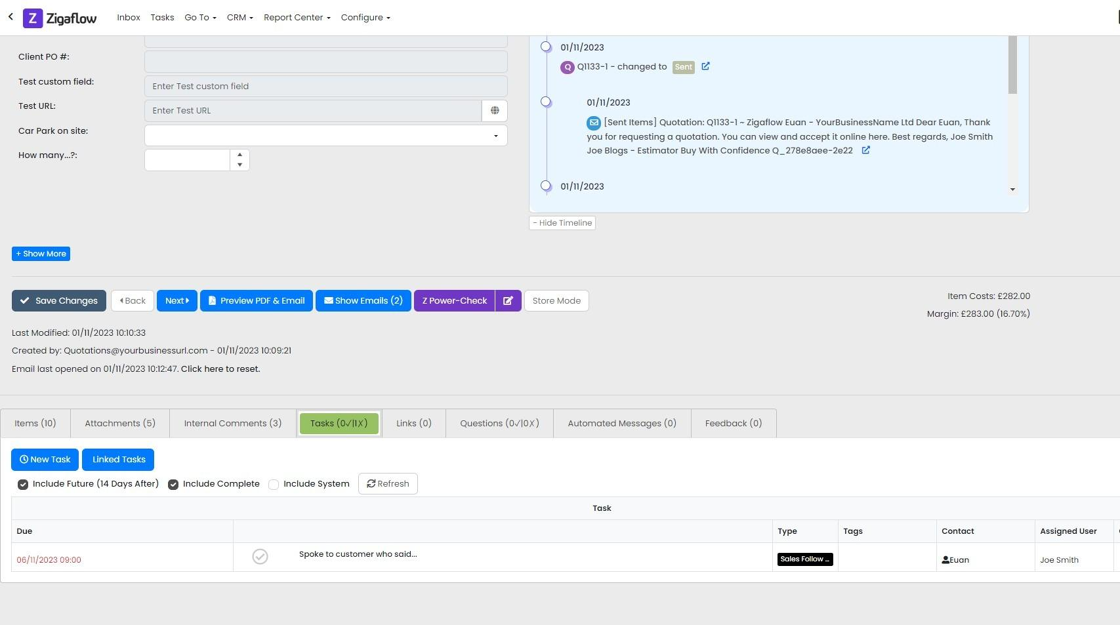
    Quotation screen with the Tasks tab highlighted, showing a task list with due date, type, contact and a complete tick icon
  13. View progress of related tasks in your pipeline views
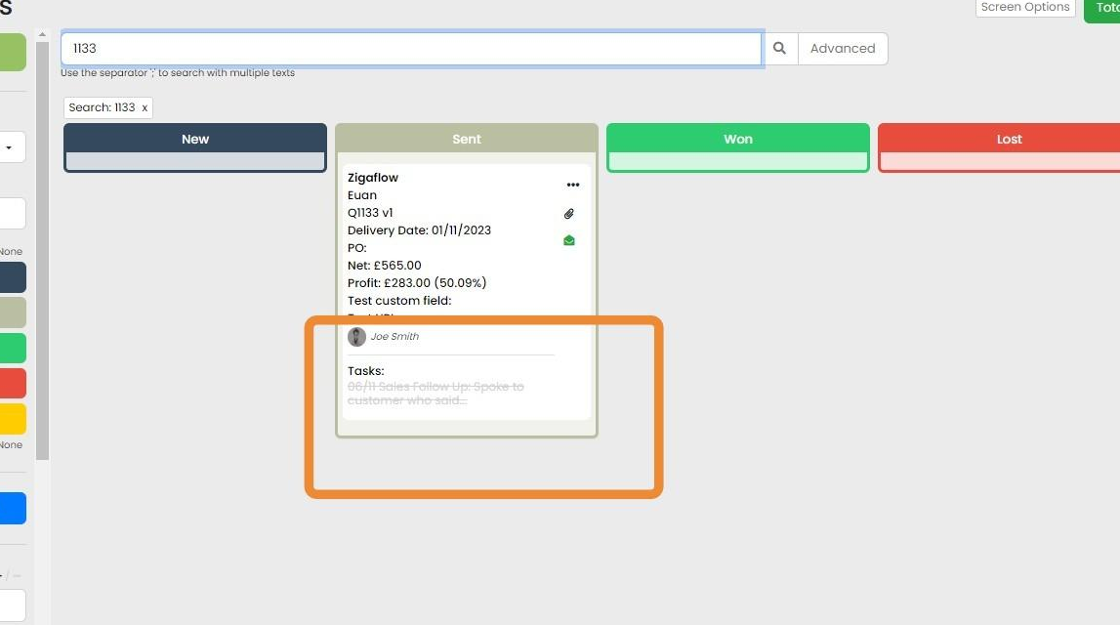
    Quotes pipeline view with a quote card in the Sent column, highlighting the Tasks section showing a completed task

Open and filter the task list

Frequently asked questions

Next step

How to create custom task typesTo create a custom task type in Zigaflow, click the cog icon, click Task Types, then click New Type. Choose a color, enter a name, and pick the areas of your system the task type relates to. Click the tick icon and the new task type appears in the list.

Was this helpful?

See Zigaflow on your own workflow

Book a demo and we will walk through quoting, jobs and purchasing the way your team runs them.

Or see how Zigaflow would fit your business, free