Deliver work

Retroactively linking a PO item to a job/sales order item

In ZigaflowEssentials, Go and Momentum plans

The short answer

To link a PO item to a job or sales order item after the fact, open the PO's Links tab, use Link To to link the PO to the job or sales order, then open the Items tab. For each item, click the link icon, choose Link To, then Job Items, and click Add.

Steps

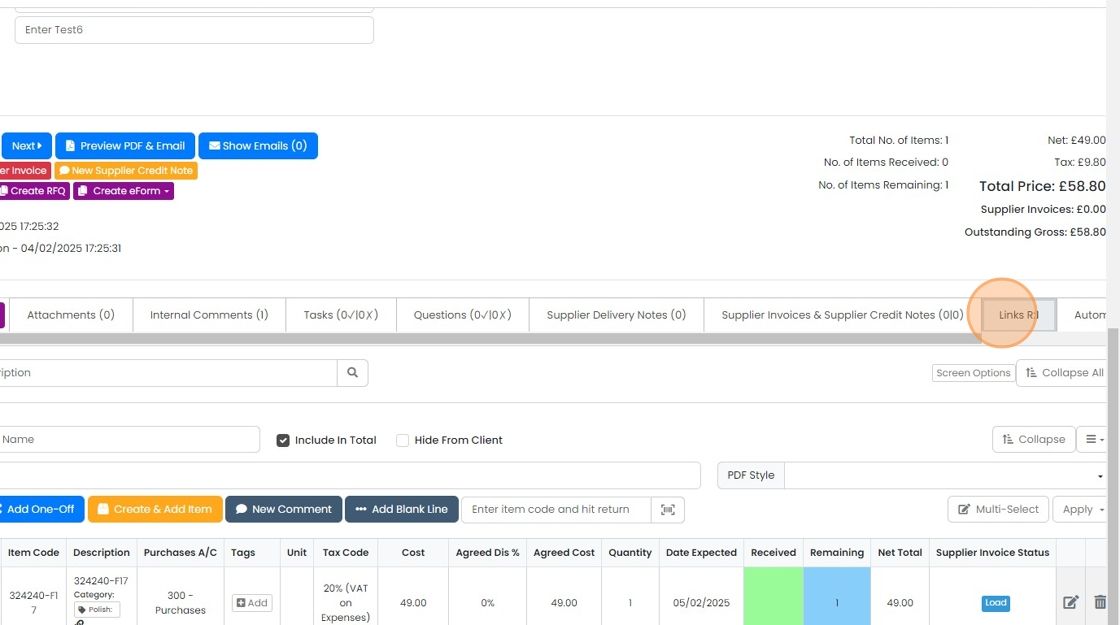
  1. On the PO, click on the Links tab

    Purchase order record with the Links tab highlighted in the tab row beside Supplier Invoices & Supplier Credit Notes
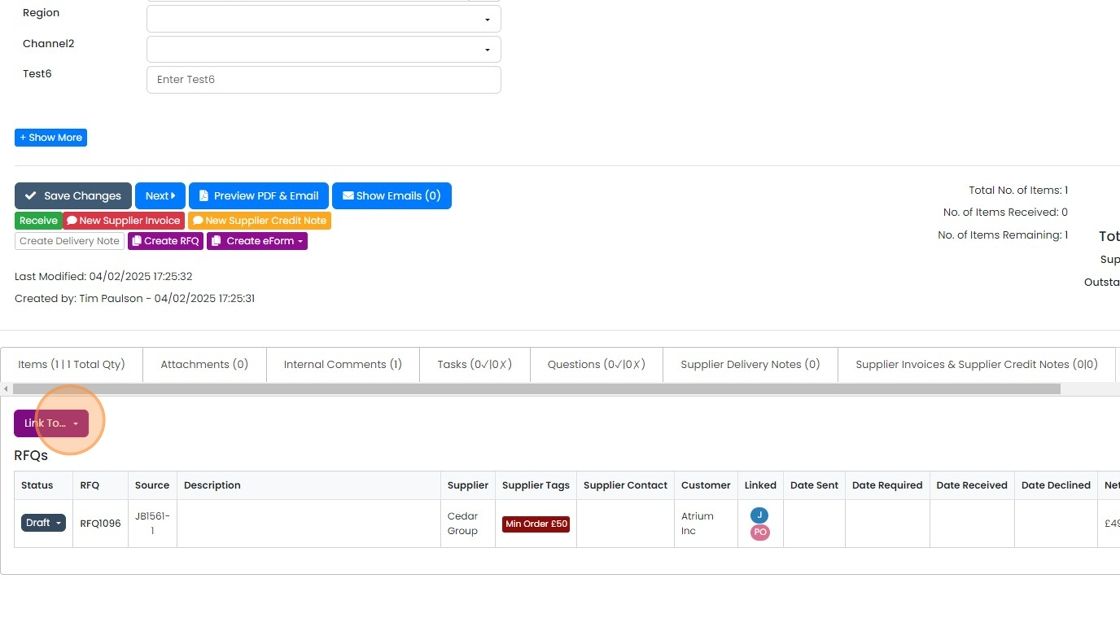
  2. Click "Link To..."

    Purchase order screen with the
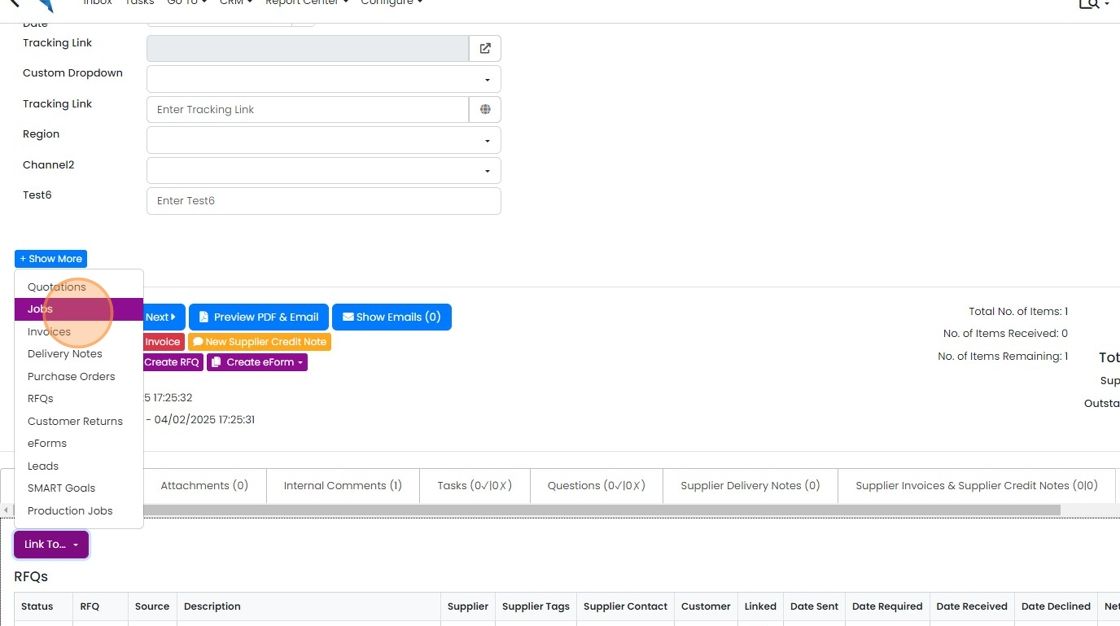
  3. Click "Jobs"/"Sales Order", etc

    Link To dropdown on a purchase order open with document types listed and the Jobs option highlighted
  4. Fing the job/sales order to link to and click on this button
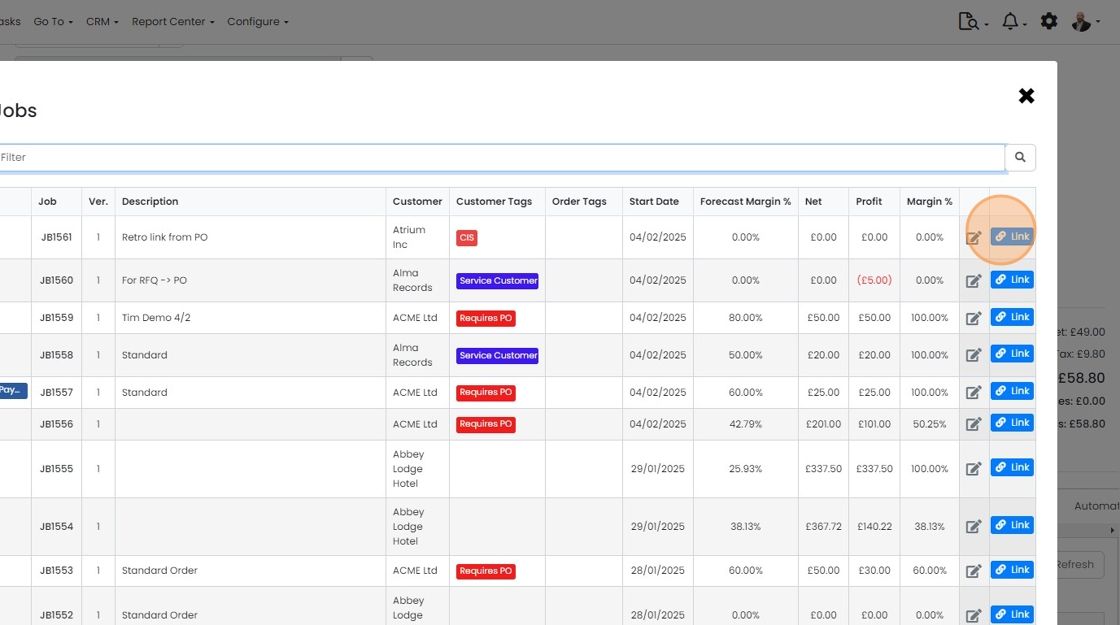
    Jobs selection window listing jobs with a Filter box, highlighting the Link button on the first row, job JB1561
  5. Click "×" to close the form

    Jobs popup listing jobs with Link buttons, with the close
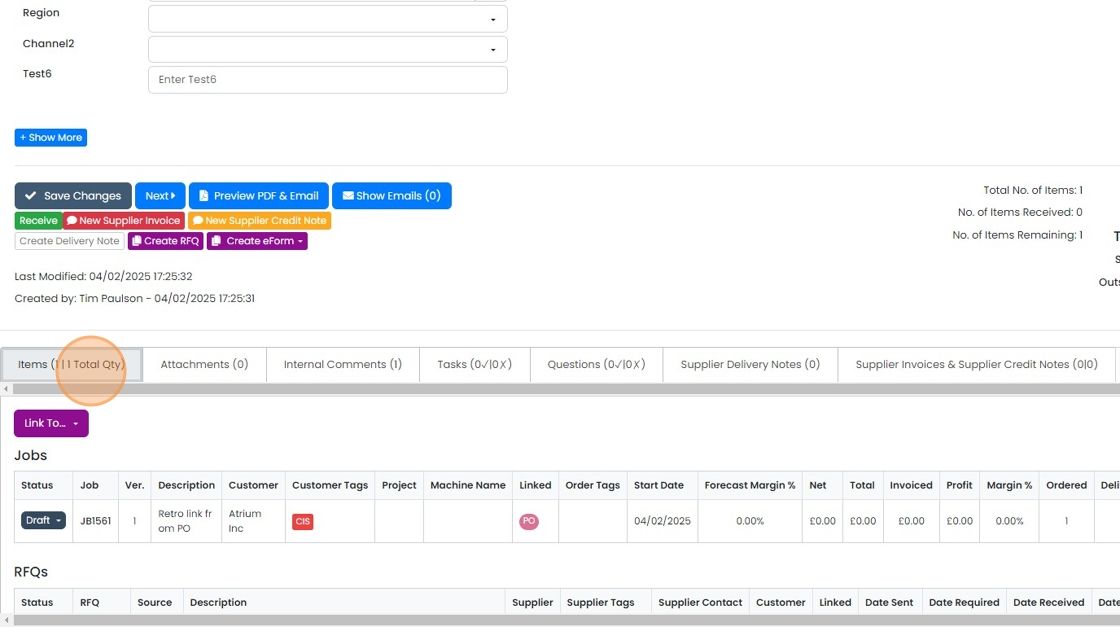
  6. Click on the items tab

    Purchase order screen with the Items (1 | 1 Total Qty) tab highlighted, next to Attachments and Internal Comments tabs
  7. For each item to link to the job/sales order, click on the link icon
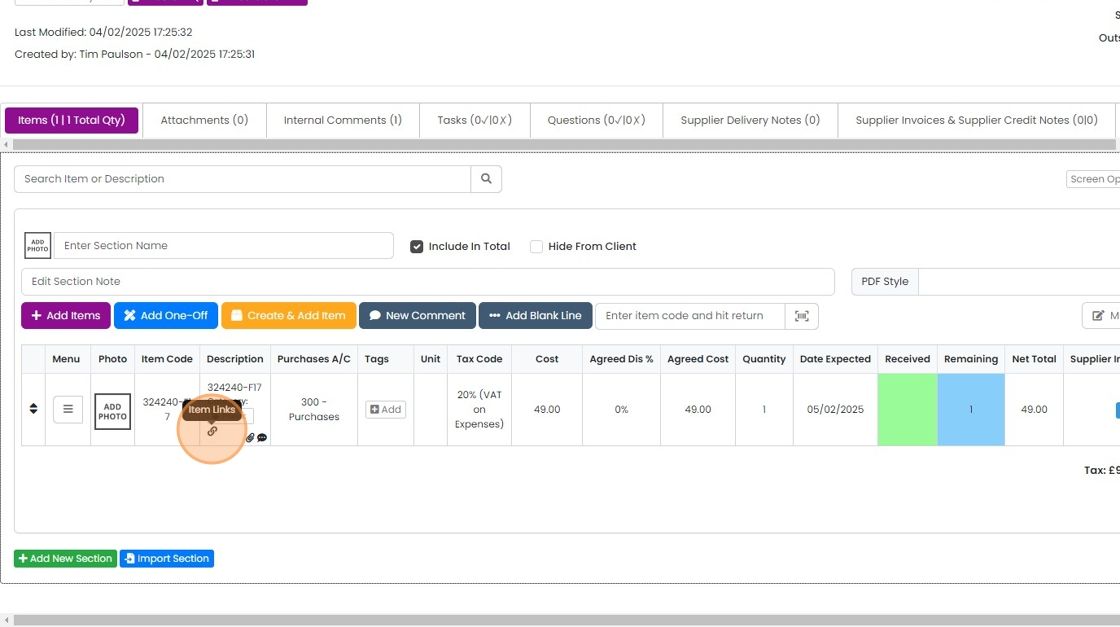
    Purchase order Items tab with the link icon below the item description highlighted, showing the Item Links tooltip
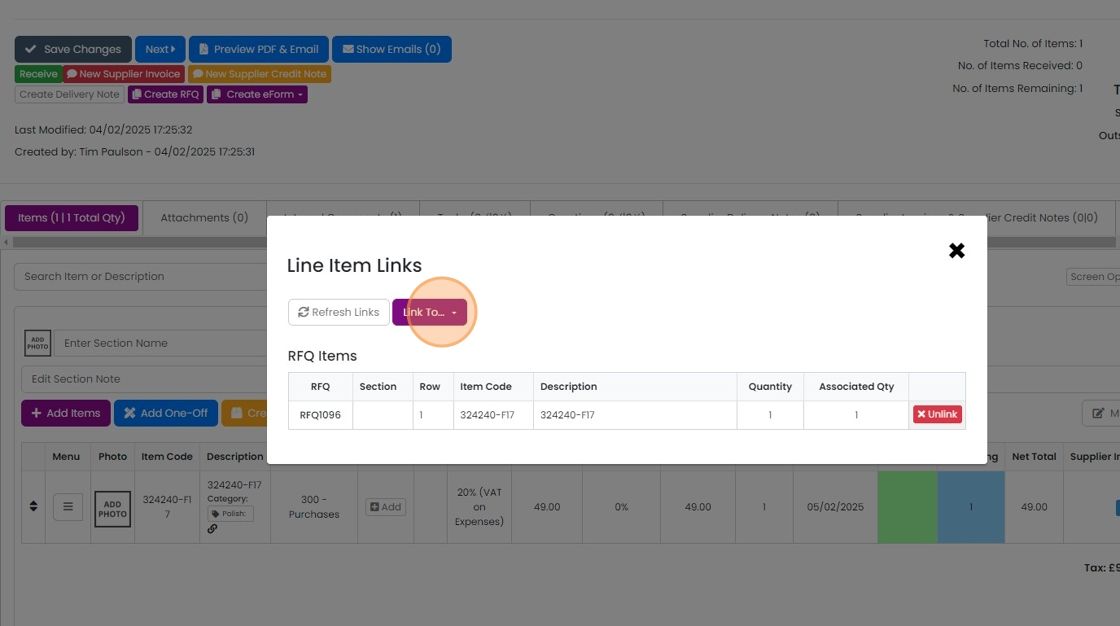
  8. Click "Link To..."

    Line Item Links dialog on a purchase order item showing RFQ Items table, with the Link To... dropdown button highlighted
  9. Click "Job Items"

    Line Item Links dialog with the Link To... dropdown open and the Job Items option highlighted, above the RFQ Items table
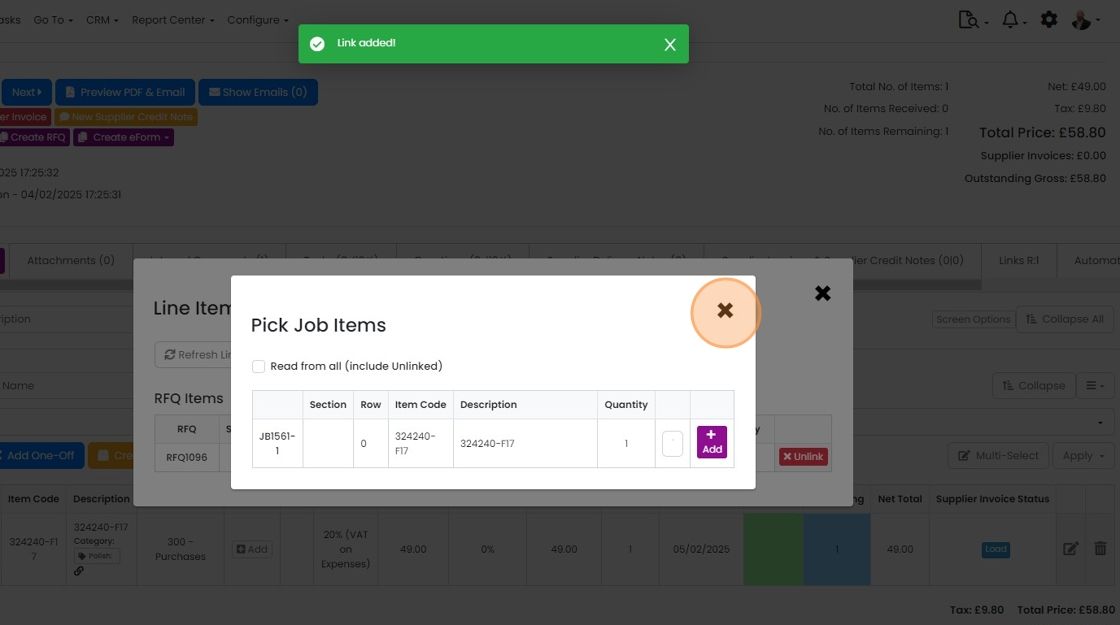
  10. Click "Add" against the item to make the link to
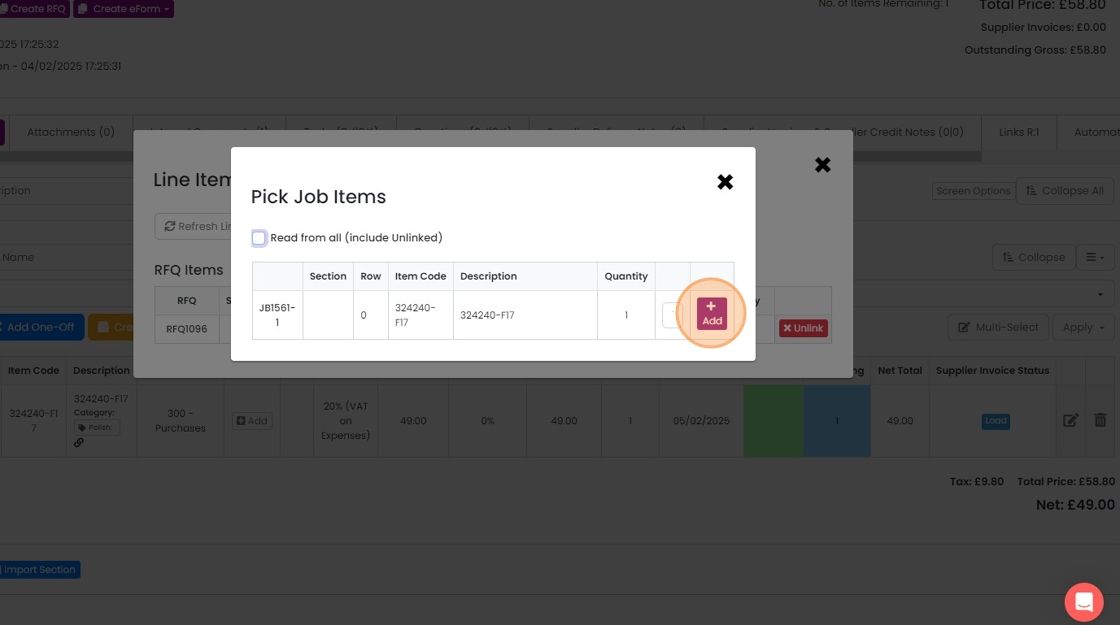
    Pick Job Items dialog listing a job item row, with the Add button highlighted to link it to the purchase order item
  11. Click "×"

    Pick Job Items dialog with a
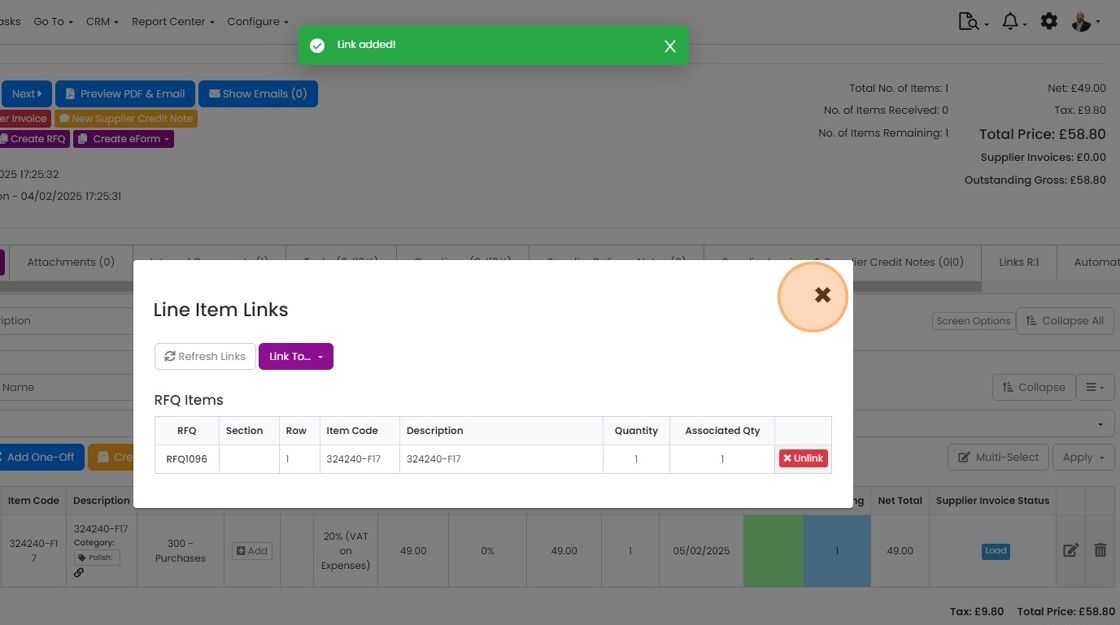
  12. Click "×"

    Line Item Links dialog showing linked RFQ item and

If an item is added to the PO but not on the Job/Sales Order, use these instructions instead:

Push an Item from a PO to a Job/Sales Order | Zigaflow Help Center
​

For a stock item, once this link is set up and the item is received into stock, it will be automatically allocated on the job in the same way as if the PO had been generated from the job/sales order.

Frequently asked questions

Next step

Push an item from a PO to a job/sales orderEssentials, Go and Momentum plansTo push an item from a purchase order to a job/sales order, click the menu for that item on the PO, click Add to Job, pick the linked job, and insert the item into the appropriate section. The job must already be linked to the PO, or this will not work.

Was this helpful?

See Zigaflow on your own workflow

Book a demo and we will walk through quoting, jobs and purchasing the way your team runs them.

Or see how Zigaflow would fit your business, free