Set what columns and fields to display (show/hide)
The short answer
Click Go To, choose Quotations, then click Screen Options and use the toggle next to each field to show or hide it. The same works for the top of the edit screen and the items grid. You need Admin access to see the Screen Options button.
Steps
Click "Go To"
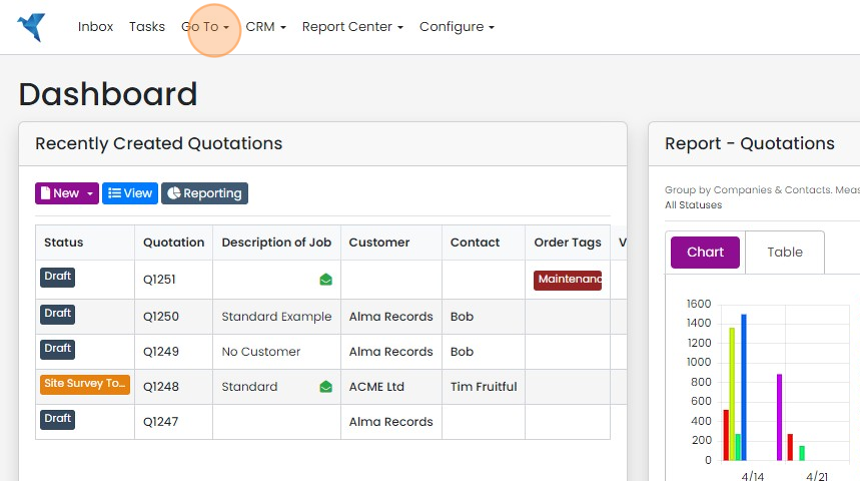
Click "Quotations"
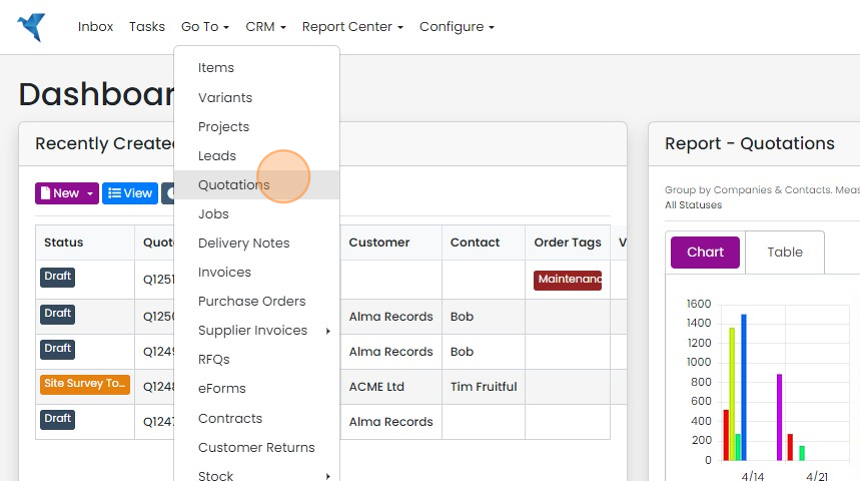
Click "Screen Options"
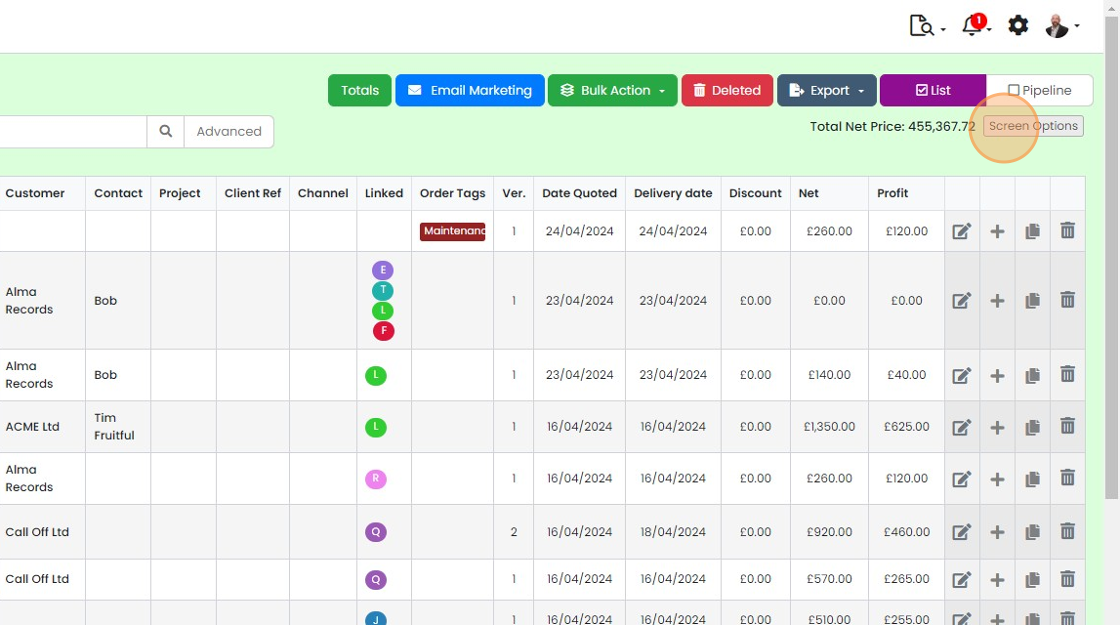
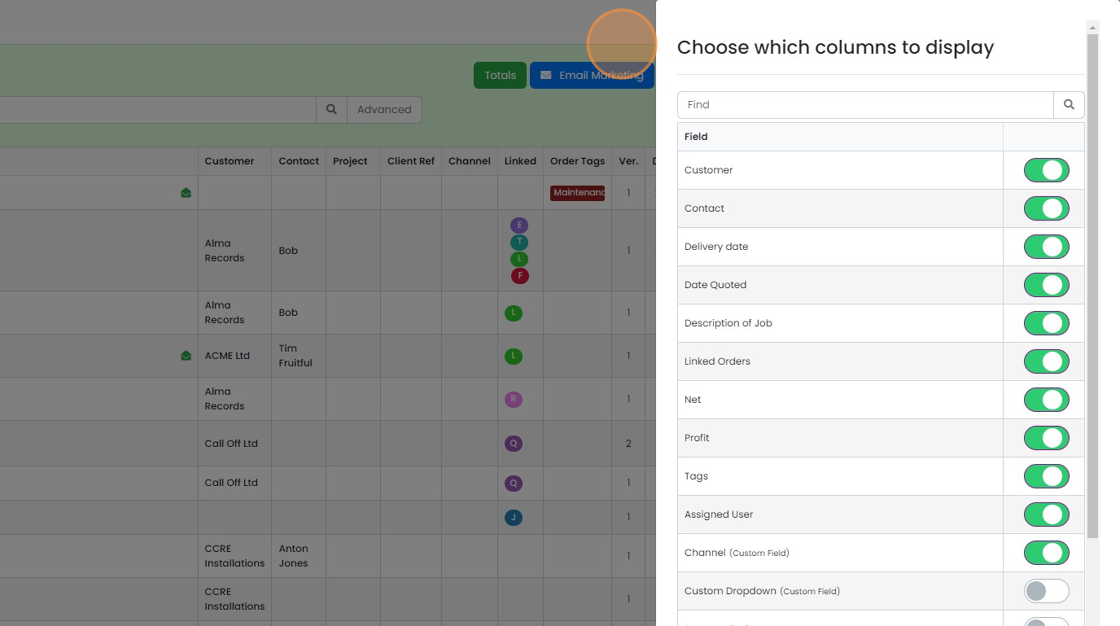
Click on the toggle button next to a field to either show or hide it
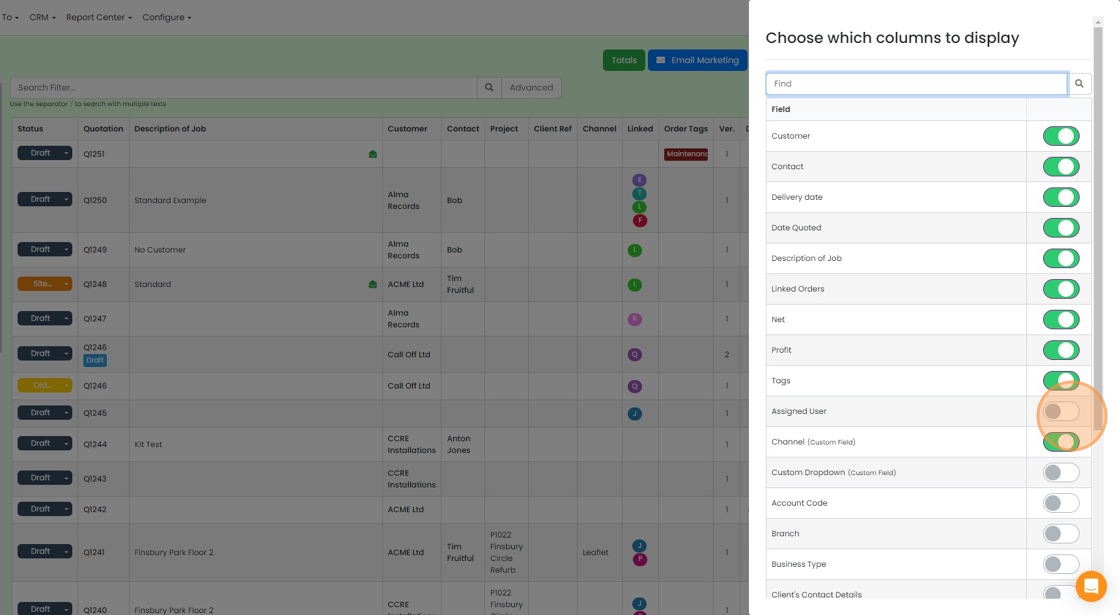
Click away from the pull-out to close it
Click away from the pull-out to close it. If the field is not appearing as expected, refresh the browser (F5 on a PC)
Set edit screen fields
To change what fields are shown in the top part of a Quote, Job/Sales Order, etc., open one of them as you...
To change what fields are shown in the top part of a Quote, Job/Sales Order, etc., open one of them as you were going to edit it
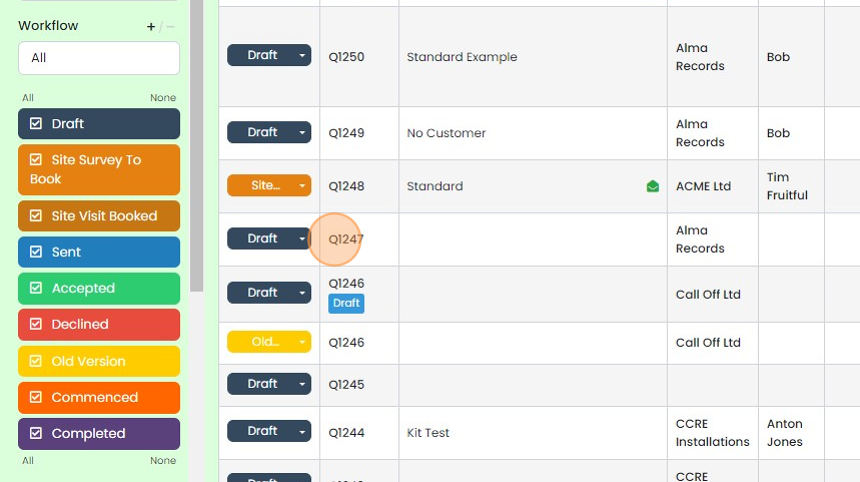
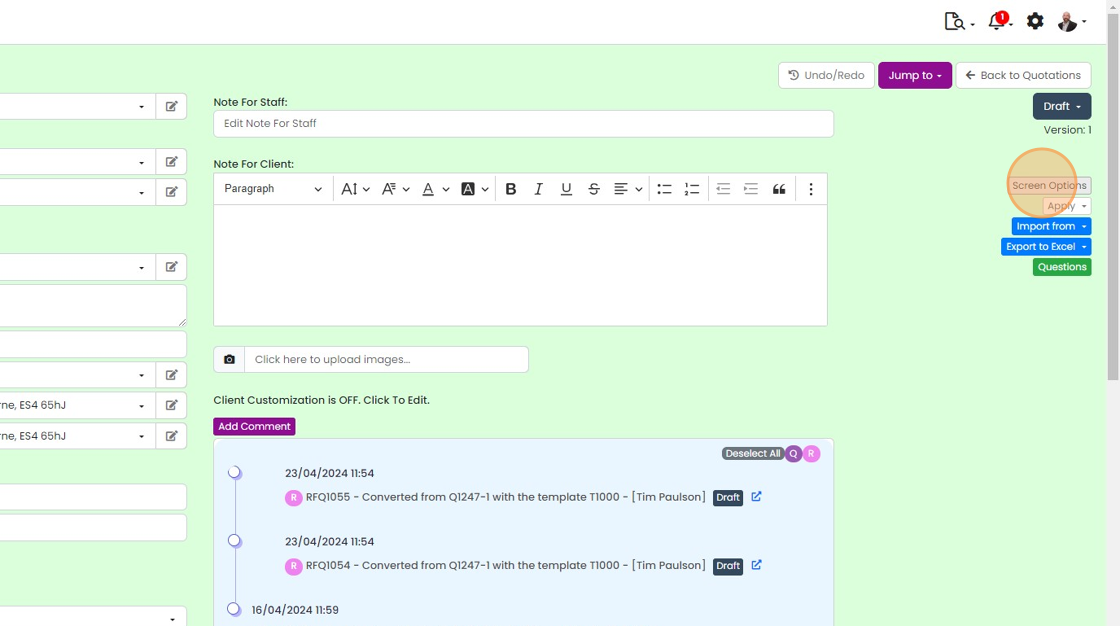
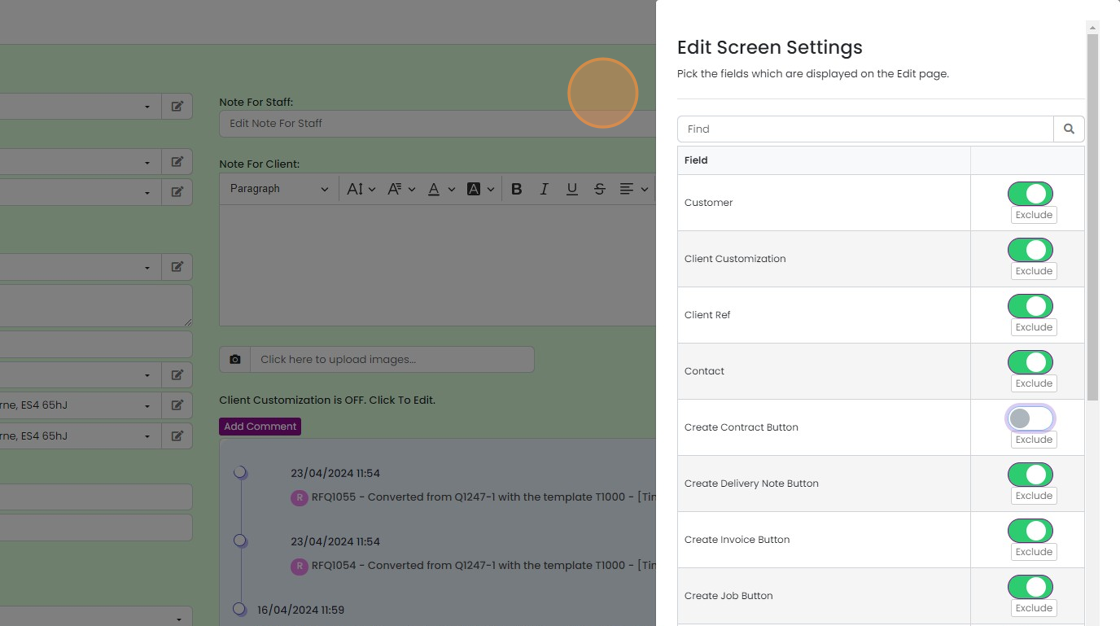
Click on "Screen Options"
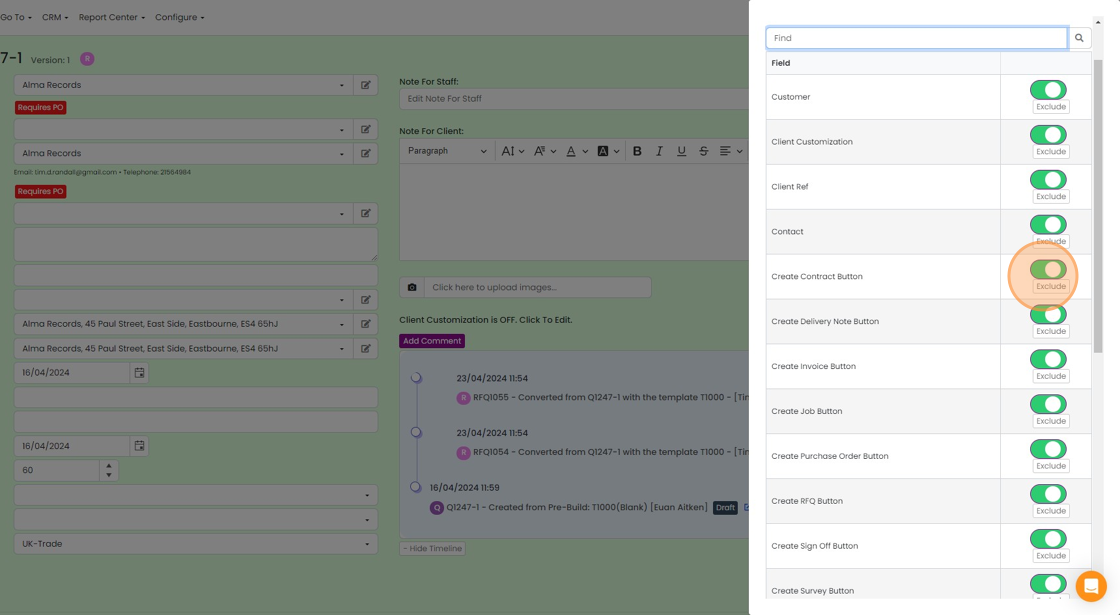
Click the toggle button next to a field to either show or hide the field
Click the toggle button next to a field to either show or hide the field. Click on "Exclude" to prevent it being displayed at all
Click away from the pull-out to close it
Click away from the pull-out to close it. If the field is not appearing as expected, refresh the browser (F5 on a PC)
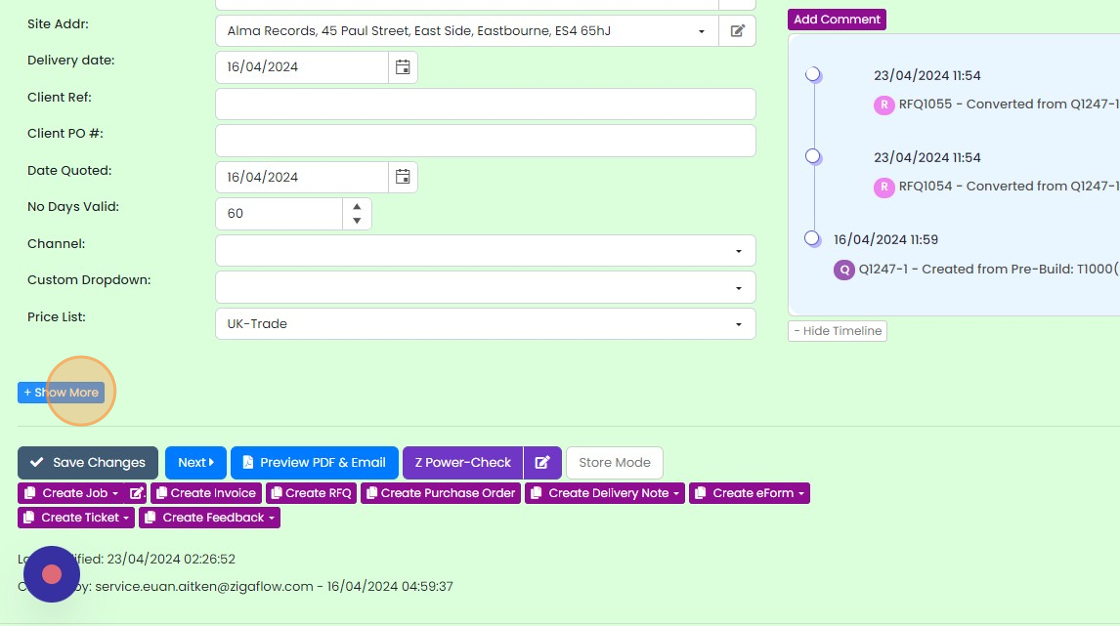
For the top fields on a Quote, Job/Sales Order, etc., any user can click "+ Show More" to show all the...
For the top fields on a Quote, Job/Sales Order, etc., any user can click "+ Show More" to show all the fields that have not been excluded
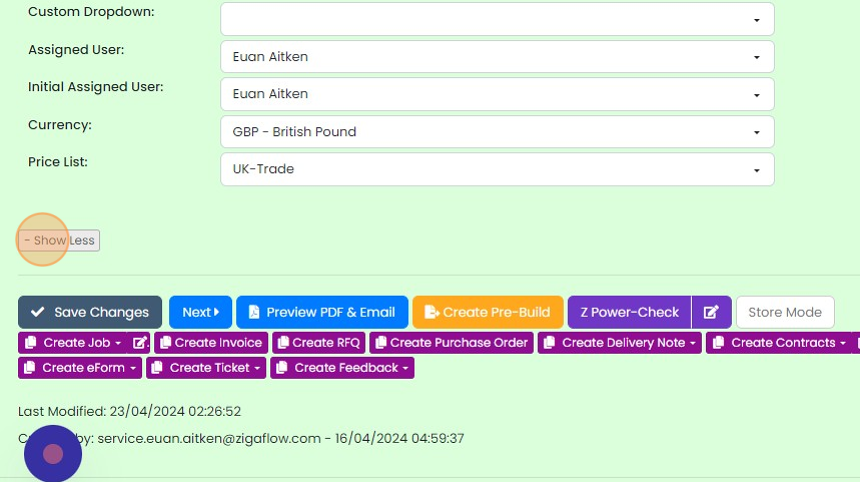
The normal display can be returned to by clicking on "- Show Less"
Set items grid columns
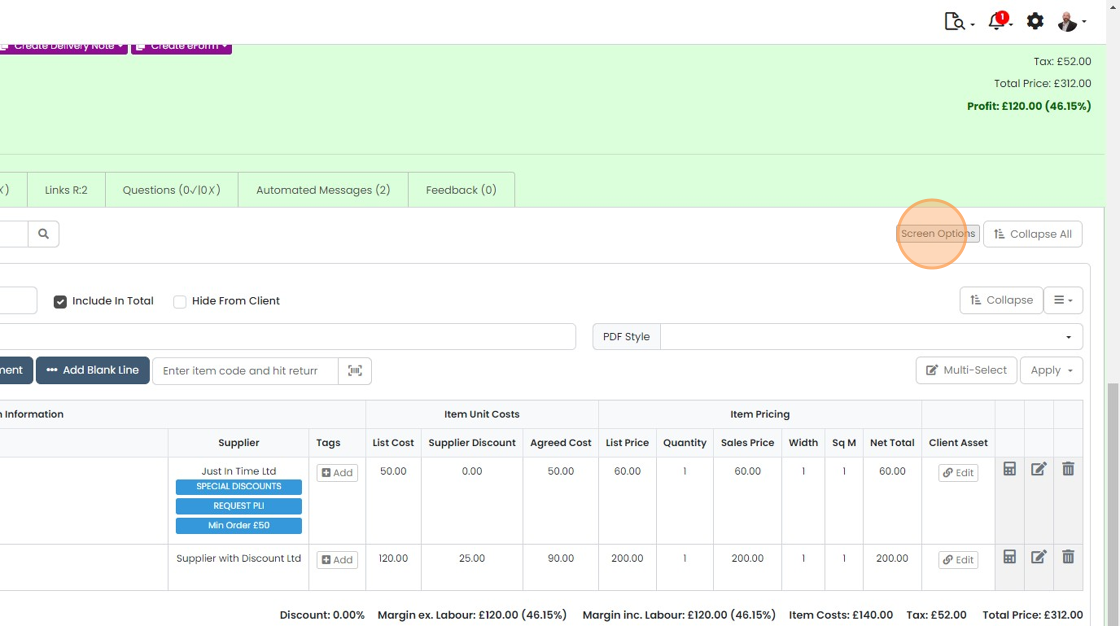
To set the displayed columns in the items grid, click "Screen Options" here
Click the toggle button next to a field to either show or hide the field. Some fields are grouped together

Click away from the pull-out to close it
Click away from the pull-out to close it. If the field is not appearing as expected, refresh the browser (F5 on a PC)
Learn more: quotes in Zigaflow


Choose what columns and fields to display on the screens of Quotations, Jobs/Sales Orders. You can only see the "Screen Options" button needed to make these changes if you have "Admin" access.
These changes can be made to the:
- List, Pipeline and Calendar views
- Top part of the edit screen
- Items tab
These instructions use the Quotations screens but apply to all the modules.
Set list view columns
Frequently asked questions
Was this helpful?