Stock release on purchase orders
The short answer
Use stock release on a purchase order to call off stock a supplier holds for you without booking it into Zigaflow inventory a second time. On the purchase order, open the menu for the item held in stock and click Mark Stock-Release. Receiving it then adds a quantity of 0, and the delivery note deducts the stock.
Steps
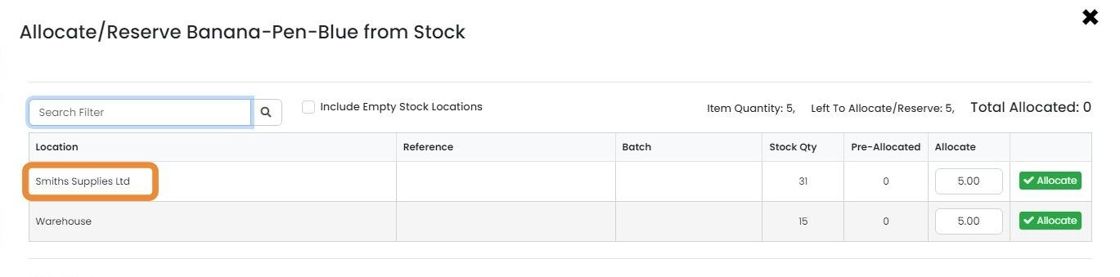
The pens are considered to be in stock at the location "Smiths Supplies Ltd"
The pens are considered to be in stock at the location "Smiths Supplies Ltd". This is simply a stock location named after the supplier. The location and supplier are not linked in the system.

In this example, there are two items on the Job/Sales Order, 5x pens and 5x printing of logos onto the pens
In this example, there are two items on the Job/Sales Order, 5x pens and 5x printing of logos onto the pens.
Allocate stock against this order with the "Allocate" button
Find the stock at the supplier's
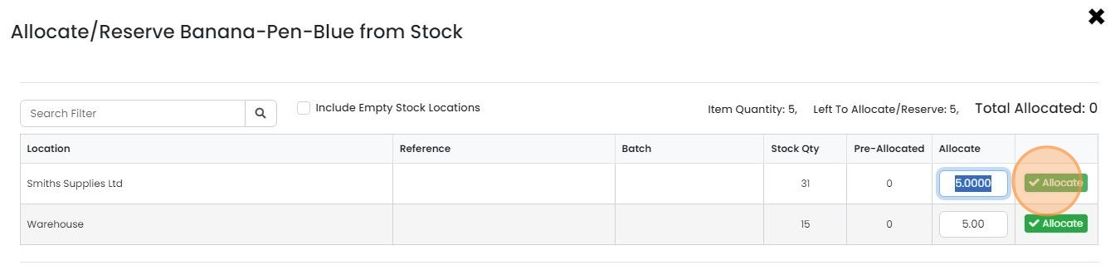
Click "Allocate"
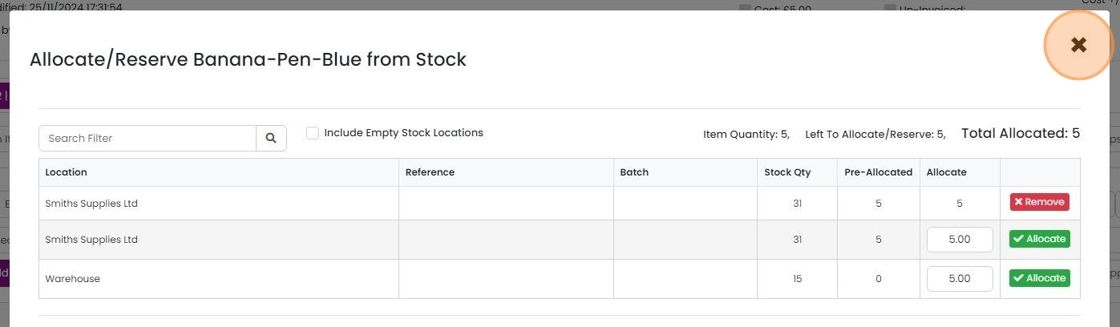
Close the form
Create the Purchase Order
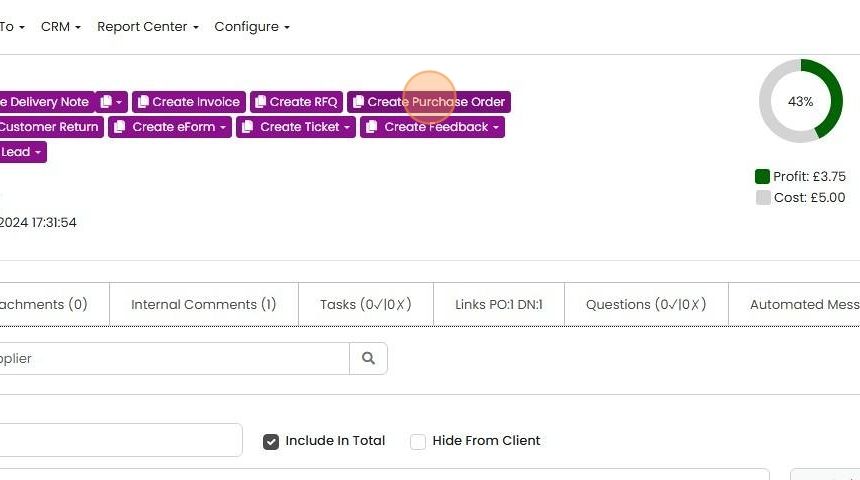
Select the supplier and click on "Create Purchase Orders"
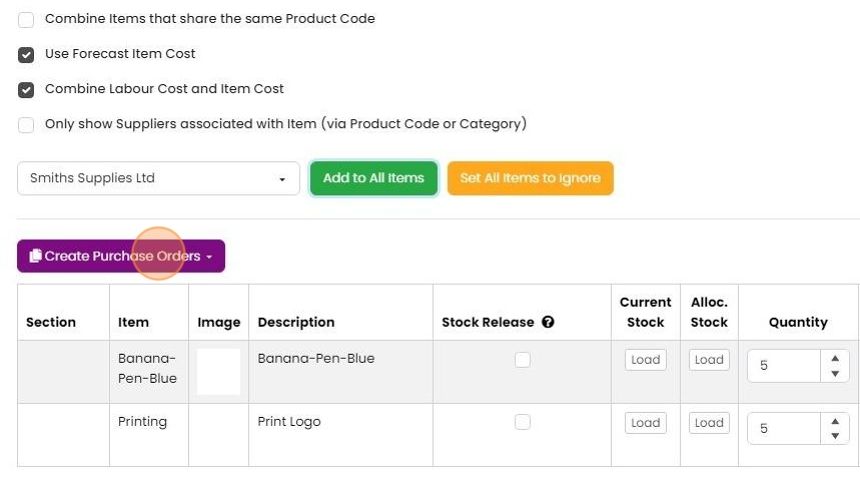
Select the required pre-build

Click on the menu of the item that is held in stock and the supplier
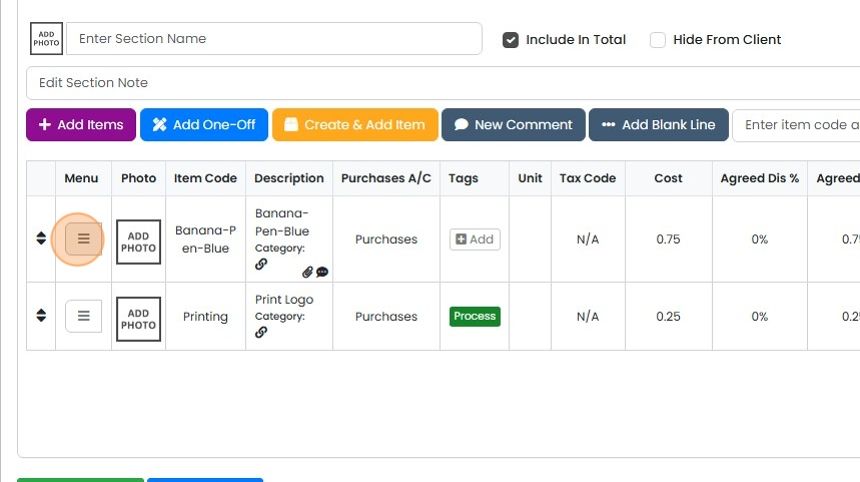
Click "Mark Stock-Release" - this will prevent it being booked into stock again

The item is now marked with "Stock-Release"

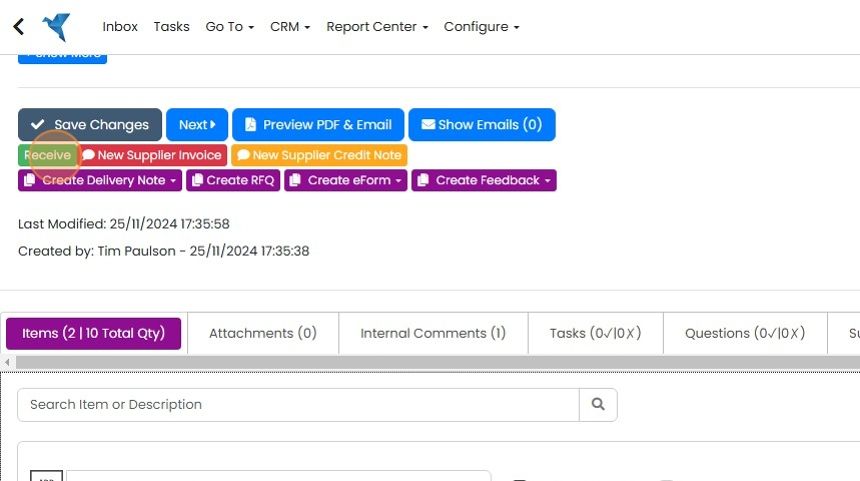
When the order has been dispatched from supplier to the customer, or received at your warehouse, click on...
When the order has been dispatched from supplier to the customer, or received at your warehouse, click on the "Receive" button
Set the location to the suppliers stock location - this will not be automatically populated by the system
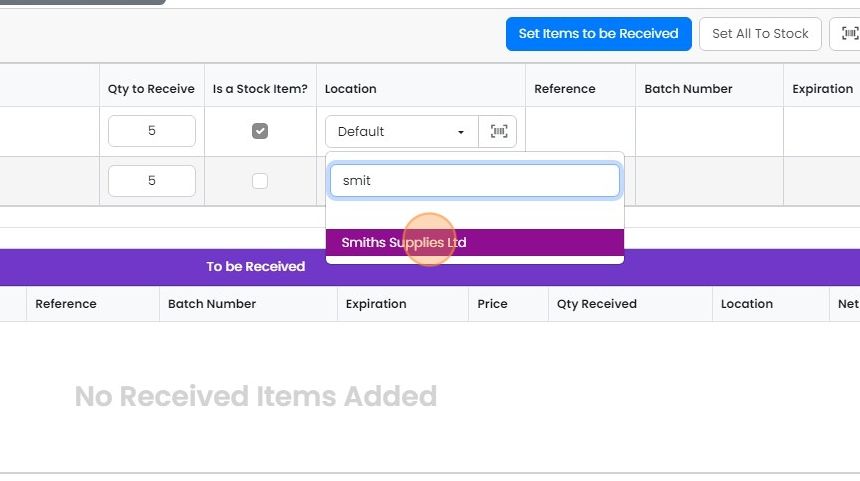
Click "Set Items to be Received"

Click "Receive/Book in Stock"
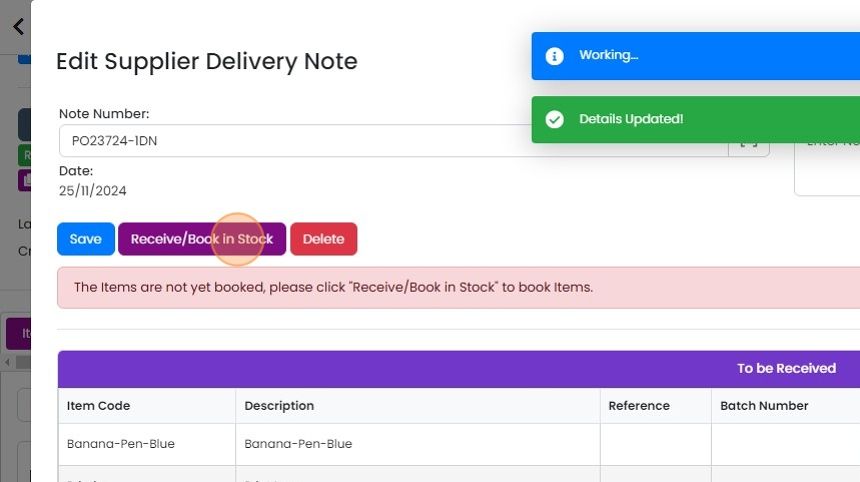
Close the form
At this point, you can create the delivery note from the Job/Order, or direct from the Purchase Order...
At this point, you can create the delivery note from the Job/Order, or direct from the Purchase Order (which will still create the link through the Job/Sales Order). To create it from the Purchase Order, click "Create Delivery Note"
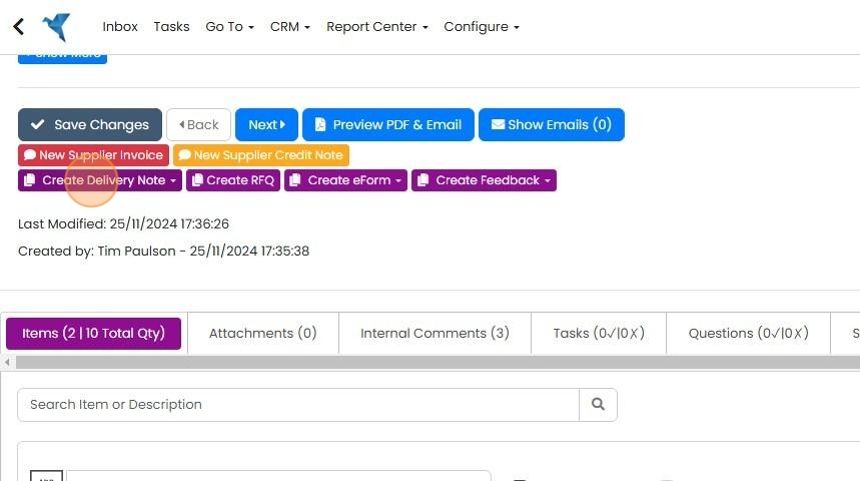
Select the Delivery Note pre-build

The stock allocation will be pulled over from the Job/Order

When you are ready to book the items out of stock, on the Delivery Note click on the status button
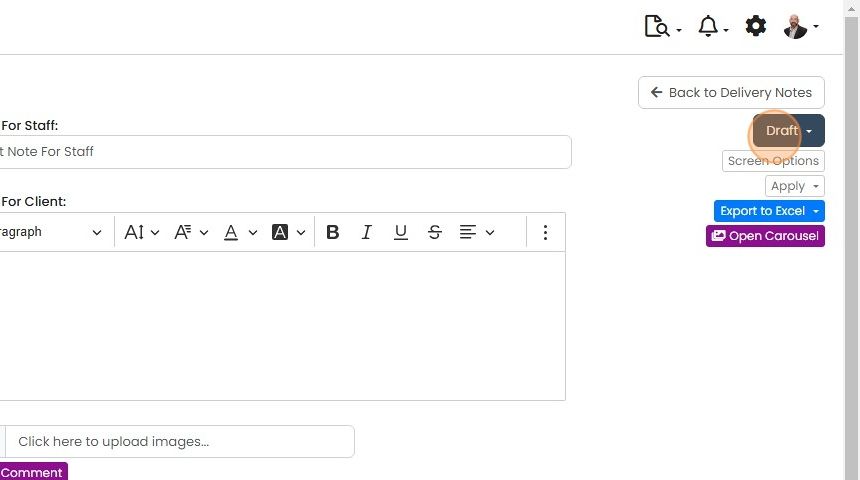
Click "Picked" or "Delivered" or whatever you have renamed the two statuses that book items out of stock to
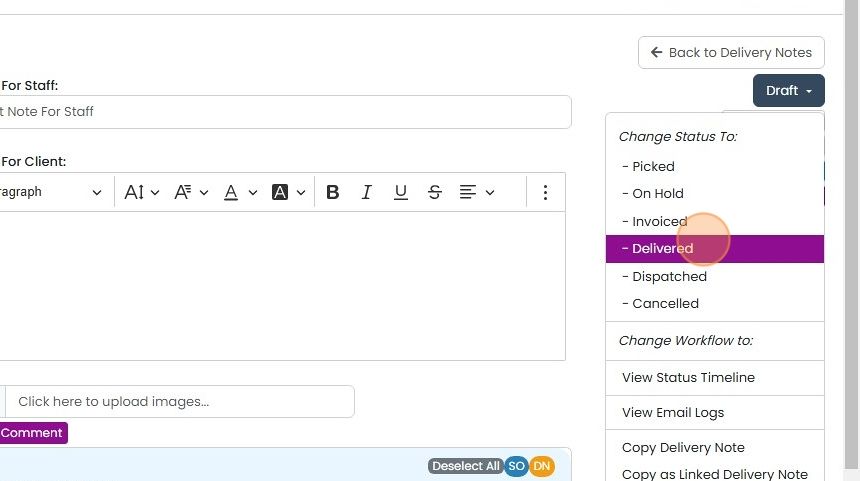
The process is now completed with the stock booked out
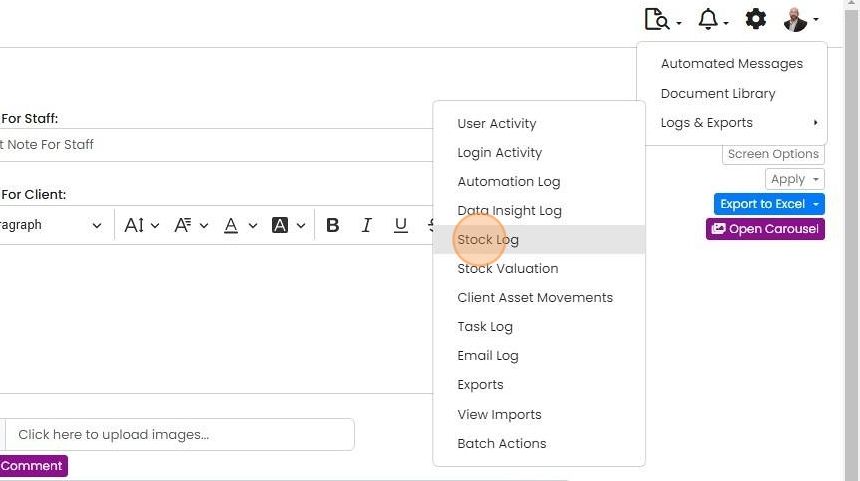
Check the stock movements by clicking on this icon

Click "Stock Log"
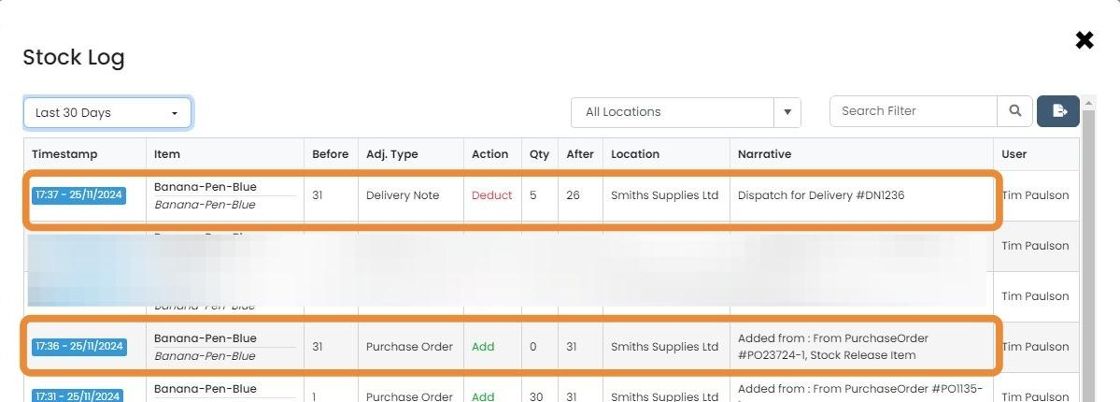
The quantity added from the Purchase Order is 0 as it is a stock release, but the delivery note has...
The quantity added from the Purchase Order is 0 as it is a stock release, but the delivery note has released the allocation on the Job/Order and deducted the items from stock
Learn more: purchase orders in Zigaflow


Situation
-You have already purchased stock, but it is held by one of your suppliers.
-It is shown in Zigaflow's inventory.
-You need to issue a purchase order to either call it off on its own or with an additional process or item.
This shows you how to use the "Stock Release" functionality to prevent this stock from being booked into your inventory a second time.
Stock Release Instructions
Frequently asked questions
Next step
Momentum planWas this helpful?