Get set up

Unarchive, restore or reinstate a user

In Zigaflow

The short answer

To restore an archived user in Zigaflow, click the Cog, then Team Settings, then Manage Team Members. Change the filter from Active Only to Include Archived, edit the archived user, click the checkbox and save changes. A restored user has no modules, so click Assign Modules to give them access.

Steps

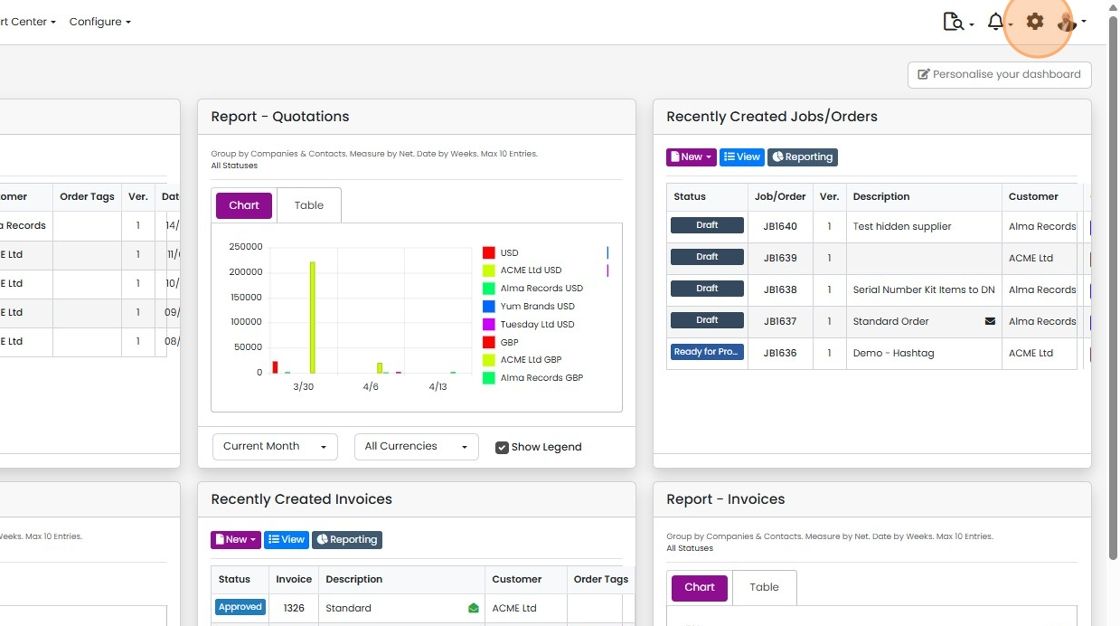
  1. Click on the Cog

    Zigaflow dashboard with the settings cog icon highlighted in the top-right toolbar, next to the notifications bell
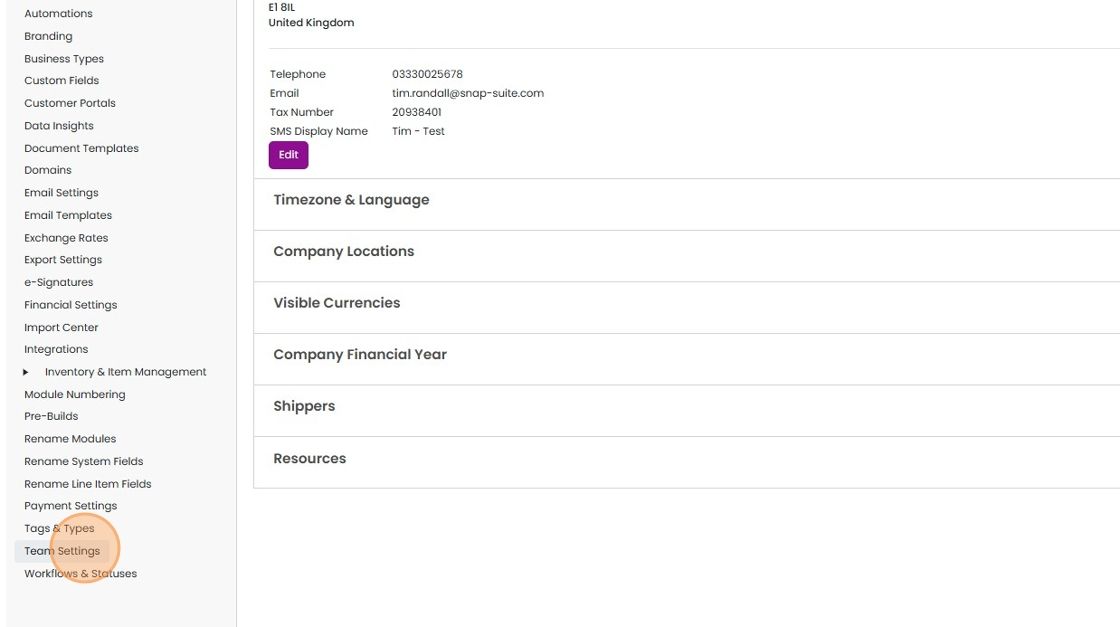
  2. Click "Team Settings"

    Settings menu in the left sidebar with Team Settings highlighted, below Tags & Types and above Workflows & Statuses
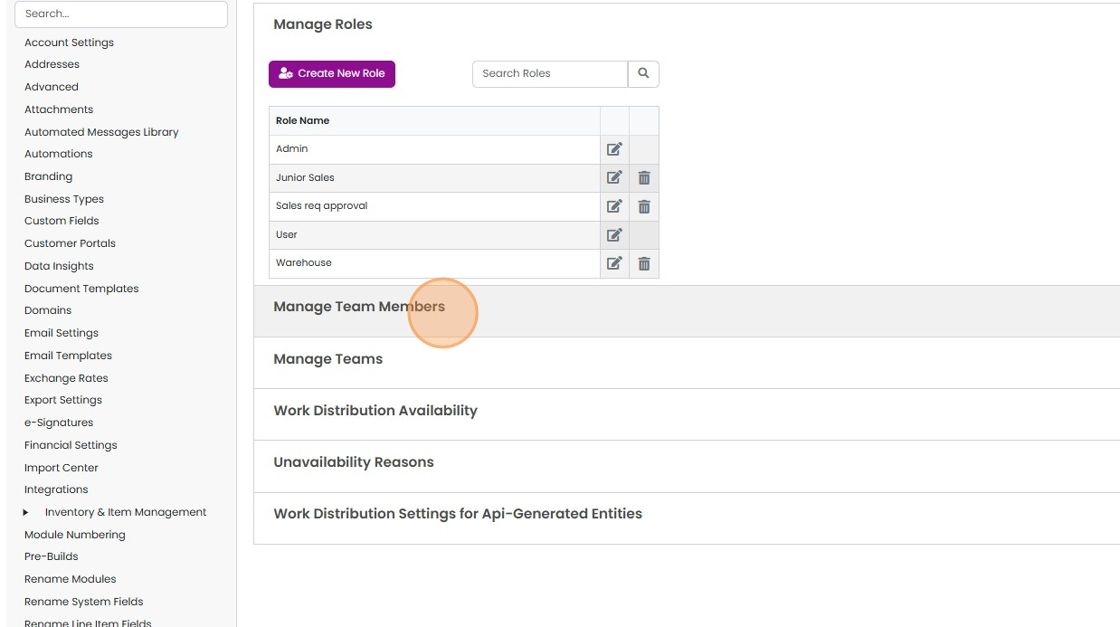
  3. Click "Manage Team Members"

    Manage Roles settings page with the Manage Team Members section heading highlighted below the roles table
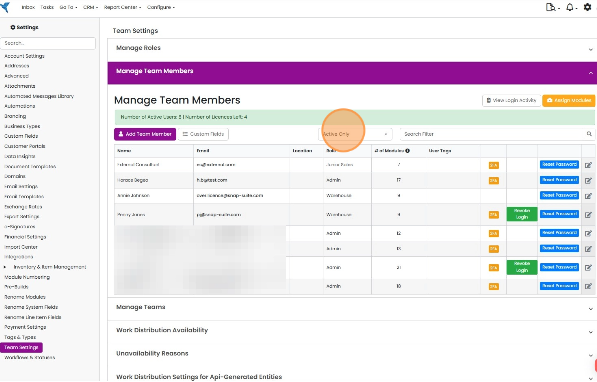
  4. Click "Active Only"

    Manage Team Members panel in Team Settings with the Active Only filter dropdown highlighted above the user list
  5. Click "Include Archived"

    Restore the user

    Manage Team Members panel in Team Settings with the Active Only dropdown open and the Include Archived option highlighted
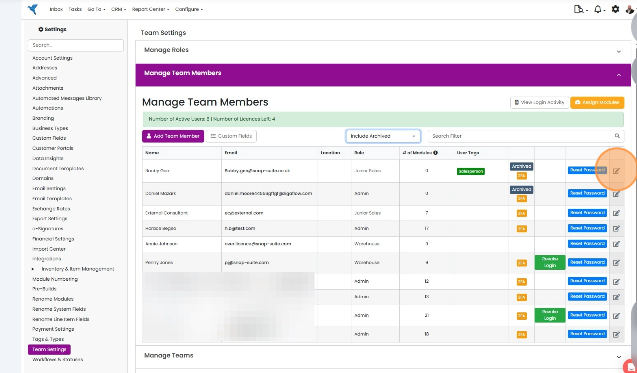
  6. Edit the archived user

    Manage Team Members table in Team Settings with the edit (pencil) icon highlighted on an archived user's row
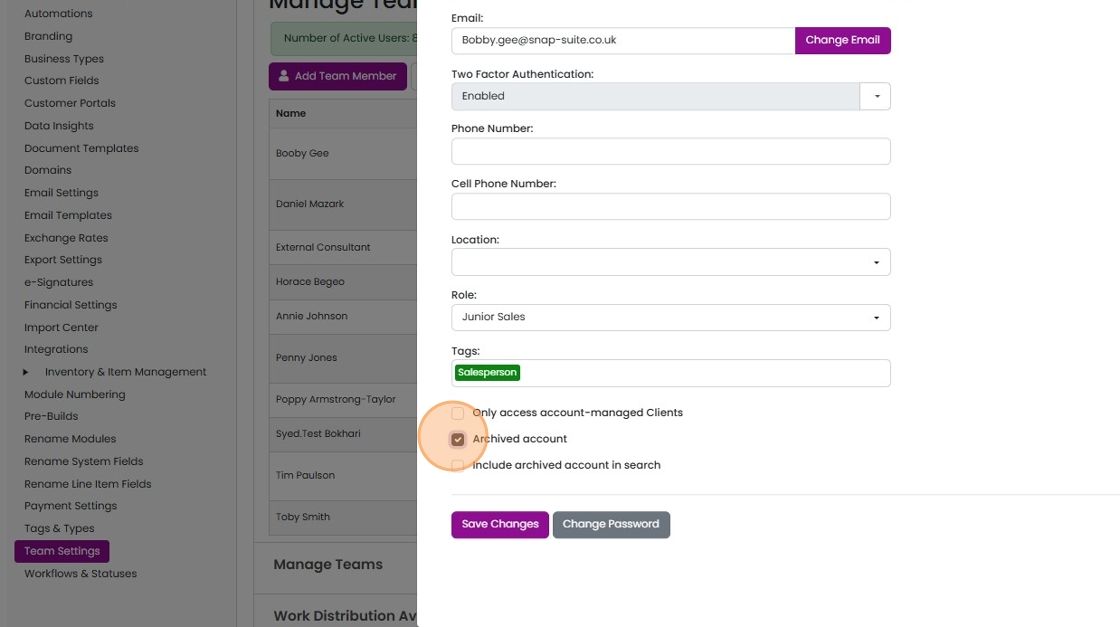
  7. Click this checkbox

    Team member edit panel in Team Settings with the Archived account checkbox highlighted above Save Changes
  8. Click "Save Changes"

    Team Settings user edit panel with Archived account unchecked and the Save Changes button highlighted at the bottom
  9. Click "×"

    Assign modules to the user

    Manage Team Member panel with a
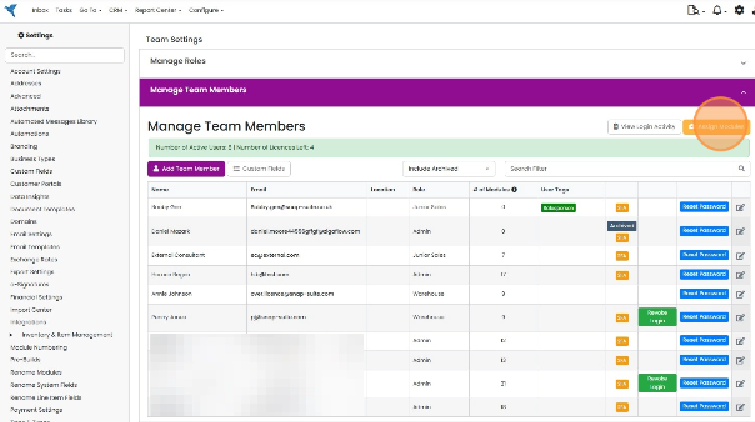
  10. A restored user will not have any modules assigned. Click "Assign Modules" to grant them access

    Manage Team Members page in Team Settings with the orange Manage Modules button highlighted at top right of the user list

Find the archived user

Frequently asked questions

Next step

Giving users access to a moduleTo give a user access to a module in Zigaflow, click the Cog, then Team Settings, then Manage Team Members, then Assign Modules. Click the module, pick the user from the dropdown, and click Add User. The user must log out and back in to see the module.

Was this helpful?

See Zigaflow on your own workflow

Book a demo and we will walk through quoting, jobs and purchasing the way your team runs them.

Or see how Zigaflow would fit your business, free