Make it yours
Automated report emails
The short answer
To email reports automatically, go to Report Center, then Saved Reports, and click Create Email Summary. Select the saved reports to send, set the frequency and send time, enter the From Email Address and any email text, then preview, save and test run the email.
Steps
Click "Report Center"
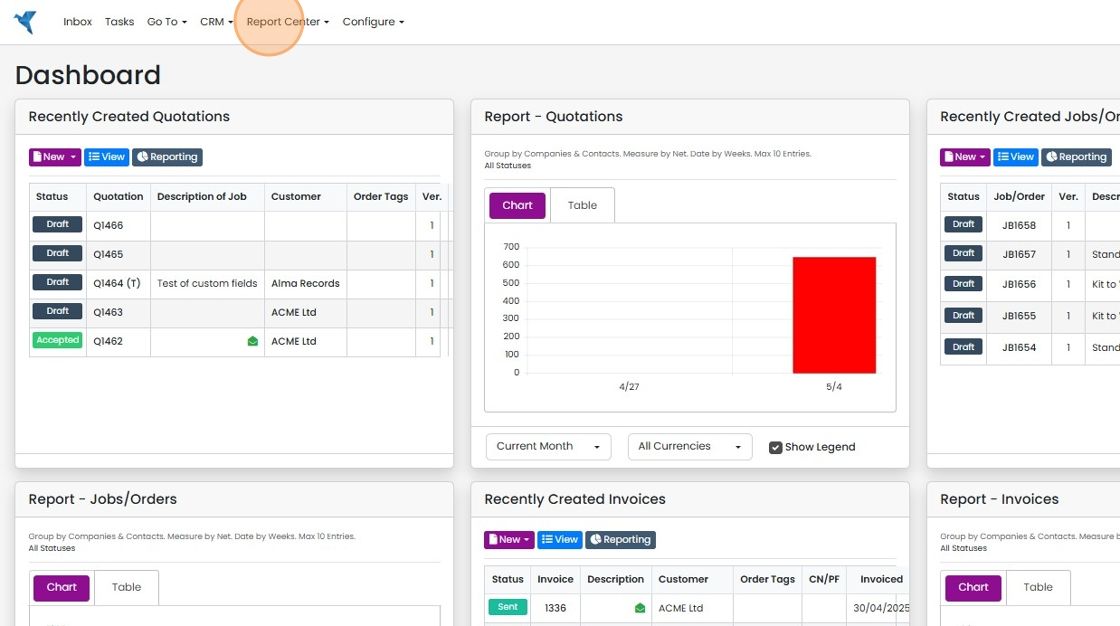
Click "Saved Reports"

Click "Create Email Summary"
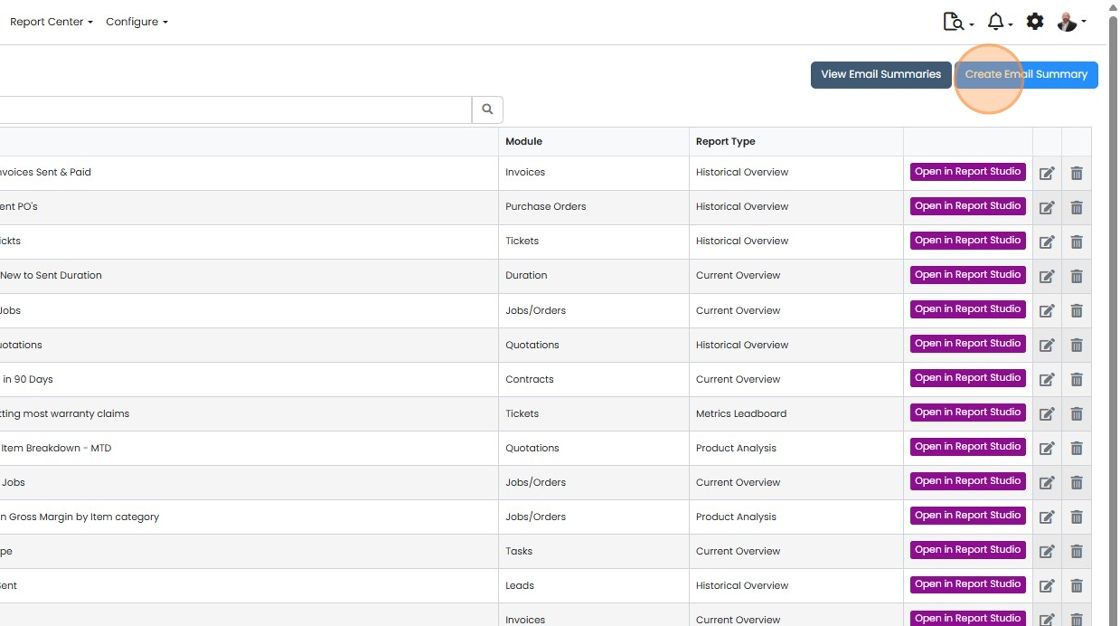
Select the reports to send
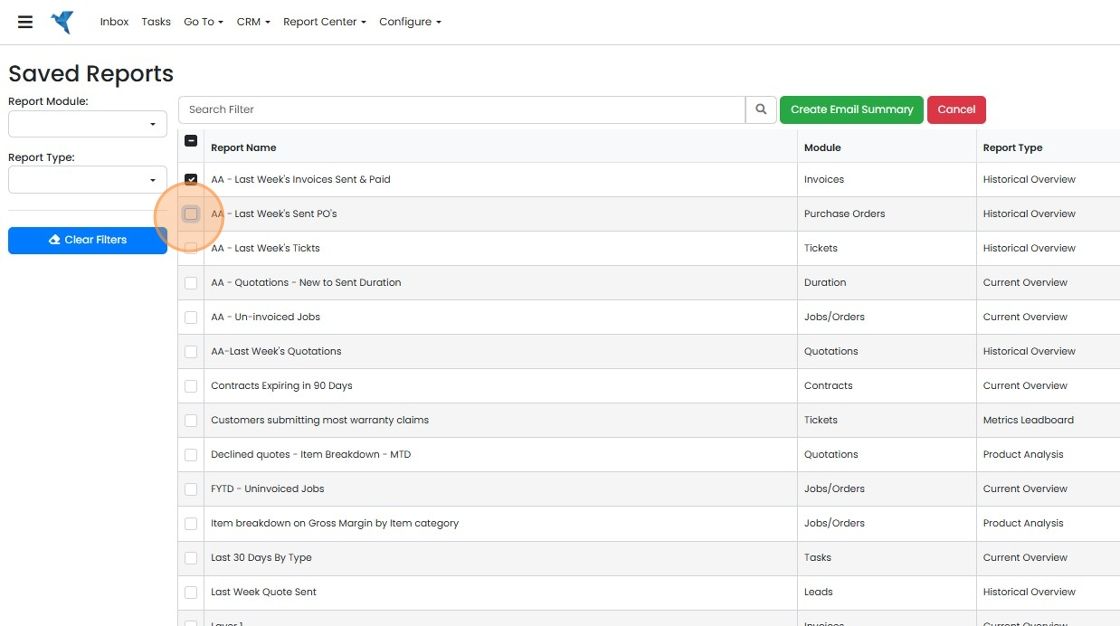
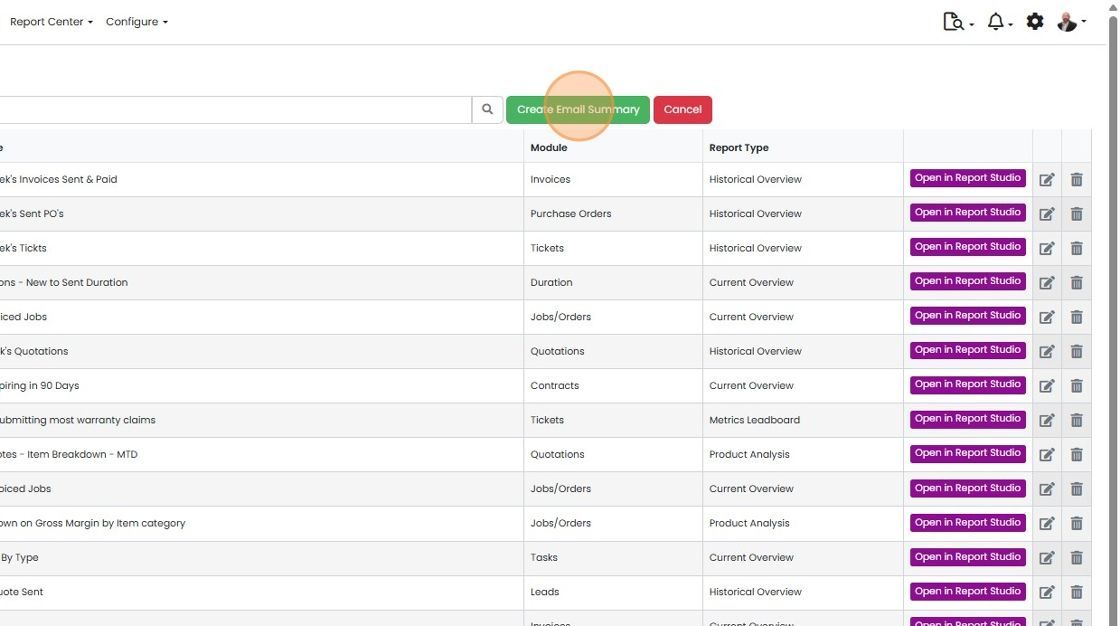
Click "Create Email Summary"
Set the schedule
Set the frequency
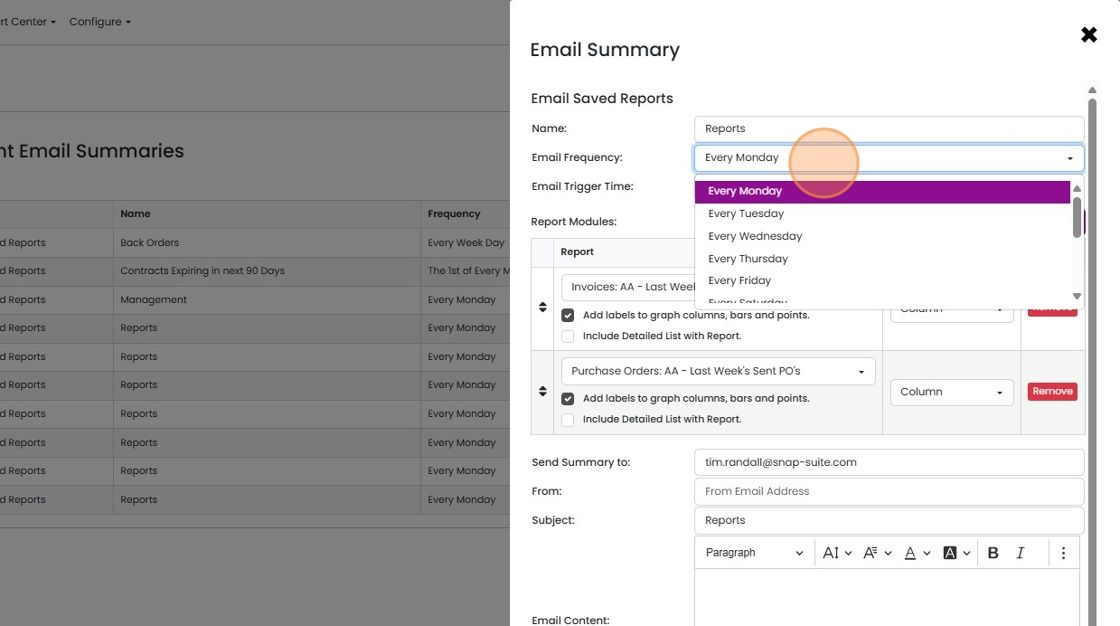
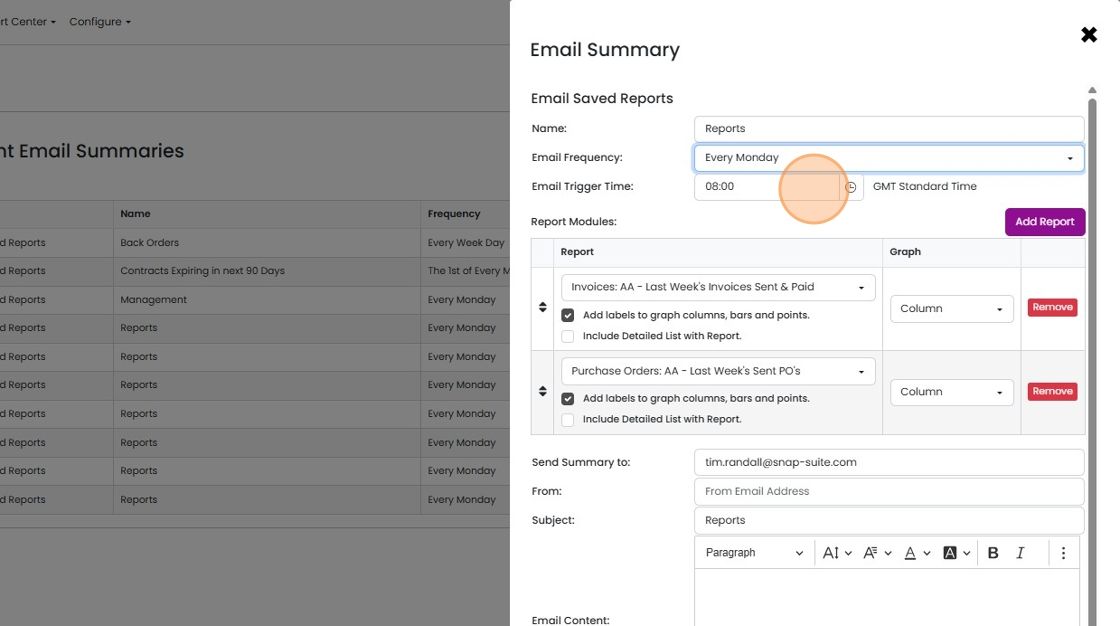
Set the time to send
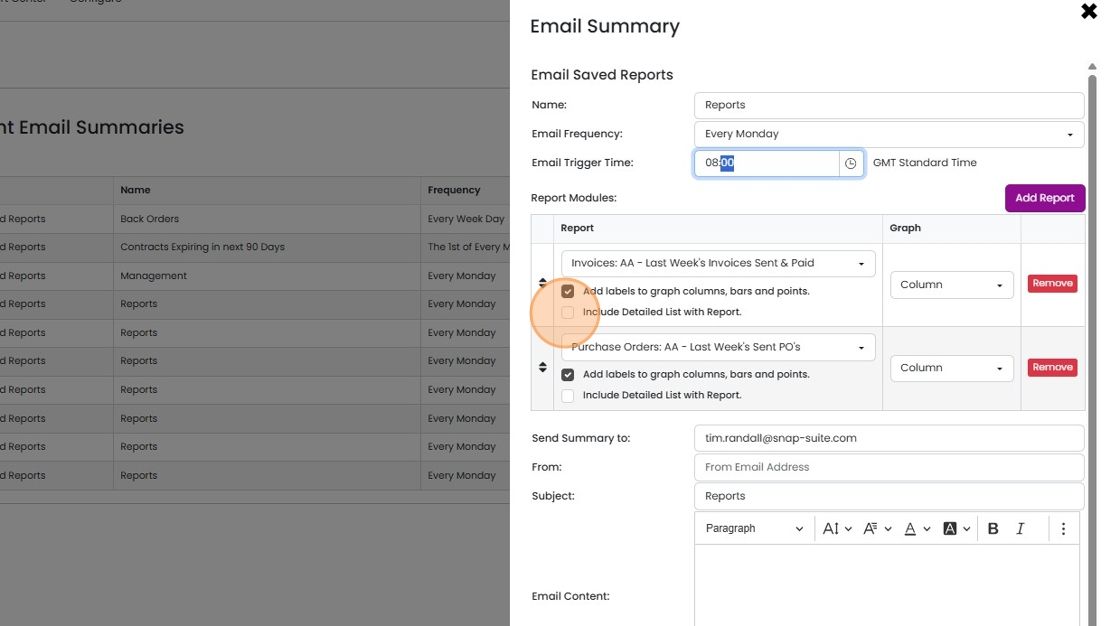
Toggle whether to show the details on the report
Use the "Add Report" to add more saved reports
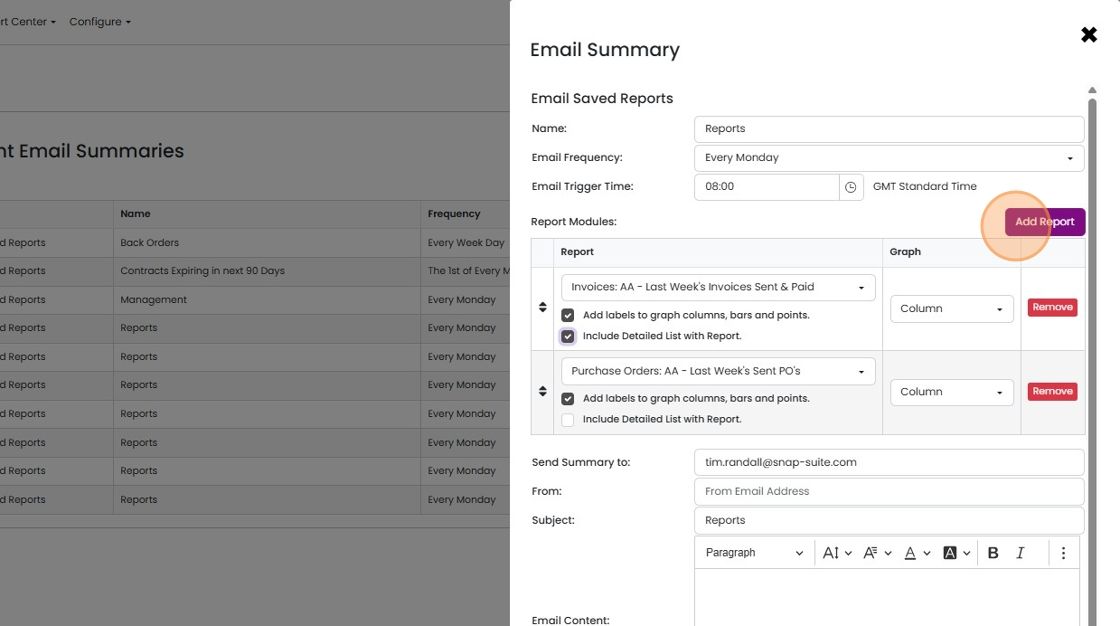
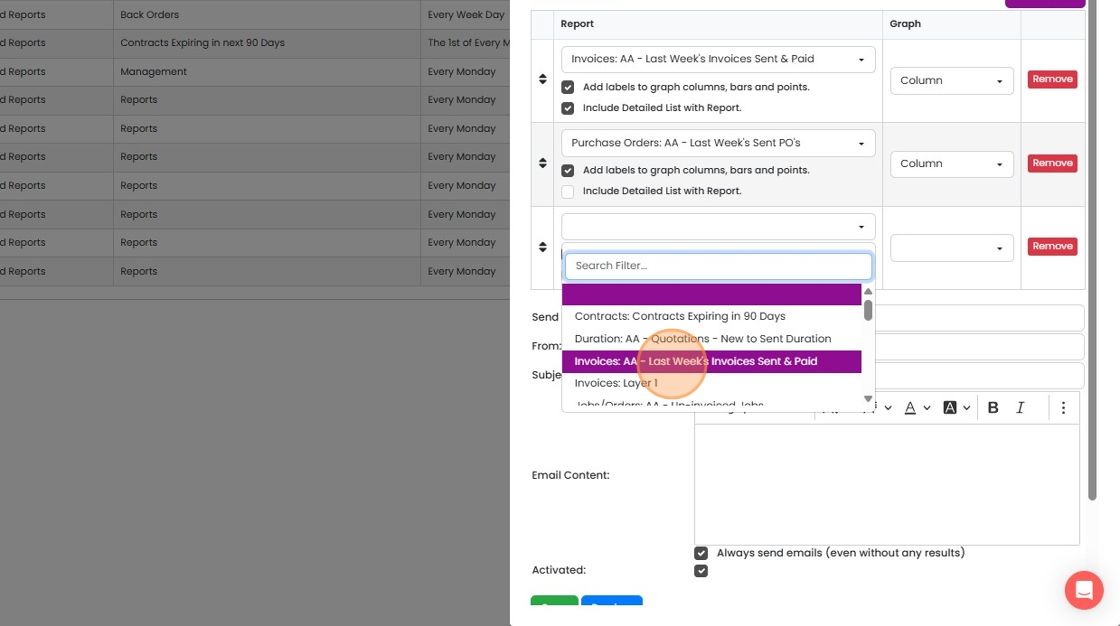
Select the new report
Set up the email
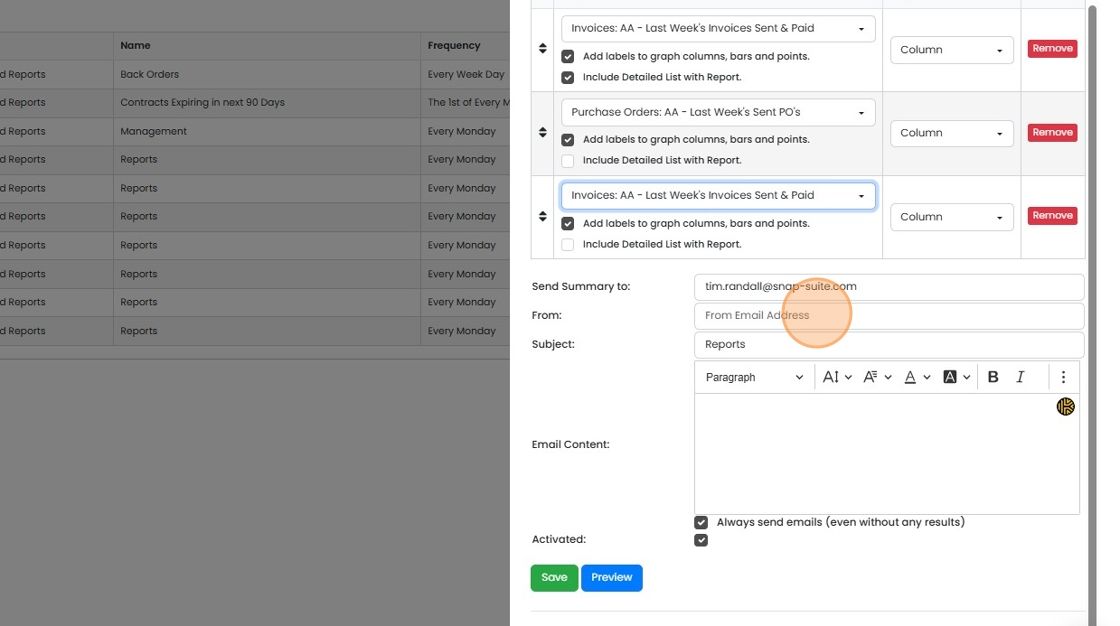
Add the sending email address in the "From Email Address" field
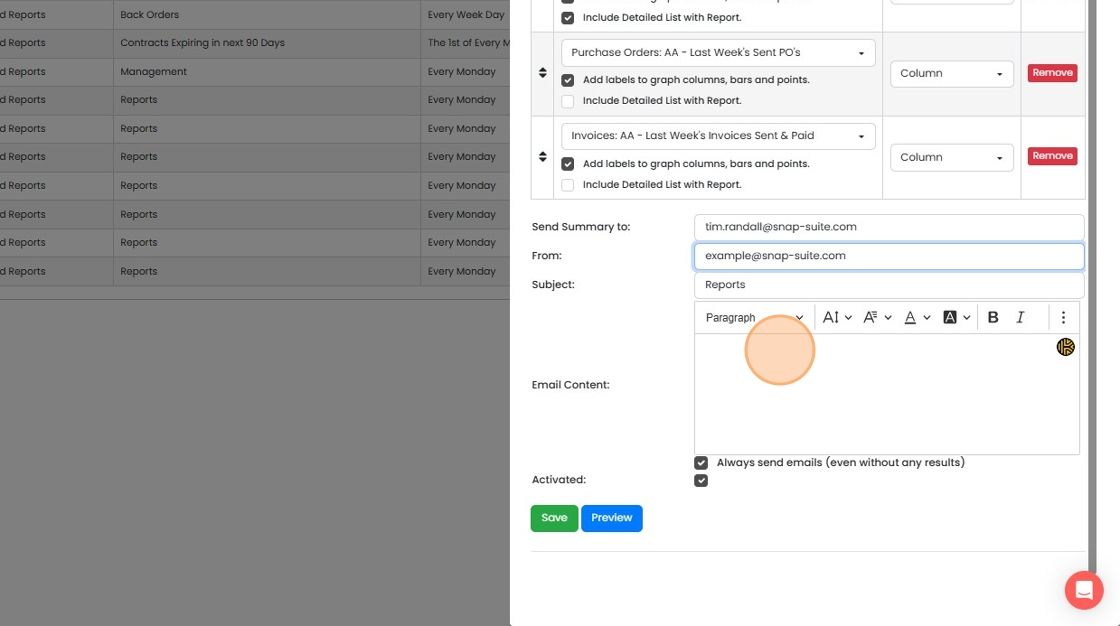
Enter any email text you require here
Preview, save and test
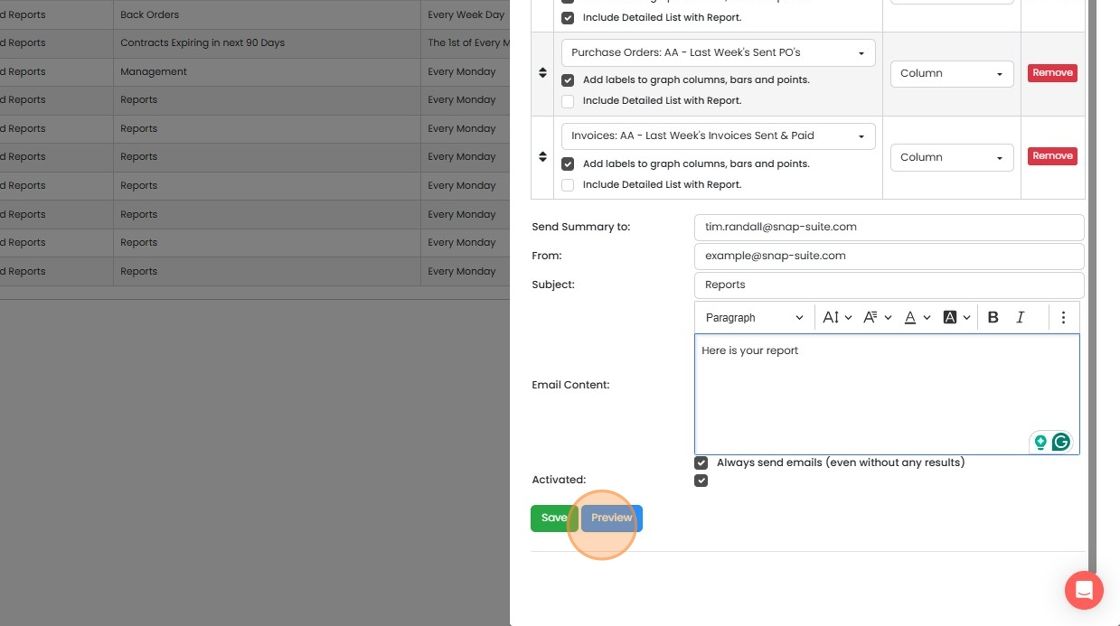
Click "Preview" to check the reports
Save the email

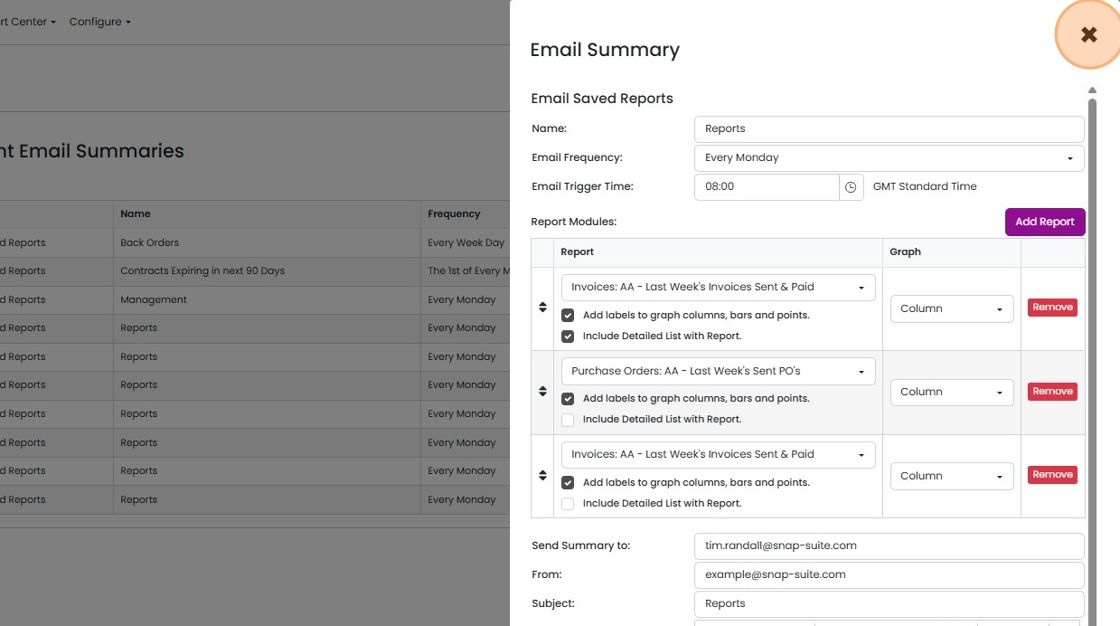
Click "×" to close the panel
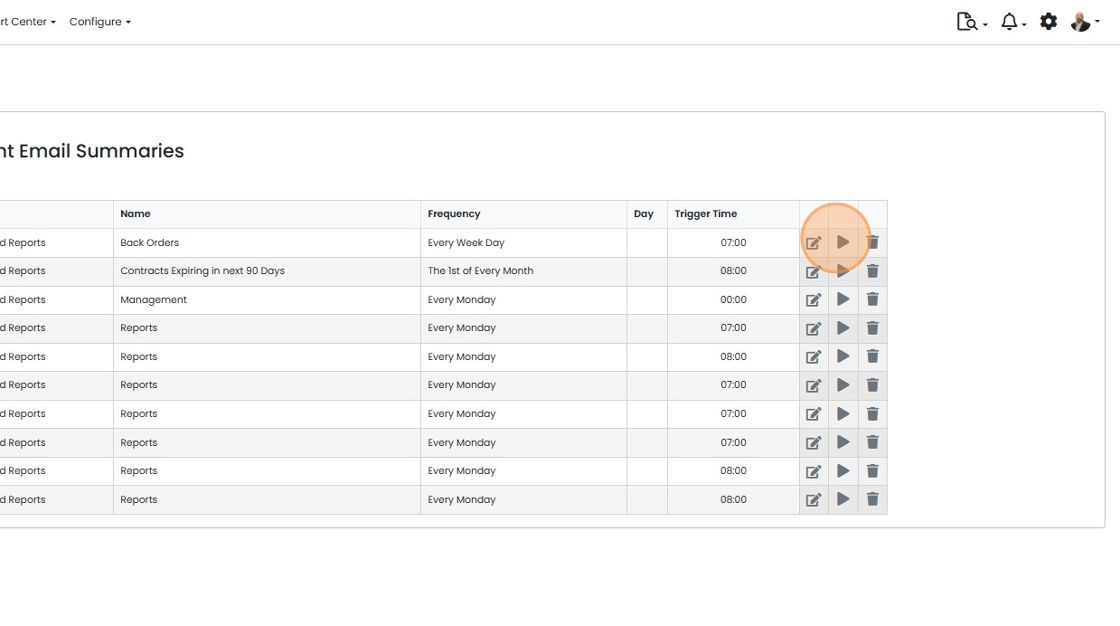
Test run the email report by clicking on the play button
Learn more: reporting in Zigaflow


Choose reports to send
Frequently asked questions
Next step
Quotes, Go and Momentum plansWas this helpful?