Automatic generation of tasks from pre-builds
The short answer
To generate a task automatically, click the cog, choose Prebuilds, pick the module, and use the Tasks tab to add a new task. Set the type, description, forecast time, assignee and the status that triggers it. The task is created when the quotation or job moves to that status.
Steps
Click on the Cog
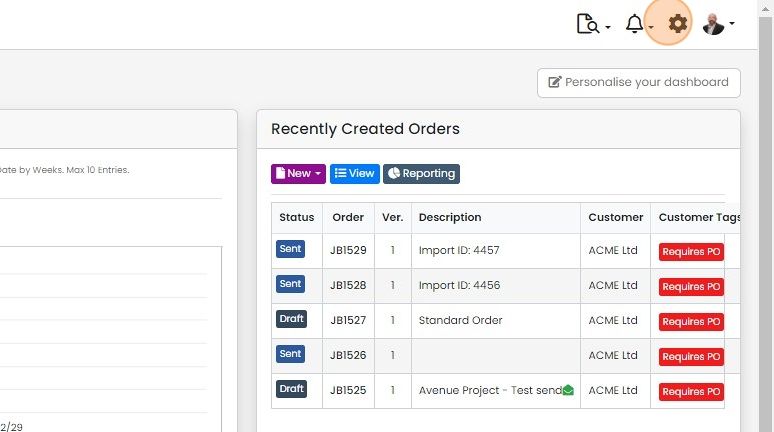
Click "Prebuilds"

Click on the module to work on

Edit or create a pre-build
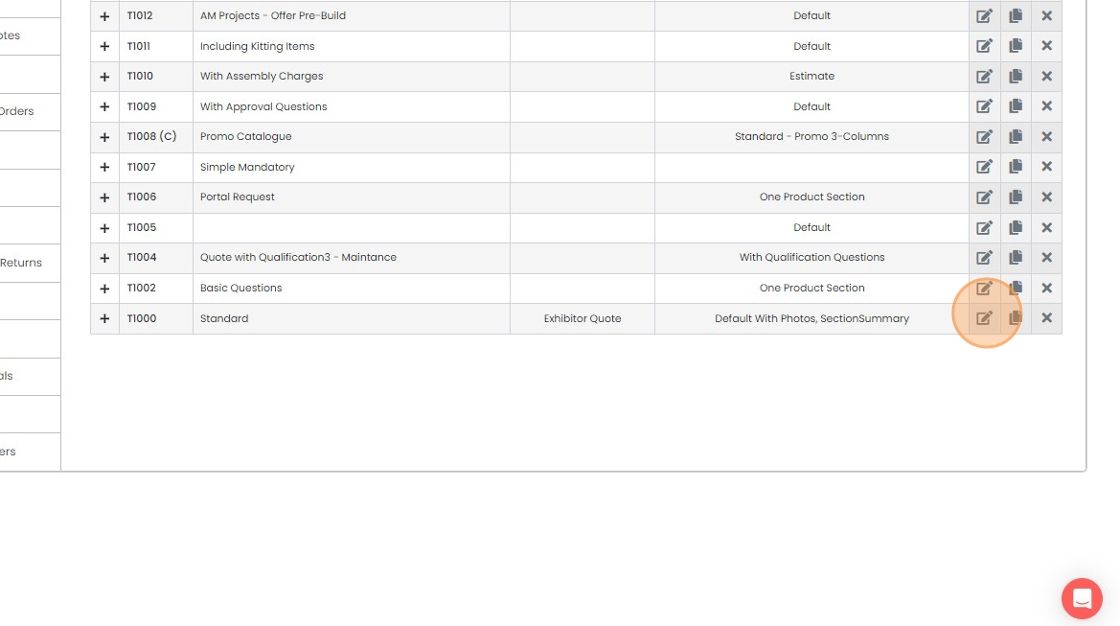
Click the "Tasks" tab
Set up the task details
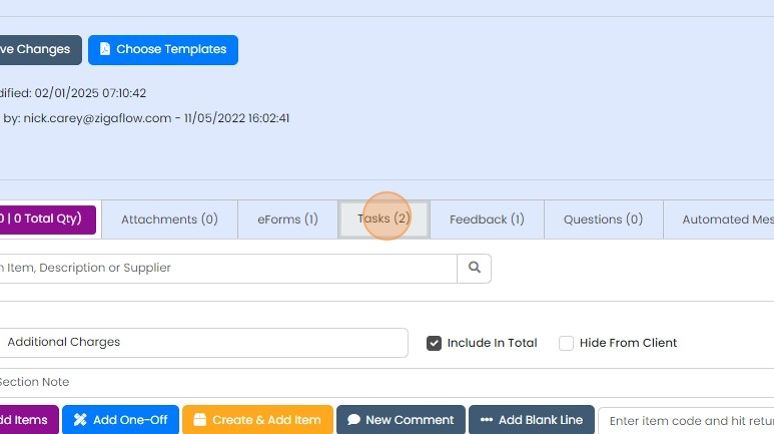
Click "New Task"

Select the task type (you can add your own types elsewhere in the settings). Click Next
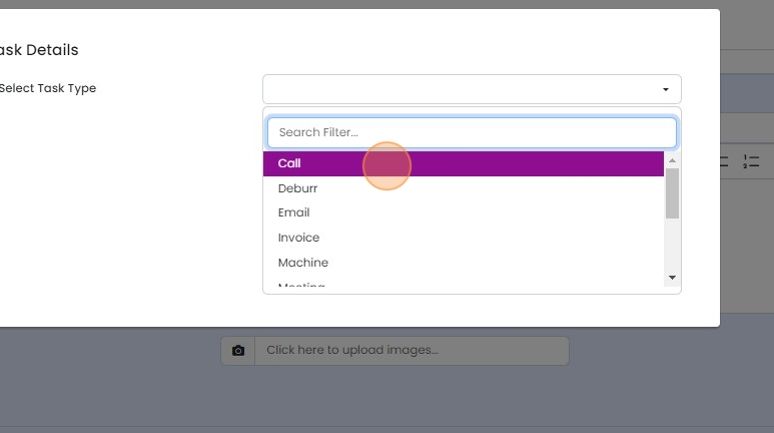
Enter the description of the task and click Next
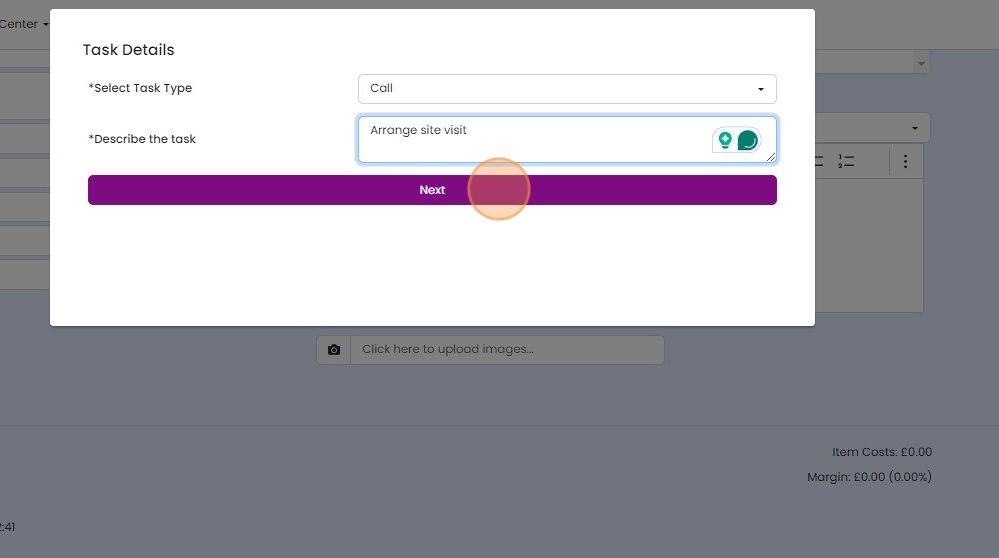
Set how long you forecast the task will take, and click Next
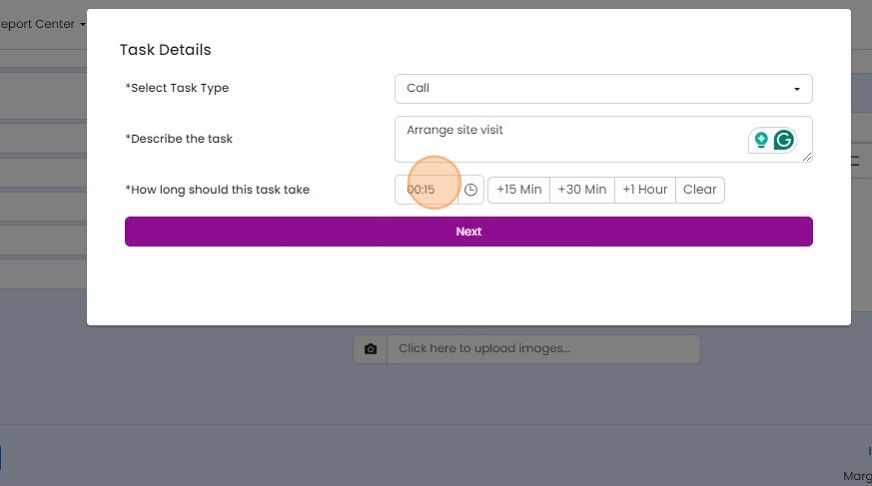
Set the task to a specific team member
Set the task to a specific team member. If this is not set, the task will be assigned to the creator or user of the quotation, job/sales order, etc., when the task is created. Click Next.
Choose the trigger and schedule
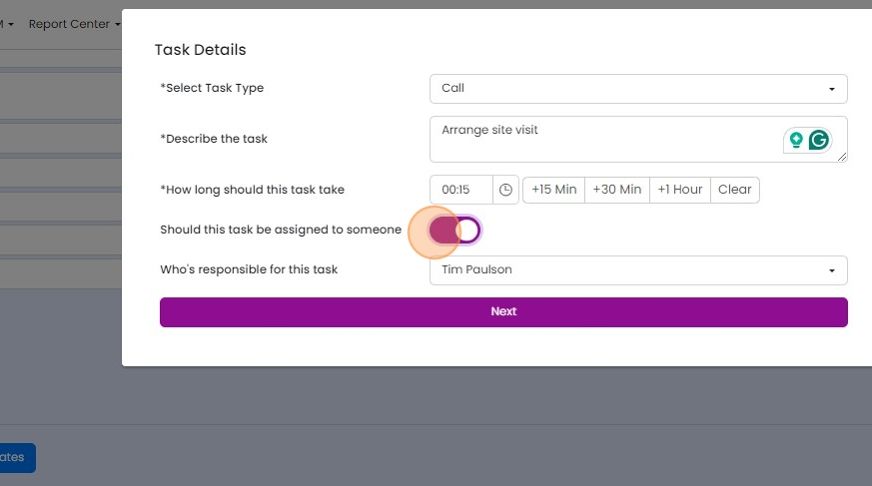
The task will be generated when the quotation, job/sales order, etc., moves to the status you set here
The task will be generated when the quotation, job/sales order, etc., moves to the status you set here. Click Next
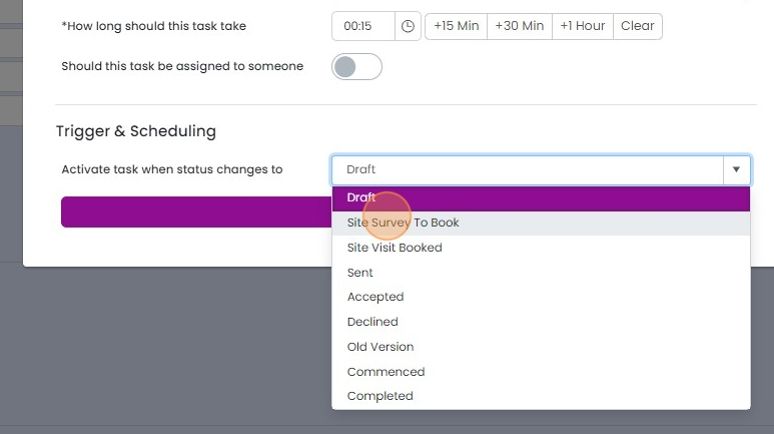
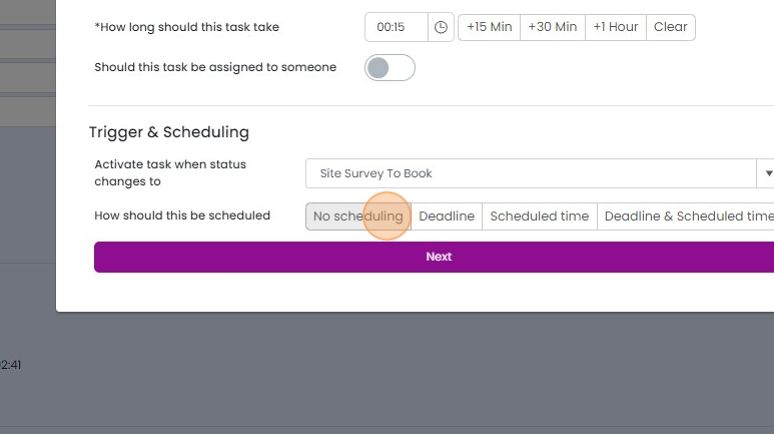
Select when the task is set for
No scheduling - No date is set
Deadline - A date is set for it to be completed
Scheduled time - A specific date and time for the task to be started
Deadline and Scheudled - A combination of these
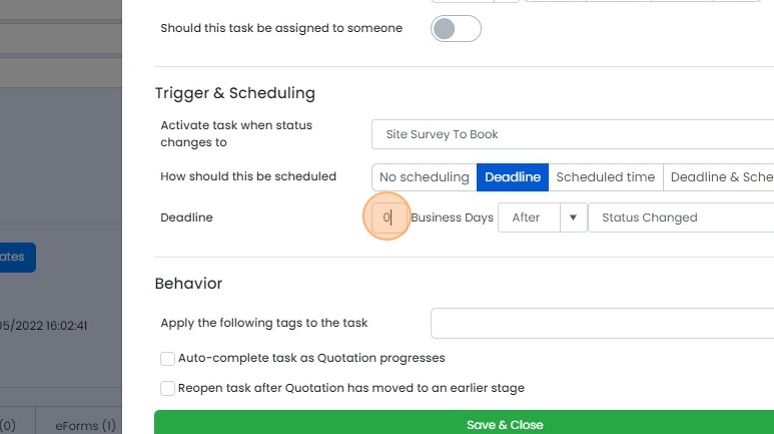
Dates are set after or betore a specific number of days
Dates are set after or betore a specific number of days. Set to zero days for the task to be generated immediately.
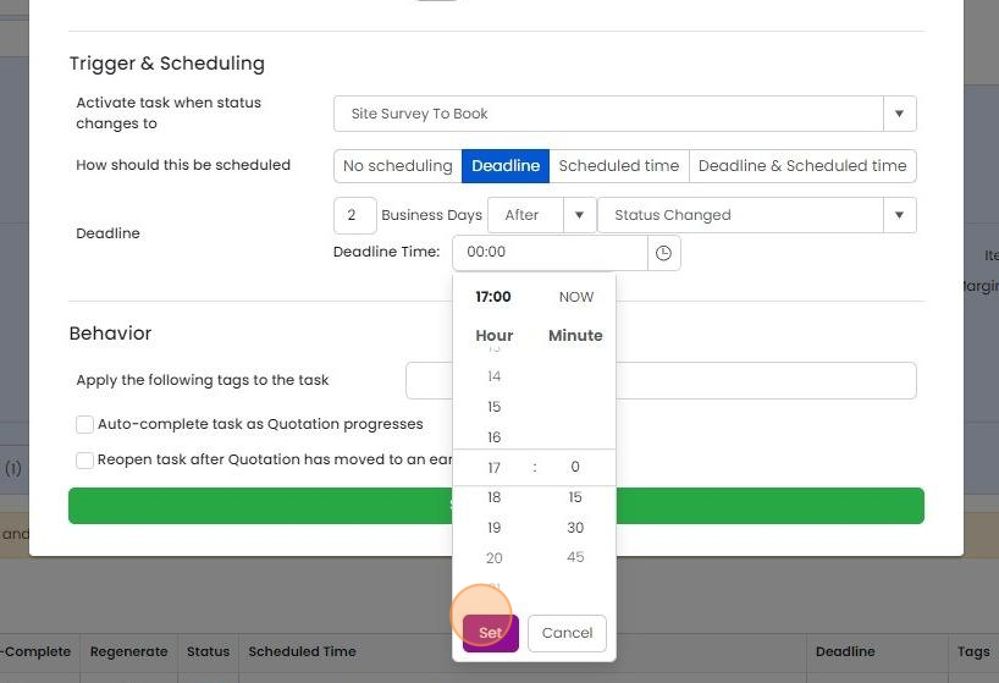
If a date has been selected, set the start time and click Next
Set completion options and save
Set a task tag if required

Ticking "Auto-complete task as Quotation progresses" means that if the quotation, job/sales order, etc
Ticking "Auto-complete task as Quotation progresses" means that if the quotation, job/sales order, etc. is moved to another status, the system will automatically mark the task as completed.
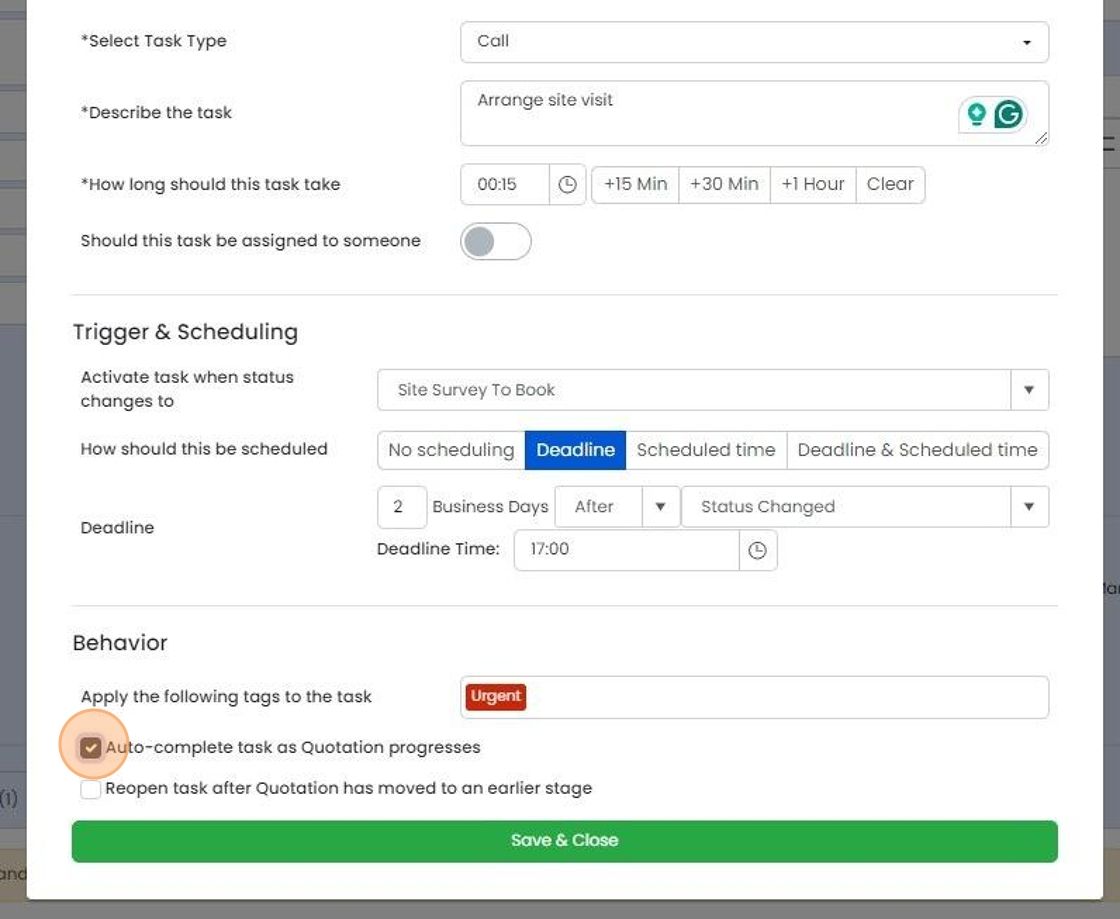
Ticking "Reopen task after Quotation has moved to an earlier stage" field means that a task that has been...
Ticking "Reopen task after Quotation has moved to an earlier stage" field means that a task that has been marked as completed will be re-opened if the parent quotation, job/sales order, etc., is moved back to the status set on this screen.
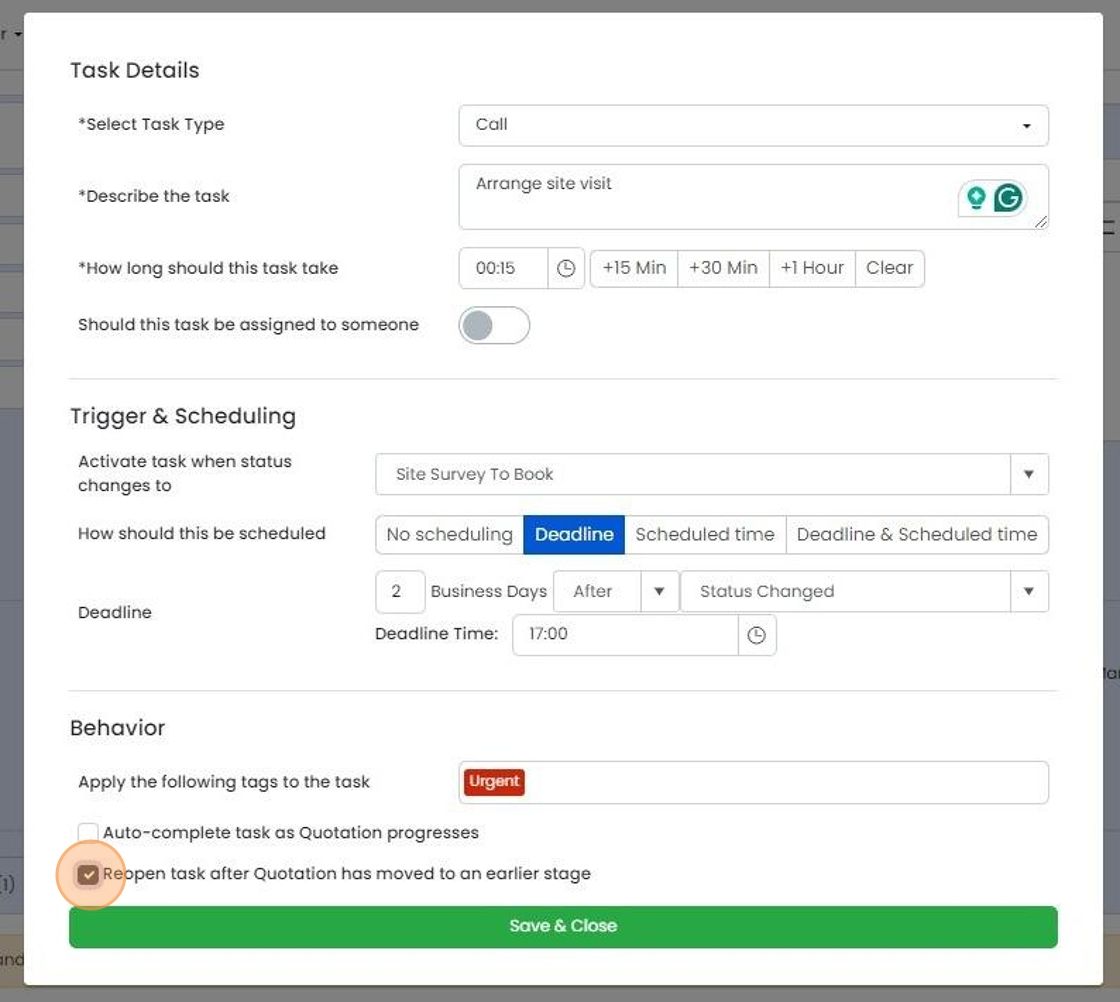
Click "Save & Close"
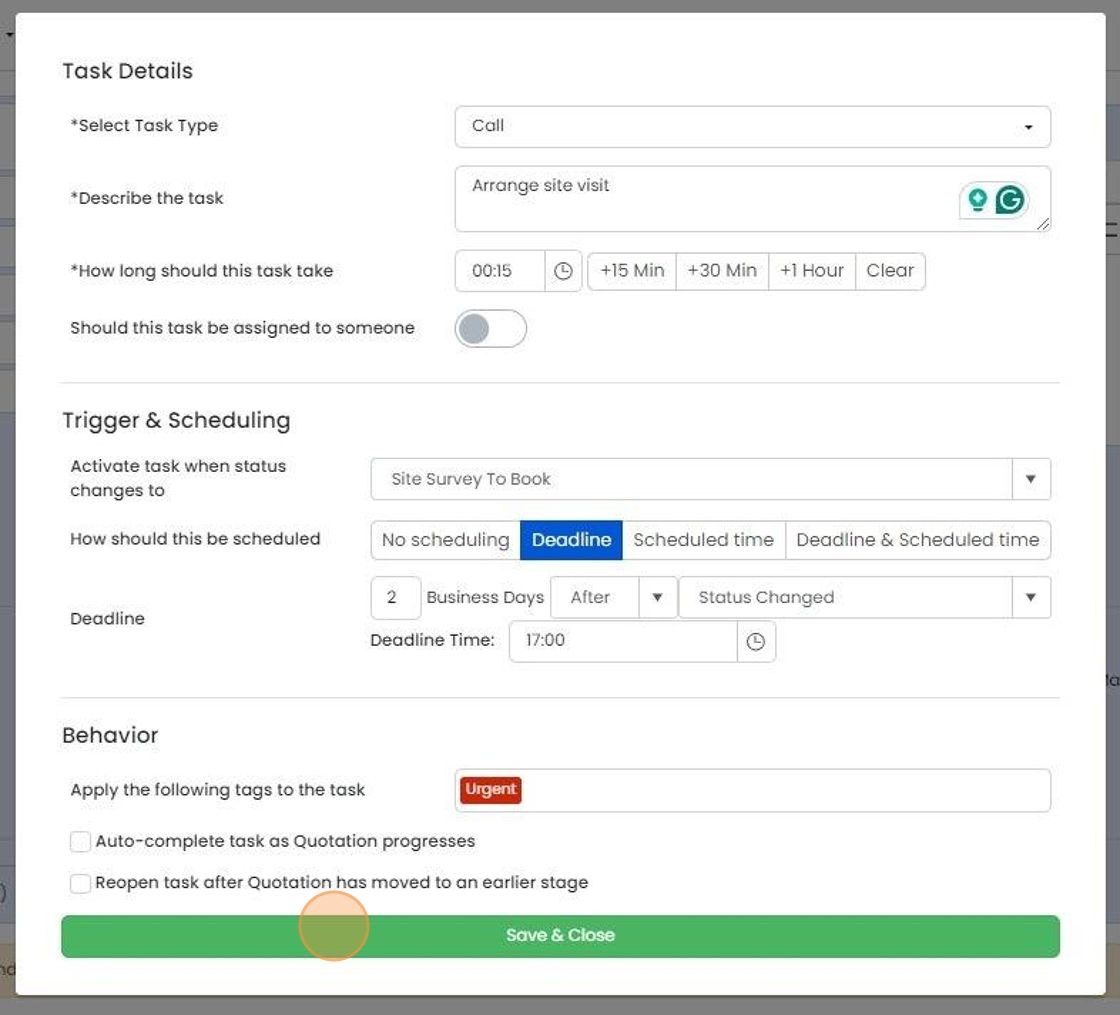
These Task generators can be edited in the task tab of the pre-build
Learn more: workflows and automations



Frequently asked questions
Was this helpful?