Get set up

Automations explained

In Zigaflow

The short answer

An automation in Zigaflow runs actions for you when a quotation, job or order is changed or created. Open the Cog, click Automations, and pick a module. Set a trigger, an optional delay, conditions and actions, then save. The automation log shows which automations have run.

Steps

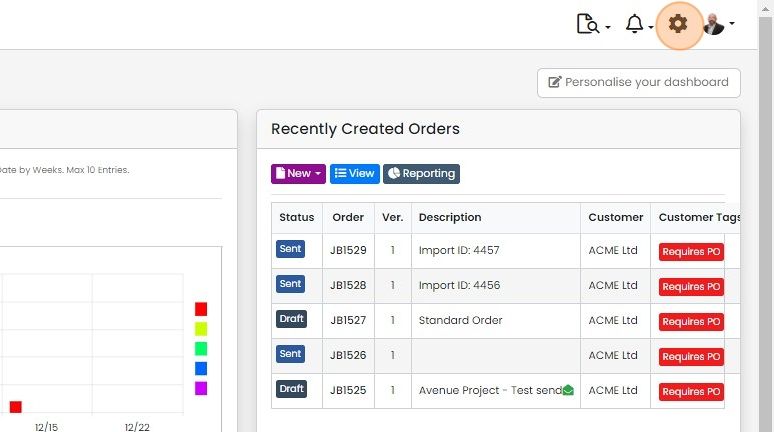
  1. Click on the Cog

    Zigaflow dashboard with the settings cog icon highlighted in the top-right toolbar, beside the notifications bell
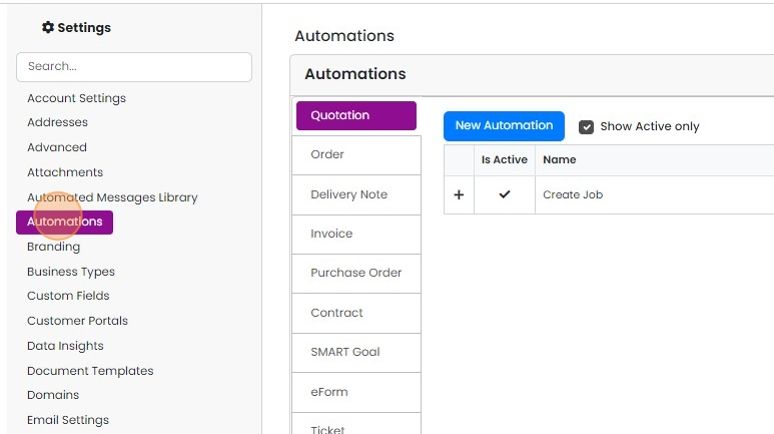
  2. Click "Automations"

    Settings menu with Automations highlighted, opening the Automations page on the Quotation tab with a New Automation button
  3. Click on the module to edit or create automation for
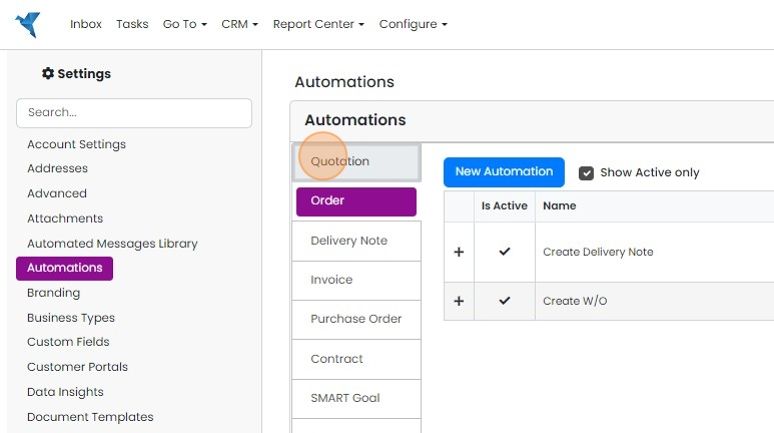
    Settings Automations screen with the Quotation module tab highlighted in the module list beside the automations table
  4. Click here to edit an automation

    Set the trigger options
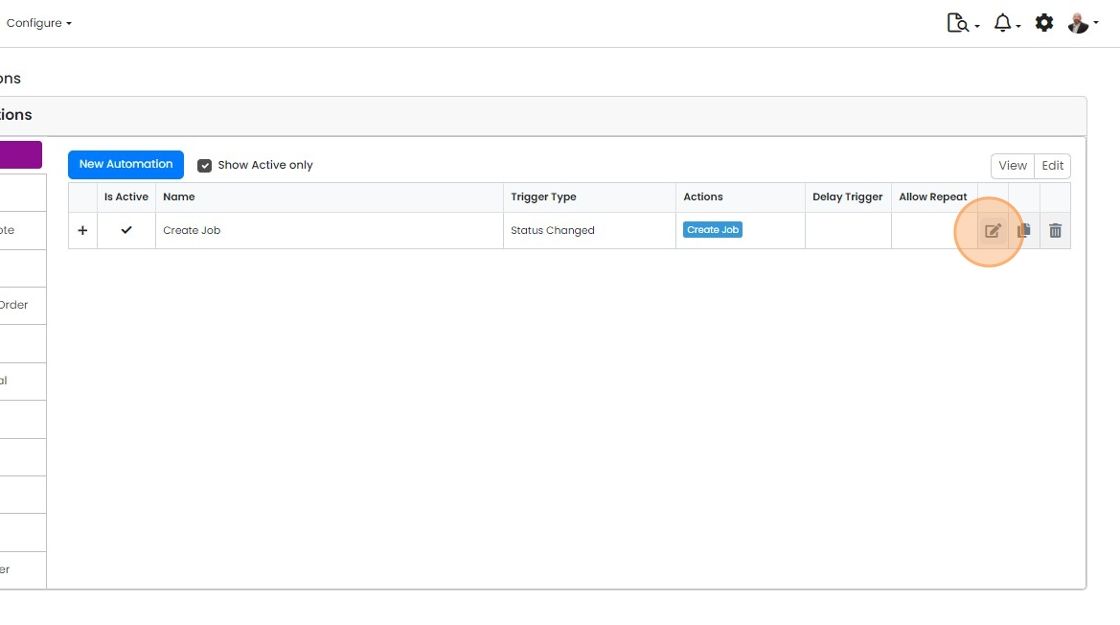
    Automations list showing the Create Job automation row with its edit icon highlighted at the right end of the row
  5. Trigger Type: The automation is triggered either when the status of the quotation, order, etc

    Trigger Type: The automation is triggered either when the status of the quotation, order, etc. is changed, or when a new one is created.

    Automation editor with the Trigger Type dropdown highlighted, set to Status Changed, above conditions, actions and logs
  6. The Delay Trigger means the automation can be queued for a certain period before firing

    Create Job automation settings with the unchecked Delay Trigger checkbox highlighted below the Status Changed trigger type
  7. By default an automation will only run once

    By default an automation will only run once. However, if "Allow Repeat" is ticked, it will run as many times the conditions are met.
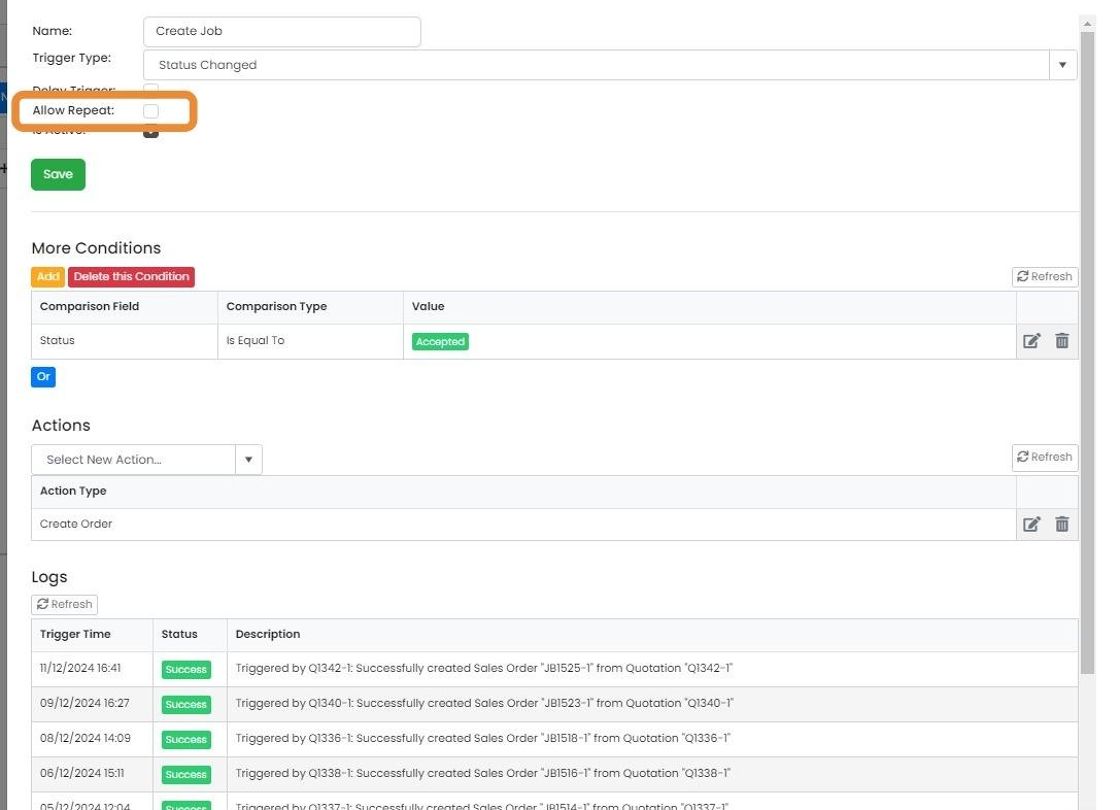
    Automation settings for Create Job with the Allow Repeat checkbox highlighted, unticked, above Is Active and Save
  8. Automations can be saved but not activated using the "Active" tick box

    Add conditions and actions
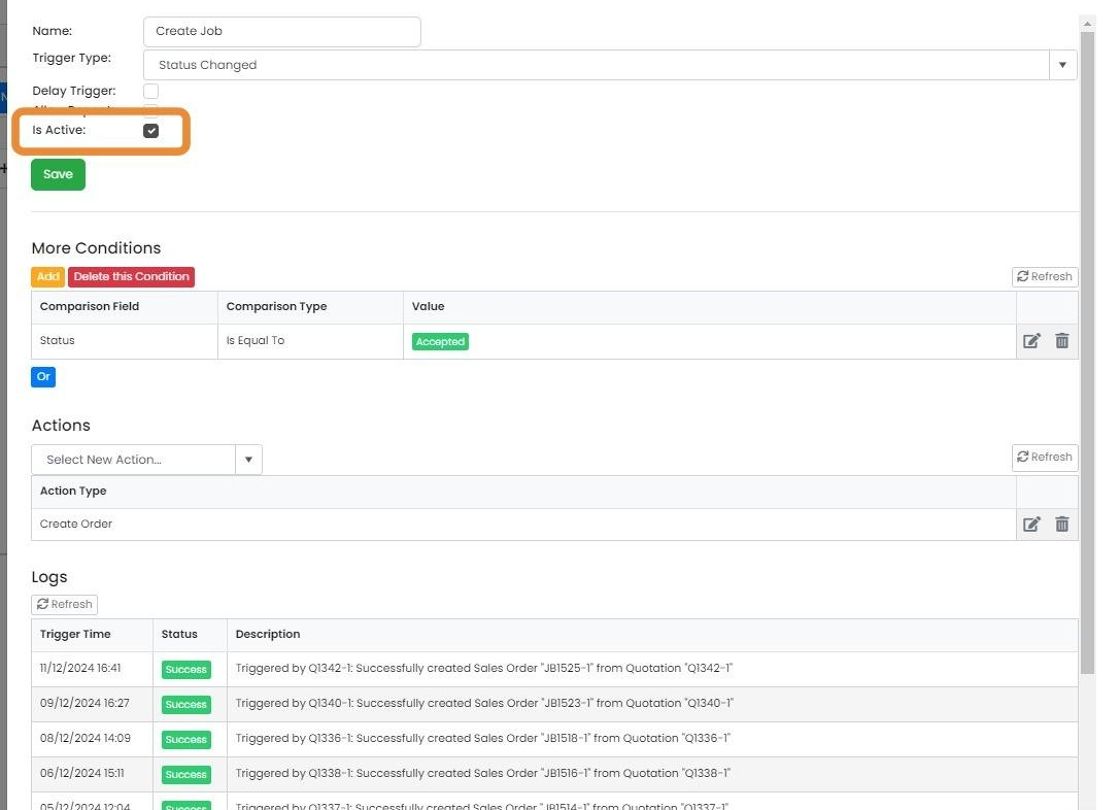
    Automation settings for Create Job with the Is Active checkbox highlighted, shown ticked above the Save button
  9. Use the conditions to set when the automation is triggered
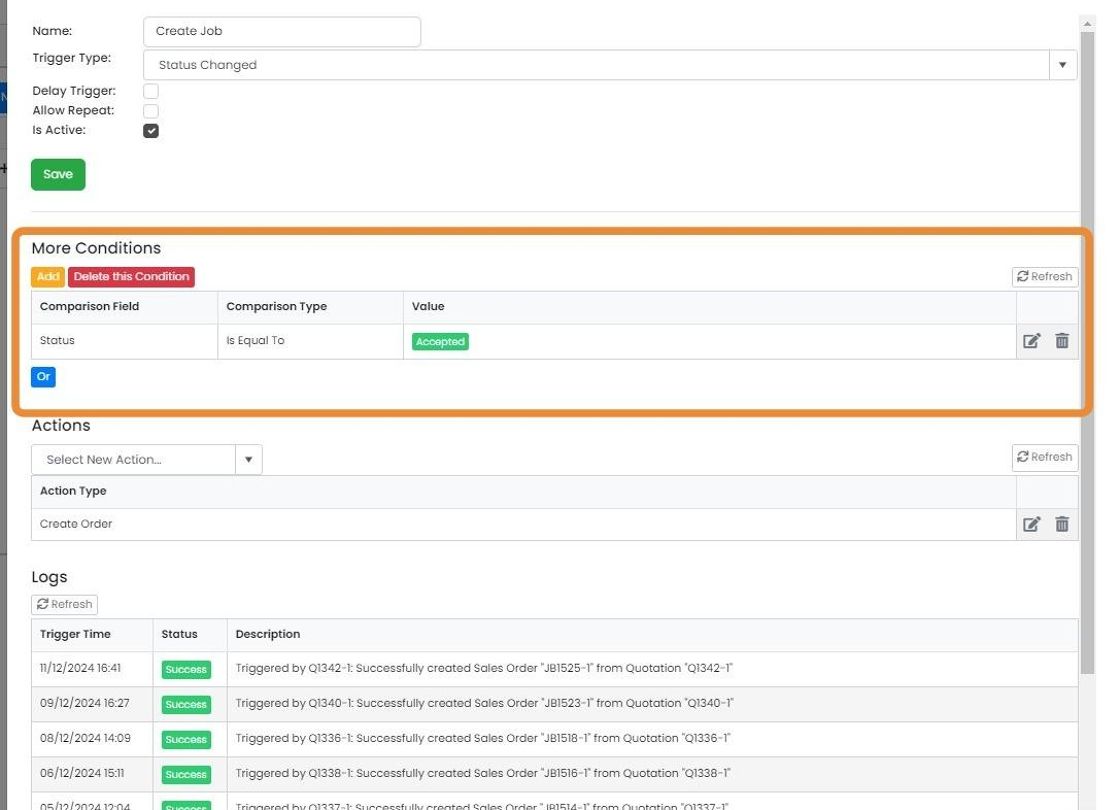
    Create Job automation with the More Conditions panel highlighted, showing a condition where Status Is Equal To Accepted
  10. Many conditions are available - these vary between different modules

    Many conditions are available - these vary between different modules. Test whether a tag is present on the order or the customer (or not) , or the value of the order, etc.

    Multiple conditions are allowed, as well as "Or" conditions.
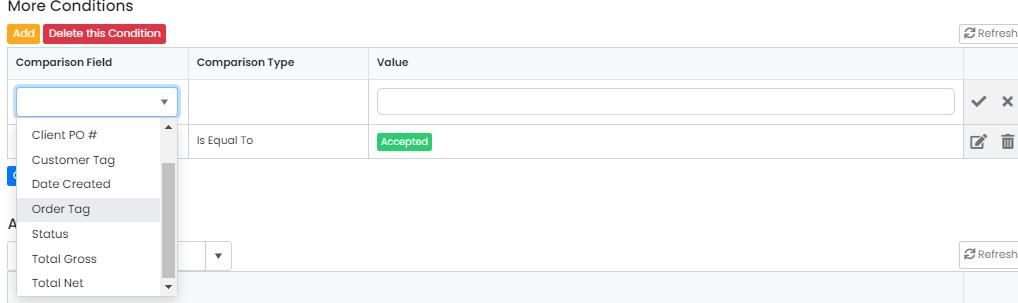
    More Conditions grid with Comparison Field dropdown open listing options like Client PO #, Order Tag, Status and Total Net
  11. Set the action(s) for the automation

    Set the action(s) for the automation. These vary by module but include things like moving related orders, creating other documents, adding or removing a tag, etc.
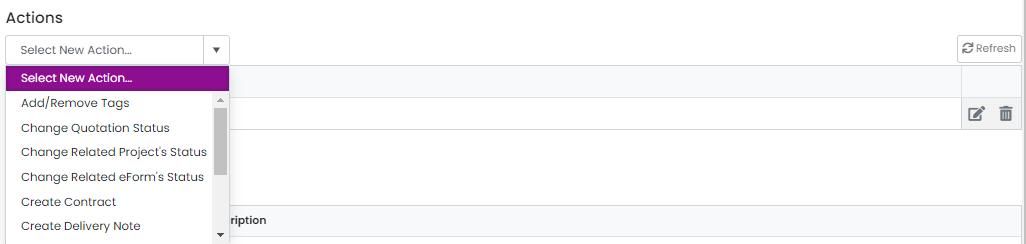
    Actions section with the Select New Action dropdown open, listing Add/Remove Tags, Change Quotation Status and Create Contract
  12. Click on the "Save" button

    View the automation log
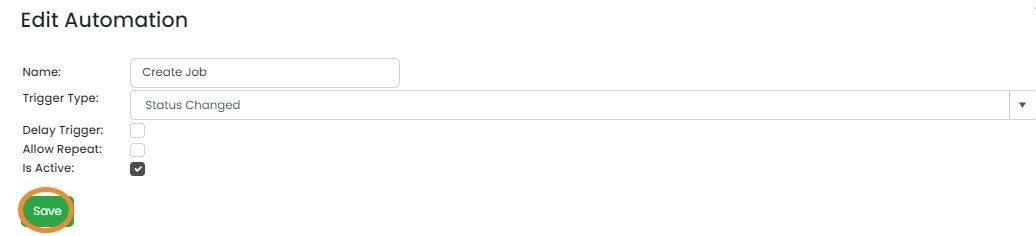
    Edit Automation form for
  13. To view logs across all the automations, click on this icon
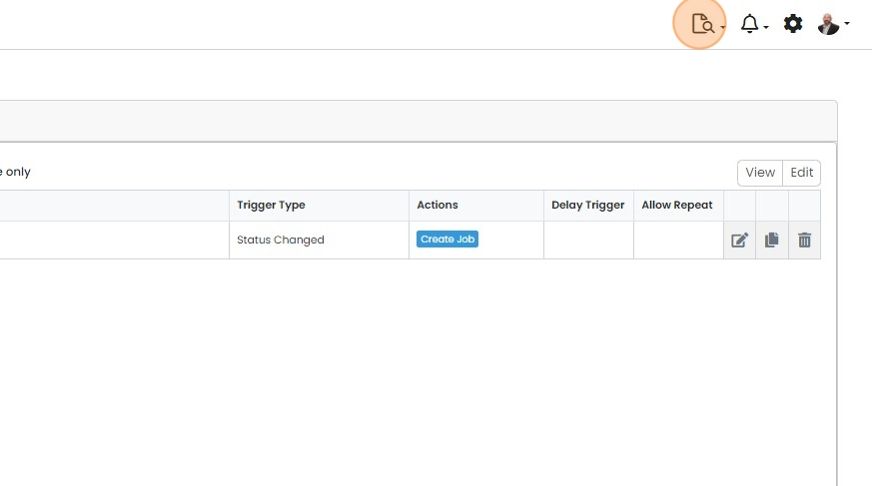
    Automations list with a Status Changed trigger and Create Job action, highlighting the logs icon in the top toolbar
  14. Click "Automation Log"

    Profile menu with the Logs & Exports submenu expanded and Automation Log highlighted in the list of logs
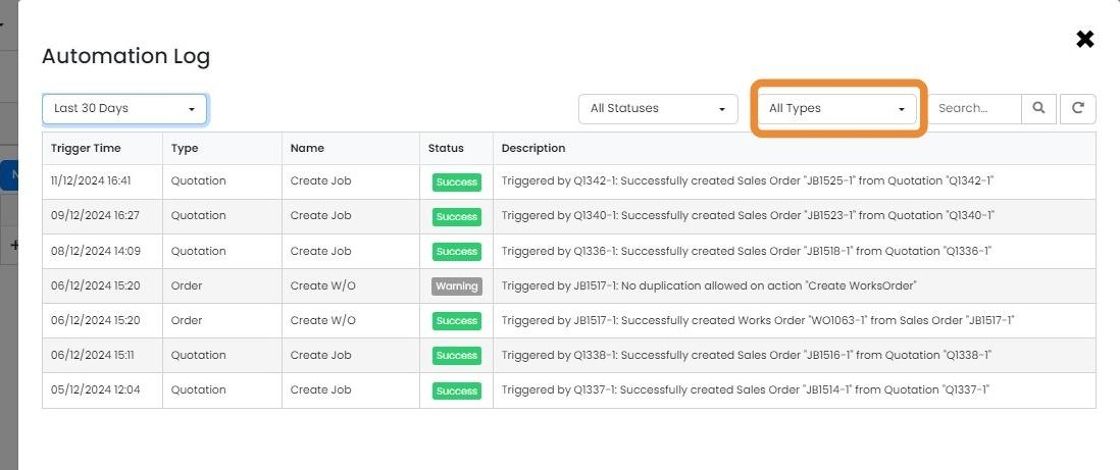
  15. Filter by module and search for specific orders

    Automation Log window with the All Types filter dropdown highlighted, next to the search box, for filtering entries by module

Automations are powerful tools within Zigaflow that allow for actions such as moving the status of a quotation, job, etc., when another one is changed, exporting to an external system or changing a tag.

Below explains how they are configured.

Open the automation settings

Frequently asked questions

Next step

Create an automation to create a job / sales order automatically when a quotation is accepIn Zigaflow, click the cog icon, then Automations, then Quotation, then New Automation. Name the rule, set the trigger to Status Changed, add a delay, set the condition to Accepted, then add a Create Job action with a status such as Draft. Save and close.

Was this helpful?

See Zigaflow on your own workflow

Book a demo and we will walk through quoting, jobs and purchasing the way your team runs them.

Or see how Zigaflow would fit your business, free