Get set up

Bulk importing images onto items

In Zigaflow

The short answer

Bulk import images onto items in Zigaflow by clicking the Cog, then Import Center, Items, and Images, and dragging the image files in. Images can match the item name exactly, match the first characters of item names, or use filenames entered on each item. A banner then shows successes and failures.

Steps

  1. Populate the filename(s) to import on each item

    Populate the filename(s) to import on each item. For multiple files, separate with a comma. In this example, the attachment to add to this item is "Chair-001 - Common.png" (the file extension is ignored).

    If you are importing to more than a couple of items, we recommend exporting the items to Excel, populating this field, and then importing using the Flexi-Import -> Items.
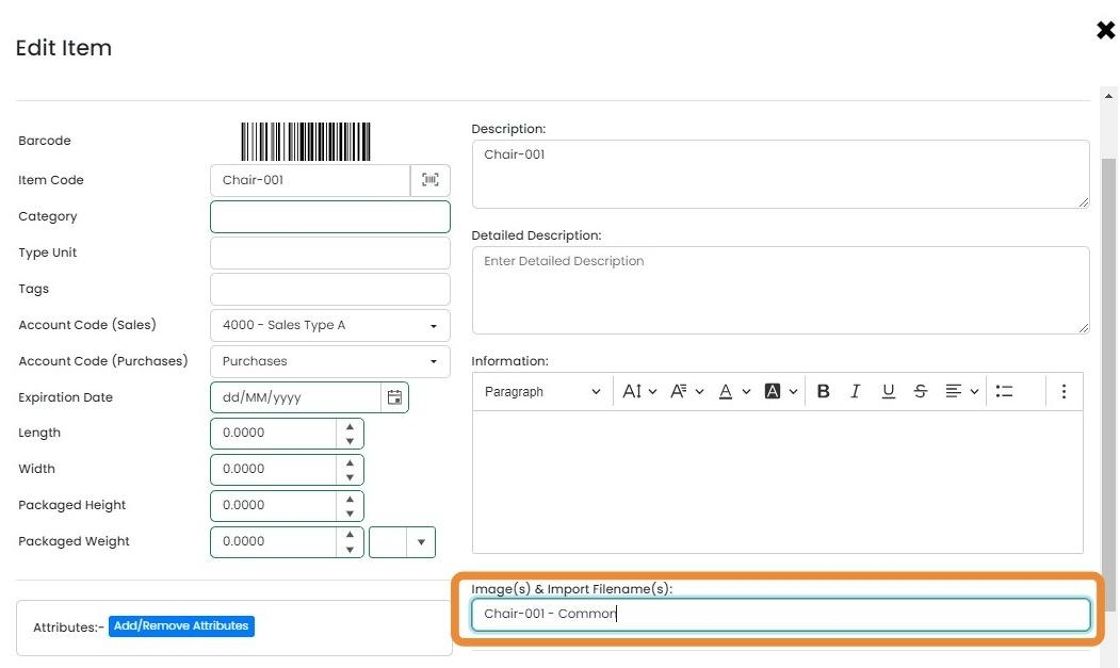
    Edit Item window with the Image(s) & Import Filename(s) field highlighted, filled with
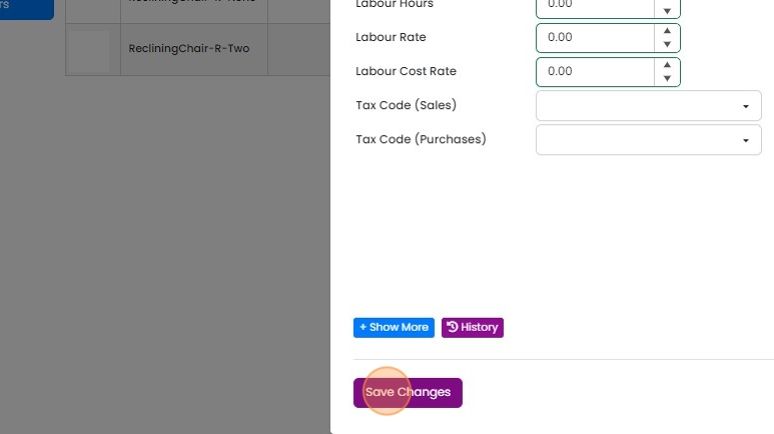
  2. Click "Save Changes"

    Item edit panel showing Labour Rate, Tax Code fields, with the Save Changes button highlighted at the bottom
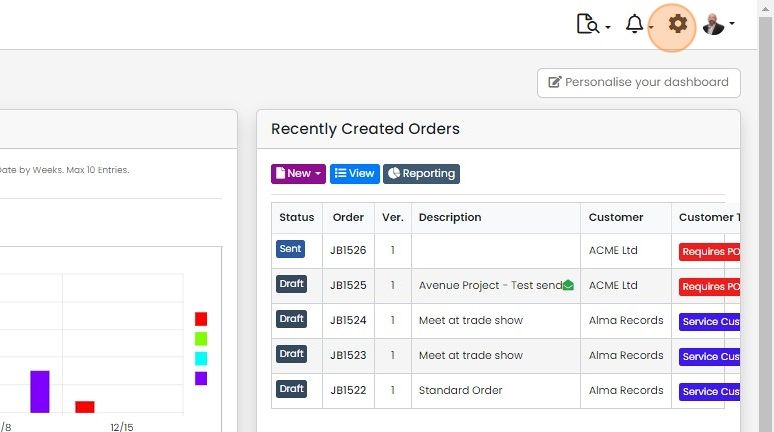
  3. Click the Cog

    Zigaflow dashboard with the settings cog icon highlighted in the top-right toolbar, next to the notifications bell
  4. Click "Import Center"

    Settings sidebar with Import Center highlighted, next to a list of import types including Contacts, Suppliers and Invoices
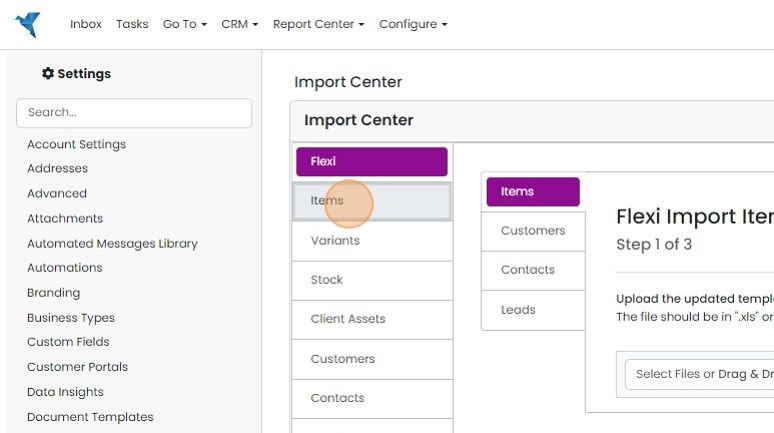
  5. Click "Items"

    Import Center in Settings with the Items option highlighted in the left menu below Flexi, opening the Flexi Import Items step 1 of 3
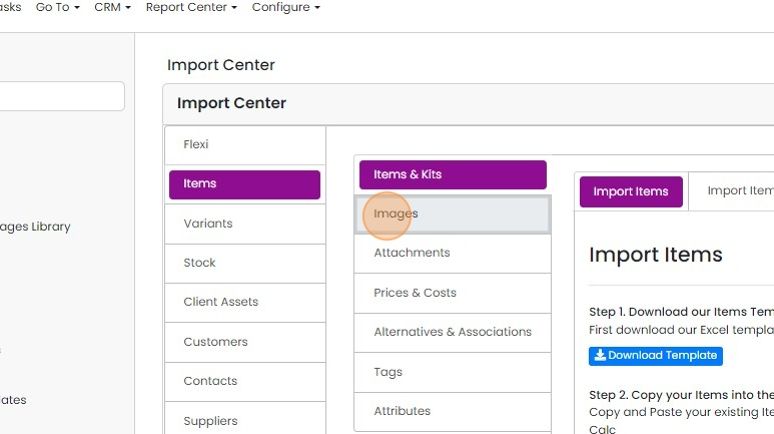
  6. Click "Images"

    Import Center with Items selected in the left menu and the Images option highlighted below Items & Kits
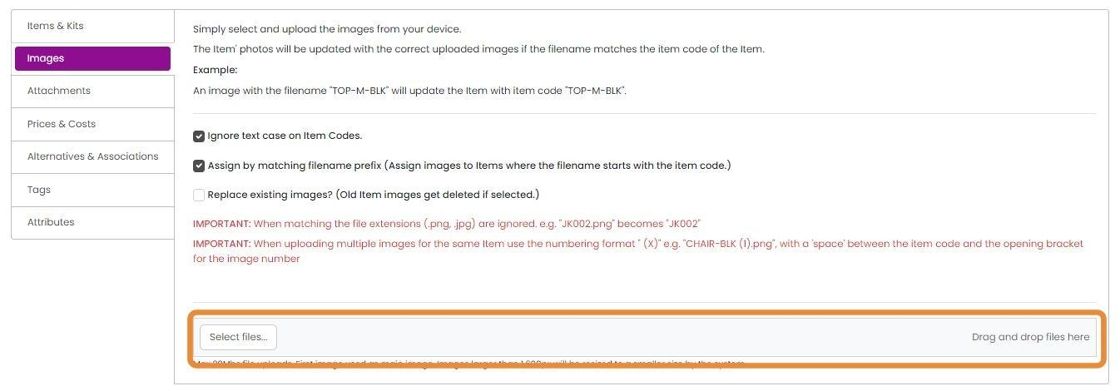
  7. Drag and drop the image files here

    Images tab of item import with the Select files button and drag and drop files area highlighted for uploading images
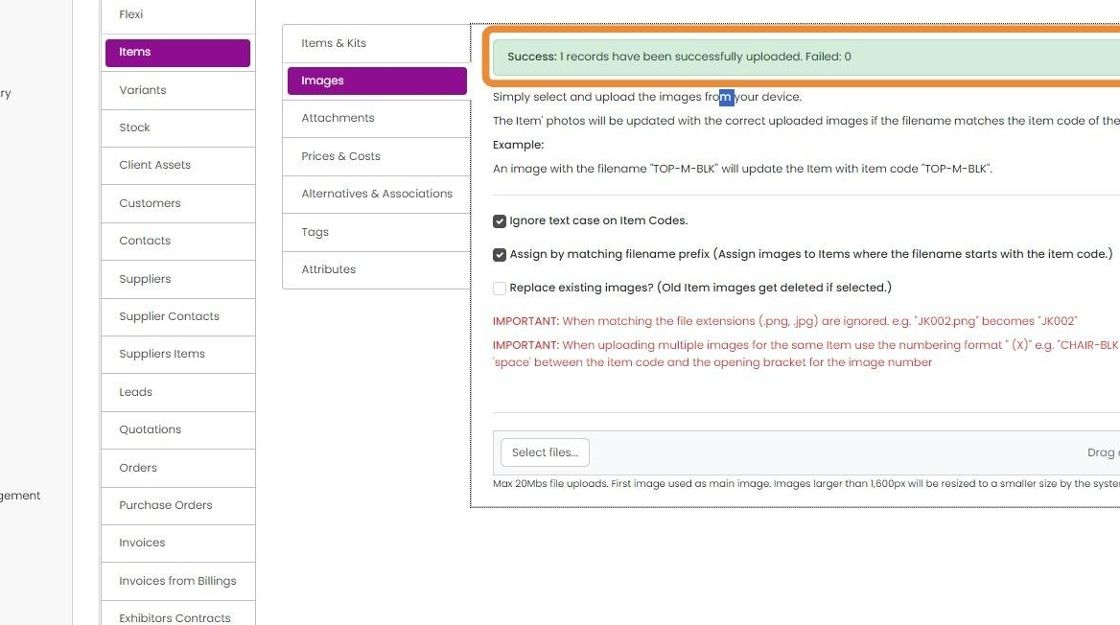
  8. See the banner for success and failures

    Items Images import page with the highlighted success banner reading 1 record uploaded successfully, Failed: 0

There are three ways to import images in bulk:

-Making sure that the filename exactly matches the name of the item

-Specifying the filename(s) to be imported on each item

-Importing a file that has a name that matches the first characters of some items

Using the Exact Filename

1. Click the Cog

Zigaflow dashboard top toolbar with the cog (settings) icon highlighted, next to the notifications bell and profile picture

2. Click "Import Center"

Settings menu with Import Center highlighted below Financial Settings, above Integrations, beside the integrations list

3. Click "Items"

Import Center in Settings with the Items option highlighted in the left menu, below the selected Flexi tab

4. Click "Images"

Import Center with Items selected in the left menu and the Images option highlighted below Items & Kits

5. Drag and drop the image files here

Images tab of the item import screen with the Select files button and Drag and drop files here area highlighted

6. See the banner for success and failures

Images import tab with green success banner highlighted, showing 1 record uploaded successfully and 0 failed

Matching Against the Items' First Characters

1. Click the Cog

Zigaflow dashboard with the settings cog icon highlighted in the top-right toolbar, next to the notifications bell

2. Click "Import Center"

Settings sidebar with Import Center highlighted, next to import options such as Suppliers, Leads and Quotations

3. Click "Items"

Import Center in Settings with the Items tab highlighted in the left list, showing Images selected in the submenu

4. Click "Images"

Import Center with Items selected in the left menu and the Images tab highlighted in the Items sub-menu

5. Tick this option to use the matching first characters

Import Center Items > Images tab with the

6. After ticking the "Assign..." drag and drop the image files into the bottom area

Images import tab with

7. See the banner for success and failures

Items Images import tab with a success banner highlighted at top reading 1 record uploaded successfully, Failed: 0

Specifying the Filename

Frequently asked questions

Next step

Bulk importing attachments onto itemsBulk import attachments onto items in Zigaflow by matching the filename exactly to the item name, by listing the filenames to import on each item, or by using a file whose name matches the first characters of item names. Start the import from the Cog, then Items, then Attachments, and drag the files in.

Was this helpful?

See Zigaflow on your own workflow

Book a demo and we will walk through quoting, jobs and purchasing the way your team runs them.

Or see how Zigaflow would fit your business, free