Get set up
Create an automation to mention when a task is assigned
The short answer
In Zigaflow, open Settings, go to Automations, choose Tasks and click Add New. Name the automation, make it Active, select New and save. Then click Select New Action, choose Create Mention, set it to the Assigned User, type your content and save. The assigned person gets a mention.
Steps
Click on the settings button

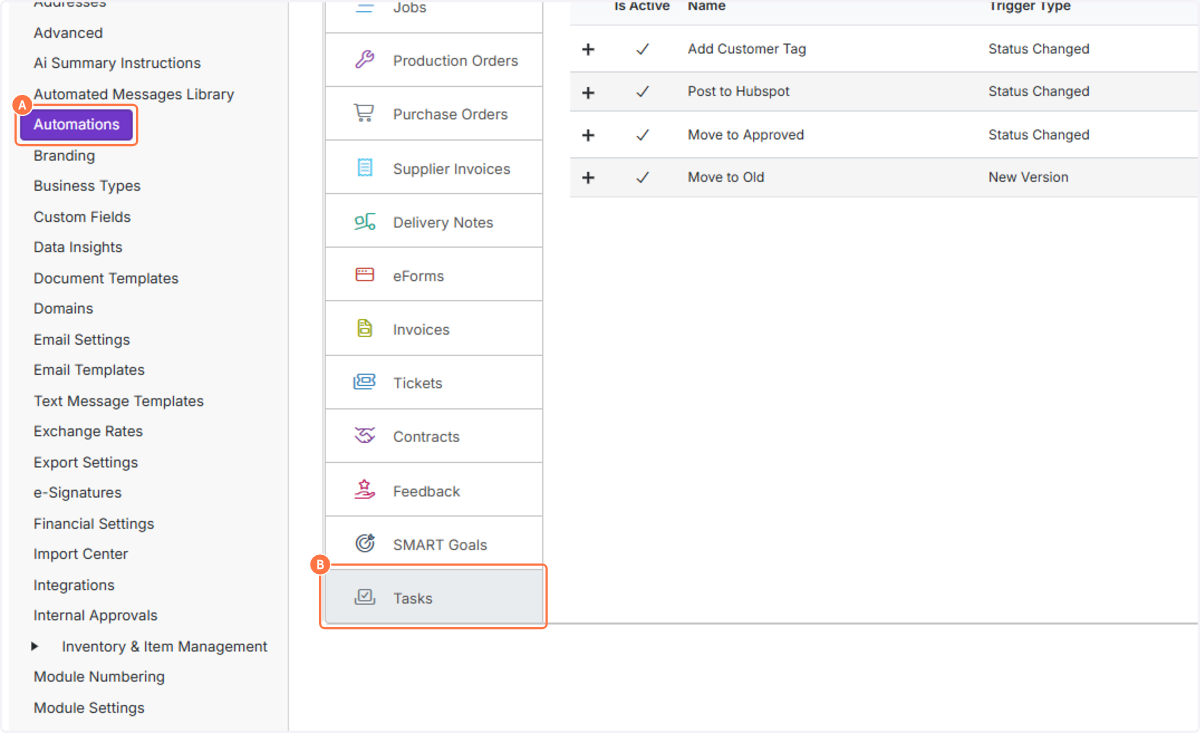
A. Select Automations
B. Click on Tasks
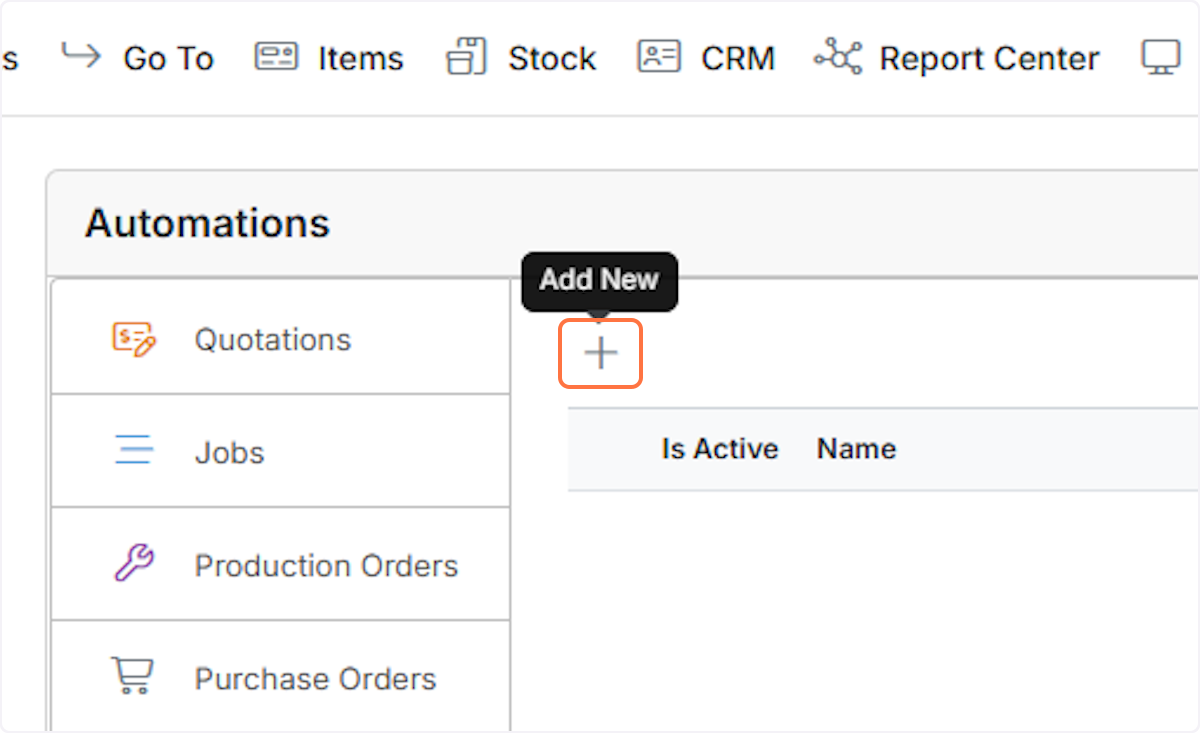
Click on Add New
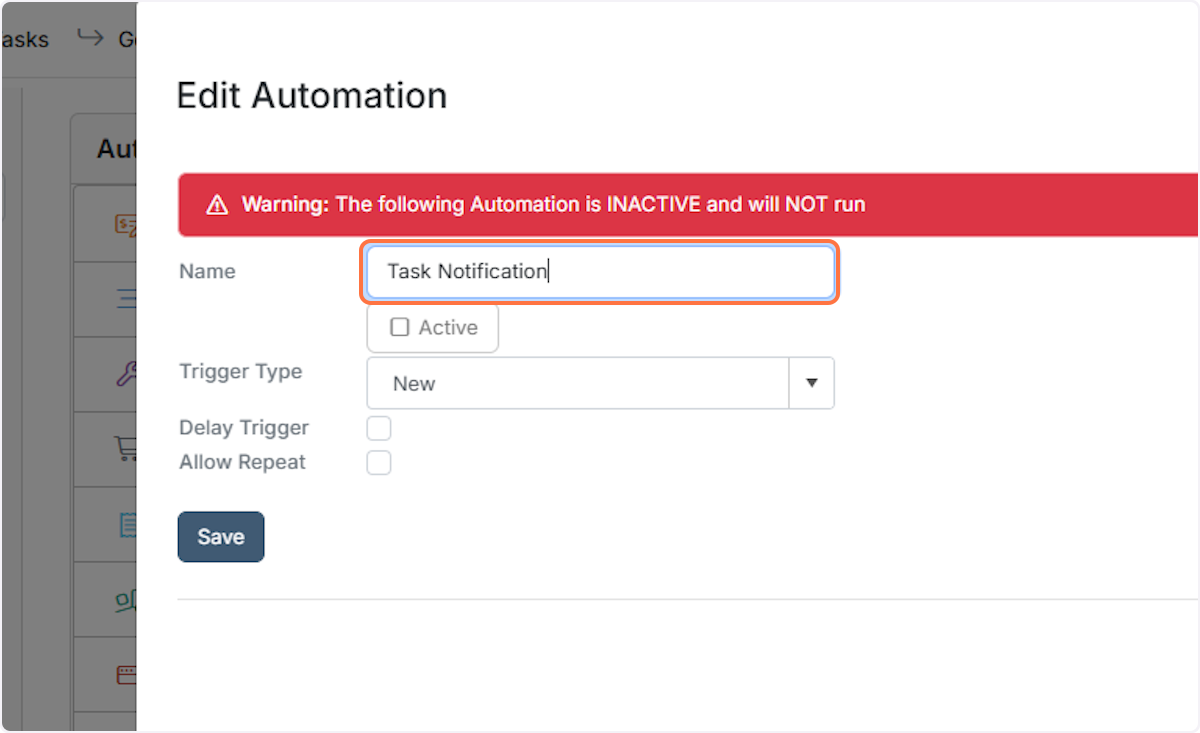
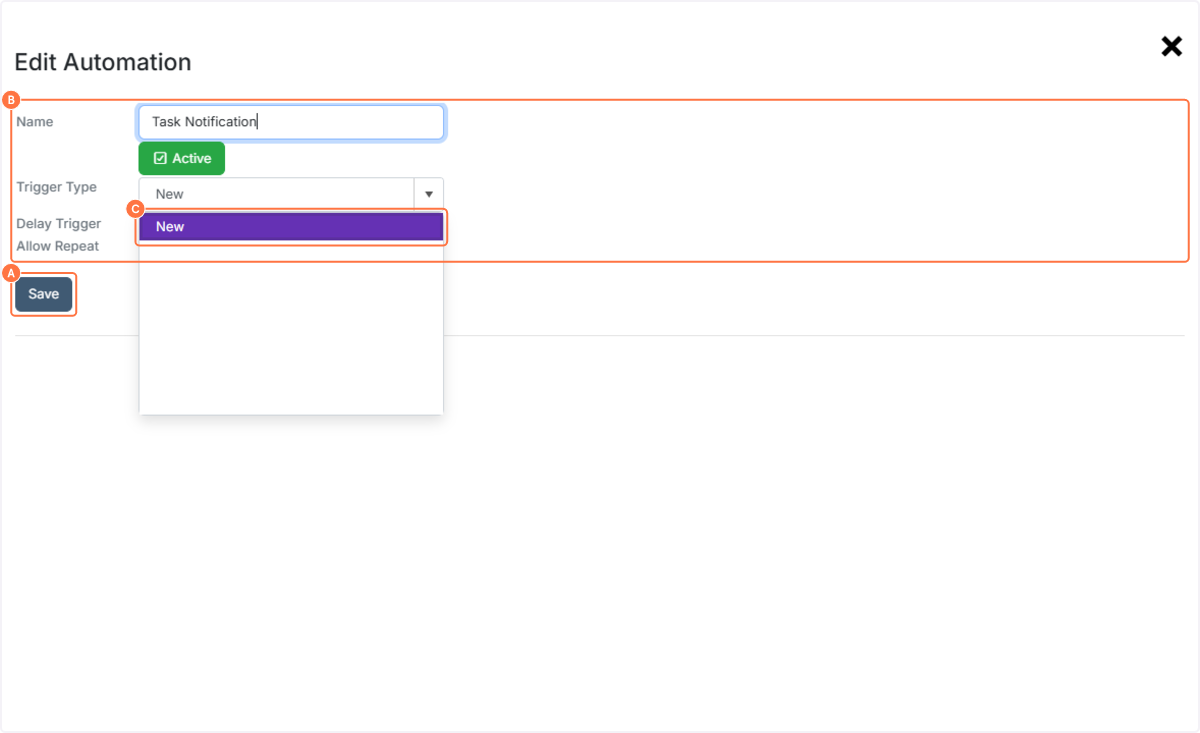
Type Name
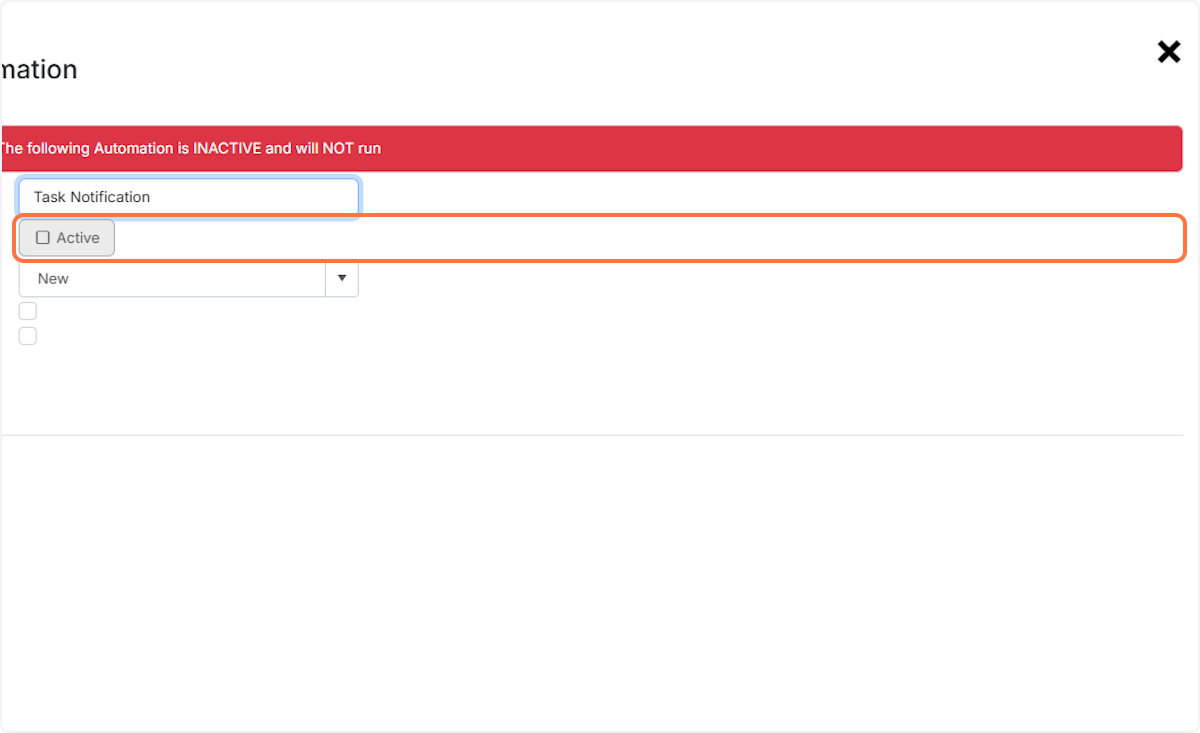
Click on Active
A. Select New
B. Click on Save
To set this to run in one or more specific modules, click on the 'Add' button in conditions, and select...
To set this to run in one or more specific modules, click on the 'Add' button in conditions, and select 'Event Owner Module Type' and the module name.

Click on Select New Action... and select the Create Mention option
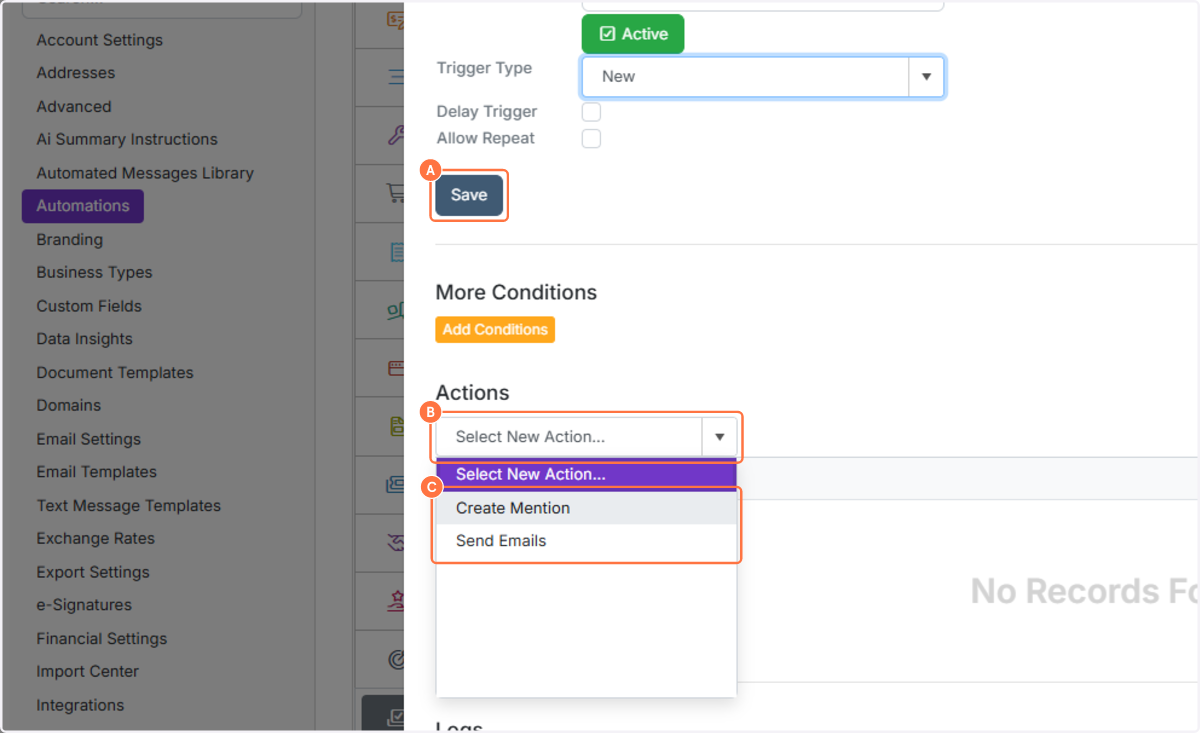
A. Select To Assigned User


Frequently asked questions
Was this helpful?