How do I create my first quote?
The short answer
Open Quotations from the Go To menu, click + New and pick a pre-build. Zigaflow creates a draft quotation straight away. Choose the customer and contact, type a description, then add products on the Items tab with Quick-Add. Double-click a line to set its quantity. Click Preview to see the document your customer will get.
Watch the walkthrough
Transcript (1:22)
Here is how to create your first quote in Zigaflow.
Click Go To in the bar at the top, then Quotations. Your quotations open as a board, with a column for each status.
Click New at the top left and pick a pre-build. Zigaflow creates the quotation straight away, as a draft, with its number at the top.
Click Customer and start typing the name, then click it in the list. The invoice and site addresses fill in from the customer.
Choose the contact the quotation is for, then type a description. It becomes the heading of the quotation. You do not need to save: Zigaflow saves as you go.
Scroll down to the Items tab. Start typing a product code in Quick-Add, then click the product. The line appears with its price, and a quantity of one.
Double-click the line to edit it. Change the quantity, then click the tick at the right of the line. The totals update.
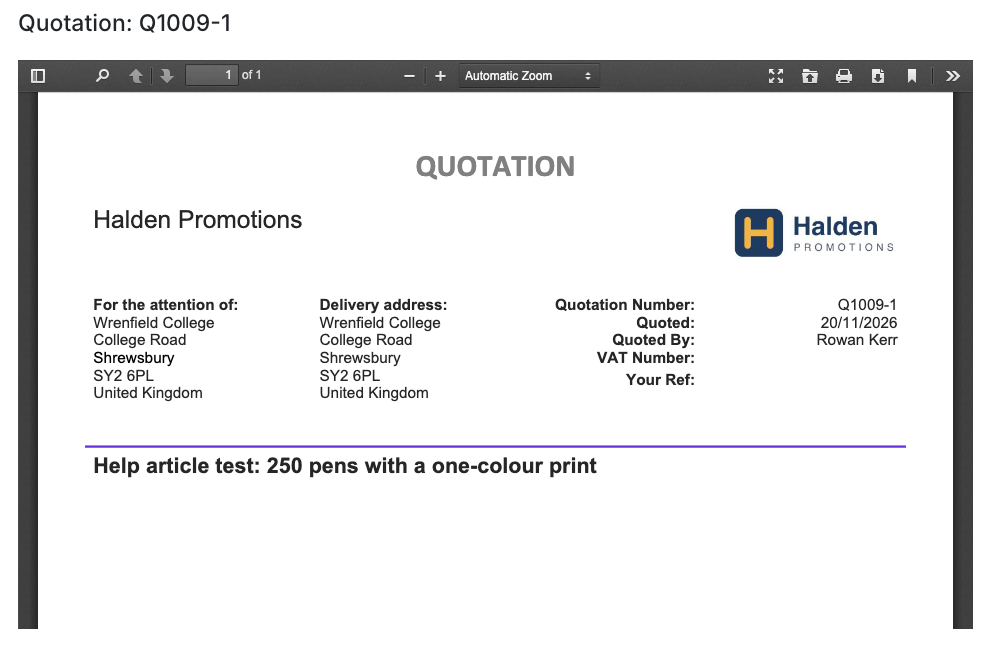
That is your first quote. Click Preview at the top right to see the document your customer will get.
Before you start
Steps
Open Quotations from the Go To menu
Click Go To in the bar at the top, then Quotations. Your quotations open as a board, with a column for each status: Draft, Sent, Accepted, Declined and Old Version.
 Watch this step (0:04)
Click + New and pick a pre-build
Click + New at the top left. A list of your pre-builds opens, with a Search Pre-Builds box above it. Click the one you want.
Zigaflow creates the quotation straight away. It opens as a Draft, with its number at the top.
 Watch this step (0:16)
Choose the customer
Click Customer and start typing the customer's name, then click it in the list. Invoice Addr and Site Addr fill in from the customer's addresses.
If the customer is not in the list yet, + Add New is at the foot of the list.
 Watch this step (0:27)
Choose the contact and describe the quote
Click Contact and choose the person the quotation is for. Type a Description: it prints as the heading of the quotation and goes into the subject of the email.
You do not need to save. A green Saved! message appears as Zigaflow saves your changes.
 Watch this step (0:37)
Add products on the Items tab
Scroll down to the Items tab. Click Quick-Add by Product Code and start typing a code, or use Quick-Add by Product Description beside it. Click the product in the list.
The line appears with its description, unit, tax code and sales price, and a quantity of 1.
 Watch this step (0:50)
Double-click a line to set its quantity
Double-click the line to open it for editing. Change Quantity, and the Sales Price or Description if you need to, then click the tick at the right of the line. The X cancels.
The line's Net Total and the total beside the quotation number update.
 Watch this step (1:03)
Click Preview to see the document
Click Preview at the top right. The quotation opens as the document your customer will get, with the email that will carry it beside it.
Nothing is sent until you click Send.


What is a pre-build?
A pre-build is the starting point for a new quotation. Each account has its own list, so the names you see under + New may not match the ones in the screenshots. The quotation's timeline records which pre-build it was created from.
Why does the email start with "Dear ,"?
The greeting in the email takes its name from the quotation's Contact. If you leave Contact empty, the email in the preview starts "Dear ," with no name. Choose a contact on the quotation and open the preview again.
Where did my new quotation go?
A quotation exists from the moment you pick a pre-build, so it is on the Quotations board even if you added nothing to it. Look in the Draft column.
Frequently asked questions
Was this helpful?