Setting up unit options for products and quotes
The short answer
Open Settings, choose Inventory & Item Management, open Products, and click Units. Click Add New and type a name and quantity. Then open the item, go to Dimensions, pick the unit in the Item Unit field, and save. When you add that item to a quotation, the preview shows a unit breakdown and correct totals.
Steps
Open Settings
Open Settings from the top-right to start adding product units to the system.
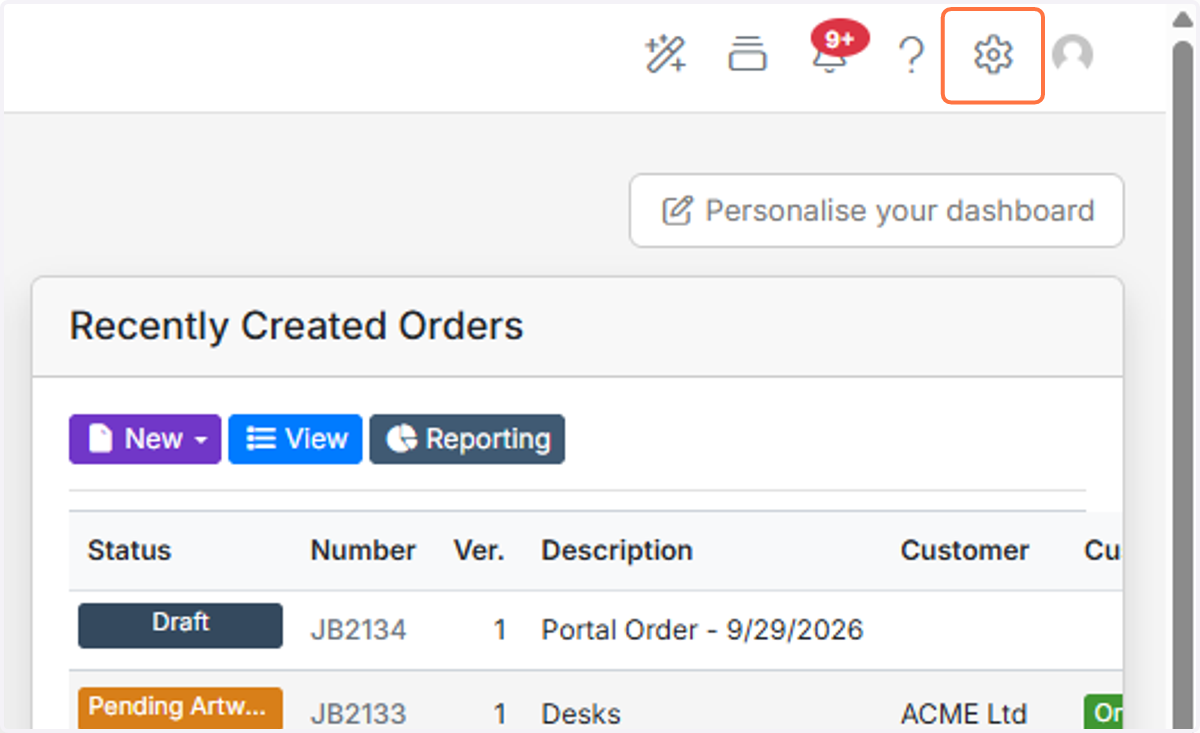
Select an option
Select Inventory & Item Management to access product configuration options.
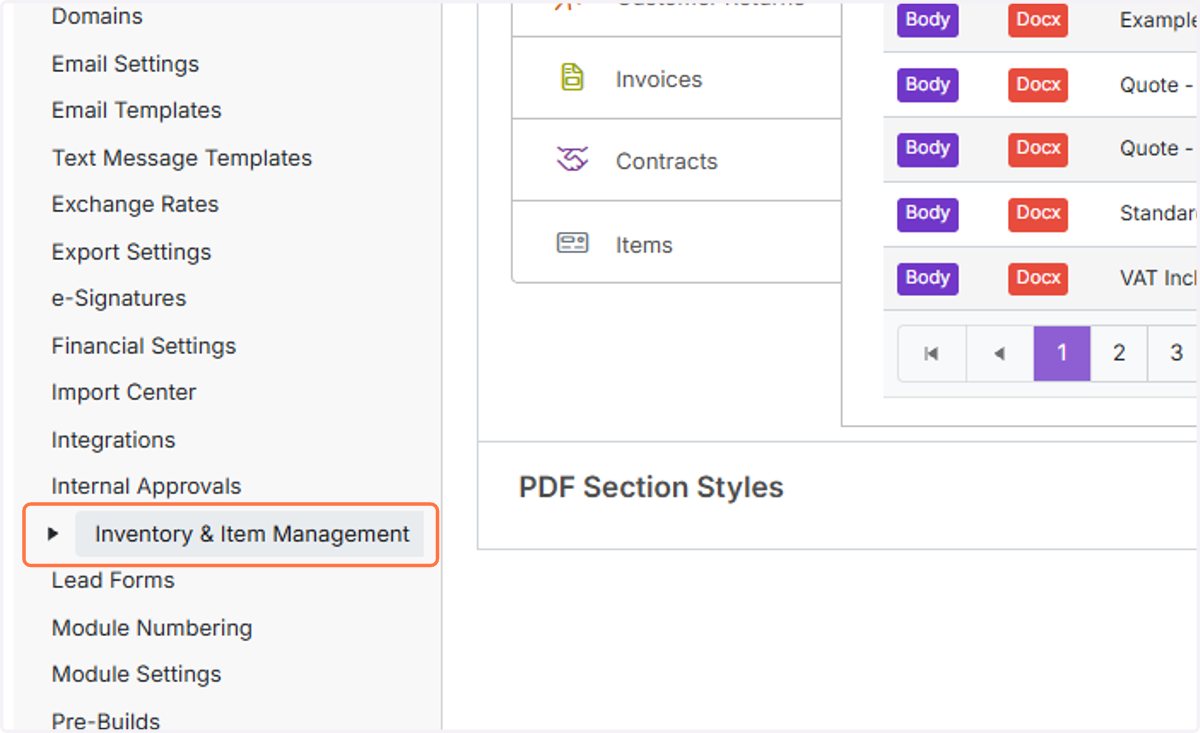
Select an option
Open Products to manage unit options used on items and quotations.
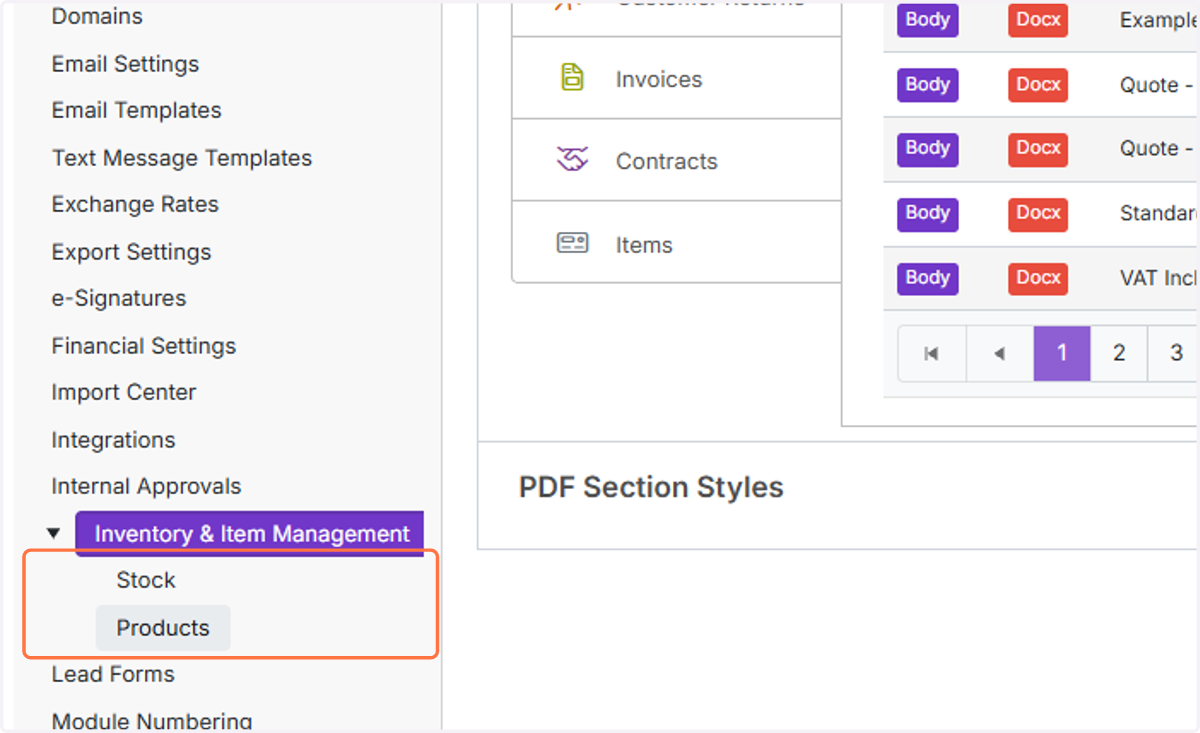
A. Click on Units


Benefits
- Quote more accurately - Select the correct unit or measurement when adding products to a quote.
- Save time - Set up Unit Options once and reuse them across multiple products and quotes.
- Improve clarity - Clearly show customers how products are being supplied or priced.
- Reduce errors - Standardise the units used across your products and quotes.
- Create more professional quotes - Make sure the correct unit information is displayed clearly on your quote documents.
B. Click on Add New
C. Type Name
D. Type Quantity

5.
Click the plus icon to create an additional unit entry in the Units list.

6. Click on Items
Switch to Items to assign the newly created unit to a specific product.

7. Click on Dimensions
Open Dimensions on the item to find the Item Unit field.

8. A. Click on Item Unit
B. Click on Box of 10

9. Click on Save
Save the item after assigning the unit.

10. A. Click on Go To
B. Click on Quotations

11. Click on Add Items from your Items list
Click plus Item to add an item line to the quotation.

12. Type in text field
Search for the coffee item to add it to the quote.

13. Click on Add
Add the selected coffee item to the quotation items list.

14. Click on ×
Close the item picker to return to the quote after adding the item.

15. Type Quantity
Enter the quantity (e.g., 10) to sell multiple boxes of the item.

16. Click on
Confirm the updated line quantity so pricing reflects the unit and count.

17. Click on Preview
Preview the quote.

18. You will now see the product is setup with a Unit breakdown and the correct totals.

Learn more: quotes in Zigaflow
Frequently asked questions
Next step
Every planWas this helpful?